Riot Repair Tool (RRT) is Riot Games' free support utility, formerly called Hextech Repair Tool, that gathers log files for Riot games so Player Support can diagnose your problem.
This guide covers where to download it, how to run it for League of Legends and VALORANT, where the logs end up, and what to do when it gets stuck or does not help.
What is Riot Repair Tool?
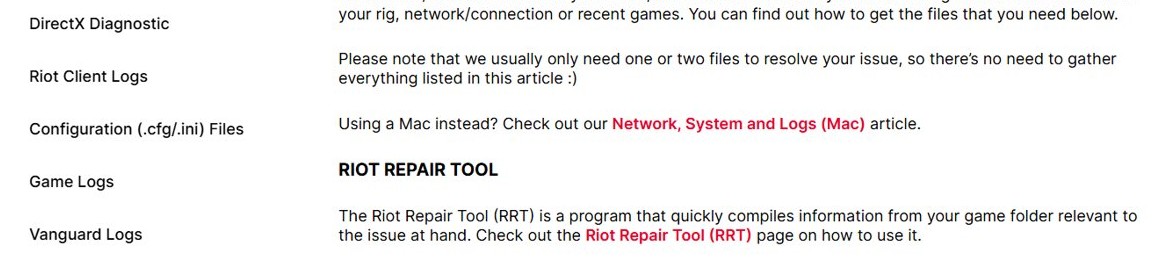
Riot describes RRT as the quickest way to gather logs for League of Legends, Teamfight Tactics, VALORANT, Legends of Runeterra PC and 2XKO. It compiles information from your game folder into one .zip file you attach to a support ticket.
For League of Legends, Riot also notes that the tool can re-patch and reinstall the game automatically.
Use Riot Repair Tool when Riot Player Support asks for logs, or before you open a ticket about crashes, launch failures or connection problems in a Riot game. Riot says logs attached to the ticket let its agents find and fix the problem faster, and RRT collects them in one step instead of digging through several folders.
Is Hextech Repair Tool the same as Riot Repair Tool?
| Question | Answer |
|---|---|
| Old name | Hextech Repair Tool (HRT) |
| Current name | Riot Repair Tool (RRT) |
| Supported games | League of Legends, Teamfight Tactics, VALORANT, Legends of Runeterra PC, 2XKO |
| Platforms | Windows and Mac; the 2XKO option currently works on Windows only |
| Main job | Gathers log files into a .zip for a Riot support ticket |
| Extra job for League | Re-patches and reinstalls League of Legends |
| Cost | Free, from Riot Games Support |
How to download the Hextech Repair Tool (official link)
Download the tool only from Riot's support site. The Windows and Mac buttons on that page point to Riot's own player-support download server.
- Open the Gathering Logs – Riot Repair Tool (RRT) article at support.riotgames.com.
- Select DOWNLOAD FOR WINDOWS or DOWNLOAD FOR MAC.
- Save the file. The Windows download is named Riot Repair Tool.exe and the Mac download Riot Repair Tool.dmg.
- On Windows, run the installer and finish the setup.
- On Mac, open the .dmg file and move the app to Applications.
How to use the Hextech Repair Tool
- Close the game you are troubleshooting.
- On Windows, right-click Riot Repair Tool and select Run as administrator. Riot asks Windows users to run it as admin every time.
- On Mac, open Riot Repair Tool from Applications.
- Choose the game you want to gather logs for.
- Let the tool finish. It creates a .zip folder with the logs.
- Attach that .zip folder to your new or existing ticket at Riot Games Support.
- League of Legends only: use the tool's re-patch or reinstall option if Player Support asks you to repair the game files.
How to use the Hextech Repair Tool for VALORANT
VALORANT depends on the Riot Vanguard anti-cheat, and Riot notes that RRT also collects Vanguard logs. That makes one RRT run enough for most VALORANT tickets.
- Quit VALORANT and the Riot Client.
- Right-click Riot Repair Tool and select Run as administrator.
- Select VALORANT as the game.
- Wait for the tool to create the .zip folder.
- Sign in at Riot Games Support, open a VALORANT ticket and attach the .zip.
If the logs point at Vanguard, reinstall Riot Vanguard before you launch VALORANT again.
Riot Games log file locations on Windows
These are the folders Riot lists for gathering logs by hand when the tool cannot run. Paste a path into the File Explorer address bar or Windows search.
| Logs | Folder |
|---|---|
| Riot Client | %localappdata%\Riot Games\Riot Client (open the Logs folder) |
| VALORANT game logs | %localappdata%\VALORANT\saved\Logs |
| Legends of Runeterra | %localappdata%\Riot Games\Legends of Runeterra\Logs |
| 2XKO | %localappdata%\2XKO\Saved\Logs or %localappdata%\Lion\Saved\Logs |
| Riot Vanguard | C:\Program Files\Riot Vanguard (open the Logs folder) |
| League r3d logs and NetLogs | C:\Riot Games\League of Legends\Logs\GameLogs (the time-stamped folder for the affected game) |
| League Client logs | C:\Riot Games\League of Legends\Logs\LeagueClient Logs |

How to gather and use log files
Riot says agents usually need only one or two files, so send the folder that matches the problem rather than everything.
- Open the folder for the game or component from the table above.
- Copy the Logs folder to your desktop.
- Right-click the copy, select Send to, then Compressed (zipped) folder.
- Sign in at support.riotgames.com and open a new ticket or reply to your existing one.
- Attach the .zip folder and describe when the problem happens.
- On a Mac, follow Riot's Network, System and Logs (Mac) article for the Mac folder locations.
How to check Riot Repair Tool collected your logs
- Find the .zip folder the tool created when it finished.
- Open the .zip file and confirm it contains log files with recent dates.
- Check that the logs are for the game you selected, such as VALORANT or League of Legends.
- Attach the .zip to the ticket and confirm it appears in the ticket's attachment list before you submit.
Hextech Repair Tool stuck on gathering logs: What to do
Riot Repair Tool stuck on gathering logs
Usually a permissions problem; Riot asks Windows users to run the tool as administrator.
- Close the tool, the game and the Riot Client.
- Right-click Riot Repair Tool and select Run as administrator.
- Select the game again and give the scan several minutes.
- If it still does not finish, restart the PC and run the tool once more.
Riot Repair Tool will not open or finish at all
The installed copy is outdated or damaged.
- Uninstall the old Hextech Repair Tool or Riot Repair Tool.
- Download a fresh copy from Riot's Gathering Logs – Riot Repair Tool (RRT) article.
- Run it as administrator.
- If it still fails, gather the logs by hand from the folders in the table above and zip them.

Is the Hextech Repair Tool safe?
Yes, when you download it from Riot Games Support. The download links on Riot's own article point to Riot's player-support server. Riot publishes and recommends the tool for its own support tickets. The risk comes from copies hosted on third-party download sites, which you cannot verify, so avoid them.
The tool reads your game folders and system details to build its log file. Review the .zip contents before you attach it if you want to see what you are sending.
What to do if the Hextech Repair Tool still doesn’t fix the problem
These are the first fixes Riot lists for League of Legends before you rely on a support ticket.
League of Legends keeps crashing
Outdated drivers, an outdated operating system or a PC below the system requirements.
- Check League's system requirements against your PC.
- Update drivers for your GPU, CPU chipset, motherboard and network adapter from each maker's support site.
- Install pending Windows or macOS updates.
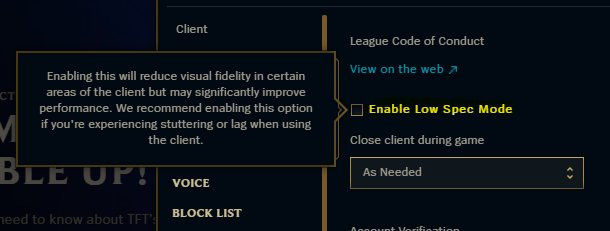
- Open the League Client, select the Settings gear, and check Enable Low Spec Mode on the General tab.
Stuck on a black, loading or lobby screen
Missing permissions, an interfering overlay app or damaged game files.
- Right-click the game shortcut, select Properties, open the Compatibility tab, check Run this program as an administrator, then select Apply and OK.
- Close overlay apps such as Discord, OBS and Steam, or perform a clean boot with
msconfig. - If you also play VALORANT, keep the vgc service enabled during a clean boot.
- Re-patch or reinstall League with Riot Repair Tool, or uninstall it and download League of Legends again.
Lag or disconnects in Riot games
Wi-Fi interference, a VPN or proxy, or an outdated network driver.
- Switch to a wired Ethernet connection.
- Disconnect from any VPN or proxy.
- Open Device Manager, expand Network adapters, right-click your adapter and select Update driver.
Nothing above works
The problem needs Player Support to read the logs.
- Run Riot Repair Tool for the affected game.
- Submit a ticket at Riot Games Support and attach the .zip.
- Reply to the agent with any extra logs they request.
Riot Repair Tool: frequently asked questions
Is Hextech Repair Tool the same as Riot Repair Tool?
Yes. Riot Repair Tool (RRT) is the current name of the tool formerly called Hextech Repair Tool. Riot's support site now lists it only as Riot Repair Tool.
What games does Riot Repair Tool support?
Riot lists League of Legends, Teamfight Tactics, VALORANT, Legends of Runeterra PC and 2XKO. The 2XKO option currently works on Windows only.
Where do I download Riot Repair Tool?
Download it from the Gathering Logs – Riot Repair Tool (RRT) article on support.riotgames.com, which has separate Windows and Mac download buttons. Avoid copies on third-party download sites.
Does Riot Repair Tool work on Mac?
Yes. Riot offers a Mac version as a .dmg download. The 2XKO log option is Windows-only for now, and Riot has a separate article for gathering Mac logs by hand.
Does Riot Repair Tool work for VALORANT?
Yes. Select VALORANT in the tool to gather its logs, and RRT also collects Riot Vanguard logs, which VALORANT support often needs.
How long does Riot Repair Tool take to run?
Riot does not publish a run time. It depends on the game and how many logs it collects; let the tool finish rather than closing it while it works.
What should I do if Riot Repair Tool is stuck on gathering logs?
Close the tool and the game, run Riot Repair Tool as administrator, and try again. If it still hangs, gather the logs by hand from the Riot log folders and attach a zip to your ticket.
What does Riot Repair Tool actually do to my computer?
It reads your game folder and system information and saves the logs into a .zip file. For League of Legends it can also re-patch or reinstall the game files when you choose that option.
Is it safe to use the Disable Firewall option?
Leave your firewall on. Riot's current tool article describes gathering logs, re-patching and reinstalling, not turning off security. Turning off the firewall leaves the PC exposed and is not needed to send logs.
What should I do if Riot Repair Tool still does not fix my issue?
Work through Riot's first fixes: update drivers and Windows, run the game as administrator, close overlay apps and reinstall the game. Then submit a ticket with the RRT .zip attached.