To hard reset an Apple Watch, hold the side button and the Digital Crown together for at least 10 seconds until the Apple logo appears; to wipe it back to factory settings, unpair it in the Apple Watch app on your iPhone.
This guide covers the force restart, both factory reset routes, the charger reset for a forgotten passcode, and what to do when a reset does not fix the watch.
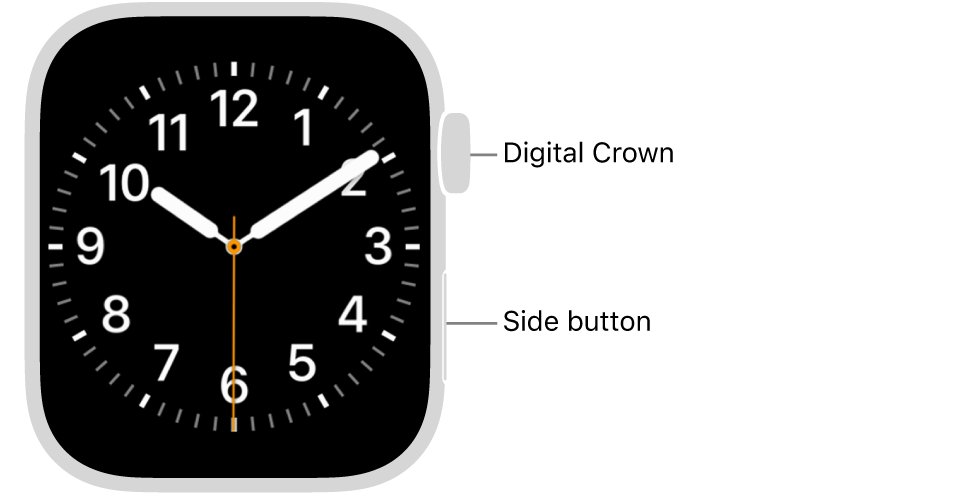
Hard reset Apple Watch with buttons
A force restart is what most people mean by a hard reset. It reboots a frozen watch and erases nothing.
The same two buttons work on every Apple Watch, including Series 3, Series 9, Series 10, SE and Ultra models.
- Take the watch off its charger if the screen is frozen during charging.
- Press and hold the side button and the Digital Crown at the same time.
- Keep holding both for at least 10 seconds.
- Release both buttons when the Apple logo appears.
- Wait for the watch face to load, then enter your passcode.
Apple says to use this only when a normal restart fails. Apple Watch has no reset button or SIM slot, so never push anything into the holes in the case.
Which reset method should you use?
| Your situation | Use this | Why |
|---|---|---|
| Screen is frozen or stuck on the Apple logo | Force restart (side button + Digital Crown) | Reboots the watch and keeps every app, setting and health record |
| Selling, giving away or sending in for service, and you have the iPhone | Method 1: Unpair from the paired iPhone | Erases the watch, backs it up first and removes Activation Lock |
| You want a clean watch but will keep using it with the same iPhone | Method 2: Erase on the watch itself | Wipes content and settings while the pairing stays in place |
| You forgot the passcode or the watch is disabled | Method 3: Reset using the charger | Works from the power screen without the passcode |
| You no longer have the paired iPhone | Method 2 or Method 3, then remove the watch on iCloud.com/find | Both erase the watch, but Activation Lock stays until you remove it |
Why does an Apple Watch need a hard reset?
The two kinds of reset solve different problems, so match the symptom before you erase anything.
| Problem | Reset that fits | Data lost |
|---|---|---|
| Watch face or app frozen, buttons do nothing | Force restart | None |
| Watch will not turn off from the Power Off slider | Force restart | None |
| Passcode forgotten or watch disabled after wrong attempts | Charger reset | Everything on the watch |
| Watch is going to a new owner | Unpair from iPhone | Everything on the watch, after an automatic backup |
| Repeated glitches that a restart and a watchOS update do not fix | Erase all content and settings | Everything on the watch |
If Erase Data is turned on, Apple Watch erases itself after 10 failed passcode attempts.
How to hard reset an Apple Watch: 4 methods
Four routes reset an Apple Watch: the force restart above and three factory reset methods. They differ in what they erase and whether Activation Lock survives.
| Method | Needs | Erases data | Activation Lock afterwards |
|---|---|---|---|
| Force restart | The watch only | No | Unchanged |
| Method 1: Unpair from iPhone | Paired iPhone and Apple Account password | Yes, after a backup to the iPhone | Removed |
| Method 2: Erase all content and settings | Watch passcode | Yes | Stays on |
| Method 3: Charger reset | The watch charger | Yes | Stays on |
Method 1: Unpair and erase using your paired iPhone
Unpairing restores factory settings and removes Activation Lock, so it is the right reset before you sell or give the watch away. Have your Apple Account password ready.
- Keep your Apple Watch and iPhone close together.
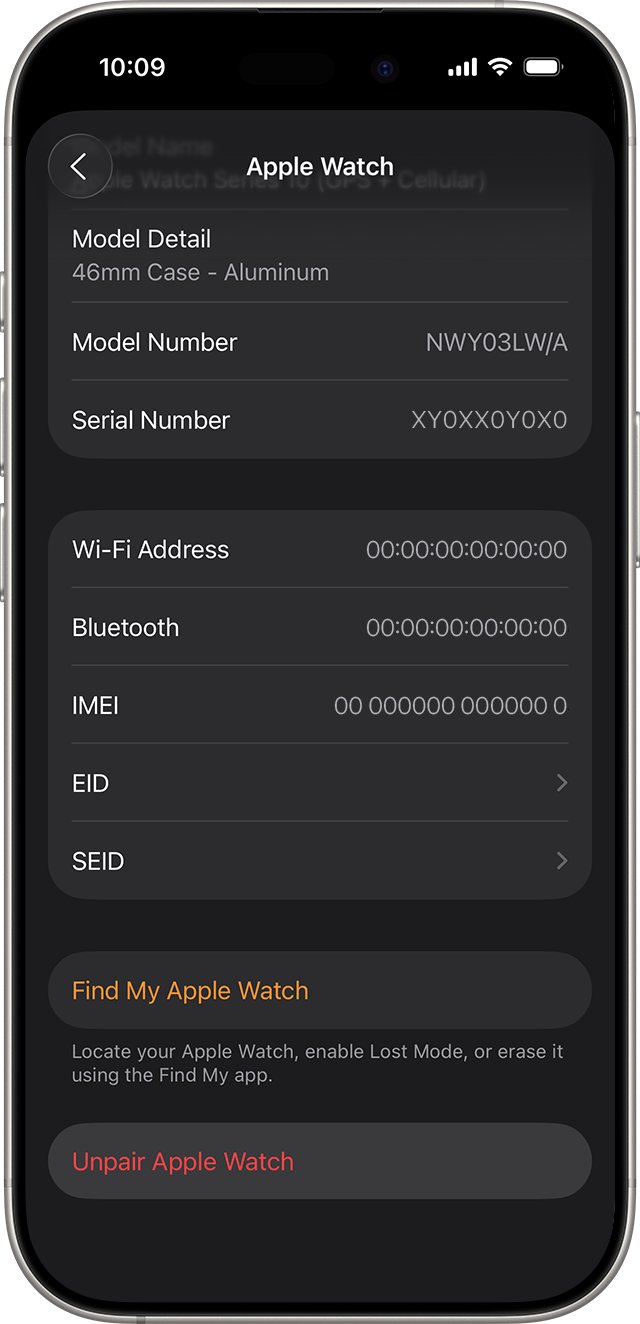
- Open the Apple Watch app on your iPhone.
- Go to the My Watch tab and tap All Watches.
- Tap the info button next to the watch you want to reset.
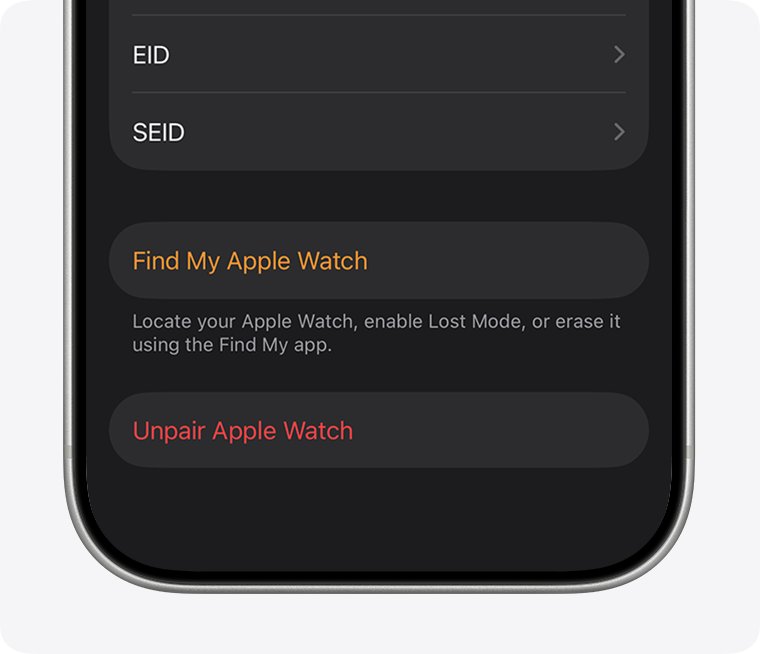
- Tap Unpair Apple Watch, then tap Unpair [your Apple Watch name].
- On a cellular watch, choose to keep the plan if you will pair again, or remove it if the watch is leaving you.
- Type your Apple Account password to turn off Activation Lock, then tap Unpair.
The iPhone backs up the watch before it erases it. Removing a plan from the watch does not always cancel it, so contact your carrier to end the subscription; a cellular watch line carries its own monthly carrier fee.
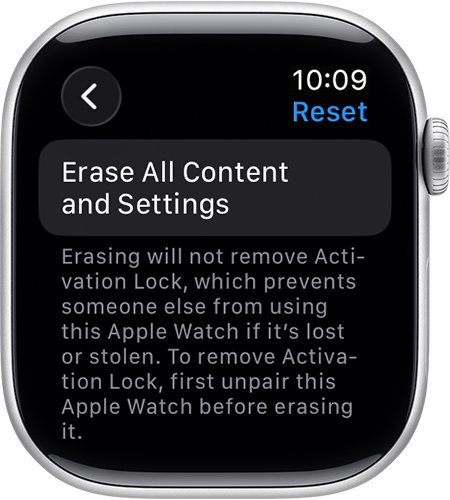
Method 2: Erase all content and settings on the watch itself
This wipes the watch without the iPhone. It restores factory settings, but Activation Lock stays on.
- Open the Settings app on your Apple Watch.
- Tap General, then tap Reset.
- Tap Erase All Content and Settings.
- Type your passcode if asked.
- On a cellular watch, choose to keep or remove the cellular plan.
- Tap Erase All to confirm.
With the iPhone nearby, the same wipe is in the Apple Watch app: tap My Watch, General, Reset, then Erase Apple Watch Content and Settings.
Method 3: Reset without the passcode using the charger
Use this when the watch is disabled or you cannot get past the passcode screen. The watch must sit on its charger the whole time.
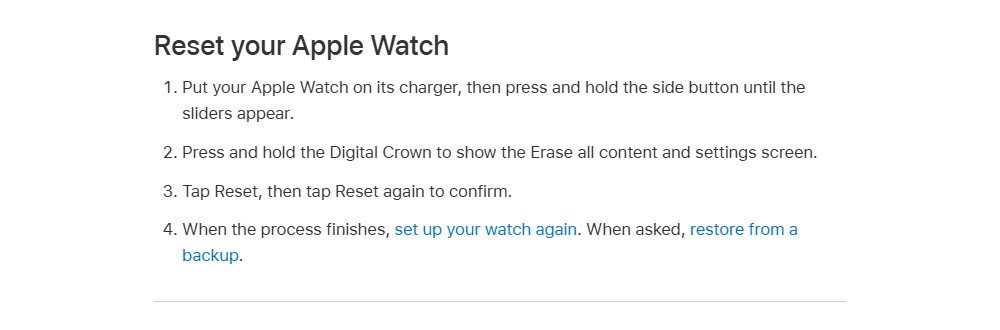
- Put your Apple Watch on its charger.
- Press and hold the side button until the sliders appear.
- Press and hold the Digital Crown until the Erase all content and settings screen shows.
- Tap Reset, then tap Reset again to confirm.
- Wait for the reset to finish, then set the watch up again and restore from a backup when asked.
Activation Lock stays on after this reset, so keep the Apple Account and password used on the watch.
Alternative approaches worth trying first
A full erase costs you a setup session. These lighter fixes solve many of the same problems.
| Approach | How to do it | When it helps |
|---|---|---|
| Normal restart | Hold the side button until the sliders appear, tap the power icon, drag Power Off right, then hold the side button until the Apple logo appears | Slow apps, missed notifications, small glitches |
| Restart the paired iPhone | On iPhone: Settings > General > Shut Down, then hold the side or top button to turn it back on | Sync and notification problems that start on the phone side |
| Update watchOS | Apple Watch app > My Watch > General > Software Update, or Settings > General > Software Update on the watch | Bugs fixed in a newer release |
| Rule out charging | Seat the watch on its charger and keep it there for a while | A watch that looks dead may only have a flat battery |
Apple Watch cannot restart from the slider while it is charging, so lift it off first. If the watch never shows the charging symbol, work through the Apple Watch charging fixes before you erase it. A frozen phone can be brought back with a force restart on iPhone.
What to do after a hard reset
After a force restart the watch should show your usual face and stay responsive. After a factory reset it shows the language and pairing screens, which is the sign the erase finished.
- Bring the watch close to your iPhone and follow the pairing prompts.
- Choose Restore from Backup and pick the most recent backup to get your settings back.
- Sign in with your Apple Account if the watch asks, which clears Activation Lock for you.
- Re-add your cellular plan if you kept it, or set up a new one with your carrier.
- Open the Apple Watch app, tap My Watch, then All Watches, tap the More Info button, and confirm Find My Apple Watch appears if you want Activation Lock on.
Apple Watch backups ride along with your iPhone backup in iCloud or on a computer, so a recent iPhone backup also protects the watch.
Still not working? Try these next
Apple Watch hard reset not working
The buttons were released too soon, or the battery is too low to boot.
- Hold the side button and Digital Crown for a full 10 seconds or more, and let go only when the Apple logo shows.
- Put the watch on its charger for a while, then try again.
- If the screen shows an iPhone and a watch, unlock an iPhone with iOS 15.4 or later, turn on Wi-Fi and Bluetooth, and keep it near the watch.
- Put the watch on its charger, double-click the side button, and follow the steps that appear on the iPhone.
Apple Watch keeps resetting or restarting
Out-of-date software or a fault that persists across restarts.
- Charge the watch to at least 50 percent.
- Install the latest watchOS from General > Software Update in the Apple Watch app.
- If the update will not start, go to General > Storage in the Apple Watch app, delete the update file and try again.
- If the restarts continue, unpair the watch with Method 1 and set it up again.
- Contact Apple Support if the watch still restarts on its own after a fresh setup.
Watch asks for an Apple Account after the reset
Activation Lock stayed on because the watch was erased without unpairing.
- Sign in with the Apple Account that was used on the watch.
- If you no longer have the iPhone, sign in at icloud.com/find and select the watch under All Devices.
- Click Erase, then click Next and finish the prompts.
- Click Remove under the watch once it is erased, then click Continue.
Frequently asked questions
Can you reset an Apple Watch?
Yes. You can force restart it with the side button and Digital Crown, erase it from Settings > General > Reset, unpair it from the Apple Watch app on iPhone, or reset it on its charger if you forgot the passcode.
What does resetting your Apple Watch do?
A force restart only reboots the watch and keeps your data. A factory reset erases all content and settings and returns the watch to setup screens. Unpairing also backs the watch up to your iPhone first and removes Activation Lock.
How do you hard reset an Apple Watch without the phone?
Open Settings on the watch, tap General, tap Reset, then tap Erase All Content and Settings. If you forgot the passcode, put the watch on its charger, hold the side button, then hold the Digital Crown to reach the erase screen. Activation Lock stays on either way.
How do you hard reset an Apple Watch Ultra or Ultra 2?
Hold the side button and the Digital Crown together for at least 10 seconds until the Apple logo appears. Apple Watch Ultra uses the same button combination and the same factory reset menus as other models.
How do you hard reset an Apple Watch Series 3?
A Series 3 force restarts the same way: hold the side button and Digital Crown for at least 10 seconds until the Apple logo appears. For a factory reset, unpair it in the Apple Watch app or use Erase All Content and Settings on the watch.
How do you completely reset your Apple Watch?
Unpair it in the Apple Watch app on your paired iPhone: My Watch, All Watches, the info button, then Unpair Apple Watch. This erases everything, restores factory settings and removes Activation Lock, so the watch is ready for a new owner.
Does a hard reset delete everything on my Apple Watch?
A force restart deletes nothing. Erasing or unpairing removes all content and settings from the watch, but unpairing backs it up to the iPhone first, and you can choose Restore from Backup when you set the watch up again.
Will a hard reset remove Activation Lock?
Only unpairing from the paired iPhone removes Activation Lock. Erasing on the watch or with the charger reset leaves it on, and the Apple Account and password used on the watch are needed before anyone can pair it again.
Quick summary
Force restart a frozen Apple Watch with the side button and Digital Crown first, and unpair it from the iPhone when you need a full factory reset. The force restart keeps all data, and unpairing is the only reset that backs the watch up and removes Activation Lock in one step.