Press Windows + Ctrl + Shift + B to reset the graphics driver, which clears many Windows 11 black screens in seconds.
If the screen stays black, this guide covers hardware checks, Safe Mode, graphics driver updates and rollbacks, removing a bad update, RunOnce processes, Startup Repair and black screens during a Windows 11 install.
Fix black screen of death problems in Windows 11/10
Match what you see to a row and start with that fix. Most black screens come from the display output, the graphics driver or a recent update.
| What you see | Try this first | Why |
|---|---|---|
| Black screen, PC is clearly on | Press Windows + Ctrl + Shift + B | Resets the graphics driver; a beep or flicker confirms it worked |
| Black screen with an external monitor or projector | Press Windows + P, press P again, then Enter | Cycles the projection display mode in case output went to the wrong screen |
| Black screen with only a mouse cursor | Press Ctrl + Shift + Esc and restart Windows Explorer | The desktop shell stopped loading |
| Black screen after a graphics driver install | Roll back the driver in Safe Mode | The new driver does not work with your display |
| Black screen after a Windows update | Uninstall the latest quality update from WinRE | Removes the change that broke startup |
| Black screen with a blinking cursor before Windows loads | Run Startup Repair | The boot loader cannot find or start Windows |
| No lights, no fans, nothing responds | Check power and hardware | The fault is below Windows |
Find out if your computer is working
Before changing anything in Windows, confirm the PC itself is running and only the picture is missing.
- Check that a laptop is charged or plugged in and that a desktop's power cable is seated.
- Look for a power light and listen for fans or drive activity.
- Press Num Lock and watch its indicator light. If the light does not toggle, the PC is stuck before Windows starts, which points to hardware or firmware.
- Check that an external monitor is switched on and set to the right input.
- Reseat the display cable at both ends, then try a different cable or monitor if you have one.
- On a laptop, unplug external displays, docks and other peripherals, then test the built-in screen.
Wake up your display
- Press Windows + Ctrl + Shift + B together.
- Wait for a short beep or a screen flicker, which shows the graphics driver restarted.
- If the screen is still black, press Windows + P.
- Press P again to move between modes such as PC screen only, Duplicate and Extend, then press Enter.
- Repeat step 4, pausing a few seconds each time, until an image appears.
Windows 11 desktop not showing: restart Windows Explorer
A black screen with a working mouse cursor after sign-in usually means Windows Explorer, the process that draws the desktop and taskbar, has stopped.
- Press Ctrl + Shift + Esc to open Task Manager. If nothing opens, press Ctrl + Alt + Del and select Task Manager.
- On the Processes tab, find Windows Explorer.
- Right-click it and select Restart.
- If Windows Explorer is not listed, select Run new task, type
explorer.exeand select OK.
Turn off your computer
A forced restart clears a hung startup or a display that did not wake from sleep.
- Press and hold the power button for 20 seconds until the PC turns off.
- Unplug USB drives, docks and other accessories you do not need to start Windows.
- Wait a few seconds, then press the power button to turn the PC on.
- If the screen stays black again, move on to Safe Mode.
Turn to safe mode
Safe Mode in Windows 11 starts Windows with a minimal set of drivers, so a faulty graphics driver or startup program is skipped. Reach it through the Windows Recovery Environment (WinRE).
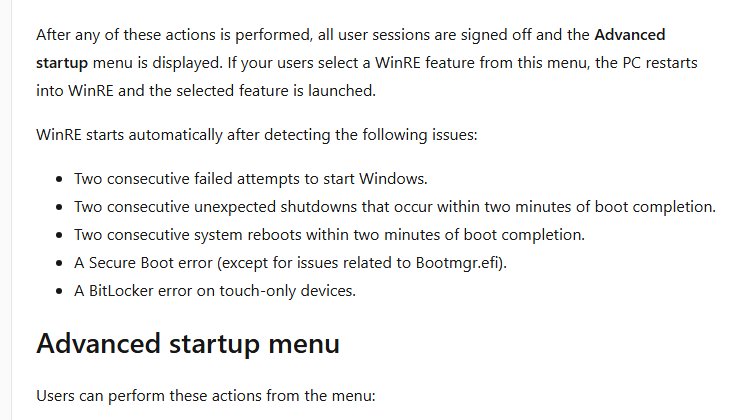
- Hold the power button to turn the PC off while Windows is loading. Do this two times.
- On the third start, wait for the Automatic Repair screen and select Advanced options.
- Select Troubleshoot > Advanced options > Startup Settings > Restart.
- On the Startup Settings screen, press 4 or F4 for Enable Safe Mode, or 5 or F5 for Safe Mode with Networking.
- Enter your BitLocker recovery key if Windows asks for it.
- Sign in and use the driver and update fixes below.
If you can see the sign-in screen, hold Shift while you select Power > Restart to reach WinRE faster. Enable low-resolution video (option 3) is another way to get a picture.
If the PC keeps starting in Safe Mode, press Windows + R, run msconfig, open the Boot tab and clear Safe boot.
Update your driver
- In Safe Mode with Networking, right-click Start and select Device Manager.
- Expand Display adapters.
- Right-click your graphics adapter and select Update driver.
- Select Search automatically for updated driver software.
- If nothing is found, select Search for updated drivers on Windows update.
- Select Close and restart the PC normally.
For a driver from Intel, AMD, NVIDIA or your PC maker, download it only from that company's own site, then use Browse my computer for drivers in the same window.
Reinstall the video card
Removing the graphics device makes Windows install its driver again from scratch at the next start.
- Save your work and close all apps.
- Right-click Start and select Device Manager.
- Expand Display adapters, right-click the graphics adapter and select Uninstall device.
- In the Uninstall Device window, select Uninstall.
- Right-click Start, select Shut down or sign out > Restart.
- After the restart, let Windows reinstall the driver, then use Update driver if it does not.
Black screen after installing graphics driver in Windows 11 [Fix]
If the screen went black right after a driver install, put the previous driver back. You need an administrator account.
- Start Windows in Safe Mode.
- Right-click Start and select Device Manager.
- Expand Display adapters, right-click the graphics adapter and select Properties.
- Open the Driver tab and select Roll Back Driver.
- Choose a reason and select Yes.
- Restart the PC normally.
If Roll Back Driver is greyed out, no previous driver is stored. Use Uninstall device instead, or install a known-good driver from the graphics maker.
Black screen after Windows Update in Windows 11
When the black screen started straight after an update, remove that update. Use Settings if you can reach the desktop or Safe Mode, and WinRE if you cannot.
- From the desktop or Safe Mode, open Start > Settings > Windows Update > Update history.
- Under Related settings, select Uninstall updates, pick the newest update and select Uninstall.
- If Windows will not start, open WinRE by forcing two shutdowns during startup.
- Select Troubleshoot > Advanced options > Uninstall Updates.
- Select Uninstall latest quality update and follow the prompts.
- Restart and check that Windows reaches the desktop.
Some updates cannot be uninstalled. Once the PC works, pause updates in the Windows Update settings for a while so the same update does not reinstall before a fixed version arrives.
Stop RunOnce processes
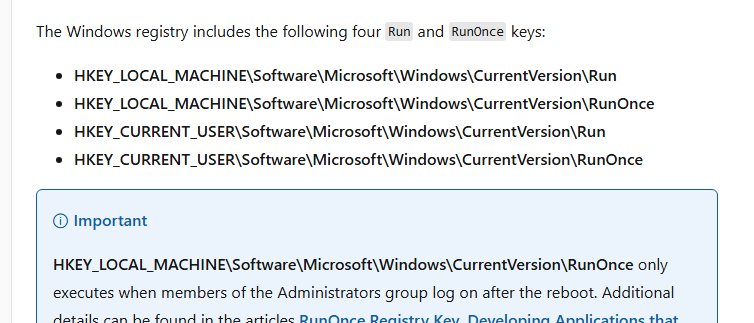
Programs listed under the RunOnce registry keys run once when you sign in, usually to finish a setup. A stuck one can hold the desktop on a black screen.
- Press Ctrl + Shift + Esc to open Task Manager on the black screen.
- Open the Details tab and look for a process with RunOnce in its name.
- Select it and choose End task.
- Restart the PC.
- If the black screen returns, press Windows + R, run
regeditand checkHKEY_CURRENT_USER\Software\Microsoft\Windows\CurrentVersion\RunOnceandHKEY_LOCAL_MACHINE\Software\Microsoft\Windows\CurrentVersion\RunOncefor an entry from a program you recently installed or removed.
Windows ignores the Run and RunOnce keys in Safe Mode by default, so a PC that reaches the desktop in Safe Mode but not normally points to a startup program or driver.
Run Startup Repair for Windows 11 black screen on boot
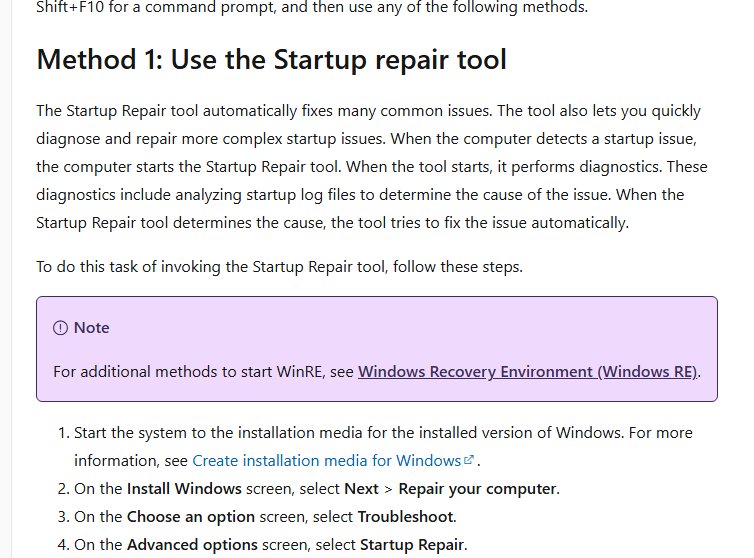
A black screen with a blinking cursor before the Windows logo means the boot loader stage failed. Startup Repair analyses the startup logs and fixes common causes automatically.
- Open WinRE by forcing two shutdowns during startup, or boot from Windows installation media and select Next > Repair your computer.
- Select Troubleshoot > Advanced options > Startup Repair.
- Let the tool finish its diagnostics and repairs.
- Select Shutdown, then turn the PC on to test it.
Startup Repair writes its results to %windir%\System32\LogFiles\Srt\SrtTrail.txt.
Use System Restore to fix the Windows 11 black screen
- Open WinRE by forcing two shutdowns during startup.
- Select Troubleshoot > Advanced options > System Restore.
- Pick a restore point from before the black screen started.
- Confirm and let the restore finish, then restart.
System Restore works only if a restore point was created before the black screen started.
Black screen when installing Windows 11
A black screen during an upgrade is often the install still working between restarts. Give it time before forcing anything.
- Leave the PC plugged in and wait while the drive activity light is still flashing.
- If the screen has not changed for a long time and the drive light is off, hold the power button to turn the PC off.
- Disconnect external storage, docks and other hardware you do not need, then start the install again.
- Free up space: Windows needs at least 20 GB free to upgrade a 64-bit system and 16 GB for 32-bit.
- Update third-party drivers from the hardware maker's site, especially graphics drivers on Windows 11.
- Run the upgrade again from Settings > Windows Update > Check for updates.
Check Windows 11 starts without the black screen
- Restart the PC normally, not in Safe Mode.
- Confirm the sign-in screen and then the desktop and taskbar appear.
- Open Device Manager and confirm your graphics adapter is listed under Display adapters by its own name.
- Open Event Viewer, expand Windows Logs, select System and check the newest entries for repeated display or driver errors.
- Restart once more to make sure the fix survives a second boot.
Windows 11 black screen troubleshooting by symptom
Black screen on boot before signing in
Startup fails in the boot loader or kernel stage, or a driver loaded at boot breaks the display.
- Press Num Lock to see whether the PC responds at all.
- Run Startup Repair from WinRE.
- If that fails, boot into Safe Mode and roll back the graphics driver.
Black screen after login or signing into Windows PC
Windows Explorer did not start, or a startup program is blocking the desktop.
- Press Ctrl + Shift + Esc and restart Windows Explorer.
- End any stuck RunOnce process on the Details tab.
- Run a clean boot with
msconfigto find a conflicting startup app.
Black or colored screen with spinning dots after restarting PC
Startup is stuck in the kernel phase, often after an update or driver change.
- Hold the power button for 20 seconds and start the PC again.
- Use Uninstall Updates > Uninstall latest quality update in WinRE.
- Start in Safe Mode and check Event Viewer for the failing driver or service.
Black screen during a Windows upgrade or installation
The installer is still working, or a peripheral or old driver blocks it.
- Wait while the drive light is active.
- Disconnect external hardware and retry.
- Free at least 20 GB on a 64-bit system and update graphics drivers before the next attempt.
My screen keeps going black on Windows 11
A loose cable, a display output problem or the graphics driver resets the picture.
- Reseat or replace the display cable and test another monitor.
- Update the graphics driver from Device Manager.
- If the screen flashes rather than staying black, fix Windows 11 screen flickering instead.
Windows 11 black screen FAQ
Why is my Windows 11 screen black?
A Windows 11 black screen usually comes from the display output, the graphics driver, a recent update or a startup program. Press Windows + Ctrl + Shift + B first. If that fails, check cables, then use Safe Mode to roll back the driver or remove the update.
Why does my screen keep going black on Windows 11?
Repeated black screens point to a loose or faulty display cable, the wrong display mode or an unstable graphics driver. Reseat the cable, press Windows + P to check the display mode, and update or roll back the graphics driver in Device Manager.
Can a Windows 11 update cause a black screen?
Yes. An update or the drivers it brings can stop Windows reaching the desktop. Uninstall the newest update from Settings > Windows Update > Update history, or from WinRE with Uninstall Updates > Uninstall latest quality update if Windows will not start.
What keys fix a black screen on Windows 11?
Windows + Ctrl + Shift + B resets the graphics driver, and a beep or flicker shows it worked. Windows + P changes the display mode, and Ctrl + Shift + Esc opens Task Manager so you can restart Windows Explorer.
How do I get to Safe Mode from a black screen in Windows 11?
Turn the PC off with the power button while Windows loads, two times in a row. On the third start, select Advanced options > Troubleshoot > Advanced options > Startup Settings > Restart, then press 4 for Safe Mode or 5 for Safe Mode with Networking.
Is there a black screen troubleshooter in Windows 11?
For black screens at startup, the built-in repair tool is Startup Repair in the Windows Recovery Environment. Open it from Troubleshoot > Advanced options > Startup Repair, and it analyses the startup logs and fixes common boot problems automatically.
Why did my Windows 11 screen suddenly go black with the PC still running?
When the PC still runs, the graphics driver or Windows Explorer has usually stopped. Press Windows + Ctrl + Shift + B, then Ctrl + Shift + Esc, and restart Windows Explorer from the Processes tab if the cursor is visible.
How do I fix the black screen of death on Windows 10?
The same fixes apply on Windows 10: reset the graphics driver with Windows + Ctrl + Shift + B, start in Safe Mode, then update or roll back the display driver. On Windows 10, reach WinRE from Settings > Update & Security > Recovery > Advanced startup.