To change push and fetch email options on iPhone, go to Settings > Apps > Mail > Mail Accounts > Fetch New Data and pick a schedule under Fetch.
This guide explains the difference between push and fetch, which setting suits battery life or speed, how to change Mail notifications, and what to check when new email stops arriving.
Push and fetch settings on iPhone
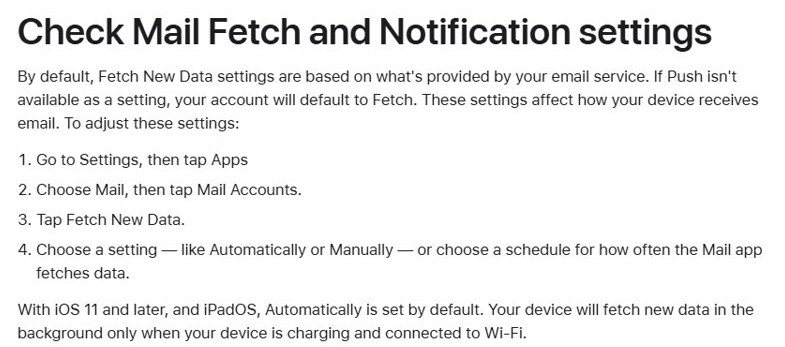
All of the push and fetch controls for the Mail app sit on one screen called Fetch New Data.
The path below matches current iOS, where Mail settings sit under Apps in the Settings app.
- Open the Settings app on your iPhone.
- Tap Apps, then tap Mail.
- Tap Mail Accounts.
- Tap Fetch New Data.
- Under Fetch, choose a schedule. Automatically is the default.
- Go back to Mail when you are done. The new schedule applies straight away.
Accounts that support push deliver new mail as it arrives, so the Fetch schedule matters most for accounts that do not support push.
Push vs fetch email: What is the difference
Push and fetch are two ways for the Mail app to learn that a new message is waiting on the mail server.
Your email provider decides whether push is available; your iPhone decides how often to fetch when it is not.
| Option | How new mail reaches the iPhone | When it fits |
|---|---|---|
| Push | The mail server sends new messages to the iPhone as they arrive | Accounts that support push, when you want mail immediately |
| Fetch: Automatically | The iPhone downloads new data when it is charging and connected to Wi-Fi | The default, lowest background activity |
| Fetch: timed schedule | The iPhone checks the server at the interval you pick, on Wi-Fi or cellular | Accounts without push when you want mail sooner than Automatically allows |
| Fetch: manually | Mail checks for new messages only when you open the app | Saving the most battery on a busy account |
Push or fetch email on iPhone for battery life and speed
| Your situation | Use this | Why |
|---|---|---|
| You need work or personal mail the moment it lands | Push, if the account supports it | Messages arrive without waiting for a schedule |
| Your account does not support push and you want mail during the day | A timed fetch schedule | Automatically only downloads while the iPhone charges on Wi-Fi |
| Battery runs low before the end of the day | Fetch manually or a longer interval | Apple suggests this when Mail shows background activity in battery usage |
| You only read a secondary account now and then | Manual fetch for that account | It checks only when you open Mail |
| You want mail but fewer interruptions | Keep push and change Mail notifications | Mail still arrives, but alerts and sounds stay quiet |
How to set a fetch schedule for an email account on iPhone
Apple recommends a fetch schedule for any account you add that does not support push notifications, such as many IMAP and POP accounts from smaller providers such as BellSouth email.
- Open Settings and tap Apps.
- Tap Mail, then tap Mail Accounts.
- Tap Fetch New Data.
- Under Fetch, choose a timed schedule if you want mail checked more often than Automatically allows.
- Choose a longer interval or a manual check if battery life matters more than speed.
- Open Mail to confirm the account still shows its inbox.
If the account is not on your iPhone yet, tap Mail Accounts > Add Account, enter the email address, tap Next and enter the account details. Services such as AOL Mail and an Outlook.com email account work in the Mail app this way.
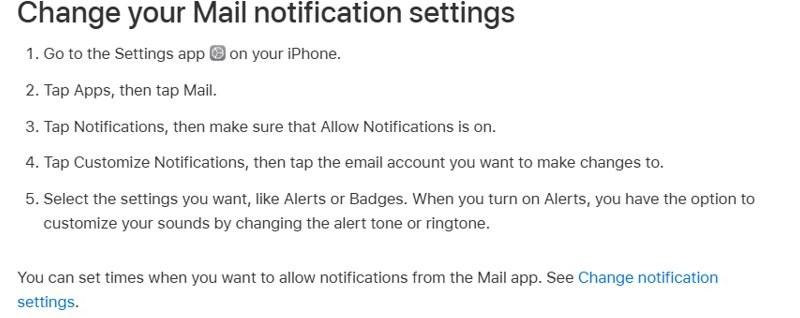
How to change email push notifications on iPhone
Push decides when mail arrives; notifications decide whether the iPhone tells you about it.
You can set alerts, badges and sounds separately for each email account.
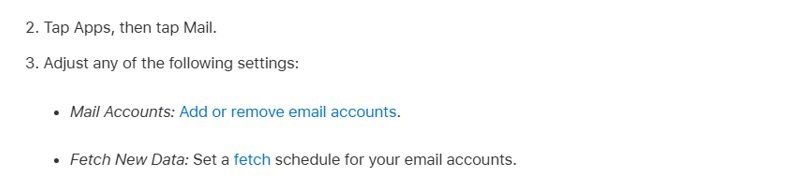
- Open Settings, tap Apps, then tap Mail.
- Tap Notifications and make sure Allow Notifications is on.
- Tap Customize Notifications.
- Tap the email account you want to change.
- Turn on or off Alerts and Badges, and change the alert tone if you want a different sound.
- To silence one busy conversation instead, open a message in it in Mail and choose Mute.
How to stop an email account from checking mail on iPhone
Turning an account off stops it from sending and receiving on this iPhone without deleting it from your provider.
- Open Settings, tap Apps, then tap Mail.
- Tap Mail Accounts and tap the account.
- For an iCloud account, turn off Use on this iPhone.
- For any other account, turn off Mail.
- Turn the same switch back on when you want the account to push or fetch again.
Tapping Sign Out or Delete Account removes the account from the iPhone completely, but it does not close the email account itself.
Check that push or fetch email is working on iPhone
- Close the Mail app and lock your iPhone.
- From another device, send a short test email to the account you changed.
- Wait for a notification. With push, it should appear shortly after the message is sent.
- With a timed fetch schedule, wait at least one full interval before deciding it failed.
- Open Mail and confirm the test message sits in that account's inbox.
iPhone email not updating automatically
New email only appears when you open Mail
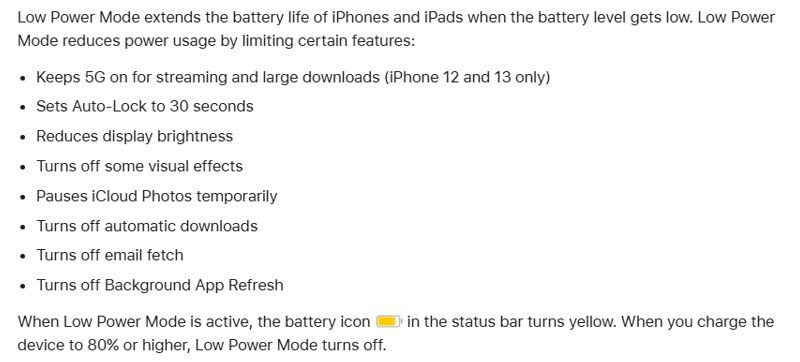
Low Power Mode is on, and it turns off email fetch until the battery recovers.
- Open Settings and tap Battery.
- Turn off Low Power Mode. On iPhone 15 and later it is under Power Mode.
- Or charge the iPhone to 80% or higher, which turns Low Power Mode off automatically.
Mail only arrives at night or while charging
The account uses fetch with Automatically, which downloads new data only on Wi-Fi while charging.
- Go to Settings > Apps > Mail > Mail Accounts > Fetch New Data.
- Under Fetch, choose a timed schedule instead of Automatically.
Mail arrives but there is no alert or sound
Notifications for Mail, or for that one account, are off.
- Go to Settings > Apps > Mail > Notifications and turn on Allow Notifications.
- Tap Customize Notifications, pick the account and turn on Alerts.
- Check whether a Focus is filtering notifications from that account.
One account never updates
The account's Mail switch is off on this iPhone.
- Go to Settings > Apps > Mail > Mail Accounts and tap the account.
- Turn on Mail, or Use on this iPhone for iCloud.
Does push or fetch email drain iPhone battery?
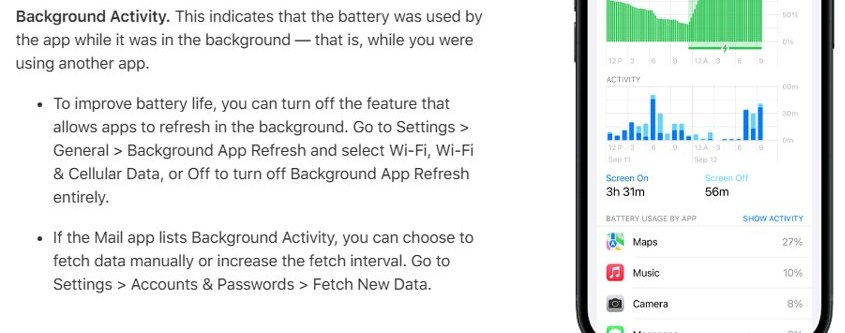
If Mail shows background activity in your battery usage, switch to manual fetch or a longer fetch interval for the accounts you check least. Apple's own battery advice names the Mail fetch interval as one of the background tasks you can reduce, and Low Power Mode turns email fetch off entirely to save power.
iPhone push vs fetch email FAQ
What is push email?
Push email means the mail server sends new messages to your device as soon as they arrive. You do not have to wait for the phone to check, so mail and notifications show up almost immediately.
What is fetch email on iPhone?
Fetch means your iPhone checks the mail server for new messages on a schedule you set in Fetch New Data. The default, Automatically, downloads new data only while the iPhone is charging and on Wi-Fi.
What is the difference between push and fetch email?
With push, the server delivers each new message to the iPhone straight away. With fetch, the iPhone asks the server for new mail at set times, so messages can wait until the next check.
Where are the push and fetch settings on iPhone?
Open Settings, tap Apps, tap Mail, tap Mail Accounts, then tap Fetch New Data. The Fetch schedule on that screen applies to accounts that do not use push.
How do I change email push options on iPhone?
Go to Settings > Apps > Mail > Mail Accounts > Fetch New Data to change how mail is retrieved. To change alerts and sounds instead, go to Settings > Apps > Mail > Notifications > Customize Notifications.
Should I use push or fetch on iPhone email?
Use push for accounts where you need mail right away and the provider supports it. Use fetch on a longer interval, or manually, for secondary accounts and when battery life matters more.
Why does my iPhone email not update in Low Power Mode?
Low Power Mode turns off email fetch, along with Background App Refresh and automatic downloads. New mail appears when you open Mail, and normal fetching resumes once Low Power Mode is off.
Does turning off an email account delete it?
No. Turning off Mail for an account only stops it on that iPhone, and you can switch it back on later. Even Delete Account removes it from the iPhone only, not from your email provider.