Windows Modules Installer Worker (TiWorker.exe) uses high CPU and disk while Windows installs, removes or cleans up updates, so the usual fix is to let it finish and restart.
If the load never drops, this guide covers clearing the update cache, repairing the component store with DISM and SFC, cleaning WinSxS, pausing updates and the troubleshooting for 100% disk usage and high memory.
Windows Modules Installer Worker high CPU or high disk usage
High usage is normal for a while after a new update arrives. Give the pending updates a clean run to completion first.
- Plug a laptop into power and make sure the PC is online.
- Select Start > Settings > Windows Update and click Check for updates.
- Let every listed update download and install. Leave the PC alone while TiWorker.exe works.
- Save your work, then select Start > Power > Update and restart.
- After the restart, open Settings > Windows Update again and click Check for updates once more.
- Press Ctrl + Shift + Esc and watch Windows Modules Installer Worker on the Processes tab. Usage should fall once no updates are pending.
On Windows 10, the path is Start > Settings > Update & Security > Windows Update > Check for updates.
What is Windows Modules Installer Worker?
Windows Modules Installer Worker is the process behind the Windows Modules Installer service. Task Manager shows it as TiWorker.exe on the Details tab.
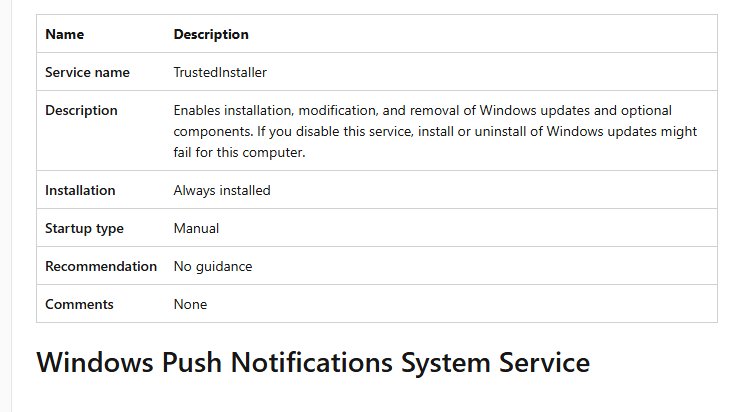
| Property | Value |
|---|---|
| Service display name | Windows Modules Installer |
| Service name | TrustedInstaller |
| What it does | Installs, modifies and removes Windows updates and optional components |
| Default startup type | Manual, so it starts only when servicing work is waiting |
| What breaks if disabled | Installing or uninstalling Windows updates can fail |
| Related cleanup | The StartComponentCleanup task removes superseded components when the PC is idle |
| Servicing log | C:\Windows\Logs\CBS\CBS.log |
The heavy disk activity comes from component store (WinSxS) work: staging new components, compressing old ones and deleting superseded versions.
Windows Modules Installer Worker high CPU fixes compared
| Your situation | Fix to try | Why |
|---|---|---|
| Usage spikes right after Patch Tuesday or a restart | Let updates finish, then restart | TiWorker.exe is doing its normal job |
| Usage stays high and Windows Update shows an error | Windows Update troubleshooter, then clear the update cache | A corrupt download keeps the install looping |
| Updates fail again after clearing the cache | Reset Windows Update components, then DISM and SFC | Repairs the component store and system files |
| Disk at 100% and WinSxS is large | Run StartComponentCleanup or Disk Cleanup | Removes superseded update files |
| You need the PC right now | Pause updates | Cancels the in-progress update until you resume |
| Usage is high on a limited data plan | Set the network as metered | Windows Update downloads only priority updates |
| Disk errors or a third-party app is suspected | chkdsk, then a clean boot | Rules out drive faults and software conflicts |
Run the Windows Update troubleshooter for TiWorker.exe high CPU
The troubleshooter checks the update services and download cache, which covers most loops that keep TiWorker.exe busy.
- Select Start > Settings > System.
- Select Troubleshoot, then Other troubleshooters.
- Find Windows Update and select Run.
- Follow the on-screen prompts and apply any fix it offers.
- Restart the PC and run Check for updates again.
On Windows 11 the troubleshooter opens in the Get Help app. On Windows 10, go to Settings > Update & Security > Troubleshoot > Windows Update.
Clear the Windows Update cache (SoftwareDistribution folder)
Corrupt files in the update cache make Windows retry the same install, and TiWorker.exe stays busy with each attempt.
- Press Win + R, type
services.mscand press Enter. - Right-click Windows Update and select Stop.
- Open File Explorer and go to
C:\Windows\SoftwareDistribution. - Delete all files and folders inside that folder. Keep the folder itself.
- Go back to Services, right-click Windows Update and select Start.
- Open Settings > Windows Update and click Check for updates.
Windows downloads the pending updates again, so expect a short burst of TiWorker.exe activity before it settles.
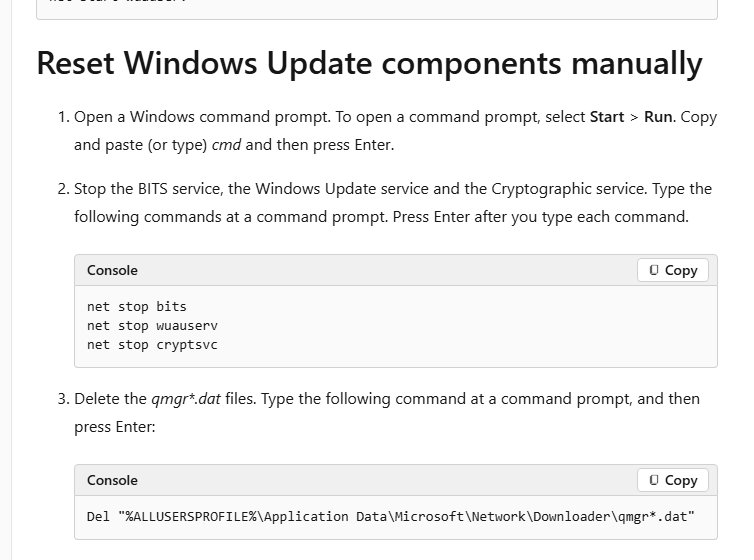
Reset Windows Update components from Command Prompt
This renames the update cache and the catroot2 signature folder in one pass. Use it when the cache method did not stop the loop.
- Type command prompt in the taskbar search box, select Run as administrator and click Yes.
- Run
net stop bitsand wait for it to finish. - Run
net stop wuauserv. - Run
ren %systemroot%\softwaredistribution softwaredistribution.bak. - Run
ren %systemroot%\system32\catroot2 catroot2.bak. - Run
net start bits, thennet start wuauserv. - Close Command Prompt and restart the computer.
Repair system files with DISM and SFC
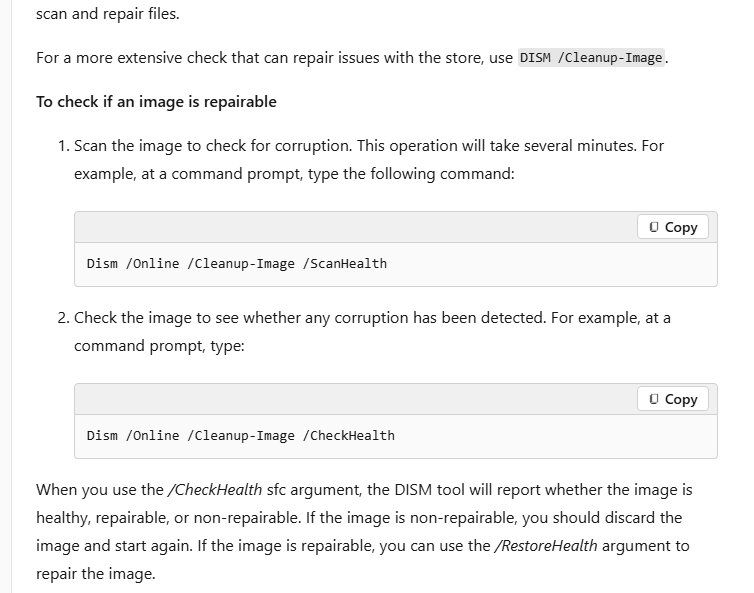
A damaged component store makes TiWorker.exe fail and retry. DISM repairs the store first, then SFC repairs protected system files from it.
- Open Command Prompt as administrator.
- Run
DISM.exe /Online /Cleanup-image /Restorehealth. - Wait for The restore operation completed successfully or The operation completed successfully. If no confirmation appears, run the command again.
- Run
sfc /scannow. - Wait until verification reaches 100%, then close Command Prompt.
- Run Check for updates in Settings again.
To check the store without repairing it, run Dism /Online /Cleanup-Image /CheckHealth. It reports whether the image is healthy, repairable or non-repairable.
Clean up the WinSxS folder to reduce TiWorker.exe disk usage
Never delete the WinSxS folder or files inside it by hand. Microsoft warns that doing so can stop the PC from booting and block future updates.
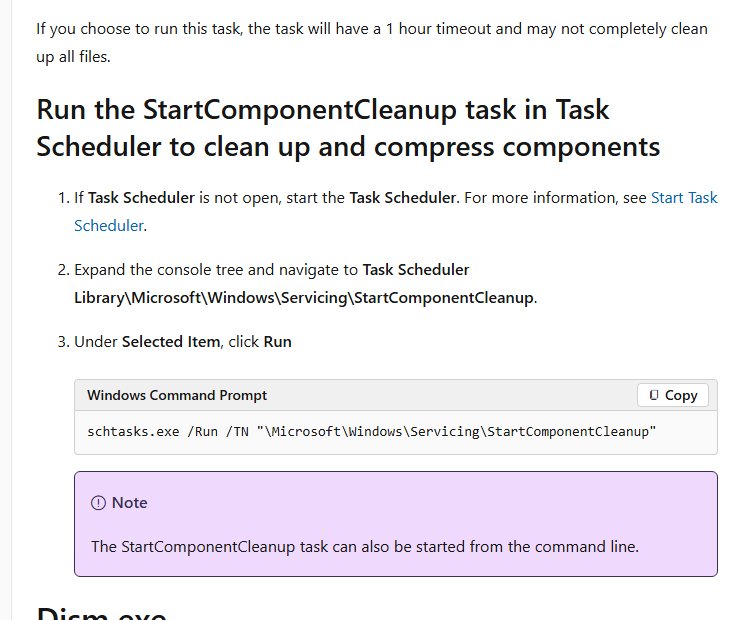
- Open Task Scheduler from the Start menu.
- Expand Task Scheduler Library > Microsoft > Windows > Servicing.
- Select StartComponentCleanup.
- Under Selected Item, click Run.
- For an immediate, complete cleanup, open Command Prompt as administrator and run
Dism.exe /online /Cleanup-Image /StartComponentCleanup.
The scheduled task waits 30 days after an update before removing old component versions and stops after one hour. The DISM command skips both limits.
Adding /ResetBase removes every superseded component, but existing updates can no longer be uninstalled afterwards.
Delete old Windows Update files with Disk Cleanup
- Type disk cleanup in the taskbar search box and open Disk Cleanup.
- Choose the Windows drive and select OK.
- Select Clean up system files, choose the drive again and select OK.
- Tick the update-related entries in the list once the calculation finishes.
- Select OK, then Delete files.
On Windows 11 you can also use Settings > System > Storage > Cleanup recommendations. Deleting a previous Windows installation removes Windows.old, and you can no longer roll back to that version.
Pause updates to stop Windows Modules Installer Worker temporarily
Pausing updates cancels the update in progress, which stops the TiWorker.exe work tied to it. It does not turn off automatic updates permanently.
| Windows version | Path | How long |
|---|---|---|
| Windows 11 | Start > Settings > Windows Update > Pause updates > Pick a date | Up to 35 days from today |
| Windows 10 | Start > Settings > Update & Security > Windows Update > Pause updates for 7 days | 7 days, or a date under Advanced options |
Updates resume on their own when the pause ends, and TiWorker.exe runs again to install them. Select Resume updates to start earlier.
Set a metered connection to limit Windows Update downloads
On a metered connection, Windows Update downloads only priority updates, so less servicing work reaches TiWorker.exe.
- Open Settings > Network & internet.
- Select Wi-Fi or Ethernet, then select the network you are connected to.
- Turn on Metered connection.
- Check Settings > Windows Update > Advanced options and make sure Download updates over metered connections is off.
If Metered connection is greyed out, remove any data limit under Network & internet > Advanced network settings > Data usage and sign in with an administrator account.
Run chkdsk when Windows Modules Installer Worker disk usage stays at 100%
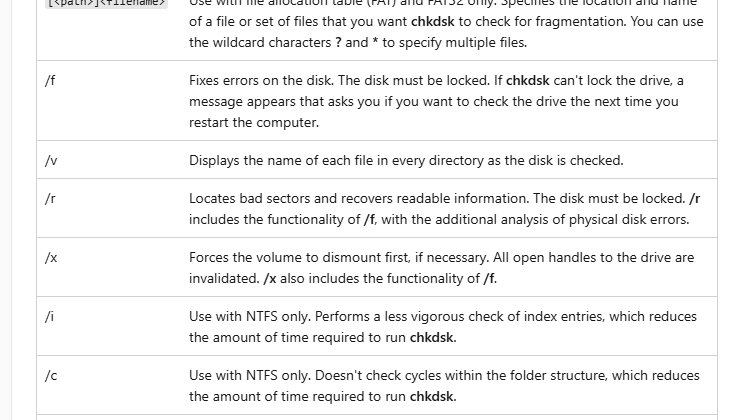
- Type command prompt in the taskbar search box and select Run as administrator.
- Run
chkdsk /f C:. - Let the repair start, and restart the device when prompted.
- Let the scan finish before Windows loads, then recheck Task Manager.
Perform a clean boot to find a conflicting app
A clean boot starts Windows with only Microsoft services, which rules out third-party software that interferes with updates.
- Search for msconfig and open System Configuration.
- On the Services tab, tick Hide all Microsoft services, click Disable all, then Apply.
- On the Startup tab, click Open Task Manager.
- Disable each enabled item on the Startup apps tab and note which ones you changed.
- Close Task Manager, click OK in System Configuration and restart.
- Run Check for updates and watch TiWorker.exe in Task Manager.
To go back, select Normal Startup on the General tab, click Enable all on the Services tab and re-enable your startup apps.
Should you disable Windows Modules Installer Worker?
No. Leave the Windows Modules Installer service on its default Manual startup type. Microsoft states that installing or uninstalling Windows updates can fail when the service is disabled, which leaves the PC without security fixes and makes TiWorker.exe work harder once it is turned back on. Pause updates instead when you need the CPU back for a few days.
Check Windows Modules Installer Worker CPU usage in Task Manager
- Press Ctrl + Shift + Esc to open Task Manager.
- On the Processes tab, click the CPU column, then the Disk column, to sort by usage.
- Confirm Windows Modules Installer Worker has dropped to near zero or left the list.
- Open Settings > Windows Update and confirm it shows no pending or failed updates.
- If usage is still high, open
C:\Windows\Logs\CBS\CBS.login Notepad and look at the newest lines for repeating errors.

Windows Modules Installer Worker 100% CPU and disk troubleshooting
Windows Modules Installer Worker disk 100% for hours
A large cumulative update or component cleanup is running on a slow hard drive, or the drive has errors.
- Leave the PC plugged in and idle for the update to finish.
- Run
chkdsk /f C:and restart. - Run StartComponentCleanup from Task Scheduler once updates are installed.
Windows Modules Installer Worker 100% CPU after every restart
The same update fails and Windows retries it on each start.
- Run the Windows Update troubleshooter.
- Clear the
C:\Windows\SoftwareDistributionfolder. - Run
DISM.exe /Online /Cleanup-image /Restorehealth, thensfc /scannow.
Windows Modules Installer Worker high memory
Servicing loads the component data for the update being installed.
- Close large apps while the update installs.
- Restart with Update and restart so the install completes.
- If memory stays high, reset the Windows Update components from Command Prompt.
Windows Modules Installer Worker high CPU on Windows 11 with other processes also high
A Defender scan or Store app updates run at the same time as servicing.
- Check which other processes sit near the top of Task Manager.
- If Antimalware Service Executable is using heavy CPU, let the scan finish first.
- If wsappx shows high CPU, let Microsoft Store updates complete, then recheck TiWorker.exe.
Windows Update shows an error code while TiWorker.exe stays busy
Wrong date and time or a broken update cache blocks the install.
- Open Settings > Time & language > Date & time.
- Turn on Set time automatically and Set time zone automatically, then select Sync now.
- Clear the update cache and run Check for updates again.
Frequently asked questions about Windows Modules Installer Worker
What is Windows Modules Installer Worker?
Windows Modules Installer Worker is the TiWorker.exe process of the Windows Modules Installer service (TrustedInstaller). It installs, modifies and removes Windows updates and optional components, which is why it appears in Task Manager whenever updates are being prepared, installed or cleaned up.
What does Windows Modules Installer Worker do?
It applies Windows updates and optional features to the component store, then removes superseded component versions during cleanup. That work reads and writes many small files, so it shows up as high disk and CPU usage while it runs.
Is Windows Modules Installer Worker necessary?
Yes. Microsoft states that installing or uninstalling Windows updates can fail if the Windows Modules Installer service is disabled. Without it, the PC stops receiving security fixes, so leave it on its default Manual startup type.
Why does Windows Modules Installer Worker run?
It runs when Windows Update has updates to install or remove, when you add or remove an optional feature, and when the StartComponentCleanup task clears old components while the PC is idle. It stops once that servicing work is done.
Can I end Windows Modules Installer Worker?
You can end it from Task Manager, but that interrupts the update it is installing and Windows starts it again the next time servicing is needed. Pausing updates in Settings is the cleaner way to stop the work for a while.
Can I stop Windows Modules Installer Worker permanently?
No supported setting stops it permanently without breaking updates. Disabling the Windows Modules Installer service makes update installs and uninstalls fail. Pause updates for up to 35 days on Windows 11 instead, then let the backlog install.
Can I close Windows Modules Installer Worker while an update is installing?
Closing it mid-install cancels that servicing run, and Windows retries the update later. Let it finish when you can, because repeated interruptions keep the same update pending and bring TiWorker.exe back with high usage.
What is Windows Modules Installer Worker in Windows 10?
It is the same TrustedInstaller servicing process as on Windows 11. On Windows 10, manage it through Settings > Update & Security > Windows Update, where you can check for updates or pause them for 7 days.
How long does Windows Modules Installer Worker run?
It runs until the pending updates or cleanup finish. The automatic StartComponentCleanup task has a one-hour timeout. If usage stays high across several restarts with no update progress, treat it as a stuck update and clear the update cache.