To make a phone call from your computer for free, open Google Voice at voice.google.com in Chrome, Edge, Firefox or Safari and dial the number; almost all calls from the US to the US and Canada cost nothing.
This guide also covers calling through your own phone with Phone Link on Windows or an iPhone on a Mac, free app-to-app calls with WhatsApp, what replaced Skype, and fixes for calls that will not connect.
Call a phone number free from your computer with Google Voice
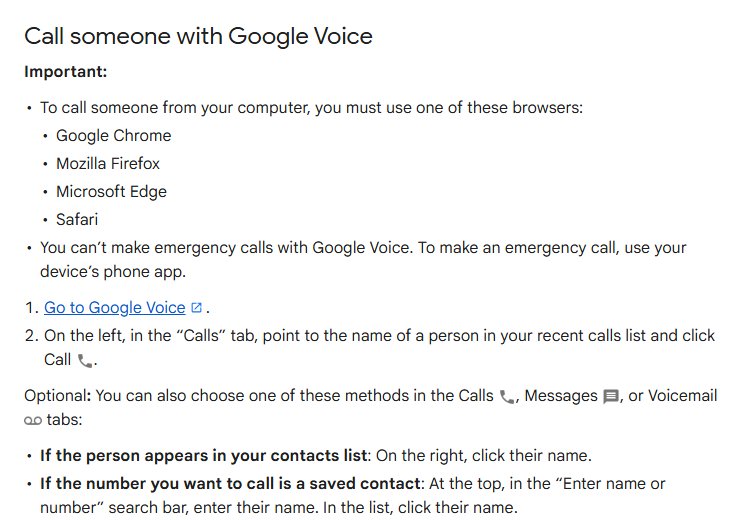
Google Voice runs in a web browser, so there is nothing to install on a Windows PC, Mac or Chromebook. You need a Google Account and a Google Voice number.
- Open
voice.google.comin Google Chrome, Microsoft Edge, Mozilla Firefox or Safari and sign in. - Select the Calls tab on the left.
- Type a name or number in the Enter name or number search bar at the top, or select Show keypad at the bottom right and dial the number.
- Select Call.
- Allow microphone access if the browser asks, then talk through your headset or speakers and microphone.
- Select the end call button when you are finished.
To start a call from the address bar, type https://voice.google.com/u/0/calls?a=nc,%2B followed by the number without hyphens, for example https://voice.google.com/u/0/calls?a=nc,%2B18005550111. Windows users who prefer an app window can install the Google Voice desktop shortcut.
How can you ring someone from your PC?
There are two kinds of free call from a computer. A calling service such as Google Voice rings any phone number. A messaging app such as WhatsApp only reaches people who use the same app.
| Your situation | Use this | Why |
|---|---|---|
| You are in the US and want to call any US or Canadian number | Google Voice in a browser | Almost all calls from the US to the US and Canada are free |
| You want callers to see your own mobile number | Phone Link on Windows, or your iPhone on a Mac | The call is placed by your phone, so it shows your usual caller ID |
| The person you are calling uses WhatsApp, in any country | WhatsApp for Windows, WhatsApp for Mac or WhatsApp Web | WhatsApp does not charge for voice or video calls; only your data use counts |
| You need to call emergency services | Your phone's own dialer | Personal Google Voice, WhatsApp and Phone Link are not built for emergency calls |
| You used Skype to call landlines | Google Voice or Phone Link | Skype retired on May 5, 2025, and paid Skype calling is no longer sold to new customers |
The best free apps to make a phone call from your PC
Every app in this table is free to download and free to call with, within the limits in the last column.
| App | Who you can call | Works on | What is free and what costs money |
|---|---|---|---|
| Google Voice | Any phone number | Web browser on Windows, macOS and ChromeOS, plus Android and iPhone apps | Free to almost all US and Canadian numbers when you call from the US; a few US and Canadian numbers cost 1 cent per minute; international calls use listed rates paid with credit |
| Phone Link | Any phone number your phone can call | Windows 10 and Windows 11 with Bluetooth, paired with Android 10 or later or iOS 16 or later | The app is free; the call goes out through your phone's own service |
| Other WhatsApp users, including in other countries | WhatsApp for Windows (Windows 10 64-bit version 1903 or newer), WhatsApp for Mac and WhatsApp Web | No charge for voice or video calls; data charges from your internet provider may apply | |
| Phone app on a Mac with an iPhone | Any phone number your iPhone can call | Mac signed in to the same Apple Account as the iPhone | Free to use; the call is relayed through your iPhone's line |
| Microsoft Teams Free | Your former Skype contacts and other Teams users | The Teams Free app | Skype accounts sign in with the same credentials, and contacts and chats move across |
How to set up Google Voice on a computer
Google Voice gives you a phone number for calls, texts and voicemail. If you are in the US, you can choose the number yourself. Google Voice does not offer 1-800 numbers.
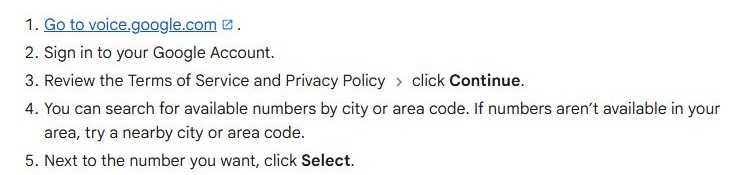
- Go to
voice.google.comin a supported browser. - Sign in to your Google Account.
- Review the Terms of Service and Privacy Policy, then select Continue.
- Search for available numbers by city or area code; try a nearby city if none appear.
- Select Select next to the number you want.
- Follow the on-screen instructions to finish setup.
Google Voice supports the current release and two previous major releases of Windows, macOS and ChromeOS, and the current and one previous release of Chrome, Edge, Firefox and Safari.
Make phone calls from your PC with Phone Link
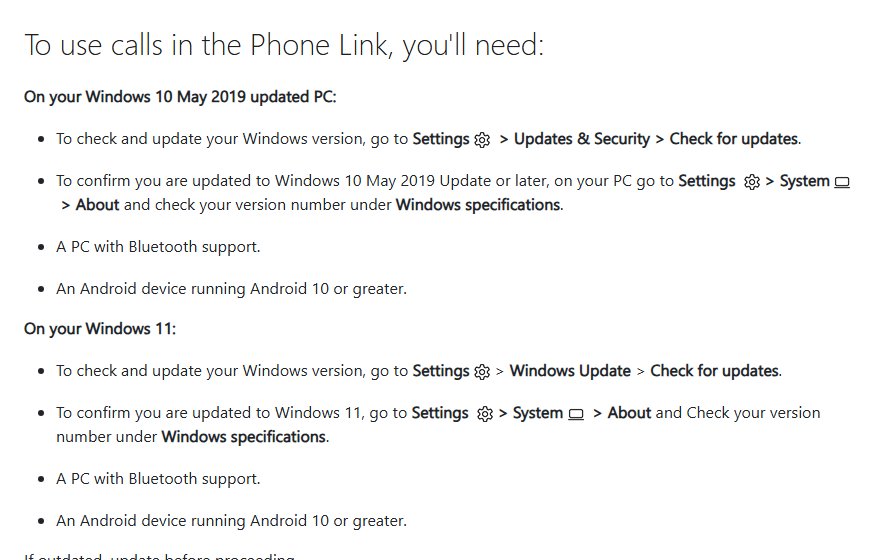
Phone Link turns a Windows PC into a speakerphone for the phone in your pocket. It needs Bluetooth on the PC, so check that your computer has Bluetooth first.
- Search the taskbar for Phone Link, open it and sign in with your Microsoft account.
- Android: on the phone, go to
aka.ms/yourpc, install Link to Windows, sign in with the same Microsoft account, then select Pair with QR code on the PC and scan the code from the phone app. - iPhone: turn on Bluetooth on both devices, select iPhone under Pick your phone, scan the QR code with the iPhone camera, and turn on Sync Contacts on the iPhone.
- Select Calls in Phone Link, then select Get Started and follow the prompts; select Allow on the Android phone when asked.
- Type a name or number in the Search your contacts box, or enter the number on the dial pad.
- Select the Dial icon to start the call.
If you skipped calls during setup on Android, turn on Allow this app to make and manage calls from my phone under Settings > Features > Calls in Phone Link. Calls only work while the phone is connected to the PC over Bluetooth. If Phone Link is missing from the PC, get the Phone Link app first.
Make free WhatsApp calls from a Windows PC or WhatsApp Web
WhatsApp calls are free even when the other person is in another country, but both of you need WhatsApp. Your computer and your phone both need an active internet connection.
- Open WhatsApp for Windows, or open WhatsApp Web in a browser on Windows, macOS or Linux.
- Allow WhatsApp to use your microphone, and plug in a headset if you have one.
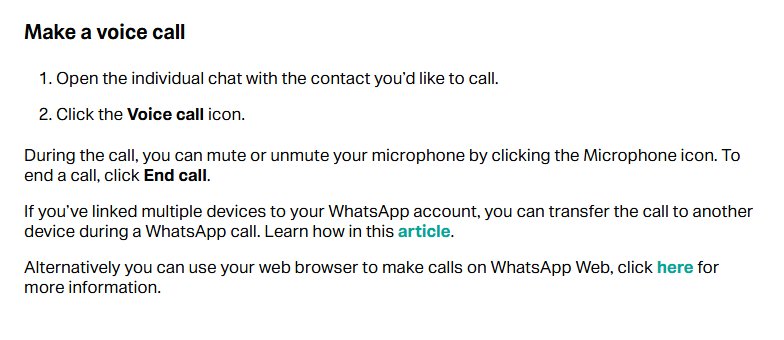
- Open the individual chat with the person you want to call.
- In WhatsApp for Windows, select the Voice call icon; in WhatsApp Web, select Call > Voice.
- Select the Microphone icon to mute or unmute.
- Select End call to hang up.
The Windows app needs Windows 10 64-bit version 1903 or newer. You can get WhatsApp for PC from the Microsoft Store, or use WhatsApp on the web with no install.
Make phone calls on a Mac through your iPhone
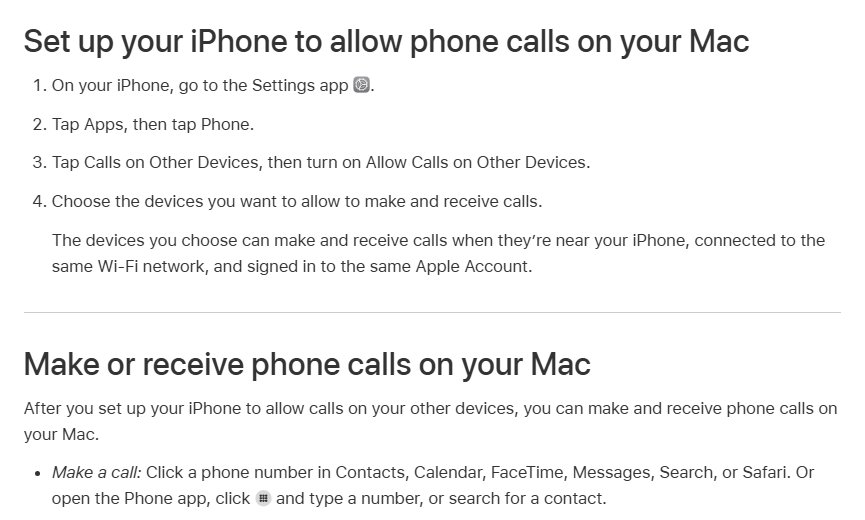
A Mac can place calls through a nearby iPhone. Both devices must be on the same Wi-Fi network, signed in to the same Apple Account and to FaceTime, and within 30 feet (10 meters) of each other.
- On the iPhone, open Settings, tap Apps, then tap Phone.
- Tap Calls on Other Devices and turn on Allow Calls on Other Devices.
- Choose the Mac that can make and receive calls.
- On the Mac, open the Phone app and click the Keypad button.
- Type the number or search for a contact, then start the call.
- Click the notification on the Mac to answer or decline incoming calls.
You can also click any phone number in Contacts, Calendar, FaceTime, Messages, Search or Safari. On a dual-SIM iPhone, relayed calls use your default voice line.
Can you still use Skype to call phones for free?
No. Skype retired on May 5, 2025, so use Google Voice or Phone Link to call phone numbers from a computer instead. Microsoft moved Skype users to Microsoft Teams Free, where you sign in with your Skype credentials and your contacts and chats transfer automatically. Microsoft no longer sells Skype Credit or calling subscriptions to new customers, and all Skype Number subscriptions ended in May 2026. The Skype Dial Pad stays available only to remaining paid users through the Skype web portal and Teams Free.
Confirm a Google Voice call is free before you dial
- Look at the Call as field at the top right of Google Voice; it should show your Google Voice number.
- Check that the number starts with the right country code; for international numbers, enter the code before the number, such as 55 for Brazil.
- For a US or Canadian number called from the US, expect no charge; a few places cost 1 cent per minute.
- For any international number, check your calling credit balance first, because those calls use listed rates.
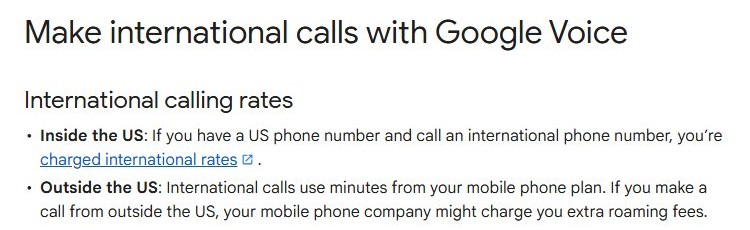
If you have a US number and call while you are in another country, Google Voice charges international rates.
Fix free calls from your computer when they do not connect
Google Voice will not place the call
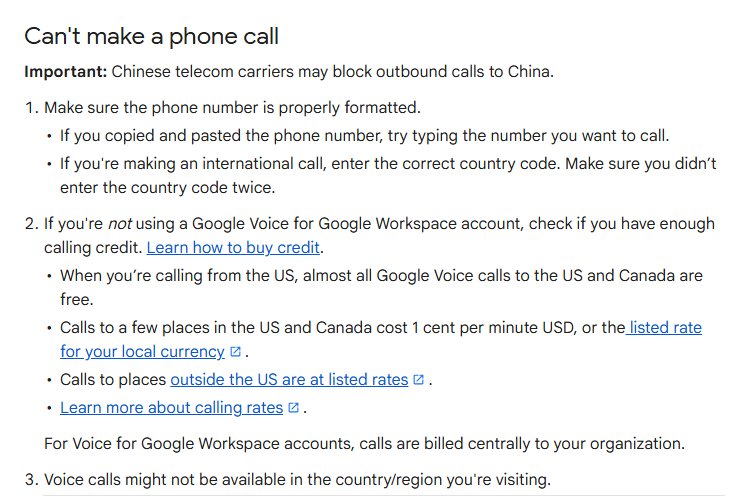
The number is formatted wrongly, the browser is unsupported, or an international call has no credit behind it.
- Type the number by hand instead of pasting it.
- Enter the country code once for international calls, and check you did not enter it twice.
- Switch to a supported browser: Chrome, Edge, Firefox or Safari.
- Check your calling credit if the call is not to the US or Canada.
Google Voice calls to your computer do not ring
An idle Google Voice tab can go into sleep mode, and the browser then blocks the ring.
- Keep
voice.google.comopen in a browser tab. - Click through the Google Voice page for about 10 seconds to wake it.
- Reload the browser tab.
Phone Link calls do not work on an Android phone
The Bluetooth pairing between the phone and the PC is stale or duplicated.
- Close Phone Link on the PC.
- On the phone, go to Settings > Connected devices > Connection preferences > Bluetooth and unpair the PC.
- On the PC, go to Start > Settings > Bluetooth & devices, select the phone and choose Remove device.
- Remove any duplicate entries for the phone.
- Open Phone Link and set up Calls again.
Phone Link calls drop or the phone keeps disconnecting
Android battery optimization stops Link to Windows in the background.
- On the phone, open Settings > Apps & notifications > App info and select Link to Windows.
- Go to Advanced > Battery > Manage Battery Usage > Battery optimization.
- Select Don't optimize for Link to Windows.
- On phones that use Optimize battery usage instead, select All, find Link to Windows and turn its toggle off.
Echo or poor audio on a call from the computer
Separate speakers and microphone feed sound back into the call, or other Bluetooth accessories crowd the connection.
- Use a wired headset instead of separate speakers and a microphone.
- Disconnect Bluetooth accessories such as a mouse for the length of a Phone Link call.
- Note that Phone Link does not send calls to Bluetooth headphones.
Free phone calls from a computer FAQ
Can I call a phone number from my computer for free?
Yes. Google Voice in a web browser calls almost all US and Canadian numbers free when you call from the US. A few US and Canadian numbers cost 1 cent per minute, and calls to other countries use Google's listed rates.
Is Google Voice free to use on a computer?
Yes, almost all Google Voice calls from the US to the US and Canada are free, from any supported browser. You only pay for international calls and the few domestic numbers that cost 1 cent per minute, using calling credit.
Can I make phone calls from my PC without a phone?
Yes, with Google Voice. It runs in a browser and places calls from your Google Voice number. Phone Link and Mac calling relay calls through your own phone, so they need the phone nearby and connected.
Can I use Phone Link to make calls without Bluetooth?
No. Phone Link calls only work while your phone is connected to the PC over Bluetooth. If the PC has no Bluetooth, use Google Voice in a browser instead.
Can WhatsApp on a computer call regular phone numbers?
No. WhatsApp for Windows and WhatsApp Web call other WhatsApp users. Both people need WhatsApp installed, and the call is then free even across countries, apart from data charges from your internet provider.
Can I call 911 from my computer?
Do not rely on it. Personal Google Voice accounts cannot make emergency calls, WhatsApp calls cannot reach emergency numbers such as 911, and Microsoft says Phone Link is not designed to connect to emergency services. Use your phone's own dialer.
Does Skype still let you call phones from a computer?
No. Skype retired on May 5, 2025. Skype users can sign in to Microsoft Teams Free with the same credentials, and Microsoft no longer sells Skype Credit or calling subscriptions to new customers.
Can I make free international calls from my computer?
Yes, if the other person uses WhatsApp, because WhatsApp voice calls are free even to another country. Google Voice charges listed rates for international numbers, paid from calling credit.