To change your wallpaper in Windows 11, open Settings > Personalization > Background and choose a picture, a solid color, a slideshow or Windows spotlight; the lock screen has its own page at Settings > Personalization > Lock screen.
This guide covers both backgrounds, slideshows, multiple monitors, fit options, the policies that lock wallpaper on work PCs, and fixes when the wallpaper will not change.
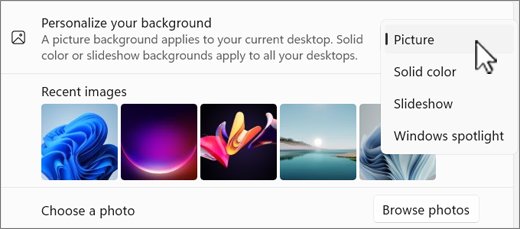
How to change wallpaper using Settings (step-by-step)
These steps work on every Windows 11 edition. You can also type ms-settings:personalization-background into the Run box to land on the Background page directly.
- Open Personalization: right-click an empty area of the desktop and select Personalize, or open Settings and select Personalization.
- Choose Background: select Background on the Personalization page.
- Open the Personalize your background list and pick Picture, Solid color, Slideshow or Windows spotlight.
- Pick an image or folder: for Picture, select one of the default images or select Browse to choose a file; for Slideshow, select the folder of images to cycle through.
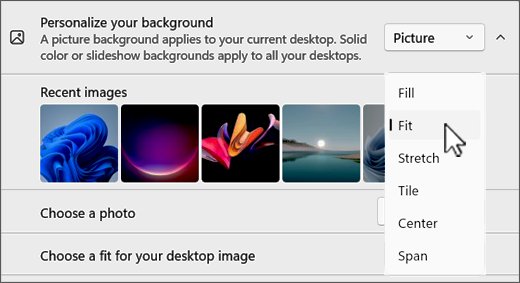
- For Picture or Slideshow, open the fit list and select Fill, Fit, Stretch, Tile, Center or Span.
- Close Settings. The new wallpaper is already applied.
Quick summary: the methods covered
Every route ends on the same Background or Lock screen settings. Pick the row that matches what you want to change.
| What you want | Use this | Where |
|---|---|---|
| One photo on the desktop | Picture | Personalization > Background |
| Set a photo you are already looking at | Right-click the file > Set as desktop background | File Explorer or the Photos app |
| Pictures that rotate on a timer | Slideshow | Personalization > Background |
| A new Microsoft photo every day | Windows spotlight | Personalization > Background or Lock screen |
| A plain, distraction-free desktop | Solid color | Personalization > Background |
| A custom lock screen image | Picture or Slideshow | Personalization > Lock screen |
| Wallpaper, colors and sounds as one set | A theme | Personalization > Themes |
| Bing's image of the day with a description | The Bing Wallpaper app | Installed from bing.com |
Windows spotlight is also the default wallpaper on many PCs now, ever since Spotlight as the desktop background first arrived in Windows 11.
Fast method: right-click the image file
This skips Settings entirely. It sets a single picture, so it replaces any slideshow or Spotlight background you had.
- Open File Explorer and go to the folder that holds the picture.
- Right-click the image file.
- Select Set as desktop background.
- To do the same from the Photos app, open the picture, select the three-dot menu, then select Set as > Background.
Need fresh images first? Sites that offer anime wallpapers for your desktop and other packs work the same way once the file is saved.
Slideshow wallpapers: setup and power options
A slideshow cycles through every picture in one folder. Put the images you want into a dedicated folder before you start.
- Open Settings > Personalization > Background.
- Select Slideshow in the Personalize your background list.
- Select Browse and choose your picture folder.
- Set how often the picture changes from the interval list.
- Turn on the shuffle option if you do not want the files shown in folder order.
- To skip ahead at any time, right-click the desktop and select Next desktop background.
On a laptop, a longer interval means fewer image changes while you run on battery. With several monitors, each screen shows a different picture from the folder.
Slideshow is not supported if you use multiple virtual desktops. Switch the background to Picture for those.
Lock screen decisions: Picture, Slideshow, or Windows Spotlight
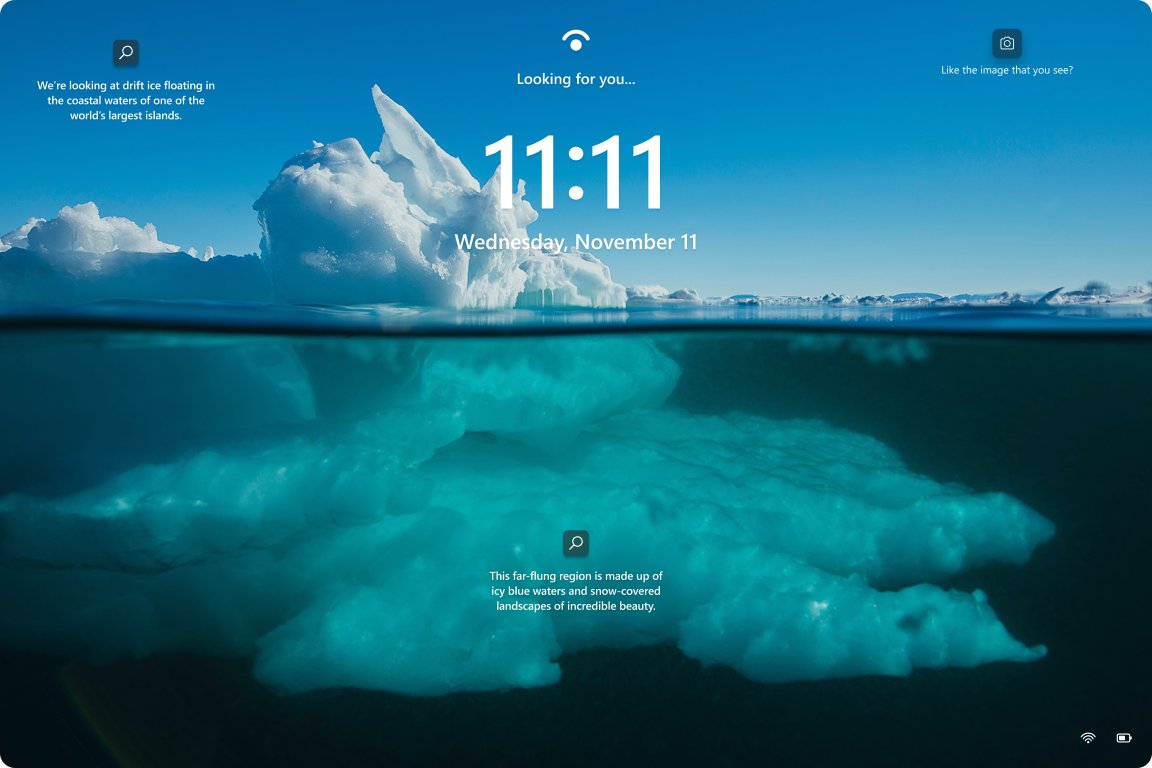
The lock screen has its own background, separate from the desktop. Windows spotlight shows rotating Microsoft images with tips, Picture uses one image, and Slideshow draws from one or more folders.
- Open Settings > Personalization > Lock screen, or run
ms-settings:lockscreen. - Open the Personalize your lock screen list.
- Select Windows spotlight, Picture or Slideshow.
- For Picture, choose a default image or browse to your own; for Slideshow, add one or more folders.
- Turn on Get fun facts, tips, tricks, and more on your lock screen if you want extra Microsoft content over the image.
- Turn Show the lock screen background picture on the sign-in screen on to use the same image on both screens.
Choose Spotlight for variety with no effort, Picture for a fixed image you control, and Slideshow for your own rotating photos. The lock screen also feeds the screen you see after a timeout, so pair it with a screen saver setting that suits you.
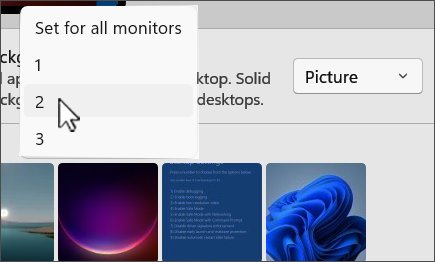
Set a different wallpaper on each monitor in Windows 11
With Picture selected, Windows lets you set one image on all displays or a separate image per display.
- Open Settings > Personalization > Background.
- Select Picture in the Personalize your background list.
- Under the recent images, right-click the image you want.
- Choose whether to set it for all monitors or for one specific monitor.
- Repeat for the other display with a second image.
To stretch one wide image across every screen instead, pick Span as the fit. Per-monitor pictures are not available when you use multiple virtual desktops; there you can set a different picture per desktop instead.
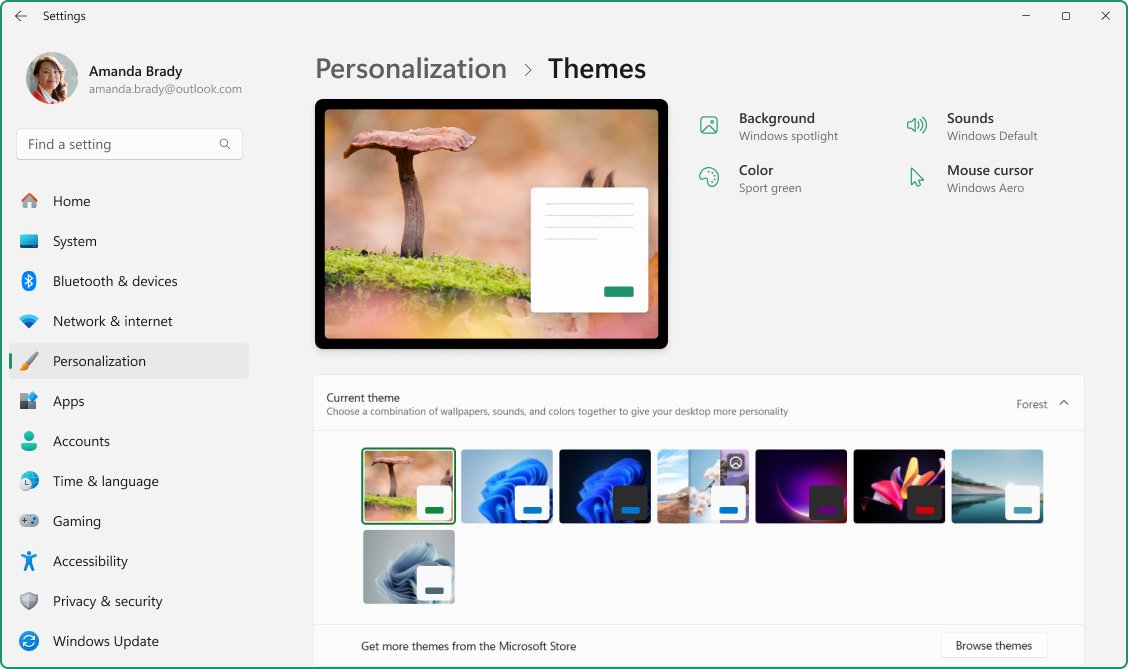
Save your wallpaper as a Windows 11 theme
A theme bundles the background with colors, sounds and the mouse cursor, so you can switch the whole look back in one click.
- Set the background, color, sounds and cursor the way you want them.
- Open Settings > Personalization > Themes.
- Select Save and type a name for the theme.
- To share it, right-click the saved theme and select Save theme for sharing. Windows creates a
.deskthemepackfile. - To get more themes, select Browse themes to open the Microsoft Store.
Background / overview
Windows 11 treats four images separately. Knowing which one you want saves a trip through the wrong settings page.
| Surface | What it is | Where to change it |
|---|---|---|
| Desktop background | The image behind your apps and icons | Personalization > Background |
| Lock screen | The screen shown at startup, wake and after Windows + L | Personalization > Lock screen |
| Sign-in screen | The screen where you enter your PIN or password | Uses the lock screen image when Show the lock screen background picture on the sign-in screen is on |
| Theme | Background plus colors, sounds and cursor | Personalization > Themes |
| Virtual desktops | Each desktop can carry its own picture | Right-click an image under Recent images > choose a desktop |
Best image sizes and fit options
Match the image's aspect ratio to your screen and Fill will rarely crop anything you care about. Microsoft recommends designing in 16:9, such as 1920 x 1080, and keeping text inside the central 4:3 area so it survives other screen shapes.
| Fit | What it does | Best for |
|---|---|---|
| Fill | Enlarges the image to cover the screen; edges may be cropped | Photos close to your screen's aspect ratio |
| Fit | Shows the whole image without distortion; bars may appear | Portrait photos or images you must not crop |
| Stretch | Stretches to cover the screen; can distort the image | Images already at your exact resolution |
| Tile | Repeats the image across the screen | Small patterns and textures |
| Center | Places the image in the middle without resizing | Logos or small art on a solid color |
| Span | Spreads one image across multiple monitors | Ultra-wide panoramas on two or three screens |
A 16:9 image on a 16:10 or 4:3 laptop keeps its height and loses some width at the sides, and it stays centered.
Where Windows stores wallpapers and Spotlight assets
Windows does not give Spotlight images a documented user folder, so keep your own copies of any wallpaper you want to reuse.
| What you are looking for | Where to find it |
|---|---|
| Images you used recently | The Recent images row on Personalization > Background |
| Your own wallpaper files | Wherever you saved them; a dedicated Pictures subfolder also works as a slideshow album |
| Built-in lock screen images | Microsoft's policy documentation uses C:\Windows\Web\Screen as its example folder for the default lock screen image |
| Images pushed by a work policy | Downloaded and cached locally by Windows after the policy applies |
| A whole look you want to keep | A saved theme under Personalization > Themes, exportable as a .deskthemepack file |
| Bing and Spotlight photos | Shown through the Bing Wallpaper app or Spotlight itself rather than a documented image folder |
Older third-party tools that copied Spotlight lock screen images to the desktop relied on undocumented system folders that can change with updates.
Animated/video wallpapers — third-party solutions
Windows 11 has no built-in video or animated wallpaper option. The Background page offers still pictures, solid colors, slideshows and Spotlight only.
| Option | What it does | Points to weigh |
|---|---|---|
| Wallpaper Engine (Steam) | Live 2D and 3D animated wallpapers, videos and web pages; mp4, WebM, avi, m4v, mov and wmv for local video | Paid; Windows 10 and 11; can pause when an app runs fullscreen or a game is running |
| Bing Wallpaper (Microsoft) | A new themed background each day with facts about the image | Still images, not video; Windows 10 and later |
| Slideshow with a short interval | Built-in rotation through your own pictures | No motion, but no extra software |
Web and application wallpapers use more resources than video ones, and a dedicated GPU is recommended for heavy scenes. For a daily still image, you can set Bing's daily photos as wallpaper instead.
Power users: scripting and automation
Windows exposes the wallpaper through settings links, policies and APIs. Pick the layer that matches how many PCs you manage.
| Tool | What it controls | Editions |
|---|---|---|
ms-settings:personalization-background and ms-settings:lockscreen |
Open the Background and Lock screen pages from Run, a shortcut or a script | All |
| Group Policy Desktop Wallpaper (User Configuration > Administrative Templates > Desktop > Desktop) | Forces a local or UNC image path as the desktop background | Pro, Enterprise, Education |
| Group Policy Force a specific default lock screen and logon image (Computer Configuration > Administrative Templates > Control Panel > Personalization) | Sets one image for the lock and sign-in screens | Enterprise, Education (GPO); Pro via Intune/CSP |
Personalization CSP DesktopImageUrl and LockScreenImageUrl |
Downloads a jpg, jpeg or png from a URL or local path and applies it | Enterprise and Education; Pro only in Shared PC setups |
| Intune Settings catalog > Personalization | Desktop Image Url and Lock Screen Image Url settings | Pro, Enterprise, Education |
IDesktopWallpaper COM interface |
Sets wallpaper per monitor, fit position, slideshow folder, shuffle and timing | Windows 8 and later |
SystemParametersInfo with SPI_SETDESKWALLPAPER |
Sets a single desktop wallpaper from code | All desktop versions |
Setting the CSP images also stops the user from changing them, so test on one PC before rolling out.
Frequently misunderstood points (mythbusting)
| Belief | What actually happens |
|---|---|
| Changing the desktop wallpaper changes the lock screen too | No. The lock screen has its own setting under Personalization > Lock screen |
| Spotlight on the desktop means I changed nothing | After the October 2024 update KB5046633, Windows 11 switched the default wallpaper to Windows spotlight |
| Slideshow works on every virtual desktop | No. Slideshow is not supported when you use multiple desktops |
| Stretch is the best way to fill the screen | Stretch distorts images with a different aspect ratio; Fill keeps proportions and crops instead |
| Applying a theme locks my wallpaper | No. You can still change the background after applying a theme |
| A custom lock screen image turns off Spotlight tips | Not always. Fun facts and tips can still appear over a custom image |
See your new lock screen wallpaper with Windows + L
- Minimize your apps with Windows + D and confirm the desktop shows the new image.
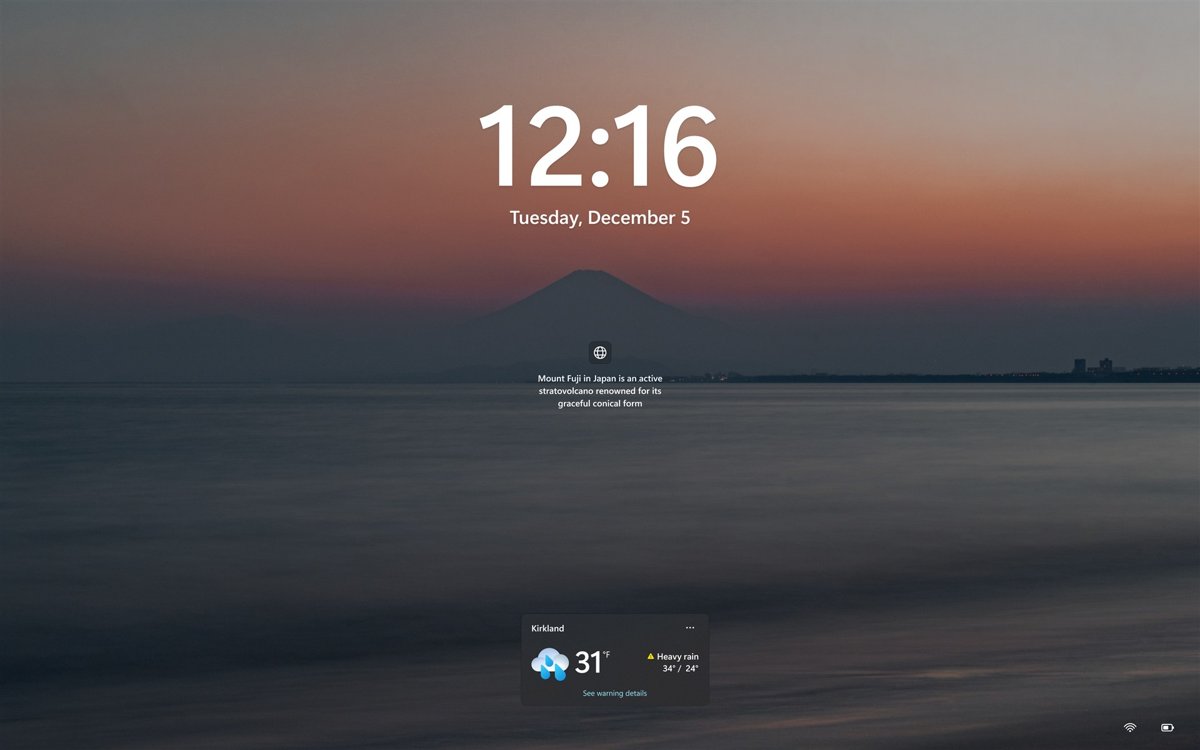
- Press Windows + L to lock the PC and confirm the lock screen image.
- Dismiss the lock screen and check the sign-in screen shows the same picture if you turned that option on.
- For a slideshow, right-click the desktop and select Next desktop background to confirm it advances.
Locking the PC this way is one of several ways to lock your Windows screen, and any of them shows the same lock screen background.
Restore the default Windows 11 wallpaper
- Open Settings > Personalization > Themes.
- Select one of the default Windows themes to restore its built-in background, colors and sounds.
- Or open Personalization > Background and select one of the default images in the recent images row.
- To go back to the daily photo, select Windows spotlight in the Personalize your background list.
Default Windows themes cannot be deleted, so they are always available to fall back on.
Common problems and fixes
Wallpaper looks blurry, stretched or cropped
The image's aspect ratio or resolution does not match the screen, or the fit is wrong.
- Open Settings > Personalization > Background.
- Change the fit to Fill or Fit instead of Stretch.
- Use an image at least as large as your display resolution, ideally in the same aspect ratio.
Cannot set a different picture on each monitor
Per-monitor pictures are unavailable while you use multiple virtual desktops, or the background is set to Slideshow.
- Close extra virtual desktops from Task view if you do not need them.
- Select Picture in the Personalize your background list.
- Right-click an image and choose the monitor to set it for.
Wallpaper changed to Windows spotlight on its own
Windows 11 updates from October 2024 (KB5046633) made Spotlight the default wallpaper.
- Open Settings > Personalization > Background.
- Select Picture and choose your image again.
Sign-in screen shows a different image from the lock screen
The sign-in screen only reuses the lock screen picture when its toggle is on.
- Open Settings > Personalization > Lock screen.
- Turn on Show the lock screen background picture on the sign-in screen.
Lock screen image moves when the laptop moves
The motion effect for the lock screen image is turned on.
- Open Settings > Personalization > Lock screen.
- Turn off Make the lock screen image react when I move my PC.
Windows 11 wallpaper won’t change: causes and fixes
Background options are greyed out on a work or school PC
The policy Prevent changing desktop background or Desktop Wallpaper is set by your organization.
- Ask your IT team whether a wallpaper policy applies to your account.
- On your own Pro PC, open the Local Group Policy Editor and go to User Configuration > Administrative Templates > Control Panel > Personalization.
- Set Prevent changing desktop background to Not Configured.
- Also set Desktop Wallpaper under User Configuration > Administrative Templates > Desktop > Desktop to Not Configured, then sign out and back in.
Lock screen image will not change
The policy Prevent changing lock screen and logon image or Force a specific default lock screen and logon image is set.
- On a managed PC, ask IT; these policies are deliberate.
- On your own PC, open the Local Group Policy Editor and go to Computer Configuration > Administrative Templates > Control Panel > Personalization.
- Set both policies to Not Configured and restart.
Slideshow stays on one picture
The folder holds a single image, the interval is long, or you use multiple virtual desktops.
- Add more images to the slideshow folder.
- Shorten the picture-change interval on the Background page.
- Right-click the desktop and select Next desktop background to test the rotation.
Security, privacy and risk analysis
| Area | What to know |
|---|---|
| Lock screen content | The lock screen is visible to anyone near the PC, so avoid personal photos or documents you would not show a stranger |
| Lock screen widgets | Widgets can tailor content using your estimated location from the Windows Location service or your IP address; turn Widgets off on the Lock screen page to hide them |
| Spotlight tips | Spotlight adds Microsoft suggestions and fun facts; turn off the tips option on the Lock screen page if you only want the image |
| Third-party live wallpapers | They run in the background constantly; install them only from the vendor's own store page |
| Shared themes | A .deskthemepack file applies backgrounds and sounds; open theme files only from people you trust |
| Work devices | Wallpaper policies are often branding or legal notices; do not try to bypass them |
Windows 11 wallpaper and lock screen FAQ
How do I change my wallpaper on Windows 11?
Right-click the desktop, select Personalize, then Background. Choose Picture, Solid color, Slideshow or Windows spotlight in the Personalize your background list and pick your image or folder. The change applies immediately.
How do I change the lock screen background on Windows 11?
Open Settings > Personalization > Lock screen and use the Personalize your lock screen list to choose Windows spotlight, Picture or Slideshow. The lock screen setting is separate from the desktop background.
Can I set a video as my Windows 11 wallpaper?
Not with built-in settings. Windows 11 supports still pictures, solid colors, slideshows and Windows spotlight only. Video and animated wallpapers need a third-party app such as Wallpaper Engine from Steam.
How do I make my wallpaper change automatically?
Select Slideshow on Settings > Personalization > Background, choose a folder of pictures and set how often the picture changes. Choose Windows spotlight instead for a new Microsoft image every day.
What size should a Windows 11 wallpaper be?
Use an image at your screen's native resolution and aspect ratio, for example 1920 x 1080 for a 16:9 display. Microsoft recommends 16:9 images with important text kept in the central 4:3 area.
Why can't I change my desktop background in Windows 11?
A Group Policy such as Prevent changing desktop background or Desktop Wallpaper is usually set, often by an organization. On a work PC, ask IT. On your own Pro PC, set those policies to Not Configured in the Local Group Policy Editor.
Can I use different wallpapers on two monitors?
Yes. Select Picture on the Background page, right-click an image and choose the monitor to set it for. This is not available when you use multiple virtual desktops.
Does Windows spotlight work on the desktop in Windows 11?
Yes. Select Windows spotlight in the Personalize your background list on Settings > Personalization > Background to get a new image every day on the desktop as well as the lock screen.
Practical recommendations for Windows 11 wallpapers
Use Picture with Fill for one photo, Slideshow for your own rotation, and Windows spotlight on both screens if you want a new image daily with no upkeep; save the result as a theme. These built-in options cover nearly every need without extra software, a saved theme lets you restore the whole look in one click, and policies are the only common reason a wallpaper refuses to change.