To enable the F8 key in Windows 11 or Windows 10, run bcdedit /set {current} bootmenupolicy legacy in an administrator Command Prompt, then press F8 during startup to open the menu with Safe Mode.
This guide covers that command, a one-time F8 menu, every other way into Safe Mode including a recovery drive, how to switch F8 off again, and what to do when the key still does nothing.
Enabling the F8 Key in Windows 10/11
Windows 10 uses the Standard boot menu by default, and Standard ignores F8 because the PC starts too quickly to catch it. Switching the boot menu policy to Legacy brings the F8 Advanced options menu back.
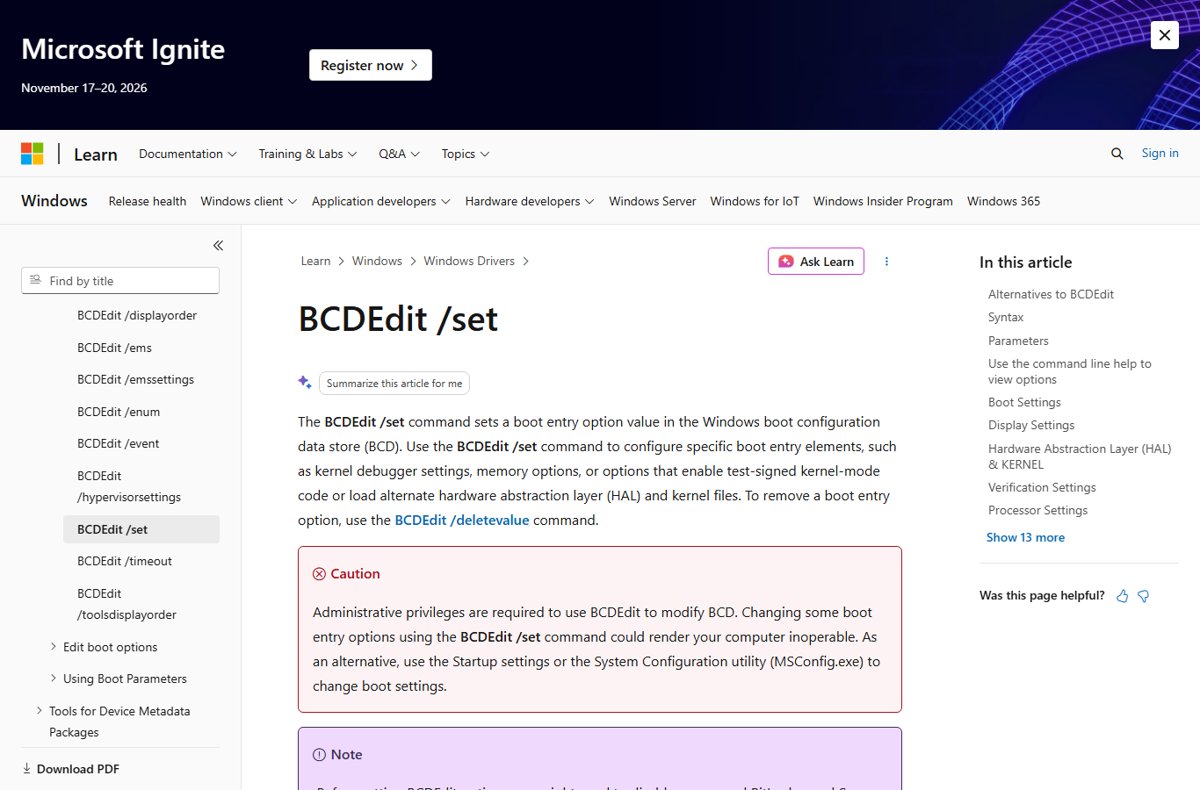
bcdedit /set {current} bootmenupolicy legacySets the boot menu policy of the running Windows installation to Legacy, which makes the Advanced options (F8) menu available at every startup. Search for Command Prompt, right-click it and select Run as administrator first.
You should see: Command Prompt reports that the operation succeeded. Restart and press F8 before the Windows logo to see the menu.
Microsoft notes you might need to suspend BitLocker and Secure Boot before changing BCD settings, and that wrong BCDEdit changes can stop a PC from starting. Type the command exactly as shown.
Understanding Safe Mode
Safe Mode starts Windows with a limited set of files and drivers. If a problem does not happen in Safe Mode, default settings and basic drivers are not the cause.
| Option | What it loads | Use it when |
|---|---|---|
| Safe Mode | Basic files and drivers only | Removing a bad driver or app that crashes Windows |
| Safe Mode with Networking | Safe Mode plus network drivers and services | You need the internet to download a driver or run a scan |
| Safe Mode with Command Prompt | Safe Mode with a command prompt instead of the desktop | The desktop itself will not load |
| Enable low-resolution video | Your current video driver at low resolution | A display setting left the screen blank |
| Disable automatic restart on system failure | Normal startup that stops on errors | Windows is stuck in a crash-and-restart loop |
Alternate Methods to Access Safe Mode
| Your situation | Use this method | Why |
|---|---|---|
| You want F8 to work every time | bootmenupolicy legacy | Permanent F8 menu at each startup |
| You need the F8 menu just once | onetimeadvancedoptions on | Shows the legacy menu on the next boot only |
| Windows starts and you can sign in | Settings > Recovery > Advanced startup | No commands needed |
| You are on the sign-in screen | Hold Shift and select Power > Restart | Works without signing in |
| You need Safe Mode for several restarts | System Configuration (msconfig) > Safe boot | Stays in Safe Mode until you clear it |
| Windows will not start at all | Interrupt startup twice, or boot a recovery drive | Both open Windows Recovery Environment |
Booting into Safe Mode Using F8
- Save your work and restart the PC.
- As soon as the screen goes dark, press F8 repeatedly until the menu appears.
- Use the arrow keys to highlight Safe Mode, Safe Mode with Networking or Safe Mode with Command Prompt.
- Press Enter and sign in.
- Fix the problem you came for, such as uninstalling a driver in Device Manager, then restart to return to normal mode.
On a laptop where F8 controls volume or brightness, hold Fn while pressing F8, or turn on F Lock if your keyboard has one.
Show the F8 menu on the next startup only
If you only need the menu once, this option avoids changing the boot menu policy for good.
bcdedit /set {current} onetimeadvancedoptions onTells Windows to boot to the legacy F8 menu on the next startup only, then return to the normal boot menu.
You should see: Command Prompt reports success, and the next restart opens the Advanced options menu without pressing anything.
Boot to Safe Mode from Settings or the sign-in screen
- On Windows 11, open Settings > System > Recovery; on Windows 10, open Settings > Update & Security > Recovery.
- Next to Advanced startup, select Restart now. From the sign-in screen, hold Shift and select Power > Restart instead.
- Select Troubleshoot > Advanced options > Startup Settings > Restart.
- Press 4 or F4 for Enable Safe Mode, 5 or F5 for Safe Mode with Networking, or 6 or F6 for Safe Mode with Command Prompt.
- Enter your BitLocker recovery key if the PC asks for it.
A one-click alternative for Windows 11 is the Safe Mode Launcher shortcut.
Using System Configuration (msconfig)
Microsoft recommends System Configuration over BCDEdit where possible. This route keeps Windows in Safe Mode on every restart until you turn it off.
- Press Windows key + R, type
msconfigand select OK. - Select the Boot tab.
- Under Boot options, tick Safe boot.
- Select OK, then Restart.
- When you are finished, open msconfig again and clear Safe boot so Windows starts normally.
Using a Recovery Drive
A recovery drive gets you into Windows Recovery Environment when Windows will not start. Create it in advance on a working PC with an empty USB drive, because the drive is erased.
- From Start, search for Recovery Drive and open it, or run
recoverydrive.exe. - Keep Back up system files to the recovery drive selected and select Next.
- Connect the USB drive, select it, select Next, then Create.
- To use it, start the PC from the USB drive; the boot key varies by manufacturer, so check your device manual.
- When Windows RE loads, select Troubleshoot > Advanced options > Startup Settings > Restart, then press 4 for Safe Mode.
Microsoft recommends recreating the recovery drive once a year so it includes recent updates. It does not include your personal files.
How to check F8 is enabled
- Open Command Prompt as administrator.
- Run
bcdedit /enum {current}. - Find the bootmenupolicy line and confirm it reads Legacy.
- Restart and press F8; the Advanced options menu should appear before Windows loads.
How to disable the F8 key and leave Safe Mode
bcdedit /set {current} bootmenupolicy standardReturns the boot menu to Standard, the Windows 10 default, so F8 is ignored again at startup.
You should see: Command Prompt reports success, and F8 no longer opens a menu at startup.
If Windows keeps starting in Safe Mode, press Windows key + R, type msconfig, open the Boot tab and clear Safe boot. If you suspended Secure Boot earlier, turn Secure Boot back on in your firmware settings.
Fix F8 when it does not open Safe Mode
F8 key does nothing at startup
The boot menu policy is still Standard, which ignores F8.
- Run
bcdedit /enum {current}and check bootmenupolicy. - If it is not Legacy, run
bcdedit /set {current} bootmenupolicy legacyas administrator. - Restart and press F8 repeatedly as soon as the screen goes dark.
F8 on a laptop changes volume or brightness
The top row sends alternate commands unless Fn is held.
- Hold Fn and press F8.
- If your keyboard has an F Lock key, turn it on so F1 to F12 send standard commands.
bcdedit reports access is denied
BCDEdit needs administrative privileges.
- Close Command Prompt.
- Search for Command Prompt, right-click it and select Run as administrator.
- Run the command again.
Windows keeps booting into Safe Mode
Safe boot is still ticked in System Configuration.
- Press Windows key + R, type
msconfigand select OK. - On the Boot tab, clear Safe boot.
- Select OK and restart.
Frequently asked questions
How do I enable the F8 key in Windows 11?
Open Command Prompt as administrator and run bcdedit /set {current} bootmenupolicy legacy. Restart and press F8 before the Windows logo appears to open the Advanced options menu with Safe Mode.
How do I disable the F8 key in Windows 11?
Run bcdedit /set {current} bootmenupolicy standard in an administrator Command Prompt. The Standard boot menu ignores F8 during startup, which is how Windows normally behaves.
Why doesn't F8 work in Windows 10 and 11?
The default Standard boot menu ignores F8, and Microsoft notes modern PCs start too quickly to press it in time. Set the boot menu policy to Legacy with bcdedit to make F8 work again.
How do I use the F8 key on a laptop?
Hold Fn and press F8 if the key normally controls a media function. Press it repeatedly as soon as the screen goes dark during a restart, after enabling the legacy boot menu with bcdedit.
How do I get the F8 key to work?
Run bcdedit /set {current} bootmenupolicy legacy as administrator, then restart and tap F8 repeatedly. On laptops, hold Fn with F8 or turn on F Lock so the key sends F8 instead of a media command.
How do I boot into Safe Mode without F8?
Hold Shift and select Power > Restart, then choose Troubleshoot > Advanced options > Startup Settings > Restart and press 4. You can also tick Safe boot on the Boot tab of msconfig.
Is it safe to change the boot menu policy?
Yes, when you type the command exactly. Microsoft warns that some BCDEdit changes can stop a PC from starting, and you may need to suspend BitLocker first. Setting the policy back to standard reverses it.