To unprotect a workbook in Excel, select Review > Protect Workbook, enter the password, and select OK; the workbook structure is unlocked straight away.
This guide covers five methods: the password route, workbooks protected without a password, a VBA macro, removing the password needed to open the file, and saving an unprotected copy.
1. Unprotecting a Workbook with the Known Password
Workbook protection locks the structure: adding, moving, deleting, hiding, unhiding and renaming sheets. Use this method when you know the password.
- Open the workbook in Excel.
- Select the Review tab.
- Select Protect Workbook; it is highlighted while the workbook is protected.
- Enter the password exactly as it was set; passwords are case-sensitive.
- Select OK, then save the workbook.
Sheet options such as Insert, Delete, Rename, Move or Copy, Hide and Unhide become available again when you right-click a sheet tab.
Which method should you use?
| Your situation | Use this method | Why |
|---|---|---|
| You know the password and want sheets editable again | Method 1: Review > Protect Workbook | Built in, two clicks |
| Protection was set without a password | Method 2: click Protect Workbook to toggle it off | No password prompt appears |
| You manage many files or sheets with a known password | Method 3: VBA Unprotect |
Removes protection in one run |
| Excel asks for a password before the file even opens | Method 4: remove Encrypt with Password | That is file encryption, not workbook protection |
| You need a clean copy to share | Method 5: save an unprotected copy | Keeps the protected original untouched |
| You have forgotten the password | None of the above | Microsoft cannot retrieve forgotten passwords; ask the file's owner |
2. Using the ‘Unprotect Workbook’ Option in Excel Without a Password (If Password is Not Enforced)
The password on workbook protection is optional. Microsoft notes that if no password was supplied, any user can unprotect and change the workbook.
- Open the workbook and select the Review tab.
- Select Protect Workbook.
- If no password box appears, protection is removed immediately.
- Right-click a sheet tab to confirm options such as Rename and Delete are available.
- Save the workbook.
If a password box does appear, the password is enforced and you need Method 1 or the file's owner.
3. VBA (Visual Basic for Applications) Macro to Remove Workbook Protection
The VBA Unprotect method removes protection from a workbook or sheet when you supply the correct, case-sensitive password. It does not work around a forgotten password: Microsoft states that if you forget the password, you cannot unprotect the sheet or workbook.
Sub RemoveProtection()
    ActiveWorkbook.Unprotect Password:="YourPassword"
    Dim ws As Worksheet
    For Each ws In ActiveWorkbook.Worksheets
        ws.Unprotect Password:="YourPassword"
    Next ws
End Sub
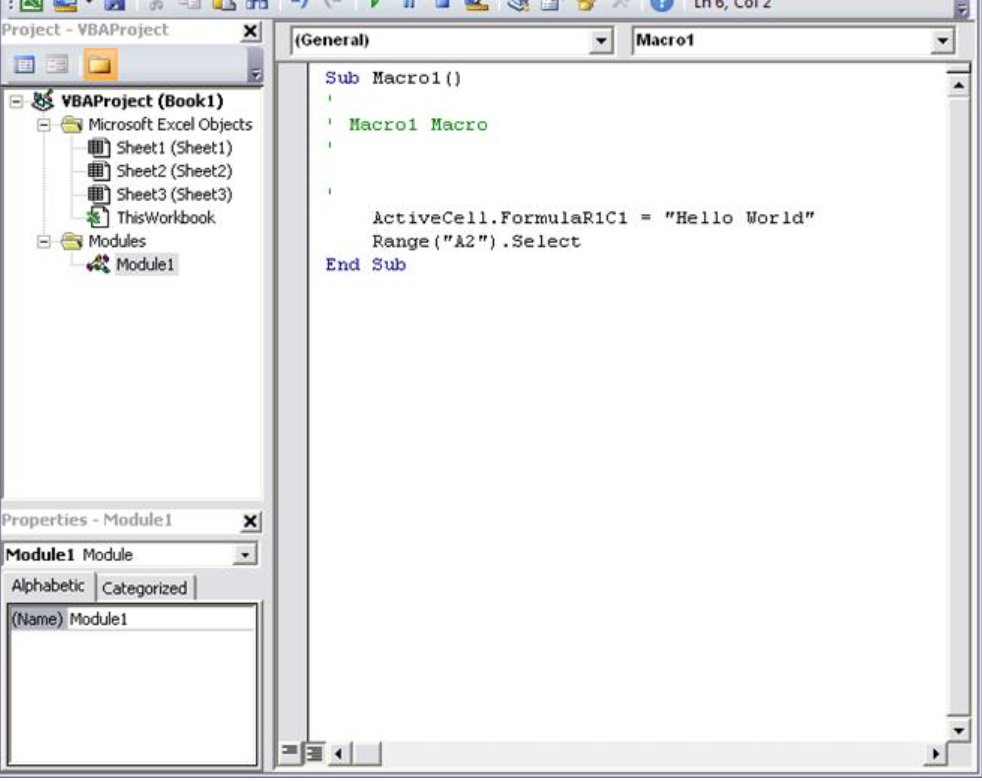
Turn on the Developer tab (File > Options > Customize Ribbon, tick Developer), select Developer > Visual Basic, add a module, paste the code and replace YourPassword with the real password. Back in Excel, choose Developer > Macros, select RemoveProtection and choose Run. ActiveWorkbook.Unprotect unlocks the workbook structure; the loop unlocks every protected sheet. On a password-protected workbook the method fails if the password is missing or wrong.
You should see: No error message, and Review > Protect Workbook is no longer highlighted.
Macros that claim to unprotect workbooks without the password are a way around someone else's protection. Use them only on files you own, and expect them to fail on modern encrypted files.
4. Remove the Password That Opens the Workbook
If Excel asks for a password before the file opens, the file is encrypted. That is file-level protection, separate from workbook structure protection, and Protect Workbook on the Review tab does not remove it.
- Open the file and type its password when asked.
- Select File > Info.
- Select the Protect Workbook box and choose Encrypt with Password.
- Delete the password so the Password box is empty, then select OK.
- Save the workbook; it now opens without a password.
5. Removing the Password by Saving a New, Unprotected Copy
Use this when you want to keep the protected original and hand out a clean copy. You still need the passwords.
- Open the protected workbook with its password.
- Remove workbook protection with Review > Protect Workbook and the password.
- Remove each sheet's protection with Review > Unprotect Sheet.
- Clear any file password under File > Info > Protect Workbook > Encrypt with Password.
- Select File > Save As, choose a new name or folder, and save.
Reopen the original file without saving it again if you want it to stay protected.
How to check the workbook is unprotected
- On the Review tab, check that Protect Workbook is no longer highlighted.
- Right-click a sheet tab and confirm Insert, Delete, Rename and Hide are available.
- Select File > Info and check that Protect Workbook no longer says the structure is locked.
- Close and reopen the file to confirm no password prompt appears if you removed encryption.
Fix it when you can't unprotect the workbook
You unprotected the workbook but still cannot edit cells
The cells are locked by sheet protection, which is separate from workbook protection.
- Go to the sheet you want to edit.
- Select Review > Unprotect Sheet, or File > Info > Protect > Unprotect Sheet.
- Enter the sheet password if asked and select OK.
Excel says the password is incorrect
Passwords are case-sensitive, so Caps Lock or a different capital letter breaks them.
- Check Caps Lock and the keyboard language.
- Type the password exactly as it was set, including capitals and symbols.
- Ask the person who protected the file; Microsoft cannot retrieve forgotten passwords.
Protect Workbook does nothing because the file will not open
The file is encrypted with a password to open, not workbook protection.
- Enter the open password to load the file.
- Follow Method 4 to remove encryption.
Using Third-Party Tools and Password Recovery Software
Third-party tools, password recovery software and online services that promise to unlock Excel files are not Microsoft products. Uploading a workbook to an online service hands its contents to a stranger, and unlocking a file that is not yours can be unauthorized access.
Do not use third-party unlocking tools or online services on a workbook you do not own. Microsoft cannot retrieve a forgotten password, so the reliable fix for a forgotten password is the file's owner or an older unprotected copy from your backup or OneDrive version history.
Additional Tips for Managing Excel Passwords
| Tip | Why |
|---|---|
| Use the right level of protection | File encryption stops opening; workbook protection locks sheet structure; sheet protection locks cells |
| Store passwords in a password manager | Microsoft cannot recover a lost Excel password |
| Use 8 or more characters, mixing cases, numbers and symbols | Microsoft's guidance for strong passwords |
| Do not rely on sheet protection for security | Microsoft states worksheet protection is not intended as a security feature |
| Keep an unprotected master copy somewhere safe | Lets you recover if a password is lost |
Additional tips and precautions: be careful sharing files that hold sensitive data such as card numbers, even when they are password protected.
Frequently asked questions
How do I unprotect a workbook in Excel?
Select Review > Protect Workbook, enter the password, and select OK. The workbook structure unlocks immediately, so you can add, rename, move, hide and delete sheets again. Save the file to keep the change.
How do I unprotect the workbook structure?
Workbook structure protection is what Review > Protect Workbook controls. Select it, enter the password, and select OK. If no password was set, a single click removes protection without any prompt.
Why can't I unprotect my Excel workbook?
Usually the password is wrong, the cells are locked by sheet protection instead, or the file is encrypted with an open password. Check Caps Lock, use Review > Unprotect Sheet for cells, and File > Info for file encryption.
Can I unprotect an Excel workbook without the password?
Only if no password was set, in which case Review > Protect Workbook removes protection with one click. Microsoft states that if you forget the password you cannot unprotect the workbook, and it cannot retrieve passwords for you.
How do I protect a workbook in Excel?
Select Review > Protect Workbook, type a password in the Password box, select OK, re-enter the password and select OK again. The password is optional; without one, anyone can remove the protection.
How do I protect a workbook in Excel 365?
Excel in Microsoft 365 uses the same steps: Review > Protect Workbook for the structure, Review > Protect Sheet for cells, and File > Info > Protect Workbook > Encrypt with Password to require a password to open the file.
What is the difference between Protect Workbook and Protect Sheet?
Protect Workbook locks the structure, such as adding, deleting, renaming or hiding sheets. Protect Sheet locks cells and actions within one sheet. Each has its own password and its own unprotect command.