To use Samsung Flow, install the app on your Galaxy phone and on your Windows PC or tablet, open it on both, pick your phone from the list and confirm the same passcode on each screen.
This guide covers requirements, setup, file sharing, notification sync, Smart View mirroring, when Phone Link is the better fit, and fixes for the problems readers hit most.
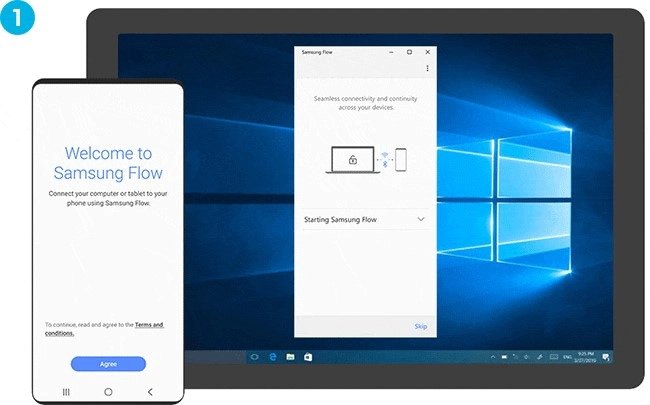
The fastest way to start using Samsung Flow
Samsung Flow is still maintained: Samsung updated the Android app on Google Play in September 2026. These steps pair a Galaxy phone with a Windows PC.
- On your Galaxy phone, install or update Samsung Flow from Google Play or Galaxy Store.
- On your PC, select Start, then Microsoft Store, search for Samsung Flow and install the app published by Samsung.
- Turn on Bluetooth on the PC, or connect it to Wi-Fi or a wired LAN.
- Start Samsung Flow on the phone and on the PC.
- On the PC, choose your phone from the list of devices.
- Confirm that the passcode shown on both devices matches, and accept it on each one.
- Wait for Samsung Flow to report that setup is complete.
What is Samsung Flow?
Samsung Flow is Samsung's own app for linking a Galaxy phone with a Windows PC or an Android tablet. It moves files, mirrors notifications and shows your phone screen on the larger device.
| Question | Answer |
|---|---|
| Who makes it | Samsung Electronics Co., Ltd. |
| Cost | Free on Google Play, Galaxy Store and Microsoft Store |
| Devices it links | A Galaxy phone with a Windows tablet or PC, or with an Android tablet |
| How devices connect | Bluetooth (Bluetooth LE optional), Wi-Fi or LAN, and Wi-Fi Direct |
| Status in 2026 | Active; the Android app was last updated on September 4, 2026 |
| Removed feature | Unlocking a Windows PC from the phone is no longer provided because Windows policy changed |
| Software limit | Works only on official software released by Samsung, so rooted or custom-ROM phones are excluded |
Samsung's old Samsung Flow landing pages now redirect to the Samsung home page, but the apps themselves remain in the stores and receive updates.
System requirements for Samsung Flow
Check both devices against Samsung's current listing before you install. Samsung notes that some phone models may not be supported, depending on their specifications.
| Device | Minimum requirement | Notes |
|---|---|---|
| Windows PC or tablet | Windows 10 Creators Update (version 1703), build 15063.413 or later | Galaxy Book, Galaxy TabPro S and other Windows PCs are listed |
| Android phone | Android 7.0 (Nougat) or newer | Must run official Samsung software |
| Android tablet | Android 7.0 (Nougat) or newer | Pairs with the phone the same way a PC does |
| PC connection | Bluetooth, Wi-Fi or LAN, or Wi-Fi Direct | At least one must be on before pairing |
| Phone permissions | Nearby devices, Notifications, Storage | Required for pairing, status and shared content |
Setting Up Samsung Flow
Update the phone first, because an outdated app is the most common reason a phone never appears in the PC's list. Samsung's pairing steps do not include a Samsung account sign-in.
- On the phone, open Settings > Software update and tap Download and install if an update is offered.
- Install or update Samsung Flow on the phone, then on the PC through Microsoft Store.
- On the PC, open Settings > Bluetooth & devices (Windows 11) or Settings > Devices (Windows 10) and switch Bluetooth to On.
- Open Samsung Flow on the phone and allow the Nearby devices, Notifications and Storage permissions it asks for.
- Open Samsung Flow on the PC and choose your phone from the list.
- Confirm the passcode on both devices to finish pairing.
- Allow the optional permissions (Phone, Call logs, Contacts, SMS, Microphone) only if you want calls, texts or audio on the PC.
Each optional permission unlocks one feature. SMS lets you read and reply to texts on the PC, Phone lets you answer or decline calls, and Microphone sends phone audio during Smart View.
Using Samsung Flow: Key Functions Explained
| Function | What it does | Where to start it |
|---|---|---|
| Handover (file and content sharing) | Moves files, photos and activity from one paired device to the other | The Samsung Flow window on the device that holds the content |
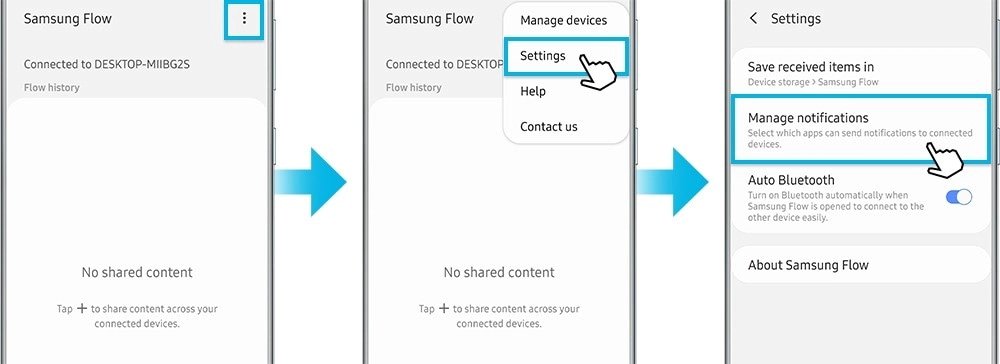
| Notification Sync | Shows phone notifications on the PC or tablet and lets you reply to messages there | Phone app > More options > Settings > Manage notifications |
| Smart View (multi-screen) | Displays and controls the phone screen in a second window on the PC or tablet | The Smart View icon in Samsung Flow on the PC or tablet |
| Auto Hotspot Link | Turns on the phone's Mobile Hotspot to keep the PC or tablet online | Samsung Flow on the paired devices |
| Calls and texts | Answer or decline calls and reply to SMS from the PC | Grant the optional Phone and SMS permissions |
| Secure access | Samsung Pass biometric login on supported devices; PC unlock itself has been withdrawn | Samsung Pass on the phone |
Samsung does not list clipboard sharing among Samsung Flow's functions, so do not rely on it for copy and paste between devices.
How to transfer photos and files with Samsung Flow
File sharing needs a paired connection first. Wi-Fi or LAN is the route to use for large photo batches, since Bluetooth is the slower link.
- Pair the phone and PC using the setup steps above.
- Open Samsung Flow on both devices so the connection is active.
- On the device that holds the photos, use the share or attach option in the Samsung Flow window and pick the files.
- Send them and keep both screens awake until the transfer finishes.
- Open the received files from the Samsung Flow window on the other device.
Samsung Flow needs the Storage permission on Android 10 and earlier to save and show shared content, so allow it when prompted.
How to mirror your phone screen with Smart View
- Make sure your phone and PC or tablet are paired.
- On the PC or tablet, open Samsung Flow and select the Smart View icon.
- Wait for the phone screen to appear in a second window.
- Use Rotate to switch between portrait and landscape, or Full screen to fill the display.
- Select Screen capture to save a screenshot of the phone screen.
The Smart View window also offers Do not disturb, Phone screen on/off, Resolution and Favorites, which holds shortcuts to your most-used apps.
Tips for Maximizing Your Samsung Flow Experience
Most complaints about Samsung Flow come from a noisy notification feed or an out-of-date app. These adjustments fix both.
- Open Samsung Flow on the phone, tap More options (three dots), then Settings > Manage notifications.
- Switch off every app you do not want mirrored, and leave messaging apps on so you can reply from the PC.
- On the PC, open Microsoft Store and select Get updates in Library to keep the Windows app current.
- In Smart View, add the apps you open most to Favorites for one-click access.
- Turn on Bluetooth and keep Wi-Fi available on the PC so Samsung Flow has more than one way to connect.
Notifications from non-messenger apps can only be viewed on the PC; to act on them, pick up the phone.
Use Cases for Samsung Flow
Samsung Flow is one of three Samsung-friendly ways to use a phone with a PC. Match your task to a row.
| Your situation | Use this | Why |
|---|---|---|
| Student or office user moving lecture photos and documents to a laptop | Samsung Flow | Sends files over Wi-Fi or Bluetooth without a cable or cloud upload |
| Business user who wants texts and calls at the desk | Samsung Flow with SMS and Phone permissions | Reply to messages and answer calls without picking up the phone |
| Creative user checking a phone app or photo on a big screen | Samsung Flow Smart View | Mirrors and controls the phone with screen capture and rotation |
| Everyday user whose laptop has no Wi-Fi nearby | Samsung Flow Auto Hotspot Link | Turns on the phone's Mobile Hotspot for the PC |
| Any Android 10+ phone and a current Windows PC, wanting photos, messages and calls in one Microsoft app | Phone Link with Link to Windows | Built into Windows and supported by Microsoft |
| You want a full desktop layout driven by the phone | Samsung DeX | Runs phone apps in resizable windows; see Download Samsung DeX for PC |
How to check Samsung Flow is working
- Open Samsung Flow on the PC and confirm your phone's name appears as a connected device.
- Send yourself a test message on the phone and check that the notification appears on the PC.
- Select the Smart View icon and confirm the phone screen opens in its own window.
- Send one photo from the phone and open it on the PC.
Troubleshooting Common Issues
Your phone does not appear in the list on the PC
Samsung's first cause is an outdated Samsung Flow app on one of the devices.
- Update Samsung Flow on the phone from Google Play or Galaxy Store.
- On the PC, open Microsoft Store, go to Library and select Get updates.
- Update the phone through Settings > Software update > Download and install.
- Confirm the PC runs Windows 10 version 1703 or later and the phone runs Android 7.0 or later.
Samsung Flow is unable to use Wi-Fi or keeps disconnecting
The PC has no working Wi-Fi, LAN or Bluetooth path to the phone.
- On Windows 11, open Settings > Bluetooth & devices and switch Bluetooth to On.
- On Windows 10, open Settings > Devices and switch Bluetooth to On.
- Check that the PC has a live Wi-Fi or LAN connection.
- Close and reopen Samsung Flow on both devices, then pair again.
Notifications are not syncing to the PC
The app is switched off in Samsung Flow, or the phone app lacks the Notifications permission.
- Open Samsung Flow on the phone and tap More options > Settings > Manage notifications.
- Turn on the switch next to each app you want on the PC.
- Allow the Notifications permission for Samsung Flow in the phone's app settings.
File transfers are slow
The devices are connected over Bluetooth rather than Wi-Fi or LAN.
- Connect the PC to Wi-Fi or a wired LAN.
- Keep Wi-Fi on for the phone.
- Reopen Samsung Flow on both devices and send the files again.
Samsung Flow will not open or crashes on Windows
The Windows app installation is damaged or out of date.
- Open Settings > Apps > Installed apps.
- Select the three dots next to Samsung Flow, open its advanced options and select Repair.
- If that fails, select Reset, which clears the app's data, then pair the devices again.
- Select Start > Settings > Windows Update > Check for updates and install what is offered.
Samsung Flow no longer unlocks the PC
Samsung withdrew the PC unlock function after a Windows policy change.
- Sign in to Windows with your password, PIN or Windows Hello instead.
- Keep using Samsung Flow for files, notifications and Smart View, which still work.
Frequently Asked Questions
What is Samsung Flow?
Samsung Flow is a free Samsung app that links a Galaxy phone with a Windows PC or an Android tablet. It shares files, syncs notifications, mirrors the phone screen with Smart View and can switch on the phone's hotspot for the PC.
How does Samsung Flow work?
Samsung Flow pairs two devices after you confirm a matching passcode on both screens. It then talks to the phone over Bluetooth, Wi-Fi or LAN, or Wi-Fi Direct, and uses the phone permissions you grant to pass notifications, files, calls and texts.
How do I connect Samsung Flow?
Open Samsung Flow on the phone and on the PC or tablet, choose your phone from the list on the PC, and confirm the passcode on both devices. If the phone is missing from the list, update Samsung Flow on both devices and try again.
How do I use Samsung Flow to transfer pictures?
Pair the phone and PC, open Samsung Flow on both, then pick the photos from the share option in the Samsung Flow window on the phone and send them. Use Wi-Fi or LAN rather than Bluetooth for large batches, because Bluetooth is slower.
How do I use Samsung Flow on Windows 11?
Install Samsung Flow from Microsoft Store, turn on Bluetooth in Settings > Bluetooth & devices, then pair with your phone using the passcode. Samsung's listing sets the Windows floor at Windows 10 version 1703, and setup is the same on current Windows versions.
Can I use Samsung Flow with my HP Windows PC?
Yes, as long as the PC meets Samsung's requirements. Samsung lists generic Windows PCs alongside Galaxy Book models, so an HP running Windows 10 version 1703 or later with Bluetooth or Wi-Fi works with a supported Galaxy phone.
What is Samsung Flow good for?
Samsung Flow is best for moving photos and files from a Galaxy phone to a PC without a cable, replying to texts from the desk, mirroring the phone screen with Smart View, and switching on the phone's hotspot for a laptop.
Does Samsung Flow work on a Mac?
No. Samsung lists only Windows tablets and PCs, Android tablets and Android phones as supported devices for Samsung Flow. There is no macOS version in Samsung's supported device list.
Has Samsung discontinued Samsung Flow?
No. Samsung updated the Samsung Flow Android app on Google Play in September 2026, and the Windows app remains in Microsoft Store. Only the PC unlock feature was withdrawn, after a Windows policy change.
Conclusion
Use Samsung Flow if you own a Galaxy phone and mainly want cable-free file transfers, Smart View mirroring and texts on your Windows PC. It pairs with a single passcode check and works over Bluetooth or Wi-Fi, but PC unlock is gone, so choose Phone Link when you want a Microsoft-supported app that also covers non-Samsung Android phones.

![2 Ways to Completely Delete Bing Search History [Browser & Microsoft Account]](https://techdows.com/wp-content/uploads/2026/09/iPhone-Safari-settings-with-Clear-History-and-Website-Data-link-600x338.jpg)