To open phone settings, tap the gray Settings gear icon on your iPhone Home Screen, or swipe up from the bottom of an Android screen and tap Settings in All Apps.
This guide covers iPhone, Samsung Galaxy and Google Pixel phones, shortcuts straight to Wi-Fi or Bluetooth, and what to do when the icon is missing or a setting will not change.
The fastest way to open Settings on any phone
Both routes work on every current iPhone and on Android phones from any maker.
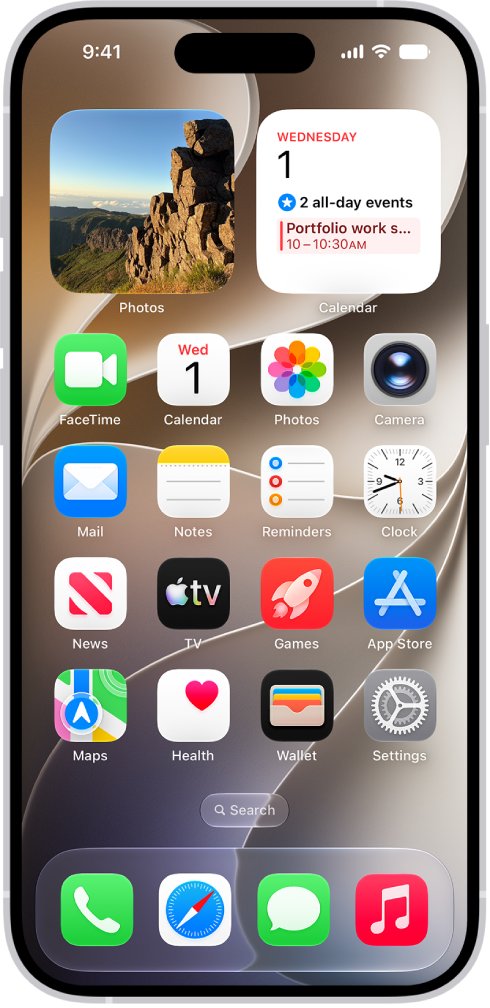
- On an iPhone, go to the Home Screen: swipe up from the bottom edge (Face ID models) or press the Home button.
- Tap the Settings icon. If it is not on the Home Screen, swipe down on the Home Screen, type Settings in the search field and tap the result.
- On an Android phone, swipe up from the bottom of the screen to the top to open All Apps. If a button labelled All Apps appears, tap it.
- Tap Settings in the list to open it.
What Is the Settings App?
Settings is the built-in app that controls how the phone itself behaves: networks, sound, display, privacy, accounts and updates.
Apple organizes it into sections, and the exact list depends on your iPhone model. The main ones are below, with the Android equivalent where Google documents one.
| iPhone section | What it controls | Android equivalent |
|---|---|---|
| Your name (top of the list) | Apple Account, iCloud storage and sync, subscriptions, Find My | Varies by maker |
| Wi-Fi, Bluetooth, Cellular | Join networks, pair devices, mobile data and roaming | Varies by maker |
| General | Software update, date and time, language, keyboard, VPN, device management, reset | System, including Software updates |
| Display & Brightness | Brightness, Night Shift, Auto-Lock, Raise to Wake | Varies by maker |
| Screen Time | App limits, downtime, content restrictions, parental controls | Varies by maker |
| Privacy & Security | App permissions, Location Services, tracking | Security & privacy > Privacy > Permission manager |
| Apps | Settings for individual apps such as Mail, Safari and Messages | Apps > choose an app |
How to Open Settings on an iPhone
Apple documents three places Settings can be opened from: the Home Screen, Spotlight search and App Library. Pick whichever is nearest to where you are.
- From the Home Screen: swipe up from the bottom edge (Face ID) or press the Home button, swipe left through pages if needed, then tap Settings.
- From Spotlight search: tap Search at the bottom of the Home Screen (Face ID models), or swipe down on the Home Screen or Lock Screen.
- Type Settings in the search field, then tap the Settings app in the results.
- From App Library: on the Home Screen, swipe left past your last page to reach App Library.
- Tap the search field at the top of App Library, type Settings, then tap the app to open it.
Control Center is not a way into the Settings app itself. It holds toggles, and Apple sends you to Settings > Wi-Fi or Bluetooth to turn those radios fully off.
How to Open Settings on an Android Phone
Google's Android help describes the same routes for every Android phone, although the maker's skin can change icon shapes and labels. Some steps need Android 13 or 14 and later.
- From All Apps: swipe up from the bottom of your screen to the top. If you see All Apps, tap it.
- Scroll to Settings and tap it.
- From Quick Settings: swipe down from the top of the screen once for the first few tiles, then swipe down again for all of them.
- Touch and hold any Quick Settings tile, such as Wi-Fi, to open that area of Settings directly.
- From a Home screen icon: if you placed Settings on a Home screen earlier, tap it there.
How to Open Settings on a Samsung Galaxy Phone
Samsung phones run One UI, which removed the Apps button by default. The Quick Settings panel carries a settings cog that opens the full menu.
- From the Quick Settings panel: swipe down from the top of the screen. Your Quick Settings sit just above the notifications.
- Swipe down again to expand the full Quick Settings panel.
- Tap the settings cog to open the full Settings menu.
- From the Apps screen: swipe up on the Home screen to see all your apps.
- Tap Settings in the Apps screen.
Samsung notes that the exact button layout varies slightly by model and software version.
How to Open Settings on a Google Pixel Phone
Pixel phones add a search bar to All Apps, which is the quickest route when you have many apps installed.
- Swipe up from the bottom of your screen to the top to open All Apps.
- In the Search bar, type Settings.
- Tap Settings in the results to open it.
- From Quick Settings instead: swipe down from the top twice, then touch and hold a tile to open its advanced settings.
- If you use a work or school account, its apps appear under a separate Work tab in All Apps.
How to Find a Specific Setting Once Settings Is Open
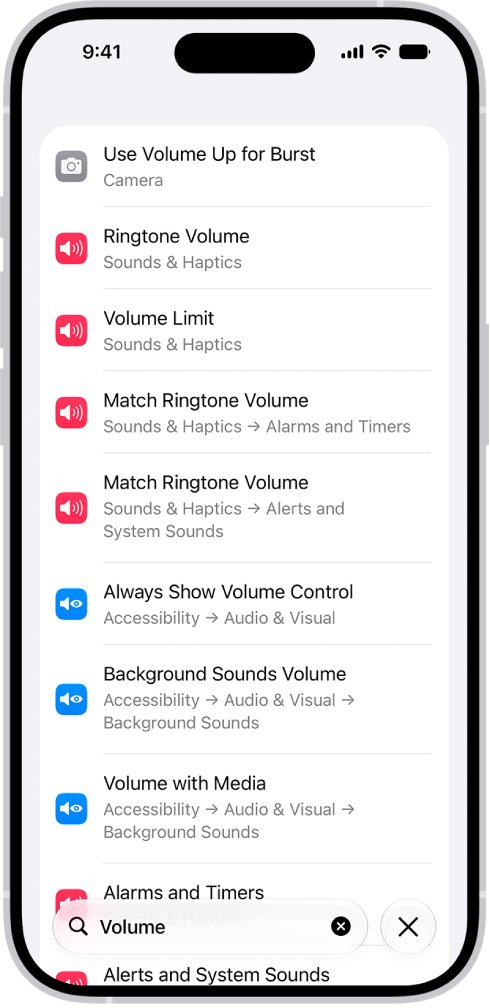
On iPhone, the search field at the top of Settings finds any option by keyword. Type a term such as "volume" or "passcode" and tap the matching setting.
On Android, go through the main categories. The table lists paths Google and Apple document for common jobs.
| What you want to change | iPhone path | Android path |
|---|---|---|
| Any setting by name | Settings > tap the search field > type a term | Open the main category that matches, such as Apps or System |
| Software update | General > Software update | System > Software updates |
| Phone or OS version | General section | About phone > Android version |
| App permissions | Privacy & Security | Apps > choose the app > Permissions |
| Permissions by type (camera, location) | Privacy & Security > Location Services | Security & privacy > Privacy > Permission manager |
| Navigation gestures or buttons | Not applicable | Pixel: System > Navigation mode. Others: System > Gestures > Navigation mode |
| Which apps show in search | Search > choose an app > Show App in Search | Not documented by Google |
Common Settings Shortcuts You Should Know
These shortcuts open one area of Settings, or a toggle for it, without going through the main menu.
| Goal | iPhone shortcut | Android shortcut |
|---|---|---|
| Open Wi-Fi settings quickly | Open Control Center, then touch and hold the Wi-Fi button to see the connected network | Swipe down twice and touch and hold the Wi-Fi tile |
| Open Bluetooth settings quickly | Open Control Center and tap Bluetooth to disconnect; turn it fully off in Settings > Bluetooth | Swipe down twice and touch and hold the Bluetooth tile |
| Open app settings for a specific app | Settings > Apps > choose the app | Settings > Apps > choose the app (tap See all apps if it is not listed) |
| Open software update settings | Settings > General > Software update | Settings > System > Software updates |
| Jump to one setting by name | Swipe down on the Home Screen or Lock Screen and type the setting's name | Pixel: type Settings in the All Apps search bar |
| Open Settings with a gesture | Not available | Pixel 4a (5G) and later: System > Gestures > Quick tap > Open app > Settings, then double-tap the back of the phone |
What to Do If You Cannot Find the Settings App
A missing icon has usually been moved or hidden from the Home screen, and search or the full app list still finds it.
The Settings icon is gone from the iPhone Home Screen
Removing an app from the Home Screen moves it to App Library; it is not deleted.
- Swipe left past your last Home Screen page to open App Library.
- Tap the search field at the top and type Settings.
- Tap Settings to open it, or follow the steps in the next section to put it back on the Home Screen.
Some iPhone Home Screen pages seem to have disappeared
Hidden Home Screen pages take their apps out of view, and new apps can go to App Library only.
- Touch and hold the Home Screen wallpaper until the icons jiggle.
- Tap the dots at the bottom of the screen.
- Tap the empty circles under hidden pages to add checkmarks.
- Tap the done button, or press the Home button on models that have one.
Settings is not on the Android Home screen
Android Home screens show only some apps; every installed app lives in All Apps.
- Swipe up from the bottom of the screen to the top.
- Tap All Apps if that button appears.
- Scroll to Settings, or type it into the search bar on a Pixel.
A Samsung Galaxy phone has no Apps button
One UI hides the Apps button by default to free up Home screen space.
- Swipe up on the Home screen to open the Apps screen and find Settings.
- To bring the button back, tap and hold any blank space on the Home screen.
- Tap Settings.
- Turn on Show Apps screen button on Home screen.
How to Add Settings Back to Your Home Screen
Putting the icon back takes one drag on either platform.
- iPhone: swipe left past all Home Screen pages to open App Library.
- Touch and hold Settings until the icons jiggle and the app moves to the Home Screen, then lift your finger.
- Android: from the bottom of your Home screen, swipe up to open All Apps.
- Touch and drag Settings. Images of each Home screen appear.
- Slide the icon to where you want it, then lift your finger.
On iPhone, you can stop new apps landing only in App Library: open Settings > Home Screen & App Library and choose Add to Home Screen.
Understanding the Difference Between Phone Settings and App Settings
Phone settings change the whole device. App settings change one app, and they live in two places: inside the app, and in the phone's own Settings app.
| Type | Where it lives | Examples |
|---|---|---|
| Phone (system) settings | The Settings app | Wi-Fi, Bluetooth, display, passcode, software update |
| Per-app controls in phone Settings | iPhone: Settings > Apps. Android: Settings > Apps > the app | Permissions, notifications, Mail or Safari options |
| In-app settings | A menu or gear icon inside the app | Account options, themes, in-app preferences |
| Permissions by type | iPhone: Privacy & Security. Android: Permission manager | Which apps can use the camera, microphone or location |
If an app says it cannot use your camera, the fix sits in phone Settings under that app's permissions, not inside the app.
Tips for Navigating Settings Faster
| Tip | Phone | How |
|---|---|---|
| Bring App Library closer | iPhone | Hide Home Screen pages you do not use, so App Library is one swipe away |
| Put the tiles you use on top | Android | Swipe down twice, tap Edit, then drag tiles into place or tap Add |
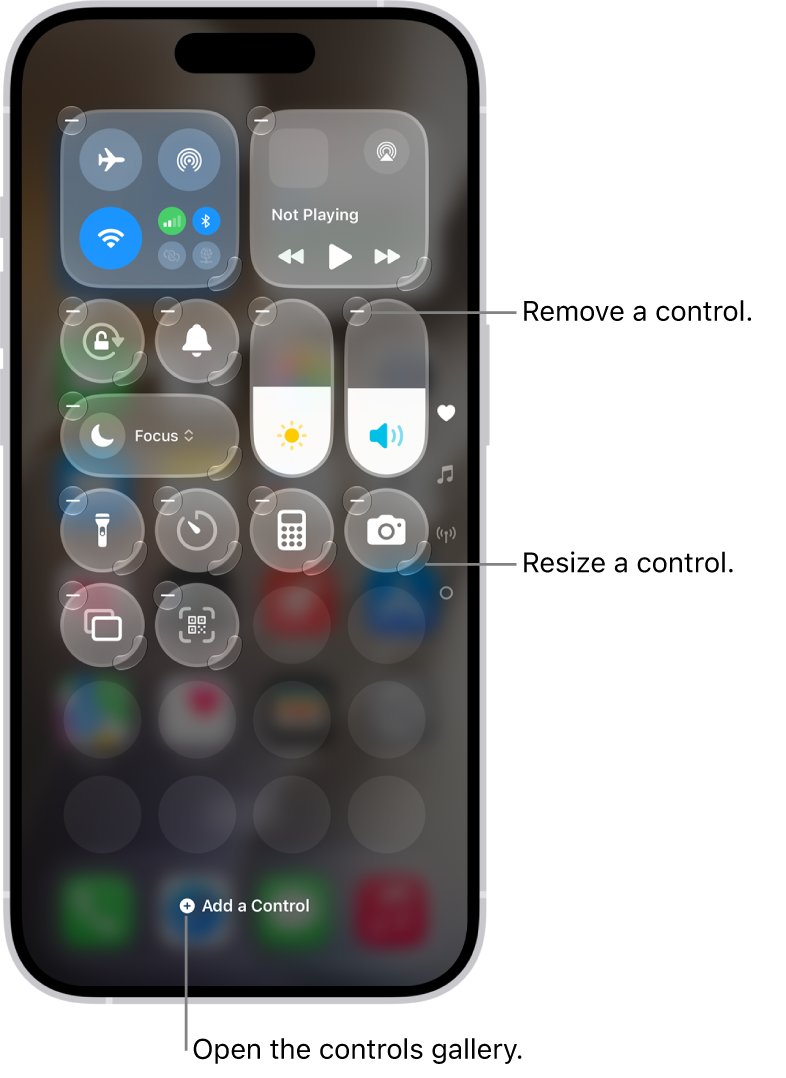
| Add missing controls | iPhone | Open Control Center, start editing, then tap Add a Control |
| Search from the Lock Screen | iPhone | Swipe down on the Lock Screen and type a setting's name |
| Tap the name, not the icon | Android | Tapping a Quick Settings tile's name adjusts it; tapping the icon only toggles it |
Quick Reference: Fastest Ways to Open Settings
| Your situation | Use this | Why |
|---|---|---|
| iPhone, Settings is on the Home Screen | Tap the Settings icon | One tap from the Home Screen |
| iPhone, cannot see the icon | Swipe down on the Home Screen and type Settings | Search finds it wherever it is |
| iPhone, you want one setting | Search from the Home Screen or Lock Screen, or inside Settings | Skips the menus entirely |
| Samsung Galaxy | Swipe down twice and tap the settings cog | Works from any screen, even inside an app |
| Google Pixel | Swipe up and type Settings in the search bar | Fastest when All Apps is long |
| Any Android, you want Wi-Fi or Bluetooth | Touch and hold that Quick Settings tile | Opens that settings page directly |
How to check you opened the right Settings screen
- On iPhone, confirm the screen title reads Settings and your name sits at the top of the list above Airplane Mode and Wi-Fi.
- On Android, confirm the list shows system categories such as Apps, System and About phone. An app's own settings screen shows only that app's options.
- Open General (iPhone) or About phone (Android) to confirm you are in the device's Settings rather than an app menu with the same name.
Troubleshooting: Settings Opens but You Cannot Change Something
An iPhone setting is locked or asks for a Screen Time passcode
Screen Time Content & Privacy Restrictions block changes, often on a child's device in Family Sharing.
- On the parent's iPhone, open Settings and tap Family, then the child's name.
- Tap Content & Privacy Restrictions and enter the Screen Time passcode if asked.
- Change the blocked item to Allow. Some restrictions for under-18 accounts cannot be turned off in certain regions.
Android says a setting is restricted for an app
Android restricts some device settings for an app when you install it, until you allow them.
- Open Settings and tap Apps.
- Tap the app, or tap See all apps first if it is not listed.
- Tap the More menu, then Allow restricted settings, and follow the prompts. Only do this for an app you trust, as it gives access to sensitive info.
An Android Quick Settings tile looks dimmed
A dimmed tile means that setting is off, not locked.
- Tap the tile's icon to turn it on.
- Touch and hold the tile to open its full settings page if it still will not change.
An app cannot use the camera, microphone or location
The permission was denied for that app in phone Settings.
- On Android, open Settings > Apps, tap the app, then tap Permissions.
- Tap the permission and choose Allow or Allow only while using the app.
- On iPhone, open Settings > Privacy & Security and turn on access for the app under the matching category.
Frequently Asked Questions
How do I open the Settings app?
On iPhone, tap the gray Settings gear on the Home Screen. On Android, swipe up from the bottom of the screen to open All Apps and tap Settings. On Samsung phones you can also swipe down twice and tap the settings cog.
How do I open settings on a Samsung phone?
Swipe down from the top of the screen, swipe down again to expand the Quick Settings panel, then tap the settings cog. You can also swipe up on the Home screen to open the Apps screen and tap Settings there.
How do I open settings on an Android phone?
Swipe up from the bottom of the screen to the top, tap All Apps if it appears, then tap Settings. To reach Wi-Fi or Bluetooth directly, swipe down twice and touch and hold that Quick Settings tile.
How do I get to settings on my phone if the icon is missing?
Search for it. On iPhone, swipe down on the Home Screen and type Settings, or look in App Library. On Android, swipe up to All Apps, where every installed app appears even if it is not on a Home screen.
How do I open Settings on an iPhone?
Go to the Home Screen and tap Settings. If you cannot see it, swipe down on the Home Screen, type Settings in the search field and tap the result, or swipe left past your last page to App Library and search there.
How do I open settings on a Google Pixel?
Swipe up from the bottom of the screen to the top, type Settings in the Search bar and tap the result. You can also swipe down twice from the top and touch and hold a Quick Settings tile to open that setting's page.
How do I open the Settings app on Windows 11?
Press the Windows logo key + I to open Settings on Windows 11. For a specific page, such as screen resolution, see these 10 ways to open Display Settings in Windows 11.
How do I open the Settings app on Windows 10?
Press the Windows logo key + I, which opens Settings on Windows 10 as well. If the app closes or refuses to start, work through the fixes in Fix Can't open the Settings App in Windows 10.
Conclusion
Learn one search route for your phone: Spotlight on iPhone, the All Apps search bar on Pixel, or the settings cog in Quick Settings on Samsung. Search and Quick Settings work from anywhere, so a moved or hidden icon never blocks you from reaching Settings.