The NVIDIA App download for Windows 11 and Windows 10 is a free 174.8 MB installer on nvidia.com. It installs Game Ready and Studio drivers, tunes your GPU, and records gameplay through the in-game overlay.
NVIDIA built it to replace two older tools at once. It carries GeForce Experience’s Optimal Game Settings and the classic NVIDIA Control Panel’s 3D settings in a single window, plus RTX filters such as RTX HDR and RTX Dynamic Vibrance.
This guide covers the official file, the GPU and driver it needs, installing it, moving your Control Panel settings across, updating, removing it, and fixes for the app not installing.
Which NVIDIA App download do you need?
NVIDIA ships one Windows installer for every supported card. Your graphics card decides whether it runs, so match your machine to a row.
| Your PC | What to get | Size |
|---|---|---|
| Windows 11 or 10 PC with a GeForce RTX 20, 30 or 40 Series card | NVIDIA_app_v11.0.9.251.exe | 174.8 MB |
| Windows PC with a GeForce GTX 800, 900, 1000 or 1600 Series card | The same Windows installer | 174.8 MB |
| Laptop with a GeForce MX100, MX200, MX300, 800M or 900M GPU | The same Windows installer | 174.8 MB |
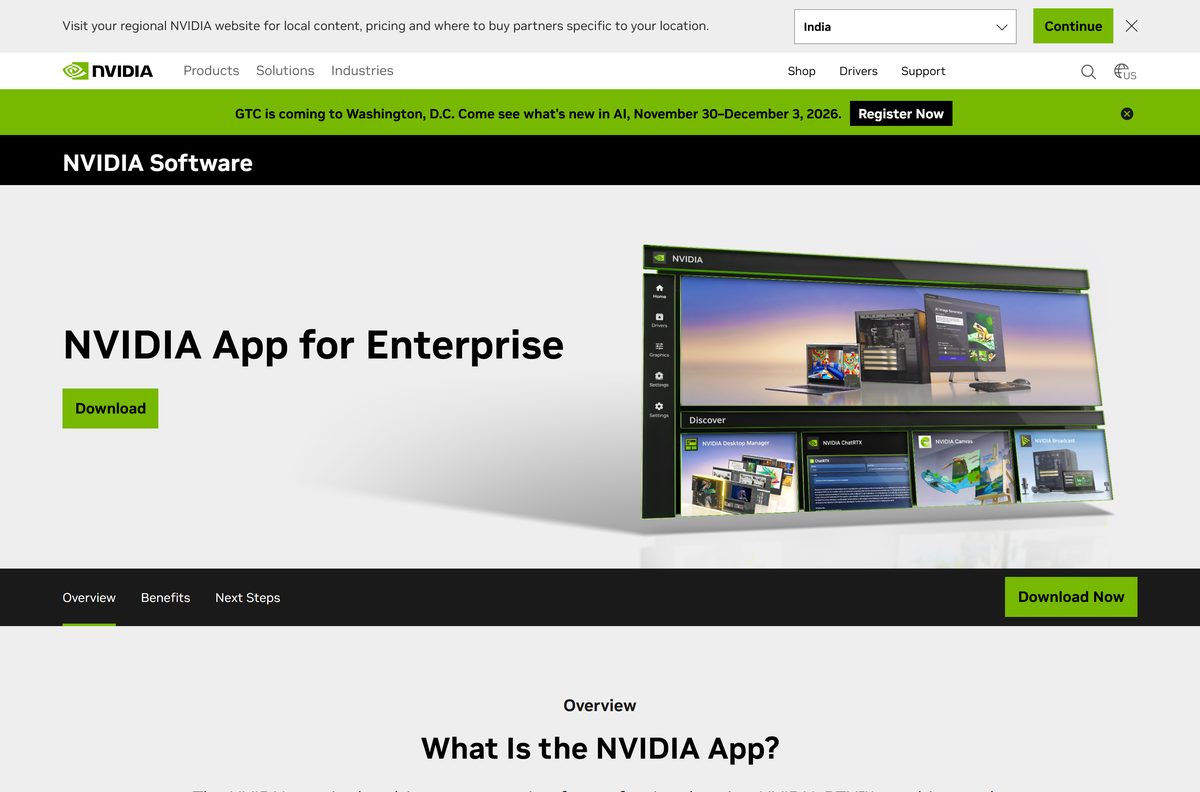
| Workstation with an NVIDIA RTX professional card | NVIDIA App for Enterprise | 174.8 MB |
The enterprise page hands you the same file. It adds driver preference settings named NVIDIA Recommended, Leading Edge and Conservative.
Download NVIDIA App from the official nvidia.com page
Open the app page on nvidia.com and click Download Now. The button serves the file from NVIDIA’s own download server, with no account and no payment.
- NVIDIA App page — the Download Now button and the feature list
- NVIDIA_app_v11.0.9.251.exe — 174.8 MB · the current Windows installer
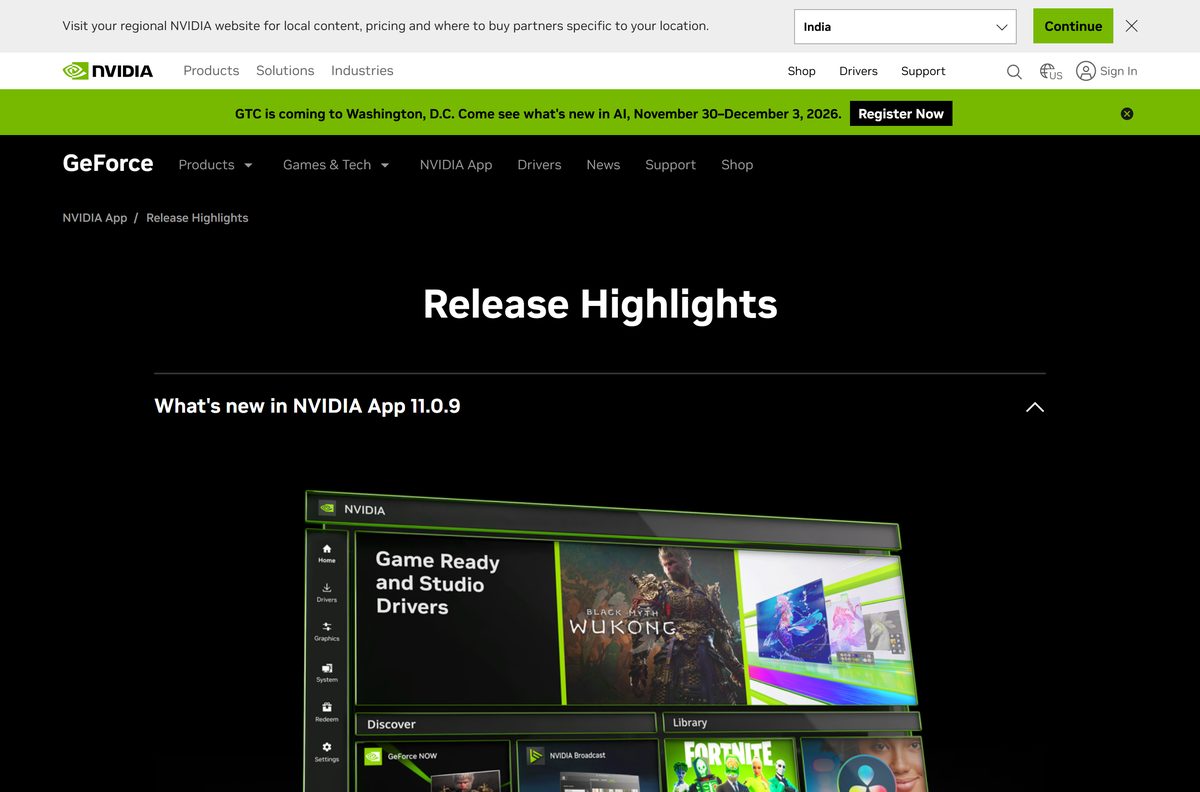
- Release highlights — what changed in each build since the 11.0.1 launch
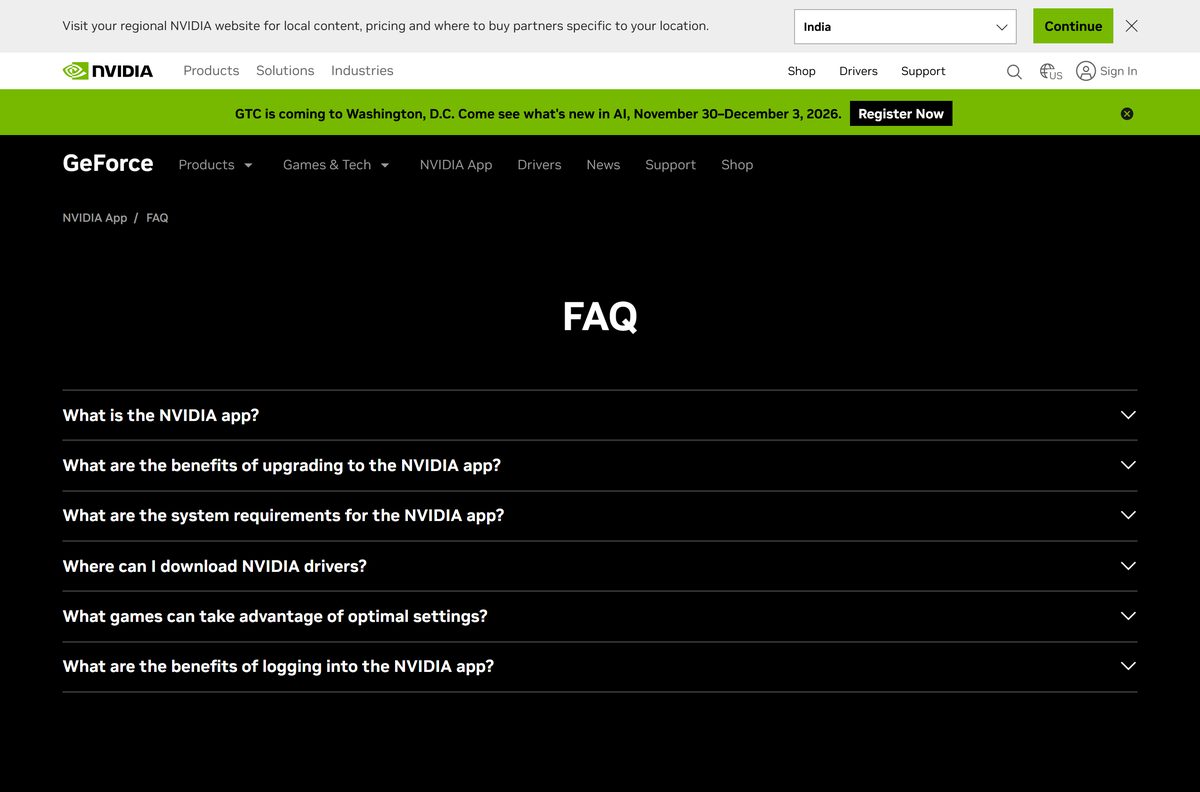
- NVIDIA App FAQ — supported GPUs, driver floor and login questions
- NVIDIA Drivers — manual driver search if you would rather not install the client
The old GeForce Experience page on geforce.com now lands on this same app page.

How to install NVIDIA App on Windows 11 and 10
- Open the NVIDIA App page and click Download Now.
- Double-click NVIDIA_app_v11.0.9.251.exe in your Downloads folder.
- Select Yes at the User Account Control prompt.
- Read the licence terms and click Agree and Continue.
- Wait while setup writes about 600 MB to the system drive.
- Open NVIDIA app from the Start menu once setup finishes.
- Go to the Drivers tab and install the Game Ready or Studio driver it offers.
- Skip the account screen unless you want bundles and rewards, since the login is optional.
Setup removes GeForce Experience when it finds it, and your Optimal Game Settings profiles carry over to the Graphics tab.
How to move your NVIDIA Control Panel settings into the app
The Graphics tab holds the 3D settings that used to live in the classic NVIDIA Control Panel. Set them once globally, then override them per game.
- Open NVIDIA app and select the Graphics tab.
- Click Global Settings to set defaults for every game.
- Set Vertical Sync, Low Latency Mode and Texture Filtering Quality to match your old profile.
- Select a game in the left column to override those defaults for that title only.
- Turn on DLSS Override on a supported game to force the newest DLSS model.
- Open the System tab for display options such as G-SYNC, scaling and RTX Video Super Resolution.
The classic Control Panel still opens for colour, multi-display and Surround options. Both write to the same driver settings.
Is NVIDIA App free?
Yes. NVIDIA App costs nothing, and NVIDIA publishes no paid tier, subscription or trial limit. The NVIDIA account login is optional and only exists to redeem GPU bundles and rewards, so you can install the client, update drivers, tune the GPU and record gameplay without ever signing in. Any site charging for the installer is not NVIDIA.
Which NVIDIA App option works on your Mac?
There is no macOS build. NVIDIA lists Windows 10 and Windows 11 only, and a Mac has no supported NVIDIA GPU to drive.
| Your Mac | What to use instead | Size |
|---|---|---|
| Apple silicon Mac and you want to play PC games | GeForce NOW for Mac | 341.1 MB |
| Any Mac and you only want NVIDIA’s AI microphone and camera effects | Not available; the effects need an RTX PC | None |
| Windows PC with AMD or Intel graphics | Not supported; check the FAQ GPU list | None |
| Mac that also runs Windows on a separate PC | Install on the Windows PC only | 174.8 MB |
The GeForce NOW client streams the game from NVIDIA’s data centre, so the Mac never touches a driver.
Should you install NVIDIA App or stay on GeForce Experience?
Install NVIDIA App. GeForce Experience is finished, and its own page now redirects here. NVIDIA states the client installs in half the time of GeForce Experience and delivers a 50% more responsive interface. It also adds driver rollback, a System tab for display and video settings, and Freestyle RTX filters across more than 1200 games. Staying on the old client leaves you without DLSS Override, Smooth Motion and the redesigned overlay.
How to check your NVIDIA App version and update it
The client updates itself in the background, but the version string tells you whether it worked.
- Open NVIDIA app and click the Settings cog at the bottom left.
- Select About and read the version line.
- Compare it with the newest entry on Release highlights.
- Turn on Automatically download app updates in Settings > General.
- Run the installer from nvidia.com over the top if the built-in update stalls.
- Open the Drivers tab and click Check for updates to refresh the driver separately.
Driver updates and client updates are separate. A current client with an old driver is normal after a fresh install.
Check the NVIDIA App system requirements
The processor and memory limits are low. The graphics card is the only requirement that turns people away.
| Field | Value |
|---|---|
| Software | NVIDIA App |
| Developer | NVIDIA Corporation |
| Latest version | 11.0.9.251 |
| License / Price | Free |
| File size | 174.8 MB installer, 600 MB installed |
| Supported OS | Windows 10 and Windows 11 |
| Architecture | 64-bit only; no 32-bit or ARM64 build |
| GPU | GeForce RTX 20, 30, 40 Series; GTX 800, 900, 1000, 1600 Series; MX100, MX200, MX300, 800M, 900M |
| Driver | GeForce 551.52 or later |
| RAM | 2 GB system memory |
| CPU | Intel Pentium G, Core i3, i5, i7 or higher; AMD FX, Ryzen 3, 5, 7, 9, Threadripper or higher |
| macOS | Not available |
| Offline installer | No; the client downloads drivers over the internet |
| Official download source | nvidia.com |
| Last verified | 2026-09-22 |
Press Win + R, type dxdiag and press Enter, then open the Display tab to read your GPU name before you download.
Which NVIDIA App features your GPU supports
Every supported card gets drivers, the overlay and game settings. The AI features are tied to newer RTX generations.
| Feature | What it does | Cards that run it |
|---|---|---|
| Driver updates | Installs Game Ready and Studio drivers and rolls them back | Every supported GeForce and RTX card |
| Optimal Game Settings | Applies cloud-tuned settings for over 1000 games | Every supported card |
| ShadowPlay | Instant Replay and manual capture up to 8K HDR at 30 fps | Every supported card; AV1 on RTX 40 Series |
| RTX HDR and RTX Dynamic Vibrance | AI filters for HDR and per-app colour clarity | RTX cards with Tensor Cores |
| DLSS Override | Forces newer DLSS models and Multi Frame Generation | RTX cards; Multi Frame Generation on RTX 50 Series |
| Smooth Motion | Driver-level AI frame interpolation | GeForce RTX 50 and 40 Series |
A GTX or MX card still gets drivers, capture and Optimal Game Settings.
Fix NVIDIA App not installing on Windows 11 or 10
Setup says no supported graphics card was found
The PC has AMD or Intel graphics, or a GeForce card older than the GTX 800 Series.
- Run dxdiag from the Win + R box and read the GPU name on the Display tab.
- Check that name against the GPU list in the NVIDIA App FAQ.
- On a laptop with switchable graphics, enable the NVIDIA GPU in Device Manager > Display adapters.
The installer sticks on Preparing to install
An old GeForce Experience service or a running NVIDIA process is holding files open.
- Open Task Manager and end every task whose name starts with NVIDIA.
- Restart the PC before you run the installer again.
- Right-click the file and select Run as administrator.
- Disconnect any VPN, because setup contacts NVIDIA’s servers during installation.
Driver downloads fail inside the app
The download needs free space on the system drive and an unfiltered connection.
- Free at least 5 GB on the system drive.
- Turn off metered connection for your network in Windows Settings > Network & internet.
- Download the driver by hand from NVIDIA Drivers if it still fails.
The app opens to a blank window or freezes
A damaged cache or a driver older than GeForce 551.52.
- Install a driver newer than 551.52 first, since the client needs it.
- Close the app from the system tray, then reopen it from the Start menu.
- Reinstall over the top with the installer from nvidia.com, which keeps your settings.
Alt + Z does not open the overlay
The overlay is switched off, or another app owns the same shortcut.
- Open Settings > General and turn on In-Game Overlay.
- Change the shortcut under Settings > Keyboard Shortcuts if Discord or Steam uses Alt + Z.
- Launch the game in borderless or full screen, because the overlay skips some windowed modes.
How to uninstall NVIDIA App
Removing the client leaves your graphics driver in place. Windows keeps rendering games exactly as before.
- Close the app and right-click its system tray icon, then select Quit.
- Open Settings > Apps > Installed apps on Windows 11, or Apps & features on Windows 10.
- Find NVIDIA app in the list and select the three dots, then Uninstall.
- Select Yes at the User Account Control prompt and follow the removal wizard.
- Leave NVIDIA Graphics Driver and NVIDIA PhysX System Software installed.
- Restart the PC to clear the tray icon and the overlay hook.
Uninstalling the client removes ShadowPlay and the overlay. Recordings already saved in Videos stay where they are.
Which NVIDIA app to use for drivers, streaming or cloud gaming
NVIDIA splits its consumer software across several downloads. The client discovers and launches the others from its Apps tab.
| Tool | Use it for | Where to get it |
|---|---|---|
| NVIDIA App | Drivers, GPU tuning, game settings, capture and filters | nvidia.com app page |
| Manual driver download | A driver on a PC where you do not want the client | NVIDIA Drivers |
| NVIDIA Broadcast | AI noise removal, virtual backgrounds and Eye Contact on an RTX PC | Techdows download guide |
| GeForce NOW | Playing PC games on a Mac, a phone or a low-power laptop | GeForce NOW downloads |
| NVIDIA Control Panel | Colour, multi-display and Surround options not yet moved across | Right-click the desktop on a PC with the driver installed |
Install the client first on a gaming PC. It pulls the other tools in for you.
Frequently asked questions
Is NVIDIA App free?
Yes. The download costs nothing and there is no paid tier or trial timer. Signing in to an NVIDIA account is optional and only unlocks GPU bundles and rewards, so every driver, tuning and capture feature works without one.
Where is the official NVIDIA App download?
The official page sits on nvidia.com under software/nvidia-app. Its Download Now button serves NVIDIA_app_v11.0.9.251.exe from NVIDIA’s own download server. Treat any other host offering the file as a mirror rather than the source.
Is NVIDIA App the same as GeForce Experience?
No, it is the client that replaced it. NVIDIA says it carries across many top features from GeForce Experience and RTX Experience, including Optimal Game Settings and ShadowPlay, and the old GeForce Experience page now redirects to the app page.
Is NVIDIA App the same as NVIDIA Control Panel?
Not quite. The app absorbs the Control Panel’s 3D settings into its Graphics tab, and later builds moved more of them across. The classic Control Panel still opens from the desktop right-click menu for colour and multi-display options.
Is there an NVIDIA App for Mac?
No. NVIDIA lists Windows 10 and Windows 11 only, and Macs no longer ship NVIDIA graphics. Mac owners who want to play PC games can install the GeForce NOW client and stream from NVIDIA’s servers instead.
Which graphics cards does NVIDIA App support?
GeForce RTX 20, 30 and 40 Series cards, GeForce GTX 800, 900, 1000 and 1600 Series cards, and GeForce MX100, MX200, MX300, 800M and 900M laptop GPUs. Newer RTX 50 Series cards add features such as Smooth Motion and Multi Frame Generation.
Is there a 32-bit NVIDIA App download?
No. NVIDIA publishes one 64-bit Windows installer and no 32-bit or ARM64 build. The same file covers Windows 10 and Windows 11 on both desktops and laptops.
Is there an NVIDIA App offline installer?
NVIDIA publishes no separate offline pack. The 174.8 MB client installer is the whole application, but it still needs an internet connection afterwards to fetch graphics drivers and any optional NVIDIA apps.
Can you download an older NVIDIA App version?
NVIDIA links only the current build from its app page, so there is no official archive of previous client versions. Driver rollback is different: the Drivers tab restores a previously installed graphics driver from inside the app.
Do you need NVIDIA App to update graphics drivers?
No. NVIDIA’s driver search page offers the same Game Ready and Studio drivers as standalone installers. The client automates the check and adds release notes, rollback and per-game settings on top.