YouTube TV has no sign-in that skips Google: sign-up starts at tv.youtube.com and asks for a Google Account, so the real answer is a Google Account without a Gmail address.
This guide covers creating that account from an email you already own, joining a household family group, signing in on a TV with a code, and fixing the sign-in errors behind each failure.
Quick Answer: The Options That Actually Work
Match your situation to a row and act on it. Each route ends with YouTube TV playing.
| Your situation | What to do | Why it works |
|---|---|---|
| You want your own membership and no Gmail address | Create a Google Account from your existing email address, then sign up at tv.youtube.com | Google lets an address you already own become the account name |
| Someone in your household already pays for YouTube TV | Ask them to invite you to their family group and accept with your own Google Account | A family manager can share the membership with up to 5 other people at no extra cost |
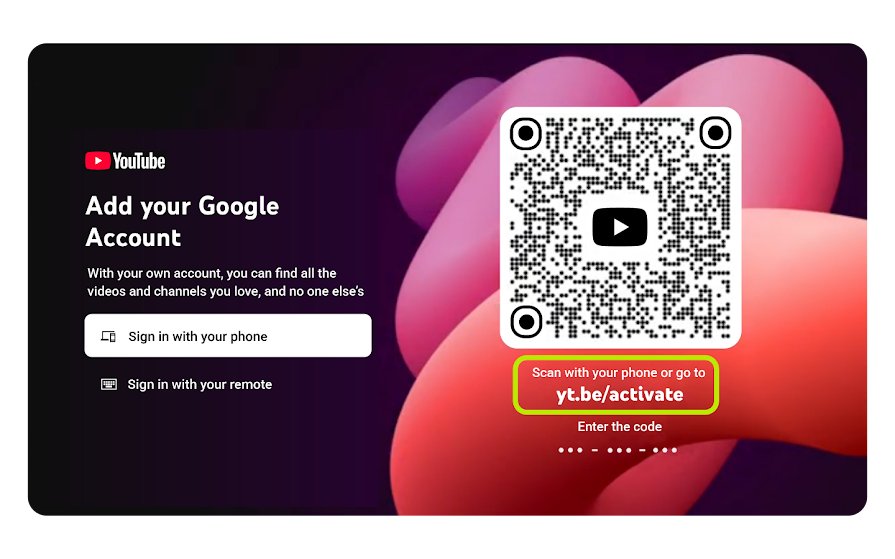
| You are signing in on a smart TV, console or streaming stick | Open the YouTube TV app and enter the on-screen code at tv.youtube.com/start | The password is typed on a phone or computer instead of a TV remote |
| Your work or school account is refused | Sign in with a personal Google Account instead | An administrator controls whether YouTube is on for a managed account |
| The sign-in page rejects the account you picked | Switch to your primary Google Account, not a Brand Account | Brand Accounts are not compatible with YouTube TV |
Can You Sign into YouTube TV Without a Google Account?
No. The distinction that matters is between a Google Account and a Gmail address, and only the first one is compulsory.
| Question | Answer |
|---|---|
| Is a Google Account required? | Yes. Sign-up starts at tv.youtube.com and asks you to sign in with your Google Account. |
| Is a Gmail address required? | No. A Google Account can be created from an email address you already own. |
| Can a Brand Account be used? | No. Brand Accounts are not compatible with YouTube TV, and sign-in fails with an error. |
| Can a Roku, Apple or Amazon login replace it? | No. Those accounts install the app only. |
| Can a household member skip it? | No. Every family group member joins with a Google Account of their own. |
| Does the account need a password? | Yes, and the account can also use 2-Step Verification or a passkey. |
What You Need Before You Start
| Requirement | Detail |
|---|---|
| An email address you control | Any provider works, including Yahoo, Outlook.com or a work-free personal domain |
| Access to that inbox | Google sends a verification code to it during account creation |
| A US location | YouTube TV is only available in the United States |
| Your home ZIP code | Sign-up asks for it, and location permission may be requested to confirm it |
| A payment method | Needed for your own membership, not for joining someone else's family group |
| A supported device | Computer, phone, tablet, smart TV, streaming device or game console |
The Best Workaround: Create a Google Account Using Your Existing Email
This is the route for anyone who wants a membership without adding a Gmail inbox. The finished account signs in with the address you already use.
- Open the Google Account Sign In page and select Create account.
- Choose For my personal use.
- Enter your basic info, then select Next.
- Select Use your existing email.
- Type the email address you already own, then select Next.
- Open that inbox and enter the code Google sent, then select Next.
- Create a password and follow the onscreen instructions to finish setup.
The address you entered is now the Google Account name, and no Gmail address is created alongside it. A longer walkthrough sits in How to Create a Google Account: A Step-by-Step Guide.
How to Use That Account with YouTube TV
- Go to tv.youtube.com in a web browser.
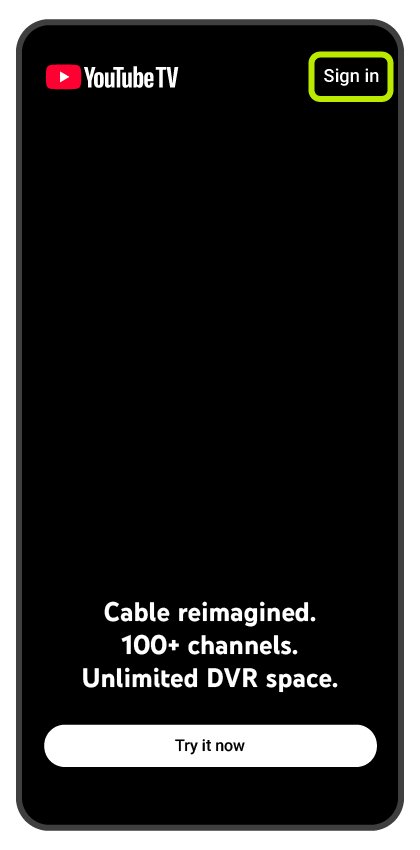
- Select the button that starts your membership, then sign in with the Google Account you just created.
- Share your home ZIP code when asked.
- Confirm your location if the browser requests location permission.
- Review the plan, select the networks you want, then select Buy to complete the join process.
The ZIP code decides which local networks appear, so enter the one where you actually live.
How to Sign into YouTube TV on a Smart TV Without Typing Your Google Password
Typing a password with a remote is slow and exposes it to anyone in the room. The code route keeps the password on a device you hold.
- Open the YouTube TV app on your TV, streaming device or console.
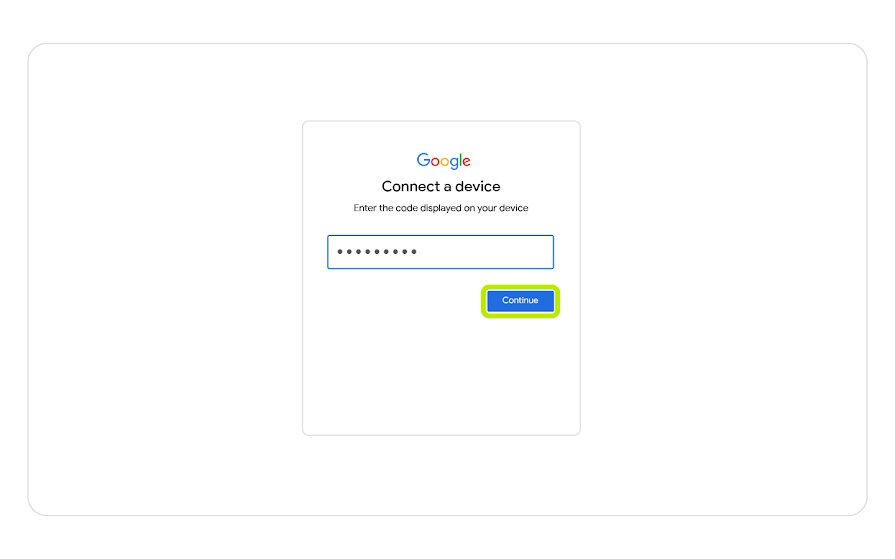
- Scan the QR code on screen, or go to tv.youtube.com/start on a phone or computer.
- Enter the activation code shown on the TV, then select Continue.
- Select the account linked to your YouTube TV Base Plan.
- Select Allow to connect the two devices.
If the code is refused, go back and reload the page on the TV to generate a fresh one. Sign in with your remote remains available when the phone route fails.
How Family Sharing Works If You Do Not Own the Subscription
A family group is the only sanctioned way to watch on a membership someone else pays for. The rules below are the ones that decide whether access sticks.
| Rule | What it means |
|---|---|
| Group size | The family manager plus up to 5 other members |
| Minimum age | Members must be 13 or older; the family manager must be 18 or older |
| Household | Every member must live in the same household as the family manager |
| Home location | Members need to use YouTube TV in their home location periodically to keep access |
| Simultaneous streams | Family group members can watch on up to three devices at the same time |
| One group only | You can be part of only one family group at a time |
| Your own data | Your library, DVR and watch history stay private to your account |
| Cost | Joining a family group adds nothing to the bill |
How to Accept a YouTube TV Family Invitation
Steps 1 to 4 are done by the person who pays. Step 5 onward is yours.
- Ask the family manager to sign in to YouTube TV and select their profile picture.
- Have them select Purchases and memberships, then their YouTube TV membership.
- Next to Family sharing settings, have them select Edit, then Invite a new member.
- Have them enter your email address or phone number, then select Send.
- Open the invitation and follow its instructions to join the family group, signing in with your own Google Account.
- Open YouTube TV and select your profile picture to confirm the membership now shows against your account.
Can You Use YouTube TV with an Apple ID, Roku Account, or Amazon Account?
Those accounts get the app onto the hardware. None of them reaches the YouTube TV sign-in screen.
| Account | What it does | What it cannot do |
|---|---|---|
| Apple ID | Downloads the YouTube TV app on Apple TV, iPhone or iPad | Sign in to YouTube TV |
| Roku account | Adds the YouTube TV app from the Roku channel store | Sign in to YouTube TV |
| Amazon account | Installs YouTube TV on a Fire TV stick or Fire TV Edition set | Sign in to YouTube TV |
| Samsung or LG TV account | Installs the app from the TV maker's app store | Sign in to YouTube TV |
| Google Account | Signs in, carries the membership, the DVR and the home area | Nothing here is out of reach |
Can You Watch YouTube TV Without Signing In?
| What you want to do | Works signed out? | Detail |
|---|---|---|
| Check which networks cover your area | Yes | Enter your home ZIP code at tv.youtube.com/welcome |
| Read plan and pricing information | Yes | The public pages need no account |
| Watch a live channel | No | A membership and a signed-in account are required |
| Play a DVR recording | No | Recordings belong to the signed-in account |
| Start a free trial | No | Sign-up itself begins with a Google Account sign-in |
| Cast from a phone | No | The phone must already be signed in |
What If You Have a Google Workspace, School, or Work Account?
A managed account belongs to the organisation that issued it, and YouTube sits in the group of services an administrator can switch off.
| Point | What it means for you |
|---|---|
| Who decides | An administrator controls access to additional Google services, and YouTube is one of them |
| Support cover | Additional services are not covered by the Workspace support or service level agreement |
| Security settings | Personal 2-Step Verification instructions may not apply to a managed account; the administrator sets the policy |
| If the account leaves | Losing the job or the school place can take the account, the membership and the DVR with it |
| Better option | Use a personal Google Account for YouTube TV, created from any email address you own |
How to Keep Your Google Account Minimal and Private
A Google Account made only for YouTube TV does not need to collect more than it must. Set these four controls once.
- Go to myaccount.google.com and open Data & privacy.
- Under History settings, open each activity type and select Auto-delete to pick a retention period.
- Go to myactivity.google.com, select Delete, choose All time, then select Next and Delete to clear what is already stored.
- Open Security, find Turn on 2-Step Verification under How you sign in to Google, and follow the onscreen steps.
- Open myaccount.google.com/permissions and remove access for any app you no longer use.
Use this account for YouTube TV and nothing else, and keep your main mailbox on its own login. If you later want the account gone entirely, How to delete google account permanently in 5 easy steps covers the closure route.
How to check you are signed in on the right account
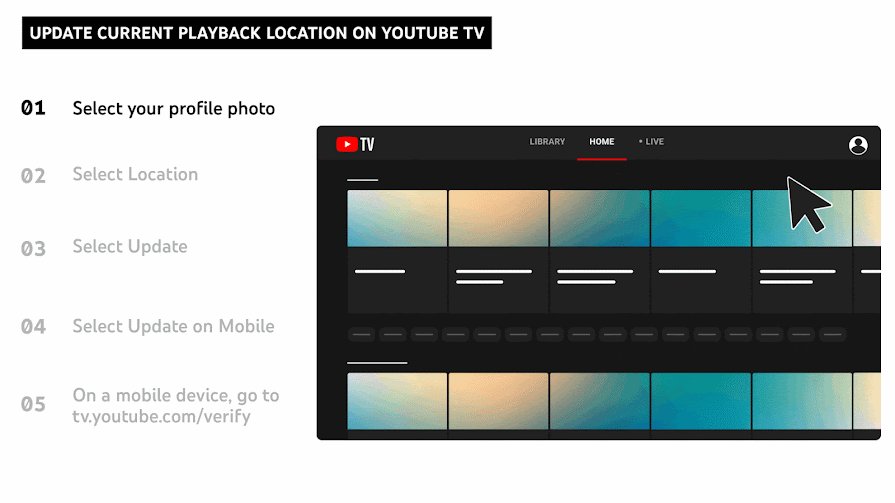
- Go to tv.youtube.com and select your profile picture.
- Check that the email address shown is the one that holds the membership.
- Select Location and confirm the Home area matches where you live.
- Play a local broadcast channel; local networks only appear once the home area is set.
- On the TV device, select your profile photo and confirm the same address appears there.
Troubleshooting: Why YouTube TV Will Not Let You Sign In
You are signed into the wrong Google account
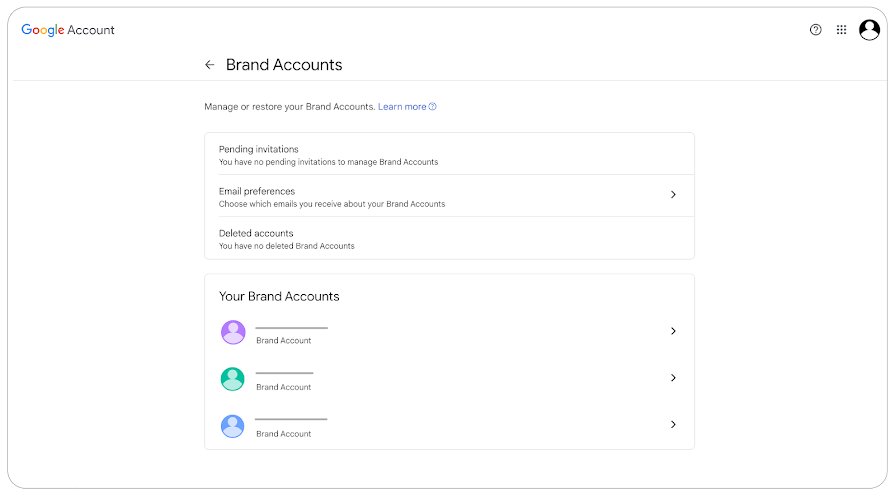
The browser or TV app is signed in to a second Google Account, often a Brand Account, which YouTube TV rejects.
- When the error "Sorry — you can't sign in to YouTube TV with this account" appears, select Switch Account below it.
- Enter the Google Account linked to your YouTube TV membership and continue.
- If the error returns, go to youtube.com and select your profile picture at the top right.
- Choose your primary Google Account rather than anything listed on the Brand Accounts page.
- Return to YouTube TV and sign in again.
Your email address is not yet a Google Account
The address exists with its own provider but was never registered with Google, so the sign-in page cannot find it.
- Open the Google Account Sign In page and select Create account.
- Choose For my personal use, enter your basic info, then select Use your existing email.
- Enter the same address, verify it with the emailed code, and set a password.
- Sign in to YouTube TV with that address.
The family invitation was sent to the wrong email
The family manager typed an address you do not control, so the invitation never reaches a Google Account of yours.
- Ask the family manager to sign in and select their profile picture, then Purchases and memberships.
- Have them open the YouTube TV membership and select Edit next to Family sharing settings.
- Have them remove the pending invitation and select Invite a new member.
- Give them the exact address attached to your Google Account, then watch that inbox.
Your location or home area needs confirmation
The home area is unset, out of date, or YouTube TV has not been used at home recently enough.
- Go to tv.youtube.com, select your profile photo, then Location.
- Select Update next to Home area while you are physically in that area.
- Use YouTube TV at least once every 3 months at home to keep the correct local networks.
- Expect a refusal if the home area has already been changed twice in the last 12 months.
Your account is managed by an organization
A Workspace or school administrator has YouTube switched off among the additional Google services.
- Ask your administrator whether YouTube is enabled for the account.
- If it is off, create a personal Google Account from an email address you own.
- Sign in to YouTube TV with that personal account instead.
- Move any membership you already bought by cancelling and re-subscribing on the personal account.
You cannot get past the code screen on a TV
The activation code shown on the TV has expired before it was entered.
- Go back on the TV and reload the sign-in page to generate a new code.
- Enter the fresh code at tv.youtube.com/start straight away, then select Continue.
- Select the account tied to your Base Plan, then select Allow.
- If the phone route keeps failing, select Sign in with your remote and type the details on screen.
You cannot remember the password for the account that holds the membership
The membership is on an older Google Account whose recovery phone has changed.
- Start the Google account recovery flow from the sign-in page.
- Follow How to Recover Google Account Without Old Phone: Step-by-Step Guide for the recovery options that do not need the old number.
- Once you are back in, sign in to YouTube TV with that account.
- Add a current recovery email and phone number so this does not repeat.
What Not to Do
Create your own Google Account or join a family group you genuinely belong to, and never buy, rent or borrow someone else's YouTube TV sign-in. Family group members must live in the same household as the family manager and must use YouTube TV in their home location periodically, so an account used from another household loses access on its own. Sites selling shared logins, and "no Google Account needed" tools, break those terms and leave you with no membership and no refund.
Alternatives If You Truly Do Not Want a Google Account
| Alternative | Account needed | What you get |
|---|---|---|
| An over-the-air antenna | None | Free local broadcast channels in your area, live only, with no DVR |
| A different live TV streaming service | That service's own account | A different channel line-up, still behind a sign-in |
| A household member's family group | Your own Google Account | Full YouTube TV access at no extra cost |
| Watching signed out | Not possible | Only the public plan and ZIP code pages are available |
Every live TV service sells a membership, so an account of some kind is unavoidable. The choice is which company holds it.
Frequently Asked Questions
Can I sign into YouTube TV without Google?
No. Sign-up and sign-in both go through a Google Account. You can avoid Gmail, though: create a Google Account from an email address you already own by choosing Use your existing email during account creation.
Can I sign into YouTube TV with a Yahoo email?
Yes, once that Yahoo address is registered as a Google Account. Select Create account, choose For my personal use, select Use your existing email, enter the Yahoo address and verify it with the emailed code.
How do I sign into YouTube TV on my TV?
Open the YouTube TV app, then scan the QR code or go to tv.youtube.com/start on a phone or computer. Enter the activation code shown on the TV, select Continue, pick your account, then select Allow.
How do I sign into YouTube TV on a computer?
Go to tv.youtube.com, select Sign in, and enter the account details tied to your membership. Add your password and any extra verification the account asks for, such as a 2-Step Verification code.
How do I sign into YouTube TV on my Samsung TV?
Install YouTube TV from the Samsung app store on 2017 or newer sets, open it, then use the code route at tv.youtube.com/start. The YouTube TV app is separate from the YouTube app, so search for the full name.
Why can't I sign into my YouTube TV account?
The usual cause is the wrong Google Account, especially a Brand Account, which YouTube TV does not accept. Select Switch Account on the error screen and sign in with the account that holds the membership.
Why can't I sign into YouTube on my TV?
Activation codes expire quickly. Go back on the TV, reload the sign-in screen for a new code, and enter it immediately. If that still fails, select Sign in with your remote and type the details on screen.
Why does YouTube TV make you sign in?
The membership, the unlimited DVR, the home area and the three simultaneous streams are all attached to an account. Without a sign-in, YouTube TV cannot tell which local channels you are entitled to.
Do I have to sign into YouTube to watch YouTube TV?
Yes, but only to one account. The same Google Account covers YouTube and YouTube TV, so signing in on the device once is enough for both apps.
Can I sign into YouTube TV with a QR code?
Yes, on TV devices. The sign-in screen shows a QR code you scan with a phone, which opens the activation page and links the TV to the Google Account already signed in on the phone.
Can a family group member use their own account?
Yes, and that is the point of it. Each member signs in with their own Google Account and keeps a private library, DVR and watch history, while the family manager pays for the single membership.
What do I do if nothing works?
Contact support from inside a signed-in session, or use the published support line. How to Call YouTube TV Customer Service covers the routes that reach a person.
Bottom Line
Register the email address you already use as a Google Account, then sign up at tv.youtube.com with it; if someone in your household already pays, ask for a family group invitation instead. Both routes satisfy the Google Account requirement without adding a Gmail inbox, and both keep your library, DVR and watch history under an account you control.