To update Zoom on a Windows or Mac computer, open the Zoom Workplace app, click your profile picture and select Check for Updates.
This guide covers the in-app update, a manual install from the Download Center, automatic updates, version checks, reinstalling and the fixes for updates that fail.
How to Update Zoom on a Windows or Mac Computer
The same four steps work on Windows 11, Windows 10 and macOS. Zoom downloads and installs the new version itself.
- Open the Zoom Workplace app and sign in.
- Click your profile picture in the top-right corner.
- Click Check for Updates.
- Wait for the download to finish, then click Update to install it.
- Let Zoom restart. The app reopens on the new version.
If Check for Updates is missing, the app was installed with the MSI or PKG package and your IT team controls updates.
Which update route should you use?
| Your situation | Use this | Why |
|---|---|---|
| Zoom opens and you can sign in | Check for Updates inside the app | One menu, no installer to download |
| Zoom will not open or keeps crashing | Manual install from the Download Center | Replaces the app files without needing the old build to run |
| You never want to think about it again | Automatically keep Zoom up to date in Settings | Zoom installs updates in the background on restart |
| A banner says an update is required before you can join | Update now, or join from the browser | Zoom blocks sign-in below the global minimum version |
| The update fails repeatedly | Uninstall, then reinstall the latest version | Clears a damaged installation that patching cannot fix |
| The app was deployed by your employer | Ask your IT team | AutoUpdate is off by default in MSI and PKG deployments |
What you need before you update Zoom
| Requirement | Detail |
|---|---|
| Windows version | Windows 11, or Windows 10 Home, Pro or Enterprise. S Mode is not supported. Upgrading first is the fix for anything older |
| macOS version | macOS 10.15 or later. Zoom Workplace 7.0.0 dropped macOS 10.13 and 10.14 |
| Windows 32-bit | Zoom ended support for 32-bit Windows in December 2025; that build gets no further updates or security patches |
| Account | A signed-in Zoom account. Check for Updates sits behind the profile picture |
| Permission | Admin credentials on the computer if the installer asks for them |
| Free space | Enough free storage for the installer, or the install can fail part-way |
| Connection | A stable broadband connection, wired or wireless |
Updating Zoom on Windows
Windows 11 and Windows 10 use the same menu. The installer runs without closing your meetings list.
- Press Start, type
Zoomand open Zoom Workplace. - Sign in with your Zoom account.
- Click your profile picture at the top right.
- Click Check for Updates.
- Click Update when Zoom reports a newer version.
- Approve the Windows prompt for admin credentials if one appears.
- Wait for Zoom to close and reopen on the new build.
Zoom shows an update pop-up on its own within 24 hours of signing in when a mandatory or optional update is waiting.
Updating Zoom on Mac
macOS follows the same path. The update lands in the Applications folder over the existing copy.
- Open Zoom Workplace from the Applications folder or the Dock.
- Sign in with your Zoom account.
- Click your profile picture in the top-right corner.
- Click Check for Updates.
- Click Update to start the download.
- Enter your Mac password if macOS asks for permission.
- Wait for Zoom to relaunch on the new version.
Update Zoom manually from the Download Center
Use this when Zoom will not launch, when the in-app update stalls, or when you want a specific build. The installer upgrades the copy already on the computer.
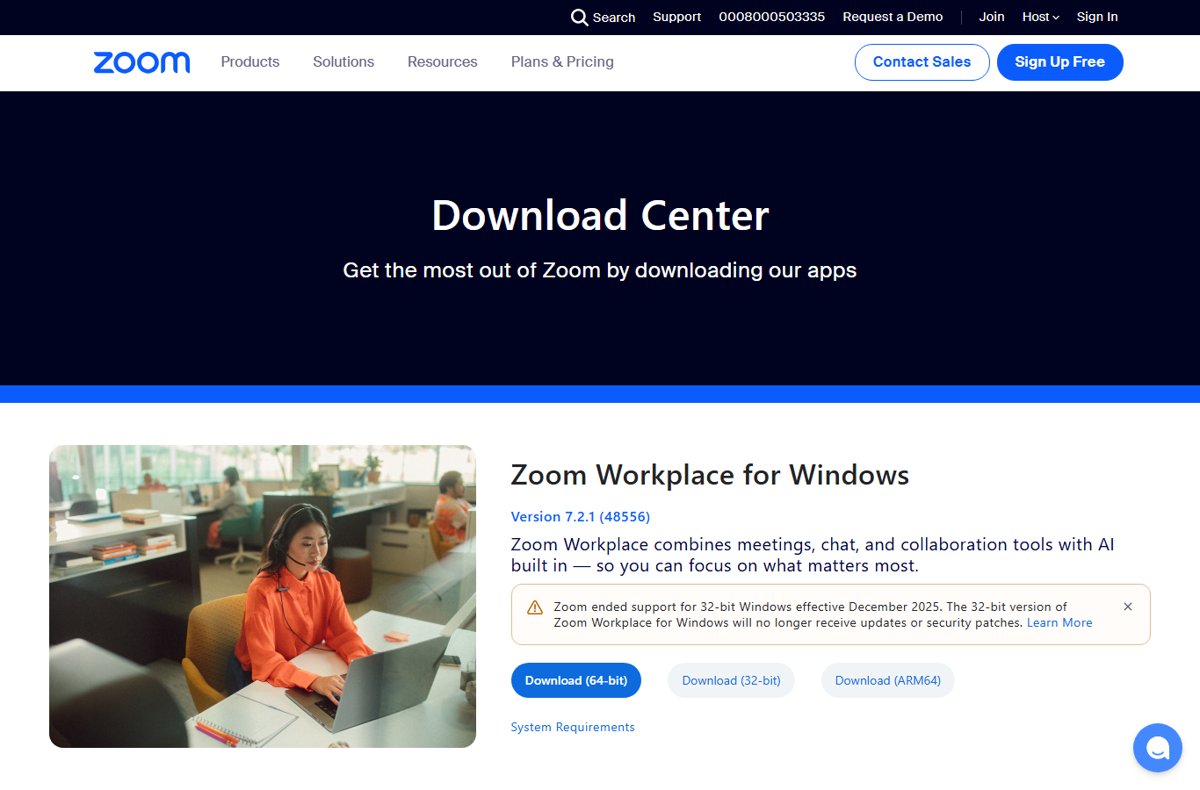
- Go to the Zoom Download Center at
https://zoom.us/download. - Find Zoom Workplace for Windows or the macOS entry and note the version shown above the button.
- On Windows, choose Download (64-bit) or Download (ARM64) to match your processor.
- Quit Zoom completely before running the file.
- Run the installer and approve the admin prompt.
- Open Zoom and sign in again.
Download only from Zoom's own site. Third-party mirrors are a known source of tampered installers, and the Zoom download page for Windows and Mac points at the official files.
How to check Zoom is up to date
The version number is the proof, not the progress bar.
- Open and sign in to the Zoom desktop app.
- Click your profile picture in the top-right corner.
- Click Help, then select About Zoom Workplace.
- Read the version number in the dialog.
- Compare it with the version printed above the download button at
https://zoom.us/download. - Click Check for Updates once more if the numbers differ.
A version below the global minimum blocks sign-in and meeting joins, so this check is worth doing before a scheduled call.
Why You Should Update Zoom
Zoom ships three kinds of update, and only one of them is optional in practice.
| Update type | What happens | What it means for you |
|---|---|---|
| Web-only | Published to the web portal for fixes still being tested | Not offered in the app; download it yourself if you need the fix |
| Mandatory | Starts when you click update and blocks further use until it finishes | No way to postpone it |
| Optional | Starts when you click update, and can be postponed | You are prompted again at your next sign-in |
| Security update | Distributed to every user at the same time | Track choice is ignored for these |
| Minimum version enforcement | Zoom raises a global minimum version roughly every three months | Below it you cannot sign in, join, chat or use Zoom Phone |
Which version you should be running
Zoom publishes four version markers per platform. The Fast and Slow numbers are the ones an auto-updating app moves between.
| Platform | Fast track | Slow track | Prompted version | Minimum version |
|---|---|---|---|---|
| Windows | 7.2.1 | 7.0.6 | 7.0.6 | 5.17.5 |
| Windows (VDI) | 7.0.12 | 6.6.16 | 6.6.16 | 6.0.10 |
| macOS | 7.2.1 | 7.0.6 | 7.0.6 | 6.0.2 |
| Linux | 7.2.1 | 7.0.6 | 7.0.6 | 6.0.2 |
| iOS and Android | Not applicable | Not applicable | 7.0.6 on Android | 6.0.2 |
Zoom updates these numbers on its own support page; Fast track figures were current on 21 September 2026 and the other columns on 3 August 2026.
Keeping Zoom Updated in the Future
Automatic updates are on by default in the standard EXE and DMG installers. They are off by default in the MSI and PKG packages used for managed computers.
- Sign in to the Zoom desktop app.
- Click your profile picture, then click Settings. On version 6.7.0 and higher you can click the gear icon in the navigation bar instead.
- Open the General tab.
- In the Zoom Updates section, select the check box for Automatically keep Zoom up to date.
- Open the drop-down menu and choose Slow for fewer, more stable updates, or Fast for new features sooner.
- Close Settings. Zoom applies the update the next time you restart the app.
Zoom defers an automatic update if it sees you opening a meeting link on version 5.16.10 or higher, so joining late is not a side effect of leaving this on.
Reinstalling Zoom
Reinstalling replaces every app file and is the standard answer to an update that keeps failing. Your meetings, chats and recordings live in your account, not in the app.
- On Windows, search for Control Panel in the search bar and open it.
- Click Uninstall a Program in Category view, or Programs and Features in icon view.
- Select Zoom Workplace in the list, click Uninstall, then click Yes at the prompt.
- On a Mac, open Finder, click Applications, then drag zoom.us or Zoom Workplace to the Trash.
- Restart the computer.
- Download the current installer from
https://zoom.us/downloadand run it. - Sign in and confirm the version under Help and About Zoom Workplace.
Zoom also publishes a CleanZoom uninstaller that strips configuration files. It removes cryptographic keys as well, which permanently costs you access to end-to-end encrypted Zoom Mail and Zoom Phone voicemail, so keep it for a last resort.
Troubleshooting Update Issues
Why can't I update my Zoom app? The Check for Updates option is missing
The app was installed with the MSI or PKG package, where AutoUpdate is disabled and the button is removed.
- Click your profile picture and confirm that Check for Updates is absent.
- Contact your IT team or Zoom account admin and ask them to push the update.
- Join meetings from the Zoom Web App in a browser while you wait.
The update downloads but never installs
Missing admin permission, low free space, or too many apps competing for resources.
- Free up storage on the drive holding Zoom.
- Close the other applications you have open.
- Run the update again and enter admin credentials when prompted.
- Install the file from
https://zoom.us/downloadmanually if the in-app update still stops.
A banner says an update is required before you can join
Your installed version is below the global minimum Zoom enforces for sign-in and joining.
- Click the update button in the banner and let it finish.
- Join the meeting from the Zoom Web App in a browser if the call has already started.
- Check the version under Help and About Zoom Workplace afterwards.
The update fails part-way or the app reverts to the old version
Damaged installation files, or a download interrupted by an unstable connection.
- Restart your router or modem and confirm the connection is stable.
- Clear your browser cache and cookies if the download came from the website.
- Uninstall Zoom, restart the computer, then install the current version from the Download Center.
Error code 10008 when updating on a Mac
Zoom lists this macOS-specific error as an update failure that a fresh install resolves.
- Quit Zoom from the menu bar.
- Drag zoom.us or Zoom Workplace from Applications to the Trash.
- Download the macOS installer from
https://zoom.us/downloadand run it. - Sign in and check for updates again.
Zoom will not install because the computer is too old
Zoom Workplace 6.0.0 dropped Windows 7 and 8.1, and 7.0.0 dropped macOS 10.13 and 10.14.
- Check the operating system version on the computer.
- Update the operating system to Windows 10 or later, or macOS 10.15 or later.
- Install the current Zoom Workplace build once the system qualifies.
- Use the Zoom Web App in a browser if the hardware cannot be upgraded.
Frequently Asked Questions
How do you update Zoom on a PC?
Open the Zoom Workplace app on your PC and sign in. Click your profile picture in the top-right corner, then click Check for Updates. Zoom downloads the newer version and installs it after you click Update.
How do you update Zoom on a Mac?
Launch Zoom Workplace from the Applications folder and sign in. Click your profile picture, then click Check for Updates. Click Update to install, and enter your Mac password if macOS asks for permission.
Does Zoom update automatically?
Yes, in the standard EXE and DMG installers automatic updates are on by default. The MSI and PKG packages used for managed computers have AutoUpdate disabled by default, so an IT team controls those updates instead.
How do you update Zoom automatically?
Sign in, click your profile picture, then click Settings. On the General tab, in the Zoom Updates section, select Automatically keep Zoom up to date and pick Slow or Fast from the drop-down menu.
Why can't I update Zoom?
The three usual causes are an MSI or PKG install that removes the Check for Updates button, missing admin permission, and too little free storage. An unstable connection during the download produces the same result.
How do you know if Zoom is updated?
Click your profile picture, click Help, then select About Zoom Workplace. Compare the version shown there with the number printed above the download button at zoom.us/download. Matching numbers mean you are current.
How do you update Zoom on Windows 11?
Windows 11 uses the same route as Windows 10. Open Zoom Workplace, click your profile picture, click Check for Updates, then click Update. Approve the admin prompt if Windows shows one.
How do you manually update Zoom?
Go to zoom.us/download, pick the installer for your platform, quit Zoom, then run the file. On Windows choose the 64-bit or ARM64 build to match your processor. The installer upgrades the existing copy.
How do you update Zoom on an HP or Lenovo laptop?
The laptop brand makes no difference. Zoom updates through its own app on any Windows 10 or Windows 11 machine, so click your profile picture and select Check for Updates.
How do you update Zoom on an iPad or iPhone?
Open the App Store, tap your photo or the account button at the top, then tap App Updates. Tap Update next to Zoom, or tap Update All. Apps update automatically by default on both devices.
How do you update Zoom in the app?
Zoom shows an update pop-up within 24 hours of signing in when a mandatory or optional update is waiting. Click the update button in that pop-up, or start it yourself with Check for Updates.
What is the difference between the Slow and Fast update tracks?
Slow is the default and delivers fewer updates, typically every one to two months, with a more mature feature set. Fast delivers each new release sooner, on Zoom's roughly monthly cadence.
Conclusion
Run Check for Updates once, then turn on Automatically keep Zoom up to date on the Slow track and leave it alone. Zoom raises the global minimum version about every three months and blocks sign-in below it, and the Slow track applies security fixes without changing the interface every month. The same approach works for other desktop apps, such as keeping Roblox current on Windows and Mac.