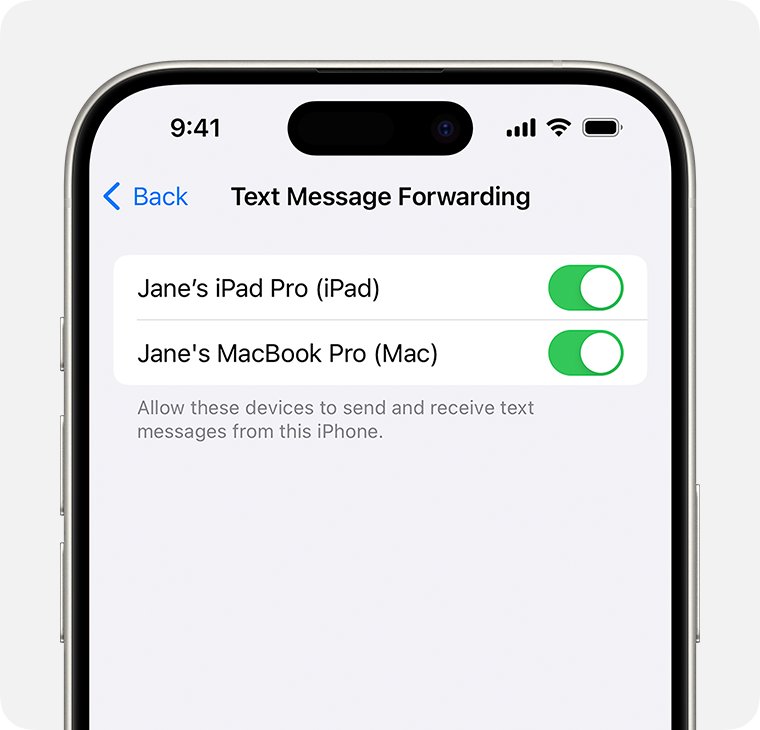
Text Message Forwarding sits in Settings > Apps > Messages > Text Message Forwarding on the iPhone, where you switch on each Mac, iPad or Apple Vision Pro that should receive your texts.
The steps below cover the setup on every device, the verification code prompt, the Messages in iCloud alternative, fixes when the option is missing, and how to switch it back off.
How to Turn On Text Message Forwarding on iPhone
Every device you switch on here has to be signed in to iCloud with the same Apple Account as the iPhone.
- Open Settings on the iPhone.
- Tap Apps, then tap Messages. If your Settings list has no Apps entry, tap Messages in the main list instead.
- Tap Text Message Forwarding.
- Turn on the switch beside each Mac, iPad or Apple Vision Pro that should send and receive your texts.
- If a verification code appears on that other device, type the code on the iPhone.
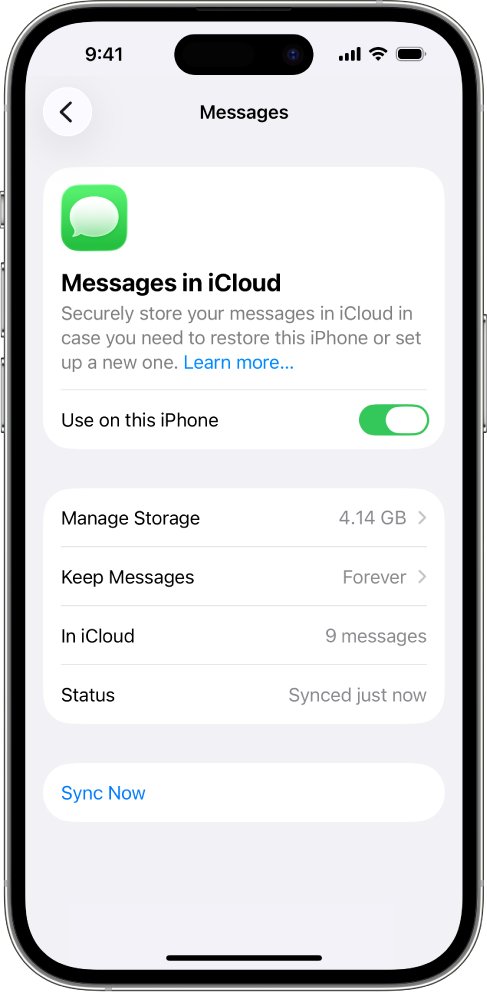
Devices already using Messages in iCloud have Text Message Forwarding built in, so it stays on for them.
Messages in iCloud or Text Message Forwarding: which to turn on
| Your situation | Turn on | Why |
|---|---|---|
| You want SMS on one Mac or iPad, nothing else | Text Message Forwarding | It relays SMS, MMS and RCS from the iPhone to the devices you pick |
| You want your whole message history on a new device | Messages in iCloud | It keeps iMessage, SMS, MMS and RCS history up to date across devices |
| Messages in iCloud is already on | Nothing more | Forwarding is part of Messages in iCloud and is always on for those devices |
| A Mac or iPad is shared with other people | Forwarding, with that device left off | Forwarded texts carry one-time verification codes sent by SMS |
What You Need Before You Turn It On
| Requirement | Detail |
|---|---|
| Same Apple Account | Each device must be signed in to iCloud with the same Apple Account as the iPhone |
| A reachable iPhone | The iPhone must be on, connected to Wi-Fi or cellular, and able to send and receive messages |
| Carrier plan | The iPhone doing the relaying needs iOS 8.1 or later and an activated carrier plan |
| iPhone software | iOS 8 or later, on any iPhone model |
| iPad software | Any version of iPadOS, on any iPad model |
| Mac software | OS X Yosemite 10.10 or later, on any Mac model |
| Apple Vision Pro | Any version of visionOS, on any Apple Vision Pro model |
| iMessage | iMessage has to be turned on in Messages on the iPhone and on each receiving device |
How to Set Up Your Mac to Receive iPhone Texts
- Open the Messages app on the Mac and sign in with your Apple Account.
- Choose Messages > Settings, then click iMessage.
- Check that the Apple Account shown matches the one on the iPhone. Click Sign Out and sign in again if it does not.
- On the iPhone, open Settings > Apps > Messages > Text Message Forwarding.
- Turn on the switch for that Mac.
- Type the verification code shown on the Mac into the prompt on the iPhone, if one appears.
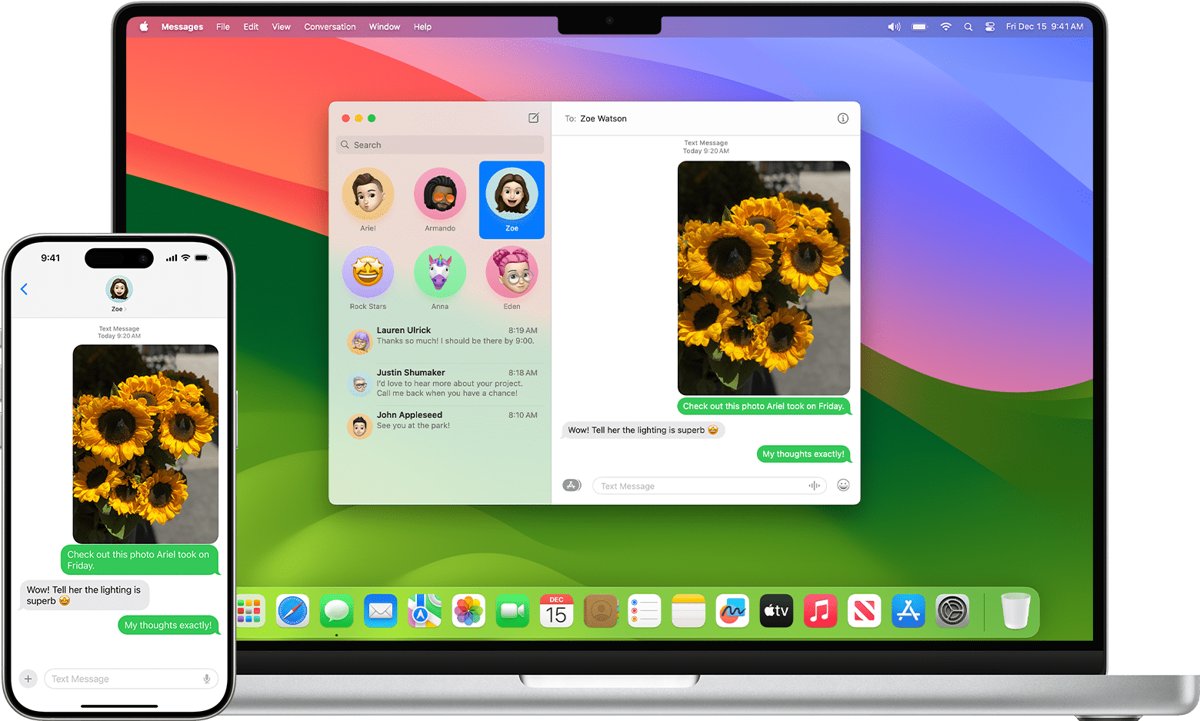
Messages you send and receive now appear on both devices, including conversations with people who do not use an iPhone.
How to Set Up an iPad to Receive iPhone Texts
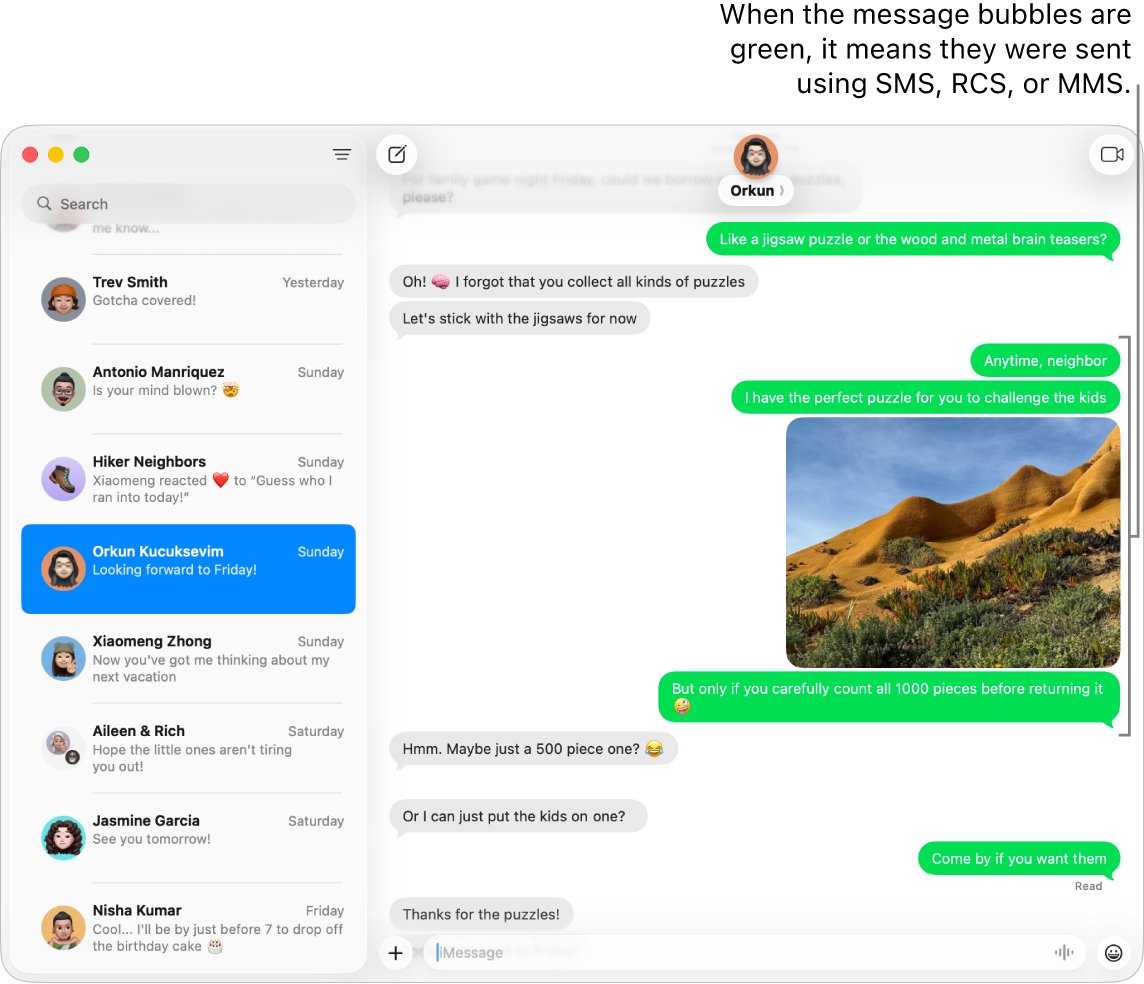
- Open Settings on the iPad.
- Tap Apps, tap Messages, then turn on iMessage.
- Tap Send & Receive and check the Apple Account at the bottom of the screen matches the iPhone. Tap it to sign out and sign back in if it differs.
- On the iPhone, open Settings > Apps > Messages > Text Message Forwarding.
- Turn on the switch for the iPad.
- Enter the code from the iPad on the iPhone when prompted.
Apple Vision Pro takes the same route: Settings > Apps > Messages, iMessage on, matching Apple Account, then the switch on the iPhone.
How to Send SMS or MMS from Another Apple Device
Once the switch is on, the Mac or iPad sends through the iPhone's carrier connection.
- Open Messages on the Mac or iPad.
- Start a new conversation, then type a phone number or contact name in the To field.
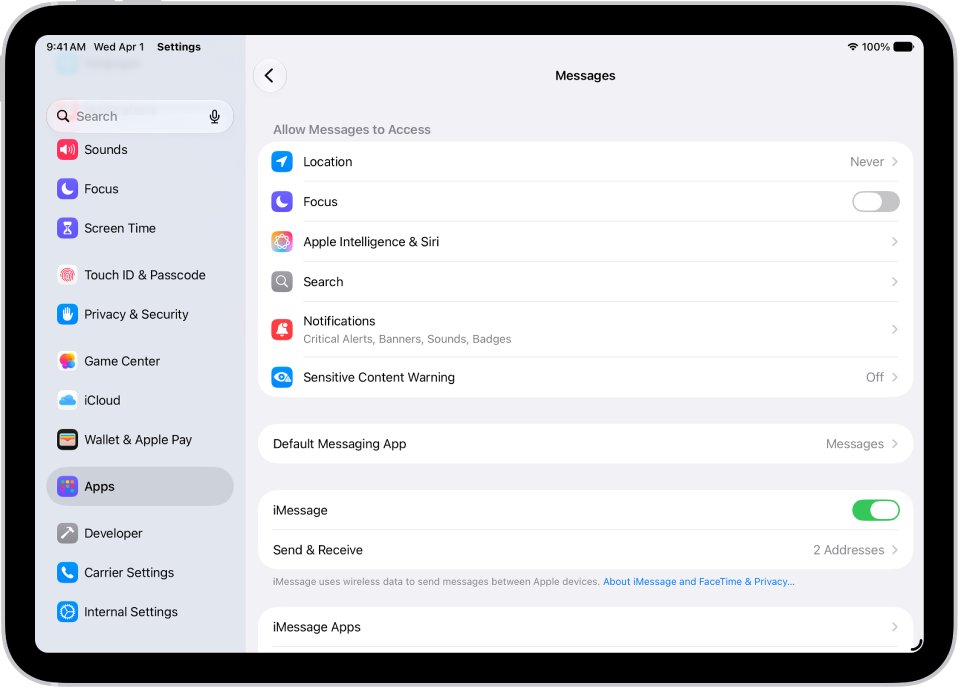
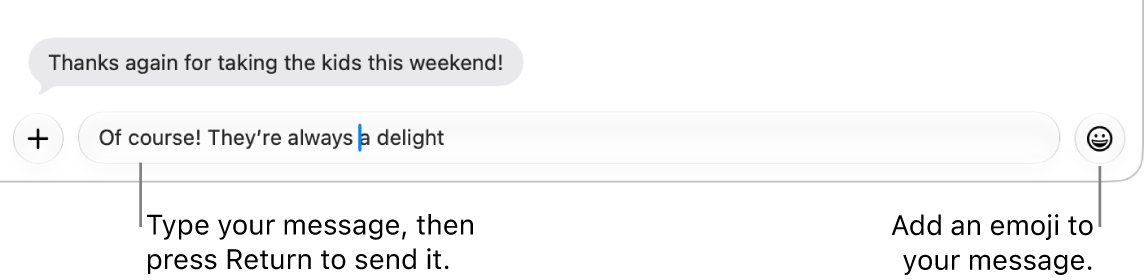
- Type the message in the field at the bottom of the window.
- Press Return on a Mac, or tap the send arrow on an iPad.
- Check the bubble colour: green means it went out as SMS, MMS or RCS through the iPhone.
Keep the iPhone powered on and in range. It is the relay, so nothing leaves the Mac or iPad while the iPhone is off.
How to forward one text message to another person
- Open Messages on the iPhone and tap the conversation holding the text.
- Touch and hold the message bubble you want to forward.
- Tap More, then tap to select each message to forward.
- Tap the forward arrow, then enter the recipients.
- Tap the send arrow.
To keep the bubbles and timestamps exactly as they look on screen, send a screenshot as an attached image instead.
How to check it worked
- Ask someone using an Android phone to text your iPhone number.
- Watch the Mac or iPad: the text lands in Messages in a green bubble.
- Reply from that device, then confirm the reply shows in the same conversation on the iPhone.
- Reopen Settings > Apps > Messages > Text Message Forwarding and confirm the switch is still on.
What Text Message Forwarding Does
| Message type | Without forwarding | With forwarding on |
|---|---|---|
| iMessage, blue bubble | Every device signed in to the same Apple Account | Unchanged |
| SMS, green bubble | The iPhone only | The iPhone plus each device you switched on |
| MMS, green bubble | The iPhone only | The iPhone plus each device you switched on |
| RCS, green bubble | The iPhone only | The iPhone plus each device you switched on |
The iPhone stays the relay. Texts still travel over the carrier network, so the iPhone has to be on and connected.
How to change message alerts and sounds afterwards
- Open Settings, tap Notifications, then tap Messages.
- Turn on Allow Notifications so incoming texts alert you.
- Tap Sounds, tap Text Tone, then pick a tone.
- Tap Haptics to choose a vibration pattern, or tap None to switch vibration off.
- Move the Ring/Silent switch out of silent mode, then open Settings > Sounds & Haptics and drag the slider up.
Each device keeps its own alert settings, so a Mac or iPad stays silent until you change it there.
Another iPhone control worth knowing sits nearby: how to turn your phone's flashlight on and off.
How to Turn Off Text Message Forwarding
- Open Settings on the iPhone, tap Apps, then tap Messages.
- Tap Text Message Forwarding.
- Turn off the switch for every device that should stop receiving texts.
- On an iPad or Apple Vision Pro that should stop receiving iMessages too, open Settings > Apps > Messages and turn off iMessage.
- On a Mac, choose Messages > Settings, click iMessage, then click Sign Out.
If those devices use Messages in iCloud, also turn off Use on this iPhone on iOS and iPadOS, or deselect Enable Messages in iCloud on the Mac.
Why Text Message Forwarding Is Missing or Not Working
Text Message Forwarding does not appear in Messages settings
iMessage is off, or the iPhone needs to sign in to iMessage again.
- Open Settings > Apps > Messages and turn iMessage off, then on again.
- Tap Send & Receive and sign in with your Apple Account.
- Go back to Settings > Apps > Messages and tap Text Message Forwarding.
A Mac, iPad or Apple Vision Pro is not in the device list
That device is signed in to a different Apple Account, or iMessage is off on it.
- On an iPad or Apple Vision Pro, open Settings > Apps > Messages and confirm iMessage is on.
- Tap Send & Receive and check the Apple Account at the bottom matches the iPhone. Tap it to sign out, then sign in with the right one.
- On a Mac, open Messages, choose Messages > Settings, click iMessage and check the same Apple Account. Click Sign Out, then sign in again if it differs.
- Reopen Text Message Forwarding on the iPhone and look for the device.
A verification code appears instead of the switch turning on
The device you selected is not using two-factor authentication for your Apple Account.
- Read the code shown on the Mac, iPad or Apple Vision Pro.
- Type that code into the prompt on the iPhone.
- Confirm the switch for that device is now on.
Texts still do not reach the other device
The iPhone cannot reach the network, software is out of date, or the switch dropped.
- Check the iPhone has cellular service or Wi-Fi. SMS needs a cellular connection unless Wi-Fi Calling is on.
- Open Settings > Cellular and confirm your phone line is turned on.
- Restart the iPhone and the device that is missing messages.
- Update the iPhone, iPad and Mac to the current iOS, iPadOS and macOS.
- Open Settings > Apps > Messages > Text Message Forwarding, turn the device off, then on again.
Fix texts that arrive silently or in the wrong colour
No sound or alert when a text arrives
Notifications are off for Messages, the tone is set to None, or the conversation is muted.
- Open Settings > Notifications > Messages and turn on Allow Notifications.
- Tap Sounds, tap Text Tone, then pick a tone other than None.
- Move the Ring/Silent switch out of silent mode and raise the slider in Settings > Sounds & Haptics.
- Open the conversation, tap the contact icon at the top, then turn off Hide Alerts.
Messages turned green instead of blue
The message went as RCS, MMS or SMS because iMessage is off, unavailable, or the recipient has no Apple device.
- Open Settings > Apps > Messages and turn on iMessage.
- Tap Send & Receive and choose the phone number or email address to start conversations from.
- Open Settings > Cellular and confirm the phone line you use is on.
- Update the iPhone if a new version of iOS is waiting.
"Not Delivered" with a red exclamation point
iMessage could not deliver the message and it has not fallen back to a text.
- Check the network connection.
- Tap the red exclamation point, then tap Try Again.
- Tap the red exclamation point, then tap Send as Text Message.
- Open Settings > Apps > Messages and turn on Send as Text Message so this happens automatically.
An iPad keeps showing texts you do not want on it
Forwarding is still on for that iPad, or it syncs messages through iCloud.
- On the iPhone, open Settings > Apps > Messages > Text Message Forwarding and turn the iPad off.
- On the iPad, open Settings > Apps > Messages and turn off iMessage.
- On the iPad, open Settings > [your name] > iCloud > Messages and turn off Use on this iPad.
Privacy and Security Tips
Sign out of iMessage on a Mac before you sell it or hand it on. Every registered device shows an alert when a new device, phone number or email address joins iMessage, so read those alerts rather than dismissing them.
Leave Text Message Forwarding on only for devices that you alone unlock. Forwarded texts include one-time verification codes sent by SMS, and only iMessage is protected by end-to-end encryption; SMS, MMS and RCS travel over the carrier network.
Frequently asked questions
How do you turn on text messages on an iPhone?
Open Settings, tap Apps, tap Messages, then turn on iMessage. Tap Send & Receive to choose the phone number or email address your messages come from. SMS, MMS and RCS texts need an active carrier plan on the iPhone.
How do you turn on text message alerts on an iPhone?
Open Settings, tap Notifications, then tap Messages and turn on Allow Notifications. Alerts stay silent while the Ring/Silent switch is in silent mode, so move that switch as well if you want to hear each text arrive.
How do you turn on text message sound on an iPhone?
Open Settings > Notifications > Messages, tap Sounds, then tap Text Tone and pick a tone. Tapping None silences both the incoming tone and the swoosh sound for messages you send, so choose a real tone.
How do you turn up the volume on text messages on an iPhone?
Open Settings, tap Sounds & Haptics, then drag the slider to the right. Make sure the Ring/Silent switch is not in silent mode. The same slider controls ringtone and alert volume together on the iPhone.
Why did my text message turn green?
A green bubble means the message went as RCS, MMS or SMS rather than iMessage. That happens when the recipient has no Apple device, when iMessage is off on either phone, or when iMessage is temporarily unavailable.
Why did my text message turn blue?
A blue bubble means the message was sent as an iMessage over Wi-Fi or cellular data to another iPhone, iPad, Mac or Apple Vision Pro. iMessage is end-to-end encrypted, so Apple cannot read the content or attachments.
How do you turn off text messages on an iPad?
On the iPhone, open Settings > Apps > Messages > Text Message Forwarding and turn the iPad off. On the iPad, open Settings > Apps > Messages and turn off iMessage to stop iMessages arriving too.
How do you set a different notification sound for one contact?
Open the conversation in Messages, tap the contact icon at the top, tap Info, tap Edit, tap Edit Contact Info, then tap Text Tone. Pick a tone, a vibration pattern under Haptics, or None to mute that person.
Does Text Message Forwarding need the iPhone to stay on?
Yes. The iPhone relays every SMS, MMS and RCS message to your other devices, so it has to be turned on, connected to Wi-Fi or cellular, and able to send and receive messages itself.
Do you still need Text Message Forwarding with Messages in iCloud?
No. Text Message Forwarding is built into Messages in iCloud, and it stays on for every device using it. Set up one or the other, not both, and your SMS history follows you to new devices.
How do you forward one text message to someone else?
Open the conversation, touch and hold the message bubble, tap More, select the messages you want, then tap the forward arrow. Enter the recipients and tap the send arrow to pass those messages on.