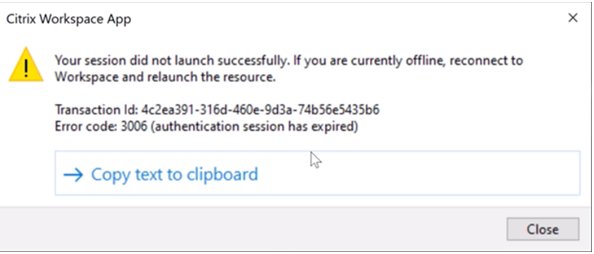
Citrix Workspace usually refuses to launch on Windows 11 for one of three reasons: the installed version is older than your Windows 11 release, the app data is corrupt, or Windows no longer hands the downloaded .ica file to Citrix Workspace.
The sections below work through the fastest checks first, then the app-side fixes, the Windows-side fixes, and the log files your IT desk asks for.
Start with the quick fixes
These four checks clear most launch failures and take under five minutes.
- Right-click the Citrix Workspace icon in the notification area and select Exit, then open Citrix Workspace again from the Start menu.
- Restart Windows, then sign in to Citrix Workspace before opening anything else.
- Connect to your company VPN or network first if your store is internal, and confirm the company portal opens in a browser.
- Open Settings > Time & language > Date & time and turn on Set time automatically and Set time zone automatically.
- Right-click the Citrix Workspace icon in the notification area and select Check for Updates.
A wrong clock breaks certificate validation, which is why the date and time check belongs this early.
Check whether the issue is with one app, one desktop, or all Citrix resources
What fails narrows the cause faster than any log file. Match your case below before changing settings.
| What fails | Most likely cause | Go to |
|---|---|---|
| Citrix Workspace window never opens at all | Broken install or missing prerequisite | Repair or reinstall Citrix Workspace |
| The app opens but the store is empty | Account or store URL no longer resolves | Re-add your Citrix account or store |
| Every app and desktop fails to start after a click | The .ica file is not being opened by Citrix Workspace |
Fix ICA file association problems |
| Only one published app fails, others start | A problem on the delivery group, not on this PC | Collect useful error details before contacting IT |
| Launch works in a browser but not in the app | Corrupt app data or stale cached credentials | Reset Citrix Workspace |
| Launch fails only from home or on a hotspot | Proxy, DNS or gateway is unreachable | Check proxy, firewall, and DNS issues |
What Citrix Workspace needs on Windows 11 before it will start
Citrix Workspace app for Windows will not install or start when a prerequisite is missing. These are the current published requirements.
| Requirement | Minimum | Notes |
|---|---|---|
| RAM | 2 GB | Stated minimum for the app |
| Free disk space | 1 GB | Same for a fresh install and an upgrade |
| Microsoft Edge WebView2 Runtime | Version 131 or later | Installed by the Citrix installer when the PC is online |
| .NET | .NET Framework 4.8 plus the x86 .NET Desktop Runtime 8.0.15 or later (up to 8.x) | The x86 runtime is required even on 64-bit Windows, for version 2409 and later |
| Microsoft Visual C++ Redistributable | 14.42.34433.0 or later for version 2508 and later | Only an administrator can install this package |
| Administrator rights | Needed to install the prerequisites | Installation fails without them when WebView2 or .NET is absent |
The installer checks free disk space only after it extracts the package, so a silent install records the failure in C:\Program Files (x86)\Citrix\Logs\CTXWorkspaceInstallLogs-* instead of showing a dialog.
Common symptoms of Citrix Workspace launch problems
Each symptom below points at a different layer, so read the row that matches before trying fixes at random.
| Symptom | What it means | First thing to change |
|---|---|---|
| Nothing happens when you click the Start menu shortcut | The self-service component is missing or the install is damaged | Reinstall with the cleanup switch |
The browser downloads a launch.ica file instead of starting the session |
Windows has no default app for the .ica file type |
Set the .ica default in Settings |
| Sign-in loops or the store never finishes loading | Cached credentials and app data are stale | Reset app data |
| "You must be logged on as an administrator to install the following prerequisite packages" | WebView2 or .NET is missing and the account is not an administrator | Install as an administrator |
| The session drops immediately with a certificate warning | The certificate issuer is not trusted, or the clock is wrong | Fix the clock, then the certificate chain |
| Apps launch at the office but not from home | Gateway, proxy or DNS is not reachable | Check the proxy and DNS settings |
Update Citrix Workspace for Windows
Citrix publishes a minimum Workspace version for each Windows 11 release. A PC upgraded to a newer Windows 11 build with an older Workspace app is an unsupported pairing.
- Right-click the Citrix Workspace icon in the notification area and select Advanced Preferences.
- Read the version shown in the About section and compare it with the table below.
- Close Advanced Preferences, right-click the notification area icon again and select Check for Updates.
- Let the update finish, then restart Windows and sign in to the store again.
- If Check for Updates is missing, ask your administrator: updates can be disabled, and a maximum allowed version can be set centrally.
Minimum Workspace versions: Windows 11 25H2 (build 26200) needs 2511 or later, 24H2 (26100) needs 2409 or later, 23H2 (22631) needs 2311 or later, 22H2 (22621) needs 2209 or later, and 21H2 (22000) needs 2109.1 or later.
Fix ICA file association problems
A launch request is a small .ica file. When Windows 11 has no default app for that file type, the browser saves it and nothing starts.
- Open Settings > Apps > Default apps.
- Type
.icain the search box at the top and select the result. - Pick the Citrix Workspace entry from the apps offered for that file type.
- If no Citrix entry is listed, the client files are missing: reinstall before setting the default. The install folder is
C:\Program Files (x86)\Citrix\ICA Clientfor an administrator install and%USERPROFILE%\AppData\Local\Citrix\ICA Clientfor a per-user install. - Start a published app again and let the browser open the file with Citrix Workspace.
Double-clicking a saved .ica file is a quick way to prove the association is fixed: the session should start without the browser involved.
Reset Citrix Workspace
Resetting restores default settings and clears cached files and saved passwords. Configured accounts and stores are removed, so have your store URL ready.
- Right-click the Citrix Workspace icon in the notification area and select Troubleshooting.
- Select Reset App Data and confirm. This option is available from version 2309 and later.
- If the app never opens far enough to show that menu, open Command Prompt and run
"C:\Program Files (x86)\Citrix\ICA Client\SelfServicePlugin\CleanUp.exe" -cleanUser. - Use an uppercase U in
-cleanUser, otherwise the command does nothing. - Start Citrix Workspace again and add your store URL when prompted.
A reset also clears the file type associations created by the self-service plug-in. It does not touch the installation itself, per-machine ICA lockdown settings, or Group Policy configuration.
Clear browser cache and Citrix site data
Stale cookies on the store website block sign-in and stop the handover to the app. Clear the data for that one site first.
- In Microsoft Edge, select Settings and more (…) > Settings > Privacy, search, and services.
- Under Cookies, select See all cookies and site data, search for your Citrix store address, and delete its entry.
- For a wider clean, press Ctrl + Shift + Delete, tick Cookies and other site data and Cached images and files, then select Clear now.
- Open an InPrivate window and sign in to the store website again to confirm the account still works.
- Start a published app and allow the browser to open the
.icafile with Citrix Workspace.
If the browser itself will not start, fix that first: Fix Microsoft Edge won't launch or open covers the usual causes.
Repair or reinstall Citrix Workspace
The Citrix installer has no repair option. The supported route is a clean install over the top, which removes leftover files and registry values first.
- Get the current installer from the Citrix Workspace download page for Windows 11, 10 and Mac.
- Open Command Prompt in the folder holding the installer.
- Run
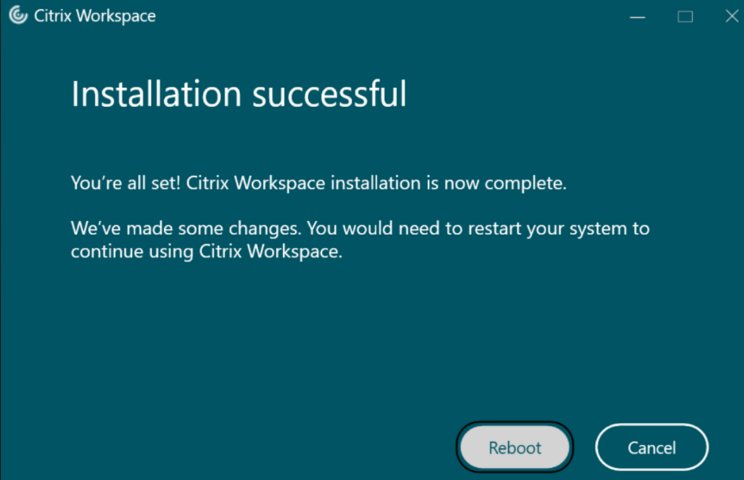
CitrixWorkspaceApp.exe /CleanInstallto clear the leftovers and install the new version in one pass. - If App Protection is enabled and Windows asks to restart, select Reboot so the app reinstalls during the restart.
- To remove the app instead, run
CitrixWorkspaceApp.exe /uninstall, or uninstall it from Control Panel. - Sign in and add your store again once the installer reports success.
Installation needs administrator rights only for pass-through authentication, single sign-on, App Protection and the Microsoft Teams VDI plug-in, and for installing the prerequisites.
Run Citrix Workspace as administrator once
An elevated run is a diagnostic, not a permanent setting. It shows whether a file or registry permission is blocking the normal start.
- Select Start, type
Citrix Workspace, and right-click the result. - Select Run as administrator and approve the User Account Control prompt.
- Sign in and launch a published app.
- Close the app and start it normally afterwards, because day-to-day use does not need elevation.
- If it only works elevated, reinstall with
CitrixWorkspaceApp.exe /CleanInstallfrom an administrator Command Prompt so the per-machine files are written correctly.
Check Windows 11 security settings
Controlled folder access blocks untrusted apps from changing files in protected folders, which can stop Citrix Workspace writing its cache.
- Select Start, type
Windows Security, and open the app. - Open Protection history and look for a block entry naming a Citrix executable.
- Go to Virus & threat protection and select Manage settings under Virus & threat protection settings.
- Under Controlled folder access, select Manage controlled folder access.
- On the Ransomware protection pane, select Allow an app through Controlled folder access, then + Add an allowed app.
- Choose Recently blocked apps and pick the Citrix entry, or select Browse all apps and add the executable from the Citrix
ICA Clientfolder.
Add the app to the allowed list rather than turning the protection off. Leave real-time protection and SmartScreen switched on.
Disable conflicting display or graphics options
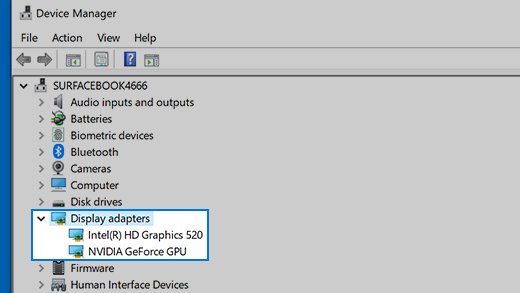
Multi-monitor layouts and mismatched scaling most often break the session window rather than the app itself.
- Disconnect the extra displays and try the launch on the built-in or primary display only.
- Change the session resolution from Citrix Workspace itself; the Windows Control Panel cannot change a virtual desktop's screen resolution.
- In an open session, use the Multi-monitor button on the Desktop Viewer toolbar to control how the session spreads across displays.
- Install pending updates from Settings > Windows Update, which also delivers graphics driver updates offered by the PC maker.
- Reconnect the extra displays one at a time to find the one that reproduces the failure.
The Citrix log collection bundle records attached monitor information and DirectX diagnostics, so a display-related failure is visible to support in the logs.
Confirm required Citrix services and startup items are running
A partial install leaves the launcher missing. Check that the component that draws the app window is actually present and set to start.
- Press Ctrl + Shift + Esc, open the Startup apps tab, and make sure the Citrix Workspace entry is set to Enabled.
- Open the Processes tab and look for Citrix entries after you start the app from the Start menu.
- Check the install folder exists:
C:\Program Files (x86)\Citrix\ICA Clientfor an administrator install, or%USERPROFILE%\AppData\Local\Citrix\ICA Clientfor a per-user install. - If the self-service interface never appears, ask your administrator whether
SELFSERVICEMODEis set toFalse, which removes that interface by design. - Reinstall the full component set with
CitrixWorkspaceapp.exe ADDLOCAL=ReceiverInside,ICA_Client,BCR_Client,USB,DesktopViewer,AM,SSON,SelfService,WebHelper.
Check proxy, firewall, and DNS issues
Citrix Workspace uses the proxy settings of the default browser when it talks to the web server, so a stale proxy entry breaks the store before any session starts.
- Open Settings > Network & internet > Proxy.
- Turn off Use a proxy server and Use setup script unless your IT desk supplied those values.
- Leave Automatically detect settings on for a managed corporate network.
- Open Command Prompt and run
ipconfig /flushdnsto clear stale name-resolution entries. - Reconnect to the VPN, then open the store address in a browser to confirm the gateway answers.
- Ask your administrator to allow outbound traffic to
features.netscalergateway.netif the app opens but features behave inconsistently.
A remote session that fails in the same way through other tools points at the network, not at Citrix: Fix Remote Desktop not working in Windows 10/11 covers that side.
Fix certificate and SSL trust errors
Citrix Workspace rejects the connection when it does not recognise or trust the issuer of the server certificate. It supports TLS 1.2 and TLS 1.3.
- Correct the clock first in Settings > Time & language > Date & time, because an out-of-range date invalidates a valid certificate.
- Open the store URL in a browser and read the certificate warning it shows; that message names the untrusted issuer.
- Ask your administrator for the internal root or intermediate certificate if the issuer is a company authority.
- On a managed PC, run
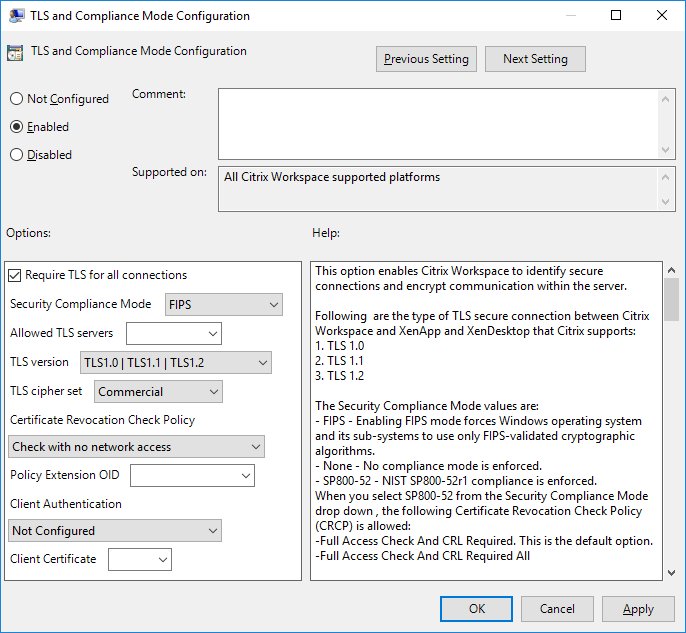
gpedit.mscand go to Computer Configuration > Administrative Templates > Citrix Workspace > Network routing. - Open TLS and Compliance Mode Configuration and check the TLS version, Security Compliance Mode and Certificate Revocation Check Policy values against what your gateway supports.
- Set Security Compliance Mode back to None for testing only if your administrator confirms SP800-52 is not required.
A revocation policy of Full Access Check and CRL Required rejects the connection when a required revocation list cannot be found, which looks identical to a launch failure.
Remove old Citrix Receiver leftovers
Files and registry values from an earlier Citrix Receiver or Workspace install survive an ordinary uninstall and can hijack the new one.
- Open Command Prompt as an administrator in the folder holding the current installer.
- Run
CitrixWorkspaceApp.exe /CleanInstall, which removes leftover files and registry values before installing. - If an install is still present and refuses to go, run
CitrixWorkspaceApp.exe /silent /uninstallfirst, then restart Windows. - Ask your administrator to check Citrix Group Policy entries: the installer does not control Group Policy registry keys, so they remain after an uninstall.
- Install again, then add the store and sign in.
Accept the prompt to remove the Citrix HDX RTME package if the installer offers it during the reinstall.
Re-add your Citrix account or store
A reset or a changed gateway address leaves the app with no working store. Adding it again is quicker than debugging the old entry.
- Open Citrix Workspace and go to Accounts > Add or Remove accounts in the profile menu.
- Remove the store that fails, then select the option to add an account.
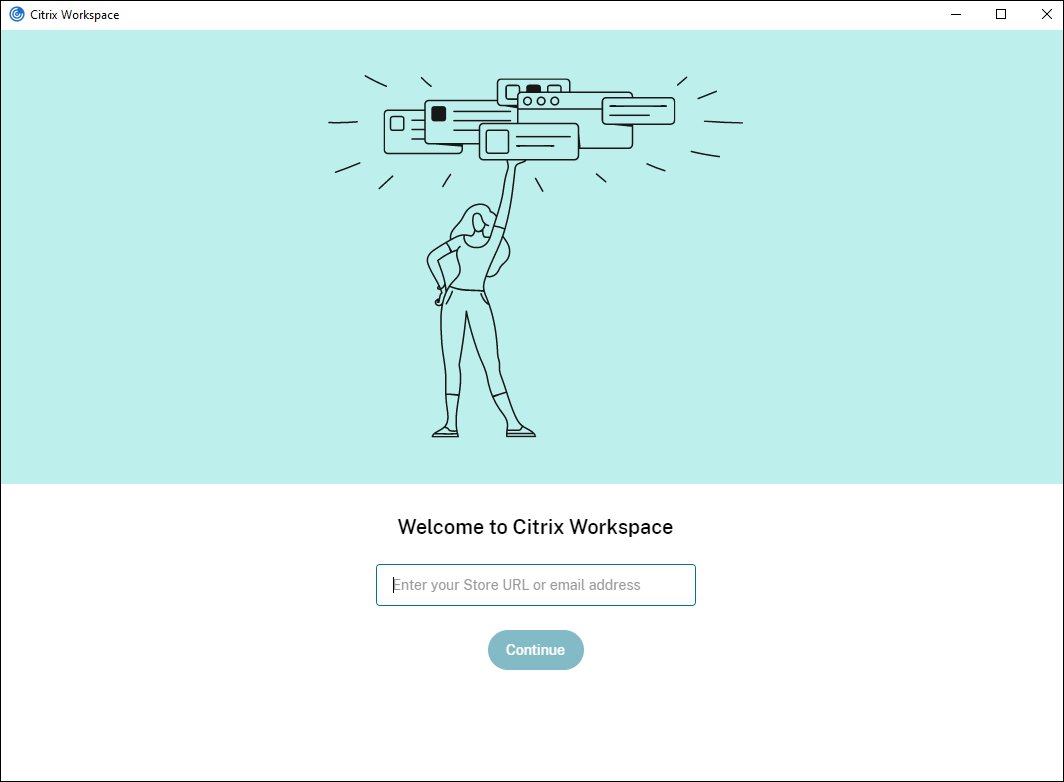
- Enter the store URL your administrator supplied, for example
https://servername.company.com/Citrix/Store. - For a gateway with several stores, enter the gateway address and store name as
CitrixGatewayFQDN?MyStoreName. - Enter your work email address instead if your company uses email-based discovery.
- Sign in when prompted and wait for the app list to populate.
Your administrator can also send a provisioning file from StoreFront; opening that file configures the account without typing a URL.
Use the web version as a temporary workaround
The store website runs independently of the installed app, so it keeps you working while the app is being fixed.
- Open your store address in Microsoft Edge and sign in with your usual work credentials.
- Launch the app or desktop you need from the website.
- Allow the browser to open the downloaded
.icafile with Citrix Workspace when it asks. - If the app is broken beyond launching sessions, keep using the website and finish the reinstall afterwards.
- While you are signed in to the website, open the account settings page and download the provisioning file for the rebuilt app.
Collect useful error details before contacting IT
A log bundle turns a support ticket from a description into evidence. Collect it while the failure is reproducible.
- Right-click the Citrix Workspace icon in the notification area and select Advanced Preferences.
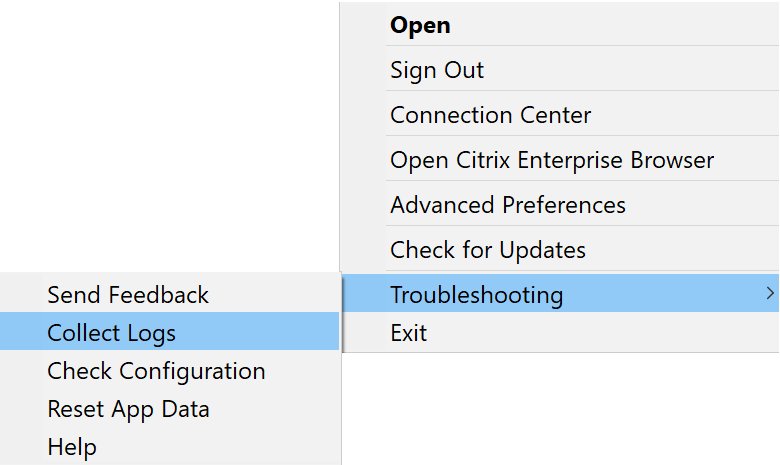
- Select Log collection, choose the Verbose level, and select Start collecting logs.
- Reproduce the launch failure, then select Stop collecting logs and Save log to a folder you can find.
- From version 2309 and later, use Troubleshooting > Collect Logs or Send Feedback from the same menu instead.
- Add the installer log from
C:\Program Files (x86)\Citrix\Logsfor an administrator install, or%USERPROFILE%\AppData\Local\Citrix\Logsfor a per-user install. - Note the exact error text, the app or desktop name, and whether the browser route also fails.
Feedback attachments and the log file together must stay under 20 MB, so send large bundles by email or a file share instead.
How to check it worked
Confirm the app, the store and a real session, not just the window.
- Look for the Citrix Workspace icon in the notification area after signing in.
- Right-click it, open Advanced Preferences, and confirm the version in About meets the minimum for your Windows 11 release.
- Open the app list and check that your published apps and desktops appear instead of an empty store.
- Start one published app and wait for it to draw its own window.
- Start a published desktop and confirm the Desktop Viewer toolbar appears at the edge of the screen.
- Sign out, restart Windows, and repeat the launch once to prove the fix survives a restart.
Fix Citrix Workspace when it still will not open
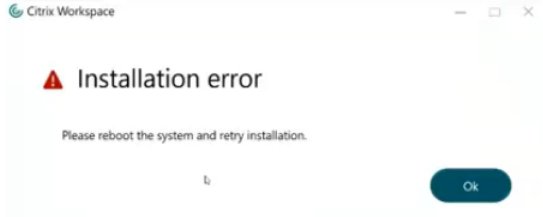
Citrix Workspace will not install
A prerequisite is missing, or the account cannot install one.
- Sign in with an account that has administrator rights and run the installer again.
- Install .NET Framework 4.8 and the x86 .NET Desktop Runtime 8.0.15 or later from Microsoft first if the PC has no internet access during setup.
- Free at least 1 GB of disk space, then check
C:\Program Files (x86)\Citrix\Logs\CTXWorkspaceInstallLogs-*for the recorded error. - Run
CitrixWorkspaceApp.exe /CleanInstallso an earlier failed attempt cannot block this one.
Citrix Workspace is installed but not showing up
The self-service interface is disabled, or the install landed in a different profile.
- Check both install folders:
C:\Program Files (x86)\Citrix\ICA Clientand%USERPROFILE%\AppData\Local\Citrix\ICA Client. - Ask your administrator whether
SELFSERVICEMODEis set toFalse, which hides that interface deliberately. - Reinstall including the
SelfServicecomponent with theADDLOCALlist. - Sign out of Windows and back in, then look in Startup apps in Task Manager.
Citrix Workspace will not uninstall
The uninstaller is being run from the wrong place, or policy keys remain.
- Run
CitrixWorkspaceApp.exe /silent /uninstallfrom the installer you downloaded, not from the Start menu shortcut. - Restart Windows and check Control Panel again.
- Ask your administrator to review Citrix Group Policy keys, which the installer leaves in place after an uninstall.
- Run
CitrixWorkspaceApp.exe /CleanInstallwhen you install the replacement version.
Citrix Workspace is not updating
Updates are managed centrally, or the update channel is disabled.
- Right-click the notification area icon and select Check for Updates.
- Open Advanced Preferences > Citrix Workspace Updates and check whether the option is present.
- Ask your administrator whether a maximum allowed version is set, or whether auto-update is disabled by policy.
- Install the current version manually with
CitrixWorkspaceApp.exe /CleanInstallif policy allows it.
Citrix Workspace is not connecting to the store
The store URL, gateway or proxy path is wrong or unreachable.
- Open the same store URL in a browser and confirm it loads and accepts your sign-in.
- Turn off any manual proxy in Settings > Network & internet > Proxy that IT did not supply.
- Run
ipconfig /flushdns, then reconnect to the VPN. - Remove and re-add the account under Accounts > Add or Remove accounts using the exact URL your administrator gave you.
When to escalate the problem
Escalate to your IT desk once a clean reinstall, a reset and a working browser launch all fail, or when the same app fails for a colleague. Those three results rule out this PC, which leaves the delivery group, the gateway or the store policy, and none of them can be changed from a user account. Send the verbose log bundle and the installer log with the ticket so the desk does not ask for them.
Frequently asked questions
Why won't Citrix Workspace open?
The three common causes are a version older than your Windows 11 release requires, corrupt app data, and a missing prerequisite such as Microsoft Edge WebView2 Runtime or .NET. Check the version in Advanced Preferences first, then reset the app data.
Why is my Citrix Workspace not working after a Windows 11 feature update?
Each Windows 11 release has a minimum Workspace version. Windows 11 25H2 needs Citrix Workspace 2511 or later, 24H2 needs 2409 or later, and 23H2 needs 2311 or later. Update the app before changing anything else.
Why can't I open Citrix Workspace from my browser?
The browser downloads a .ica file and Windows has no default app for that type. Open Settings > Apps > Default apps, search for .ica, and set Citrix Workspace as the app that opens it.
How do I repair Citrix Workspace?
There is no repair option in the Citrix installer. Run CitrixWorkspaceApp.exe /CleanInstall from the current installer instead; it removes leftover files and registry values from the previous install, then installs the app fresh.
How do I completely remove Citrix Workspace?
Run CitrixWorkspaceApp.exe /uninstall, or CitrixWorkspaceApp.exe /silent /uninstall for no prompts, then restart Windows. Citrix Group Policy registry keys are not removed by the installer, so an administrator must clear those separately.
Why is Citrix Workspace not installing?
Installation fails when .NET Framework 4.8, the x86 .NET Desktop Runtime 8.0.15 or later, or Microsoft Edge WebView2 Runtime 131 or later is missing and the account is not an administrator. Free 1 GB of disk space and install as an administrator.
Why is Citrix Workspace not updating?
Administrators can disable auto-update or cap the version through the Global App Config Service. Right-click the notification area icon and select Check for Updates; if that option or Citrix Workspace Updates is missing, policy is controlling it.
Citrix Workspace is installed but not showing up. Where is it?
An administrator install goes to C:\Program Files (x86)\Citrix\ICA Client and a per-user install to %USERPROFILE%\AppData\Local\Citrix\ICA Client. An empty Start menu usually means the self-service component was excluded or SELFSERVICEMODE is set to False.
Why is Citrix Workspace not connecting?
The store URL, the gateway or the proxy is unreachable. Citrix Workspace uses the default browser's proxy settings for web-server traffic, so clear any manual proxy you did not set, flush DNS, and reconnect to the VPN.
Why is Citrix Workspace not detected in my browser?
The browser looks for the installed client and falls back to a download prompt when the .ica handler is missing. Set the .ica default in Settings > Apps > Default apps, then clear the store site's cookies and sign in again.