Press the Scroll Lock key, usually labelled ScrLk, once to turn Scroll Lock off in Excel and put the arrow keys back to moving the cell selection.
This guide covers that key, the ScrLk button on the Windows On-Screen Keyboard for laptops that lack one, how to read the Excel status bar, and the fixes when arrow keys still scroll.
The fastest way to turn off Scroll Lock in Excel
Scroll Lock is a keyboard state held by Windows, not a setting inside Excel, so one key press clears it for every program.
While it is on, Excel prints Scroll Lock on the status bar and the arrow keys move the view instead of the active cell.
- Click any cell in the worksheet so Excel has focus.
- Press ScrLk once. On many keyboards the key sits above the arrow cluster, next to Print Screen and Pause.
- Look at the status bar along the bottom of the Excel window. The Scroll Lock indicator is gone.
- Press an arrow key. The selection moves one cell instead of scrolling the sheet.
No ScrLk key on the keyboard? Use the On-Screen Keyboard route below instead.
How to Turn Off Scroll Lock in Excel (2 Ways)
Both routes send the same toggle to Windows. Pick the row that matches the keyboard in front of you.
| Your keyboard | Use this | Why |
|---|---|---|
| Full-size keyboard with a printed ScrLk key | Press ScrLk once | One keystroke, nothing to open |
| Laptop or compact keyboard with no ScrLk key | Click ScrLk on the Windows On-Screen Keyboard | The on-screen key sends the same toggle Windows expects |
A compact keyboard may still carry Scroll Lock on its function layer, so check the key legends before opening the On-Screen Keyboard.
Method 1: Using the Scroll Lock Key on Your Keyboard
Full-size keyboards keep a dedicated Scroll Lock key, and many pair it with an indicator light that shows the current state.
- Switch to the Excel workbook and click a cell.
- Find the key marked ScrLk, Scroll Lk or Scroll Lock, normally in the row above the arrow keys.
- Press it once.
- If the key legend is printed in a second colour, hold Fn and press it instead. The exact pairing depends on the keyboard firmware, so check the legends on your own model.
- Check the keyboard's Scroll Lock indicator light, where one exists. An unlit indicator means the state is off.
- Confirm on the Excel status bar that Scroll Lock no longer appears.
If the Fn row behaves the wrong way round on a laptop, see how to turn off Fn Lock in Windows 11 before blaming Scroll Lock.
Method 2: Disabling Scroll Lock via the Windows On-Screen Keyboard
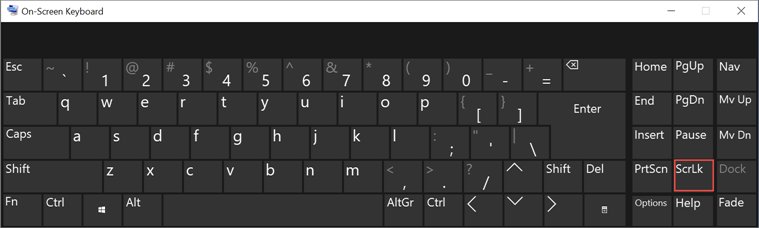
Microsoft's own instruction for a keyboard without the key is to open the On-Screen Keyboard and click its ScrLk button.
- Open Start and select Settings.
- On Windows 11, go to Accessibility > Keyboard and turn on On-Screen Keyboard. On Windows 10, go to Ease of Access > Keyboard and turn on Use the On-Screen Keyboard.
- Click the Excel window so the workbook has focus, leaving the On-Screen Keyboard visible.
- Click the ScrLk button on the On-Screen Keyboard.
- Check the Excel status bar. Scroll Lock disappears once the state clears.
- Close the On-Screen Keyboard, or turn its switch back off in Settings.
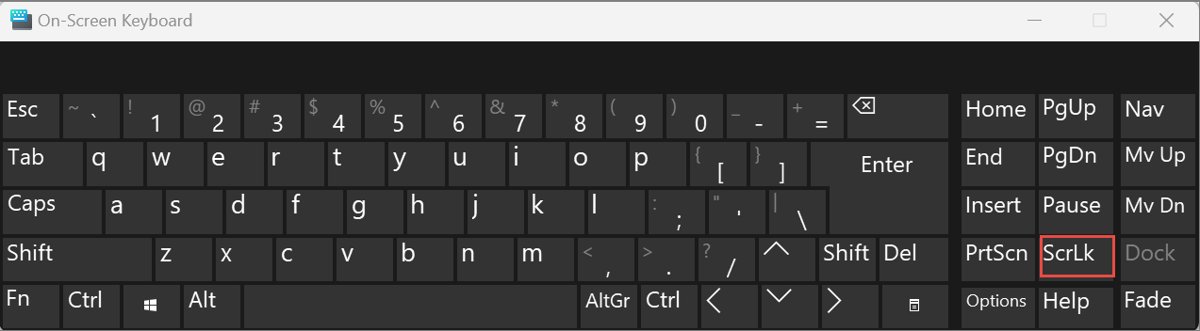
Where the On-Screen Keyboard switch lives in Windows 11 and Windows 10
Microsoft moved the Ease of Access pages to Accessibility in Windows 11, which is the single most common reason the steps above stall.
| Where you are | Path | What to turn on |
|---|---|---|
| Windows 11 desktop | Start > Settings > Accessibility > Keyboard | On-Screen Keyboard |
| Windows 10 desktop | Start > Settings > Ease of Access > Keyboard | Use the On-Screen Keyboard |
| Windows 11 or 10 sign-in screen | Accessibility button in the lower-right corner | On-Screen Keyboard |
How to Check if Scroll Lock is Enabled
The Excel status bar is the reliable indicator, because it reports the state Excel is actually acting on.
- Look at the status bar along the bottom of the Excel window. Scroll Lock shown there means the state is on.
- If nothing appears there, right-click the status bar and select Scroll Lock so the indicator is ticked.
- Press an arrow key. Selection moving one cell means Scroll Lock is off; the sheet scrolling under a fixed selection means it is still on.
- Press Ctrl + Home. Landing on cell A1 means Scroll Lock is off; landing on the cell in the upper-left corner of the window means it is on.
Understanding Scroll Lock in Excel
Scroll Lock changes what the navigation keys do. Nothing in the workbook itself is altered, and no data is at risk.
| Key or indicator | Scroll Lock off | Scroll Lock on |
|---|---|---|
| Arrow keys | Move the selection one cell up, down, left or right | Scroll the sheet one row up or down, or one column left or right |
| Active cell | Changes with every arrow key press | Stays where it is while the view moves around it |
| Ctrl + Home | Moves to the beginning of the worksheet | Moves to the cell in the upper-left corner of the window |
| Excel status bar | No Scroll Lock entry | Shows Scroll Lock |
| Scope | – | A Windows-wide keyboard state, shared by every open program |
Which key toggles Scroll Lock on your keyboard
| Keyboard | Toggle | Notes |
|---|---|---|
| Full-size Windows keyboard | ScrLk | Usually beside Print Screen and Pause, sometimes with an indicator light |
| Compact or laptop keyboard with the legend on another key | Fn plus the key carrying the ScrLk legend | The pairing is set by the keyboard firmware, so it varies by model |
| Laptop with no ScrLk legend anywhere, including many HP and Dell models | ScrLk on the Windows On-Screen Keyboard | Works regardless of the physical layout |
| Excel for Mac | Shift + F14 | Some keyboards need Control, Option or Command in place of Shift |
Additional Tips and Troubleshooting
Arrow keys still scroll the sheet after pressing ScrLk
The key press reached another window, or the key needs the function layer on this keyboard.
- Click a cell in the workbook first, then press ScrLk again.
- Hold Fn and press the key carrying the ScrLk legend, if it shares a key.
- Open the On-Screen Keyboard and click ScrLk there.
- Watch the Excel status bar as you press. The Scroll Lock entry disappearing is the proof the toggle landed.
The laptop has no Scroll Lock key at all
Compact layouts drop both the key and its indicator light to save space.
- Open Start > Settings > Accessibility > Keyboard on Windows 11, or Ease of Access > Keyboard on Windows 10.
- Turn on the On-Screen Keyboard.
- Click the Excel window, then click ScrLk on the On-Screen Keyboard.
- Check the keyboard's own layout guide for a function-layer mapping if you would rather use a key combination every time.
Scroll Lock is not shown on the Excel status bar
The status bar is customisable and the indicator can be switched off.
- Right-click anywhere along the Excel status bar.
- Select Scroll Lock in the list so it is ticked.
- Click back in the worksheet.
- Press ScrLk twice and watch the indicator appear and disappear.
Arrow keys extend the selection instead of moving it
This is Extend Selection mode from the F8 key, not Scroll Lock. The status bar shows Extended Selection.
- Check the status bar for Extended Selection.
- Press F8 once to leave the mode.
- Click a single cell to reset the selection.
- Press an arrow key to confirm normal movement.
Navigation changes again after plugging in another keyboard
Docking setups switch between a laptop keyboard and an external one, and the toggle may have come from whichever keyboard is now unplugged.
- Press ScrLk on the keyboard you are using now.
- Check the Excel status bar for the Scroll Lock entry.
- If neither keyboard carries the key, clear the state from the On-Screen Keyboard.
- Keep an eye on the function layer, because Scroll Lock can be toggled by accident while reaching for another shortcut.
How to turn Scroll Lock back on
Scroll Lock is useful for reading a wide sheet while the selection stays put, for example when comparing a formula against distant columns.
- Click a cell in the worksheet.
- Press ScrLk again, or click ScrLk on the On-Screen Keyboard.
- Confirm that Scroll Lock is back on the Excel status bar.
- Press an arrow key. The sheet scrolls and the active cell stays where it was.
Frequently asked questions
How do you turn off Scroll Lock in Excel?
Press the ScrLk key once while the workbook has focus. If the keyboard has no such key, turn on the Windows On-Screen Keyboard and click its ScrLk button. The Scroll Lock entry on the Excel status bar disappears when the state clears.
How do you turn off Scroll Lock on a laptop?
Look for a ScrLk legend printed on another key and press it with Fn. Laptops that omit the legend entirely have no key combination, so open the On-Screen Keyboard from Windows Settings and click ScrLk there.
How do you turn off Scroll Lock on an HP laptop?
HP compact keyboards vary in where the legend sits, and many drop it. Check the key legends and the model's own layout guide first, then fall back to clicking ScrLk on the Windows On-Screen Keyboard, which works on every layout.
How do you turn off Scroll Lock on a Dell laptop?
The same two routes apply. Press Fn with the key carrying the ScrLk legend where one exists, or click ScrLk on the Windows On-Screen Keyboard. Confirm the result on the Excel status bar rather than on the keyboard.
How do you turn off Scroll Lock in Windows?
Press the ScrLk key, because the state belongs to Windows rather than to any single program. Windows 11 and Windows 10 also expose the toggle as a ScrLk button on the On-Screen Keyboard, under Accessibility or Ease of Access settings.
What is the shortcut to turn off Scroll Lock?
On Windows the shortcut is the ScrLk key itself, or Fn plus the key that carries the ScrLk legend. In Excel for Mac, press Shift + F14, substituting Control, Option or Command if your keyboard needs it.
Why do the arrow keys scroll instead of moving between cells in Excel?
Scroll Lock is on. With it enabled, an arrow key scrolls one row up or down, or one column left or right, and the active cell never changes. Turning Scroll Lock off restores cell-to-cell movement immediately.
How do you know if Scroll Lock is on?
Excel displays Scroll Lock on its status bar whenever the state is active. If the indicator is missing, right-click the status bar and tick Scroll Lock. Some full-size keyboards also carry a Scroll Lock indicator light.
Does turning Scroll Lock off change the workbook?
No. Scroll Lock only changes what the navigation keys do. Cell contents, formulas, formatting and frozen panes are untouched, and nothing needs saving after you toggle the state.
Does Scroll Lock affect only Excel?
No. It is a system-wide keyboard state, so it stays on after you leave Excel. Excel is simply the program that makes the effect obvious, because its arrow-key navigation changes so visibly.

![How to Fix 100% Disk Usage issue on Windows 10 or 11 [18 Ways]](https://techdows.com/wp-content/uploads/2026/09/Windows-11-Delivery-Optimization-settings-with-Allow-downloads-from-other-device-600x338.jpg)