Open an AAE file on Windows 11 with Notepad: right-click it, select Open with > Choose another app, and pick Notepad. You will see text, not a picture, because an AAE file only records the edits an iPhone made to a photo, and no Windows app can apply those edits.
To see the edited photo on your PC, download it through iCloud for Windows or iCloud.com instead. The sections below cover both routes, how to pair an AAE file with its photo, and when the file is safe to delete.
How to open an AAE file on Windows 11
Notepad ships with Windows 11 and reads the file as text. Any plain-text editor, such as Visual Studio Code, works the same way.
- Open File Explorer and go to the folder with the .AAE file.
- Right-click the file and select Open with > Choose another app.
- Select Notepad from the list of apps.
- Read the contents. The file lists the edit settings, not the image itself.
If the file shows as unreadable text, it still holds nothing you can view as a picture. For the photo, go to the section on getting the edited photo onto Windows 11.
Quick reference: What to do with AAE files on Windows 11
What you want from the file decides the route. Match your goal to a row.
| Your goal | Do this | Why |
|---|---|---|
| See what is inside the AAE file | Open it in Notepad | The file is a text description of the edits |
| View the photo with your iPhone edits | Download it with iCloud for Windows or from icloud.com/photos | iCloud delivers the edited version; Windows cannot render the AAE recipe |
| View the unedited photo | Open the JPG or HEIC with the same name in the Photos app | The image file next to the AAE is the original |
| Get a JPG with the edits applied | Export from Photos on a Mac, or download from iCloud.com | Both render the edits into a new image file |
| Clean up a folder of AAE files | Delete them once you have the photos you need | Windows apps ignore them |
| Stop AAE files arriving on future imports | Use iCloud for Windows instead of copying the iPhone's folders over USB | iCloud hands Windows finished photos |
What is an AAE file?
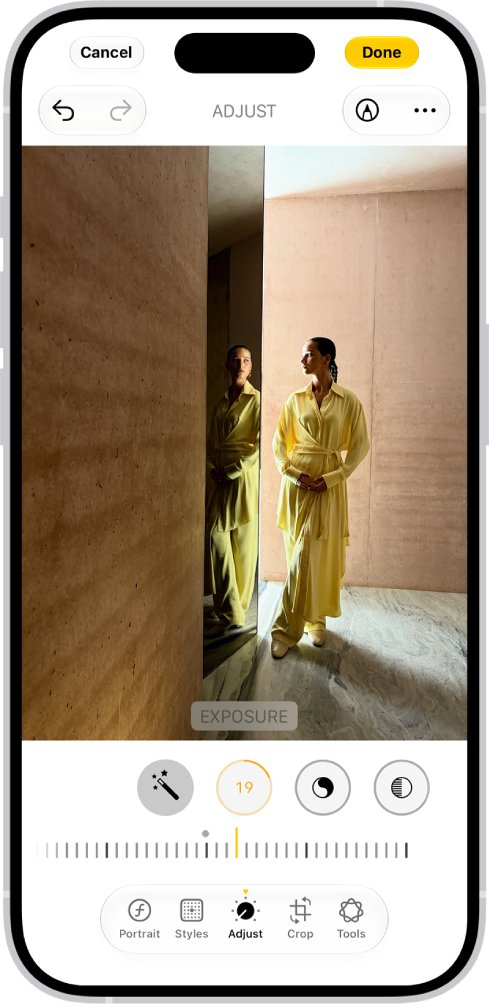
The Photos app on iPhone and iPad edits photos non-destructively. It keeps the untouched original and stores a separate record of every adjustment, which is why you can revert an edit later.
| Question | Answer |
|---|---|
| What it holds | Apple's adjustment data: a recipe of the edits, such as exposure, filters and crop |
| What it does not hold | Any image pixels; the photo is a separate JPG or HEIC file |
| Which edit it records | Photos stores one adjustment record per photo, for the most recent edit |
| Who creates it | The Photos app on iPhone, iPad or Mac, when you edit a photo |
| When you see it on a PC | When the iPhone's original photos are copied to Windows alongside their edit records |
| What can use it | Apple's Photos app, which reads the recipe to show, resume or revert the edit |
Apple's developer documentation describes this record as a recipe that lets Photos reconstruct or revert an edit. With iCloud Photos on, you can even revert an edit made on a different device.
Can Windows 11 open AAE files?
Windows 11 can open an AAE file only as text, in Notepad or another editor. No Windows app, including Microsoft Photos, reads the file and applies the edits to a picture. The format is Apple's private edit record for its own Photos app. Microsoft documents importing iPhone photos into the Photos app, but not AAE edit data. The fix is to bring the finished photo to Windows, not to find an app for the AAE.
Why your AAE file does not show the edited photo
An edited iPhone photo is really two things: the untouched original and a list of changes. Windows gets both when you copy the originals, but only Apple software combines them.
| What you copied | What Windows shows | Why |
|---|---|---|
| The original JPG or HEIC | The photo as the camera took it | The edits are not written into this file |
| The .AAE file | Text, or nothing useful on double-click | It is a recipe, not an image |
| A photo downloaded from iCloud Photos | The edited photo | iCloud applies edits made on Apple devices before the PC shows the file |
| A photo exported from Photos on a Mac | The edited photo | Export writes the edits into a new image file |
How to find the photo that belongs to an AAE file
The AAE file and its photo share a file name and differ only in the extension. Turning on file name extensions makes the pairs easy to spot.
- Open File Explorer and go to the folder that holds the .AAE file.
- Select View > Show > File name extensions.
- Sort the folder by name so files with the same name sit together.
- Find the file with the same name as the AAE file and a .JPG or .HEIC extension.
- Double-click that image to open it in the Photos app.
The image you find is the unedited original. If there is no image with that name, see the section on a missing JPG or HEIC file.
How to get the edited photo onto Windows 11
Each route below delivers a finished image with the edits already applied. Pick the one that matches the devices you have.
| Your setup | Route | What you get |
|---|---|---|
| iCloud Photos is on and you want your whole library on the PC | iCloud for Windows | Edited photos in File Explorer, kept in sync |
| iCloud Photos is on and you need a few photos | icloud.com/photos in any browser | Downloads in the most compatible format for your PC |
| You own a Mac | Photos on the Mac, File > Export | A JPEG or PNG with the edits applied |
| You need one photo quickly and have no iCloud | Share it from the iPhone by email or a messaging app to yourself | A shared copy of the photo, often converted to JPEG for non-Apple devices |
Use iCloud for Windows to download edited photos
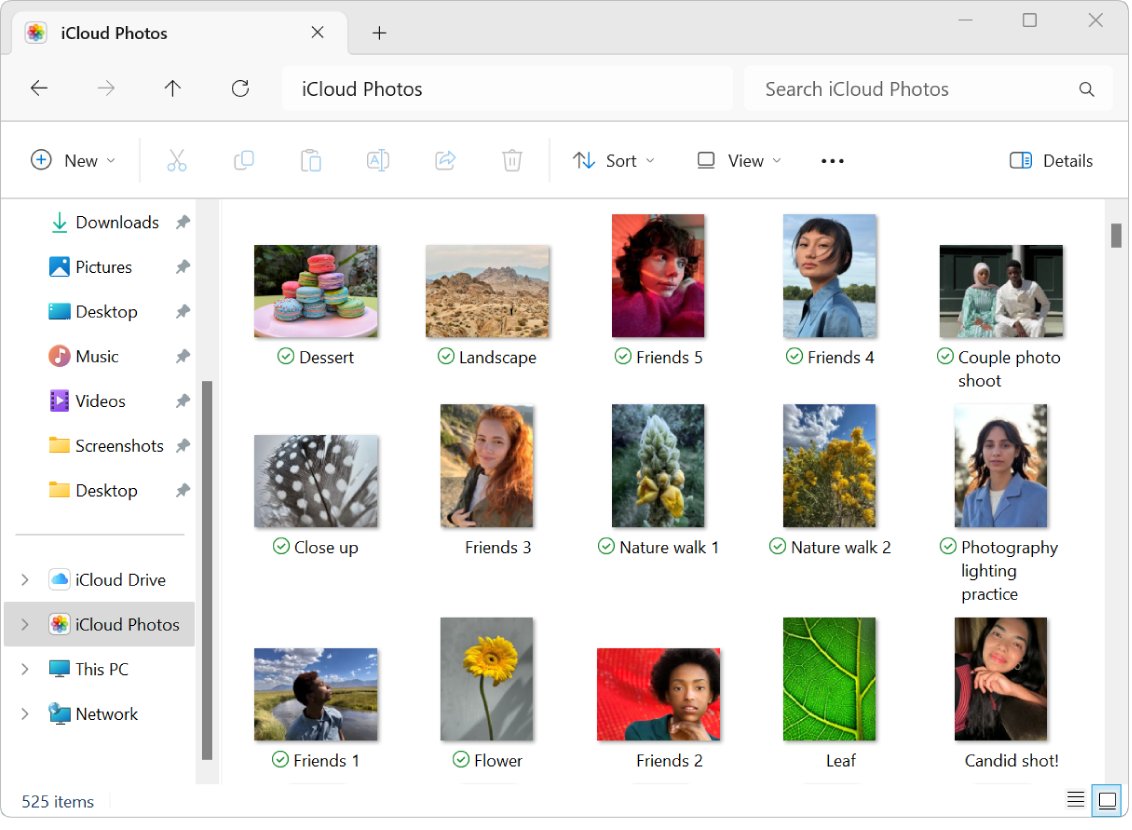
iCloud for Windows puts iCloud Photos in File Explorer. Apple states that when a photo is edited on an Apple device, the change appears on the PC automatically. The latest version needs Windows 11.
- Install iCloud for Windows from the Microsoft Store and sign in with your Apple Account.
- In iCloud for Windows, select the button to the right of iCloud Photos.
- Turn on iCloud Photos, then select Done.
- Open File Explorer and select iCloud Photos in the Navigation pane. If it is missing, open Pictures and double-click iCloud Photos.
- Double-click a thumbnail to download and view the edited photo.
Downloaded photos are stored in C:\Users\[user name]\Pictures\iCloud Photos\Photos. Edits you make on the PC do not sync back to your iPhone.
Download the edited photo from iCloud.com
This needs no software on the PC, only a browser and iCloud Photos turned on at the iPhone.
- Go to icloud.com/photos and sign in to your Apple Account.
- Select the photos you want.
- Click the Download button to save them in the most compatible format for your PC.
- To pick the format yourself, click the More button, click More Download Options, then click Download next to the format you want.
- Open the downloaded file from your Downloads folder.
Export the edited photo from Photos on a Mac
A Mac with the same iCloud library, or with the photos imported, can write the edits into a new file for Windows.
- Open the edited photo in the Photos app on the Mac.
- Choose File > Export.
- Choose JPEG or PNG as the format.
- Save the file, then copy it to the PC by USB drive or cloud storage.
- Open it on Windows 11 in the Photos app.
How to open the original photo on Windows 11
JPG files open in the Photos app with no extra setup. HEIC files use Apple's High Efficiency format, which Windows may need an extra codec from the Microsoft Store to open.
- Right-click the .JPG or .HEIC file and select Open with > Photos.
- If a HEIC file will not open, install the HEIF Image Extension from the Microsoft Store, then open it again.
- If it still fails, upload the HEIC file to OneDrive and view it on the OneDrive website, which previews HEIF in any browser.
- To avoid HEIC for new photos, open Settings on the iPhone, tap Camera > Formats, and tap Most Compatible.
Most Compatible makes the camera capture JPEG photos and H.264 videos from then on. It does not convert photos you already took.
How to check you have the edited version
- Open the photo on your iPhone in the Photos app and note the edit, such as a crop or filter.
- Open the copy on your PC in the Windows Photos app.
- Compare the two. The crop, colour and filter should match.
- In File Explorer, confirm no .AAE file sits next to the photo you downloaded from iCloud; the edits are already inside the image.
If the PC copy looks like the camera original, you copied the original file. Download that photo again through iCloud.
Can you convert an AAE file to JPG?
No. An AAE file contains no picture, so there is nothing to convert. Renaming it to .jpg produces a broken file. What you want is the edited photo as a JPG. Get it from iCloud.com with a JPEG download option, or export it as JPEG from Photos on a Mac. Both apply the recipe in the AAE file for you.
Should you delete AAE files?
Delete AAE files from your PC once you have the edited photos you need. Keep them only if you plan to import the originals back into Apple's Photos app. Windows apps ignore AAE files, so they only clutter the folder. Deleting the PC copy does not touch the photo or its edits on your iPhone or in iCloud Photos, where Photos keeps its own edit record.
How to stop getting AAE files when transferring photos
AAE files arrive when the iPhone's original photos are copied as they are. Transfer routes that deliver finished photos avoid them.
- Move photos with iCloud for Windows or iCloud.com instead of copying the iPhone's folders in File Explorer.
- If you use a USB cable, import through the Windows Photos app: select Import, select your iPhone, and follow the prompts.
- On the iPhone, open Settings, tap Apps > Photos, and scroll to the bottom.
- Make sure Keep Originals is not selected, so the iPhone converts photos to a compatible format for the PC.
- If iCloud Photos is on, download the full-resolution originals to the iPhone before a USB import.
Apple notes that without Keep Originals, photos imported over USB into a PC might be converted to JPEG. That conversion is what gives Windows a ready-to-view file. Deleting leftover AAE files is always safe on the PC side.
What if the matching JPG or HEIC file is missing?
An AAE file with no image beside it cannot be turned back into a photo. The photo itself has to come from the iPhone or iCloud.
The folder has an AAE file but no image with the same name
Only part of the transfer was copied, or the photo was in iCloud and not stored on the iPhone.
- Find the photo in the Photos app on the iPhone.
- If iCloud Photos is on, download it with iCloud for Windows or from icloud.com/photos.
- If iCloud Photos is off, reconnect the iPhone, unlock it, and import again with the Windows Photos app.
- Delete the orphaned AAE file once the photo is on the PC.
The iPhone import skips photos that are in iCloud
Microsoft notes that photos stored in iCloud but not on the device may not import over USB.
- Use iCloud for Windows to download those photos instead.
- Or, download the full-resolution originals to the iPhone first, then import again.
Common AAE file problems and fixes
Match the symptom, then follow only the steps under it.
Double-clicking the AAE file does nothing useful
Windows has no app registered for .AAE, because the file is not an image.
- Right-click the file and select Open with > Choose another app.
- Select Notepad to read it as text.
- For the photo, open the JPG or HEIC with the same name instead.
Windows says it cannot open the file
The app Windows tried is an image viewer, and an AAE file holds no image.
- Open the file in Notepad as shown above to confirm it is text.
- Get the edited photo through iCloud for Windows or icloud.com/photos.
The photo looks unedited on Windows
You opened the original file, and Windows cannot apply the AAE edits.
- Download the photo through iCloud for Windows or iCloud.com.
- Or export it from Photos on a Mac with File > Export.
- Compare it with the iPhone as shown in the check section.
There are hundreds of AAE files after importing
The iPhone copied originals plus an edit record for every edited photo.
- In File Explorer, type
*.aaein the search box of the import folder. - Press Ctrl + A to select all results, then press Delete.
- Switch future transfers to iCloud for Windows, as in the section on stopping AAE files.
The matching photo is HEIC and will not open
HEIC is a High Efficiency format that Windows may need an extra app to open.
- Install the HEIF Image Extension from the Microsoft Store.
- Or download the photo from icloud.com/photos, which picks a compatible format for your PC.
- On the iPhone, set Camera > Formats to Most Compatible for future photos.
Are AAE files safe?
AAE files from your own iPhone are safe to keep, open in Notepad, or delete. They hold a text description of photo edits and nothing that runs. The risk is in the workaround, not the file. Skip websites and downloads that promise an "AAE converter" or "AAE viewer", because no tool can rebuild an edited photo without the original, and iCloud already does this for free.
Best workflow for Windows 11 users
Turn on iCloud Photos on the iPhone, install iCloud for Windows, and let it deliver finished photos to File Explorer. Use icloud.com/photos when you need only a few files. Both routes give Windows the photo with your edits applied and no AAE files to sort. USB copying of the iPhone's folders is the route that produces AAE files and unedited originals. For other file types Windows opens with a built-in viewer, see how to open a CHM file in Windows 11.
Frequently asked questions
How do I open AAE files in Windows?
Right-click the file, select Open with > Choose another app, and pick Notepad. The file opens as text describing the edits. It never opens as a picture, because it contains no image. To see the edited photo, download it through iCloud for Windows or iCloud.com.
What Windows app opens AAE files?
Notepad, or any text editor such as Visual Studio Code, opens AAE files as text. No Windows photo app, including Microsoft Photos, can read the file and apply its edits. Only Apple's Photos app uses AAE edit data.
How do I open AAE files on a PC with Windows 10?
The steps match Windows 11. Open the file in Notepad to read it as text. For the edited photo, use icloud.com/photos in a browser. The latest iCloud for Windows requires Windows 11, so the website is the simpler route on Windows 10.
Why are there AAE files on my PC?
They arrive when edited iPhone photos are copied to the PC as originals. The Photos app keeps each edit as a separate record next to the untouched photo. Copying the iPhone's folders brings both files over, and Windows shows the AAE file on its own.
Can Microsoft Photos show my iPhone edits?
Not from an AAE file. Microsoft Photos shows the original image and ignores the edit record. Photos you download through iCloud for Windows do show the edits, because Apple applies them before the file reaches the PC.
Does deleting AAE files remove my edits?
Deleting AAE files from your PC does not change the photos or edits on your iPhone or in iCloud Photos. It only removes the PC copy of the edit record, which Windows apps cannot use anyway.
Does an AAE file contain the photo?
No. An AAE file holds only the edit settings, such as exposure, filter and crop. The photo is a separate JPG or HEIC file with the same name. Without that image file, an AAE file cannot be turned back into a picture.