PowerPoint has no Track Changes button like Word, so you track changes by saving the presentation to OneDrive or SharePoint, where PowerPoint marks every slide a collaborator edited.
This guide also covers comments, the Review > Compare tool, Version History, conflict resolution, and why edits sometimes are not highlighted.
Step-by-Step Guide to Tracking Changes in PowerPoint
Revision highlighting is the closest thing PowerPoint has to Track Changes. It turns on by itself once the file is shared from OneDrive or SharePoint, so there is no setting to switch on.
- Open the presentation and select Share in the top-right corner of the ribbon. If the file is not yet in OneDrive or SharePoint, PowerPoint asks you to save it there first.
- Enter the email address or name of each reviewer.
- Use the drop-down list to set each person to edit the file, then add an optional note and select Send.
- Let reviewers edit the slides in PowerPoint for Microsoft 365 or PowerPoint for the web.
- Reopen the presentation later. A banner names the people who made changes while you were away.
- Look for a blue dot beside a slide in the thumbnail pane, then select that thumbnail. The edited area is outlined on the full-size slide.
Highlighting shows where a slide changed, not the old text. To see before and after content, open an earlier copy through Version History, covered in method 3.
Understanding Track Changes in PowerPoint
Word records every insertion and deletion inline. PowerPoint splits that job across four separate tools, and each one answers a different question.
| PowerPoint tool | What it records | Where it is | Available in |
|---|---|---|---|
| Revision highlighting | Which slides and areas other people changed since you last opened the file | Blue dot on slide thumbnails, outline on the slide | PowerPoint for Microsoft 365 and PowerPoint for the web, files in OneDrive or SharePoint |
| Modern comments | Reviewer notes, replies, @mentions and assigned tasks | Review > New Comment, and the Comments button | Microsoft 365 on Windows and Mac, web, Android and iOS |
| Compare | Every change between your original and a reviewed copy, with accept or reject per change | Review > Compare | Windows only; retired from Microsoft 365 version 2502 onward |
| Version History | Earlier saved copies of the whole file | File name in the title bar > Version History | Files stored in OneDrive or OneDrive for work or school |
Prerequisites and Requirements for Tracking Changes in PowerPoint
Most failed attempts to track changes come down to storage location or file format. Check these before you share the deck.
| Requirement | Why it matters |
|---|---|
| File saved in OneDrive or SharePoint | Revision highlighting, co-authoring and Version History work only on shared cloud files |
.pptx format |
Changes are not highlighted in .odp files or the older .ppt and .pps formats |
| No password or encryption | PowerPoint does not highlight changes in encrypted or password-protected files |
| Editors use PowerPoint for Microsoft 365 or PowerPoint for the web | Edits are highlighted only when made in these apps: at least version 1707 of Current Channel or 1803 of Semi-Annual Enterprise Channel |
| Revision data allowed in the Trust Center | Turning on the privacy options that strip personal data also turns off revision highlighting |
| Business or enterprise account for @mentions | Microsoft limits @mentions and assigned tasks in comments to business and enterprise customers |
| PowerPoint for Windows before version 2502, or PowerPoint 2016 to 2024 | The Compare and Merge feature is gone from later Microsoft 365 builds and never shipped on Mac or the web |
Which change-tracking method should you use?
| Your situation | Use this | Why |
|---|---|---|
| Several people edit the same deck at once | Revision highlighting | Shows which slides changed and who changed them, with no setup |
| Reviewers should suggest, not edit | Modern comments | Feedback stays beside the slide and can be resolved one thread at a time |
| A reviewer sent back an edited copy | Review > Compare | The only tool that lists each change and lets you accept or reject it |
| You need an earlier state of the deck | Version History | Opens a read-only copy of any saved version |
| Your PowerPoint lacks the Compare button | Comments plus Version History | Compare is retired from Microsoft 365 version 2502 and absent on Mac and the web |
1. Use Comments to Track Revisions
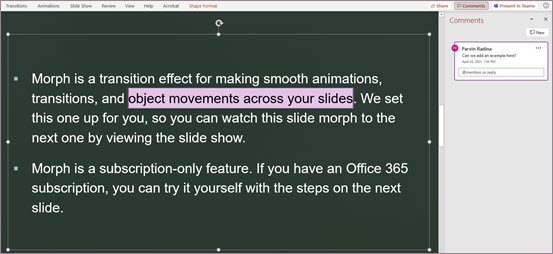
Comments turn a review into a list of requests you can work through and close. Modern comments work in PowerPoint for Microsoft 365, the web, Android and iOS.
- Select the object or text the feedback is about.
- Select Review > New Comment, or right-click and choose New Comment. Selected text becomes highlighted and anchored to the comment.
- Type the comment in the Comments pane.
- Type @ followed by a colleague's name to notify them. They receive an email with a preview of the slide and comment.
- To make it a task, select the Assign to box after the @mention.
- Select Post, or press Ctrl + Enter on Windows or Cmd + Enter on a Mac.
- When the request is done, resolve the thread. It leaves the slide margin but stays in the Comments pane.
Assigned tasks close with Resolve task, and the assignee gets an email when you assign one.
2. Compare Presentations for Changes
Compare merges a reviewed copy into your original and lists every difference. Microsoft is retiring it: the feature is unavailable in Microsoft 365 PowerPoint for Windows from version 2502 onward, and it was never in PowerPoint for Mac or the web.
- Save your original presentation on your computer.
- Save a second copy under a different name to OneDrive or SharePoint.
- In OneDrive or SharePoint, right-click the copy, select Copy link, and email the link to your reviewers.
- When the review is done, open the original presentation.
- Select Review > Compare, then select Compare.
- In the Choose File to Merge with Current Presentation box, select the reviewed copy and select Merge.
- Read the Revisions task pane: comments sit under Slide Changes and edits under Presentation Changes.
Select each item in the list to see the change on the slide. Accepting and rejecting is covered under Managing Changes below.
3. Use Version History for Tracking Edits
Office keeps earlier versions of files stored in OneDrive and OneDrive for work or school. Version History lets you see exactly what a slide looked like before someone edited it.
- Open the presentation from OneDrive or SharePoint.
- Select the file name in the title bar of the PowerPoint window.
- Select Version History.
- In the Version History pane, select a previous version.
- Select Open version. A read-only copy opens in a separate window.
- Place the read-only copy beside the current deck and compare the slides you care about.
Additional Tips
These settings make other people's work easier to follow while it happens, not only afterwards.
- Show collaborators' full names on the objects they select: go to File > Options > Advanced > Display and turn on Show presence flags for selected items.
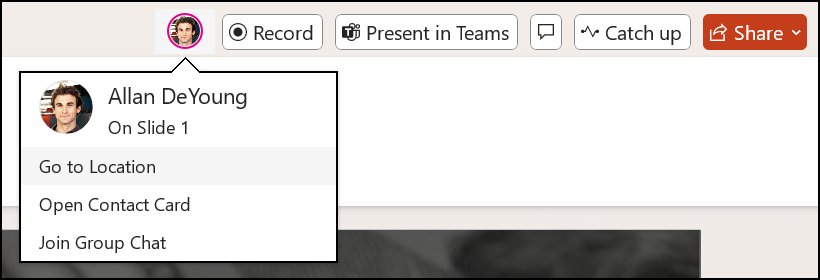
- Hover over the identity icon on a slide thumbnail to see who is working on that slide right now.
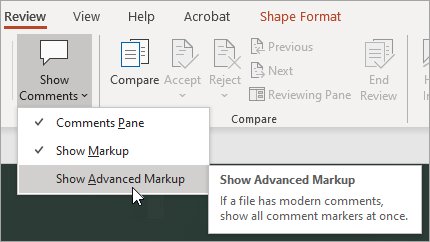
- Show every comment marker at once with Review > Comments > Show Comments > Show Advanced Markup. The setting lasts one session.
- Chat with everyone in the file: select a collaborator's picture or initials at the right end of the toolbar and choose Join Group Chat. Chat needs Microsoft 365 and a file in OneDrive for work or school or SharePoint.
People who join the chat later see only new messages, not the earlier history, so record decisions in comments instead.
How to Review and Manage Changes in PowerPoint
Each tool shows its changes in a different place. Use this table to find where to review a change and what you can do with it.
| Change came from | Where to review it | What you can do |
|---|---|---|
| Co-authors editing live | Blue thumbnail dot and slide outline | Edit the slide further or open an earlier version |
| Conflicting co-author edits | Resolve Conflict screens after you save | Keep My Changes or Changes by Others |
| Reviewer comments | Comments pane | Reply, resolve or delete |
| A merged review copy | Revisions task pane | Accept by checking a change, reject by leaving it unchecked |
| Any saved edit | Version History pane | Open a read-only earlier version |
Reviewing Changes
Use these checks to confirm that tracking is actually working after reviewers have been in the file.
- Close the presentation, wait for a reviewer to edit it, then reopen it in PowerPoint for Microsoft 365.
- Confirm the banner lists who changed the deck while you were away.
- Scan the thumbnail pane for blue dots. Each dot marks a slide with collaborator edits.
- Select a marked thumbnail and confirm the changed area has a colored outline.
- Select the Comments button in the top-right corner and check that reviewer threads are listed.
- Remember that notes pane edits, deleted shapes, new comments and animation changes are never outlined, so check those areas by hand.
Managing Changes
Managing changes means deciding which edits stay. PowerPoint does that in two places: the Revisions pane after a Compare, and the conflict screens after co-authoring.
- After a Compare and merge, check the box next to the Other authors icon to accept a change.
- Leave a box unchecked to reject that change. Unchecked changes are not added to the presentation.
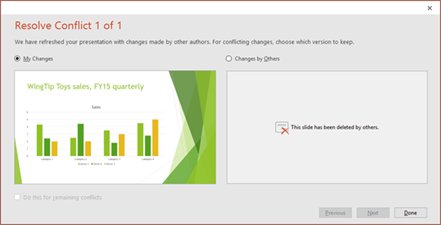
- After a co-authoring save that reports conflicts, choose My Changes or Changes by Others for the first conflict.
- Select Next to move through the remaining conflicts, or Previous to revisit one.
- To apply the same choice to every remaining conflict, select Do this for remaining conflicts.
- Select Done when all conflicts are resolved.
- To undo an edit that already saved, open an earlier copy through Version History and copy the old slide content back.
Best Practices for Tracking Changes in PowerPoint
A few habits keep the change record complete and avoid losing work to conflicts.
| Practice | Reason |
|---|---|
Keep the deck in .pptx format in OneDrive or SharePoint |
Highlighting, co-authoring and Version History all depend on it |
| Ask reviewers to use PowerPoint for Microsoft 365 or the web | Edits made in other versions are not highlighted, and classic comments may not show |
| Put suggestions in comments, not direct edits, when you need approval | A comment can be resolved; a direct edit is easy to miss |
| Save the original before sending a review copy | Compare needs an original, and it gives you a fallback |
| Run Document Inspector before sending the deck outside your team | The file stores the name and time of the most recent edit to each object |
| Do not add a password during review | Encrypted or password-protected files lose revision highlighting |
Common Issues and Troubleshooting When Tracking Changes in PowerPoint
No built-in Track Changes functionality, and no Compare button
PowerPoint never had Word-style Track Changes, and Compare is retired from Microsoft 365 PowerPoint for Windows version 2502 and absent on Mac and the web.
- Save the deck to OneDrive or SharePoint and share it with Share so revision highlighting records edits.
- Ask reviewers to leave suggestions as comments with Review > New Comment.
- Use Version History from the file name in the title bar to see earlier states.
- If you still need Compare, use PowerPoint 2016, 2019, 2021 or 2024, or a Microsoft 365 build earlier than 2502.
Problems with comments not appearing or synchronizing
A PowerPoint file shows either modern comments or classic comments, not both, so a collaborator on an older version may not see yours.
- Look for the banner that offers to open the file in PowerPoint for the web, and select it.
- Ask every reviewer to open the file in PowerPoint for Microsoft 365 or PowerPoint for the web.
- Select the Comments button in the top-right corner, since resolved threads leave the margin but remain in the pane.
- Turn on Review > Comments > Show Comments > Show Advanced Markup to show every marker.
Changes by others are not highlighted
Highlighting needs a shared .pptx file, no password, a supported editor version and revision data allowed in the Trust Center.
- Confirm the file is stored in OneDrive or SharePoint.
- Save the deck as
.pptxif it is.ppt,.ppsor.odp. - Remove any password or encryption.
- Check the Trust Center privacy options are not turned on for this document.
- Confirm the editor used PowerPoint for the web or PowerPoint for Microsoft 365.
Version conflicts and loss of edits
Two people changed the same content, so PowerPoint could not merge the edits automatically.
- Save the file and work through the Resolve Conflict screens instead of closing them.
- Compare your version with the collaborator's version in the visual comparison.
- Choose My Changes or Changes by Others, then select Done.
- If the wrong version won, open Version History, select an earlier version, select Open version, and copy the lost content back.
Add-ins and Third-Party Tools
Use PowerPoint's own tools before looking for an add-in that claims to add Track Changes. Microsoft's documented route is real-time collaboration in OneDrive or SharePoint, and it recommends that route in place of Compare and Merge. An add-in cannot change how co-authoring, Version History or comments record edits, and it adds another party that can read your slides.
Additional Tips for Effective Collaboration
For most teams, the reliable setup is a shared cloud file plus comments, with Version History as the safety net.
Share the deck from OneDrive or SharePoint, ask reviewers to comment rather than edit when you need sign-off, and use assigned tasks for work that must be finished. That combination records who changed each slide, keeps every request in one pane, and preserves earlier versions, and it works across Windows, Mac and the web now that Compare is being retired.
Frequently Asked Questions
How do I add track changes in PPT?
PowerPoint has no Track Changes switch. Save the presentation to OneDrive or SharePoint and share it with Share. When you reopen it, a blue dot marks each slide a collaborator edited, and the changed area is outlined. Use comments and Version History for the rest.
How do I enable track changes in PowerPoint?
There is nothing to enable. Revision highlighting works automatically on .pptx files shared through OneDrive or SharePoint, as long as the file has no password and revision data is not blocked in the Trust Center privacy options.
How do I show track changes in PowerPoint?
Reopen the shared presentation and look for blue dots in the thumbnail pane, then select a slide to see the outlined change. For a merged review copy on Windows, the Revisions task pane lists every change under Slide Changes and Presentation Changes.
How do I add comments while tracking changes in PowerPoint?
Select the object or text, then select Review > New Comment. Type your note, @mention a colleague if needed, and select Post or press Ctrl + Enter. Comments stay in the Comments pane even after you resolve them.
Can I track changes in PowerPoint files on SharePoint?
Yes. A presentation stored in SharePoint supports co-authoring, revision highlighting and Version History. Open it in PowerPoint for Microsoft 365 or PowerPoint for the web, and edits from colleagues show as blue dots on the slide thumbnails.
Can I track changes in PowerPoint for the web?
Partly. PowerPoint for the web supports modern comments, and edits made there are highlighted for other collaborators. The Compare and Merge feature is not available in PowerPoint for the web or PowerPoint for Mac.
How do I accept or reject changes in PowerPoint?
After Review > Compare merges a reviewed copy, check the box next to the Other authors icon to accept a change. Leave the box unchecked to reject it. Co-authoring conflicts are settled by choosing My Changes or Changes by Others.
How do I use track changes effectively in PowerPoint?
Keep one .pptx copy in OneDrive or SharePoint, have reviewers use PowerPoint for Microsoft 365 or the web, route suggestions through comments and assigned tasks, and check Version History before you undo anything someone else changed.