To run PowerShell as administrator, open Start, type Windows PowerShell, select Run as administrator, and choose Yes at the User Account Control prompt.
The same elevated window also opens from Windows Terminal, from File Explorer or the Run box, and from a shortcut that always elevates. Below are those four ways, a one-line check that proves the session is elevated, and fixes for when the option is missing.
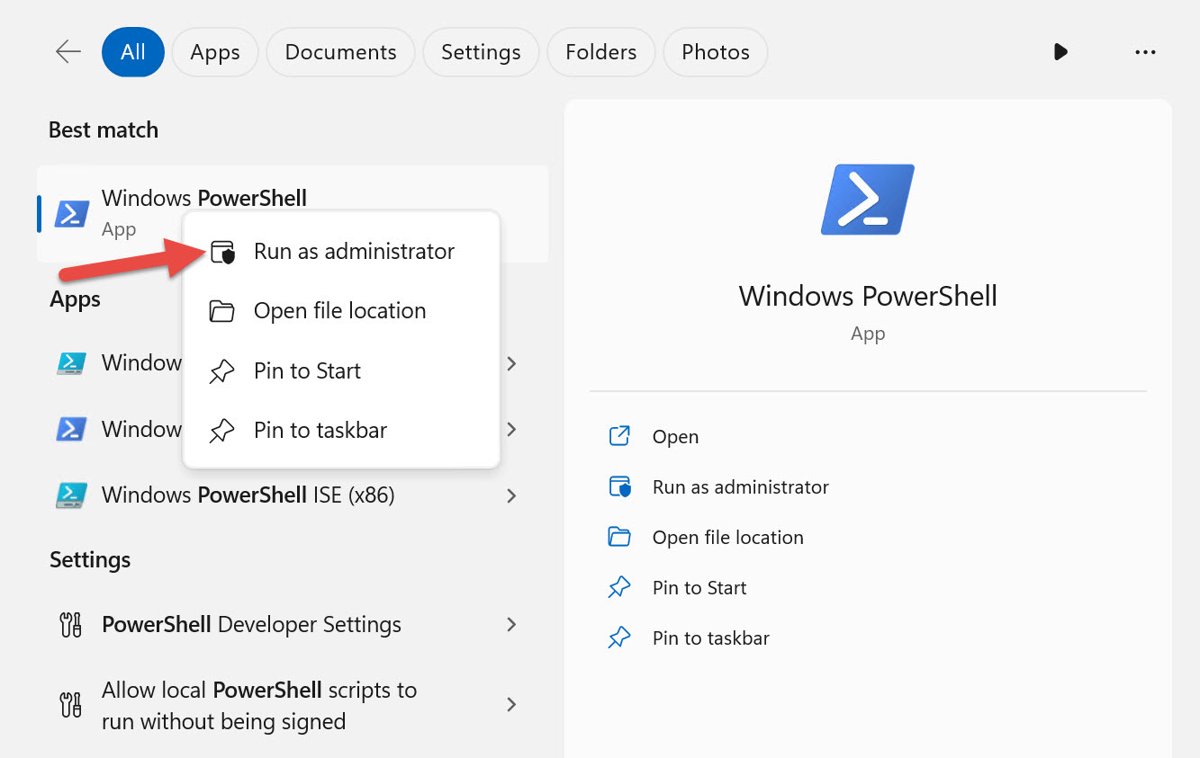
Way 1: Run PowerShell as Administrator from the Start Menu
This is the route Microsoft documents for Windows PowerShell, and it works the same way on Windows 11 and Windows 10.
- Select Start, or press the Windows key + S to open search.
- Type Windows PowerShell.
- Right-click Windows PowerShell in the results, or select it and look at the right-hand pane.
- Select Run as administrator.
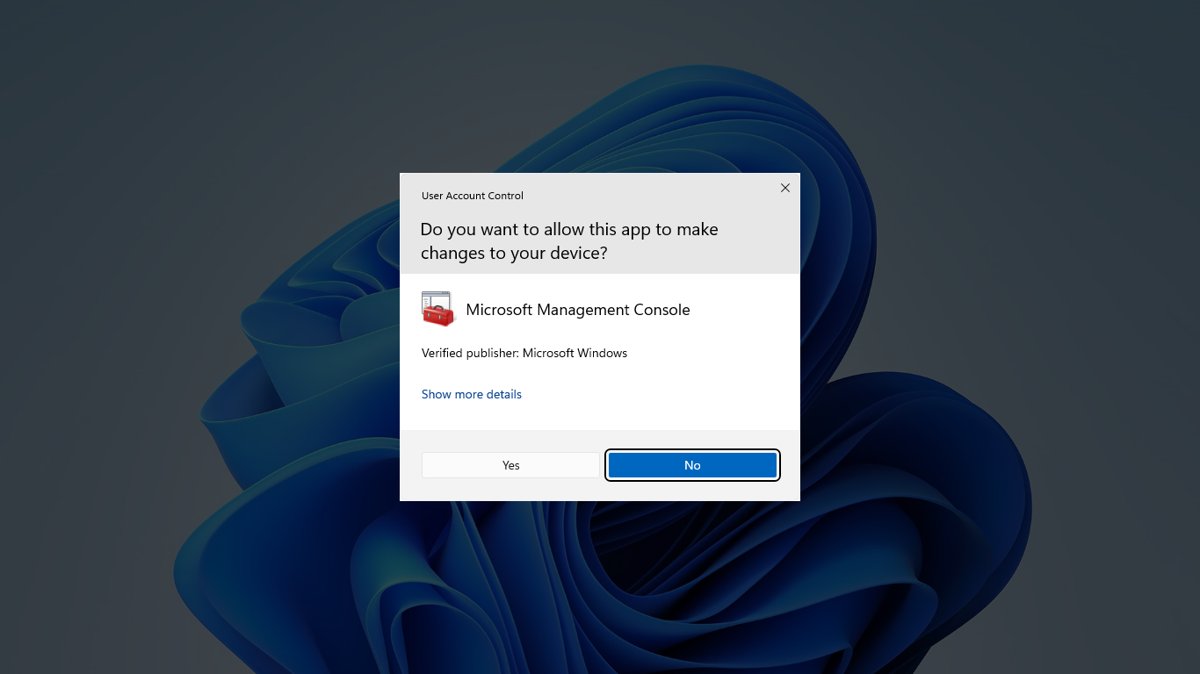
- Select Yes at the User Account Control prompt. A standard account sees a password box instead; enter the credentials of an administrator account.
For PowerShell 7, type PowerShell 7 instead and pick the same option. Microsoft's installer adds a Start menu entry labeled PowerShell 7, and its program file is pwsh.exe.
For the script editor, type ISE, right-click Windows PowerShell ISE, and select Run as administrator. The window title of an elevated console reads Administrator: Windows PowerShell.
Before You Start: What “Run as Administrator” Means
Signing in as an administrator does not make every window an administrator window. User Account Control keeps apps on a limited token until you approve elevation for one specific process.
| Fact | What it means for PowerShell |
|---|---|
| An administrator gets two tokens at sign-in: a standard user token and an administrator token | A normal PowerShell window runs with the standard token, even on an admin account |
| PowerShell does not take part in UAC prompting | A command that needs elevation fails with an error instead of asking you; you must start PowerShell elevated |
| Admin accounts see a consent prompt (Yes/No) | One click on Yes elevates the window |
| Standard accounts see a credential prompt | You type the user name and password of an account in the local Administrators group |
| Child processes inherit the parent's token | Anything you launch from an elevated window, including a browser, also runs elevated |
| Elevation only affects the local computer | Commands aimed at remote computers do not need a local elevated window |
Which Method Should You Use?
| Your situation | Use this | Why |
|---|---|---|
| You need an elevated window once, right now | Way 1: Start search > Run as administrator | Documented by Microsoft; no setup, works on Windows 11 and 10 |
| You live in Windows Terminal or prefer the keyboard | Way 2: Windows key + X > Terminal (Admin) | Opens an elevated Terminal with PowerShell as the default profile |
| You are already in File Explorer, the Run box or a normal PowerShell window | Way 3: shortcut's Run as administrator, or Start-Process powershell -Verb RunAs |
Elevates from where you are without going back to Start |
| You run admin commands every day | Way 4: a shortcut with Run as administrator ticked | One double-click, always elevated; weigh the safety note below first |
Two taskbar shortcuts also work once PowerShell is pinned: hold Ctrl + Shift and select its icon, or press Windows key + Ctrl + Shift plus the icon's position number. Both are listed on Microsoft's keyboard shortcuts page.
Way 2: Run PowerShell as Administrator from Windows Terminal
Windows Terminal opens PowerShell as its default profile, so an elevated Terminal window is an elevated PowerShell window. New to Terminal itself? Start with how to use Windows Terminal in Windows 11/10.
- Press the Windows key + X, or right-click Start, to open the Quick Link menu.
- Select Terminal (Admin). On Windows 10, select the menu entry that ends in (Admin).
- Select Yes at the User Account Control prompt.
- If a different shell opens, select the ˅ arrow next to the + button and pick Windows PowerShell or PowerShell.
- Open more tabs with Ctrl + Shift + T; every tab in this window runs as administrator.
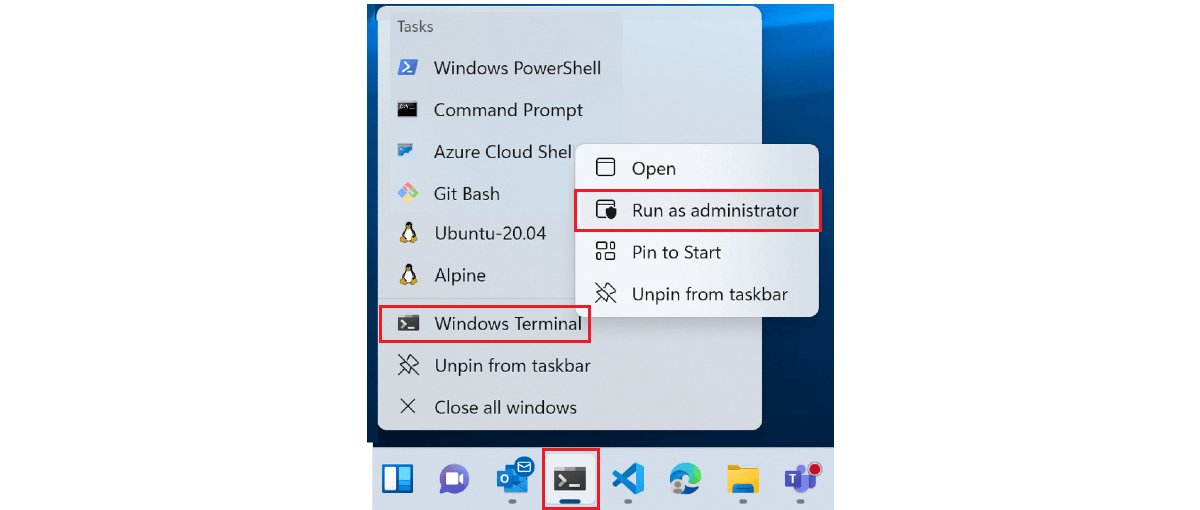
From the taskbar or Start, right-click the Terminal icon, right-click the Terminal title that appears, and select Run as administrator. Microsoft's Terminal FAQ documents both routes.
Elevated and unelevated tabs cannot share one Terminal window. An elevated profile started from a normal window opens in a new, separate window.
Way 3: Run PowerShell as Administrator from File Explorer or the Run Dialog
Use steps 1–2 from File Explorer, or steps 3–5 from the Run box. The Run route uses the Start-Process cmdlet, whose -Verb RunAs switch is Microsoft's documented way to start PowerShell with the Run as administrator option.
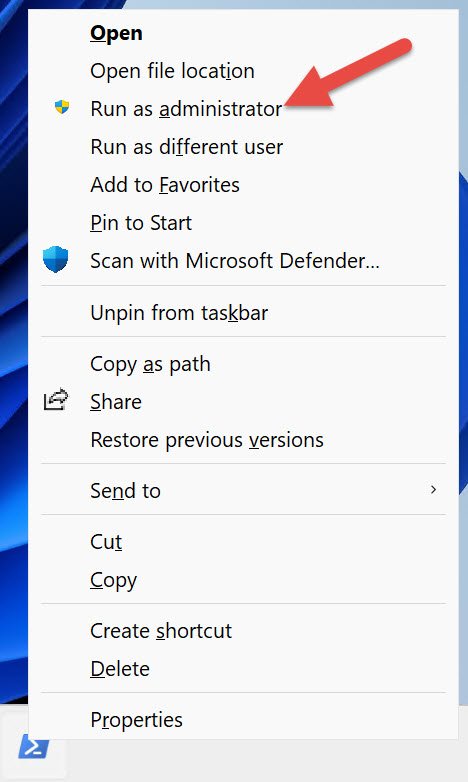
- File Explorer: type Windows PowerShell in Start, right-click it, and select Open file location.
- In the File Explorer window that opens, right-click the Windows PowerShell shortcut and select Run as administrator.
- Run box: press the Windows key + R.
- Type
powershell -Command "Start-Process powershell -Verb RunAs"and select OK. - Select Yes at the User Account Control prompt. The helper window closes and the elevated one stays open.
Already in a normal PowerShell window? Type Start-Process powershell -Verb RunAs and press Enter. For PowerShell 7, use Start-Process pwsh -Verb RunAs.
Task Manager works too: select Run new task, type powershell, and tick the option to create the task with administrative privileges before selecting OK.
Way 4: Create a Shortcut That Always Runs PowerShell as Administrator
A desktop shortcut with the Run as administrator box ticked elevates every time you open it. Windows still shows the UAC prompt, so nothing runs elevated without your approval.
- Select Start, type Windows PowerShell, right-click it, and select Open file location.
- Right-click the Windows PowerShell shortcut. On Windows 11, select Show more options > Send to > Desktop (create shortcut). On Windows 10, select Send to > Desktop (create shortcut).
- On the desktop, right-click the new shortcut and select Properties.
- Select the Advanced button.
- Tick the Run as administrator check box.
- Select OK, then OK again.
For PowerShell 7, repeat the steps with the PowerShell 7 Start entry. You can also pin the shortcut to the taskbar so it is one click away.
To undo it, open the same Advanced dialog and clear the Run as administrator box.
Make the PowerShell profile in Windows Terminal always open as administrator
Terminal has its own per-profile switch, so the PowerShell tab can elevate on its own while other profiles stay normal. Microsoft's documentation calls the setting Automatically run as Administrator; in settings.json it is "elevate": true.
- Open Windows Terminal, select the ˅ arrow next to the + button, and select Settings.
- Under Profiles in the left pane, select Windows PowerShell or PowerShell.
- Turn on the toggle that runs the profile as Administrator.
- Save the change and close Settings.
- Open the profile again from the ˅ menu and select Yes at the UAC prompt; it opens in a new elevated window.
To elevate only one keyboard shortcut, add "elevate": true to that shortcut's newTab action instead. To undo either change, turn the toggle off or remove the elevate line.
How to Confirm PowerShell Is Running as Administrator
The classic console shows Administrator: Windows PowerShell in its title bar. For a definite answer in any host, including Windows Terminal, run this .NET check.
([Security.Principal.WindowsPrincipal][Security.Principal.WindowsIdentity]::GetCurrent()).IsInRole([Security.Principal.WindowsBuiltInRole]::Administrator)Asks Windows whether the current PowerShell process holds the Administrators role. Microsoft notes it returns False in a normal window even when your account belongs to the Administrators group.
You should see: True means the window is elevated. False means it is running with the standard token; close it and reopen it with one of the four ways above.
For scripts, put #Requires -RunAsAdministrator on its own line at the top. PowerShell 4.0 and later refuse to run the script unless the session is elevated.
Examples of Commands That Often Need Administrator PowerShell
| Command | What happens without elevation | Non-admin alternative |
|---|---|---|
Set-ExecutionPolicy -ExecutionPolicy RemoteSigned |
Fails with "Access to the registry key … is denied" because the default scope is LocalMachine | Set-ExecutionPolicy -ExecutionPolicy RemoteSigned -Scope CurrentUser |
Stop-Service -Name W32Time |
Fails with "Service 'Windows Time (W32Time)' cannot be stopped" | None; stopping a service needs an elevated window |
Get-AppXPackage -AllUsers (re-registering built-in apps for all users) |
Microsoft's shell troubleshooting steps start with opening PowerShell as administrator | None for the all-users scope |
Any script that starts with #Requires -RunAsAdministrator |
The script does not run at all | None; start the session elevated |
| Commands that target a remote computer | Usually work, because elevation only affects the local machine | Run them from a normal window |
What to Do If “Run as Administrator” Is Missing or Not Working
Run as administrator is missing when you right-click the taskbar icon
For a pinned taskbar shortcut, Microsoft's PowerShell guide reaches the option with Shift + right-click.
- Hold Shift and right-click the pinned Windows PowerShell icon.
- Select Run as administrator.
- Or hold Ctrl + Shift and select the icon to open it elevated directly.
UAC asks for a password instead of showing Yes
You are signed in with a standard account, so Windows shows the credential prompt. Check that your account can elevate.
- Enter the user name and password of an account in the local Administrators group.
- If nobody on the PC has an administrator account you can use, ask the person who manages the PC to run the command for you.
- Do not try to bypass the prompt; it is the protection that stops malware from elevating silently.
Commands still say access is denied in a window you think is elevated
The window is running with the standard token, which happens when it was opened normally from an admin account.
- Run the
IsInRolecheck from the section above. - If it prints False, close the window.
- Use a different launch method, such as Way 1, and select Yes at the UAC prompt.
- Run the check again; it should print True.
Your admin shortcut opens a normal window
The shortcut's advanced setting is off, or the target is not PowerShell. Make sure the shortcut target is correct.
- Right-click the shortcut and select Properties.
- Check that the Target box points to
powershell.exefor Windows PowerShell orpwsh.exefor PowerShell 7. - Select Advanced and confirm Run as administrator is ticked.
- Select OK twice and open the shortcut again.
The elevated PowerShell profile opens in a separate Terminal window
By design: Windows Terminal does not mix elevated and unelevated tabs in one window.
- Keep working in the new elevated window.
- To have all tabs elevated from the start, open Terminal with Windows key + X > Terminal (Admin) instead.
Elevation is blocked on a work or school PC
Look for policy restrictions: an organization can configure the UAC elevation prompt through policy, including asking admins for credentials.
- Try Way 1 to rule out a broken shortcut or Terminal profile.
- If the prompt still refuses or never appears, contact your IT department; the setting is controlled by policy, not by PowerShell.
Safety Tips for Using Administrator PowerShell
Microsoft's own PowerShell 101 guide says to run PowerShell elevated only when absolutely necessary. These habits keep that window from becoming a risk.
| Tip | Why it matters |
|---|---|
| Open an elevated window only for the command that needs it, then close it | Everything started from that window inherits its administrator token |
| Never open a browser or unknown program from an elevated window | Microsoft's example: a malicious website visited from a browser launched there also runs elevated |
| Read the UAC prompt before selecting Yes | The prompt is color-coded by publisher: a yellow background means the program is unsigned or signed but not trusted |
Prefer -Scope CurrentUser where a cmdlet offers it |
Changing the execution policy for your own account needs no elevation at all |
| Think twice before an always-admin taskbar pin | Microsoft withdrew that recommendation from its guide over security concerns; Shift + right-click gives the same result on demand |
| Use a standard account for daily work if you can | Microsoft calls it the more secure way to run Windows; the credential prompt still lets you elevate when needed |
Frequently Asked Questions
How do I open PowerShell as administrator in Windows 11?
Select Start, type Windows PowerShell, and select Run as administrator, then choose Yes at the UAC prompt. Pressing Windows key + X and selecting Terminal (Admin) also opens an elevated window with PowerShell as the default profile.
How do I run PowerShell as administrator in Windows 10?
Open Start, type Windows PowerShell, right-click the result, and select Run as administrator. The Windows key + X menu, a shortcut with Run as administrator ticked, and Start-Process powershell -Verb RunAs work on Windows 10 as well.
Where is Windows PowerShell (Admin) in Windows 11?
Windows 11 lists Terminal (Admin) in the Windows key + X menu instead. It opens Windows Terminal elevated, and Terminal starts in PowerShell unless you changed its default profile under Settings > Startup.
How do I run a PowerShell script as administrator in Windows 11?
Open PowerShell with Run as administrator, change to the script's folder, and run it with .\ followed by the file name. Adding #Requires -RunAsAdministrator as the first line makes the script refuse to run in a normal window.
Can I run PowerShell as administrator from the Run box?
Yes. Press Windows key + R, type powershell -Command "Start-Process powershell -Verb RunAs", and select OK, then Yes at the UAC prompt. Microsoft's Windows keyboard shortcut list does not document Ctrl + Shift + Enter for the Run box, so this guide uses the command instead.
How do I run PowerShell 7 as administrator?
Type PowerShell 7 in Start and select Run as administrator, or run Start-Process pwsh -Verb RunAs from any PowerShell window. PowerShell 7 is a separate install from Windows PowerShell, and its program file is pwsh.exe.
Is it safe to always run PowerShell as administrator?
No. Microsoft advises elevating only when necessary, because every program launched from an elevated window inherits administrator rights. Open an elevated window for the task, then close it and return to a normal one.
Do I need an administrator account to run PowerShell as administrator?
You need an administrator's credentials, not necessarily to be signed in as one. On a standard account, UAC shows a credential prompt where you enter the user name and password of a member of the local Administrators group.