The main YouTube TV plan includes 100+ broadcast, cable and regional sports channels, the Sports Plan includes 30+, and add-ons such as Entertainment Plus, NFL RedZone with Sports Plus, Spanish Plus and 4K Plus sit on top of either plan.
Your exact lineup depends on your home ZIP code, so this guide shows how to pull your own list, what each plan and add-on contains at the time of writing (September 2026), and how to change your package.
How to see the YouTube TV channels list for your ZIP code
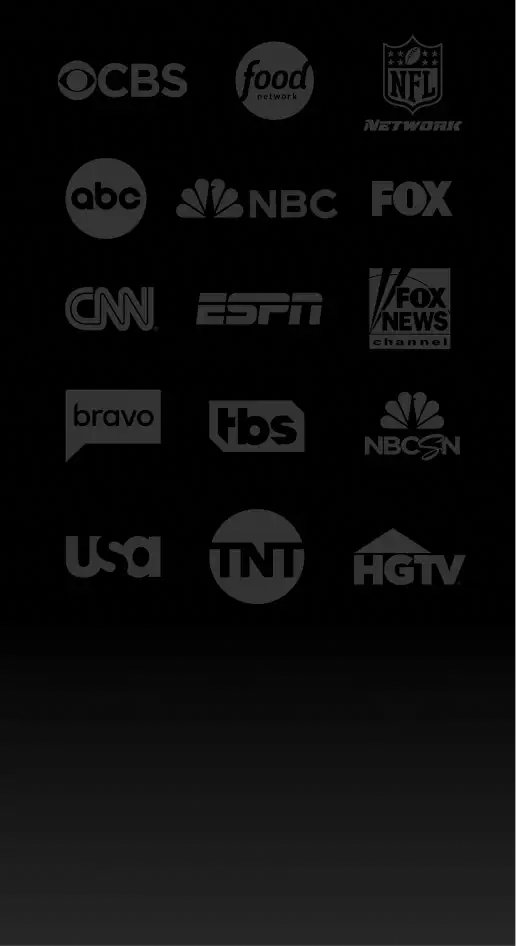
YouTube does not publish one national channel list, because local networks change from market to market. Its own lineup tool is the only list that matches your address.
- Open tv.youtube.com/welcome in a web browser. You do not need to sign in.
- Scroll to Watch live TV from top channels.
- Choose YouTube TV channels for the main plan, or Sports Plan channels for the Sports Plan.
- Under Channel lookup, type your home ZIP code in Your ZIP code and select SUBMIT.
- Select SEE ALL CHANNELS to open the full lineup for that ZIP code.
Use your home ZIP code, not the one where you happen to be. YouTube TV sets your local networks from the home area you give at sign-up.
Overview of Included Channels in Standard Plans
YouTube renamed the old Base Plan to the main YouTube TV plan. It now sells genre plans next to it, and every plan gets the same features: unlimited DVR space, multiview, 6 household accounts and 3 streams.
| Plan | Channels YouTube states | What it focuses on |
|---|---|---|
| YouTube TV (main plan, formerly Base Plan) | 100+ channels | The widest lineup: news, entertainment, local channels and sports |
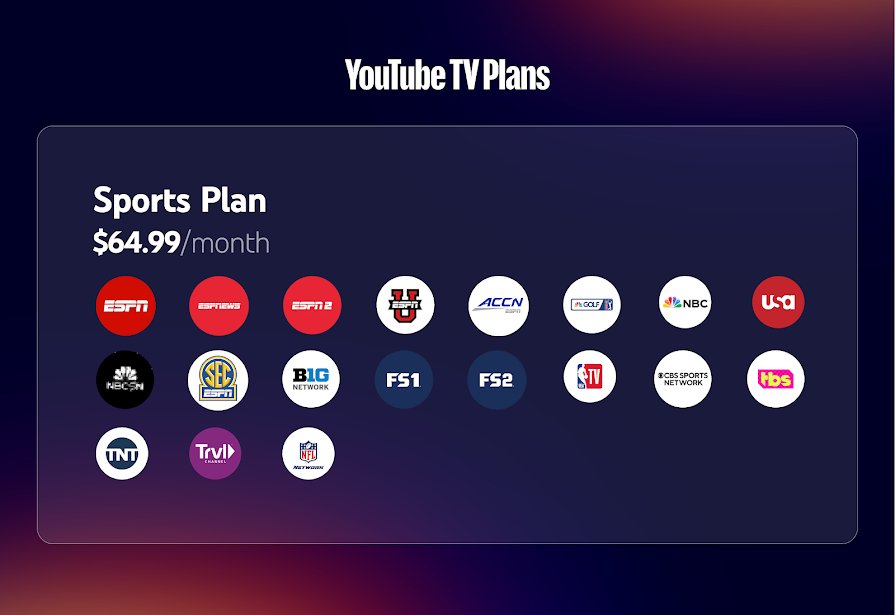
| Sports Plan | 30+ channels | All the sports channels from the main plan, plus your local channels (ABC, CBS, FOX, NBC) |
| Genre plans: Sports, News, Entertainment and Family, sold alone or in combinations | Not published per plan | Pick one to three genres, for example Sports + News or Entertainment + Family |
| Spanish Plan | 28+ Spanish-language networks | Spanish-language TV without a YouTube TV plan |
Google lists 13 plans for new and existing subscribers: YouTube TV, Sports, Sports + News, Sports + Entertainment, Sports + Family, Sports + News + Entertainment, Sports + News + Family, Sports + Entertainment + Family, News + Entertainment, News + Family, News + Entertainment + Family, Entertainment, and Entertainment + Family.
You cannot build your own plan from individual channels. You choose one of the listed plans and add networks on top.
Which YouTube TV plan should you choose?
| Your situation | Choose this | Why |
|---|---|---|
| You want the most channels in one bill | YouTube TV (main plan) | 100+ channels, the most comprehensive plan |
| You mostly watch live games and local news | Sports Plan | Every sports channel from the main plan plus locals, at a lower price |
| You want NFL out-of-market Sunday games cheaply | Sports Plan + NFL Sunday Ticket | Google calls this the most cost-effective football pairing |
| You watch news and scripted shows but not sports | A genre plan such as News + Entertainment | You skip paying for sports networks |
| You watch only Spanish-language TV | Spanish Plan | 28+ Spanish networks without a YouTube TV plan |
| You want one or two networks, not live TV | Individual networks without YouTube TV | Some networks can be bought alone under Settings > Membership |
Customizing Your Channel Lineup: Add-Ons and Premiums
Add-ons stack on any YouTube TV plan and carry over when you switch plans. Prices below are what tv.youtube.com shows in September 2026; YouTube notes that prices vary.
| Add-on | What you get | Monthly price listed |
|---|---|---|
| Entertainment Plus | HBO Max, STARZ and Paramount+ with SHOWTIME in one bundle | $29.99 |
| NFL RedZone with Sports Plus | NFL RedZone plus 16 more sports networks | $10.99 |
| Spanish Plus | 25+ extra Spanish-language networks | $14.99 |
| 4K Plus | 4K on available content, unlimited streams at home, offline DVR playback on phones and tablets | $9.99 |
| Single premium networks | Examples YouTube names: ALLBLK, MGM+, Shudder | From $1.99 |
| NFL Sunday Ticket | Out-of-market Sunday afternoon NFL games | Seasonal pricing, shown at sign-up |
Entertainment Plus has no free trial. If you already pay for HBO Max, STARZ or Paramount+ with SHOWTIME as single add-ons, cancel them first, then buy the bundle.
Detailed List of Core Channels by Category
YouTube's help pages name only some networks by category. The table shows what YouTube names officially; the ZIP code lookup above gives the complete list for your area.
| Category | Plan that covers it | Networks YouTube names |
|---|---|---|
| Entertainment | Main plan or Entertainment plan; premium movies via Entertainment Plus | HBO Max, STARZ, Paramount+ with SHOWTIME (add-on bundle) |
| News & Information | Main plan or News plan | Local news on CBS, FOX, NBC and ABC affiliates |
| Sports | Main plan or Sports Plan | ESPN, plus local ABC, CBS, FOX and NBC for in-market games |
| Kids & Family | Main plan or Family plan | Not named on the help pages; check the ZIP lookup |
| Lifestyle & Special Interests | Main plan; niche add-ons | ALLBLK, MGM+ and Shudder as add-ons; Outside in Sports Plus |
Google says Sports Plan members will also get ESPN Unlimited at no extra cost later in fall 2026.
Specialty and Niche Channels Available as Add-Ons
NFL RedZone with Sports Plus is the one add-on Google lists channel by channel. These networks are not sold one at a time; you buy the whole package.
| Network in Sports Plus | Network in Sports Plus | Network in Sports Plus |
|---|---|---|
| NFL RedZone | beIN SPORTS / beIN SPORTS XTRA | Billiard TV |
| FanDuel TV | Fight Network | FOX Soccer Plus |
| Impact Wrestling | RACER Network | Outside |
| Overtime | PlayersTV | PokerGO+ |
| SportsGrid | Stadium | Tennis Channel |
| VSiN | Willow |
If you had a FOX Soccer Plus free trial before, you are not eligible for a Sports Plus free trial.
For Spanish-language niche channels, Spanish Plus adds 25+ networks to any plan, or the Spanish Plan gives 28+ networks for $24.99 plus tax a month without YouTube TV.
Regional Variations and Local Channel Availability
YouTube TV is available across the United States and does include local channels. Which local stations you get depends on your home area, which is set by the ZIP code you enter at sign-up.
| Rule | What it means for your lineup |
|---|---|
| Home area sets local networks | Your local CBS, FOX, NBC and ABC stations come from your home ZIP code |
| Travelling | You can watch networks local to where you are, but not record or watch your home-area locals |
| Use at home every 3 months | Frequent travellers must open YouTube TV in the home area at least once every 3 months |
| MLB check-in | Baseball fans should use YouTube TV in the home area every 30 days to avoid game restrictions |
| Changing home area | Allowed twice in 12 months, and only while you are in the new area |
| VPN or proxy | Streaming does not work while connected to a VPN or proxy |
| Partner restrictions | Leagues and networks can black out programs by location or device |
How to Manage and Modify Your Channel Package
Every plan and add-on change starts from the same page. Accessing your account settings on a computer shows your current plan, every add-on you pay for, and what else you can buy.
- Go to tv.youtube.com in a web browser.
- Sign in with the Google Account that pays for YouTube TV.
- Click your profile photo.
- Click Settings.
- Open the Membership tab to see your current plan and available add-ons.
Only the family manager can change the subscription in a family group. If a carrier or internet provider bills you, make changes through that provider's support instead.
Adding or Removing Channel Packages
- Go to tv.youtube.com, click your profile photo, then Settings > Membership.
- To add a package, click ADD next to the network or bundle. The price shows beside it.
- Click Purchase to finish.
- To remove a package, click CANCEL next to that network.
- Click Yes, Cancel to confirm.
Spanish Plus sits under International when you add networks during plan checkout.
Upgrading or Downgrading Your Plan
A plan switch starts right away, and your add-ons move to the new plan automatically. Plan switching is not available in the iOS or Android apps.
- Open Settings in the YouTube TV app.
- Select Membership to see your current plan and the other plans on offer.
- Select the plan you want to switch to.
- Follow the on-screen instructions to confirm the new plan.
Using the YouTube TV App
You can buy add-on networks straight from a smart TV or streaming device without a computer.
- Open the YouTube TV app on your TV device.
- Select the store icon next to your profile photo in the top right.
- Select the network you want. Its details and price appear.
- Select Add network, then confirm the purchase on the next screen.
The New & Noteworthy tab on TV devices also lists networks you can subscribe to.
Review Your Changes and Billing
Check these billing rules before you confirm a change. The DVR and promo rules cost the most money when missed.
| Change | What happens to your bill or library |
|---|---|
| Add a network mid-cycle | You pay a prorated amount until your next billing date, then the full monthly price |
| Switch plans | You pay the new plan minus a credit for unused time; your billing date moves to the switch date |
| Switch while on a promo price | You lose the promotion |
| Switch to a cheaper plan | The difference is credited on your next payment |
| Lose channels in a downgrade | Recordings from those channels are deleted; switch back within 21 days to get them back |
| Add-ons after a plan switch | Add-ons keep their original monthly billing date |
| Cancel your YouTube TV plan | All add-ons are cancelled too, and NFL Sunday Ticket access ends |
| Family group plan change | Every member's channels and DVR recordings change with it |
Pricing Structure: What’s Included in Each Plan
These are the prices on tv.youtube.com in September 2026. The new-user offers end September 30, 2026.
| Plan | Regular monthly price | New-user offer | Included with every plan |
|---|---|---|---|
| YouTube TV (main plan) | $82.99 | $59.99 a month for 3 months (save $69) | Unlimited DVR space, multiview, 6 accounts, 3 streams |
| Sports Plan | $64.99 | $44.99 a month for 6 months (save $120) | Same features as the main plan |
| Spanish Plan | $24.99 plus tax | Not listed | 28+ Spanish-language networks |
| Other genre plans | Shown at sign-up and under Membership | Not listed | Same features as the main plan |
YouTube TV advertises no annual contract and no box rental, DVR, broadcast or cancellation fees. New users can try the service for 10 days at $0.
Comparing YouTube TV Plans with Other Streaming Services
YouTube publishes its own comparison pages against Hulu + Live TV, FuboTV, Sling TV, DIRECTV STREAM, Spectrum TV, Philo TV and Tubi TV at the foot of tv.youtube.com/welcome. Check these points on any rival's own site before switching.
| What to compare | YouTube TV | What to check on the other service |
|---|---|---|
| Local channels | Included, set by your home ZIP code | Whether its lookup shows your local ABC, CBS, FOX and NBC |
| Cheapest live-sports option | Sports Plan, $64.99 a month | Whether its sports tier includes ESPN and your locals |
| DVR | Unlimited space on every plan | Storage caps and how long recordings last |
| Household use | 6 accounts, 3 streams; unlimited at home with 4K Plus | Profiles and simultaneous stream limits |
| Contracts and fees | No annual contract, no box or DVR fees | Equipment, broadcast or regional sports fees |
| Premium bundles | Entertainment Plus at $29.99 | Whether HBO Max, STARZ and Paramount+ are sold as a bundle |
Benefits and Limitations of YouTube TV Channels
| Benefit | Limitation |
|---|---|
| Local channels are included nationwide | Home-area locals are unavailable while you travel |
| Thirteen plans let you skip genres you never watch | You cannot build a plan from individual channels |
| Add-ons carry over when you switch plans | Downgrading deletes recordings from channels you lose after 21 days |
| Entertainment Plus bundles three premium services | Paramount+ with SHOWTIME has limited programs inside YouTube TV |
| Sports Plus adds 17 sports networks | Those networks cannot be bought one at a time |
| Same DVR and account features on every plan | Some games are blacked out by league or network restrictions |
How to rearrange the YouTube TV channel list
You can hide networks and change their order in the Live guide. The change syncs to every device on your account.
- Open the Live tab in YouTube TV.
- Select Sort.
- Select Edit.
- Hide the networks you never watch and move favourites higher.
- On a phone or web browser, you can reach the same page from your profile photo > Settings > Live guide.
After you customise the guide, networks you add later do not appear automatically. Add each new network to your custom lineup yourself.
Tips for Optimizing Your Viewing Experience
| Tip | Where to do it |
|---|---|
| See which of your networks stream in 4K | Settings > 4K |
| See which networks allow offline recordings | Settings > Downloads |
| Check stream limits per network | Settings > Screen Limits |
| Watch up to 4 games at once | Multiview on TVs, phones and tablets |
| Jump back to the last channel | Long-press OK/Select on your TV remote |
| Stop a show autoplaying when the TV app opens | Settings > Autoplay on Start |
| Find a network's page fast | Search, then scroll to Networks |
How to check your lineup changed
- Go to tv.youtube.com and open your profile photo > Settings > Membership.
- Confirm the plan name at the top matches the plan you picked.
- Confirm each add-on you bought shows as active, and cancelled ones no longer do.
- Open the Live tab and scroll to a network from the new plan or add-on.
- If you use a custom Live guide and the network is missing, add it under Sort > Edit.
Fix missing or wrong YouTube TV channels
Local channels are missing or show another city
YouTube TV serves locals by home area and current location, so a wrong or stale location changes the list.
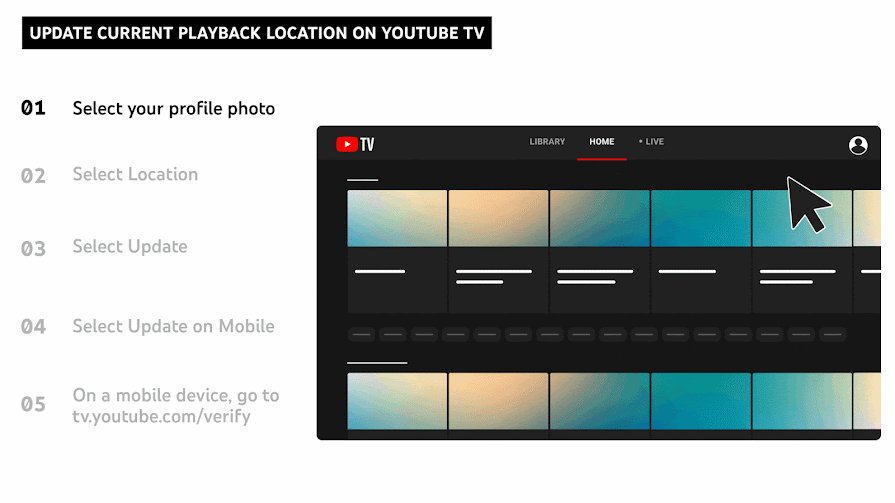
- Go to tv.youtube.com, select your profile photo > Location.
- Select Update next to Current playback area, or go to tv.youtube.com/verify on a phone.
- Allow the site to use your device location.
- If you moved, select Update next to Home area while you are in the new area.
- Disconnect any VPN or proxy, then reopen YouTube TV.
A channel you pay for does not show in the Live guide
A customised Live guide does not add new networks on its own.
- Open the Live tab and select Sort.
- Select Edit.
- Turn the missing network back on and place it where you want it.
- If it is not in the list, check Settings > Membership to confirm your plan or add-on includes it.
A plan listed by Google does not appear for you
Plan availability depends on your billing provider, such as a mobile carrier, internet provider or Google Play Billing.
- Check Settings > Membership to see who bills you.
- Contact that provider's support to change plans, or wait for it to offer the new plans.
- Or cancel and sign up again directly at tv.youtube.com, knowing you may lose promo pricing.
Frequently Asked Questions
What are the YouTube TV channels?
The main YouTube TV plan includes 100+ broadcast, cable and regional sports channels, including local CBS, FOX, NBC and ABC stations. The exact list depends on your area, so enter your home ZIP code at tv.youtube.com/welcome to see every channel you would get.
What does YouTube TV offer for channels?
YouTube TV offers the 100+ channel main plan, a 30+ channel Sports Plan, genre plans built from Sports, News, Entertainment and Family, and a Spanish Plan. Add-ons such as Entertainment Plus, NFL RedZone with Sports Plus and Spanish Plus add more networks on top.
Does YouTube TV include local channels?
Yes. YouTube TV includes local channels such as ABC, CBS, FOX and NBC on the main plan and the Sports Plan. The stations you get come from the home ZIP code you enter at sign-up, and you must use the service at home at least once every 3 months.
How do I rearrange the YouTube TV channel list?
Open the Live tab, select Sort, then select Edit. From there you can hide networks and change their order. On a phone or browser you can also go to your profile photo, Settings, then Live guide, and the new order syncs to all your devices.
What channels are on the YouTube TV base plan?
The Base Plan is now called the main YouTube TV plan, and it carries 100+ channels. YouTube does not publish one national list for it, because local stations vary. Enter your home ZIP code at tv.youtube.com/welcome and select SEE ALL CHANNELS for your list.
Which sports channels come with YouTube TV?
The Sports Plan carries every sports channel from the main plan, including ESPN, plus your local ABC, CBS, FOX and NBC. NFL RedZone with Sports Plus adds 17 more networks, such as NFL RedZone, beIN SPORTS, Tennis Channel and FanDuel TV, for $10.99 a month.
Are YouTube TV channels free?
No. YouTube TV is a paid subscription, starting at $64.99 a month for the Sports Plan and $82.99 for the main plan at the time of writing. New users can try it for 10 days at $0, and new-user discounts run until September 30, 2026.
What channels does YouTube have compared with YouTube TV?
YouTube TV is a paid subscription for live and on-demand TV from broadcast and cable networks, separate from the regular YouTube app. Its main plan carries 100+ channels with local stations based on your ZIP code; videos not available on YouTube TV open in the YouTube app instead.
Bottom line
Run the ZIP code lookup at tv.youtube.com/welcome before you pay, then pick the Sports Plan if you mainly watch games and locals, or the main plan if anyone at home watches entertainment or news. Local stations vary by area, and the Sports Plan already contains every sports channel from the main plan for $18 a month less at regular prices.