Press Windows key + R, type %windir%\System32 and press Enter to open the System32 folder on Windows 11 or Windows 10.
This guide covers six ways to open it, the difference between System32 and SysWOW64, the files you will find there, and why you should never delete or edit anything inside it.
1. Open System32 Using the Run Dialog
The Run dialog opens any program, folder or document you type into it. Using %windir% instead of C:\Windows finds the right folder even when Windows is installed on another drive.
- Press Windows key + R to open the Run dialog box.
- Type
%windir%\System32(orC:\Windows\System32if Windows is on drive C). - Press Enter or select OK.
- File Explorer opens with the System32 folder showing.
You can also right-click Start and select Run if the keyboard shortcut does not respond.
Which Method Should You Use?
| Your situation | Use this method | Why |
|---|---|---|
| You want the folder open in the fewest steps | 1. Run dialog | One shortcut, one path, done |
| File Explorer is already open | 2. File Explorer address bar | No new window needed |
| You prefer the mouse or the Run shortcut is blocked | 3. Start menu search | Everything is reached by clicking |
| You need to run a tool from inside System32 | 4. Command Prompt | Opens the folder or moves the prompt into it |
| You work in PowerShell or Windows Terminal | 5. Windows Terminal or PowerShell | Same result with PowerShell syntax |
| The taskbar or desktop is frozen but Task Manager opens | 6. Task Manager | Run new task works when Explorer does not |
2. Open System32 from File Explorer
The address bar accepts a full path or an environment variable. Microsoft lists three shortcuts that put the cursor there: Alt + D, Ctrl + L and F4.
- Press Windows key + E, or select File Explorer on the taskbar.
- Press Alt + D (or Ctrl + L) to select the address bar.
- Type
C:\Windows\System32or%windir%\System32. - Press Enter.
- To browse instead of typing, open drive C:, double-click Windows, then double-click System32.
3. Open System32 from the Start Menu Search
Windows search is the mouse-friendly route to the Run dialog. It helps when Windows key + R is not working or you are using a touch screen.
- Select Start or the search box on the taskbar, or press Windows key + S.
- Type Run and select Run in the results.
- Type
%windir%\System32in the Open box. - Press Enter to open the folder in File Explorer.
To open one Windows tool rather than the whole folder, type its name in the search box instead. For example, type msinfo32 to find System Information.
4. Open System32 Using Command Prompt
The start command opens File Explorer when the name you give it matches a folder. Command Prompt expands %windir% to your Windows folder automatically.
start %windir%\System32start looks for a program with that name; when the name is a directory, it opens Explorer.exe on that path. To work inside the folder in the prompt instead, run cd /d %windir%\System32, where /d also switches drives if needed.
You should see: A File Explorer window opens on System32. After cd /d, the prompt changes to C:\Windows\System32>.
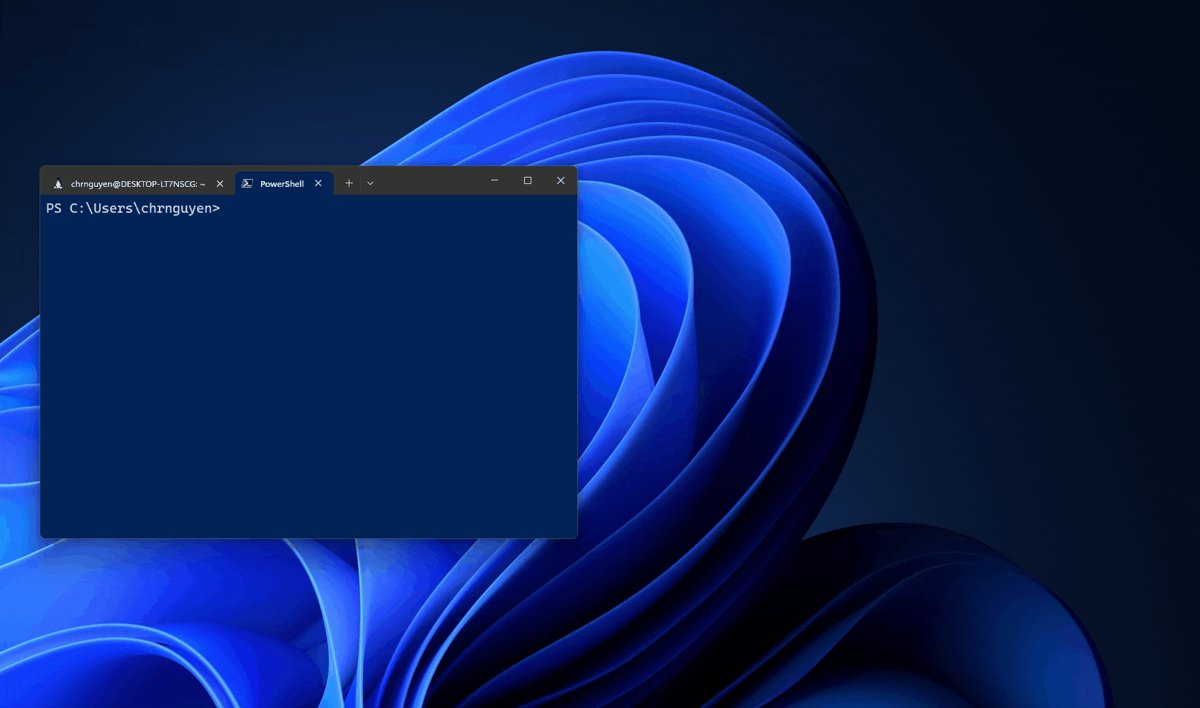
5. Open System32 Using Windows Terminal or PowerShell
PowerShell reads environment variables as $env:windir, not %windir%. Invoke-Item (alias ii) runs an item's default action, which is the same as double-clicking it in File Explorer.
In Windows Terminal, the same commands work in a PowerShell tab, and the Command Prompt commands from method 4 work in a Command Prompt tab.
Invoke-Item "$env:windir\System32"Opens System32 in File Explorer. To move the PowerShell prompt into the folder instead, run Set-Location "$env:windir\System32", the PowerShell equivalent of cd. To start Windows Terminal already inside the folder, press Windows key + R and run wt -d C:\Windows\System32.
You should see: File Explorer shows System32, or the prompt reads PS C:\Windows\System32>.
Need administrator rights for a tool you run from there? Open Start, type Windows PowerShell, and select Run as administrator.
6. Open System32 Using Task Manager
Task Manager can launch a folder or program even when the taskbar and desktop are not responding, which makes this the fallback route.
- Press Ctrl + Shift + Esc to open Task Manager.
- Select File > Run new task.
- Type
%windir%\System32in the box. - Select OK or press Enter to open the folder in File Explorer.
Extra: Pin System32 to Quick Access
Pinning puts System32 in the File Explorer navigation pane and on Home, so you can reach it in one click. A desktop shortcut is the other option.
| Goal | Steps |
|---|---|
| Pin System32 to Quick access | Open C:\Windows in File Explorer, right-click the System32 folder, and select Pin to Quick access. |
| Extra: Create a desktop shortcut to System32 | Open C:\Windows, right-click System32, select Show more options on Windows 11, then select Create shortcut. If a prompt offers to put the shortcut on the desktop instead, accept it. |
A pin or shortcut only points at the folder. Removing it never touches the files inside System32.
How to check you opened the real System32 folder
32-bit programs can be silently redirected to a different folder, so confirm where you actually are before you look for a file.
- In File Explorer, select the address bar and confirm it reads
C:\Windows\System32(or your Windows drive letter). - In Command Prompt, run
cdwith no parameters. It prints the current folder. - In PowerShell, run
Get-Location. It prints the current folder. - Check that a file such as
kernel32.dllis listed. It is a core Windows file stored in System32.
Before You Open System32: What You Should Know
System32 is the Windows System folder. It holds the core programs, libraries and drivers that Windows itself needs to start and run.
| Fact | Detail |
|---|---|
| Typical path | C:\Windows\System32 |
| Path that always works | %windir%\System32 (%windir% and %SystemRoot% both point to the Windows folder) |
| Which apps it serves | On 64-bit Windows, System32 is reserved for 64-bit applications, despite the "32" in its name |
| Protection | Windows Resource Protection stops essential system files, folders and registry keys from being replaced |
| Repair tool | sfc /scannow checks protected system files and replaces incorrect versions |
System32 vs SysWOW64: which folder holds what
Microsoft kept most DLL file names when it built 64-bit versions, so the 32-bit copies live elsewhere. The WOW64 File System Redirector quietly sends 32-bit programs to that other folder.
| Folder | What it holds on 64-bit Windows | Who sees it |
|---|---|---|
%windir%\System32 |
64-bit system files | 64-bit programs |
%windir%\SysWOW64 |
32-bit system files | 32-bit x86 programs that ask for System32 are redirected here |
%windir%\SysArm32 |
32-bit ARM system files | 32-bit ARM programs on ARM PCs are redirected here |
%windir%\Sysnative |
Not a real folder; a virtual alias | 32-bit programs use it to reach the real System32 without redirection |
A few subfolders are never redirected: catroot, catroot2, driverstore, drivers\etc, logfiles and spool. A 64-bit program cannot use Sysnative, because the alias exists only for 32-bit processes.
Examples of Useful Files and Tools in System32
| Item in System32 | What it is |
|---|---|
kernel32.dll |
A core Windows library; Microsoft uses it as the example file for sfc /verifyfile |
config folder |
Holds most of the supporting files for the registry hives, updated each time a user signs in |
drivers\etc folder |
A system subfolder that 32-bit programs reach directly, without redirection |
driverstore folder |
The driver store; also exempt from 32-bit redirection |
spool, catroot, catroot2 and logfiles folders |
The other subfolders Microsoft exempts from 32-bit redirection |
Look, do not touch. Every item in this table is used by Windows itself, and none of it needs editing for normal use.
Common Problems When Opening System32
"Where is my System32 folder?" C:\Windows\System32 does not exist
Windows is installed on a drive other than C.
- Press Windows key + R.
- Type
%windir%\System32instead of a drive letter. - Press Enter. The variable always resolves to the drive that holds Windows.
System32 opens, but files you expect are missing
A 32-bit program was redirected to SysWOW64 without telling you.
- Open System32 from File Explorer itself with Windows key + E, not from inside a 32-bit app's Open dialog.
- If you are working in Windows PowerShell (x86) or another 32-bit tool, use
%windir%\Sysnativein place of%windir%\System32. - Confirm the path with the checks in the section above.
"Access denied" when you try to change or delete a file
Windows Resource Protection guards essential system files and folders.
- Stop. The block is working as designed.
- Close the folder without changing anything.
- If an app asked you to replace a file there, reinstall or update that app instead.
A System32 error or missing system file message
A protected system file is damaged or was overwritten.
- Select Start, type Windows PowerShell, select Windows PowerShell, and then select Run as administrator.
- Run
sfc /scannow. - Let the scan finish; it replaces incorrect protected files with correct versions.
- Restart the PC. Never download a replacement System32 file from a website.
Safety Tips for Working in System32
Opening System32 to look is harmless. Deleting, renaming or replacing anything in it can stop Windows or your apps from starting.
| Do | Never |
|---|---|
| Open the folder to read or copy a path | Delete System32 or anything in it, whatever a joke, meme or "speed-up" tip says |
| Run built-in tools by name | Take ownership of files to get past an "Access denied" block |
Repair damage with sfc /scannow |
Download DLLs or System32 files from third-party sites |
| Close the window when you are done | Move files between System32 and SysWOW64 |
"Delete System32" is a long-running internet prank, not a fix. Following it can stop Windows from starting at all.
Frequently Asked Questions
What is System32 on Windows 11?
System32 is the Windows System folder, normally at C:\Windows\System32. It holds the core programs, libraries and drivers Windows needs to run. On 64-bit Windows 11, it is reserved for 64-bit files, and 32-bit copies live in SysWOW64.
Where is the System32 folder?
The System32 folder sits inside the Windows folder, normally at C:\Windows\System32. If Windows is on another drive, type %windir%\System32 in the Run dialog or File Explorer address bar, and Windows fills in the correct drive for you.
Why does the Windows System32 folder exist?
System32 gives Windows one protected place for its essential programs, libraries and drivers. Windows Resource Protection guards those files so apps cannot overwrite them, which prevents application and operating system failures.
How do I access System32 on Windows 11?
Press Windows key + R, type %windir%\System32 and press Enter. The folder opens in File Explorer. You can also paste C:\Windows\System32 into the File Explorer address bar, or run start %windir%\System32 in Command Prompt.
How do I open System32 files?
Open Windows tools by name rather than double-clicking files in System32. Type a name such as msinfo32 or cmd in the Run dialog or Windows search. Viewing the folder is safe; editing, renaming or deleting its files is not.
Can I download System32 files for Windows 11?
No. Do not download System32 files or DLLs from websites, because they can be the wrong version or malware. Run sfc /scannow from an administrator Command Prompt instead; it restores protected system files with correct versions.
Does System32 mean my Windows is 32-bit?
No. The name is historical. On 64-bit Windows, System32 holds the 64-bit system files, and the 32-bit versions are stored in SysWOW64. Windows redirects 32-bit programs to SysWOW64 automatically.
Is it safe to delete System32?
No. Deleting System32, or any file inside it, can stop Windows from starting. Windows Resource Protection blocks most attempts, but never work around it. "Delete System32" is an old prank, not a performance tip.