To enable Internet Explorer mode in Microsoft Edge on Windows 11, open edge://settings/defaultBrowser, set Allow sites to be reloaded in Internet Explorer mode (IE mode) to Allow, and restart Edge. To disable it, remove the sites under Internet Explorer mode pages and change that dropdown away from Allow; on work PCs, IT controls it with the Configure Internet Explorer integration policy.
One change trips people up: since Edge 141, personal PCs open an old site in IE mode by adding it to the Internet Explorer mode pages list, not with a one-click reload. Both routes are below, along with the toolbar button, the 30-day expiry, Group Policy, Intune and the fixes when the option is missing or greyed out.
What is Internet Explorer mode in Microsoft Edge?
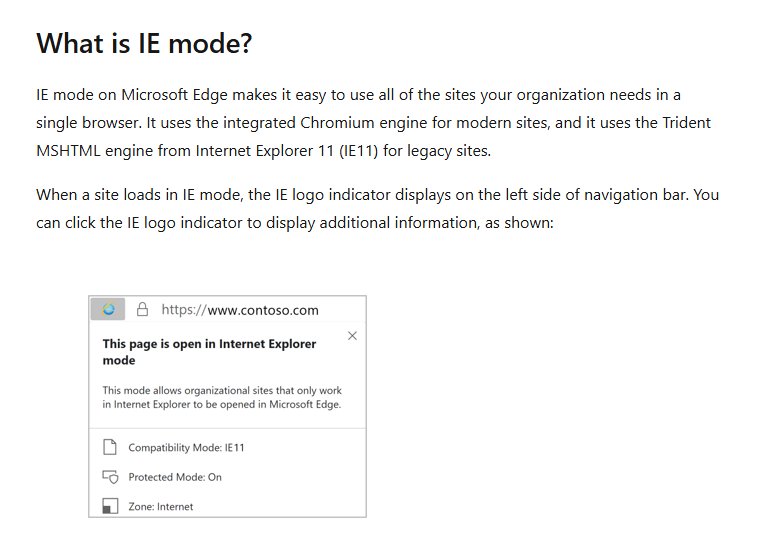
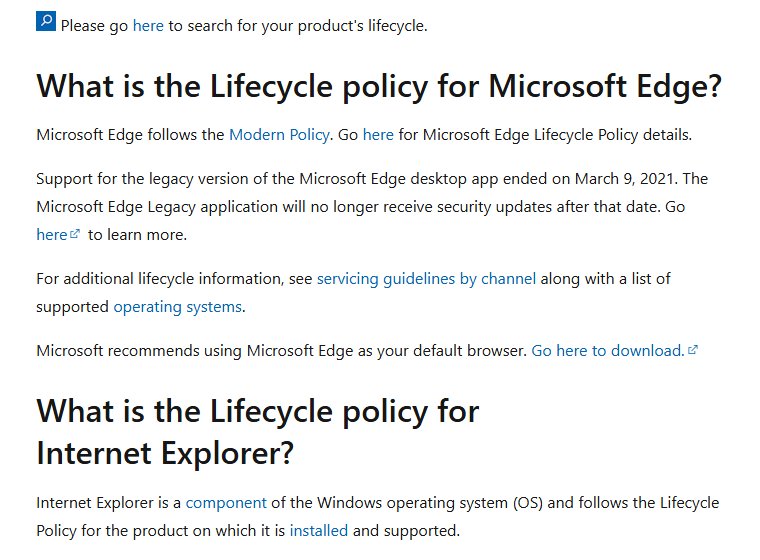
IE mode lets one Edge window run modern sites and old sites built for Internet Explorer 11. Support for the Internet Explorer 11 desktop app ended on June 15, 2022, and IE mode is Microsoft’s replacement for it, mainly for older intranet apps.
| Question | Answer from Microsoft’s documentation |
|---|---|
| Which engine renders the page? | The Trident MSHTML engine from Internet Explorer 11 for IE mode sites; Chromium for everything else |
| What still works? | Document and enterprise modes, ActiveX controls, Browser Helper Objects, IE security zones and Protected Mode |
| What does not work? | Internet Explorer toolbars, IE settings that control the navigation menu, and the IE11 or Edge F12 developer tools |
| Do Edge extensions run? | Yes, except extensions that interact directly with the IE page content; you can turn Edge extensions off one at a time if a legacy page misbehaves |
| How long is it supported? | Through at least 2029, with at least one year of notice before retirement |
IE mode is not the old Internet Options dialog, which still opens from Control Panel for proxy and security-zone settings; that dialog is covered in Internet Options in Microsoft Edge.
How to enable Internet Explorer mode in Microsoft Edge
This is the switch Microsoft documents for home and unmanaged PCs. It needs no admin rights.
- Open Microsoft Edge.
- Type
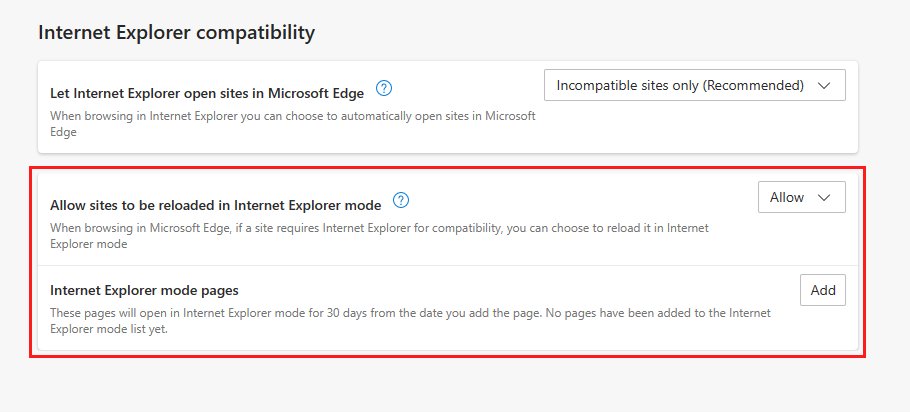
edge://settings/defaultBrowserin the address bar and press Enter, or go to Settings and more (…) > Settings > Default browser. - Under Internet Explorer compatibility, set Allow sites to be reloaded in Internet Explorer mode (IE mode) to Allow.
- Select Restart, or close and reopen Edge.
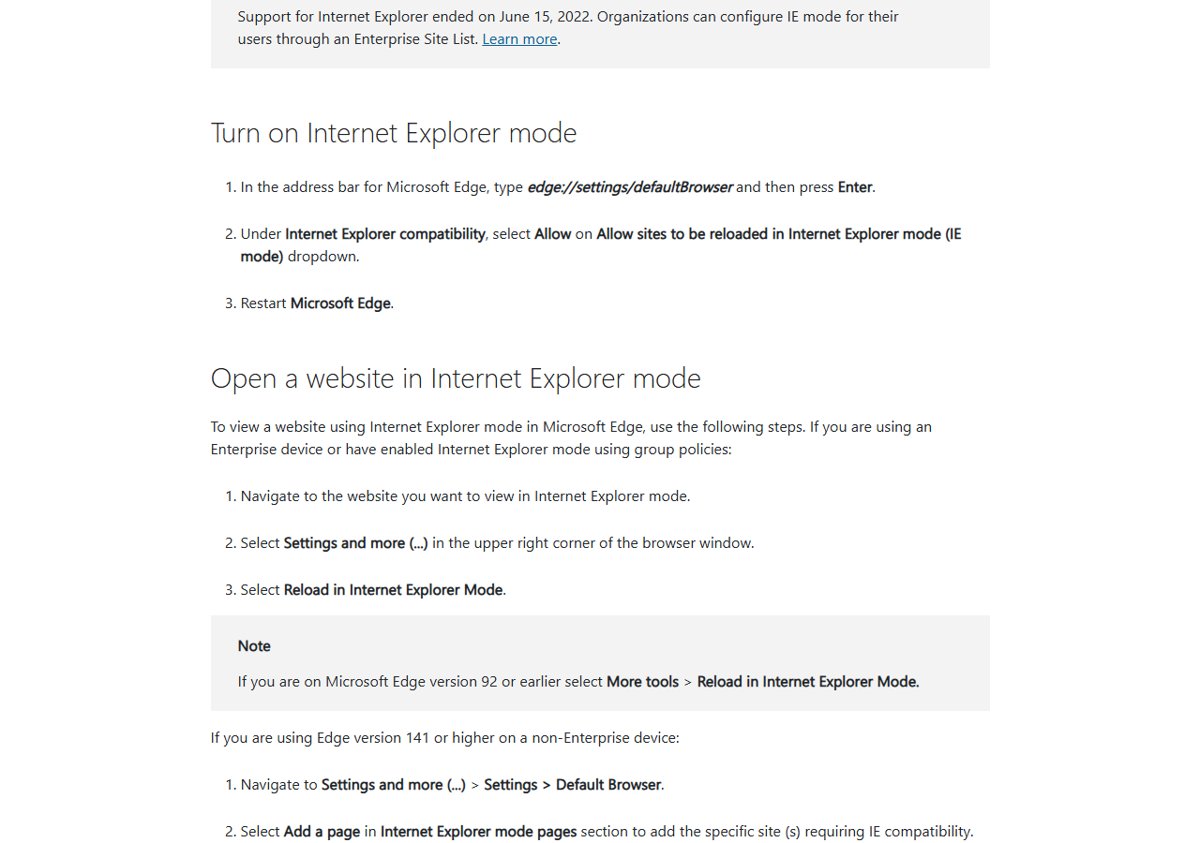
Before you start, install pending updates in Settings > Windows Update and check Edge at edge://settings/help: Microsoft names missing updates as the most common reason IE mode fails. The reload menu needs Edge 92 or later, and the Add a page route on personal PCs arrives with Edge 141. If the dropdown is greyed out, your organization manages it; jump to the fixes section.
Open a website in Internet Explorer mode
On a personal PC with Edge 141 or later
Add the site to the IE mode pages list (next section), then reload it. Microsoft’s support article says this replaces the one-click reload on non-enterprise devices.
On a work PC, or where IE mode is enabled by policy
- Open the site.
- Select Settings and more (…) > Reload in Internet Explorer mode. On Edge 92 or earlier it sits under More tools.
On managed PCs the option appears only if your organization allows unconfigured sites to be reloaded in IE mode.
From a tab or a link
Where reloads are allowed, right-click a tab and choose Reload tab in Internet Explorer mode, or right-click a link and choose Open link in new Internet Explorer mode tab.
How to set sites to load in Internet Explorer mode always
- Open Settings and more (…) > Settings > Default browser.
- In Internet Explorer mode pages, select Add a page.
- Paste the page address and select Add.
- Reload the page. It now opens in IE mode.
- Alternatively, on a page already in IE mode, select the IE icon left of the address bar and turn on Open this page in Internet Explorer mode next time.
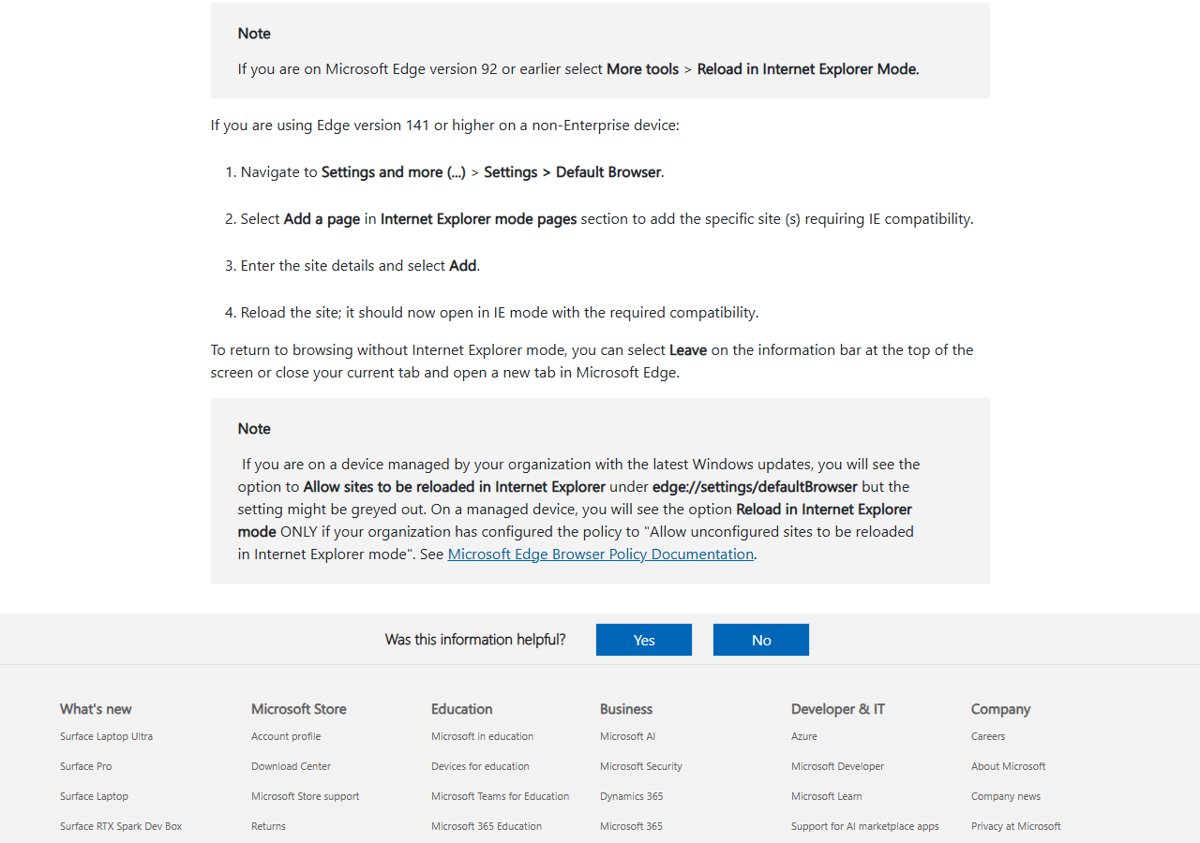
Entries last 30 days by default. On day 31 Edge shows a banner and stops using IE mode for the page until you add it again; administrators can set 0 to 90 days with InternetExplorerIntegrationLocalSiteListExpirationDays. The list does not sync across devices, so add pages on each PC. If Windows still hands old links to another browser, set Microsoft Edge as the default browser so they reach Edge and its list.
How to add an Internet Explorer mode button to Edge
- Go to
edge://settings/appearance. - Turn on the Internet Explorer mode (IE mode) button toggle among the toolbar buttons.
- On an old site, select the new IE button next to the address bar to enter IE mode; select it again to leave.
The button only works once IE mode is allowed, and on a managed PC only if your organization allows unconfigured sites to be reloaded.
How to check if a website is using IE mode
- An Internet Explorer logo left of the address bar means the tab is in IE mode, and a banner at the top offers Leave.
- Select the logo to see its status and the Open this page in Internet Explorer mode next time toggle.
- For a full report, open
edge://compat/iediagnostic; the Internet Explorer mode setting entry shows how it is configured.
If the logo vanishes after you use the address bar or a favorite, Edge left IE mode on purpose. Only in-page navigation (links, scripts, forms) stays in IE mode.
How to exit IE mode in Edge
- Select Leave on the IE mode banner, the IE toolbar button, or Settings and more (…) > Exit Internet Explorer mode.
- To stop the page opening in IE mode next time, turn off Open this page in Internet Explorer mode next time in the IE logo flyout, or remove it from Internet Explorer mode pages.
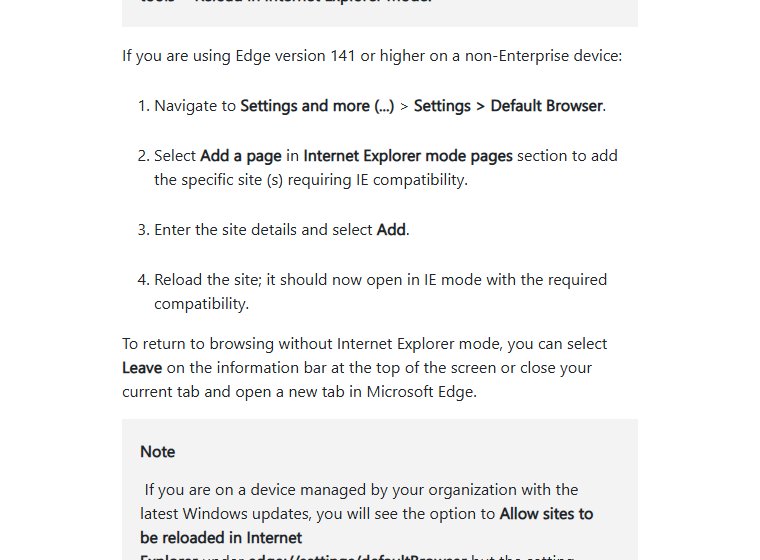
Closing the tab and opening a new one also returns you to normal browsing. If the page is on your organization’s site list, the exit options are greyed out.
Disable Internet Explorer mode in Microsoft Edge
- Go to
edge://settings/defaultBrowser. - Under Internet Explorer mode pages, remove every page you added.
- Under Internet Explorer compatibility, change Allow sites to be reloaded in Internet Explorer mode (IE mode) to the option that blocks reloads. Avoid Default: Microsoft notes it can still allow IE mode on PCs with past Internet Explorer 11 use.
- Restart Edge, then open a site you used in IE mode and confirm the IE logo is gone.
If a site still opens in IE mode, your organization’s site list sends it there, and only the administrator can change that.
Enable IE mode with Group Policy on Microsoft Edge
Group Policy needs the Microsoft Edge administrative templates from the Microsoft Edge for Business download page.
- Install the latest Edge policy templates and open Group Policy Editor.
- Go to Computer Configuration (or User Configuration) > Administrative Templates > Microsoft Edge.
- Enable Configure Internet Explorer integration and set it to Internet Explorer mode.
- Enable Configure the Enterprise Mode Site List and enter the location of your site list XML (HTTPS address or network share).
- Optionally enable Allow unconfigured sites to be reloaded in Internet Explorer mode.
- Restart Edge on a test PC and open
edge://compat/enterpriseto confirm the list downloaded.
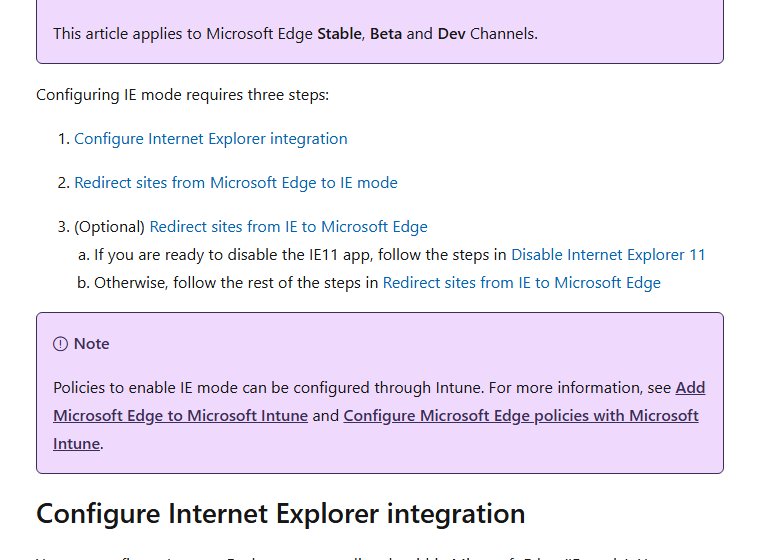
In the site list XML, sites with <open-in>IE11</open-in> open in IE mode. Microsoft prefers the site list over Send all intranet sites to Internet Explorer, because intranet-zone detection can pull in sites you did not intend. To stop users bypassing Edge with the old browser, prevent redirection from Internet Explorer to Edge.
Disable IE mode with Group Policy
- In Administrative Templates > Microsoft Edge, enable Configure Internet Explorer integration and set it to None.
- Set Allow unconfigured sites to be reloaded in Internet Explorer mode to Disabled.
- Set Configure the Enterprise Mode Site List to Disabled or Not configured.
- Restart Edge on client PCs; both IE integration policies need a browser restart.
Choose None rather than Disabled for the integration policy. Microsoft states Disabled still lets users turn IE mode on through edge://flags or command-line options.
Manage IE mode with Microsoft Intune
- In the Microsoft Intune admin center, select Devices > Configuration > Create.
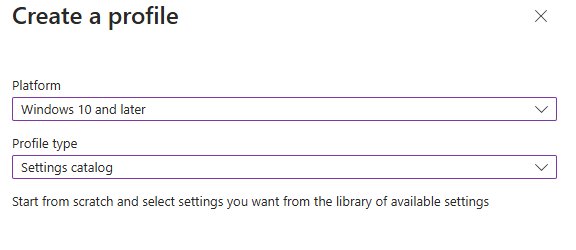
- Set Platform to Windows 10 and later and Profile type to Settings Catalog.
- Name the profile, then on Configuration settings add Configure Internet Explorer integration set to Internet Explorer mode (or None to disable).
- Add Configure the Enterprise Mode Site List and, if needed, Allow unconfigured sites to be reloaded in Internet Explorer mode.
- Assign the profile to a device or user group, review and select Create.
To remove IE mode later, change the values in the same profile rather than deleting it while sites still depend on it.
Can’t enable Internet Explorer mode? Here’s what you must do
“Reload in Internet Explorer mode” is missing
The dropdown is not on Allow, Edge was not restarted, Edge is older than 92, or you are on a personal PC with Edge 141 or later, where Add a page replaces the reload option.
The setting is greyed out or “managed by your organization”
A policy controls IE mode. Open edge://policy to see which Internet Explorer policies apply, and ask IT to add the site to the Enterprise Mode Site List or allow unconfigured sites to be reloaded.
The site opens in IE mode but still breaks
Turn on Open the page in Compatibility view in the IE logo flyout. A sign-in page that loops needs adding to the site list as a neutral site; “The connection for this site is not secure” means the site uses TLS 1.0 or 1.1, which Edge disables by default and only the site owner can fix. Export edge://compat/iediagnostic for IT.
A site opens in IE mode when it should not
Remove it from Internet Explorer mode pages, and type about:compat to see whether your organization’s list includes it. Users cannot override that list.
IE mode pages keep expiring
Local IE mode pages last 30 days by default, then Edge shows a banner and stops using IE mode for them.
- Add the page again under Internet Explorer mode pages when the banner appears.
- On a work PC, ask IT to add the site to the Enterprise Mode Site List, which does not expire.
- Administrators can raise the limit to as much as 90 days with InternetExplorerIntegrationLocalSiteListExpirationDays.
IE mode still opens after you disable it
Local pages remain, the dropdown is on Default, or edge://policy shows InternetExplorerIntegrationLevel or a site-list policy that only IT can remove.
“Reinstall Microsoft Edge with administrator privileges”
Install all Windows updates. Then check edge://version: if Executable path starts with C:\Users, Edge was installed per user, so uninstall it and reinstall with admin rights.
Is Internet Explorer mode safe to use?
IE mode runs the old Internet Explorer engine and carries old-browser risk; on Windows 11 24H2 and 25H2, Microsoft has deprecated Microsoft Defender SmartScreen inside IE mode. Microsoft says Internet Explorer and IE mode should never be used for untrusted or public internet sites. Keep it to the trusted internal apps that fail in normal Edge, prefer a managed site list to a sweeping intranet rule, and don’t re-add expired pages by habit. Public websites, downloads and anything that already works in Edge gain nothing from IE mode.
Do not use IE mode for public websites, general browsing, downloads from the internet, or a site that already works in normal Edge. IE mode exists for legacy pages that need Internet Explorer 11 features such as ActiveX or old document modes. A modern site gains nothing from it and loses Edge protections.
Internet Explorer mode FAQ
Is Internet Explorer mode available in Windows 11?
Yes. IE mode is built into Microsoft Edge on Windows 11. Turn it on at edge://settings/defaultBrowser by setting the IE mode dropdown to Allow and restarting Edge.
Can I still install Internet Explorer 11?
No. Support for the IE11 desktop app ended on June 15, 2022, and Microsoft disabled it on Windows 10, as detailed in Internet Explorer 11 on Windows 10. Use IE mode in Edge instead.
How long do pages stay in IE mode?
30 days by default. On day 31 Edge shows a banner and stops using IE mode for the page until you add it again. Administrators can set 0 to 90 days by policy.
Why is “Allow sites to be reloaded in Internet Explorer mode” greyed out?
Your organization manages Edge with policy. Check edge://policy, and ask IT to allow unconfigured sites to be reloaded or to add the site to the site list.
How long will Microsoft support IE mode?
Through at least 2029 on supported operating systems, with at least one year of notice before it ends.
Does the IE mode pages list sync between my PCs?
No. Microsoft states the local IE mode site list does not sync across devices. Add the page separately in Settings > Default browser on every PC where you need it.
Do Edge extensions work in IE mode?
Mostly. Microsoft Edge extensions keep working in IE mode, but extensions that interact directly with the IE page content are not supported. Internet Explorer toolbars do not work in IE mode at all.
Is it safe to use IE mode for any website?
No. Microsoft says IE mode should never be used for untrusted or public internet sites. Limit it to trusted internal apps.