You can download Spotify for PC free from Spotify’s official website or the Microsoft Store. The desktop app supports Windows 11, 64-bit Windows 10, and Macs running macOS 12 or later. After installation, sign in with a free or Premium Spotify account to play music, podcasts, and audiobooks available in your region.
Official download: Download Spotify for Windows or Mac
Download safety: Use Spotify’s website, Microsoft Store, or another official app store. Avoid third-party Spotify installers, modified apps, and websites offering Spotify Premium for free.
| Platform | Minimum supported version | Download method |
|---|---|---|
| Windows 11 | Windows 11 or later | Spotify website or Microsoft Store |
| Windows 10 | 64-bit Windows 10 | Spotify website or Microsoft Store |
| Mac | macOS 12 or later | Spotify website |
| Unsupported computer | A current supported browser | Spotify Web Player |
How to Download Spotify for PC
Windows users can install Spotify through the Microsoft Store or download the desktop installer directly from Spotify. Both methods install the official Spotify desktop app.
Method 1: Download Spotify from the Microsoft Store
The Microsoft Store offers the easiest installation method on Windows 11 and Windows 10 because it handles installation and app updates automatically.
- Open the Microsoft Store from the Start menu.
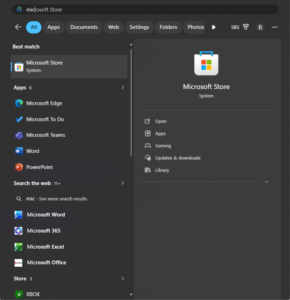
- Enter Spotify in the search box.
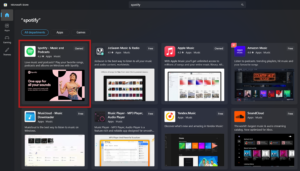
- Select Spotify: Music and Podcasts.
- Confirm that Spotify AB appears as the publisher.
- Select Get or Install.
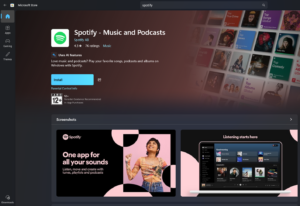
- Wait for Windows to download and install the app.
- Select Open, or launch Spotify from the Start menu.
You can also open the official Spotify Microsoft Store page in a browser and select View in Store.
Method 2: Download Spotify from the Official Website
Use Spotify’s direct installer when Microsoft Store is unavailable, blocked by an administrator, or failing to install apps.
- Open a current web browser.
- Visit the official Spotify download page for Windows.
- Select Download directly from Spotify.
- Open the downloaded
SpotifySetup.exefile. - Approve the Windows security prompt when it appears.
- Wait while the installer downloads and installs the required files.
- Open Spotify and sign in to your account.
The direct installer normally completes the setup without asking you to choose an installation folder. Spotify then updates itself when newer desktop versions become available.
Method 3: Install Spotify with Windows Package Manager
Windows 11 users and Windows 10 users with Windows Package Manager can install Spotify through Terminal.
- Right-click the Start button.
- Select Terminal or Windows PowerShell.
- Enter the following command:
winget install --id Spotify.Spotify -e- Review the package information shown in Terminal.
- Accept the source agreements if requested.
- Wait for the installation to finish.
- Open Spotify from the Start menu.
The exact package source can change, so review the displayed publisher and source before approving the installation.
How to Download Spotify on Windows 11
Spotify supports Windows 11, and you can install it through Microsoft Store or Spotify’s direct Windows installer.
Install Spotify on Windows 11 from Microsoft Store
- Press Windows + S.
- Search for and open Microsoft Store.
- Search for Spotify.
- Open the official Spotify listing.
- Select Install.
- Open the app and sign in.
Pin Spotify to the Windows 11 Taskbar
- Open the Start menu.
- Search for Spotify.
- Right-click the Spotify result.
- Select Pin to taskbar.
You can also select Pin to Start to keep Spotify in the pinned section of the Start menu.
How to Download Spotify on Windows 10
The current Spotify desktop app requires the 64-bit edition of Windows 10. Older 32-bit Windows installations do not meet Spotify’s current desktop requirements.
Check Whether Windows 10 Is 64-Bit
- Press Windows + I to open Settings.
- Go to System > About.
- Find System type under Device specifications.
- Confirm that it says 64-bit operating system.
Install Spotify on Windows 10
- Open Microsoft Store or Spotify’s official download page.
- Select Get, Install, or Download.
- Run the installer if you downloaded it from Spotify.
- Wait for the installation to complete.
- Open Spotify from the Start menu.
- Sign in or create a Spotify account.
Microsoft ended standard support for Windows 10 on October 14, 2025. The Spotify app can continue working on supported 64-bit Windows 10 systems, although moving to a supported Windows version improves security and long-term app compatibility.
How to Download Spotify for Mac
Spotify provides its Mac desktop app through the official Spotify website. The current app requires macOS 12 or later.
- Open Safari, Chrome, Firefox, or another browser.
- Visit the official Spotify download page for Mac.
- Select Download.
- Open the downloaded Spotify installer from the Downloads folder.
- Complete the installation instructions shown on the screen.
- Open Spotify from the Applications folder or Launchpad.
- Sign in with your Spotify account.
If macOS asks whether you want to open an app downloaded from the internet, confirm that the app came from Spotify before selecting Open.
Check Your macOS Version
- Select the Apple menu in the upper-left corner.
- Select About This Mac.
- Check the macOS name and version number.
Update macOS through System Settings > General > Software Update when your Mac supports a newer release but does not meet Spotify’s current requirement.
Does Spotify Work on Apple Silicon Macs?
Spotify works on supported Macs with Apple silicon processors, including M-series chips, as well as supported Intel-based Macs. Download the current installer from Spotify so the website can provide the appropriate version.
Spotify Download Requirements for Windows and Mac
| Requirement | Windows | Mac |
|---|---|---|
| Operating system | 64-bit Windows 10 or Windows 11 and later | macOS 12 or later |
| Account | Free or Premium Spotify account | Free or Premium Spotify account |
| Internet connection | Required for installation, sign-in, streaming, and updates | Required for installation, sign-in, streaming, and updates |
| Offline downloads | Spotify Premium required | Spotify Premium required |
| Installer source | Spotify website or Microsoft Store | Spotify website |
Spotify does not publish one fixed storage requirement because the app size, cache, updates, and downloaded content change over time. Keep enough free space for the app and any playlists or podcasts you plan to download.
Is Spotify Free to Download on PC and Mac?
Yes, the Spotify desktop app is free to download and install. You can sign up for Spotify Free without paying for a Premium subscription.
Spotify Free includes advertisements and applies account-specific playback limits. Spotify Premium removes audio advertisements and adds features such as offline downloads. Available plans, features, and prices depend on your country.
How to Sign In to Spotify on a Computer
- Open the Spotify desktop app.
- Select Log in.
- Enter the email address or username connected to your account.
- Enter your password and select Log in.
- Complete any browser-based or account verification request.
Spotify can also display sign-in options connected to services such as Google, Apple, or Facebook. Use the same method you originally connected to the account.
Select Sign up when you need a new account. Creating an account is free, although Spotify asks you to choose a Premium plan only when you subscribe to paid features.
How to Use Spotify Without Downloading the App
You can use the Spotify Web Player when you cannot install the desktop app.
- Open Chrome, Edge, Firefox, Opera, or Safari.
- Go to Spotify Web Player.
- Select Log in.
- Enter your Spotify account details.
- Select a song, playlist, album, podcast, or audiobook to begin listening.
The web player is useful on shared, managed, or low-storage computers. The desktop app offers better operating-system integration and access to features such as local audio files.
How to Download Spotify Songs on PC or Mac
Downloading songs, albums, and playlists for offline listening requires Spotify Premium. The free desktop app alone does not unlock offline music downloads.
- Open Spotify and sign in to a Premium account.
- Open the playlist or album you want available offline.
- Select the Download button.
- Keep Spotify open until the download finishes.
- Open the downloaded content from Your Library when you are offline.
Spotify stores offline downloads as protected app data. They are not ordinary MP3 files, and they remain playable only through the Spotify app while the account meets Spotify’s offline listening requirements.
How to Update Spotify on Windows or Mac
Spotify usually downloads desktop updates automatically and applies them after you restart the app.
Update the Direct-Download Version
- Open Spotify.
- Look for an available update notification near your profile picture or app menu.
- Close and reopen Spotify when prompted.
Update the Microsoft Store Version
- Open Microsoft Store.
- Select Library.
- Select Check for updates.
- Install an available Spotify update.
Fix Spotify Not Downloading or Installing
Check the Operating System
Confirm that the computer runs 64-bit Windows 10, Windows 11, or macOS 12 and later. An unsupported operating system can prevent the installer from opening or completing the installation.
Restart the Computer
Restart Windows or macOS to clear a pending installer, locked file, or incomplete app update, then run the official Spotify installer again.
Remove an Existing Spotify Installation
An older or damaged installation can block a new setup. Uninstall Spotify, restart the computer, and install a fresh copy from an official source.
Uninstall Spotify on Windows 11 or Windows 10
- Open Settings > Apps > Installed apps or Apps & features.
- Find Spotify.
- Select the menu beside it and choose Uninstall.
- Restart Windows.
- Download and install Spotify again.
Uninstall Spotify on Mac
- Quit Spotify.
- Open Finder and select Applications.
- Drag Spotify to the Trash.
- Empty the Trash if you want to remove the app immediately.
- Download a fresh installer from Spotify.
Fix Microsoft Store Installation Problems
- Press Windows + R.
- Enter
wsreset.exe. - Select OK.
- Wait for Microsoft Store to reopen.
- Search for Spotify and try the installation again.
You can also install Spotify directly from its website when Microsoft Store remains unavailable.
Check Security Software and Network Restrictions
A school, workplace, public network, firewall, or security program can block Spotify’s installer or connection. Try a trusted personal network and check whether your administrator restricts app installations.
Fix Spotify Not Opening After Installation
- Close Spotify through Task Manager on Windows or Force Quit on Mac.
- Restart the computer.
- Install pending operating-system updates.
- Update or reinstall Spotify.
- Temporarily disconnect external audio devices.
- Check whether Spotify works through the web player.
If the web player works while the desktop app does not, reinstalling the app usually addresses damaged local files. Reinstalling removes downloaded offline content, so you must download it again afterward.
Spotify Desktop App vs Web Player
| Feature | Desktop app | Web player |
|---|---|---|
| Installation required | Yes | No |
| Free listening | Yes | Yes |
| Premium offline downloads | Yes | No |
| Local audio files | Yes | No |
| Automatic app updates | Yes | Browser handles updates |
| Best for shared computers | No | Yes, preferably in a private window |
FAQs
Where can I download Spotify for PC safely?
Download Spotify from Spotify’s official website or the official Microsoft Store listing. Do not use third-party installer websites or modified Spotify apps.
Can I download Spotify for Windows 11 free?
Yes. The Spotify app is free to download and supports free accounts. Spotify Premium remains optional and unlocks paid features such as offline music downloads.
Can I download Spotify for Windows 10?
Yes, provided the computer runs the 64-bit edition of Windows 10. Spotify’s current system requirements do not list 32-bit Windows 10 as supported.
Is there a 32-bit Spotify download for Windows 10?
Spotify currently lists 64-bit Windows 10 as the minimum supported Windows version. Use the Spotify Web Player or upgrade the operating system when the computer cannot run the current desktop app.
Can I download Spotify on a Mac?
Yes. Download the Mac installer from Spotify’s official website. The current Spotify desktop app requires macOS 12 or later.
Is Spotify available in the Mac App Store?
Spotify distributes its Mac desktop app through its own website. Download it directly from Spotify rather than relying on an unrelated Mac App Store listing.
Does Spotify work on MacBook Air and MacBook Pro?
Yes, when the MacBook runs macOS 12 or later. Spotify supports compatible Intel and Apple silicon Macs.
Do I need Spotify Premium to use the desktop app?
No. You can use the Windows or Mac app with Spotify Free. Premium is required for features such as downloading music for offline playback.
Can I download Spotify songs as MP3 files?
No. Spotify stores Premium offline downloads as protected app data for playback inside Spotify. The download option does not create transferable MP3 files.
Can I install Spotify without Microsoft Store?
Yes. Download SpotifySetup.exe directly from Spotify’s official Windows download page and run the installer.
Can I use Spotify without installing it?
Yes. Open Spotify Web Player in a supported browser and sign in to your account. The web player does not support every desktop-app feature, including offline downloads.
Why can’t I install Spotify on my PC?
Check that Windows is 64-bit and supported, restart the PC, remove an incomplete Spotify installation, and download a fresh installer. Network restrictions, Microsoft Store problems, and administrator policies can also block installation.
Will reinstalling Spotify delete my playlists?
No. Spotify stores playlists and saved library data with your account. Reinstalling removes local cache and offline downloads, so you must download offline content again.
How do I put Spotify on my desktop?
On Windows, open Start, find Spotify, and pin it to Start or the taskbar. You can also create a desktop shortcut from the app’s file location when using the direct-download version.