To make Spotify louder, turn on Normalize volume and set Volume level to Loud in Spotify's settings, then check that Spotify's own slider and its slider in the Windows Volume mixer are both at maximum.
This guide covers Spotify on Windows PCs and laptops, phones, tablets and Xbox, plus the equalizer, Windows sound settings and fixes for Spotify that stays quiet.
The fastest way to make Spotify louder
Spotify's playback volume passes through several controls, and the quietest one wins. Raise each in this order.
- Drag the volume slider at the bottom right of the Spotify app all the way to the right.
- Click your profile picture at the top of Spotify and select Settings.
- Under Audio Quality, switch Normalize volume on.
- Next to Volume level, choose Loud.
- Raise your device's main volume to the level you want.
Volume normalization and the Volume level choice are listed by Spotify as Premium features.
Which fix should you use?
| Your situation | Do this | Why |
|---|---|---|
| Spotify is quieter than other apps on your PC | Raise Spotify in the Windows Volume mixer | Windows keeps a separate level for each app |
| Some songs are much quieter than others | Normalize volume with Volume level set to Loud | Balances tracks at a higher overall level |
| Music sounds thin rather than quiet | Boost bass in the Equalizer | Lifts the frequencies you notice most |
| Everything is at maximum and still too quiet | Play through louder speakers with Spotify Connect | Laptop speakers have a hardware ceiling |
| Game sound drowns Spotify on Xbox | Lower in-game music and raise Spotify in the Guide | Both share the console's output |
Understanding volume levels
Each layer can only reduce what the layer before it sends, so one low setting caps everything after it.
| Layer | Where it is | What it controls |
|---|---|---|
| Spotify volume slider | Bottom right of the Spotify app | Spotify's output before it reaches Windows |
| Volume level (Loud, Normal, Quiet) | Spotify Settings, with normalization on | Overall loudness of normalized tracks |
| Normalize volume | Spotify Settings > Audio Quality | Evens out soft and loud songs |
| App volume in Volume mixer | Windows Settings > System > Sound | Spotify's level relative to other apps |
| System volume | Taskbar speaker icon or keyboard keys | Everything your PC plays |
| Speaker or headphone hardware | The device itself | The final physical limit |
Adjusting Spotify’s volume settings
Loud is meant for noisy places and gives less dynamic range. Normal is the default and Quiet suits quiet rooms.
- Open the Spotify desktop app on Windows.
- Click your profile picture at the top and select Settings.
- Under Audio Quality, switch Normalize volume on.
- Next to Volume level, select Loud.
- Play a track and compare the level with the setting you had before.
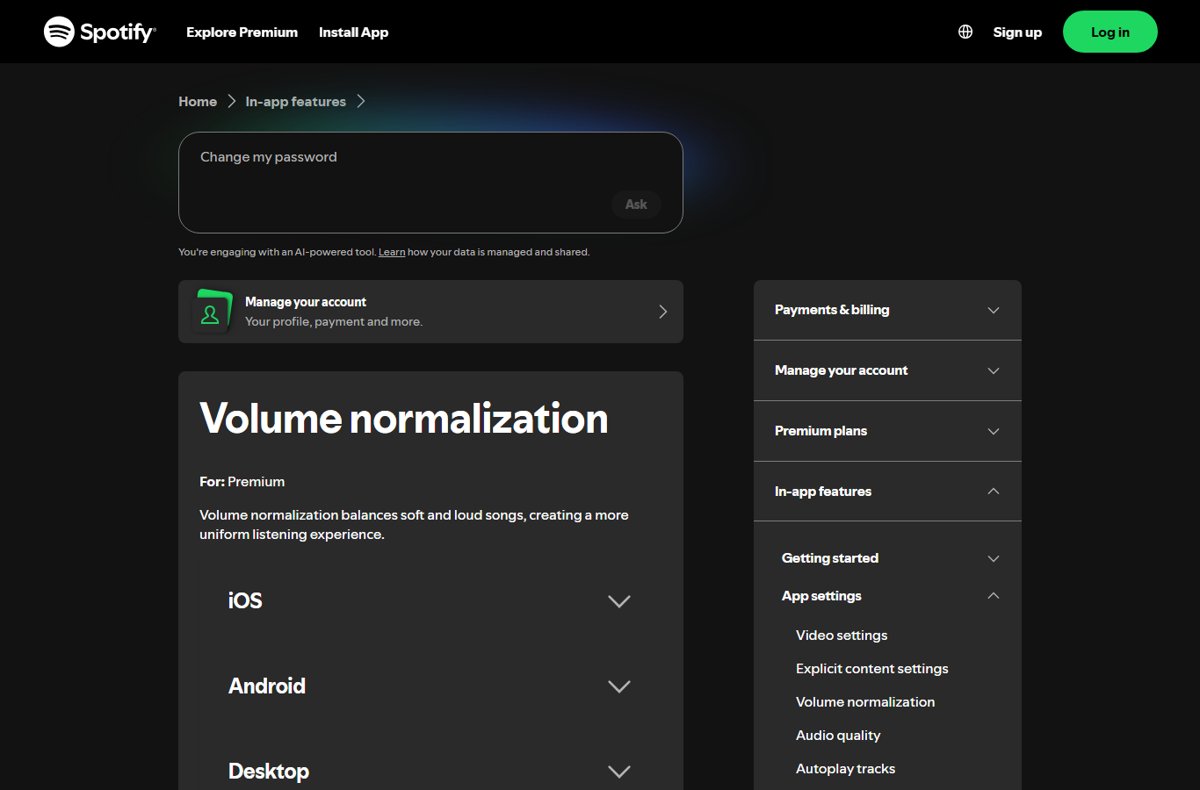
Make Spotify louder on a Windows PC or laptop
Windows has a per-app volume that can sit far below the system volume. This is the most common reason Spotify is quiet on a PC while other sounds are fine.
- Select Start > Settings > System > Sound.
- Select Volume mixer.
- Make sure the System volume slider is turned up.
- Under Apps, find Spotify, unmute it and drag its slider to maximum.
- Confirm the right Output device is selected for Spotify.
Spotify only appears under Apps while it is open, so start playback first. If you still need the app itself, see how to download Spotify for Windows.
Device-specific adjustments
The Spotify setting has the same name everywhere, but the menu path differs by device.
| Device | Path to Volume level | Extra step |
|---|---|---|
| Windows or Mac desktop app | Profile picture > Settings > Audio Quality > Normalize volume | Raise Spotify in the Windows Volume mixer |
| iPhone or iPad | Profile picture > Settings and privacy > Playback > Enable Audio Normalization | Use the slider in the Connect menu for speakers |
| Android | Profile picture > Settings and privacy > Playback > Volume controls | A built-in Android equalizer affects other apps too |
| Web player | No audio settings menu | Use the desktop app for Volume level and quality |
| Xbox | Xbox button > Guide > Spotify | Turn down in-game music if the game allows |
Make Spotify louder on Xbox
- Start playback in the Spotify app on your Xbox Series X, Xbox Series S or Xbox One.
- Open your game; Spotify keeps playing.
- Press the Xbox button on the controller to open the Guide.
- Select Spotify and raise the volume there.
- In the game's own audio options, lower or turn off in-game music if it offers that.
You can also control the volume from your phone with Spotify Connect while you play.
Advanced techniques
The equalizer cannot raise the maximum level, but boosting bass or midrange makes music sound fuller and easier to hear on small speakers.
- In the desktop app, click your profile picture and select Settings.
- Under Playback, switch Equalizer on.
- Choose a preset, or drag the dots to raise the bands you want louder.
- Under Audio Quality, set streaming quality to High or Very high for a cleaner signal.
- Turn off Auto adjust quality if the level drops when your connection slows.
Very high (about 320 kbit/s) and Lossless need Premium. Free accounts top out at High (about 160 kbit/s). Audio settings cannot be changed while you play on another device through Spotify Connect.
External audio tools
When every software control is at maximum, the speaker is the limit. The safest way to get more volume is better hardware, not a boosting app.
| Option | How it helps | How to use it with Spotify |
|---|---|---|
| Spotify Connect speaker or TV | Larger drivers play louder without distortion | Select the Connect menu in Spotify and pick the device |
| External speakers or headphones | Bypass small laptop speakers | Pick them as the output device in Volume mixer |
| Game console | Uses your TV or sound system | Install Spotify on Xbox and play through the Guide |
| Pairing with other devices | Moves playback to whatever is loudest nearby | Follow the steps to pair Spotify with your devices |
The impact of background noise
| Where you listen | Best Volume level | Reason |
|---|---|---|
| Gym, commute or street | Loud | Spotify designs it for noisy environments |
| Office or home | Normal | Keeps more of the music's dynamics |
| Late at night or a quiet room | Quiet | Avoids sudden loud tracks |
In a loud place, raising the volume to drown out noise is the usual cause of listening fatigue. Headphones that seal well let you hear the same detail at a lower level.
How to check it worked
- Play a track you know well with all sliders at maximum.
- Open Volume mixer and confirm Spotify's bar moves with the music and is not muted.
- Switch Volume level between Normal and Loud and listen for the jump.
- Compare with a video in your browser; Spotify should now be at a similar level.
Troubleshooting common issues
Spotify is quiet on PC even with Windows volume at maximum
Spotify's app volume in Volume mixer is lower than the system volume.
- Open Start > Settings > System > Sound > Volume mixer.
- Under Apps, raise Spotify's slider and unmute it.
- Raise the slider inside Spotify as well.
Sound is still low on a laptop after raising every slider
Audio enhancements or the output format can reduce the level.
- Open Settings > System > Sound and select your output device.
- Select Audio enhancements and turn them off, then test.
- If still low, select Advanced and choose a different Default format.
- Open Device Manager, expand Sound, video and game controllers, right-click the device and select Update driver.
Volume level option is missing
Normalization is off, you are on the web player, or the account is not Premium.
- Use the desktop or mobile app, not the web player.
- Switch Normalize volume on; Volume level appears next to it.
- Check your plan, because Spotify lists volume normalization for Premium.
Volume buttons on iPhone do not change a connected speaker
Apple removed the technology Spotify used to control Connect volume with hardware buttons.
- Press a volume button to bring up Spotify's on-screen slider.
- Or tap the Connect menu in the Now Playing bar and use the slider there.
Frequently asked questions
Can I make Spotify louder than max?
Yes, within limits. Set Volume level to Loud with normalization on, raise Spotify in the Windows Volume mixer and boost bands in the Equalizer. Beyond that, the speaker is the limit, so use louder hardware.
How do I make Spotify louder on PC?
Open Start > Settings > System > Sound > Volume mixer and raise Spotify's slider under Apps. Then set Volume level to Loud in Spotify's Settings under Audio Quality.
How do I make Spotify louder on a laptop?
Raise Spotify's slider in the app and in the Windows Volume mixer, and set Volume level to Loud. If it is still quiet, turn off Audio enhancements for the laptop speakers or play through external speakers.
How do I make Spotify louder on Xbox?
Press the Xbox button to open the Guide, select Spotify and raise the volume. If the game has its own music, turn it down or off in the game's audio options.
Why is Spotify quieter than other apps?
Windows keeps a separate volume for each app, and Spotify's normalization may be set to Normal or Quiet. Raise Spotify in Volume mixer and set Volume level to Loud.
Does Volume level Loud reduce sound quality?
It reduces dynamic range, so quiet and loud parts of a song sound closer together. Spotify recommends it for noisy environments; Normal keeps more of the original dynamics.
Can I make Spotify louder in the web player?
Only with the player's own slider and your system volume. Volume level is set in the desktop and mobile apps, and the web player cannot change audio quality, so use the desktop app for more control.
Does the Spotify equalizer make songs louder?
It makes the bands you raise more prominent, which often sounds louder, especially bass on small speakers. It does not raise the device's maximum output.