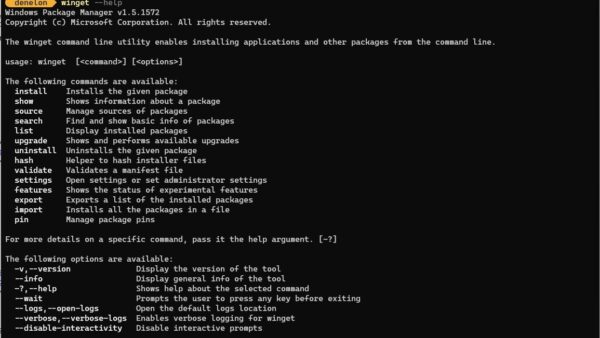
You can download the Adobe Acrobat Reader DC offline installer from Adobe’s official download selector. Choose your operating system, language, and either the 64-bit or 32-bit version, then save the full installer for use without an internet connection during setup.
Update: Adobe Acrobat Reader version 26.001.21691 is available for Windows and macOS. Adobe released this Continuous-track update on June 25, 2026.
Download Adobe Acrobat Reader offline installer from Adobe
Adobe Acrobat Reader is a free PDF viewer for opening, printing, signing, filling, sharing, and commenting on PDF files. Paid Acrobat plans add editing, conversion, scanning, redaction, and other document tools.
| Download | Recommended for | Official source |
|---|---|---|
| Windows 64-bit | Most Windows 11 and modern Windows 10 computers | Adobe download selector |
| Windows 32-bit | Older 32-bit Windows installations and specialist compatibility needs | Adobe download selector |
| macOS | Supported Intel and Apple silicon Macs | Adobe download selector |
| 26.001.21691 update | Computers that already have the required Acrobat Reader base installation | Adobe release page |
Important: The files on Adobe’s 26.001.21691 release page are mainly update packages. An MSP update cannot perform a clean Windows installation by itself. Use Adobe’s complete offline installer for a new installation, then apply the latest update if the installer does not already include it.
Direct Download Links for Adobe Acrobat Reader DC Offline Installer
Adobe changes installer filenames, versions, languages, and regional download links over time. The official Other Versions page is the safest permanent download link because it generates the correct installer after you select your system.
- Windows 64-bit and 32-bit: Download from Adobe
- macOS: Download from Adobe
- Standard online installer: Adobe Acrobat Reader download page
- Latest update packages: Adobe Acrobat and Reader release notes
The Other Versions page may label the current 64-bit package as Acrobat Reader, Acrobat Reader 64-bit, or a unified Acrobat and Reader installer. On supported 64-bit Windows computers, the installed program can appear as Adobe Acrobat even when you use only the free Reader features.
Adobe Acrobat Reader 26.001.21691 update downloads
Adobe provides the following 26.001.21691 update types:
| Platform | Package type | Purpose |
|---|---|---|
| Windows 64-bit | MSP | Updates an existing compatible 64-bit installation |
| Windows 32-bit | MSP | Updates an existing compatible 32-bit installation |
| macOS | DMG update | Updates an existing compatible Mac installation |
Open the official 26.001.21691 release page to download the relevant update package.
Do not use an MSP file for a computer that has never had Acrobat Reader installed. Download and install the complete Reader package first.
How to Download Adobe Acrobat Reader DC Offline Installer Manually
- Open Adobe’s Acrobat Reader Other Versions page.
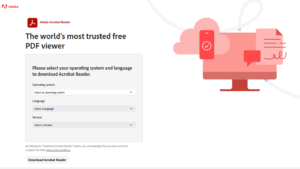
- Select your operating system from the first menu.
- Select the required language.
- Choose the available 64-bit or 32-bit Reader version.
- Select Download Acrobat Reader.
- Save the installer instead of running it directly from the browser.
The downloaded file contains the installation files required for setup. You can copy it to a USB drive, network folder, or another computer and run it without downloading the main program again.
Adobe’s normal Reader download page can provide a smaller web installer in some cases. That installer connects to Adobe during setup and is less suitable for offline computers or repeated installations.
How to Choose Between the 64-bit and 32-bit Installer
Use the 64-bit version on almost every Windows 11 computer and most Windows 10 PCs. Choose the 32-bit version only when Windows itself is 32-bit or when an organisation depends on an older 32-bit plug-in or workflow.
Check whether Windows is 64-bit or 32-bit
- Press Windows + I to open Settings.
- Go to System > About.
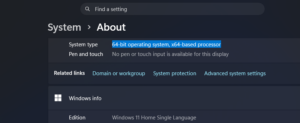
- Find System type under Device specifications.
If it says 64-bit operating system, install the 64-bit Reader. If it says 32-bit operating system, use the 32-bit package.
Windows 11 is available only as a 64-bit operating system, so Windows 11 users should select the 64-bit installer.
How to Install Adobe Acrobat Reader Offline
- Sign in to Windows with an administrator account.
- Close browsers, PDF viewers, Microsoft Office apps, and any open Adobe programs.
- Locate the downloaded EXE installer.
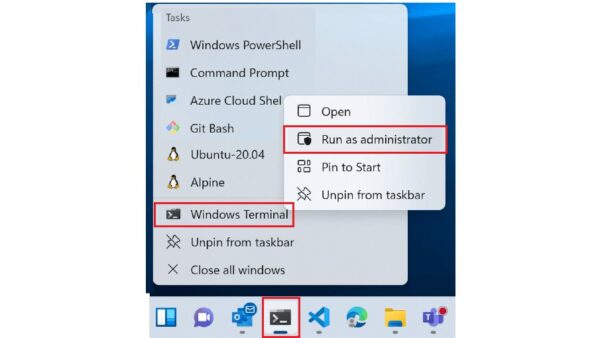
- Right-click the file and select Run as administrator.
- Approve the User Account Control prompt.
- Follow the installation instructions.
- Select Finish when setup completes.
- Open Acrobat Reader and confirm that a PDF opens correctly.
A free Reader installation does not require a paid Acrobat subscription. Adobe may ask you to sign in for cloud storage, sharing, AI, or other online services, but local PDF viewing and printing remain available without purchasing Acrobat Pro.
Install the latest update after setup
After installing the offline package, connect the computer to the internet when possible and open:
Menu > Help > Check for updates
This installs any fixes released after Adobe created the full installer. You can also use the appropriate update package from Adobe’s Continuous-track release page.
Adobe Acrobat Reader DC System Requirements
Adobe publishes separate requirements for 32-bit Windows, 64-bit Windows, and macOS.
| Component | Windows 64-bit | Windows 32-bit | macOS |
|---|---|---|---|
| Processor | Intel or AMD, 1.5GHz or faster | Intel or AMD, 1.5GHz or faster | Supported Intel or Apple silicon processor |
| Operating system | Windows 11 or 64-bit Windows 10 version 1809 or later | Compatible 32-bit Windows version listed by Adobe | A currently supported macOS version listed by Adobe |
| Memory | 2GB RAM | 2GB RAM | 2GB RAM |
| Storage | At least 900MB for English or 1GB for other languages | Up to 4.5GB, depending on the package | At least 380MB |
| Display | 1024 x 768 or higher | 1024 x 768 or higher | 1024 x 768 or higher |
Check Adobe’s current Acrobat Reader system requirements before installing on Windows 7, Windows 8, an older Windows Server release, or an older Mac. Support details can change between Reader releases.
Adobe Acrobat Reader DC Languages Availability
The desktop version of Acrobat Reader is available in these interface languages:
Basque, Brazilian Portuguese, Catalan, Croatian, Czech, Danish, Dutch, English, Finnish, French, German, Hungarian, Italian, Japanese, Korean, Norwegian, Polish, Romanian, Russian, Simplified Chinese, Slovak, Slovenian, Spanish, Swedish, Traditional Chinese, Turkish, and Ukrainian.
Basque, Catalan, Croatian, Slovak, and Slovenian are listed as Windows-only interface options. Language choices can also vary according to the installer, operating system, and download region.
Offline Installer vs Online Installer
| Feature | Offline installer | Online installer |
|---|---|---|
| Internet required during setup | No, after the full package has been downloaded | Yes |
| File size | Larger | Smaller initial download |
| Install on several PCs | Download once and reuse where licensing terms allow | Downloads files separately on each PC |
| Suitable for restricted networks | Yes | Often unsuitable |
| Version included | The version packaged when the installer was created | Usually downloads a current build during setup |
Fix Adobe Acrobat Reader Installation Problems
Remove an older or damaged installation
- Open Settings > Apps > Installed apps.
- Find Adobe Acrobat or Adobe Acrobat Reader.
- Select the three-dot menu and choose Uninstall.
- Restart Windows.
- Run the new offline installer as administrator.
Installer says a newer version is already installed
Windows blocks installation when the installed Reader build is newer than the package you downloaded. Update the existing copy through Help > Check for updates, or uninstall it before installing a different architecture.
MSP update will not install
An MSP patch requires the correct base product, architecture, language package, and update sequence. Download the complete current installer when the existing installation is missing, damaged, or from a different product track.
32-bit and 64-bit versions conflict
Remove the existing 32-bit Reader before performing a clean 64-bit installation when Adobe’s installer does not handle the migration automatically. Restart Windows before running the replacement package.
FAQs
What is the latest Adobe Acrobat Reader version?
The latest version covered here is Adobe Acrobat Reader Continuous track 26.001.21691, released on June 25, 2026.
Is Adobe Acrobat Reader free?
Yes. Reader includes PDF viewing, printing, form filling, signatures, sharing, and comments. Editing PDF text, converting files, advanced scanning, and other tools require an Acrobat subscription.
Is Adobe Acrobat Reader DC still called DC?
Adobe now usually calls the program Adobe Acrobat Reader. Many users and older pages still use Acrobat Reader DC, where DC refers to Adobe Document Cloud.
Can I install Adobe Reader without an internet connection?
Yes. Download the complete offline installer on a connected computer, copy it to the offline PC, and run the saved installer. Online services and later updates still require a connection.
Does the 26.001.21691 MSP file include the full program?
No. An MSP file updates an existing compatible Windows installation. It does not replace the complete EXE or MSI base installer required for a fresh installation.
Should I download Adobe Reader 64-bit or 32-bit?
Choose 64-bit for Windows 11 and most Windows 10 PCs. Use 32-bit only for a 32-bit Windows installation or a documented compatibility requirement.
Can I install the 32-bit version on 64-bit Windows?
Adobe provides configurations where 32-bit Reader can run on 64-bit Windows, but the 64-bit version is the better choice for most users. Older plug-ins and company software can require the 32-bit edition.
Can I use the same offline installer on multiple computers?
Yes, provided the computers use the same supported operating system and architecture. Businesses that distribute Reader across an organisation should review Adobe’s distribution and deployment terms.
Why does the 64-bit Reader appear as Adobe Acrobat?
Adobe uses a unified 64-bit application on Windows. The same installed app provides free Reader features or paid Acrobat features according to the user’s licence and sign-in status.
Does Adobe Reader work on Windows 7 or Windows 8?
Adobe’s 32-bit system-requirements page still lists certain older Windows versions, but current feature and security support can change. Check the requirements and release notes for the exact installer before using Reader on an unsupported Microsoft operating system.
Where should I download older Adobe Reader versions?
Use Adobe’s official older-version documentation or enterprise resources. Older Reader releases contain unpatched security issues and should be used only when required by legacy software on an isolated or carefully managed system.