Press Windows key + R, type joy.cpl and press Enter, then select your wheel in the Game Controllers window and click Properties to open the Thrustmaster Control Panel in Windows 11.
This guide covers that route, the taskbar-search route Thrustmaster documents, the separate My Thrustmaster Panel app used by the T818, T598 and T248R, the firmware updater, and what to do when the wheel never appears.
The fastest way to open the Thrustmaster Control Panel
Microsoft lists control joy.cpl as the command for Joystick Properties, and Thrustmaster's own support articles use joy.cpl as the way in.
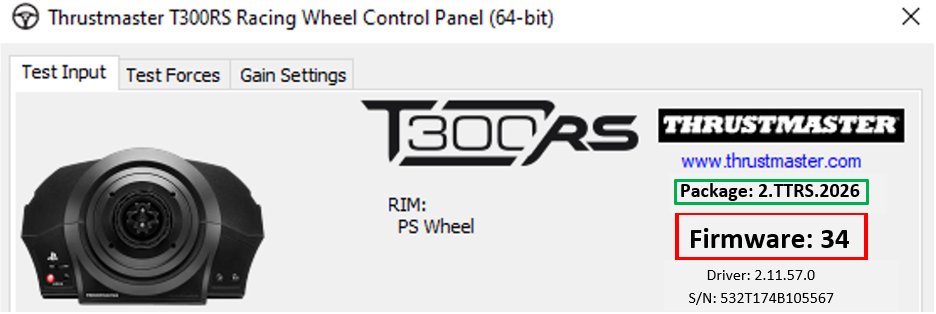
The Control Panel that opens carries three menus for force feedback wheels: Test Device, Test Forces and Settings.
- Connect the wheel directly to a USB port on the PC, with its power plug in a wall outlet rather than a power strip.
- On a T300 or T150, set the sliding switch on the base to the PC position first.
- Wait a few seconds while the wheel calibrates.
- Press Windows key + R to open the Run dialog box.
- Type
joy.cpland press Enter. - In the Game Controllers window, select your product's name and click Properties.
A reader who only wants the tuning tabs is finished here. The routes below matter for Direct Drive wheels, for firmware, and when the wheel never appears in the list.
Which route should you use?
Thrustmaster splits its PC software in two. Force feedback wheels use the Control Panel and a separate firmware app; the T818, T598 and T248R use My Thrustmaster Panel instead.
| Your device or situation | Use this | Why |
|---|---|---|
| T128, T150, TMX, T248, T300, TX, T-GT, T-GT II, TS-XW or TS-PC | joy.cpl, then Properties |
These wheels use the Control Panel and the PC – DRIVERS FORCE FEEDBACK [TTRS] driver |
| T818, T598 or T248R | My Thrustmaster Panel | Thrustmaster states these wheels are not supported by the Control Panel route |
| You prefer the mouse | Taskbar search, then type joy.cpl |
The route Thrustmaster's own articles document |
| You need the firmware version | The Control Panel window, top right | The firmware version is shown there for force feedback bases |
| You need to apply a firmware update | The Firmware Update app | Updates run from Thrustmaster – Firmware Updater, not from the Control Panel |
| The wheel is missing from the list | Device Manager | Shows whether the driver loaded at all |
| You are working in a script or a shortcut | control joy.cpl |
Runs from Command Prompt, PowerShell or a shortcut target |
System Requirements for Thrustmaster Control Panel
Thrustmaster states the requirements plainly: the Control Panel, My Thrustmaster Panel and the Firmware Update application run only on a PC with Windows 10 or 11 or later, and game consoles cannot view or update firmware.
| Requirement | What Thrustmaster states | How to check |
|---|---|---|
| Windows version | Windows 10 / 11 or more recent, PC only | Consoles have no access to firmware information |
| Driver, force feedback wheels | PC – DRIVERS FORCE FEEDBACK [TTRS], from the Drivers section of your wheel's page | Restart the PC to complete the installation |
| Driver, Direct Drive wheels | The NextRW driver installs automatically with My Thrustmaster Panel for the T818, T598 and T248R | No separate driver download is needed |
| Do not mix the two | The PC – DRIVERS FORCE FEEDBACK [TTRS] driver is incompatible with My Thrustmaster Panel | Install only the software for your own base |
| USB connection | Connect directly to a USB port on the PC, with no hub and no USB extension cable | On a desktop PC, try a port at the back |
| Power | Plug the power supply straight into a wall outlet, with no extension cord, power strip or converter | Check every connection before updating |
| Mode switch | T300 and T150 must be set to PC; T-GT and T-GT II must be set to OTHER | Set the switch before connecting USB |
| A wheel rim fitted | Bases with a detachable wheel must be tested with a Thrustmaster wheel mounted | Fit the rim before running any test |
| Internet, My Thrustmaster Panel only | The app must be online to retrieve updates | A green Connected indicator appears at the bottom of the wheel tab |
Step-by-Step Guide to Open Thrustmaster Control Panel in Windows 11
This is the mouse-only route, and it is the one Thrustmaster prints in its own support articles.
- Install the latest PC – DRIVERS FORCE FEEDBACK [TTRS] driver from the Drivers section of your wheel's page on the Thrustmaster support site, then restart the PC.
- Connect the wheel to the PC's USB port and let it calibrate.
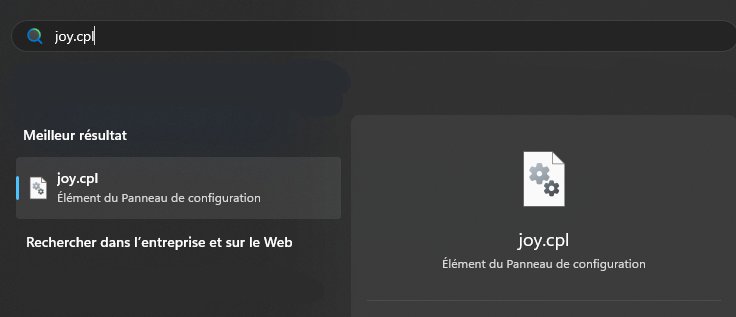
- Click in the Windows search field on the taskbar and type
joy.cpl, then click the result to launch it. - In the Game Controllers window, select the name of your steering wheel.
- Click Properties to open the Control Panel.
- Use the Test Device, Test Forces and Settings menus, and read the firmware version at the top right of the window.
The generic Windows list is the same one described in 12 ways to open the Control Panel in Windows 10 and 11, which covers every route into Control Panel itself.
Open My Thrustmaster Panel for a T818, T598 or T248R
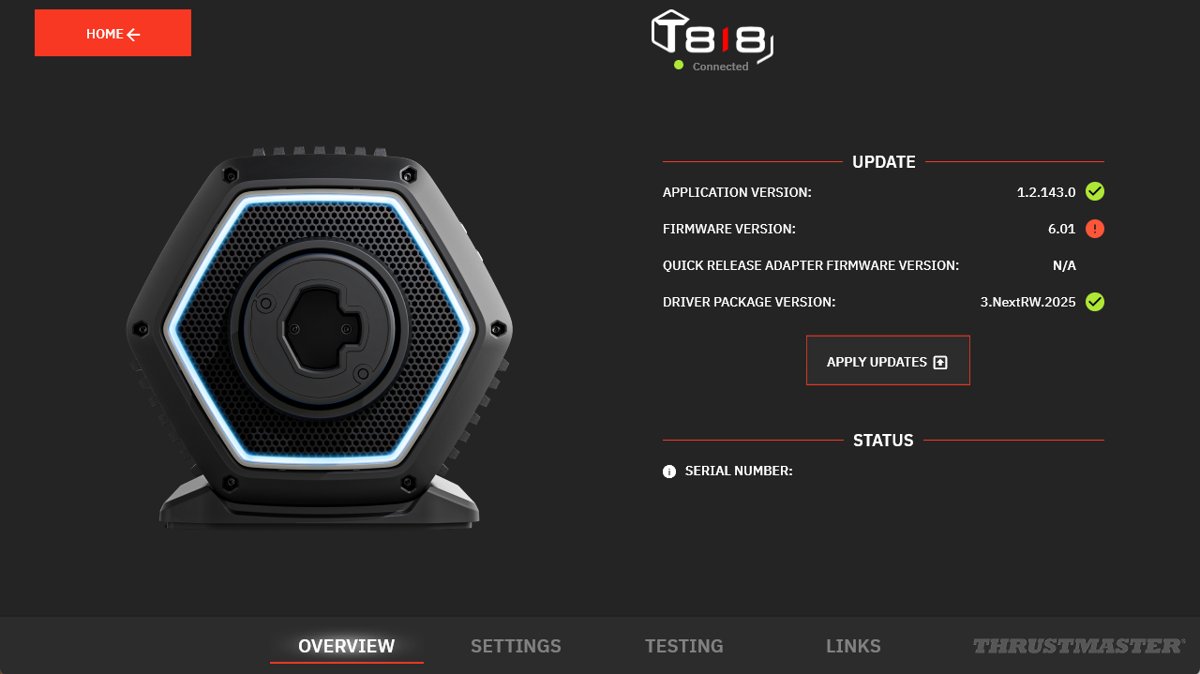
Direct Drive bases and the T248R do not use the Control Panel at all. Thrustmaster states that the T248R uses neither the PC – DRIVERS FORCE FEEDBACK [TTRS] driver, the Control Panel, nor the Firmware Update application.
- Install My Thrustmaster Panel from the Thrustmaster support page for your base, which also installs the NextRW driver.
- Connect the base to a USB port on the PC.
- On a T818 or T598, set the switch on the back of the base to ON.
- Wait a few seconds, then open My Thrustmaster Panel.
- Check the bottom of the wheel tab for the green Connected indicator.
- Click TESTING for the test features, or SETTINGS for the adjustment features.
Thrustmaster recommends against opening My Thrustmaster Panel for a force feedback base, and advises uninstalling it if you own only a force feedback wheel. The full matrix is in Help Center – Racing Wheels.
Check the device in Device Manager when the list is empty
An empty Game Controllers list is a driver or connection problem, not a Control Panel problem. Device Manager says which of the two you have.
- In search on the taskbar, enter
Device Managerand select it from the results. - Look for an entry carrying a warning marker while the wheel is connected.
- Unplug the wheel and watch which entry disappears, which identifies it exactly.
- Update the driver for that entry, following Update drivers through Device Manager in Windows.
- If Windows keeps the same driver, reinstall the device from the same page, then restart the PC.
- Reopen
joy.cpland check that the device is now listed.
Install the Thrustmaster driver and Control Panel from scratch
The Control Panel arrives with the wheel's driver package. Windows on its own gives you the Game Controllers list and nothing more.
- Disconnect the wheel from the PC.
- Open your wheel's page on the Thrustmaster support site, since packages are published per model.
- For a force feedback wheel, install the package listed in the Drivers section, named in the form PC – DRIVERS FORCE FEEDBACK [Package ….exe] + Firmware.
- For a T818, T598 or T248R, install My Thrustmaster Panel instead and install no separate driver.
- Restart the computer to complete the installation.
- Connect the wheel again, let it calibrate, then open
joy.cpland confirm it is listed.
Never take a wheel driver from a download portal or a driver updater tool. Thrustmaster publishes the package on the support page for the exact model.
Open the game controller list from Command Prompt or PowerShell
Microsoft documents the Control Panel tools as control commands, so the same string works in Command Prompt, in PowerShell, in the Run box and as a desktop shortcut target.
control joy.cplcontrol is the Control Panel host and joy.cpl is the game controller tool, listed by Microsoft as Joystick Properties. The documented alternative form is rundll32.exe shell32.dll,Control_RunDLL joy.cpl.
You should see: The Game Controllers window opens with every attached controller listed by name.
Other Control Panel tools follow the same pattern, for example the audio tool covered in mmsys.cpl: step-by-step guide to the Windows multimedia Control Panel.
Where each Thrustmaster setting lives in Windows 11 and Windows 10
| What you want | Windows 11 | Windows 10 |
|---|---|---|
| The Game Controllers list | joy.cpl in the Run box or taskbar search |
joy.cpl in the Run box or taskbar search |
| The same list from a command line | control joy.cpl |
control joy.cpl |
| Control Panel tabs for a force feedback wheel | Select the wheel, then Properties | Select the wheel, then Properties |
| Firmware version of the base | Top right of the Control Panel window | Top right of the Control Panel window |
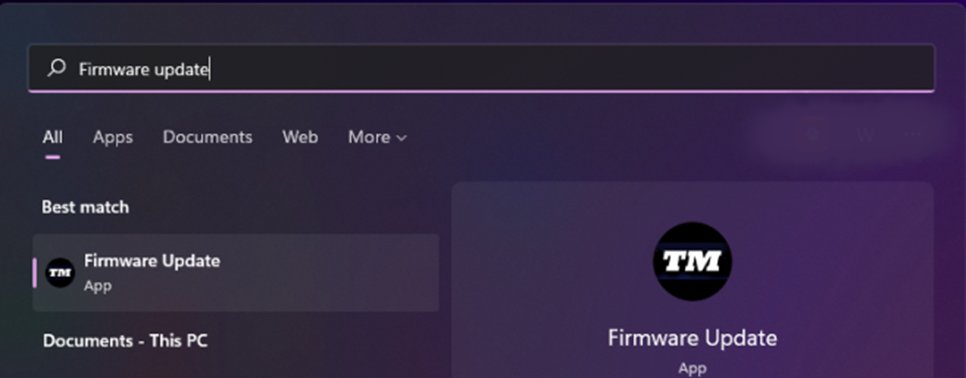
| The firmware updater | Taskbar search for Firmware Update |
Taskbar search for Firmware Update |
| Direct Drive tests and settings | My Thrustmaster Panel, then TESTING or SETTINGS | My Thrustmaster Panel, then TESTING or SETTINGS |
| Driver state for the wheel | Search on the taskbar for Device Manager | Search on the taskbar for Device Manager |
| Optional driver updates | Settings > Windows Update > Advanced options > Optional updates | Listed under Windows Update in Settings |
| Removing the software | Settings > Apps > Installed apps | Settings > Apps |
How to check it worked
Thrustmaster's own test procedure covers two things: whether the startup calibration completes, and whether force feedback responds.
- Watch the wheel at startup. It should turn counter-clockwise, then clockwise, then return to the centre.
- Open
joy.cpland confirm the wheel is listed by name rather than as an unnamed device. - Select it, click Properties, and check the firmware version shown at the top right.
- Open the Test Device menu and confirm each axis and button reports as you move it.
- Open the Test Forces menu and run the twelve available tests, watching for a response to each one.
- On a T818, T598 or T248R, open My Thrustmaster Panel and use TESTING instead.
Thrustmaster's full procedure is in Testing calibration and force feedback of my Thrustmaster racing wheel. A wheel that fails a calibration or force test is a support case, not a settings problem.
Understanding Thrustmaster Control Panel
Several windows get called the control panel, and the difference explains most of the confusion in this topic.
| What it is | What it covers | How to open it |
|---|---|---|
| The Game Controllers window | Windows' own list of attached controllers, the Control Panel tool Microsoft calls Joystick Properties | joy.cpl or control joy.cpl |
| The Thrustmaster Control Panel | Test Device, Test Forces and Settings for force feedback wheels, plus the firmware version at top right | Select the wheel in Game Controllers, then click Properties |
| My Thrustmaster Panel | Updating, testing and adjusting the T818, T598 and T248R and their add-ons | Open the app from the Start menu |
| Thrustmaster – Firmware Updater | Applying a firmware update to a force feedback base | Taskbar search for Firmware Update |
| PC – DRIVERS FORCE FEEDBACK [TTRS] | The driver that makes the Control Panel tabs appear | Drivers section of your wheel's support page |
| The Device Manager entry | Whether the driver loaded at all | Search on the taskbar for Device Manager |
Configuring Your Device Using the Control Panel
The Settings menu holds the adjustments, and Thrustmaster notes that they apply only when playing on PC.
- Close every game before changing settings, because a running game holds the device.
- Open
joy.cpl, select the wheel and click Properties. - Open Test Device and confirm every axis and button reports correctly before changing anything.
- Open Settings and change one value at a time.
- Return to Test Forces and retest after each change.
- On a T818, T598 or T248R, use SETTINGS in My Thrustmaster Panel instead.
- Start the game last, so it reads the settings you just applied.
Racing games hold their own wheel settings as well. A change made here does not override a per-game sensitivity setting.
What the force feedback effects in the Control Panel mean
| Effect | What it does | Thrustmaster's example |
|---|---|---|
| Constant | Keeps the same force level over time at the percentage the game asks for | Simulating G-force, rising with speed and wheel angle |
| Periodic | Varies over time by effect type, amplitude and frequency | Rumble at high frequency; a crash effect at very low frequency |
| Spring | Increases with distance from a set wheel position, and can be set negative | The wheel returning to centre when released |
| Damper | Controls how the wheel reacts while it is moving, like dynamic friction | Making the wheel harder or smoother to turn |
Spring and damper are the dynamic effects, since they depend on wheel position and speed. Constant and periodic are static, set by the game regardless of how you turn the wheel. The full explanation is in Force Feedback settings explanation.
How to undo a change or remove the software
- Reopen Properties from
joy.cpland set the value in Settings back to the one the driver shipped with. - For a driver change, open Device Manager, find the device, and roll the driver back as described on Microsoft's Device Manager driver page.
- If you own only a force feedback wheel and installed My Thrustmaster Panel, uninstall it, as Thrustmaster recommends.
- To remove any of the software, select Start > Settings > Apps > Installed apps.
- Find the Thrustmaster entry, select More, then select Uninstall.
- Restart the PC, then reopen
joy.cplto confirm the device now shows only the generic Windows properties.
Updating Firmware
Firmware sits on the wheel base, so Windows Update does not deliver it. Thrustmaster ships the newest firmware with the newest driver and applies it from a separate app.
- Install the latest PC – DRIVERS FORCE FEEDBACK [TTRS] driver for your wheel, then restart the PC.
- Disconnect every other Thrustmaster device, so only the wheel being updated is connected.
- Fit a wheel rim to the base if it takes a detachable wheel.
- Plug the power supply straight into a wall outlet and the USB plug straight into a port on the PC, with no hub, extension cord, power strip or converter.
- Set a T300 or T150 to PC, or a T-GT or T-GT II to OTHER, before connecting USB.
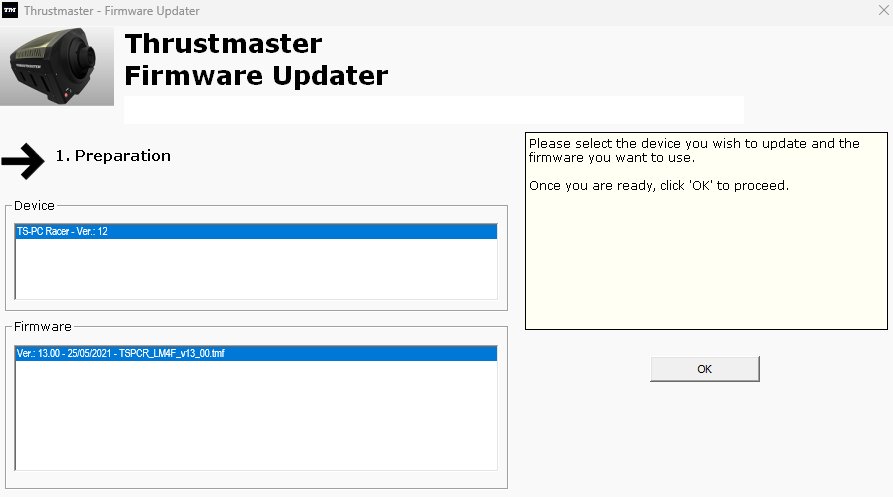
- Click in the Windows search field on the taskbar, type
Firmware Updateand launch the app. - In the Thrustmaster – Firmware Updater window, compare Device, the current firmware, with Firmware, the version to be applied.
- Click OK and wait, without disconnecting either USB connector. The LEDs on the base turn off during the update and come back on at the end.
- On a T128 or T248 only, unplug and replug the USB connector to validate the procedure.
- Let the wheel self-calibrate, then click OK and close the updater.
The full procedure, including the bootloader wake-up method for a base that will not power on, is in Firmware Update – Thrustmaster Force Feedback Racing Wheels. For a T818, T598 or T248R, updates run from My Thrustmaster Panel with APPLY UPDATES instead.
Troubleshooting Common Issues
Can't find the Thrustmaster Control Panel anywhere on the PC
The Control Panel is part of the wheel's driver package, so nothing is installed until that package is.
- Select Start > Settings > Apps > Installed apps and look for the Thrustmaster entry.
- If nothing is listed, install PC – DRIVERS FORCE FEEDBACK [TTRS] from the Drivers section of your wheel's support page.
- Restart the computer to complete the installation.
- Connect the wheel, let it calibrate, then open
joy.cpl. - Select the wheel and click Properties, which is where the Control Panel opens from.
- If your base is a T818, T598 or T248R, install My Thrustmaster Panel instead, since those wheels have no Control Panel.
The Control Panel is not in the Start menu or in search
The Control Panel opens from the device properties rather than as its own Start menu app.
- Open
joy.cplfrom taskbar search or the Run box. - Select the wheel's name and click Properties.
- Search the taskbar for
Firmware Updateif it is the updater you are looking for. - If the Thrustmaster entry is listed in Installed apps but nothing opens, reinstall the driver package and restart the PC.
The wheel is missing from the Game Controllers list
No working driver, the wrong mode switch position, or a connection Thrustmaster rules out.
- Connect the wheel straight to a USB port on the PC, avoiding hubs and USB extension cables, and try a port at the back of a desktop.
- Plug the power supply directly into a wall outlet, not an extension cord or power strip.
- Set a T300 or T150 to the PC position, or a T-GT or T-GT II to OTHER, then reconnect.
- Open Device Manager and look for an entry with a warning marker.
- Reinstall PC – DRIVERS FORCE FEEDBACK [TTRS] and restart the PC.
- If the base still will not power on or be detected, follow Thrustmaster's wake-up method (bootloader).
The wheel is listed under a name you do not recognise
Thrustmaster lists several wheels under the base name or under a shared name.
- Expect a T150 or TMX to appear under the name of the base.
- Expect a T300, TX, T-GT, T-GT II, TS-XW or TS-PC with a detachable wheel to appear under the name of the base.
- Expect a T128 or T248, and any base fitted with a new generation detachable wheel, to appear as Thrustmaster Advanced Mode Racer.
- Select that entry and click Properties, then confirm the firmware version at the top right matches your base.
The wheel is listed but does not respond to input or forces
Another app is holding the device, or the base is being tested without a wheel rim fitted.
- Close every game, launcher and overlay, then test again in Test Device.
- Fit a Thrustmaster wheel to the base if it takes a detachable rim, which Thrustmaster requires for testing.
- Run the twelve tests in Test Forces and note which ones do nothing.
- Reinstall the device driver from Device Manager and restart the PC.
- If the wheel still fails a force test, contact Thrustmaster technical support rather than changing more settings.
Installing the Thrustmaster software fails or the wrong app is installed
The two software families conflict, and an older package can block a newer one.
- Sign in with an administrator account and accept the prompt the installer raises.
- Disconnect the wheel before running the installer.
- Remove any older Thrustmaster entry from Settings > Apps > Installed apps first.
- Install only the software for your own base, since the PC – DRIVERS FORCE FEEDBACK [TTRS] driver is incompatible with My Thrustmaster Panel.
- Restart the PC, run the installer again, and connect the wheel only afterwards.
A wireless gamepad never reaches the controller list
Pairing has not completed, so Windows has no device to enumerate.
- Select Start > Settings > Bluetooth & devices and make sure Bluetooth is switched On.
- Put the device into pairing mode using the instructions in its manual.
- Select the Network, Sound or Battery icon on the taskbar, then open the Bluetooth quick setting and select the device under New devices.
- Follow any prompts, then select Done.
- Open
joy.cpland confirm the device is now listed.
Best Practices for Using Thrustmaster Control Panel
| Practice | Why it helps |
|---|---|
| Connect the base straight to the PC and the power plug straight to a wall outlet | Thrustmaster rules out hubs, USB extensions, extension cords, power strips and converters |
| Keep only the wheel being updated connected | Thrustmaster warns that other connected devices cause conflicts during a firmware update |
| Always test with a wheel rim mounted on a detachable base | Use without a rim, or with a non-recommended rim, can alter how the base operates |
| Install only the software for your own base | The PC – DRIVERS FORCE FEEDBACK [TTRS] driver is incompatible with My Thrustmaster Panel |
| Check the firmware at the top right of the Control Panel after every driver update | The latest firmware ships with the latest driver |
| Close games before changing settings | A running game holds the device and can ignore a change made behind it |
| Check Optional updates after a Windows feature update | Optional drivers are listed there and are never installed automatically |
| Treat per-game settings separately | Control Panel adjustments apply on PC only, and games store their own sensitivity |
Frequently Asked Questions
How do you open the Thrustmaster Control Panel?
Press Windows key + R, type joy.cpl and press Enter. In the Game Controllers window, select your product's name and click Properties. The Control Panel opens with the Test Device, Test Forces and Settings menus.
What do you do when you can't find the Thrustmaster Control Panel?
It is not a Start menu app. It opens from the device properties in joy.cpl, and only after the PC – DRIVERS FORCE FEEDBACK [TTRS] driver is installed. Direct Drive bases and the T248R have no Control Panel and use My Thrustmaster Panel instead.
How do you set up a Thrustmaster wheel on Windows 11?
Install the driver from your wheel's support page and restart the PC. Connect the base straight to a USB port with its power plug in a wall outlet, set a T300 or T150 to PC, let it calibrate, then confirm it in joy.cpl.
How do you find the Thrustmaster Control Panel if it is not in the Start menu?
Click the Windows search field on the taskbar, type joy.cpl and launch it. Select the wheel in the Game Controllers window and click Properties. That is the documented route, and the Control Panel has no separate Start menu shortcut.
How do you install the Thrustmaster Control Panel?
Disconnect the wheel, open its page on the Thrustmaster support site, and install the package listed in the Drivers section as PC – DRIVERS FORCE FEEDBACK. Restart the computer, then reconnect the wheel and open joy.cpl.
Does the same method work on Windows 10?
Yes. Thrustmaster states the Control Panel, My Thrustmaster Panel and the Firmware Update application run on Windows 10 and 11 or later. joy.cpl opens the Game Controllers list on both, and only the Settings paths differ.
Where should you download the Thrustmaster Control Panel software from?
Only from the Thrustmaster support site, using the page for your exact model. Packages are named in the form PC – DRIVERS FORCE FEEDBACK [Package ….exe] + Firmware. Avoid download portals and driver updater tools.
Why does the wheel show a different name in the list?
Thrustmaster lists the T150 and TMX under the base name, and bases with a detachable wheel under the base name too. A T128, a T248 or a base with a new generation rim appears as Thrustmaster Advanced Mode Racer.
How do you check the firmware version?
Open the Control Panel from joy.cpl and read the firmware version at the top right of the window. Game consoles cannot show firmware information, so the check has to be done on a PC running Windows 10 or 11.
What is My Thrustmaster Panel, and do you need it?
It is the app for the T818, T598 and T248R, covering updating, testing and adjusting those bases. Thrustmaster says force feedback wheels should not use it, and recommends uninstalling it if you own only a force feedback wheel.
Why does the wheel work in Windows but not in a game?
The game either holds a different controller as the primary device or stores its own input settings. Confirm the axes respond in Test Device, then set the wheel as the input device inside the game.
Bottom line
Use joy.cpl and Properties as the single entry point for a force feedback wheel, and My Thrustmaster Panel for a T818, T598 or T248R. The Game Controllers list is the one place that proves the wheel is detected, and the Test Device, Test Forces and Settings menus hang off it once the PC – DRIVERS FORCE FEEDBACK [TTRS] driver is installed. Vendor panels for other hardware follow the same pattern, as opening the Intel Graphics Control Panel in Windows 11 shows.