Close every Discord process, delete the Discord folders in %AppData% and %LocalAppData%, restart Windows, then run a fresh installer from discord.com/download to break a Discord update failed loop.
This guide starts with that clean reinstall, then covers each smaller check, the safe way to handle antivirus blocks, and the older Windows versions Discord no longer updates.
Step by step tutorial on how to fix Discord update failed
This route removes the update files that keep failing. Your servers and messages belong to your Discord account, so sign in again afterwards to get them back.
- Quit Discord from the system tray, the area near the clock on the taskbar.
- Press Ctrl + Shift + Esc to open Task Manager, select each Discord entry, and select End task.
- Press Windows key + R, type
%AppData%, press Enter, and delete the Discord folder. - Press Windows key + R, type
%LocalAppData%, press Enter, and delete the Discord folder there too. - Restart Windows.
- Open discord.com/download, select the x64 or ARM64 Windows download that matches your PC, and run DiscordSetup.exe.
- Let the installer finish, then sign in with your Discord account.
If a folder refuses to delete, a Discord process is still running, so return to Task Manager and end it. Every section below covers a smaller check or a specific cause, so use them if you would rather not reinstall yet.
Why does Discord keep saying update failed?
Discord checks for an update when it starts. A loop means that check keeps failing, and each likely cause has its own fix.
| Likely cause | How to spot it | Fix |
|---|---|---|
| Discord is having a service problem | Discord's status page reports an incident | Wait for it to clear, then reopen the app |
| The connection cannot reach Discord | A VPN or proxy is active, or web pages also fail | Disconnect the VPN and turn off the proxy |
| Security software blocked the update | Your antivirus history names a Discord file | Review the block and reinstall from discord.com |
| Damaged local files | The loop returns on every launch | Clear the cache, or remove and reinstall |
| Unsupported Windows | The PC runs Windows 7, 8, 8.1 or 32-bit Windows | Move to 64-bit Windows 10 or Windows 11 |
Check Discord service status
An outage can stop the update check on every PC at once, and nothing you change locally fixes that. Checking takes less than a minute, so do it before you delete anything.
- Open a browser on your PC or phone and go to discordstatus.com, the status page linked in the footer of discord.com.
- Read the current status banner and any incident listed underneath it.
- If an incident is open, leave Discord closed and wait until the page reports it resolved.
- Reopen Discord and let the update check run again.
Run Discord as an administrator
Discord lists this as a last resort for installer errors, not a daily setting. Use it once to let the update finish, then go back to opening Discord normally.
- Quit Discord from the system tray, and end any Discord entry left in Task Manager.
- Select Start and type Discord.
- Right-click Discord in the results and select Run as administrator.
- Select Yes in the User Account Control prompt.
- Wait for the update check to finish, then close Discord and reopen it normally.
Check your internet connection (and disable VPNs, firewalls, or proxies)
Disconnecting a VPN or a proxy is a safe test. Leave Windows Firewall on, though: Microsoft warns that turning it off can expose your device, and advises allowing the blocked app instead.
- Open a few websites in your browser to confirm the connection works.
- Select Settings > Network & internet > VPN, then disconnect any connection marked Connected. If your VPN has its own app, disconnect it there.
- Go to Settings > Network & internet > Proxy. Under Manual proxy setup, select Set up next to Use a proxy server, turn off Use a proxy server, and select Save.
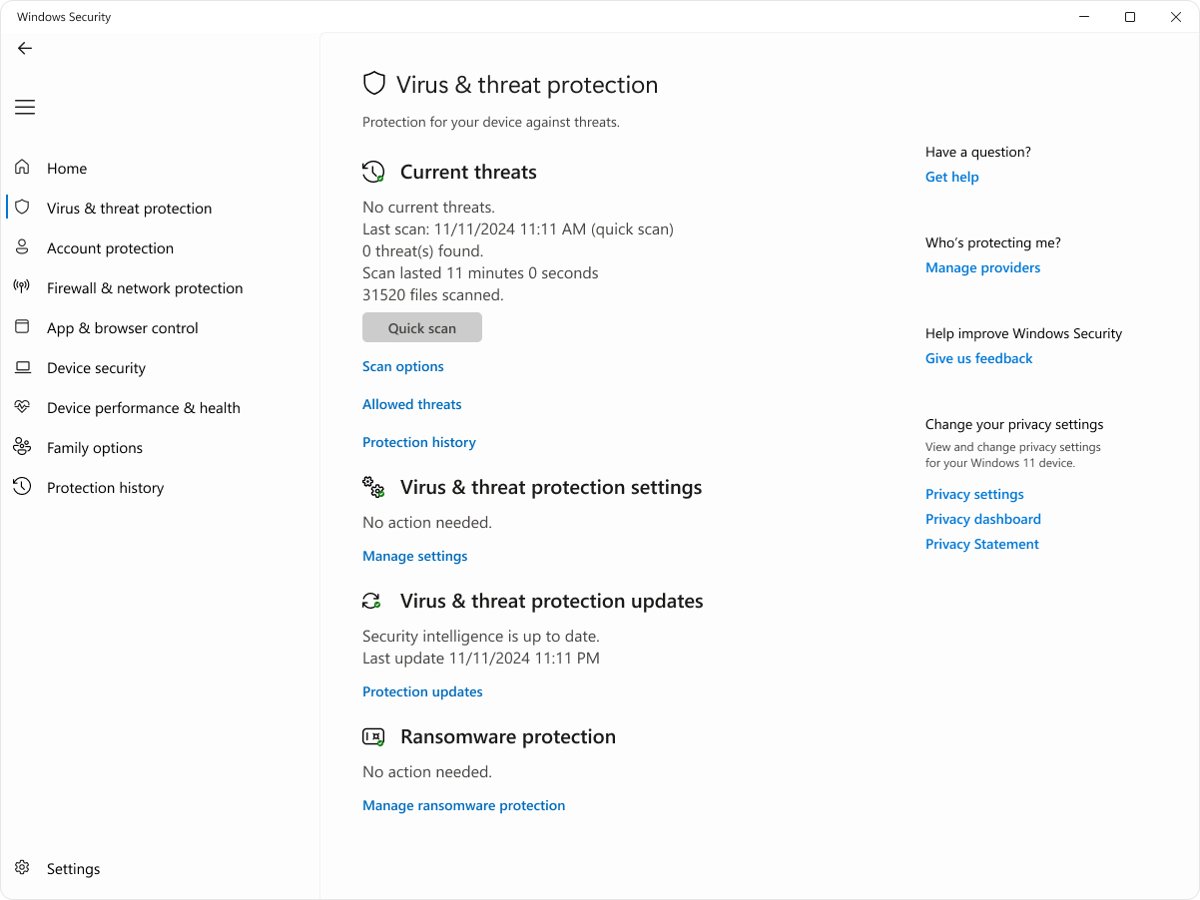
- Open Windows Security and select Firewall & network protection > Allow an app through firewall.
- Select Change settings. If Discord is listed, tick its box. If it is not, select Allow another app and enter the path to the app's file.
- Select OK, then reopen Discord.
Your organization may require a proxy on a work PC, and managed devices can block these changes. Ask your IT department in that case rather than working around the policy.
Should you temporarily disable or uninstall your antivirus for Discord?
No. Keep your antivirus running and find out whether it blocked Discord at all. Its history list answers that question, while turning protection off leaves the files you open or download unscanned.
- Open your antivirus app and find its history, quarantine or blocked-items list.
- Look for an entry that names Discord or
DiscordSetup.exearound the time the loop started. - If an entry exists, use your antivirus vendor's own instructions to review it.
- Download a new copy of the installer from discord.com/download, never from a third-party site.
- Run the new installer with your antivirus still on.
- If the same block returns, send the file to your antivirus vendor for review through its support site.
Do you need to disable Windows/Microsoft Defender for Discord updates?
No. Microsoft notes that while real-time protection is off, files you open or download are not scanned, which is the wrong moment to fetch a new installer. Use the protection history list to check for a block instead.
- Select Start, type Windows Security, and open the app.
- Select Protection history.
- Look through the entries for one that names Discord, and open it to read what happened.
- If nothing mentions Discord, Microsoft Defender has no recorded block, so move on to the next fix.
- If an entry names a Discord file, delete that copy and download a new installer from discord.com/download.
Leave Real-time protection turned on throughout. Microsoft also warns that exclusions can leave your device more vulnerable, so they are not a good first answer for an update loop.
Clear Discord's cache files
The %AppData%\Discord folder holds Discord's settings and cache. Clearing the cache folders is a smaller change than a full reinstall, so try it first if you want to keep your local app settings.
- Quit Discord from the system tray, and end every Discord entry in Task Manager.
- Press Windows key + R, type
%AppData%\Discord, and press Enter. - Select the folders with Cache in their name and press Delete.
- Close File Explorer and reopen Discord.
- Let the update check run again.
Rename the Discord update executable file
This is a workaround rather than a repair, because it stops the updater running at all. Use it only to get into Discord for an urgent call, then reinstall.
- Quit Discord from the system tray, and end every Discord entry in Task Manager.
- Press Windows key + R, type
%LocalAppData%\Discord, and press Enter. - If the folder holds a file named Update, right-click it, select Rename, and add
.oldto the end of its name. - Open the newest version folder and double-click Discord.
- When you finish, remove
.oldfrom the file name, or follow the reinstall steps in the next section.
A renamed updater cannot deliver new versions, so the copy you opened stays out of date. Outdated clients without end-to-end encryption support are refused from non-stage voice calls, so do not stay on this setup.
Remove and reinstall Discord
Uninstalling first gives you a tidier result than deleting the folders alone. This route adds the Windows uninstall to the fast steps at the top of this page.
- Quit Discord from the system tray, and end every Discord entry in Task Manager.
- Select Start > Settings > Apps > Installed apps.
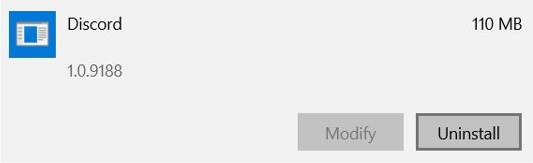
- Find Discord, select More (the three-dot icon), and select Uninstall.
- Delete the Discord folder in
%AppData%and the Discord folder in%LocalAppData%. - Restart Windows.
- Run a fresh DiscordSetup.exe from discord.com/download, or install Discord from its Microsoft Store listing.
If the installer itself fails or will not download, you can fix Discord installer problems with a separate set of steps.
Get Discord up-to-date and working again
A finished update takes you past the update window to the normal sign-in or home screen. A voice channel gives you a stronger test, since outdated clients are turned away from those calls.
- Open Discord from the Start menu, not from an old shortcut or a renamed file.
- Wait for the update window to close and the main app to open.
- Sign in if Discord asks you to.
- Join a voice channel or start a call to confirm the client is accepted.
- Close Discord fully, reopen it, and check that the update failed message does not return.
Tips for fixing Discord update failed
These habits save the most time, because most failed attempts come from a Discord process left running or an old installer.
| Tip | Why it helps |
|---|---|
| Close Discord in the system tray and in Task Manager every time | Closing the window alone can leave Discord running, which locks its folders |
| Check the status page before you delete anything | An outage clears on its own, so a reinstall would gain nothing |
| Change one thing at a time | You learn which change fixed the loop, and you can undo the others |
| Download a fresh installer each time | An old DiscordSetup.exe may start from a version that has to update again |
| Use discord.com/download only | Installers from download portals can carry unwanted software |
| Keep your antivirus and firewall on | Reviewing a block or allowing one app is safer than removing protection |
Can you use Discord in a browser when the app will not update?
Yes. The web client skips the desktop updater, so you can use Discord in your web browser while you repair the app.
- Open a supported browser such as Chrome, Firefox, Edge or Opera.
- Go to discord.com/login.
- Sign in with your Discord email or phone number and password.
- Return to the desktop app fixes when you have time for a restart.
Discord still says update failed after reinstalling
Discord stopped updating on an older PC
Discord dropped Windows 7, 8 and 8.1 on March 15, 2024, and 32-bit Windows on June 15, 2024. Existing 32-bit installs receive no updates.
- Select Start > Settings > System > About and read your Windows version and system type.
- Move to 64-bit Windows 10 or Windows 11 to get Discord updates again.
- Use discord.com/login in a browser if you cannot upgrade the PC yet.
Windows says a Discord file is in use
A Discord process is still running in the background.
- Open Task Manager and end every Discord entry.
- Open the Startup apps page in Task Manager, select Discord, and select Disable for now.
- Restart Windows and delete the folders again.
- Re-enable the Discord startup item once the app works.
The loop continues after a clean reinstall
Another background app or service may be interfering with the update.
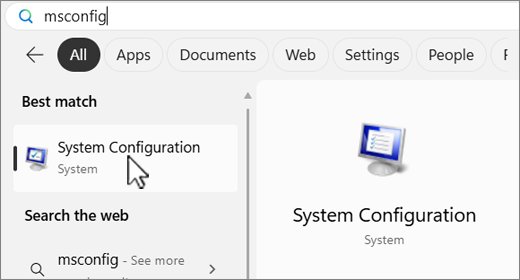
- Sign in as an administrator, select Search, type
msconfig, and open System Configuration. - On the Services tab, select Hide all Microsoft services, select Disable all, and select Apply.
- On the Startup tab, select Open Task Manager, disable each enabled startup app, and note which ones you changed.
- Close Task Manager, select OK, and restart. Then open Discord and let it update.
- Afterwards, return to System Configuration, select Normal Startup on the General tab, clear Hide all Microsoft services, select Enable all, and re-enable your startup apps.
- If Discord updated only in the clean boot, repeat with half of the items at a time to find the conflict.
Discord update failed FAQ
Why is my Discord stuck in an update failed loop?
The update check Discord runs at startup keeps failing. A service incident, a VPN or proxy, a security block, damaged local files or an unsupported version of Windows are the likely causes, and each has a different fix.
How do I fix Discord update failed without reinstalling?
Check discordstatus.com, disconnect any VPN or proxy, run Discord once as administrator, and delete the cache folders in %AppData%\Discord. If the loop returns after those checks, a clean reinstall is the remaining option.
Will reinstalling Discord delete my servers and messages?
No. Servers, friends and messages belong to your Discord account rather than to the PC. Deleting the local folders removes the app files and local settings, so you sign in again and set any device preferences once more.
Is it safe to delete the Discord folders in AppData?
Yes, when Discord is fully closed. Discord's own installer guidance includes deleting the Discord folders in %AppData% and %LocalAppData%. You lose local app files and settings on that PC, and a fresh install recreates the folders.
Do I need to turn off my antivirus to update Discord?
No. Keep your antivirus on and check its history for an entry naming Discord. If it blocked an installer, download a new copy from discord.com/download and ask the antivirus vendor to review the file if the block returns.
Does Discord still update on Windows 7 or 8?
No. Discord ended support for Windows 7, 8 and 8.1 on March 15, 2024, and for 32-bit Windows on June 15, 2024. Move to 64-bit Windows 10 or Windows 11, or use Discord in a browser in the meantime.
Can I install Discord from the Microsoft Store instead?
Yes. Discord has a Microsoft Store listing, so you can use it as an alternative to DiscordSetup.exe. Remove the old install and its leftover folders first, so the failed update files do not stay on the PC.