Windows Update and Security settings in Windows 10 live under Start > Settings > Update & Security, one hub for updates, Windows Security, backup, recovery and activation.
This guide walks through every page in that hub, what each one changes, and how to keep a Windows 10 PC patched now that free support has ended.
Open Update & Security settings in Windows 10
The hub opens on the Windows Update page, and the other pages sit in the left pane.
- Select the Start button.
- Select Settings (the gear icon).
- Select Update & Security.
- Pick a page from the left pane, for example Windows Update, Recovery or Activation.
Each page also has its own ms-settings: address, listed in the next table. Type one into the Run box or a browser address bar on the PC to jump straight to that page.
To change Windows Update settings in Windows 11, select Start > Settings > Windows Update instead. Windows 11 has no Update & Security hub.
Windows Update & Security settings in Windows 10
Update & Security holds nine core pages on a home PC. A Windows Insider Program page also appears when the device is enrolled in the Insider program.
| Page | What it controls | Direct address |
|---|---|---|
| Windows Update | Check for updates, pause them, change active hours, view update history, advanced options | ms-settings:windowsupdate |
| Delivery Optimization | Whether the PC downloads update pieces from other PCs, plus bandwidth limits and an activity monitor | ms-settings:delivery-optimization |
| Windows Security | Entry point to the Windows Security app: virus and threat protection, firewall, device security | ms-settings:windowsdefender |
| Backup | File History backups to an external or network drive | ms-settings:backup |
| Troubleshoot | Built-in troubleshooters, including the Windows Update troubleshooter | ms-settings:troubleshoot |
| Recovery | Reset this PC, go back to the previous version, and Advanced startup | ms-settings:recovery |
| Activation | Activation status and Change product key | ms-settings:activation |
| Find my device | Lets you locate and lock the PC from your Microsoft account | ms-settings:findmydevice |
| For developers | Developer Mode for building and sideloading apps | ms-settings:developers |
Why managing Windows Update settings matters: updates carry the security fixes that keep the PC protected, while the settings decide when restarts happen, how much bandwidth downloads use and which optional updates install. A few minutes here avoids surprise restarts in the middle of work.
When to change Windows Update settings: before a trip, presentation or deadline (pause updates), when restarts land during your working day (active hours), on a slow or capped connection (Delivery Optimization limits), or when an update causes a problem (uninstall it).
Check for updates and pause Windows Update in Windows 10
- Go to Start > Settings > Update & Security > Windows Update.
- Select Check for updates.
- If updates are listed, select Download & install, then restart when prompted.
- To delay updates for a week, select Pause updates for 7 days.
- To pick a longer pause, select Advanced options, open the drop-down menu under Pause updates and choose the date updates should resume.
- To restart at a set time after an update installs, select Schedule the restart and choose a time.
Updates resume on their own on the date you chose. On a metered connection, some updates are not installed automatically.
Disabling Windows Update and turning off automatic updates for good is not offered in Settings. A pause lasts up to 35 days from the current date, and you can extend it again within that limit. Where the Local Group Policy Editor is available, setting the Configure Automatic Updates policy to Disabled stops automatic installs, as shown in the Group Policy table below. With Windows 10 now on extended support only, leaving updates off removes the security fixes ESU delivers.
Change active hours in Windows 10
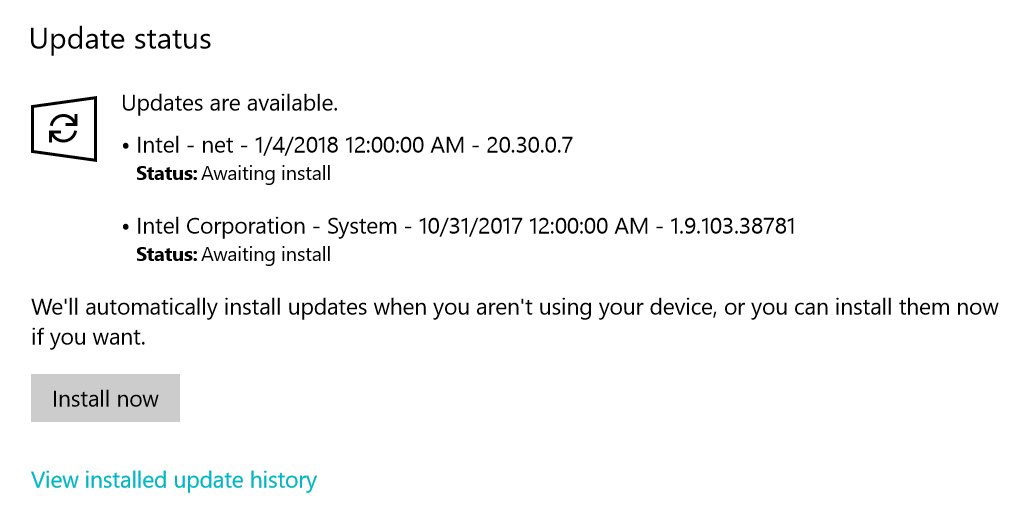
Active hours tell Windows when you normally use the PC, so automatic restarts after updates happen outside that window. The default on PCs is 8 AM to 5 PM, and current Windows 10 versions allow a range of up to 18 hours.
- Go to Start > Settings > Update & Security > Windows Update.
- Select Change active hours.
- To let Windows learn your schedule, turn on Automatically adjust active hours for this device based on activity and select Save.
- To set the hours yourself, select Change next to your current active hours.
- Choose a start time and an end time, then select Save.
Windows Update advanced options in Windows 10
Advanced options on the Windows Update page fine-tunes update behavior beyond pausing. Go to Start > Settings > Update & Security > Windows Update > Advanced options.
| Option | What it changes | When to use it |
|---|---|---|
| Receive updates for other Microsoft products | Windows Update also installs updates for other Microsoft software, and includes drivers | Keep it on so Office and other Microsoft apps stay patched |
| Pause updates drop-down | Pick the date updates resume, beyond the 7-day pause | Before a trip or an important deadline |
| Get the latest updates as soon as they're available | Installs optional non-security updates automatically and gets gradually rolled-out features early | Only if you want new features before most users |
| Optional updates | Lists optional quality and driver updates that do not install on their own | When a device needs a driver that Windows did not install |
On a work or school PC, an administrator can control these options through Group Policy, covered further down, and a policy overrides what you pick here.
Install optional updates and driver updates in Windows 10
Windows Update installs recommended drivers automatically, but optional drivers are not installed until you choose them.
- Go to Start > Settings > Update & Security > Windows Update > Advanced options.
- Make sure Receive updates for other Microsoft products is turned On.
- Select Optional updates.
- If driver updates are listed, tick the drivers you want and select Download and install.
- Restart the PC after the updates finish, even if none of them asks for a restart.
If Windows Update cannot find a driver for a device, get the latest compatible driver from the hardware manufacturer's official website, not from third-party download sites.
How to uninstall Windows updates in Windows 10 and Windows 11
Remove an update when a problem started right after it installed. Not every update can be removed, so some entries have no uninstall option.
- Go to Start > Settings > Update & Security > Windows Update.
- Select View update history.
- Select Uninstall updates.
- Select the update you want to remove.
- Select Uninstall and restart if Windows asks.
On Windows 11 the path is Start > Settings > Windows Update > Update history > Uninstall updates, and the rest of the Windows 11 update settings are arranged differently from Windows 10.
If Windows 10 no longer starts, open the recovery environment and select Troubleshoot > Advanced options > Uninstall updates instead.
Delivery Optimization settings in Windows 10
Delivery Optimization can fetch parts of updates from other PCs instead of only from Microsoft. Limit it when you share a slow or capped connection.
- Go to Start > Settings > Update & Security > Delivery Optimization.
- Turn Allow downloads from other PCs on or off.
- If it is on, choose PCs on my local network to keep sharing inside your home network.
- Select Advanced options to cap download bandwidth, using Absolute bandwidth or Percentage of measured bandwidth.
- Select Activity Monitor to see how much update data came from each source.
Windows Security in Windows 10: run a scan and update protection
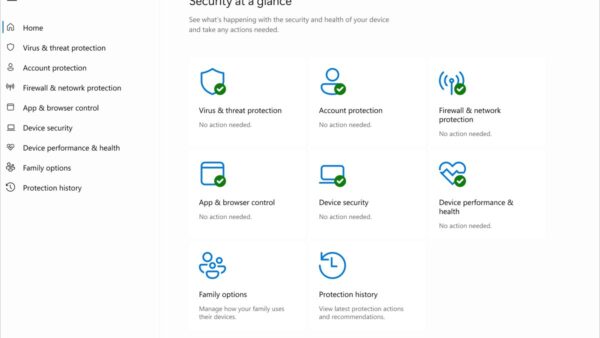
The Windows Security page in Settings opens the Windows Security app, which runs Microsoft Defender Antivirus on Windows 10, version 1703 and later.
- Search the Start menu for Windows Security and open it, or go to Update & Security > Windows Security.
- Select Virus & threat protection.
- Select Quick scan, or select Scan options and choose Full scan for a deeper check.
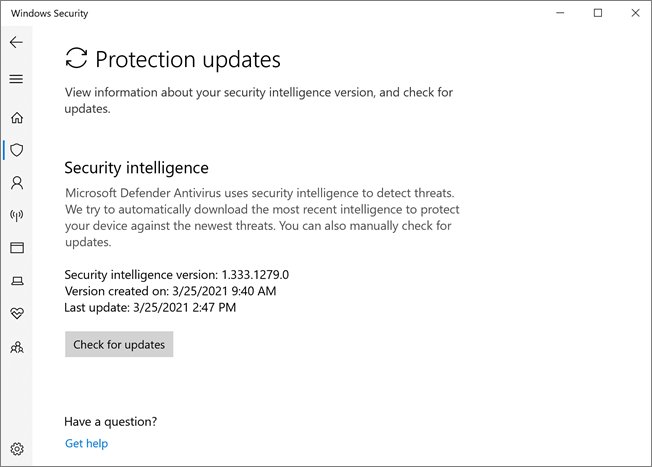
- Select Virus & threat protection updates, then Check for updates to get the latest security intelligence.
- Under Virus & threat protection settings, confirm Real-time protection is On.
Other areas in the app include Account protection, App and browser control, Device security, Device performance and health, Family options and Protection history.
Strengthen Windows 10 security settings: encryption, ransomware and account protection
Beyond the antivirus scan, a few settings decide how well Windows 10 protects your files if the PC is lost, stolen or hit by ransomware. Most need an administrator account.
| Setting | Where to find it | What it protects |
|---|---|---|
| Controlled folder access (ransomware protection) | Windows Security > Virus & threat protection > Manage ransomware protection | Blocks unknown or untrusted apps from changing files in Documents, Pictures, Videos, Music, Desktop and any folder you add. The same page sets up OneDrive for recovery after an attack |
| Device encryption | The Device encryption page in Settings, signed in as an administrator | Turns on BitLocker encryption for the system drive and fixed drives automatically. If the page is missing, the device does not support it or you are signed in as a standard user |
| BitLocker Drive Encryption | From Start, type BitLocker and select Manage BitLocker, then Turn on BitLocker | Encrypts the system drive, fixed data drives and removable drives (BitLocker To Go). Pro, Enterprise and Education editions only |
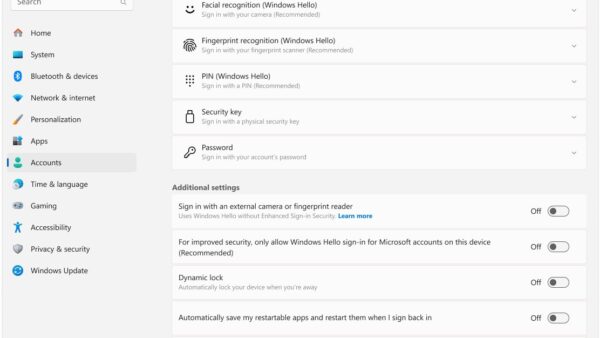
| Account protection and sign-in | Windows Security > Account protection, and Settings > Accounts > Sign-in options | Windows Hello and Dynamic lock, which locks the PC when your paired phone moves out of range |
| Security providers | Windows Security > Settings > Manage providers | Shows which antivirus, firewall and web protection apps are protecting the device |
When you turn on BitLocker, choose an unlock option and back up the recovery key. If BitLocker detects a hardware change or unauthorized access, it asks for that key, and without it the drive stays locked.
When to reset or restore security settings: if real-time protection is off and you did not turn it off, check Manage providers first. A compatible non-Microsoft antivirus turns Microsoft Defender Antivirus off on its own. If no other provider is listed, turn Real-time protection back on under Virus & threat protection settings > Manage settings.
Common mistakes to avoid: adding broad scan exclusions, which stop Defender from checking those files; allowing unfamiliar apps through Controlled folder access, since an allowed app that gets compromised can change protected files; and turning on BitLocker without saving the recovery key.
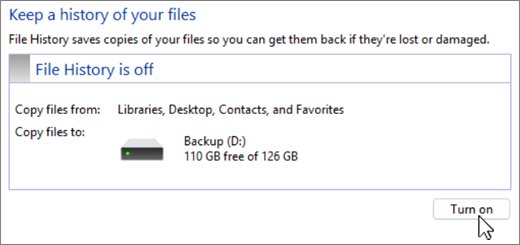
Backup in Windows 10: turn on File History
File History keeps copies of your personal files on another drive. The Backup page in Settings exists only on Windows 10; Windows 11 removed it.
- Connect an external drive, or have a network location ready.
- Open Control Panel and, under System and Security, select Save backup copies of your files with File History.
- Select Turn on.
- To restore, right-click a folder in File Explorer and select Restore previous versions.
- Pick a version and select Restore. The replacement cannot be undone.
Troubleshoot page in Windows 10: run the Windows Update troubleshooter
- Go to Start > Settings > Update & Security > Troubleshoot.
- Select Additional troubleshooters.
- Under Get up and running, select Windows Update.
- Select Run the troubleshooter and apply any fix it suggests.
- Restart the PC and run Check for updates again.
Recovery options in Windows 10: reset, go back or advanced startup
The Recovery page holds three tools. Pick the least disruptive one that fits the problem.
| Your situation | Use this on Update & Security > Recovery | What happens |
|---|---|---|
| Problems began after upgrading to a new Windows 10 version | The go-back option for the previous version | Returns to the earlier version; available for 10 days after the upgrade |
| You need to boot into repair tools | Advanced startup > Restart now | Restarts into the Windows Recovery Environment (WinRE) |
| Windows is unstable but your files matter | Reset this PC > Get started > Keep my files | Reinstalls Windows and removes apps and settings, keeping personal files |
| Selling the PC or starting clean | Reset this PC > Get started > Remove everything | Reinstalls Windows and deletes files, apps and settings |
| Choosing the reinstall source during a reset | Cloud download or Local reinstall | Cloud download fetches a fresh copy with recent updates; Local reinstall uses files already on the PC |
You can also reach WinRE by holding Shift while you select Power > Restart.
Activation in Windows 10: check status and change product key
- Go to Start > Settings > Update & Security > Activation.
- Read the status listed next to Activation.
- To enter a different key, select Change product key.
- Type the new product key and follow the prompts.
Find my device in Windows 10: turn it on and locate the PC
Find my device works only when you sign in with a personal Microsoft account that is an administrator, and location is turned on. Turn it on before the PC goes missing.
- Go to Update & Security > Find my device (address
ms-settings:findmydevice) and turn the feature on. - When you need it, go to account.microsoft.com/devices on another device and sign in.
- Select the Find My Device tab, choose the PC and select Find to see it on a map.
- Select Lock > Next to lock it, then reset your password.
Anyone using the PC sees a notification when you try to locate it.
For developers in Windows 10: turn on Developer Mode
Developer Mode is only for building, deploying and testing apps. Day-to-day use such as browsing, gaming or Office does not need it, and turning it on requires administrator rights.
- Go to Update & Security > For developers (address
ms-settings:developers). - Turn on Developer Mode.
- Read the disclaimer and select Yes.
- Turn the same switch off later to remove Developer Mode.
Windows Update for Business and Group Policy settings in Windows 10
Administrators and advanced users can control Windows Update with policies instead of the Settings app. Every relevant policy sits under Computer Configuration > Administrative Templates > Windows Components > Windows Update in the Local Group Policy Editor (gpedit.msc). A policy set here overrides the matching option in Settings.
| Policy | Where under Windows Update | What it does |
|---|---|---|
| Configure Automatic Updates | Windows Update (Manage end user experience) | Choose Notify for download and auto install, Auto download and notify for install, or Auto download and schedule the install. Disabled means every update must be installed by hand |
| Select when Preview Builds and feature updates are received | Windows Update for Business | Defers feature updates for up to 365 days, or pauses them for up to 35 days |
| Select when Quality Updates are received | Windows Update for Business | Defers monthly quality updates for up to 30 days, or pauses them for up to 35 days |
| Do not include drivers with Windows Updates | Windows Update | Stops Windows Update from installing drivers with quality updates |
| Specify deadline for automatic updates and restarts | Windows Update | Sets how many days a user has before an update must install and the PC must restart |
| Specify active hours range for auto restart | Windows Update | Limits how long a range of active hours users can set |
Leave Configure Automatic Updates at Not Configured if you want to keep managing updates from Settings > Update & Security > Windows Update > Advanced options.
Windows 10 end of support and ESU enrollment in Windows Update
Windows 10 support ended on October 14, 2025, so Windows Update no longer delivers free security fixes. The Consumer Extended Security Updates (ESU) program keeps security updates coming until October 12, 2027.
ESU needs Windows 10, version 22H2 in Home, Pro, Pro Education or Workstations, and a Microsoft account that is an administrator and not a child account.
- Go to Start > Settings > Update & Security > Windows Update.
- Select Enroll now in the ESU message. It appears only if the PC qualifies.
- Sign in with a Microsoft account if you use a local account.
- Choose an option: sync your PC settings with Windows Backup at no cost, redeem 1,000 Microsoft Rewards points, or pay a one-time $30 USD.
- Return to Windows Update and select Check for updates to receive ESU patches.
If the PC meets the hardware requirements, the free upgrade to Windows 11 needs Windows 10, version 22H2.
Check Windows 10 updates installed correctly
- Go to Start > Settings > Update & Security > Windows Update.
- Select View update history.
- Confirm the latest update is listed with the date it installed.
- Select Check for updates once more; no pending downloads means the PC is current.
- Open Activation and confirm the status still shows Windows is activated.
To verify your security settings are current, open Windows Security > Virus & threat protection > Virus & threat protection updates and check the security intelligence version and last update time. Under Windows Security > Settings > About, you can confirm the app version and policy information.
Troubleshooting common Windows Update problems in Windows 10
Windows Update fails with an error code such as 0x8007000d or 0x80070002
Corrupt files in the update cache or an interrupted download are the most common causes.
- Run the Windows Update troubleshooter from Update & Security > Troubleshoot > Additional troubleshooters.
- Press Win + R, type
services.mscand press Enter. - Right-click Windows Update and select Stop.
- Open
C:\Windows\SoftwareDistributionand delete everything inside it. - Back in Services, right-click Windows Update, select Start, then run Check for updates again.
Not enough disk space to install the update
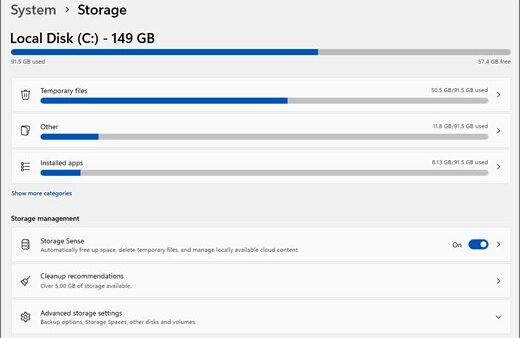
Feature updates need at least 20 GB free on a 64-bit PC, or 16 GB on a 32-bit PC.
- Delete files you no longer need and uninstall apps you do not use.
- Move large files to an external drive or OneDrive.
- On a small drive, insert a USB drive so Windows can use it during the update.
Updates download but never finish installing
A dropped connection, missing administrator rights, external hardware or a wrong clock can block installation.
- Plug the PC into power and check that it is connected to the internet.
- Sign in with an administrator account; some updates need it.
- Disconnect external drives, docks and other hardware you do not need.
- Go to Settings > Time & Language > Date & time and turn on Set time automatically.
- Save your work, then select Start > Power > Update and restart.
Update fails with error 0xC1900101
An incompatible driver is stopping the update.
- Install driver updates from Optional updates as shown above.
- For hardware you added yourself, get the latest driver from the manufacturer's website.
- Run Check for updates again.
Windows 10 Update and Security settings FAQ
How do I open Update & Security in Windows 10?
Select Start > Settings > Update & Security. The page opens on Windows Update, and the left pane lists Delivery Optimization, Windows Security, Backup, Troubleshoot, Recovery, Activation, Find my device and For developers.
Does Windows 10 still get updates from Windows Update?
Only through the Consumer ESU program. Free security updates stopped on October 14, 2025. Enrolled PCs running Windows 10, version 22H2 get security updates through Windows Update until October 12, 2027.
How do I pause Windows updates in Windows 10?
Go to Settings > Update & Security > Windows Update and select Pause updates for 7 days. For a specific date, select Advanced options and choose the resume date under Pause updates. Updates restart automatically on that date.
How do I uninstall an update in Windows 10?
Go to Settings > Update & Security > Windows Update > View update history > Uninstall updates. Select the update and choose Uninstall. Some updates cannot be removed, and those have no uninstall option.
Where is the Windows Update troubleshooter in Windows 10?
Go to Settings > Update & Security > Troubleshoot > Additional troubleshooters. Under Get up and running, select Windows Update and then Run the troubleshooter.
How do I check if Windows 10 is activated?
Go to Settings > Update & Security > Activation. The activation status is listed next to Activation, and the same page has Change product key for entering a new key.
How do I get to advanced startup from Windows 10 settings?
Go to Settings > Update & Security > Recovery and select Restart now under Advanced startup. The PC restarts into the Windows Recovery Environment, where you can uninstall updates or reset the PC.
Where did the Backup page go in Windows 11?
Windows 11 removed the Backup page that Windows 10 has under Update & Security. File History is still available from Control Panel under System and Security on both versions.
How do I limit update download bandwidth in Windows 10?
Go to Settings > Update & Security > Delivery Optimization > Advanced options. Set a download limit as Absolute bandwidth or as a Percentage of measured bandwidth.

![How to open graphics settings Windows 11 [2026]](https://techdows.com/wp-content/uploads/2026/10/How-to-open-graphics-settings-Windows-11-2026-600x338.jpg)