Windows activation error 0x8007007b means Windows is trying to activate against a Key Management Service (KMS) server it cannot find, so the fix is to enter a product key that matches your edition or connect the PC to its KMS server.
The four fixes below cover home PCs with the wrong key, digital licenses that did not activate, and work devices on Windows 11 and Windows 10.
Fix 1: Enter a product key that matches your Windows edition
On a personal PC, 0x8007007b usually appears after a key for the Enterprise edition, or a generic volume key, was used to activate Windows 11 Home or Pro. Replacing it with your own retail or OEM key ends the KMS lookup.
- Find your 25-character product key on the device packaging, the Certificate of Authenticity, or the purchase confirmation email.
- Select Start > Settings > System > Activation.
- Select Change product key.
- Type the 25-character key that matches the edition shown on the Activation page.
- Follow the prompts to activate, then wait for the confirmation.
If the Change product key button does nothing, try the SLUI 3 command: press Win + R, type slui 3, press Enter, then type the product key in the box that opens. You can also update the key manually from an elevated Command Prompt with slmgr.vbs /ipk followed by the key.
A key for a different edition will not work: Windows 11 Pro needs a Pro key, and Home needs a Home key. The same steps apply when you activate Windows 10 with a product key.
What causes the Windows activation error 0x8007007b?
The 0x8007007b error code is an activation failure that appears when Windows uses Key Management Service (KMS) activation and cannot find a KMS server.
Microsoft lists 0x8007007b as a KMS client error with the message "DNS name does not exist." The KMS client cannot find the KMS SRV records in DNS, so it has no server to activate against.
| Cause | Who sees it | What is happening |
|---|---|---|
| Enterprise or volume license key on Home or Pro | Home users and buyers of cheap keys | Windows switches to KMS activation, and no KMS server exists on a home network |
| Volume-licensed media with a generic volume key (GVLK) | PCs installed from MSDN or company media | The GVLK only activates against a KMS host or Active Directory |
| Work device away from the office network | Laptops used at home or on travel | The company's KMS server is unreachable without the work network or VPN |
| Missing KMS SRV record or DNS suffix | Company networks | DNS does not return the _vlmcs._tcp record that points to the KMS host |
| Firewall blocking TCP port 1688 | Company networks | The client finds the host but cannot talk to it |
The same 0x7B code also means "The filename, directory name, or volume label syntax is incorrect" (ERROR_INVALID_NAME) when it comes from setup or an installer rather than activation.
How do I fix the Windows activation error 0x8007007b?
The ways to fix it are the same whether Windows 10 or Windows 11 couldn't be activated. Pick the fix that matches your situation.
| Your situation | Use this fix | Why |
|---|---|---|
| Personal PC, you have your own retail or OEM key | Fix 1: Enter a matching product key | Replaces the volume key that triggers the KMS lookup |
| Personal PC that was activated before, or a digital license | Fix 2: Run the Activation troubleshooter | It can reactivate a digital license or fix an edition mismatch |
| Work or school device | Fix 3: Connect to the work network and test DNS | The KMS host is only reachable from the organization's network |
| Work device on the network, KMS host known | Fix 4: Manually assign a KMS server | Bypasses missing DNS records by naming the host directly |
Fix 2: Run the Windows Activation troubleshooter
The troubleshooter is available only while Windows is not activated, and you must be signed in as an administrator. It fixes edition mismatches with a digital license and reactivates after hardware changes.
- Make sure the PC is connected to the internet.
- Select Start > Settings > System > Activation.
- Select Troubleshoot.
- If you have a digital license that has not activated, select Activate Windows, then Activate.
- If the troubleshooter offers Upgrade to Windows 11 Pro for a Pro license on a Home install, save your work and select Start upgrade.
- Return to the Activation page and confirm the new status.
On Windows 10 the troubleshooter sits on the same Activation page; you can also reactivate Windows 10 after hardware changes from there.
Fix 3: Connect to the work network and check KMS DNS
If the PC belongs to your employer or school, the error usually means it cannot reach the organization's KMS server. Connect to the office network or the company VPN first, then run these checks from an elevated Command Prompt.
- Connect to the work network or company VPN.
- Press Win + X and open Terminal (Admin) or Command Prompt as administrator.
- Run ping followed by your DNS server's IP address and confirm the output includes Reply from.
- Run nslookup -type=all _vlmcs._tcp and confirm it returns an SRV record with your KMS host name and port 1688.
- Run ipconfig /all and check that the DNS suffix search list includes the KMS host's domain.
- Run cscript \windows\system32\slmgr.vbs -ato to retry activation.
If nslookup returns no _vlmcs record, the KMS host is not publishing to DNS. That is a server-side fix for the IT team, so contact your organization's support person.
Fix 4: Manually assign a KMS server with slmgr
When your IT team gives you the KMS host's name, point the client at it directly. This bypasses the DNS lookup that fails with 0x8007007b. Run both commands in an elevated Command Prompt.
cscript \windows\system32\slmgr.vbs -skms <KMS host FQDN>:1688
cscript \windows\system32\slmgr.vbs -ato
-skms sets the KMS host name and port and turns off automatic discovery; 1688 is the TCP port KMS uses. -ato then makes Windows try KMS activation against that host. Replace the host name with an IP address if name resolution also fails.
You should see: A dialog confirms that the product activated. If the IP address works but the name does not, the problem is DNS name resolution.
To return to automatic discovery later, run cscript \windows\system32\slmgr.vbs -ckms. If neither the name nor the IP address works, the firewall on the client or host may be blocking TCP port 1688.
How to check Windows is activated after fixing 0x8007007b
- Select Start > Settings > System > Activation.
- Confirm the status reads Windows is activated with a digital license or shows the activated product key.
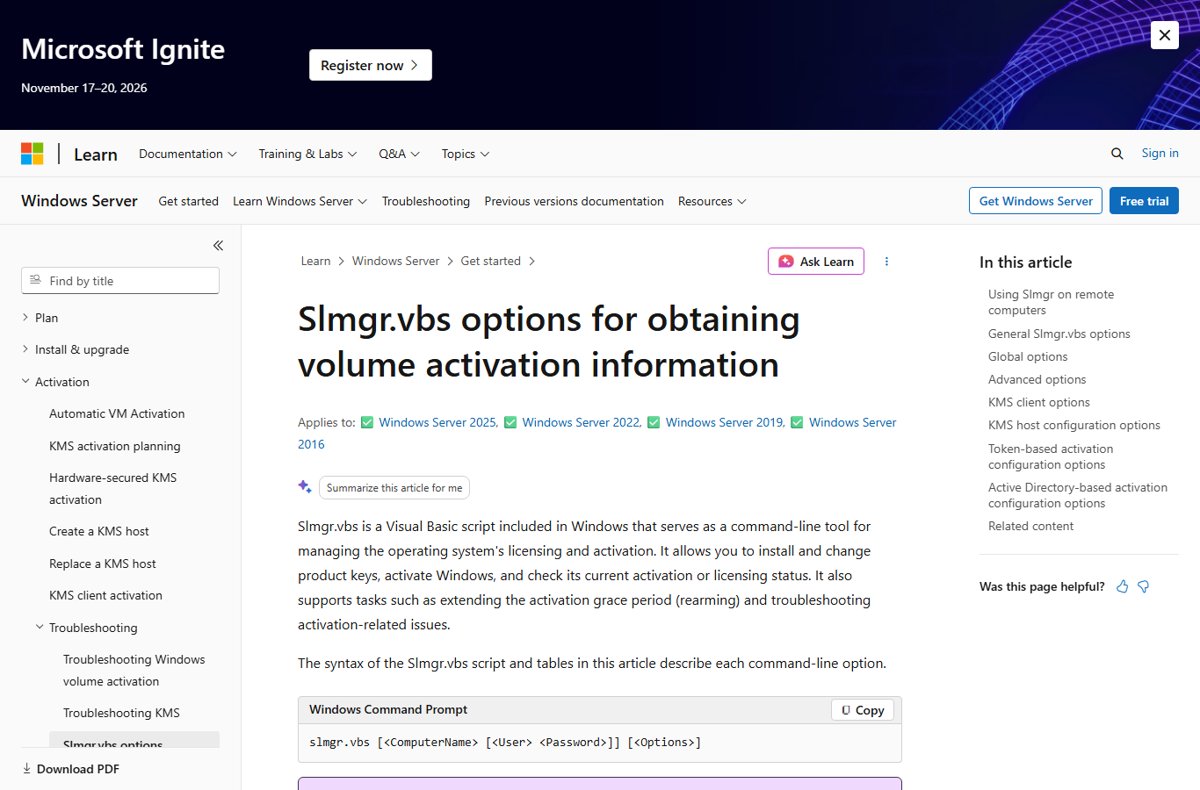
- For more detail, run slmgr.vbs /dli in Command Prompt to display the license information.
- On a work device, run slmgr.vbs /xpr to see the activation expiration date; KMS activations renew periodically, while retail and MAK activations are permanent.
Error 0x8007007b still appears: Windows 10 Pro, Office and setup
Error 0x8007007b on Windows 10 Pro or Windows 11 Pro after entering a key
The key is for a different edition, or it is a generic volume key.
- Open Settings > System > Activation and note the edition shown.
- Select Change product key and enter a key bought for that exact edition.
- If you only own a Home key, run the Activation troubleshooter to see whether a digital license exists for Home.
Error 0x8007007b when activating Office
Volume-licensed Office ships with a generic volume key and activates only against a KMS host found through DNS.
- Connect to the work network or VPN and open an Office app again.
- Ask your IT team for the KMS host name if DNS does not publish it.
- If you use a Microsoft 365 or retail Office license instead, sign in with the account that owns it rather than using a volume key.
Windows install error 0x8007007b during setup
Outside activation, 0x7B means a file name, folder name or volume label has invalid syntax.
- Check that the path you typed for the installer, ISO or folder has no invalid characters.
- Run the installer from a short path such as the root of the drive.
- Open Command Prompt as administrator, run DISM.exe /Online /Cleanup-image /Restorehealth, then sfc /scannow to repair system files.
Access denied when running slmgr commands
User Account Control blocks activation commands in a non-elevated window.
- Open the Start menu and search for Command Prompt.
- Right-click Command Prompt and select Run as administrator.
- Run the slmgr command again.
Windows activation error 0x8007007b FAQ
What is error code 0x8007007b?
In Windows activation, 0x8007007b means "DNS name does not exist." A KMS client could not find the KMS server's SRV record in DNS. It usually appears when an Enterprise or volume license key is used on a home PC, or a work device is off the company network.
How to fix Windows activation 0x8007007b?
Go to Settings > System > Activation, select Change product key, and enter a key that matches your Windows edition. On a work device, connect to the company network or VPN, or assign the KMS host with slmgr.vbs -skms and run slmgr.vbs -ato.
How to fix error code 0x8007007b on Windows 11?
Open Settings > System > Activation and either change the product key to one for your edition or run Troubleshoot, which can reactivate a digital license. Work PCs need access to the organization's KMS server.
How to fix error code 0x8007007b on Windows 10?
The fixes match Windows 11: enter a matching retail or OEM key with Change product key on the Activation page in Settings, run the Activation troubleshooter, or connect a work PC to its KMS server and run slmgr.vbs -ato.
What is Windows install error 0x8007007b?
Outside activation, the 0x7B part is ERROR_INVALID_NAME: the file name, directory name or volume label syntax is incorrect. Check the path the installer uses for invalid characters, and repair system files with DISM and SFC.
Can I fix 0x8007007b without a product key?
Only if your device has a digital license, which the Activation troubleshooter can reapply. Otherwise you need a valid key for your edition, or a license bought through Settings > System > Activation > Go to Store.
Is error 0x8007007b the same as 0x8007232B?
They are closely related. Both are KMS client errors with the message "DNS name does not exist," and Microsoft lists them under the same fix: use a key that matches your edition, or connect a work device to its network.