To repair an iPad screen, start a service request with Apple at support.apple.com/ipad/repair, take it to a Genius Bar or Apple Authorized Service Provider, or mail it in; on recent models you can also replace the screen yourself with Apple's Self Service Repair manual, parts and tools.
This guide covers what each route costs you in coverage terms, which iPads Apple publishes a repair manual for, the do-it-yourself procedure in Apple's own order, and how to check the repair finished correctly.
How to repair iPad screen
Apple service is the fastest route for most people because it needs no tools and keeps your warranty and AppleCare coverage intact.
Back up the iPad before you hand it over, since a repair can end with a replacement device.
- Back up the iPad to iCloud or a computer.
- Open support.apple.com/ipad/repair and select Get started.
- Describe the damage and sign in with your Apple Account so Apple can check your coverage.
- Use How much will it cost? to pick your iPad model and see the estimated out-of-warranty fee.
- Choose In Person to book a Genius Bar or Apple Authorized Service Provider visit, or By Mail to get a prepaid shipping box.
- Remove your case and any cover before the appointment or before packing the iPad.
- Track the repair in My Support or the Apple Support app with the same Apple Account.
Apple inspects the iPad to set the final fee, and Apple guarantees its service and replacement parts for 90 days or the rest of your Apple warranty, whichever is longer.
Does Apple repair iPad screens?
Yes. Apple repairs iPad screens in store, through Apple Authorized Service Providers and by mail. The right route depends on your coverage and your iPad model.
| Your situation | Use this | Why |
|---|---|---|
| iPad has AppleCare+ or AppleCare One | Apple service request | Accidental damage is covered for unlimited incidents, each with a service fee |
| No AppleCare, still under the one-year Apple Limited Warranty | Apple service request | The warranty excludes accidental damage, but Apple quotes the out-of-warranty fee before work |
| No Apple Store nearby | By Mail service | Apple sends a prepaid box and no appointment is needed |
| Local repair shop preferred | Apple Authorized Service Provider | Genuine parts, but the provider sets its own fees and estimate |
| Recent iPad, repair experience and the right tools | Self Service Repair | Apple sells genuine parts, rents tools and publishes the manual |
| Older iPad without a repair manual | Apple service request | Apple publishes no Self Service Repair manual for these models |
How much does it cost to repair an iPad screen?
Apple shows a model-specific estimate rather than one flat price, and the final fee is set after inspection.
| Route | How the price is set | What to know |
|---|---|---|
| Apple, out of warranty | Estimate per model in Apple's How much will it cost? tool, listed as Other damage | Fees may be subject to tax, and a shipping fee may be added for mail-in |
| Apple with AppleCare+ or AppleCare One | A service fee per accidental-damage incident plus tax | Covers unlimited incidents, plus one Apple Pencil and one Apple-branded iPad keyboard |
| Apple Authorized Service Provider | The provider's own fee | The provider gives its own estimate |
| Self Service Repair | Price of the genuine part plus tool rental or purchase | Some returned parts earn a credit when you send them back for recycling |
If an issue is ineligible for service, Apple says you may need to pay the full value for a replacement device, so check the estimate before you send the iPad in.
How to replace iPad screen glass yourself with Self Service Repair
Apple's Self Service Repair manual for iPad is written for people with experience repairing electronics. Apple warns that damage caused by repairs outside Apple or its authorized network is not covered by the warranty or AppleCare.
The order below follows Apple's iPad (A16) Cover Glass and Display procedure. Other models use their own manual and tools.
- Read the full repair manual for your exact model at support.apple.com/docs/ipad and note the manual ID on its Contents page.
- Order the genuine part and buy or rent the tools from the Self Service Repair Store, entering the manual ID and your serial number if asked.
- Follow First Steps: back up the iPad, discharge the battery fully, disconnect cables, remove the case, turn the iPad off and put on a grounded ESD wrist strap.
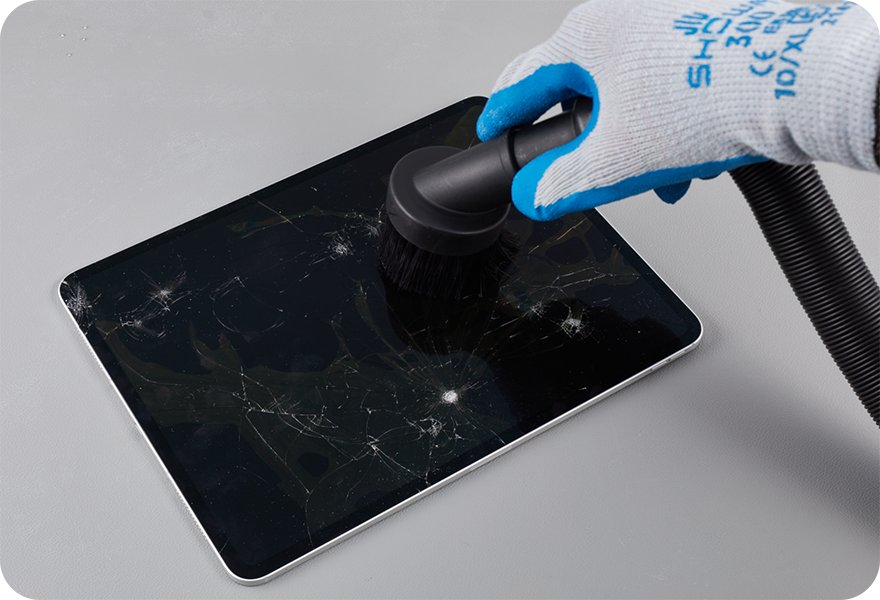
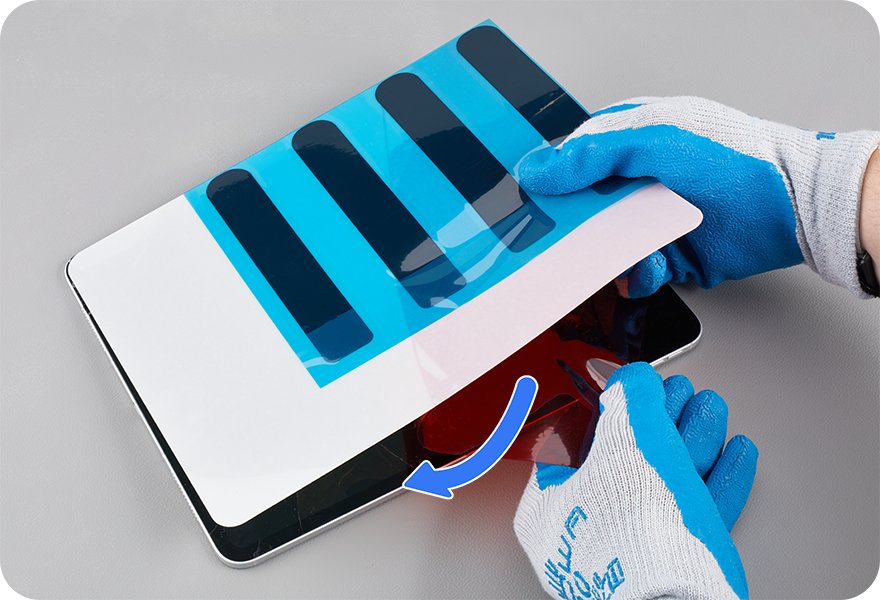
- If the glass is cracked, wear safety glasses and cut-resistant gloves, apply the display protective cover and wait at least 12 minutes before continuing.
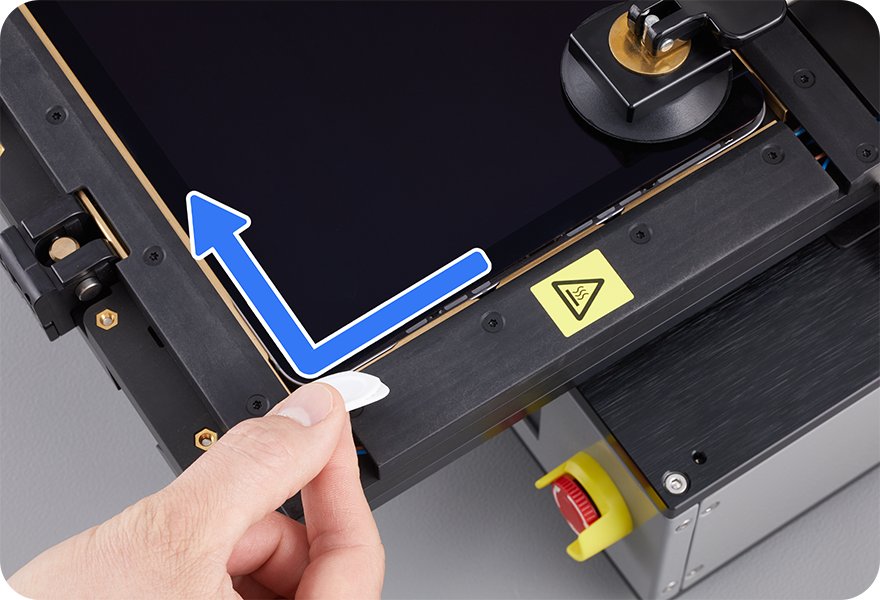
- Heat the display adhesive in the heated display removal fixture, then cut the adhesive around the edges with the adhesive cutter, no deeper than the cutter's depth mark.
- Remove the display screws and connector cowlings, then lift the Multi-Touch, microphone and display flex cables off their connectors.
- Clean off all old adhesive, fit the new dust gasket and cover glass adhesive, reconnect the cables and install new screws at the torque the manual lists.
- Lower the cover glass, press it flush and roll every edge 10 times with the adhesive activation roller.
- Enter Diagnostics Mode and run Repair Assistant to finish the repair.
Stop and use Apple service if the battery is dented, punctured or otherwise damaged, as the manual instructs. Apple also offers iPad battery replacement through Self Service Repair on supported models.
Tools needed to replace an iPad screen
These are the tools Apple lists for the iPad (A16) cover glass and display repair. Tools with part numbers come from the Self Service Repair Store; the rest come from electronics supply retailers.
| Tool | What it is for |
|---|---|
| Heated display removal fixture and 11-inch heated display pocket | Softens the adhesive so the glass can separate from the enclosure |
| Adhesive cutter and access cards | Cuts the adhesive and stops the glass from resealing |
| 11-inch repair tray with suction cups | Holds the iPad, glass and display while the cables are disconnected |
| Torque driver (black, 0.35 kgf cm), adjustable torque driver (10–34 Ncm), JCIS and Torx Plus 3IP bits | Removes and refits the display and cowling screws at the right torque |
| Cover glass adhesive alignment tray and adhesive activation roller | Positions the new adhesive and presses the glass into place |
| ESD-safe tweezers, nylon probe, painters tape | Handles small parts and protects the camera and light sensor |
| Heat-resistant gloves, nitrile or lint-free gloves, ethanol or IPA wipes | Protects your hands and cleans the adhesive perimeter |
iPad models with an Apple screen repair manual
Apple lists Self Service Repair manuals on each model's documentation page. Recent models have one; older models do not.
| iPad model | Apple repair manual | Repair Assistant after a display repair |
|---|---|---|
| iPad (A16) | Yes | Recommended by the manual |
| iPad Pro (M4) | Yes | Supported for this model |
| iPad Pro (M5), iPad Air (M2, M3, M4), iPad mini (A17 Pro, A20 Pro) | Check the model's page at support.apple.com/docs/ipad | Repair Assistant supports these models |
| iPad (10th generation) | No | Use Apple service |
| iPad (7th generation) | No | Use Apple service |
If you are not sure which model you have, use How to identify your iPad model on Apple's iPad documentation page or find your iPad model number in Settings.
How to check iPad parts and service history after a screen repair
Parts and Service History shows whether the new display was calibrated. Until the repair is finished it shows Finish Repair next to the part.
- Update the iPad to the latest iPadOS version, not a beta.
- Connect to Wi-Fi and make sure the battery is above 20 percent.
- Open Settings and tap General > About > Parts & Service History.
- Tap Restart & Finish Repair if it appears, then follow the onscreen instructions.
- Check that the display no longer shows Finish Repair in Parts & Service History.
iPad screen not working after a repair or drop
iPad screen is frozen or not responding to touch
The software has stopped responding, which can look like a broken screen.
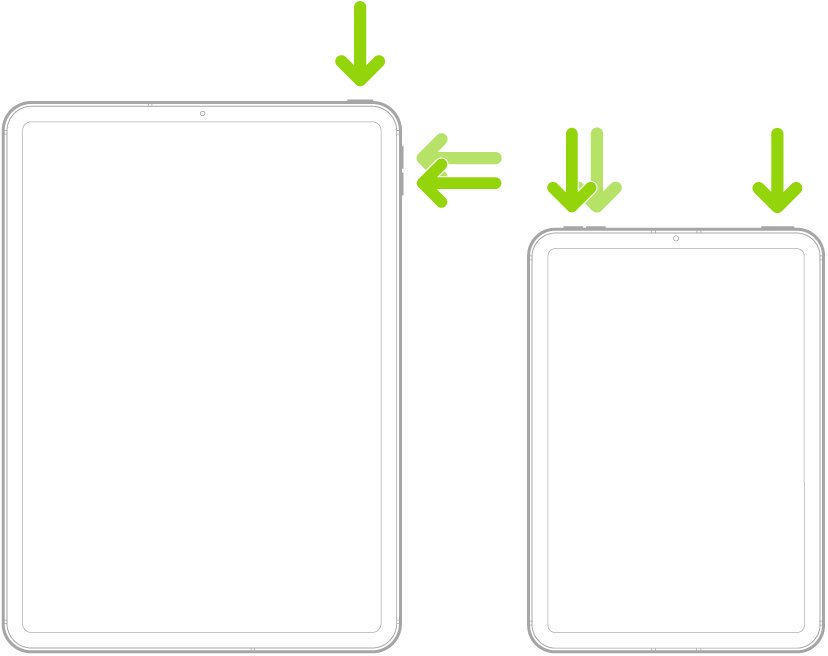
- On an iPad without a Home button, press and quickly release the volume button nearest the top button.
- Press and quickly release the volume button farthest from the top button.
- Press and hold the top button until the Apple logo appears.
- On an iPad with a Home button, hold the top button and Home button together until the Apple logo appears.
Repair Assistant will not finish the screen repair
The iPad is offline, low on battery, out of date, or the part is not seated correctly.
- Connect to a Wi-Fi network that is not a captive or 802.1X network.
- Charge the iPad above 20 percent and update to the latest iPadOS.
- Restart the iPad and try Restart & Finish Repair again.
- If you installed the part yourself, check it is installed correctly or try another part.
New cover glass is not flush with the enclosure
A flex cable is pinched or the adhesive or dust gasket is misaligned.
- Feel the edges of the glass for gaps or raised spots.
- Repeat the removal steps and inspect the flex cables for damage.
- Fit new adhesive and dust gasket and repeat the reassembly steps.
Tips for how to repair iPad screen
| Tip | Why it matters |
|---|---|
| Back up first | Apple's first repair step is a backup, and a service visit can end with a replacement iPad |
| Check coverage before you pay | AppleCare plans cover accidental damage; the standard warranty does not |
| Use genuine Apple parts and Apple's tools | Apple warns that wrong parts or tools can damage the iPad or cause fire or injury |
| Never pick out cracked glass bare-handed | Apple's broken glass safety steps call for safety glasses and cut-resistant gloves |
| Account for every screw | Loose or extra screws inside the iPad can damage the battery |
| Finish with Repair Assistant | It transfers the display's factory calibration values for full image quality |
iPad screen repair FAQ
Can I repair my iPad screen at home?
Yes, on recent models. Apple's Self Service Repair program sells genuine parts, rents professional tools and publishes the repair manual for models such as iPad (A16) and iPad Pro (M4). Apple says the manual is meant for people experienced in repairing electronics.
Can you fix a broken iPad screen?
Yes. Apple, Apple Authorized Service Providers and Apple's mail-in service all repair broken iPad screens. If the issue is ineligible for repair, Apple may offer a replacement device for its full value, so check the estimate first.
How much does it cost to repair an iPad screen?
It depends on the model and coverage. Apple's cost tool on support.apple.com/ipad/repair shows the out-of-warranty estimate per model, while AppleCare+ and AppleCare One charge a service fee per accidental-damage incident. Authorized providers set their own fees.
How do I replace iPad screen glass?
On the iPad (A16), Apple's Cover Glass and Display procedure treats the cover glass and display as separate parts. You heat and cut the adhesive, lift the glass, swap in a new cover glass with fresh adhesive and roll it into place, then run Repair Assistant.
How do I replace the iPad screen on a 7th gen?
Use Apple service. Apple's documentation page for iPad (7th generation) lists no Self Service Repair manual, so there is no official do-it-yourself procedure. Start a request at support.apple.com/ipad/repair for an in-store or mail-in repair.
Do I need special tools to repair an iPad screen?
Yes. Apple's procedure uses a heated display removal fixture, a model-specific heated display pocket, an adhesive cutter, a repair tray, torque drivers with specific bits and an adhesive activation roller. Tools with part numbers are sold or rented through the Self Service Repair Store.
Does the Apple warranty cover a cracked iPad screen?
No. The Apple Limited Warranty covers manufacturing issues for one year but excludes accidental damage. AppleCare+ and AppleCare One add accidental damage coverage for unlimited incidents, each subject to a service fee plus tax.
Where can I get my iPad screen repaired by Apple near me?
Select Get started on support.apple.com/ipad/repair and choose In Person. Apple then offers Genius Bar appointments and nearby Apple Authorized Service Providers. You can also choose By Mail if neither is close.
Should I back up my iPad before a screen repair?
Yes. Backing up is the first step in Apple's repair instructions, and a repair can end with a replacement iPad. You can back up the iPad to iCloud or a computer before you book service.