To find your computer username in Windows 11, open Command Prompt and type whoami; Windows shows it as computername\username, but it never displays your sign-in password, so a forgotten password has to be reset.
This guide covers every way to see the username, the difference between local and Microsoft account sign-ins, and the official reset routes for each account type.
How to find computer username and password in Windows 11/10
The username takes one command. The password is a different job: Windows stores it in a form you cannot read back, so the only route to a forgotten one is a reset.
- Press the Windows key, type
cmdand select Command Prompt. - Type
whoamiand press Enter. - Read the result: the part before the backslash is the computer or domain name, and the part after it is your username.
- If you sign in with a Microsoft account, your sign-in username is that account's email address.
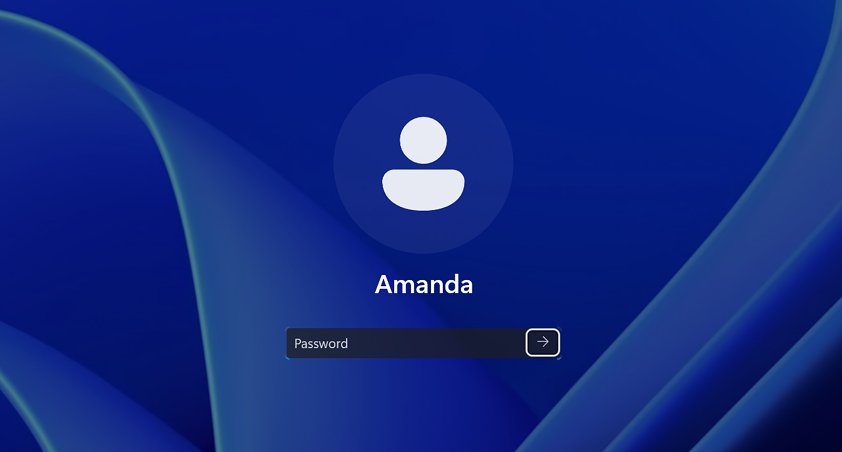
- If you have forgotten the password, lock the PC with Windows key + L and select I forgot my password on the sign-in screen.
The same command works in Windows 10 and in Windows Terminal or PowerShell.
Local account vs Microsoft account username in Windows 11
What counts as your username, and how a lost password is recovered, depends on which kind of Windows sign-in account you use.
| Account type | Your username | Password stored | Forgotten password route |
|---|---|---|---|
| Microsoft account | The email address of the account (Outlook.com, Hotmail or another address) | Online with Microsoft | I forgot my password on the sign-in screen, Web sign-in, or Microsoft's Reset password page in any browser |
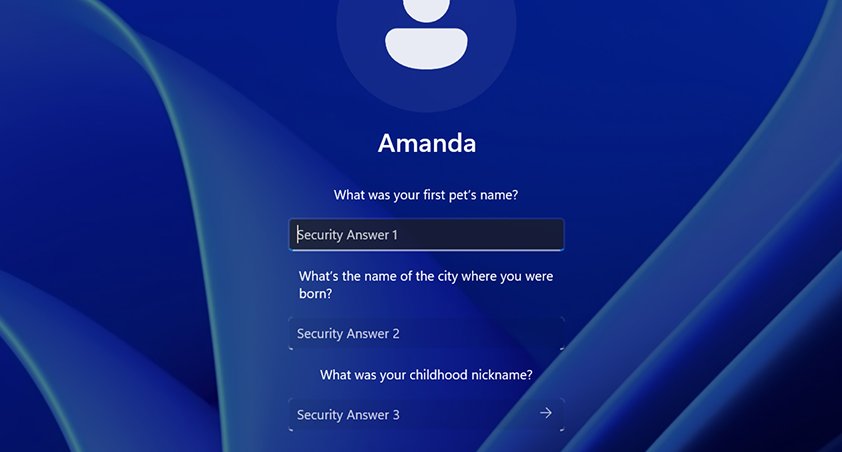
| Local account | A name created on this PC only | On this PC only | Security questions on the sign-in screen, a password reset disk, or another administrator account |
| Work or school account | The address your organization issued | With your organization | Your organization's IT support or password page |
To check which type you have, open Settings > Accounts > Your info. The link Sign in with a Microsoft account instead appears only on a local account, and Sign in with a local account instead appears only on a Microsoft account.
Find computer username with the whoami command
whoamiShows the domain (or computer) name and user name of the account signed in right now. Add /upn to show the name in user principal name format, /user to add the account's security identifier (SID), or /all for groups and privileges as well.
You should see: One line such as desktop-a1b2c3\maria: the text after the backslash is the username.
List all user accounts on Windows 11 with net user
net userRun without parameters, net user lists every user account on the computer. Type net user followed by an account name, for example net user maria, to see details for that account.
You should see: A list of the account names on the computer, ending with a line saying the command completed successfully.
The list can include built-in accounts you never created, such as the disabled built-in Administrator account. Your own account is the one that matches the whoami result.
Find Windows 11 usernames with PowerShell Get-LocalUser
Get-LocalUserLists the local user accounts on the PC, including built-in accounts, accounts you created and local accounts connected to Microsoft accounts, with an Enabled column for each.
You should see: A table with Name, Enabled and Description columns. An account connected to a Microsoft account appears as MicrosoftAccount\ followed by the email address when you query it by that name.
Find your computer username in Windows 11
Use this route if you would rather not open a command window. It shows the account names Windows displays and tells you the account type.
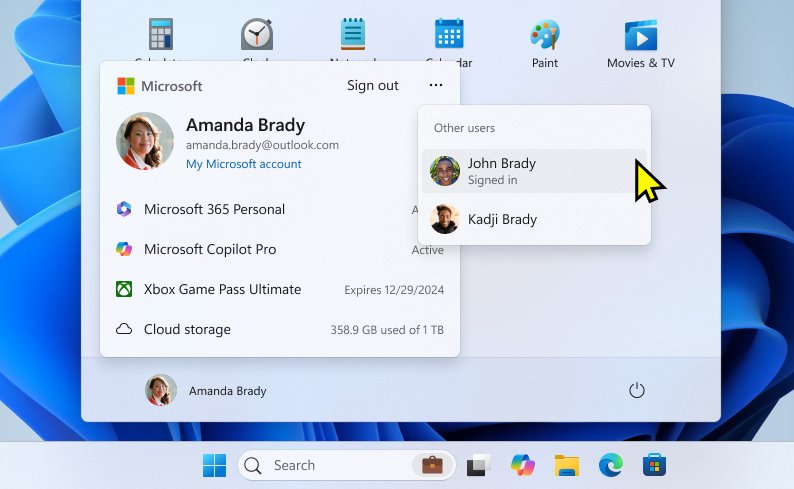
- Select Start on the taskbar.
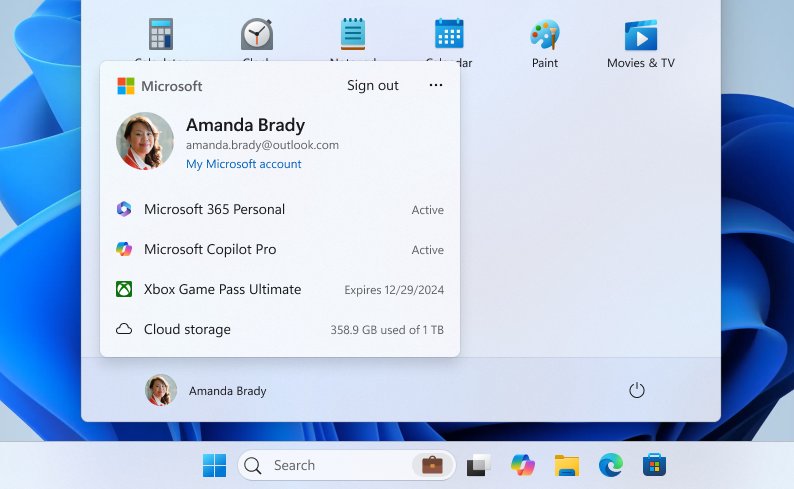
- Select your account name or picture at the bottom of the Start menu to see the signed-in account and the other users you can switch to.
- Open Settings and select Accounts > Your info.
- Check the links on that page: Sign in with a Microsoft account instead means you use a local account, and Sign in with a local account instead means you use a Microsoft account.
- For a list of every account on the PC, select Accounts > Other users.
The name on the Start menu is the name of the signed-in account. For a Microsoft or work account it comes from the online account, so use whoami when you need the exact sign-in name.
Find usernames in Computer Management Local Users and Groups
Computer Management lists every local account with its full name. You need an administrator account to make changes here.
- Press the Windows key, type
Computer Managementand open it. - In the left pane, expand Local Users and Groups.
- Select Users.
- Read the Name column for each username on the PC.
Computer name vs username in Windows 11
Many people searching for the computer username actually need the device name, for example to connect from another PC. They are two separate values.
| Value | Where to see it | Example |
|---|---|---|
| Username | whoami (after the backslash), net user, Get-LocalUser, Settings > Accounts > Other users |
maria |
| Microsoft account username | The email address you also use for Outlook.com, OneDrive or Xbox | [email protected] |
| Computer (device) name | Settings > System > About, and whoami before the backslash |
DESKTOP-A1B2C3 |
To change the device name, select Rename this PC on the About page, enter a new name, and restart.
Reset or recover your Windows sign-in password
Microsoft support cannot retrieve or bypass a lost Windows password, so the reset routes below are the only official way back in. Pick the one that matches your account type.
- Microsoft account: at the sign-in screen, select I forgot my password and follow the prompts.
- Microsoft account, alternative: select Sign-in options > Web sign-in, sign in, then select Forgot my password.
- Microsoft account, from another device: open Microsoft's Reset password page in any browser, enter the username, and verify with a code sent to your recovery email or phone.
- Local account: select the arrow next to the password box, select OK, then Reset password, and answer your security questions.
- Local account with a reset disk: select Use a password reset disk instead and follow the instructions.
- If you are signed in and know the old password, open Settings > Accounts > Sign-in options, select Password > Change and follow the instructions.
A Windows Hello PIN is separate from the account password. I forgot my PIN on the sign-in screen is offered only for Microsoft accounts; on a local account, sign in with the password first and reset the PIN in Settings.
Reset a local account password from another administrator account
If someone else on the PC has an administrator account, that account can set a new password for yours without the security questions.
- Sign in with the administrator account.
- Open Computer Management.
- Expand Local Users and Groups > Users.
- Right-click the account that is locked out and select Set Password….
- Enter the new password, confirm it, and select OK.
If there is no other administrator account and the security questions fail, Microsoft's only remaining option for a local account is to reset the PC.
Find your Microsoft account username if you forgot it
If you do not remember which email address signs in to Windows, Microsoft can show a hint of it after verifying your security contact.
- On any device, open Microsoft's Forgotten your Microsoft account username support page and select Search.
- Enter the security contact phone number or email address you added to the account.
- Request a security code and enter it, then select Next.
- Read the username hint, shown in a format such as j****@outlook.com.
- If the lookup fails, check the products tied to the account, such as Outlook.com, Xbox or Microsoft 365, for the address they sign in with.
Where Windows stores saved passwords: Credential Manager
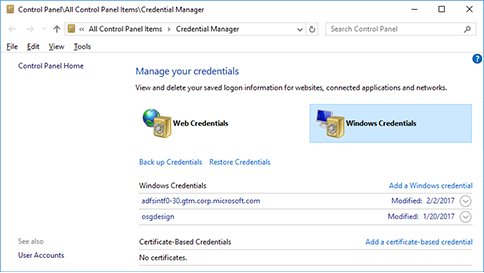
Credential Manager holds passwords Windows saved for websites, connected apps and network shares. It does not show your own Windows sign-in password.
| Section | What it holds | How to open it |
|---|---|---|
| Web Credentials | Sign-ins saved for websites | Type credential manager in the taskbar search box and select Credential Manager Control panel, then Web Credentials |
| Windows Credentials | Sign-ins for network locations, connected apps and other PCs | Same window, select Windows Credentials |
Browser passwords live in the browser instead. You can find saved passwords on Windows 11 in Edge, Chrome and Windows, and for a network key, find your Wi-Fi password from the network settings.
Create a password reset disk for a local account in Windows 11
A local account has no online reset. A reset disk on a USB flash drive is the backup if you forget the password and lose the security question answers.
- Sign in with the local account the disk is for; the option is not offered for Microsoft accounts.
- Plug in a USB flash drive.
- Type Control Panel in the taskbar search box and open it.
- Type
create password resetin the Control Panel search box. - Select Create a password reset disk and follow the remaining instructions.
- Remove the drive and keep it somewhere safe; it keeps working after you change the password.
Windows 11 computer username and password FAQ
How do I check what my PC username is?
Open Command Prompt, type whoami and press Enter. The text after the backslash is your username. PowerShell users can run Get-LocalUser instead to list every local account with its Enabled status.
How do I open my PC if I forgot my password in Windows 11?
Select I forgot my password on the sign-in screen for a Microsoft account, or answer the security questions for a local account. Another administrator can also set a new password in Computer Management. Without any of these, the remaining option is resetting the PC.
How do I find my computer username and password?
Run whoami in Command Prompt for the username. Windows never displays the sign-in password, so if you have forgotten it, reset it from the sign-in screen or through Microsoft's Reset password page for a Microsoft account.
Where do I find my username on my computer?
Select Start, then your account picture, to see the signed-in name, or open Settings > Accounts > Other users for the other accounts. For the exact sign-in name, run whoami in Command Prompt or net user to list every account on the PC.
How do I know my PC username without signing in?
The sign-in screen shows the account names to choose from when a PC has more than one user. For a Microsoft account, the username is the email address, and Microsoft's username lookup can show a hint of it from your security phone number or email.
What's my computer username if I use a Microsoft account?
Your sign-in username is the Microsoft account email address. Settings > Accounts > Your info confirms the account type, and Microsoft's username lookup shows a hint of the address if you have forgotten it.