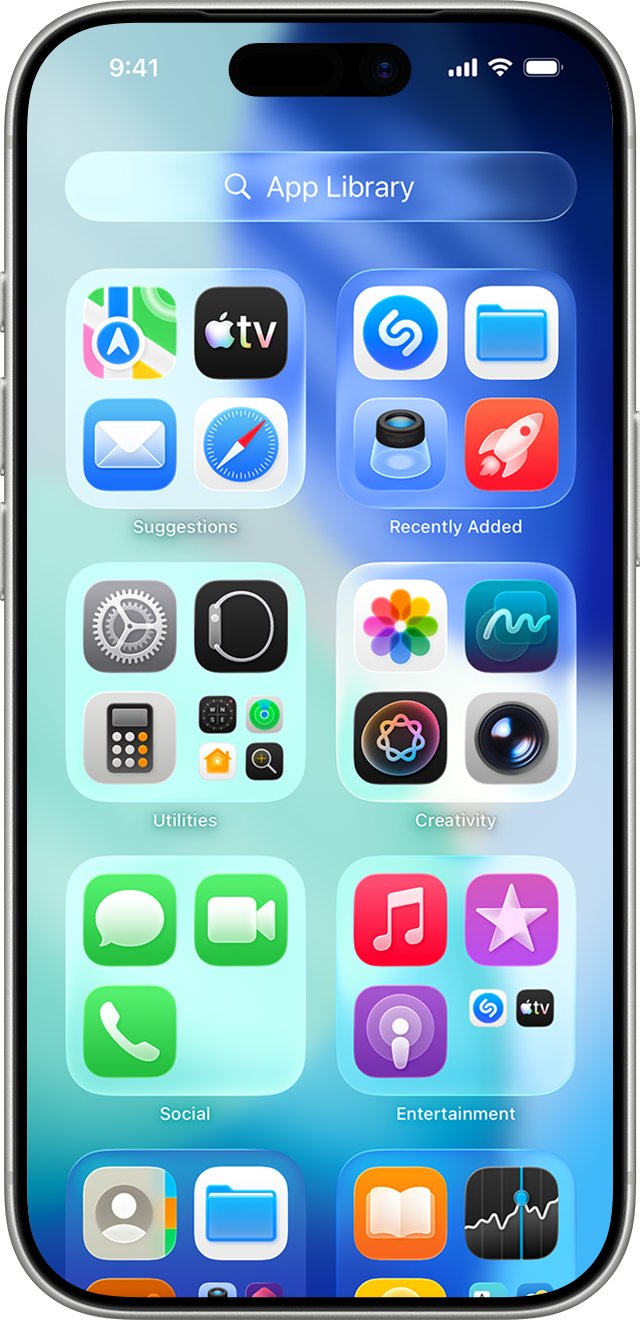
Swipe left past your last Home Screen page to open App Library, search for Stocks, then touch and hold the app until it moves to the Home Screen.
Being able to open Stocks from the App Store means the app is still installed, so only the icon is out of place. This guide covers that fix, the other places the icon can sit, how to reinstall Stocks, and what to do when the icon will not stay.
How to get the Stocks icon back on iPhone SE
App Library is the page to the right of your last Home Screen page, and it lists every app you have removed from the Home Screen. It needs iOS 14 or later, and the iPhone SE 2020 still gets iOS updates.
- Press the Home button to go to the Home Screen.
- Swipe left past all your Home Screen pages to reach App Library.
- Tap the search field at the top of the screen and type Stocks.
- Touch and hold the Stocks app until the app icons begin to jiggle and the app moves to the Home Screen.
- Lift your finger, or drag the icon to the page and position you want.
- Press the Home button on your iPhone SE to finish.
On iOS 15, touch and hold the app in App Library, then tap Add to Home Screen. Once the icon is back, you can also add the gold price to Stocks alongside your usual symbols.
Why is the Stocks app not on my iPhone home screen?
Removing an app from the Home Screen does not delete it. Use what you see on your iPhone SE to pick the fix.
| What you see | Where the Stocks app is | What to do |
|---|---|---|
| Stocks shows up in App Library | Removed from the Home Screen, or installed with App Library Only set | Touch and hold it to move it back |
| Stocks shows up in Search but not on any page | On a hidden Home Screen page, or in a folder | Unhide the page or open your folders |
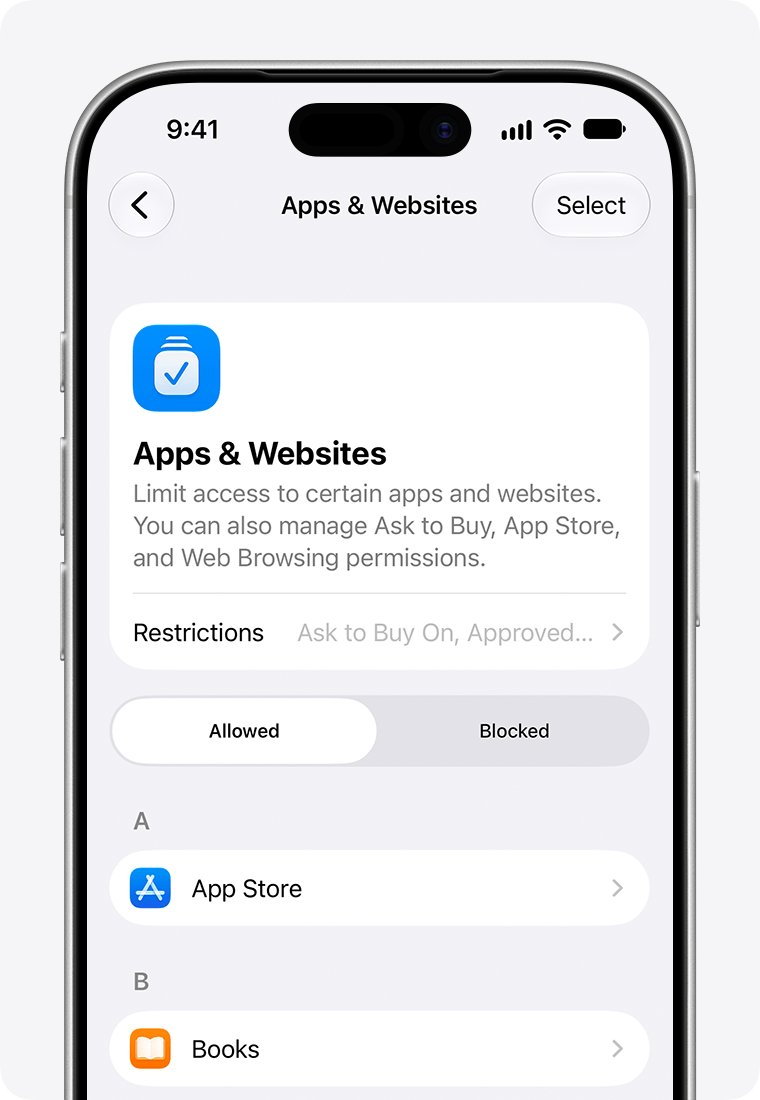
| The icon is on the screen but dimmed | Blocked with Screen Time | Allow it in Apps & Websites |
| The icon only vanishes at certain times | A Focus is showing a different Home Screen page | Turn the Focus off |
| Search finds nothing and the App Store shows a download icon | Deleted from the iPhone | Download Stocks again from the App Store |
How to search for the Stocks app on iPhone
Search tells you in seconds whether Stocks is installed, and it finds apps sitting on hidden pages too.
- Swipe down from the middle of the Home Screen, or tap Search at the bottom of the Home Screen on iOS 16 and later.
- Type Stocks in the search field.
- If the app icon appears, tap it to open the app.
- If the app icon does not appear, download Stocks from the App Store.
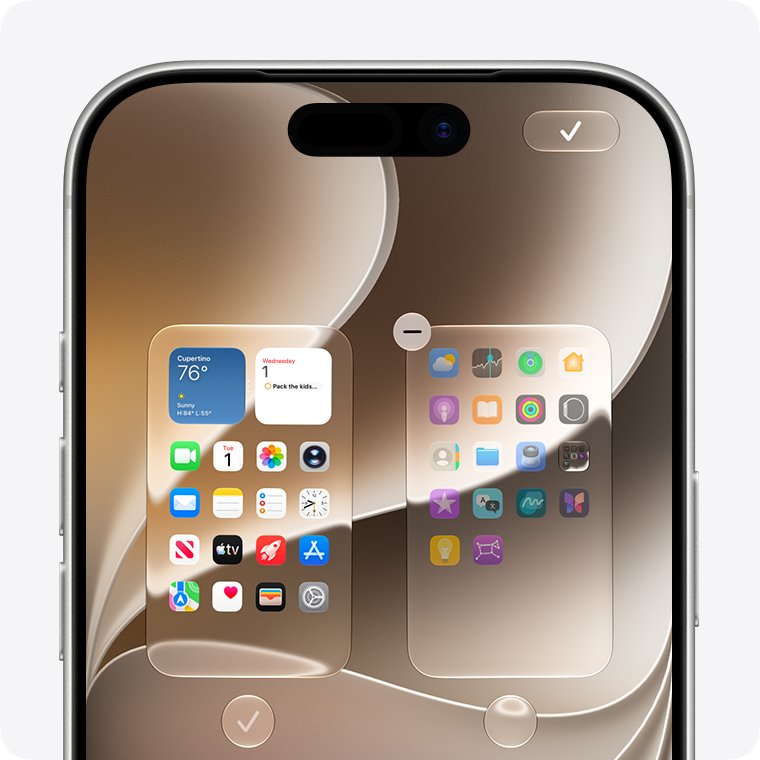
How to unhide a Home Screen page on iPhone SE
A hidden page takes all its apps out of view, and it also causes new downloads to land in App Library. If Stocks was on that page, the icon returns with it.
- Touch and hold an empty area of the Home Screen until the app icons begin to jiggle.
- Tap the dots near the bottom of the screen. On some iOS versions, tap Edit, then Edit Pages, first.
- Look for page thumbnails with empty circles under them, which are the hidden pages.
- Tap an empty circle to add a checkmark and show that page.
- Press the Home button on your iPhone SE to finish.
How to move the Stocks app out of a folder on iPhone
An icon inside a folder is easy to miss, because one folder can hold multiple pages of apps. Check every folder on your Home Screen.
- Go to the Home Screen and tap the folder to open it.
- Swipe left inside the folder to check each of its pages.
- Touch and hold Stocks until the apps begin to jiggle.
- Drag Stocks out of the folder and onto the Home Screen.
- Press the Home button on your iPhone SE to finish.
How to reinstall the Stocks app on iPhone
Stocks is a built-in Apple app that can be deleted, and Apple still lists it on the App Store as a free download. Reinstall it if neither App Library nor Search finds it.
- Open the App Store on your iPhone.
- Search for Stocks using the exact app name, and pick the listing from Apple.
- Tap the download icon to reinstall it.
- Wait for the download to finish, then find the app on your Home Screen or in App Library.
- If it landed in App Library, touch and hold it to move it to the Home Screen.
Deleting a built-in app also removes its related user data and settings, so check your watchlist after you reinstall. If the App Store asks for a password each time, you can turn off the password for free downloads.
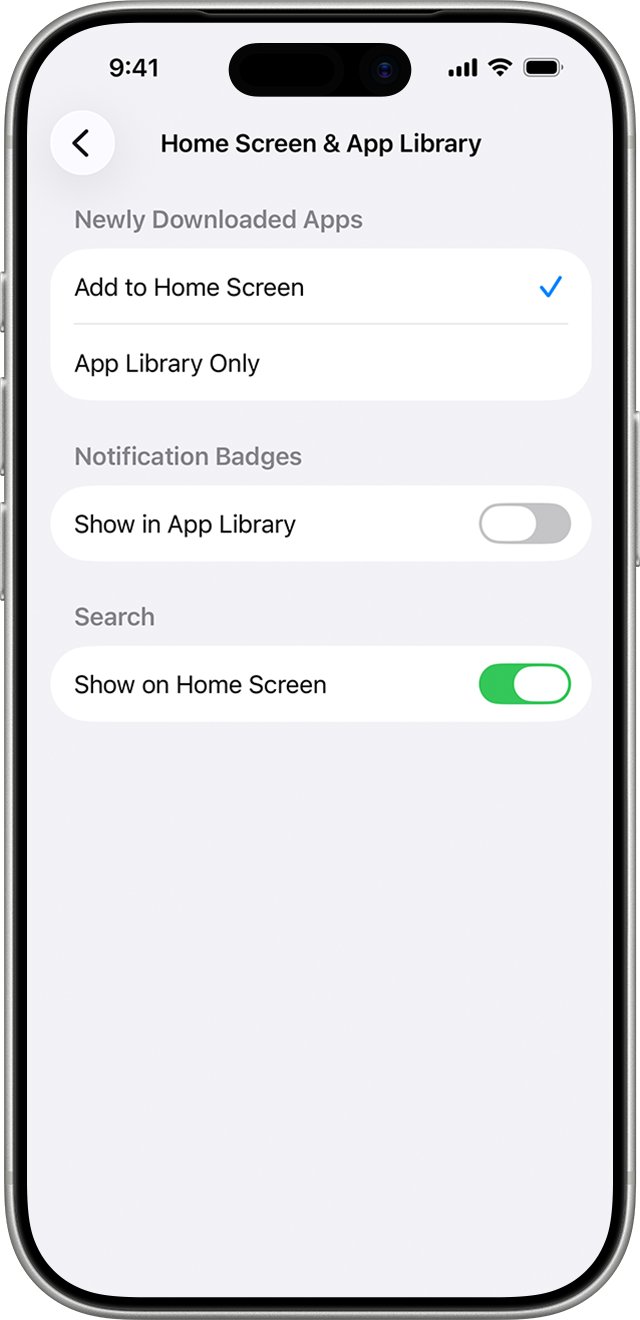
How to make new apps appear on the iPhone home screen
This is the setting behind an icon that never lands on the Home Screen. With App Library Only selected, a downloaded app goes straight to App Library.
- Open the Settings app on your iPhone.
- Tap Home Screen & App Library, or Home Screen on iOS 15.
- Choose Add to Home Screen.
- Download or move Stocks again and check that the icon appears on a Home Screen page.
Hidden Home Screen pages can still send new downloads to App Library, so unhide them if the icon keeps skipping the Home Screen.
Why the Stocks icon shows on iPad but not on iPhone
Each device keeps its own Home Screen layout, so a normal iPad tells you nothing about the iPhone. Apple stores Home Screen layout and app organization in each device's backup rather than syncing them across devices. Moving, removing or hiding an icon on the iPhone leaves the iPad as it was, so fix the iPhone directly.
Can the Stocks app be hidden on iPhone?
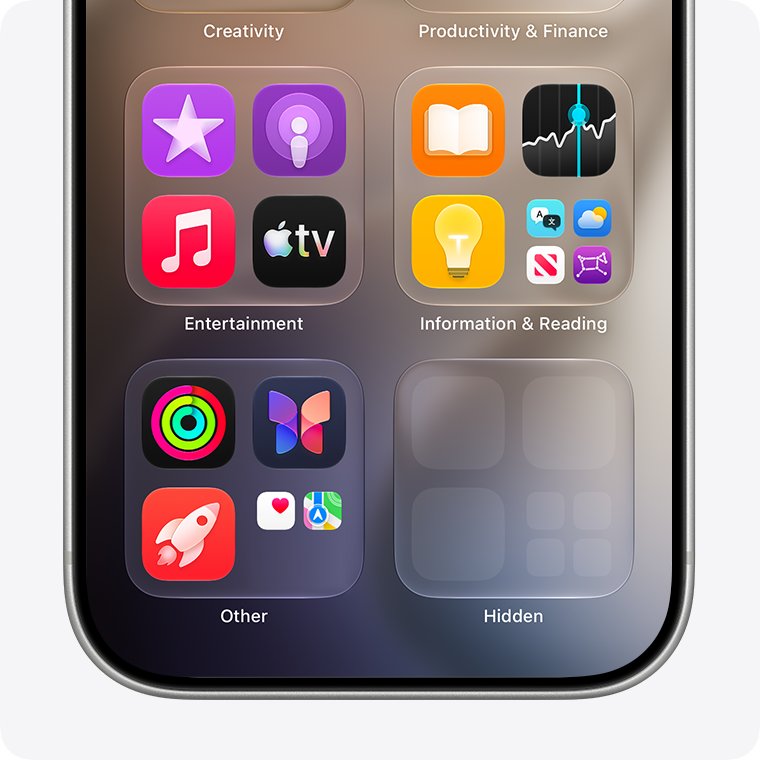
Hidden apps arrived in iOS 18, and a hidden app disappears from the Home Screen, App Library and Search. It moves to a Hidden folder that needs Touch ID or your passcode to open.
Not when it came installed with your iPhone. Apple says apps that come installed cannot be hidden, and only apps you download separately from the App Store can. If you reinstalled Stocks yourself, check the Hidden folder at the bottom of App Library, or go to Settings > Apps > Hidden Apps.
To unhide an app in that folder, touch and hold its icon, tap Don't Require Touch ID or the passcode equivalent, then authenticate. The app returns to App Library, and you can move it to the Home Screen from there.
How to test the Stocks icon stays on the iPhone home screen
- Press the Home button and swipe to the page where you placed Stocks.
- Tap the icon and confirm the app opens.
- Press the Home button and confirm the icon is still on that page.
- Lock the iPhone, unlock it with Touch ID or your passcode, and check the page again.
- If the icon has moved, repeat the search in App Library and work through the fixes below.
How to reset Home Screen layout on iPhone SE
Use this as the last resort when the icon still will not stay. Apps that came with the iPhone return to their original layout and downloaded apps follow alphabetically, so look for Stocks on those pages afterward.
- Open Settings and tap General.
- Tap Transfer or Reset iPhone.
- Tap Reset, then tap Reset Home Screen Layout.
- Tap Reset Home Screen to confirm.
This also removes any folders you created, so you need to rebuild your layout afterward.
Stocks app icon keeps disappearing from iPhone home screen
The icon goes away again after you open Stocks from the App Store
Opening the app does not place an icon, because the app stays where it is installed, usually App Library.
- Open App Library and search for Stocks.
- Touch and hold the app until it moves to the Home Screen.
- Press the Home button to finish.
- Set Home Screen & App Library to Add to Home Screen.
The Stocks icon vanishes only at certain times of day
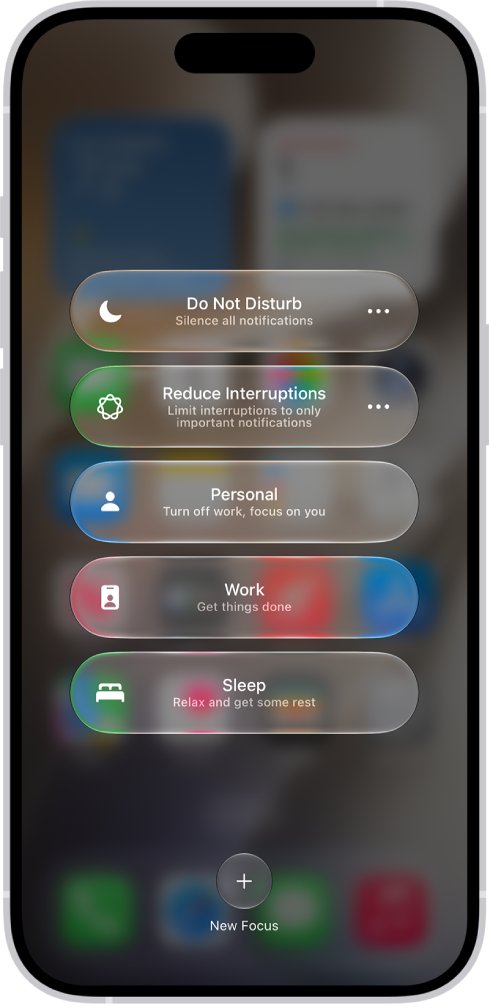
A Focus can switch to a customized Home Screen page while it is on.
- Look for a Focus icon in the status bar.
- Open Control Center, tap Focus, and turn off the active Focus.
- Check the Home Screen again.
- To keep Stocks in view, add the icon to the page linked to that Focus.
The Stocks icon is dimmed
A blocked app is not deleted but appears dimmed on the Home Screen.
- If a parent manages your iPhone, ask them to open Settings > Family and tap your name.
- Have them tap Apps & Websites and enter the Screen Time passcode.
- Have them move Stocks to the allowed list.
Stocks does not appear in App Library or Search
The app was deleted from the iPhone.
- Open the App Store and search for Stocks.
- Tap the download icon.
- Touch and hold the installed app in App Library to move it to the Home Screen.
Apple Stocks app icon FAQ
Where is the Stocks app on my iPhone?
If it is not on a Home Screen page, it is usually in App Library. Swipe left past your last Home Screen page and search for Stocks, or swipe down from the middle of the Home Screen and search there.
How do I get the icon back on my iPhone screen?
Open App Library, search for the app, then touch and hold it until it moves to the Home Screen. Lift your finger and press the Home button on an iPhone SE, or tap Done on other models.
Why can I open Stocks from the App Store but not see the icon?
The App Store can open an app that is already installed, wherever its icon sits. Stocks is most likely in App Library, on a hidden page or in a folder, so moving the icon back to the Home Screen fixes it.
Can you delete the Stocks app on iPhone?
Yes. Touch and hold the app, tap Remove App, tap Delete App, then tap Delete to confirm. Apple lists Stocks among the built-in apps you can delete, and you can download it again from the App Store. The same goes if you need to reinstall the Weather app.
Is the Stocks app free to download again?
Yes. Apple lists Stocks as a free app in the Finance category on the App Store. Search for the exact name Stocks, pick the listing from Apple and tap the download icon to reinstall it.
Does resetting the Home Screen delete apps?
No. Reset Home Screen Layout rearranges icons and removes folders you created. Downloaded apps are arranged alphabetically after the apps that came with your iPhone, so you can expect to rebuild your layout afterward.