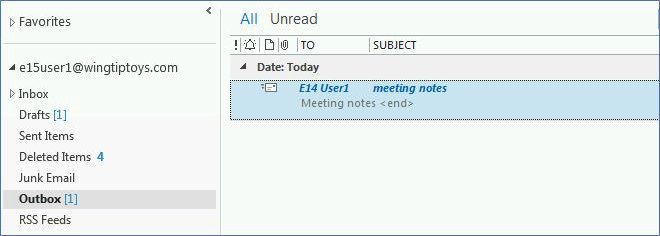
Your Outbox in Outlook is in the Folder pane under your email account in new and classic Outlook for Windows, and at the top of the sidebar in Outlook for Mac when a message is waiting to send.
This guide covers where the Outbox sits in every Outlook version, why it can look missing, where scheduled email goes instead, and how to release a message stuck in the Outbox.
Step-by-step tutorial: finding the Outbox in Outlook
Match your Outlook version to a row. The Outbox only holds mail that has not left your device yet, so it is often empty.
| Your Outlook | Where the Outbox is | Fastest way to open it |
|---|---|---|
| Classic Outlook for Windows (Microsoft 365, 2024, 2021) | Folder pane, under your account | Press Ctrl + Shift + O |
| New Outlook for Windows | Folder pane, under your account | Select Outbox in the folder list |
| Outlook on the web and Outlook.com | Folder list; unsent mail is usually in Drafts | Open Drafts, then check Outbox if it is listed |
| Outlook for Mac | Top of the sidebar, only while a message is waiting | Select View > Sidebar if the sidebar is hidden |
If the Outbox is empty and the message is not in Sent Items either, it was never sent. Check Drafts next.
Find the Outbox in new Outlook for Windows
New Outlook has an Outbox folder, like classic Outlook. Messages land there when you select Send while offline, and they wait until Outlook reconnects.
- Open new Outlook and select Mail.
- Look in the Folder pane on the left, under your email address.
- If the folders are hidden, select the View tab on the ribbon.
- Select Folder pane, then Folder list, then Show.
- Expand your account's folders and select Outbox.
Offline sending needs offline access on. Check it under Settings > General > Offline, where the Enable offline email, calendar, and people toggle is on by default.
Find the Outbox in classic Outlook for Windows
Classic Outlook keeps an Outbox for every account in the Folder pane. The keyboard shortcut opens it from anywhere in the mail view.
- Open classic Outlook and press Ctrl + 1 to switch to Mail.
- Press Ctrl + Shift + O to switch straight to the Outbox.
- Or look in the Folder pane and select Outbox under your account.
- If the folder pane is hidden, select View > Layout > Folder Pane > Normal.
- If the Folder pane is minimized, select the > arrow on the side of the window to expand it.
- To pick the folder without expanding the pane, select All Folders in the minimized pane, then Outbox.
Ctrl + Y also opens the Go to Folder box in classic Outlook, where you can select Outbox from the list.
Find the Outbox in Outlook on the web or Outlook.com
Outlook on the web sends mail from Microsoft's servers, so a message that did not go out usually stays in Drafts. Microsoft's Outlook.com help says to check both Drafts and Outbox.
- Sign in to Outlook.com or Outlook on the web.
- Select Mail, then look at the folder list on the left.
- Select Drafts and look for the message.
- If an Outbox folder is listed, select it and check there too.
- Open the message, fix the problem, then select Send again.
A scheduled message on the web also sits in Drafts until its send time, so it is not stuck.
Find the Outbox in Outlook for Mac
Outlook for Mac hides the Outbox while email works normally. It appears at the top of the sidebar only when messages are waiting to be sent.
- Open Outlook for Mac.
- If you cannot see the folder list, select View > Sidebar.
- Look at the top of the sidebar for Outbox.
- If it is not there, no message is waiting to send.
- To edit a queued Mac message, open the Tools tab and move the slider to Offline.
- Open the Outbox, edit or delete the message, then move the slider back to Online.
The Online/Offline slider is not available in new Outlook for Mac.
Why is the Outbox missing in Outlook?
A missing Outbox is usually a hidden pane or an empty queue, not a deleted folder. Default folders such as Inbox, Outbox, Drafts and Sent cannot be deleted in classic Outlook.
| What you see | Cause | What to do |
|---|---|---|
| No folders at all | The Folder pane is off or minimized | Classic: View > Layout > Folder Pane > Normal. New Outlook: View > Folder pane > Folder list > Show |
| No Outbox on a Mac | Mac shows it only while mail is waiting | Nothing to fix; send a message offline and it appears |
| No sidebar on a Mac | The sidebar is hidden | Select View > Sidebar |
| No Outbox on the web | Web mail is sent from the server | Check Drafts for unsent mail |
| Outbox under a different account | Each account has its own folders | Expand the account you sent from |
How to release a message stuck in the Outbox
In classic Outlook, take Outlook offline first. Outlook cannot change a message while it is trying to send it.
- Select Send / Receive > Work Offline.
- Open the Outbox in the Folder pane.
- Delete the message, or drag it to Drafts.
- Open it from Drafts, remove a large attachment or fix the recipient, and select Send.
- If Outlook says it is still transmitting, close Outlook. If it will not close, end outlook.exe in Task Manager and reopen Outlook.
- Select Send / Receive > Work Offline again to go back online.
- Select Send All to send the queue.
In new Outlook, Outlook on the web and Mac, a scheduled message is released from Drafts instead. Open it, select Cancel send, then Send.
Where scheduled messages are stored in Outlook
Delayed and scheduled messages wait in different folders depending on the feature, which is why one can look lost. You can schedule an email in Outlook in every version, but only classic Outlook holds it in the Outbox.
| Feature | Outlook version | Where it waits | Needs Outlook open? |
|---|---|---|---|
| Do not deliver before on one message | Classic Outlook for Windows | Outbox | Yes, Outlook must be online and connected |
| Rule that defers delivery by minutes | Classic Outlook for Windows | Outbox | Yes |
| Schedule send | New Outlook and Outlook on the web | Drafts | No, it sends from the server |
| Schedule send | Outlook for Mac with a Microsoft 365 or Exchange account | Drafts | No, Microsoft says it sends even if Outlook is closed |
A classic Outlook delay send rule for all emails puts every message in the Outbox for the minutes you set, so a full Outbox can be normal.
Outlook Outbox facts that prevent confusion
| Fact | What it means for you |
|---|---|
| The Outbox is a local queue | A message there has not left your device |
| An empty Outbox is normal | Sent mail moves to Sent Items once it goes out |
| A message in Sent Items was sent | Delivery problems then come back as a bounce message, not an Outbox item |
| Send immediately when connected controls auto-sending | With it off, mail waits until you press F9 or select Send/Receive |
| Work Offline applies to all accounts in classic Outlook | Every account's mail queues until you go back online |
| A number beside Outbox with no messages inside | A stuck read receipt can cause it in classic Outlook |
Pros and cons of the Outlook Outbox
| Pros | Cons |
|---|---|
| You can write and send email offline; it goes out when you reconnect | Mail can sit unsent without an obvious warning |
| You can still edit or delete a message before it leaves | Classic Outlook must be online, and Outlook kept open, for queued mail to go |
| Delayed messages in classic Outlook stay editable in one place | Each Outlook version keeps unsent mail in a different folder |
| The Mac hides the Outbox when it is empty, keeping the sidebar short | On a Mac the folder seems to vanish, which looks like a fault |
How to check an Outlook email left the Outbox
- Open the Outbox and confirm the message is no longer listed.
- Open Sent Items and confirm the message is there with the time it went out.
- In classic Outlook, check the status bar: Working Offline or Disconnected means mail is still queued.
- On the web, confirm the message is no longer in Drafts.
- Send a short test to your own address and confirm it arrives in your Inbox.
Why is my email stuck in the Outbox in Outlook?
Match the symptom, then run only the fix under it.
Email is queued in the Outbox and only sends when you press F9
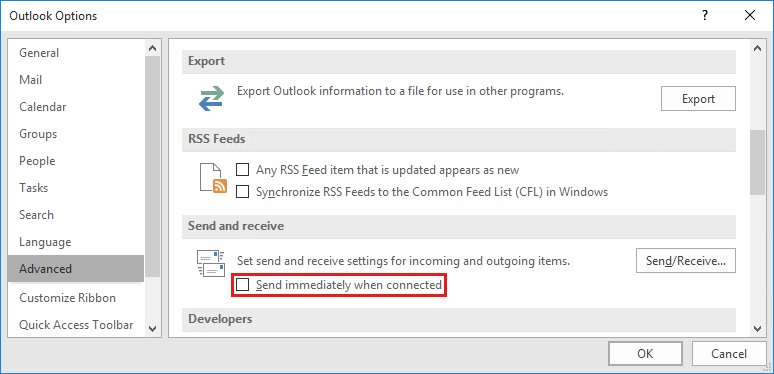
Send immediately when connected is turned off, by you or by an administrator.
- In classic Outlook, select File > Options.
- Select Advanced.
- In the Send and receive section, select Send immediately when connected.
- Select OK. If the box is grayed out, a group policy manages it, so ask your administrator.
Emails sit in the Outbox because Outlook is offline or disconnected
Work Offline is on, or Outlook cannot reach your mail server.
- Look at the status bar for Working Offline or Disconnected.
- Select Send / Receive > Work Offline to turn it off.
- If it still says Disconnected, check your internet connection.
- On a Mac, open the Tools tab and move the slider to Online.
One message with an attachment stays stuck in the Outbox
The attachment is too large; Outlook.com refuses attachments over 25 MB.
- Release the message using the Work Offline steps above.
- Remove the attachment.
- Upload the file to OneDrive and attach a link, or attach a smaller file.
- Select Send again.
Emails stuck in the Outbox and new mail stops arriving
The mailbox is full. A mailbox over its quota cannot send or receive.
- In Outlook.com, right-click Junk Email and select Empty folder.
- In new Outlook, select Settings > Accounts > Storage to see what fills the mailbox.
- Delete large messages, then empty Deleted Items, which still counts toward the quota.
- Send the message again.
Outbox shows a number but no messages
A read receipt is stuck in progress and Outlook keeps trying to resend it.
- Close and reopen classic Outlook to see whether the count clears.
- If it stays, Microsoft's documented fix deletes the stuck read receipt with its MFCMAPI tool, with Outlook closed.
- Ask your IT team to run that fix if you manage a work account.
Outlook for Mac email stuck in the Outbox with "Unexpected data was encountered"
Outlook for Mac cannot find the Sent Items folder because the mailbox folder hierarchy is damaged.
- On a Windows PC with classic Outlook, exit Outlook.
- Press Windows logo key + R, type
Outlook.exe /resetfoldersand select OK. - Reopen Outlook for Mac and send the message again.
Mail still stuck in the classic Outlook Outbox after every fix
An add-in can block sending.
- Close Outlook.
- Open Outlook in safe mode, which starts it without add-ins.
- Select Send / Receive > Send All.
- If the mail sends, turn off Outlook add-ins one at a time to find the cause.
Additional information on the Outlook Outbox from Microsoft
- Email stays in Outbox until manually send or receive — Classic Outlook setting and registry policy behind auto-sending
- Where's my Outbox in Outlook for Mac? — Why the Mac sidebar hides the Outbox
- Email stuck in Outlook.com — Drafts, attachment and full mailbox checks
- How to delete nonexistent messages from Microsoft Outlook — Outbox count with no messages, caused by a stuck read receipt
- Email messages are stuck in Outbox in Outlook 2016 for Mac — Folder reset fixes for the Mac error
Outlook Outbox FAQ
Where is my Outbox in Outlook web?
Outlook on the web sends mail from the server, so unsent messages usually stay in Drafts. Open Drafts first, then check Outbox if it appears in your folder list. Scheduled messages also wait in Drafts until their send time.
Where is my Outbox in Outlook 365?
In the classic Outlook desktop app for Microsoft 365, the Outbox is in the Folder pane under your account. Press Ctrl + Shift + O to open it directly. In Outlook on the web for Microsoft 365, check Drafts for unsent mail.
Where is my Outbox in the new Outlook?
New Outlook for Windows lists Outbox in the Folder pane under your account. If you see no folders, select View > Folder pane > Folder list > Show. Messages go there when you send while offline.
How do I show the Outbox folder in Outlook?
In classic Outlook, select View > Layout > Folder Pane > Normal, then select Outbox. On a Mac, select View > Sidebar; the Outbox appears at the top only when a message is waiting to send.
Why is my email queued in the Outbox in Outlook?
Outlook queues mail when it is offline, disconnected, or set not to send immediately. In classic Outlook, turn off Send / Receive > Work Offline and turn on Send immediately when connected under File > Options > Advanced.
Why do emails get stuck in the Outbox in Outlook?
The most common causes are an attachment that is too large, Work Offline being on, a full mailbox, or Send immediately when connected being off. Fix the cause, then select Send All or press F9 in classic Outlook.
Why does my email go to the Outbox in Outlook?
Desktop Outlook holds outgoing mail in the Outbox until it can send it. A message that stays there was held by an offline connection, a delay rule, a Do not deliver before time or a send error.
Does a missing Outbox mean my email was sent?
Not on its own. Check Sent Items: a message there was sent. If it is in neither the Outbox nor Sent Items, look in Drafts, because the message was never sent.
Can I delete a message from the Outlook Outbox?
Yes. In classic Outlook, select Send / Receive > Work Offline first, then open the Outbox and delete the message or drag it to Drafts. On a Mac, move the Tools slider to Offline before editing or deleting it.
The bottom line on finding your Outlook Outbox
Press Ctrl + Shift + O in classic Outlook, select Outbox in the new Outlook Folder pane, and check Drafts on the web or for scheduled mail. The Outbox only holds mail that has not left your device, so it is often empty or hidden. Sent Items and Drafts tell you more about a missing message than the Outbox does.