A computer is built from ten main parts: the CPU, motherboard, power supply, RAM, storage, GPU, input and output devices, case, cooling, and the ports and network hardware that connect it to everything else.
Each part below gets its function, where it sits in the machine, and what to look for, followed by the desktop and laptop differences and a way to list the parts inside your own PC.
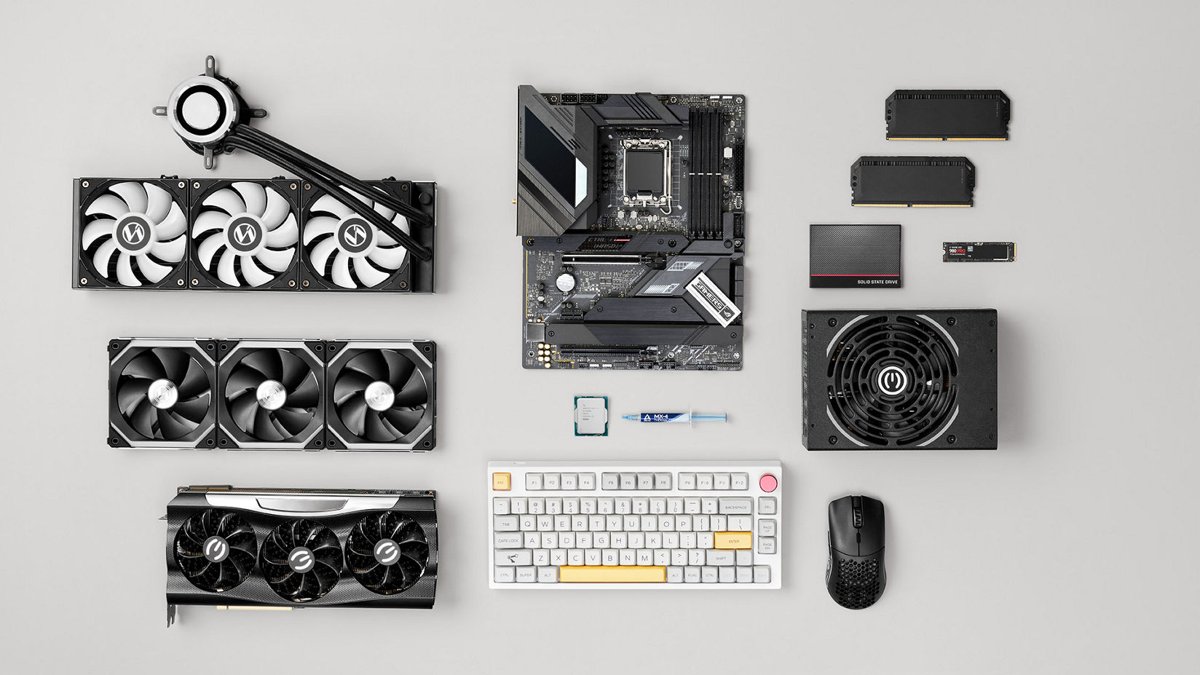
Computer parts diagram: what each part does at a glance
Read this table like a labelled diagram of a desktop tower, from the chips on the main board out to the devices on your desk.
| Part | Main function | Where it sits |
|---|---|---|
| CPU (processor) | Executes program instructions and directs the other parts | In the socket on the motherboard, under the cooler |
| Motherboard | Main circuit board that connects every other part | Screwed to the side panel inside the case |
| Power supply unit (PSU) | Turns wall power into the power the parts use | Usually at the bottom rear of the case |
| RAM (memory) | Short-term memory for data the CPU needs right now | Slots beside the CPU socket |
| Storage (SSD or HDD) | Keeps the operating system, programs and files when the power is off | M.2 slot on the motherboard, or drive bays in the case |
| GPU (graphics) | Draws the image you see on the monitor | Inside the CPU, or on a card in the PCIe x16 slot |
| Input and output devices | Let you give commands and see or hear results | Outside the case: keyboard, mouse, monitor, speakers |
| Case | Holds and protects the parts and guides airflow | The outer shell |
| Cooling | Moves heat away from the CPU, GPU and case | CPU cooler, case fans, GPU fans |
| Ports and networking | Connect peripherals, displays and the internet | Rear panel, front panel and wireless antennas |
1. CPU (central processing unit)
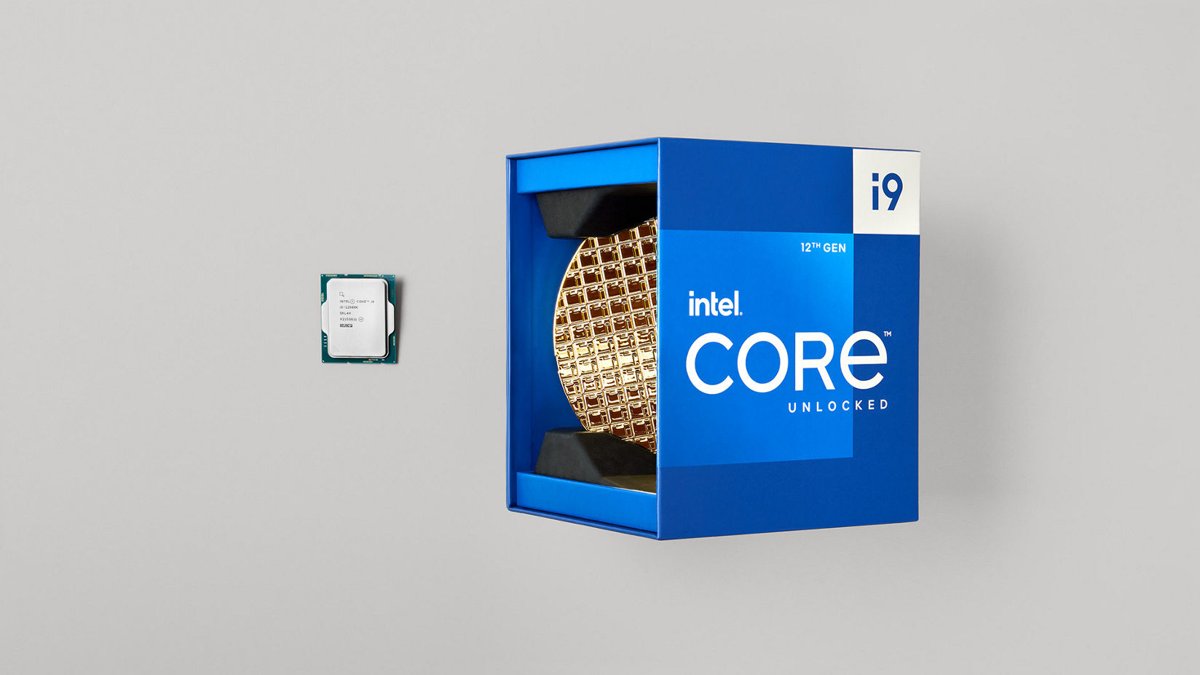
The CPU is the brain of the computer. Intel describes it as the part responsible for executing the instructions programs need to run, while dictating tasks to all other components.
It affects everything you do, from opening a browser to gaming, streaming and multitasking.
| CPU feature | What it means for you |
|---|---|
| Cores | Independent processing units; more cores handle more tasks at once |
| Threads | Parallel task streams; more threads keep the system smooth with many apps open |
| Clock speed (GHz) | How fast each core works; a high maximum turbo speed helps single-threaded work and games |
| Socket | The physical fit on the motherboard; the CPU and board must match |
| Integrated graphics | A GPU built into the CPU, enough for everyday use without a graphics card |
2. Motherboard
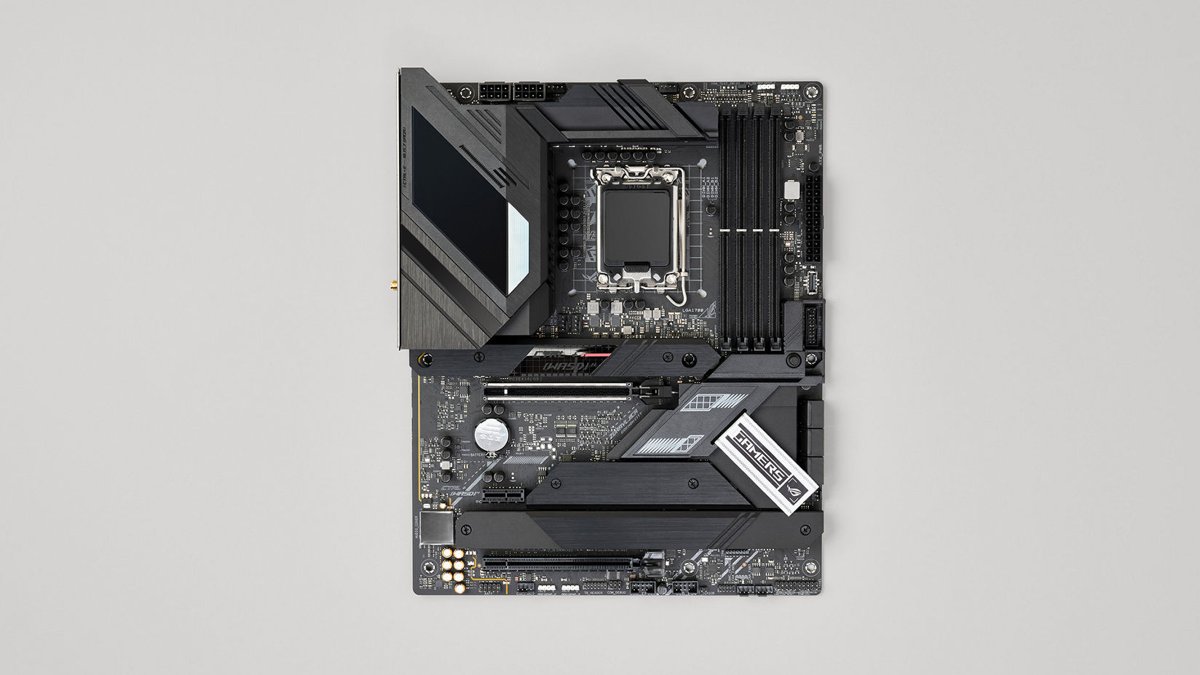
The motherboard is the main circuit board, and everything connects to it. The CPU sits directly on it, and the graphics card, drives, memory and wireless card all plug into it.
Its size, called the motherboard form factor, decides which case it fits and how many slots you get.
| Form factor | Size | Typical RAM slots |
|---|---|---|
| Extended ATX | 12 x 13 in or 12 x 10.1 in | Often eight |
| ATX | 12 x 9.6 in | Usually up to four |
| microATX | 9.6 x 9.6 in | Up to four |
| Mini-ITX | 6.7 x 6.7 in | Often two |
The board's chipset also sets which technologies the PC supports, such as the RAM generation, the PCIe version for graphics cards and SSDs, and built-in Wi-Fi.
3. Power supply unit (PSU)
The PSU takes power from the wall outlet and feeds it to every part through cables. A desktop board takes two main power connections: a 24-pin connector at the side and an 8-pin CPU connector near the top.
It needs enough wattage for today's parts and any upgrades you plan, so a wattage calculator is a sensible first step before buying one.
| PSU style | How the cables work | Who it suits |
|---|---|---|
| Non-modular | All cables are permanently attached | Budget builds; unused cables must be tucked away |
| Semi-modular | Main cables fixed, extras detachable | Most builds; fewer loose cables |
| Full-modular | Every cable detaches | Tidy builds and small cases |
4. RAM (random access memory)
RAM is the computer's short-term memory. Programs keep the data they need quickly here, including the instruction lists the CPU reads and runs, and it is cleared when the PC shuts down.
Intel recommends at least 16GB for modern gaming, and more if you stream or run many programs at once.
| RAM detail | Why it matters |
|---|---|
| Capacity (GB) | How many programs and browser tabs stay fast at the same time |
| Generation (for example DDR5) | Must match what the motherboard and CPU support |
| Speed | RAM faster than the system supports runs at the system's lower speed |
| Matched kits | Mixing kits from different makers is not recommended, even at the same rated speed |
| Slots | Most desktop boards have two or four; the manual shows which to fill first |
5. Storage: SSDs, HDDs and portable drives
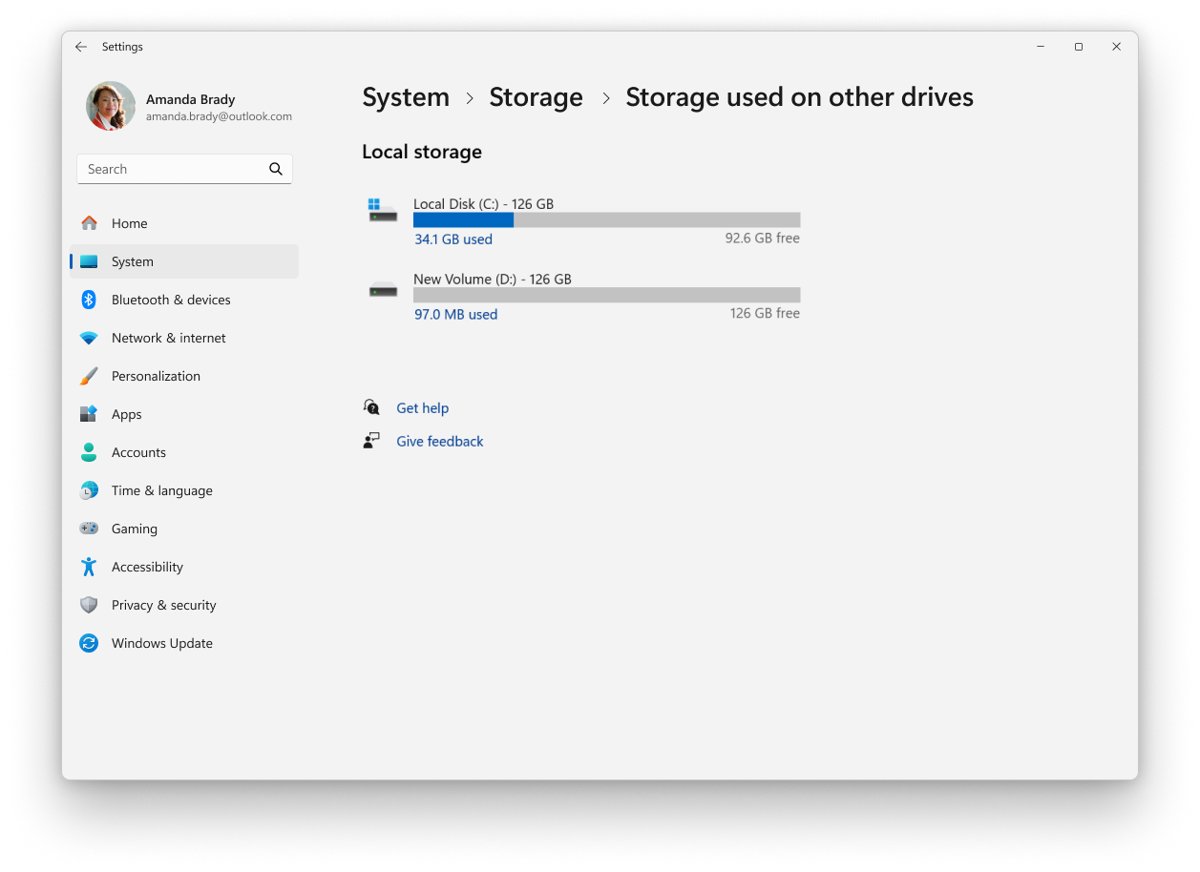
Storage keeps your operating system, programs and files when the power is off. Unlike RAM, nothing is lost at shutdown.
A common setup is a small SSD as the boot drive for Windows and programs, plus a cheaper, larger HDD for bulk files.
| Storage type | How it works | Strength | Typical form |
|---|---|---|---|
| Solid state drive (SSD) | Flash memory chips, no moving parts | Much faster and less prone to mechanical failure | M.2 stick on the motherboard, or 2.5-inch drive |
| Hard disk drive (HDD) | Spinning magnetic platters and a moving read head | Lower cost per gigabyte and high capacity | 3.5-inch (desktop) or 2.5-inch (laptop) |
| Portable drives | External SSDs, HDDs and USB flash drives | Move files between computers and keep backups | Plugs into a USB port |
Internal SATA drives connect with a SATA cable plus a power cable, while M.2 SSDs plug straight into the motherboard.
6. GPU (graphics processing unit)
The GPU is a processor designed to render graphics, and it can process many pieces of data at once. That parallel design also makes it useful for video editing and machine learning.
A graphics card is the add-in board that carries the GPU, much as the motherboard carries the CPU.
| GPU type | Where it is | Best for |
|---|---|---|
| Integrated | Built in alongside the CPU | Everyday work, video, light games; thinner, cheaper, lower-power systems |
| Discrete (dedicated) | Its own card, usually in the PCIe x16 slot | Demanding games, 3D work and video rendering; uses more power and needs its own cooling |
7. Input and output devices
Input devices send information into the computer, and output devices present the results. You need at least a display, a keyboard and a mouse to set up a new desktop.
| Type | Examples | Function |
|---|---|---|
| Input devices | Keyboard, mouse, touchpad, microphone, webcam, scanner, game controller | Enter text, point and click, capture sound or images |
| Output devices | Monitor, speakers, headphones, printer | Show images, play sound, put documents on paper |
| Both input and output | Touchscreen, headset with microphone, external drive | Send and receive data through one device |
Peripherals and accessories such as printers, webcams, game controllers and external drives are all input or output devices. Most plug into a USB port or connect over Bluetooth.
8. Computer case
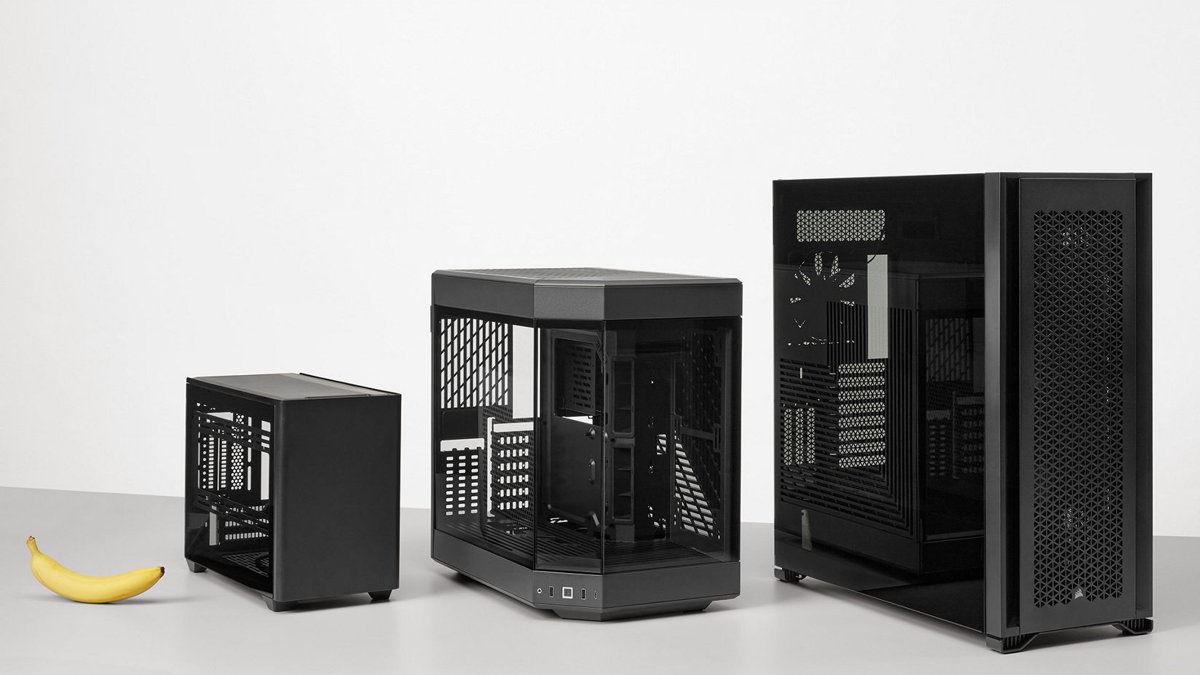
The case, also called the chassis, holds the motherboard, PSU, drives and cooling, protects them from dust and knocks, and guides airflow. Its size is based on the motherboard it is built for.
| Case size | Fits | Trade-off |
|---|---|---|
| Full tower | The largest boards and the most drives and fans | Takes the most desk or floor space |
| Mid tower | ATX and smaller boards | The usual balance of room and size |
| Mini tower | microATX and Mini-ITX boards | Compact, with less room to work and upgrade |
Case sizes are not standardized between manufacturers, so check the maximum motherboard size, graphics card length and cooler height in the case's listing.
9. Cooling and airflow
Every part turns electricity into heat, and the CPU and GPU produce the most. Cooling moves that heat out so the parts keep running at full speed.
Every desktop needs a dedicated CPU cooler mounted on the processor, with thermal paste between the two to carry heat across.
| Cooling type | How it works | Notes |
|---|---|---|
| Air cooling | A metal heatsink and fan sit on the CPU | Simple and common |
| All-in-one (AIO) liquid cooler | A sealed loop pumps liquid from the CPU to a radiator with fans | Pre-built, no filling needed |
| Custom liquid loop | Separate pump, reservoir, tubing and radiators | Built by hand for enthusiast systems |
| Case fans | Pull cool air in at the front and push warm air out at the back or top | Keep the whole case from building hotspots |
10. Connectivity, ports and networking
Ports connect the computer to displays, peripherals and networks. Desktop motherboards put most of them on the rear panel, and graphics cards add their own display outputs.
| Connection | Wired or wireless | Used for |
|---|---|---|
| USB (Type-A and Type-C) | Wired | Keyboards, mice, drives, phones and chargers |
| HDMI and DisplayPort | Wired | Monitors and TVs |
| Ethernet (RJ45) | Wired | A stable network connection to a router |
| Audio jacks | Wired | Headphones, speakers and microphones |
| Wi-Fi | Wireless | Network and internet access without a cable |
| Bluetooth | Wireless | Wireless keyboards, mice, headphones and controllers |
How many parts does a computer have?
A working desktop needs six internal parts: the CPU, motherboard, RAM, storage, power supply and case. Add a CPU cooler, a monitor, a keyboard and a mouse, and it can be used.
A graphics card is optional when the CPU has integrated graphics.
| Group | Parts | Required? |
|---|---|---|
| Core internal parts | CPU, motherboard, RAM, storage, PSU | Yes |
| Housing and cooling | Case, CPU cooler, case fans | Case and CPU cooler yes; extra fans depend on the case |
| Graphics | Discrete graphics card | Only without integrated graphics, or for demanding games and 3D work |
| Peripherals | Monitor, keyboard, mouse, speakers | A display, keyboard and mouse are needed to set it up |
| Connectivity | Wi-Fi card or Ethernet port | Needed for internet access |
Parts of a computer system
A computer system is more than the hardware in the case. It is hardware, software and peripherals working together, with you as the user giving it instructions.
| System part | What it includes | Role |
|---|---|---|
| Hardware | CPU, motherboard, RAM, storage, GPU, PSU, case | The physical machine that does the work |
| Software | The operating system, such as Windows, plus apps | Tells the hardware what to do |
| Peripherals | Monitor, keyboard, mouse, printer, speakers | Carry information in and out |
| Data and user | Your files and the commands you give | The reason the system runs at all |
Internal parts sit inside the case: CPU, motherboard, RAM, drives, PSU and cooling. External parts plug in from outside: the monitor, keyboard, mouse and other peripherals.
How computer parts work together
A computer is a machine that takes input, processes it by following program instructions, stores the results and presents them as output. Each part handles one stage of that cycle.
| Stage | Part | What happens |
|---|---|---|
| Power | Power supply | Feeds power from the wall to the motherboard and every part connected to it |
| Connection | Motherboard | Links the parts so data moves between the CPU, RAM, storage, graphics and ports |
| Input | Keyboard, mouse and other input devices | Send your commands in through the ports |
| Loading | Storage and RAM | Storage hands over Windows, programs and files; RAM keeps what the CPU needs right now |
| Processing | CPU | Executes the program instructions and tells the other parts what to do |
| Output | GPU, monitor and speakers | The GPU draws the result for the monitor, and speakers play any sound |
| Heat | Cooling | Removes the heat this work produces so the CPU and GPU keep running at full speed |
When you save a file, the data goes from RAM back to storage, which is why unsaved work is lost if the power cuts out.
Parts of a desktop computer vs a laptop
A laptop has the same core parts as a desktop, packed into one body with a built-in screen, keyboard, touchpad and battery.
| Part | Desktop | Laptop |
|---|---|---|
| CPU | Socketed, usually replaceable | Usually soldered to the board |
| RAM | Removable sticks in slots | Slots on some models, soldered on many thin ones |
| Storage | M.2 slots plus 2.5-inch and 3.5-inch bays | Usually one or two M.2 slots |
| Graphics | Integrated or a full-size card | Integrated or a mobile GPU on the board |
| Power | Internal PSU | External charger plus an internal battery |
| Display and input | Separate monitor, keyboard and mouse | Built-in screen, keyboard, touchpad and webcam |
| Cooling | CPU cooler and case fans | Compact heat pipes and small fans |
| Upgrades | Most parts can be swapped | Often limited to RAM and storage, if any |
Common computer part comparisons
Several parts are easy to confuse because they sound alike or do related jobs. This table separates the pairs people mix up most.
| Comparison | First part | Second part |
|---|---|---|
| RAM vs storage | RAM is short-term memory, cleared when the PC shuts down | Storage keeps files, programs and Windows with the power off |
| SSD vs HDD | SSD uses flash chips with no moving parts and is much faster | HDD uses spinning platters and costs less per gigabyte |
| CPU vs GPU | CPU executes program instructions and directs the other parts | GPU renders graphics and processes many pieces of data at once |
| Integrated vs discrete GPU | Integrated graphics are built in alongside the CPU | A discrete GPU is a separate card with its own cooling |
| CPU vs motherboard | The CPU is the processor chip | The motherboard is the board the CPU and every other part connect to |
| Internal vs external parts | Internal parts sit inside the case | External parts, the peripherals, plug in from outside |
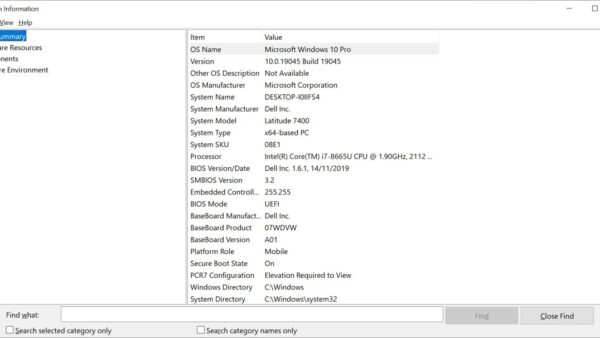
How to see which parts are in your computer on Windows
Windows lists the main parts of your own PC without opening the case.
- Right-click the Start button and select Settings.
- Select System, then About.
- Read Device specifications for the processor, the amount of Installed RAM and whether Windows is 64-bit.
- For more detail, type
msinfo32in the search box and open System Information. - Expand the categories in the left pane to see the hardware and components Windows has detected.
Parts of a computer FAQ
What are the parts of a computer?
The main parts of a computer are the CPU, motherboard, RAM, storage, power supply, case and cooling, plus a GPU, input and output devices, and ports for connecting peripherals and networks.
What part of the computer stores data?
Storage drives keep data permanently: an SSD or HDD inside the computer, or a portable drive. RAM also holds data, but only temporarily while the computer is on, and it is cleared at shutdown.
What is the most important part of a computer?
The CPU is usually called the most important part, because it executes program instructions and directs every other component. It cannot work alone, though: it needs the motherboard, RAM, storage and power supply.
What parts of a computer improve performance?
The CPU, RAM, storage and GPU have the biggest effect. A faster CPU speeds up programs, more RAM keeps many apps responsive, an SSD loads Windows and files faster than an HDD, and a discrete GPU raises game frame rates.
What parts of a computer have gold?
The most visible gold is on connector contacts, such as the gold fingers along the bottom edge of a RAM stick. The off-center notch between those fingers shows which way round the stick goes into its slot.
How do I see the parts in my computer?
Open Settings, select System, then About. Device specifications lists the processor and installed RAM. For a fuller list, open System Information by typing msinfo32 in the Windows search box.
What are the other parts of a computer besides the CPU?
Besides the CPU, a computer needs a motherboard, RAM, storage, a power supply, a case and cooling. Most also use a GPU, network hardware, and peripherals such as a monitor, keyboard and mouse.
Which computer parts matter most when buying or upgrading?
Choose the CPU first, then a motherboard that supports it, then RAM, an SSD, and a power supply with headroom for later upgrades. The CPU sets the performance level and decides which motherboard, memory and other parts are compatible, so every later choice depends on it.