Your Dell Service Tag is the seven-character code printed on the label on the bottom of a laptop or the back of a desktop, and Windows shows it when you run (Get-CimInstance -ClassName Win32_BIOS).SerialNumber in PowerShell.
This guide covers the label locations for every Dell product type, the PowerShell, SupportAssist and BIOS routes, Linux and ChromeOS, and what to do when the sticker is gone.
Find the Service Tag on a Dell laptop or desktop label
Dell prints the Service Tag (marked ST or SVC Tag) and the Express Service Code (marked EX or ESC) on the same label. On some laptops the codes are etched straight into the bottom cover instead of a sticker.
- Shut the computer down and unplug it before you turn it over or move it.
- On a laptop, close the lid, turn it upside down and read the bottom cover.
- On a desktop tower, rotate it so you can see the rear panel. Some models also carry the label on the top of the case.
- On an all-in-one, look at the bottom edge first, then the back panel.
- Copy the seven-character code next to ST or Service Tag. Take a photo of the label so you never have to find it again.
If the label is worn, scratched or missing, use the PowerShell or BIOS method below. The same code is stored in the firmware.
Which method should you use?
| Your situation | Use this | Why |
|---|---|---|
| Device in front of you, label readable | Read the label | No power, no software, works for every Dell product that has a tag |
| Windows 11 or 10 starts normally | PowerShell Get-CimInstance command |
One line, copyable text, no download |
| SupportAssist is already installed | Open SupportAssist | The tag sits on the app's main screen |
| Windows will not start | BIOS System Setup (F2) | Firmware shows the tag without an operating system |
| Linux, ChromeOS or Android tablet | Terminal, sign-in screen or About tablet | Each OS has its own route, listed below |
| Monitor, dock, server or thin client | The product-type table below | Label positions differ by product |
| Checking a PC over the network | Get-CimInstance -ComputerName |
Reads the tag without touching the machine |
What is a Dell Service Tag and why do you need it?
A Service Tag is the unique identifier Dell assigns to a computer or device. Dell Support uses it to show the exact configuration, warranty status, drivers and manuals for your unit rather than for the model in general. The tag is not the model name, so find the Dell laptop model separately when a part or accessory asks for it.
| Identifier | What it looks like | Where you use it |
|---|---|---|
| Service Tag (ST, SVC Tag) | Seven characters, letters and numbers | Dell Support search, warranty checks, drivers, linking a device to your Dell account |
| Express Service Code (EX, ESC) | 10 to 11 digits, numbers only | A numeric version of the Service Tag, useful on phone keypads |
| Serial number (S/N) or PPID | Longer part-level code | Monitors made before 2016 and some accessories carry only this |
| Model number | Product name such as a dock or keyboard model | Drivers and manuals for Dell items that have no Service Tag |
In Windows and in the BIOS, Dell stores the Service Tag in the system serial number field. That is why the Windows commands below ask for SerialNumber.
Find the Service Tag in Windows using Command Prompt or PowerShell
PowerShell reads the tag from the BIOS through the Win32_BIOS class, whose SerialNumber property holds the Service Tag on Dell systems. Type PowerShell in the Windows search box and open Windows PowerShell from the results.
Get-CimInstance -ClassName Win32_BIOS | Select-Object -Property SerialNumberGet-CimInstance queries WMI for the Win32_BIOS class, and Select-Object keeps only the SerialNumber property. For the bare code with no heading, run (Get-CimInstance -ClassName Win32_BIOS).SerialNumber instead. Both work in Windows PowerShell 5.1 and PowerShell 7.
You should see: A SerialNumber heading appears with your seven-character Service Tag under it.
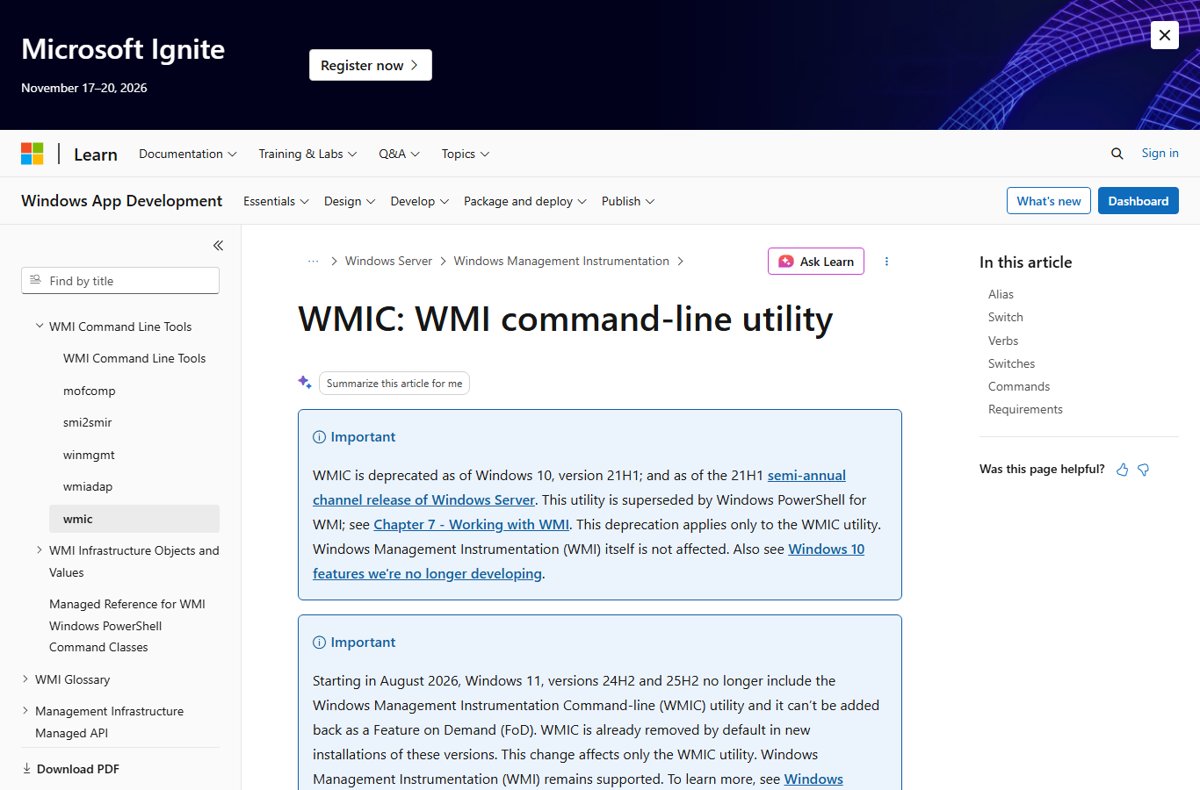
Command Prompt (legacy): wmic bios get serialnumber did the same job for years, and older Dell pages still list it. Microsoft deprecated WMIC in Windows 10 version 21H1. From August 2026, Windows 11 versions 24H2 and 25H2 no longer include it, and it cannot be added back as a Feature on Demand. Use PowerShell instead.
Dell's own article also gives GWMI -Class Win32_Bios | select SerialNumber. GWMI is Get-WmiObject, which exists only in Windows PowerShell 5.1 and is missing from PowerShell 6 and later.
Read the Service Tag of another Dell PC over the network
IT staff can read the tag from a remote Windows machine without walking to it. Replace PC01 with the computer name.
Get-CimInstance -ComputerName PC01 -ClassName Win32_BIOS | Select-Object -Property PSComputerName, SerialNumber-ComputerName sends the query to the remote PC over WSMan. If you get Access is denied, create a session with other credentials first: $s = New-CimSession -ComputerName PC01 -Credential (Get-Credential), then run Get-CimInstance -CimSession $s -ClassName Win32_BIOS.
You should see: Each row shows the computer name in PSComputerName and its Service Tag in SerialNumber.
Use Dell SupportAssist or the Dell support website
SupportAssist shows the tag on its home screen, so it is the quickest route if the app is already on the PC. If it is missing, Dell SupportAssist for Windows is a free download from Dell. Once you have the tag, you can use it to keep your Dell drivers updated.
- Select Start and type SupportAssist.
- Open SupportAssist from the results.
- Read the Service Tag on the app's main screen. On tablets it sits at the top-right of the window.
- To use the website, open dell.com/support in any browser.
- In the box under Identify your product or search support, type the Service Tag, Express Service Code or model and select Search.
- To get the Express Service Code from a Service Tag, select the More drop-down next to the Service Tag on the product page.
The product page lists warranty status, drivers, manuals and support history for that exact unit.
Locate the Service Tag in BIOS or UEFI settings
Dell BIOS System Setup works even when Windows is damaged or the drive is missing. Dell uses the F2 key on laptops, desktops, thin clients and Windows tablets.
- Restart the computer.
- Press F2 repeatedly as soon as the Dell logo appears.
- Open the Overview or System Information section.
- Read the Service Tag field.
- Exit without saving changes.
If the F2 press keeps missing the window and Windows still starts, open Start, select Power, hold Shift and select Restart. Then choose Troubleshoot > Advanced options > UEFI Firmware Settings.
Find the Service Tag on Linux, ChromeOS or an Android Dell tablet
| Operating system | Do this | Where the tag appears |
|---|---|---|
| Linux or Ubuntu | Open Terminal, run sudo dmidecode -s system-serial-number and enter your password |
On the next line of the terminal |
| ChromeOS (Chromebook) | Press Alt + V on the sign-in screen | Upper-right corner of the screen |
| Android Dell tablet | Open the app drawer, then Settings > About tablet | In the tablet information list |
| VMware ESXi on a Dell server | Run esxcli hardware platform get in the shell |
In the platform details |
Find Service Tags on Dell monitors, tablets, and accessories
Every Dell product with a Service Tag carries it on a label, but the label moves around. Use this table to go straight to it.
| Product | Where the label is | Other route |
|---|---|---|
| Dell and Alienware monitors | Back panel; the sticker lists Service Tag, Express Service Code and serial number or PPID | The monitor's on-screen menu, using its buttons or joystick; the user guide names the menu for your model |
| Monitors made before 2016 | Back panel, serial number only | Search Dell Support by serial number or model |
| Windows tablets and 2-in-1s | Bottom panel on most models; bottom-right of the back cover on some, such as the XPS 10 | SupportAssist, or BIOS with F2 at the Dell logo |
| Docking stations | Sticker on the bottom panel | Search Dell Support by dock model if the sticker is unreadable |
| Wyse thin clients | Back panel; legacy Wyse units use a pull tab on the back | BIOS with F2, or the Dell warranty tool, which maps an old serial number to its Service Tag |
| PowerEdge servers | Pull-out information (luggage) tag, usually on the front panel, sometimes the back or a chassis side label | iDRAC web interface System > Overview, or racadm getsvctag over SSH |
| Keyboards, mice, headsets, speakers, external drives | No Service Tag; the model number is on the bottom label or the box | Search Dell Support by model |
How to check you have the right Service Tag
- Count the characters. A Dell Service Tag has seven letters and numbers; a code of 10 or 11 digits is the Express Service Code.
- Open dell.com/support and enter the code under Identify your product or search support.
- Confirm the product page names the same model as the device in front of you.
- Check the warranty panel on that page to confirm your Dell warranty status.
- Save the tag somewhere outside the device, such as your Dell account or a note, for the day it will not start.
If the page shows a different model, you probably mixed up characters such as 0 and O, or read a part label instead of the system label.
What to do if the Service Tag label is missing or unreadable
The sticker is worn off but the computer still starts
The label is gone, but the tag is still stored in the system firmware.
- Start Windows and run
(Get-CimInstance -ClassName Win32_BIOS).SerialNumberin PowerShell. - Or open SupportAssist and read the tag on its main screen.
- Photograph or write down the result and keep it off the device.
The label is unreadable and the computer will not boot into Windows
Windows tools cannot run, but System Setup reads the tag from firmware.
- Restart and press F2 at the Dell logo.
- Open Overview or System Information and read Service Tag.
- If the screen stays black, look for the Dell order number or your purchase receipt, which Dell can use to identify the unit.
The Service Tag is blank after a motherboard replacement
A new system board does not carry the old tag until it is programmed.
- Note the tag from the chassis label, your order confirmation or your Dell account.
- Contact Dell Technical Support and ask them to program the Service Tag onto the board.
- Run the PowerShell command again afterwards to confirm the field is filled.
A Dell accessory has no Service Tag at all
Many accessories, including keyboards, mice, headsets, external drives and speakers, never had one.
- Read the model number from the label on the bottom or from the original box.
- Search that model on dell.com/support for drivers and manuals.
- For a warranty claim, keep the order number or purchase receipt; only devices with a Service Tag can be linked to a Dell account.
Fix the Windows methods when they show no Service Tag
Command Prompt says 'wmic' is not recognized
WMIC is removed from Windows 11 versions 24H2 and 25H2 and cannot be reinstalled.
- Open PowerShell instead of Command Prompt.
- Run
Get-CimInstance -ClassName Win32_BIOS | Select-Object -Property SerialNumber.
PowerShell does not recognize Get-WmiObject or GWMI
The WMI cmdlets are not available in PowerShell 6 and later.
- Replace
Get-WmiObjectorGWMIwithGet-CimInstance -ClassName. - Run
(Get-CimInstance -ClassName Win32_BIOS).SerialNumber.
SupportAssist does not show the Service Tag
The app is missing, outdated or cannot read the system information.
- Close SupportAssist and use the PowerShell command above instead.
- If PowerShell also returns nothing, restart, press F2 and read the tag in System Setup.
- If System Setup shows an empty field, follow the motherboard replacement fix above.
Dell Service Tag frequently asked questions
How do I find my Dell Service Tag?
Look at the label on the bottom of a Dell laptop or the back of a desktop. If you cannot read it, run (Get-CimInstance -ClassName Win32_BIOS).SerialNumber in PowerShell, open SupportAssist, or press F2 at startup and check the Overview page.
How do I find my Dell Service Tag with Command Prompt?
The old command was wmic bios get serialnumber. Microsoft has removed WMIC from Windows 11 versions 24H2 and 25H2, so on current PCs open PowerShell and run Get-CimInstance -ClassName Win32_BIOS | Select-Object -Property SerialNumber instead.
What is the PowerShell command to find a Dell Service Tag?
Run (Get-CimInstance -ClassName Win32_BIOS).SerialNumber. It prints the seven-character Service Tag on its own line. It works in Windows PowerShell 5.1 and PowerShell 7, and needs no download or extra module.
How do I find a Dell Service Tag on Linux?
Open Terminal and run sudo dmidecode -s system-serial-number, then enter your password. On a Dell system, the value it prints is the Service Tag. The command works on Ubuntu and other distributions that include dmidecode.
Is the Dell Service Tag the same as the serial number?
On Dell computers, yes. Dell stores the Service Tag in the system serial number field, which is why Windows and Linux report it as the serial number. Monitors and some accessories also carry a separate serial number or PPID on their label.
Can I find the Service Tag if my Dell computer will not boot into Windows?
Yes. Restart, press F2 repeatedly at the Dell logo, and read the Service Tag under Overview or System Information in System Setup. The firmware holds the tag, so it does not depend on Windows or the drive.
Where is the Service Tag on a Dell monitor?
It is on the label on the back panel, together with the Express Service Code and the serial number or PPID. Monitors made before 2016 have only a serial number. Many models also show the tag in the on-screen menu.
Do all Dell devices have a Service Tag?
No. Many accessories, including keyboards, mice, headsets, external drives and speakers, have no Service Tag or Express Service Code. Use the model number from the bottom label or the box to find drivers and manuals on Dell Support.
How do I look up a Dell service number online?
Go to dell.com/support and type the Service Tag or Express Service Code under Identify your product or search support. The product page shows the model, warranty status, drivers and manuals for that exact unit.
Finding a Dell Service Tag: bottom line
Read the label first, and when it is gone use (Get-CimInstance -ClassName Win32_BIOS).SerialNumber in PowerShell or the F2 System Setup screen. The label needs no power, PowerShell gives copyable text on any working Windows PC now that WMIC is gone, and System Setup still works when Windows does not.





![Easily find your PC’s serial number [5 methods]](https://techdows.com/wp-content/uploads/2026/11/Easily-find-your-PCs-serial-number-5-methods-1-600x338.jpg)