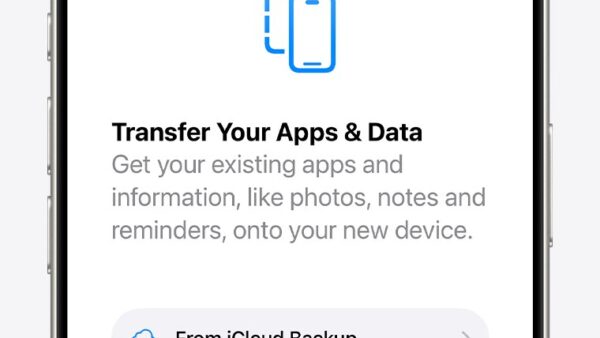
To log in to WhatsApp on your PC after an iPhone restore, finish setting up WhatsApp on the restored iPhone first, then log out of WhatsApp on the PC and link it again from Settings > Linked devices > Link device on the iPhone.
This guide covers the relink steps, the phone number method for when the QR code will not scan, how to get your chat history back on the iPhone, and fixes for each login symptom.
Relink WhatsApp on PC after an iPhone restore
WhatsApp for Windows and WhatsApp Web are linked devices. They cannot sign in on their own: the primary phone registers the account and links every new device, so the PC only logs in once WhatsApp on the restored iPhone is working.
- Open WhatsApp on the restored iPhone and complete setup: verify your phone number and Apple ID, and restore your chats if offered.
- On the PC, open WhatsApp for Windows or WhatsApp Web. If it shows an old session that will not load, select Settings > Log out > Log out.
- Wait for the QR code to appear on the PC screen.
- On the iPhone, open WhatsApp and tap Settings (or your profile picture), then Linked devices > Link device.
- Unlock with Face ID, Touch ID or your iPhone passcode when asked.
- Point the iPhone at the PC screen and scan the QR code.
- If WhatsApp asks whether you recognise the device, tap Link device.
Keep WhatsApp updated on both the iPhone and the PC; WhatsApp ships linked device fixes in regular updates.
QR code or phone number: which WhatsApp PC login method to use
| Your situation | Use this | Why |
|---|---|---|
| The iPhone camera works and can see the PC screen | Scan the QR code | Fastest route, one scan from Linked devices > Link device |
| The QR code will not scan, or the iPhone camera is blocked | Link with phone number | Uses an eight-character code instead of the camera |
| WhatsApp is not yet set up on the restored iPhone | Finish phone setup first | A linked device needs an active primary phone to link |
| The PC shows an old session that never loads | Log out on the PC, then relink | Starts a fresh link instead of the stale one |
| You use a Mac or a browser other than Windows | QR code | Phone number linking is listed for WhatsApp for Windows and WhatsApp Web only |
Set up WhatsApp on the restored iPhone before linking a PC
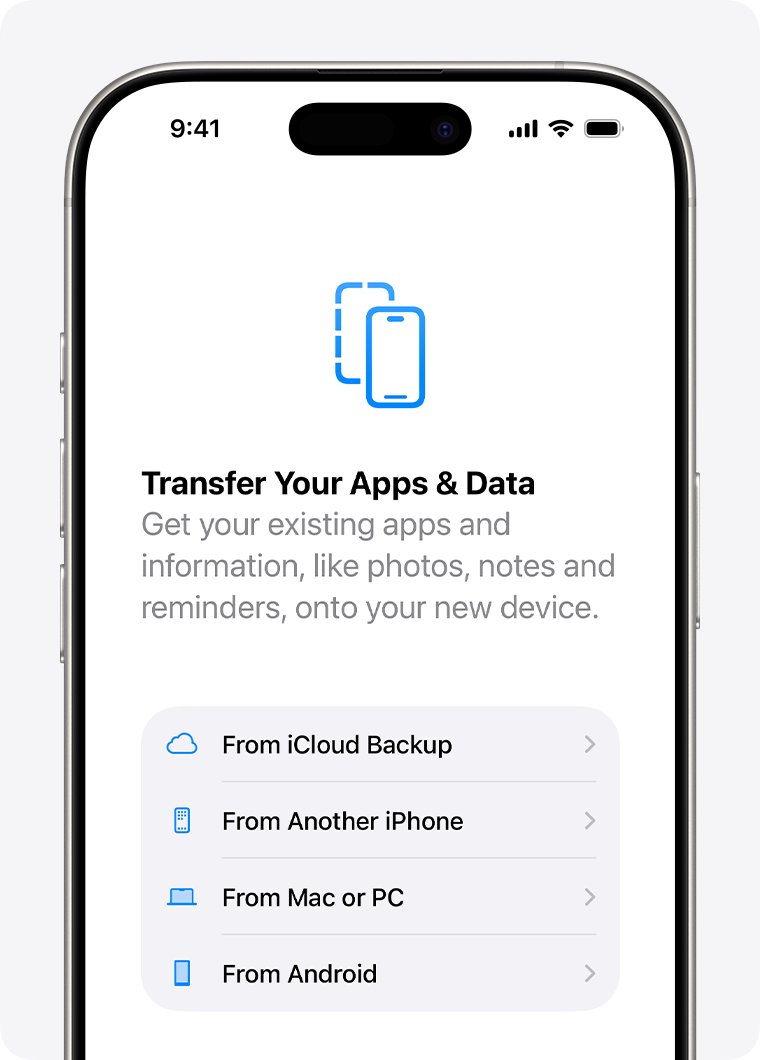
A restore puts WhatsApp back as a fresh install, so it asks you to register the WhatsApp account again. Do this first: until the iPhone account is active, the PC has nothing to link to.
- Update WhatsApp from the App Store. The iPhone app needs iOS 15.1 or newer.
- Open WhatsApp and verify the same phone number the account used before the restore.
- Verify your Apple ID when prompted.
- Tap Restore Chat History if WhatsApp finds an iCloud or WhatsApp cloud storage backup.
- Enter the code sent by text or call, or your two-step verification PIN, if WhatsApp asks for it.
- Open a chat to confirm the account is working before you link the PC.
Use the same phone number you backed up with. WhatsApp only restores a backup to the number that created it.
Log in to WhatsApp on PC with a phone number instead of the QR code
Phone number linking skips the camera entirely. WhatsApp lists it for WhatsApp for Windows and WhatsApp Web.
- On the PC, open WhatsApp for Windows or WhatsApp Web.
- Click Link with phone number or Log in with phone number.
- Select your country, enter the iPhone's WhatsApp number and click Next.
- Note the eight-character code shown on the PC.
- On the iPhone, tap the Enter code to link new device notification from WhatsApp, or go to Settings > Linked devices > Link device > Link with phone number instead.
- Check the device name and location, tap Confirm, and verify with Face ID, Touch ID or your passcode.
- Type the eight-character code on the iPhone.
Remove the old PC session from WhatsApp linked devices
A PC linked before the restore can stay listed or sit in a broken state. Removing it from both ends clears the way for a clean link.
- On the iPhone, open WhatsApp and tap Settings > Linked devices.
- Tap any old Windows or browser entry.
- Tap Log out.
- On the PC, open WhatsApp and select Settings > Log out > Log out if it is still signed in.
- Link the PC again with the QR code or your phone number.
WhatsApp allows up to four linked devices per account. If you already have four, log one out before adding the PC.
Check WhatsApp is linked on the PC
- On the iPhone, open Settings > Linked devices and confirm the PC appears in the list.
- On the PC, open a chat and confirm recent messages appear.
- Send a test message from the PC and check it shows on the iPhone.
Why WhatsApp on PC logs out or will not log in
| Rule | What it means for your PC |
|---|---|
| The primary phone registers the account and links new devices | After a restore, the PC cannot log in until WhatsApp on the iPhone is set up again |
| Linked devices log out if the phone is unused for over 14 days | Open WhatsApp on the iPhone at least every 14 days to keep the PC connected |
| Inactive linked devices disconnect after 30 days | A PC you have not opened in a month needs relinking |
| Up to four linked devices per account | A fifth device cannot link until you log one out |
| Windows, Mac and Web cannot be the primary device | You cannot register WhatsApp on the PC alone |
| Unofficial apps or sites cannot be linked safely | Use WhatsApp for Windows, WhatsApp for Mac or WhatsApp Web only; unofficial clients can get the account banned |
Restore WhatsApp chat history on the iPhone after a restore
The PC copies its history from the iPhone, so the PC only shows the chats the iPhone has. Restore them on the iPhone first if they are missing.
- Open iPhone Settings, tap your name, then iCloud > iCloud Drive.
- Turn on Sync this iPhone and make sure WhatsApp is on under Apps Syncing to iCloud Drive.
- If WhatsApp is already open, check WhatsApp Settings > Chats > Chat Backup for the time and size of the last backup.
- Uninstall and reinstall WhatsApp.
- Verify your phone number and Apple ID.
- Tap Restore Chat History.
Do not create a new backup while you are trying to restore an older one. iCloud keeps one WhatsApp backup per account, and a new one replaces it.
Backups older than 120 days may not restore, and backups made on Android cannot be restored to an iPhone.
Fix WhatsApp PC login problems after an iPhone restore
Can't log in to WhatsApp on PC because the QR code will not scan
WhatsApp on the restored iPhone may not have camera access, or the PC is showing an old code.
- On the iPhone, open Settings > Privacy & Security > Camera.
- Turn on access for WhatsApp.
- Reload WhatsApp on the PC to get a new QR code, and scan it again.
- If it still fails, use Link with phone number instead.
Why can't I log in to WhatsApp Web?
An unsupported or outdated browser, or a stale session.
- Update the browser to its latest version.
- Open WhatsApp Web in a fresh tab and wait for a new QR code.
- On the iPhone, log out any old browser entry under Linked devices.
- Link again, or install WhatsApp for Windows, which needs Windows 10 or newer.
Why can't I log in to WhatsApp on the iPhone itself?
Phone number or identity verification is not complete after the restore.
- Confirm you are entering the same number the account used before.
- Request the verification code by text or by call.
- Enter your two-step verification PIN if WhatsApp asks for it.
- Update WhatsApp from the App Store and try again.
WhatsApp asks to confirm or verify before linking
WhatsApp checks identity for new or unrecognised devices.
- Unlock with Face ID, Touch ID or your passcode when asked on the iPhone.
- If WhatsApp Web asks for a passkey, create or use one to continue.
- Tap Link device on the unrecognised device prompt only if the PC is yours.
The PC logged out again after a few days or weeks
The iPhone went unused for more than 14 days, or the PC was inactive for 30 days.
- Open WhatsApp on the iPhone regularly.
- Relink the PC from Settings > Linked devices > Link device.
- Keep WhatsApp updated on both the iPhone and the PC.
The PC is linked but old chats are missing
The PC only syncs what the iPhone holds, and WhatsApp reports a known issue with some linked devices not showing up to a year of history.
- Check that the chats appear on the iPhone.
- Restore the iPhone's chat history from backup if they do not.
- Keep WhatsApp for Windows updated, since fixes ship in regular updates.
WhatsApp PC login after iPhone restore FAQ
Why can't I log in to WhatsApp on my PC after restoring my iPhone?
The PC is a linked device and needs an active WhatsApp account on the iPhone to link. After a restore, verify your number on the iPhone, log out the old PC session, then scan the QR code from Settings > Linked devices > Link device.
Why can't I log in to WhatsApp?
On the phone, the usual causes are an unfinished number verification, a wrong number or a missing two-step verification PIN. On a PC, the phone account must be active first, and the link must be made from the phone with the QR code or a phone number code.
Why can't I log in to WhatsApp Web?
WhatsApp Web only logs in after you link it from the phone. Open a fresh WhatsApp Web tab, then scan the QR code from Linked devices on the iPhone, or choose Log in with phone number and enter the eight-character code on the phone.
Can I log in to WhatsApp on a PC without my phone?
Not for the first login. The primary phone registers the account and links new devices. After linking, the PC works with the phone offline, but it logs out if the phone goes unused for more than 14 days.
Can I log out of WhatsApp on a PC from my iPhone?
Yes. Open WhatsApp on the iPhone, tap Settings > Linked devices, tap the PC and tap Log out. You can also log out on the PC itself from Settings > Log out.
Will my chats come back on the PC after an iPhone restore?
The PC syncs from the iPhone, so it shows what the iPhone has. Restore your iCloud or WhatsApp cloud storage backup on the iPhone first; messages sent after the last backup cannot be restored.
How many PCs can I link to one WhatsApp account?
WhatsApp allows up to four linked devices at a time across PCs, browsers, tablets and companion phones. Log one out from Linked devices on the iPhone to make room for another.
Bottom line: getting WhatsApp back on PC after an iPhone restore
Get WhatsApp fully working on the restored iPhone, log out the old PC session, then relink with the QR code or the phone number code. A PC can only log in through an active primary phone, so every PC login fix after a restore starts on the iPhone.