To post on Facebook Marketplace, open Marketplace, click Create new listing, choose Item for sale, add photos and details, then click Next and Publish.
This guide covers the computer and app steps, who can sell, what you can't list, how to edit, mark sold or delete a listing, and what to do when Marketplace won't let you post.
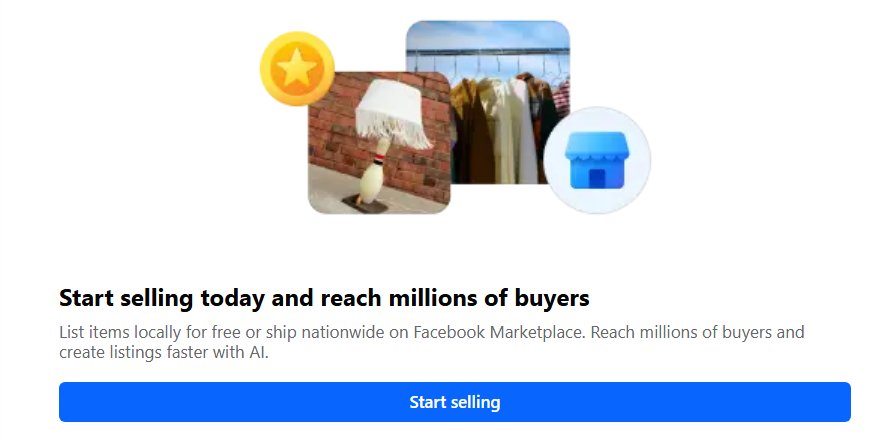
Step-by-step guide to posting on Facebook Marketplace
These steps use Facebook in a web browser on a computer. Every listing is public, so anyone on Marketplace can see it, and it can also show in Feed, search and other places on or off Facebook.
- From your Feed, click Marketplace in the left menu.
- Click Create new listing, then click Item for sale.
- Click Add photos and upload pictures of the item from your computer.
- Enter the title, price, category, condition and description. Enter 0 as the price to list the item as free.
- Click Next. If Next is greyed out, fill in the required fields you skipped.
- Click Publish to post your Marketplace listing.
Every listing on Marketplace and in buy-and-sell groups must follow Meta's Commerce Policies, so check the rules below before you publish.
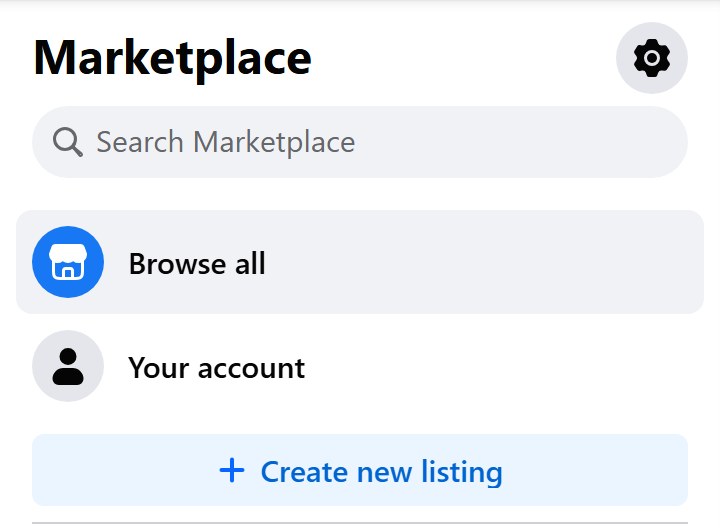
How to post on Facebook Marketplace from the app on iPhone or Android
The Facebook app for iPhone and Android uses a Sell tab instead of the computer's left menu. The app also lets you share the listing to groups or your profile in the same flow.
- Open the Facebook app and tap the Menu.
- Tap Marketplace. If you don't see it, tap See more.
- Tap Sell, then tap Create Listing.
- Choose the type of listing, such as an item for sale.
- Add photos from your phone, or take new ones with the camera.
- Enter the item details. Enter 0 as the price to list it as free.
- Tap More listing options to add details, pick a category, and choose other places to share it, such as buy-and-sell groups or your profile.
- Tap Publish.
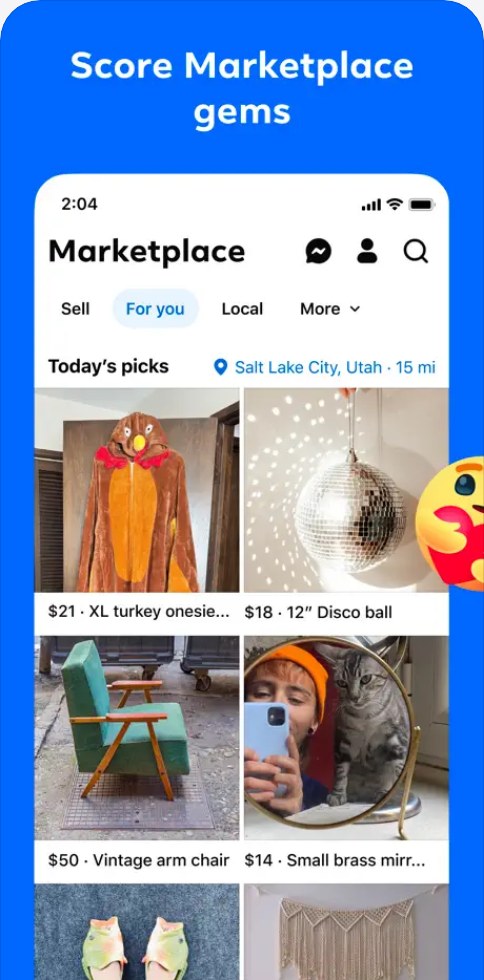
Who can post on Facebook Marketplace
Facebook Marketplace is available to adults with active Facebook accounts in supported countries. If any row below doesn't fit your account, the Create new listing button may be missing or the listing may fail.
| Requirement | What Facebook asks for |
|---|---|
| Age | An adult, which means at least 18 years old in the United States |
| Country | You live in a country where Marketplace is available |
| Seller type | A consumer seller; only consumer sellers may list items for sale |
| Account | An established, active account; new or inactive accounts can be restricted |
| Profile | Your main profile, not an additional Facebook profile |
| Sign-in | You are logged in to Facebook |
How to post on Facebook Marketplace to sell locally
Most listings are local sales where the buyer collects the item or meets you. Facebook recommends meeting in a public, well-lit area or at a police station, and telling someone where you're going.
- Create the listing with Create new listing and Item for sale, as above.
- Describe the item's condition in detail, including any stains, tears or faults.
- Publish the listing and answer buyers in Messenger on Facebook.
- Agree on the price and the exact pickup location with the buyer before you meet.
- Let the buyer inspect the item before you accept payment.
- Mark the listing as sold once the sale is complete.
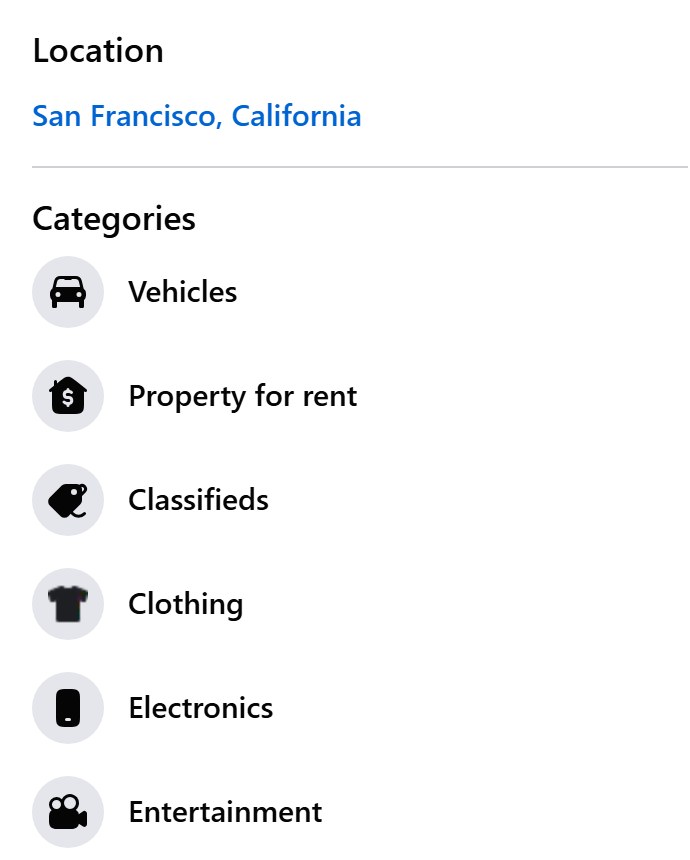
Can a Facebook page post on Marketplace?
Post Marketplace listings from your personal profile, not a Page. Facebook's Marketplace requirements say only consumer sellers may list items for sale, and every listing flow in Facebook's Help Center starts from your own Feed or the app's Marketplace tab. Facebook also limits access for anyone using an additional profile instead of their main profile.
How to post services on Facebook Marketplace
You can't list a service such as cleaning or repairs as an item for sale. Meta's Commerce Policies say approved services may only be offered through catalogues in the WhatsApp Business app or through Appointments on Facebook or Instagram.
| Service type | Examples Meta names as not allowed on commerce surfaces |
|---|---|
| Home maintenance | Cleaning, construction, painting, plumbing, electricians, lawn care |
| Automotive | Maintenance and other car services |
| Events | Photography, party and wedding planning |
| Fitness and wellness | Gyms, trainers, hair and nail styling, spas, salons |
| Animal care | Grooming, training, pet-sitting and walking |
| Travel | Airline services, hotel stays, car rentals |
Facebook's list of things you can't sell adds that offering a service such as house cleaning is only allowed through Jobs on Marketplace.
Post a job to Facebook Marketplace
Jobs on Marketplace is a test feature for selected people in selected US cities, so many accounts won't see it. Where it's available, you can create a job from Marketplace, your Page or a group, and anyone on or off Facebook can see it.
| Rule | What it means for your job post |
|---|---|
| Audience | Jobs are for people aged 18 or older; posts aimed at minors are removed |
| Description | The post must clearly and fully describe the job on offer |
| Banned categories | Adult entertainment, in-person childcare, modelling, personal training, physical therapy, most personal wellness, and travel jobs |
| Fraud | Get-rich-quick, multi-level marketing and data-harvesting posts are removed |
| Relevance | Listings not related to hiring are removed |
What can't you sell on Facebook Marketplace?
Products on Marketplace must follow Meta's Commerce Policies, the Facebook Community Standards and local law. A listing that breaks them is rejected, and repeat breaks can limit your Marketplace access.
| Not allowed | Examples |
|---|---|
| Counterfeits | Knockoffs and replicas of branded goods |
| Unauthorized copies | Pirated films, TV shows, video games, music and books |
| Animals | Animals and animal products, including adoption posts, except by approved pet adoption services |
| Healthcare products | Medical items such as thermometers and first-aid kits |
| Recalled products | Items recalled by the maker or a regulator such as the US Consumer Product Safety Commission |
| Services | Cleaning, repairs and other services listed as items |
How to edit a Facebook Marketplace listing
You can edit a listing while it's single-quantity and in stock, or multi-quantity with no orders yet. You can't edit it once an order is pending or a shipping label has been generated.
- From your Feed, click Marketplace in the left menu. If you can't see it, click See more.
- Click Selling in the left menu.
- Click Your listings.
- Click Options on the listing you want to change.
- Click Edit listing.
- Change the details, then click Update.
A multi-quantity listing shows buyers how many items are left once ten or fewer remain, so you don't need to edit the count yourself.
How to mark an item as sold on Facebook Marketplace
Marking an item as sold hides it from everyone else on Marketplace and tells every buyer who messaged you that it's gone. Facebook then asks whether you want to archive those conversations.
- Click Marketplace in the left menu of your Feed.
- Click Selling, then click Your listings.
- Click Mark as sold on the listing.
- To hold an item for a buyer instead, click Options on the listing and choose Mark as pending.
- To put a sold or pending item back on sale, find it in Your listings and choose Mark as available.
Pending tells existing buyers the sale is pending, and new buyers see that status before they can message you.
How to delete a listing on Facebook Marketplace
You can delete a listing that is available and in stock, or a multi-quantity listing that has never received an order. Sold listings, pending orders and listings with a generated label can't be deleted.
- From your Feed, click Marketplace.
- Click Selling in the left menu.
- Click Your listings.
- Click Options on the listing you want to remove.
- Click Delete, then click Delete again to confirm.
Where to find your listings on Facebook Marketplace
After you click Publish, the listing appears under your selling tools, where you can watch its status and fix problems.
- Click Marketplace, then click Selling in the left menu.
- Click Your listings to see each listing with its status, such as available, pending or sold.
- Look for any listing under Needs attention, which means Facebook has flagged or rejected it.
- Click the flagged listing, then click See details to read the reason.
Tips for posting on Facebook Marketplace
| Tip | Why it helps |
|---|---|
| Use clear, original photos | Buyers see the item's real condition before they message you |
| Describe faults honestly | Listing stains, tears or wear up front avoids disputes at pickup |
| Clean used clothing and shoes | Facebook asks sellers to make sure used clothing is clean |
| Sell hygiene items sealed | Personal hygiene products should be brand-new and sealed |
| Agree price and place first | Settling the price and exact pickup spot in chat avoids no-shows and haggling on the spot |
| Keep the chat on Facebook | Messages moved to phone, text or email make scams harder for Facebook to detect |
| Share to groups when listing | More listing options in the app can post the same item to buy-and-sell groups |
Buyers can view your profile, ratings and other listings, so keep your Facebook profile name accurate before you start selling.
How to handle payments on Facebook Marketplace
Payment scams hit sellers as often as buyers. If anything feels wrong, stop replying, cancel the sale and report the buyer or listing to Facebook.
| Situation | What to do |
|---|---|
| Buyer sends a screenshot of a payment | Don't hand over the item; check your own payment account to confirm the money arrived |
| Buyer "overpays" and asks for a refund | Treat it as a scam, including offers to pay extra for movers |
| Buyer asks for a verification code | Never share codes sent to your phone or email; this is a phishing attempt, and if you already shared one, recover your hacked Facebook account right away |
| Payment by gift card is requested | Decline; gift card payment requests are a common scam |
| Email claims your payment app needs an upgrade or fee | Ignore it and check the app directly |
| Cash or person-to-person payment | Count or confirm it before the item leaves your hands; these sales are not covered by Purchase Protection |
Why can't I post on Facebook Marketplace?
Why won't my Facebook Marketplace item post?
A required field is empty, so Next stays greyed out and the listing never reaches Publish.
- Scroll back through the listing form.
- Fill in every required field you skipped, including photos and item details.
- Click Next once it turns active, then click Publish.
Facebook Marketplace listing was rejected
Facebook's systems or a report found that the listing may break the Commerce Policies or Community Standards.
- Go to your profile, click the more icon and select Profile status.
- Select Marketplace below Extra features.
- Click See what happened or See issue and select the listing.
- Click Request review if you think Facebook made a mistake.
- Edit or relist the item so it meets the rules if the rejection stands.
Why won't Facebook Marketplace let me post at all?
Your Marketplace access is at risk, limited or suspended after earlier policy breaks.
- Open the Facebook app on your phone and go to your profile.
- Tap the more icon and select Profile status.
- Select Marketplace below Extra features to see your status.
- Tap Fix it now, then Request review, and follow the prompts to remove a first warning.
Marketplace is missing or I can't post on Facebook Marketplace
The account doesn't meet Facebook's requirements: it's new or inactive, an additional profile, under 18, or in a country without Marketplace.
- Switch to your main Facebook profile.
- Make sure you're logged in; if you've forgotten which address you use, find your Facebook email first.
- If you're an adult blocked by mistake, confirm your age in the Facebook app on your phone.
- Add a mobile number to your account if Facebook asks for one.
Frequently asked questions about posting on Facebook Marketplace
How do I post an item on Facebook Marketplace?
Click Marketplace in the left menu of your Feed, then click Create new listing and Item for sale. Add photos, enter the item details and price, click Next, then click Publish. In the app, tap Menu, Marketplace, Sell and Create Listing instead.
How do I post on Facebook Marketplace for free?
Facebook's listing steps have no payment stage: you add photos and details, then click Publish. To give an item away rather than sell it, enter 0 as the price, and the listing shows the item as free to buyers.
Can a Facebook page post on Marketplace?
Facebook says only consumer sellers may list items on Marketplace, and its listing steps start from your personal Feed or the Marketplace tab in the app. Post the item from your own main profile rather than a business Page or an additional profile.
How do I post services on Facebook Marketplace?
You can't list services such as cleaning, plumbing or photography as items for sale. Meta's Commerce Policies allow approved services only through WhatsApp Business catalogues or Appointments on Facebook or Instagram, and Facebook points house-cleaning type services to Jobs on Marketplace where that feature exists.
Why can't I post on Facebook Marketplace?
The usual causes are an empty required field, a rejected listing, limited Marketplace access, or an account that doesn't qualify because it's new, inactive, an additional profile or under 18. Check Profile status, then Marketplace below Extra features, to see whether Facebook has restricted you.
Can I edit my listing after posting?
Yes. Open Marketplace, click Selling, then Your listings, click Options on the listing and choose Edit listing. Change the details and click Update. Editing isn't possible once an order is pending or a shipping label has been generated.
How do I delete a listing?
Open Marketplace, click Selling, then Your listings. Click Options on the listing, click Delete and confirm with Delete again. Sold listings, listings with a pending order, and listings with a generated shipping label can't be deleted.
How do I handle payments on Facebook Marketplace?
Use a trusted payment service and confirm the money in your own account before you hand over the item. Never trust a payment screenshot, refund an overpayment, accept gift cards, or share a verification code. Cash and person-to-person payments are not covered by Purchase Protection.
What should I do if someone is not trustworthy?
Stop communicating with the buyer, cancel the sale and report the person or listing to Facebook. You can also block them on Marketplace. If you feel unsafe, contact local authorities, and always meet in a public, well-lit place.
How do I post on Facebook Marketplace from my phone?
Open the Facebook app, tap Menu and then Marketplace, or See more if it's hidden. Tap Sell, then Create Listing, choose the listing type, add photos and details, and tap More listing options for categories and groups. Tap Publish to post it.