To manage site settings in Chrome on a computer, open More > Settings > Privacy and security > Site settings and pick the permission you want to change.
This guide covers default settings for all sites, overrides for a single site, the Android and iPhone menus, resetting a site's permissions and checking what each site can access.
The fastest way to open site settings in Chrome
These steps change the default for every site on Chrome for Windows, Mac, Linux and ChromeOS.
- Open Chrome on your computer.
- Select More (three dots) at the top right, then Settings.
- Select Privacy and security > Site settings.
- Select the permission you want to change, such as Location or Notifications.
- Choose the default behaviour; Chrome saves the change automatically.
Chrome site settings and cybersecurity: permissions to review first
A short word on cybersecurity before any change: a site permission gives a website access to hardware, files or data on your device. Some permissions expose far more than others, so these are the things to review first.
| Permission | What a site gets | Sensible default |
|---|---|---|
| Camera and microphone | Can record while you are on the site and its tab is in use | Ask; allow only video-call and meeting sites |
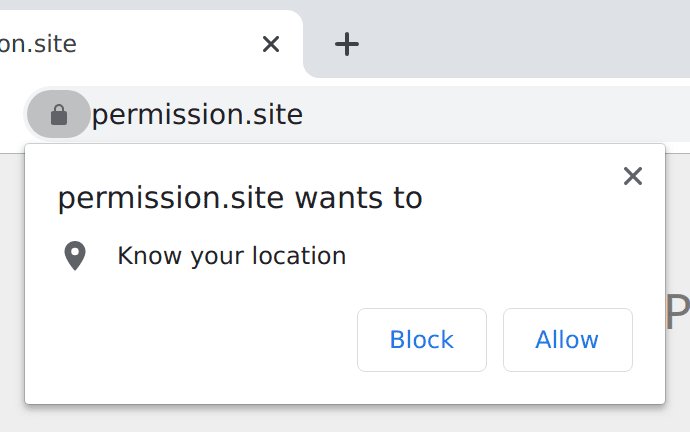
| Location | Chrome sends data to Google Location Services and shares an estimate with the site | Ask; check the site's privacy policy first |
| Notifications | Alerts on your desktop even when the site is closed | Ask or quieter messaging |
| Pop-ups and redirects | New windows or redirects to other sites | Blocked (Chrome's default) |
| Automatic downloads | Downloads several files without asking each time | Ask |
| File editing | Access to files and folders on your device | Ask; allow only editors you trust |
| Clipboard | Reads text and images you have copied | Ask |
| USB, serial, HID and Bluetooth devices | Connects to hardware attached to or near your device | Ask |
| Insecure content | Lets a secure (HTTPS) site load non-secure content | Blocked |
If pop-ups still appear after you block them, the site may already have notification permission, or the device may be infected with malware.
How to change all site settings in Chrome for all your devices
The menu path depends on the device. Chrome on iPhone and iPad offers far fewer site settings than desktop and Android.
| Device | Path to all-site settings | What you can change |
|---|---|---|
| Windows, Mac, Linux, ChromeOS | More > Settings > Privacy and security > Site settings | About 35 permissions and content settings |
| Android phone or tablet | More > Settings > Site settings (under Advanced) | Permissions such as location, camera, microphone and notifications |
| iPhone or iPad | More > Settings > Content Settings | Block pop-ups, Default apps and Default site view |
How to change site settings in Chrome from your desktop
- Open Chrome and select More > Settings.
- Select Privacy and security > Site settings.
- Select View permissions and data stored across sites to see every site you have visited.
- Go back and select a permission, for example Camera.
- Choose the default option for all sites.
- Review the Allowed and Not allowed lists under the default to see existing exceptions.
Change site settings in Chrome on an Android device
- Open Chrome on your Android phone or tablet.
- Tap More (three dots) at the top right, then Settings.
- Under Advanced, tap Site settings.
- Tap the permission you want to update.
- Choose the default setting for all sites.
Change Chrome site settings on iPhone and iPad
Chrome on iOS and iPadOS controls camera, microphone and location access through the device's own settings, so Chrome's menu holds only three options.
- Open Chrome on your iPhone or iPad.
- Tap More > Settings.
- Tap Content Settings.
- Tap Block pop-ups to turn the pop-up blocker on or off.
- Tap Default apps to choose the app that opens email links.
- Tap Default site view to request the mobile or desktop version of sites.
How to change site settings in Chrome for specific sites
A site-specific setting overrides your default for that site only. The rest of the web keeps the default.
- Open Chrome on your computer and go to the site.
- Select View site information, the icon to the left of the web address.
- Select Site settings.
- Change the permission you want, for example set Notifications to Block.
- Close the tab; your changes save automatically.
Selecting the icon next to the web address also shows the site's saved permissions, so quick changes do not need the full Site settings page.
Change permissions for one site in Chrome on Android
- Open Chrome on your Android device and go to the site.
- Tap View site information to the left of the address bar.
- Tap Permissions.
- Tap the permission you want to update and select the new setting.
- Tap Reset permissions to delete all of the site's settings instead.
After a change, the icon next to the site name briefly switches to that permission's icon, such as a location pin.
Chrome permission prompt options explained
When a site asks to use your camera, location or microphone, Chrome offers three answers. The one-time permission option is the safest choice for a site you rarely use.
| Option | What happens | Use it when |
|---|---|---|
| Allow this time | The site can use the feature during this visit only and must ask again next time | A one-off video call or map lookup |
| Allow while visiting the site | The site can use the feature on this visit and future visits | A site you use regularly, such as your meeting app |
| Never allow | The site cannot use the feature | Any site that has no clear need for it |
Chrome site settings list: what each permission controls
| Group | Settings | What they control |
|---|---|---|
| Privacy and data | Third-party cookies, On-device site data, Embedded content, Third-party sign in | Cookies from embedded sites, data that keeps you signed in, and sign-in prompts from identity services |
| Page content | Images, JavaScript, Pop-ups and redirects, Intrusive ads, Insecure content, Sounds, Fonts, PDF documents, Zoom levels | What a page may load, play or display, and how large it appears |
| Personal sensors | Location, Camera and microphone, Motion sensors, Your device use | Your whereabouts, audio and video, movement data from device sensors and whether you are active |
| Alerts and background work | Notifications, Background sync, Automatic downloads, Automatic picture-in-picture | Alerts, tasks finished after you leave, multi-file downloads and floating video |
| Hardware | Bluetooth devices, USB devices, Serial ports, HID devices, MIDI device control & reprogram | Printers, drives, game controllers, instruments and other attached devices |
| Files and apps | File editing, Clipboard, Protocol handlers, Payment handlers | Folder access, copied content, links that open other apps and checkout tools |
| Media and immersive | Protected content IDs, Augmented reality, Virtual reality | Device recognition for copyrighted media and AR or VR sessions |
| System and network | Unsandboxed plugin access, Local network access | Plugins outside Chrome's sandbox and devices on your local network |
Allow or block a single site in Chrome site settings
Every permission page has its own exception lists. Notifications shows the pattern; pop-ups and other permissions work the same way.
- Open More > Settings > Privacy and security > Site Settings > Notifications.
- To block a site, select Add next to Not allowed to send notifications.
- To allow a site, select Add next to Allowed to send notifications.
- Enter the site's web address and select Add.
- Select Use quieter messaging if you want a bell icon in the address bar instead of pop-up prompts.
Reset site permissions in Chrome
- Go to the site and select View site information next to the web address.
- Select Site settings.
- Select Reset permissions if the button is shown.
- To remove one exception instead, open the permission page, such as Camera, and select Delete next to the site.
To reset every Chrome setting rather than one site, use Chrome's Reset settings page; that also resets content settings and clears cookies and site data, but keeps bookmarks and passwords.
Delete stored data for one site in Chrome
Deleting a site's cookies may sign you out of it and remove its saved preferences.
- Select More > Settings.
- Select Privacy and security > Third-party cookies.
- Select See all site data and permissions.
- Search for the website's name at the top right.
- Select Delete to the right of the site, then Delete again to confirm.
Check which sites have permissions in Chrome
Chrome removes permissions from sites you have not used recently. Safety Check lists those removals so you can restore any you still need.
- Open More > Settings > Privacy and security > Site settings.
- Select View permissions and data stored across sites and confirm the sites and permissions listed match what you set.
- Go to Privacy and security and select Go to Safety Check under Safety Check.
- Under Safety recommendations, look for Permissions removed for [n] sites.
- Reopen a site you changed and select View site information to confirm its current permissions.
Chrome site settings FAQ
Where are content settings in Chrome?
On a computer, Chrome's content settings sit in Settings > Privacy and security > Site settings. On iPhone and iPad, Chrome uses a separate Content Settings menu under Settings that holds pop-up, default app and default site view options.
How do I change camera and microphone settings in Chrome?
Open Settings > Privacy and security > Site settings, then select Camera or Microphone under Permissions. Choose the default, review allowed and blocked sites, and select Delete next to a site to remove its exception. Work or school administrators can lock these settings.
How do I change location settings in Chrome?
Select More > Settings > Privacy and security > Site settings > Location and choose the default. If Chrome reports that location is turned off in Windows or Mac system settings, select System settings and turn location on there as well.
How do I turn off notifications from a site in Chrome?
Go to the site, select View site information next to the address, and set Notifications to Block. You can also add the site under Not allowed to send notifications in Site settings > Notifications. Private browsing windows never show notifications.
How do I allow pop-ups in Chrome?
Open Settings > Privacy and security > Site Settings > Pop-ups and redirects and choose a new default, or add specific sites to the allowed list. Chrome blocks pop-ups by default and marks the address bar with Pop-up blocked when it stops one.
How do I change JavaScript settings in Chrome?
Open Settings > Privacy and security > Site settings and select JavaScript. Choose whether sites can run JavaScript by default, then add exceptions for individual sites. Blocking JavaScript breaks interactive features such as online forms and web games.
How do I manage cookies for one site in Chrome?
Select Settings > Privacy and security > Third-party cookies > See all site data and permissions, search for the site and select Delete. Deleting cookies can sign you out of that site and remove its saved preferences.
Why did Chrome remove permissions from a site?
Chrome removes permissions from sites you have not used recently to protect your data, including notification permission from sites you rarely visit. Safety Check lists these removals alongside the permissions you have granted, and you can grant the permission again from the site itself.
Can I change Chrome site settings on a work computer?
Sometimes not. On a managed Chrome browser or Chromebook, a network administrator can set pop-up, camera, microphone and location settings. Those settings cannot be changed by the user until the administrator changes the policy.
Why you shouldn't ignore Chrome's site settings
Keep camera, microphone, location and notifications on Ask, grant them per site with Allow this time where possible, and check the permissions list every few months. Site settings decide which websites can record you, track your location, read your clipboard and reach your devices. A few minutes in Privacy and security > Site settings closes access that sites no longer need.