To speed up boot time on Windows 11 or Windows 10, turn off the startup apps Task Manager marks as High impact, then leave Fast Startup switched on.
This guide covers startup programs, non-Microsoft services, Fast Startup, a clean boot to find the slow item, and the fixes for common slow-boot symptoms.
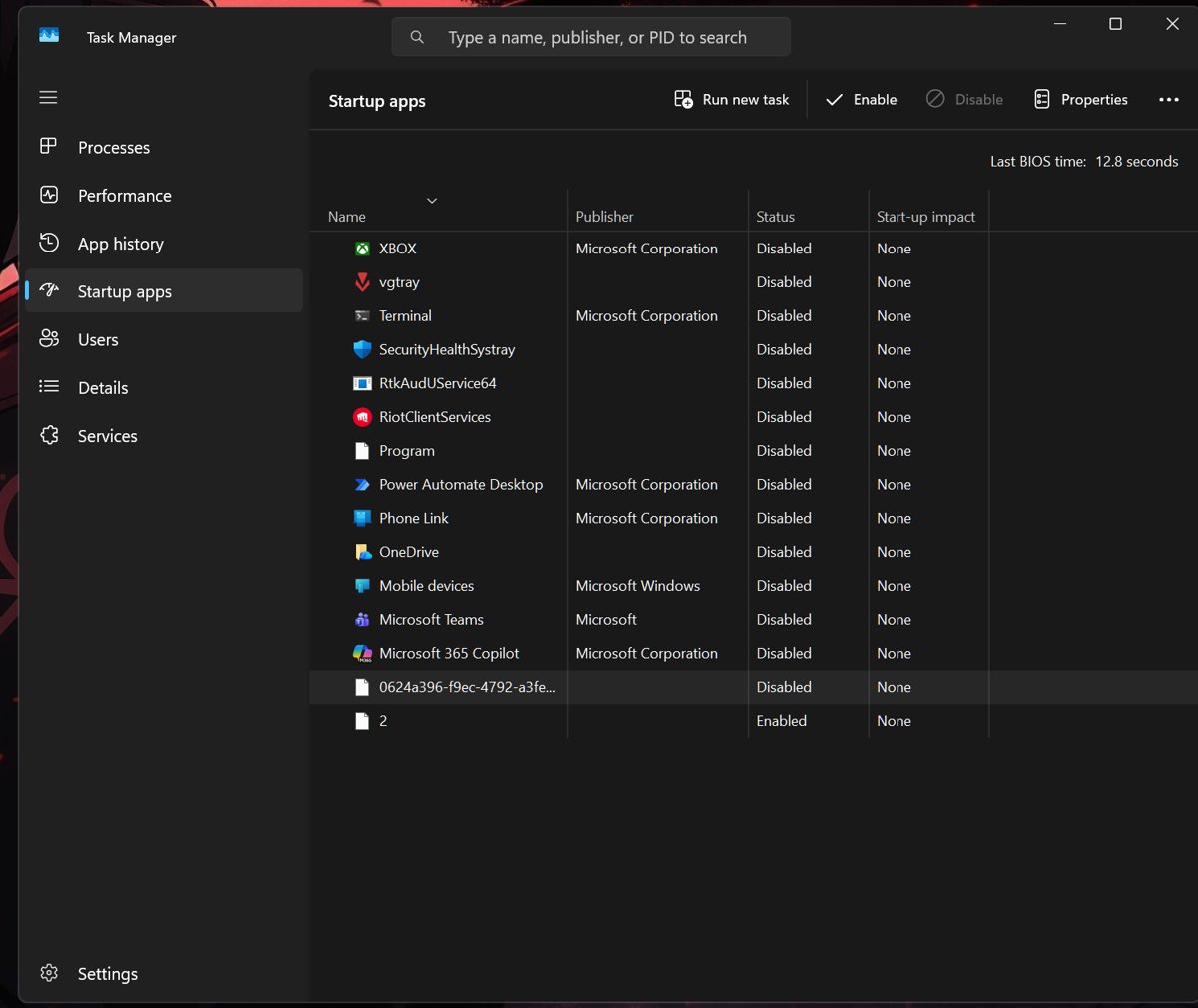
Speed up boot time by disabling startup apps in Task Manager
Startup apps load every time you sign in, so they are the biggest delay you control. There are several ways to open Task Manager if the shortcut below does not suit you. The steps are the same on Windows 11 and Windows 10.
- Press Ctrl + Shift + Esc to open Task Manager.
- Select the Startup apps tab (on Windows 10 it is labelled Startup).
- Select the Startup impact column header to sort the list, so High items sit together.
- Select an app you do not need the moment you sign in, then select Disable.
- Repeat for the other high- and medium-impact apps you do not need right away.
- Restart the PC from Start > Power > Restart.
A disabled app still works. It simply waits until you open it yourself. For a full list of what runs at sign-in and where each entry lives, view all startup programs first.
What Task Manager startup impact ratings mean
Microsoft defines each rating by how much CPU time and disk reads an app uses during startup.
| Rating | What it measures | What to do |
|---|---|---|
| High | More than 1 second of CPU time, or more than 3 MB of disk use | Disable unless you need it at sign-in |
| Medium | 300 ms to 1 second of CPU, or 292 KB to 3 MB of disk | Disable if you rarely use it |
| Low | Under 300 ms of CPU and under 292 KB of disk | Leave it; the saving is small |
| Not measured | Enabled, but Windows has no data yet | Restart once and check again |
| None | The app is already disabled | Nothing to do |
Prerequisites
| You need | Why |
|---|---|
| An administrator account | System Configuration and the Services app need admin rights to change services |
| A list of what you disable | You will re-enable items one by one if something stops working |
| Pending Windows updates installed | Some updates finish only during a full restart, and an unfinished update slows every boot |
| A note of any work or school management | Managed PCs may block changes to services and startup items |
Step-by-step instructions
Work through these in order. Each step removes a different source of delay, and the first two give the largest gains on most PCs.
- Open Settings > Apps > Startup and switch off any app you do not need at sign-in. This is the same list Task Manager shows.
- Open Settings > Windows Update, select Check for updates and install everything listed, including optional driver updates under Advanced options > Optional updates.
- Open Settings > Apps > Installed apps, select … next to programs you no longer use and choose Uninstall. Their background services and tasks go with them.
- Press Win + R, type
msconfigand press Enter to open System Configuration. - On the Services tab, tick Hide all Microsoft services so only third-party services remain.
- Clear the box next to third-party services you do not need, such as updaters for apps you rarely open, then select Apply and OK.
- Select Restart when prompted, and time the next sign-in against the previous one.
Leave every Microsoft service alone. Clearing Load system services or Microsoft services turns off networking, Plug and Play, event logging and System Restore.
Set a service to Automatic (Delayed Start) in services.msc
Some third-party services are needed, but not in the first seconds after boot. Delaying them in the Windows Services console lets the desktop load first.
- Press Win + R, type
services.mscand press Enter. - Double-click the third-party service you want to change.
- Open the Startup type list and choose Automatic (Delayed Start).
- Select Apply, then OK.
- Restart the PC and confirm the app that uses the service still works.
Use Manual only for services that an app starts on demand. Never set a Microsoft service to Disabled to save boot time.
Turn on Fast Startup in Windows 11 and Windows 10
Fast Startup saves the kernel session and drivers to the hibernation file at shutdown, so the next cold start is quicker. It is on by default on PCs that support hibernation, and Microsoft does not recommend turning it off.
- Open Control Panel and select Power Options.
- Select Choose what the power buttons do.
- Select Change settings that are currently unavailable.
- Under Shutdown settings, tick Turn on fast startup (recommended).
- Select Save changes.
Fast Startup applies only to Shut down. Restart always does a full boot, which is why updates and driver installs ask for a restart.
Startup apps vs services vs Fast Startup: what speeds up boot most
| Your situation | Change this | Why |
|---|---|---|
| Desktop appears fast but stays busy for a minute | Startup apps in Task Manager | Apps load after sign-in and compete for disk and CPU |
| Black screen or spinning dots before sign-in | Pending updates, then third-party services | Services and update work run before the sign-in screen |
| Cold start after shutdown is slow, restart is fine | Fast Startup setting | Shut down uses hibernation only when Fast Startup is on |
| Slow boot appeared after installing one program | Clean boot, then re-enable items one at a time | Isolates the single service or app that causes it |
| Older PC with a hard disk drive | Startup apps plus drive optimisation | Every extra read costs more on a spinning disk |
Clean boot Windows to find the slow startup item
A clean boot starts Windows with only Microsoft services and no startup apps. If boot is fast in this state, one of the disabled items is the cause.
- Sign in with an administrator account, search for
msconfigand open System Configuration. - On the Services tab, tick Hide all Microsoft services, select Disable all, then Apply.
- On the Startup tab, select Open Task Manager.
- Disable every Enabled startup item and write down each one.
- Close Task Manager, select OK in System Configuration and restart.
- If boot is now fast, re-enable half the items, restart, and keep halving until the slow item shows itself.
Measure Windows boot time after the changes
- Open Task Manager and select the Startup apps tab.
- Read Last BIOS time at the top of the tab if your PC shows it; it is time spent in firmware, which startup changes do not affect.
- Check that the apps you disabled now show Disabled and an impact of None.
- Shut down, start the PC and time it from the power button to a usable desktop.
- Compare that with the time before your changes, and repeat after each round of changes so you know which one helped.
Return msconfig to normal startup
- Search for
msconfigand open System Configuration. - On the General tab, select Normal startup.
- On the Services tab, clear Hide all Microsoft services, select Enable all, then Apply.
- On the Startup tab, select Open Task Manager and enable the startup apps you want back.
- Close Task Manager, select OK, then select Restart.
Tips and troubleshooting notes
Boot is still slow after disabling startup apps
The delay comes from a service, an unfinished update or the drive, not from apps.
- Install pending updates from Settings > Windows Update, then choose Restart, not Shut down.
- Run a clean boot to test third-party services.
- Search for Defragment and Optimize Drives, select the system drive and select Optimize.
Updates never finish installing after shutdown
With Fast Startup on, shutdown hibernates the kernel, and some updates complete only after a full boot.
- Open Start > Power and select Restart.
- Let the update finish before shutting down again.
Shut down returns to the lock screen instead of turning off
Hibernation fails while Fast Startup tries to save the session, usually because a dump filter driver does not load.
- Open Command Prompt and run
shutdown /s /t 0for a full shutdown. - Install pending driver and Windows updates, then restart.
- If it continues, turn off Turn on fast startup (recommended) in Power Options as a workaround.
An app or device stopped working after the cleanup
Its service or helper app was disabled.
- Open
services.mscand set the related service back to Automatic. - Re-enable the matching item in Task Manager > Startup apps.
- Restart and test the app or device.
Settings shows "We couldn't find this app" in the startup list
A startup entry points at a file or registry path that no longer exists.
- Open Settings > Apps > Startup.
- Select the icon next to the entry's toggle to see the broken path.
- Switch the entry Off, or reinstall the app it belonged to.
On Windows 11 you can also tune SysMain for faster startup if disk use stays at 100% after sign-in.
Speed up Windows boot time FAQ
Is it safe to disable startup programs in Windows?
Yes. Disabling a startup app only stops it loading at sign-in; the app still opens normally when you start it. Keep security software and drivers for touchpads, audio or graphics enabled, because those need to run before you use the device.
Which startup programs should I disable?
Disable apps marked High or Medium impact that you do not need the moment you sign in, such as chat clients, game launchers, cloud storage you rarely use and app updaters. Keep your antivirus and hardware utilities that control keyboards, touchpads or audio.
Does Fast Startup make Windows boot faster?
Yes, after a shutdown. Fast Startup saves the kernel session and drivers to the hibernation file, so the next start skips part of the boot. It has no effect on Restart, which always performs a full boot.
Should I disable services to speed up boot time?
Only third-party services you do not need. Use System Configuration with Hide all Microsoft services ticked, or set a needed service to Automatic (Delayed Start). Disabling Microsoft services can break networking, updates and System Restore.
Why does Windows 11 take so long to boot?
The usual causes are many high-impact startup apps, an unfinished Windows update, a third-party service that waits on the network, or an older hard disk drive. Task Manager's startup ratings and a clean boot show which one applies to your PC.
Does uninstalling programs speed up startup?
It can. Uninstalling a program from Settings > Apps > Installed apps also removes its startup entries and background services. That is more thorough than disabling the app in Task Manager, which leaves its services running.
What is a clean boot in Windows?
A clean boot starts Windows with only Microsoft services and no startup apps. Use it to test whether a third-party program or service slows boot, then return to Normal startup in System Configuration when you finish.