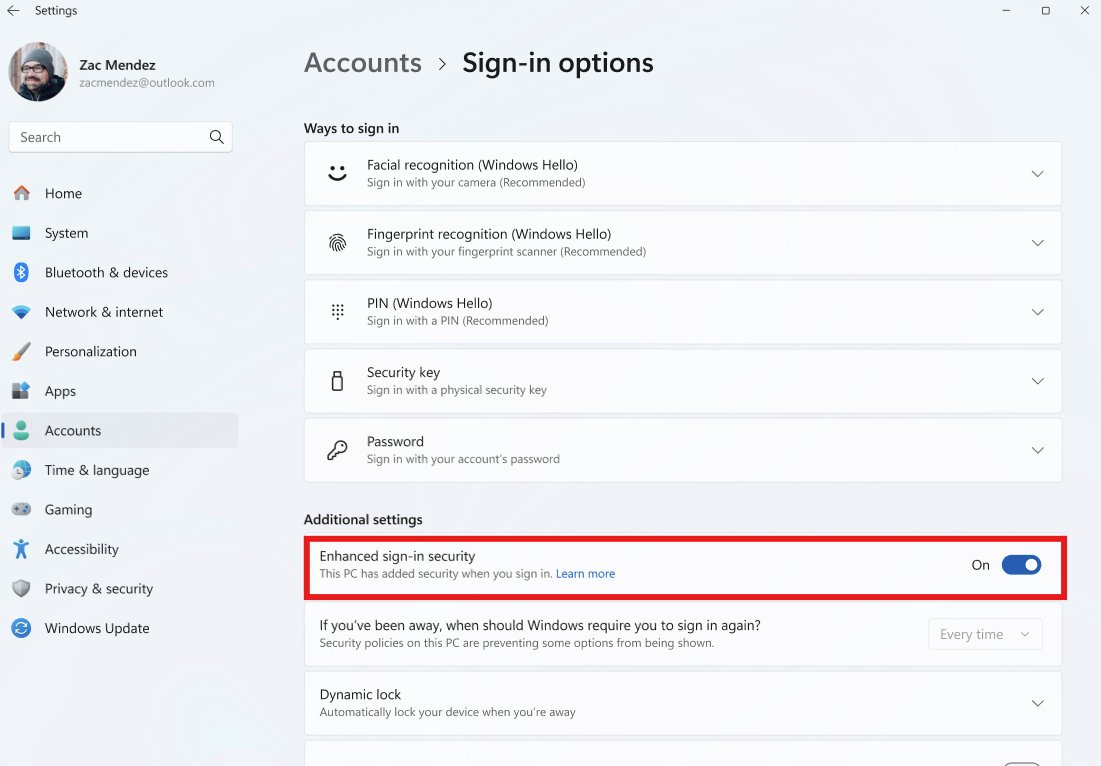
To set up Windows Hello Enhanced Sign-in Security (ESS), open Settings > Accounts > Sign-in options, expand Additional settings, turn on Enhanced sign-in security (or finish its Pending set up state), then enroll your face or fingerprint with an ESS-capable sensor.
This guide covers the hardware ESS needs, where the setting sits in each Windows version, how to test it, how to turn it off for an external camera, and how to fix a missing option or failed sign-in.
Set up Windows Hello Enhanced Sign-in Security in Windows 11/10
ESS only works on a PC with an ESS-capable camera or fingerprint sensor. All Copilot+ PCs have ESS turned on by default, so on those devices it may already be running.
- Open Start > Settings > Accounts > Sign-in options.
- Set up PIN (Windows Hello) if you do not have a PIN yet.
- Scroll to Additional settings and find Enhanced sign-in security.
- If you see Update PIN, select it and refresh your PIN first.
- If the setting shows Pending set up, enroll your face or fingerprint with the built-in ESS sensor; the first sensor you enroll decides the ESS state.
- If a toggle is shown instead, turn Enhanced sign-in security to On.
- Lock the PC with Windows + L and sign in with your face or fingerprint.
When ESS is on, the Sign-in options page lists Enhanced sign-in security as On.
What Enhanced Sign-in Security does
ESS adds a hardware-backed layer of protection to the face and fingerprint data that Windows Hello uses. It relies on Virtualization-based security (VBS) and a TPM 2.0 chip to isolate that data from the rest of Windows.
| Part of sign-in | Without ESS | With ESS on |
|---|---|---|
| Face matching | Runs as a normal Windows process | The face algorithm runs inside VBS, isolated from the rest of Windows |
| Camera data path | Standard path from camera to Windows | The hypervisor gives the camera an isolated memory path to the face matcher |
| Face templates | Stored by Windows Hello | Generated in VBS and encrypted with keys only VBS can use |
| Fingerprint matching | Can happen on the PC | Happens on the sensor's own chip (match on sensor) |
| Sensor trust | No sensor certificate check | The sensor carries a Microsoft-issued certificate checked by Windows before each session |
| Releasing Windows Hello keys | Standard Windows Hello flow | VBS uses a secure channel to the TPM to authorize the keys after a match |
| External cameras | Supported if Windows Hello compatible | Blocked; non-ESS sensors are not enumerated |
Windows Hello Enhanced Sign-in Security requirements
These prerequisites come from the hardware side. A PC that misses any one of them never shows a working ESS option, whatever you change in Settings.
| Requirement | What it means | How to check |
|---|---|---|
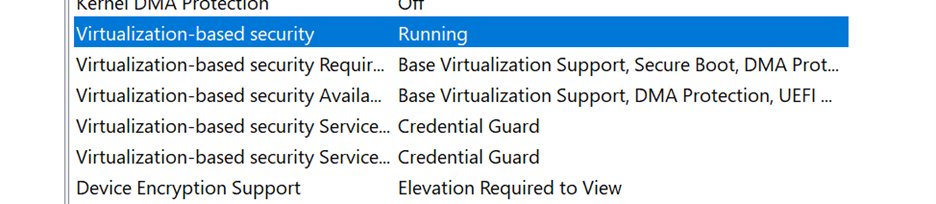
| Virtualization-based security (VBS) | VBS requirements met, including Device Guard enablement | System Information > System Summary lists Virtualization-based security as Running |
| TPM 2.0 | A Trusted Platform Module, version 2.0 | Run tpm.msc and read Specification Version under TPM Manufacturer Information |
| ESS-capable sensor | A supported IR camera or a match-on-chip fingerprint sensor | Device Manager capability checks in the sections below |
| ESS-compatible drivers | Biometric sensor drivers that support ESS; ESS face cameras use the standard Windows UVC camera driver | The sensor works and the Event Viewer check reports Virtual Secure Mode |
| SDEV ACPI table (face only) | Firmware table set up by the device manufacturer for the built-in camera | Not user-checkable; ask the manufacturer |
| Windows Hello PIN | A PIN must exist before face or fingerprint can be set up | Settings > Accounts > Sign-in options > PIN (Windows Hello) |
Device manufacturers can turn ESS on at the factory. Users can also set it up in Settings when a compatible sensor is present.
ESS version notes for Windows 11 and Windows 10
The ESS control has moved between Windows releases, so the label you look for depends on your version. Press Windows + R, type winver and press Enter to see which one you run.
| Windows version | What Settings shows | What the control does |
|---|---|---|
| Windows 11, version 24H2 or newer | Additional settings > Enhanced sign-in security toggle, or Pending set up | On = ESS on, external non-ESS sensors blocked; Off = ESS off, non-ESS peripherals allowed |
| Windows 11, version 23H2 | Additional settings > Sign in with an external camera or fingerprint reader toggle | Off = ESS on; On = ESS off and external Windows Hello devices allowed |
| Windows 11, version 22H2 with KB5031455 | An option to turn ESS off temporarily | Lets you use an external peripheral for Windows Hello sign-in |
| Windows 11, version 22H2 with KB5027303 | No new control | Adds Wake on Touch support for ESS fingerprint sensors on Modern Standby devices |
| Windows 10 | No documented ESS toggle | ESS is present only if the manufacturer configured it; Microsoft documents the user controls for Windows 11 only |
The 24H2 toggle is rolling out in phases, so a fully updated PC can still be waiting for it.
Step 1: Check whether your PC supports Windows Hello
ESS sits on top of Windows Hello face or fingerprint sign-in. If Windows Hello itself has no compatible camera or reader, ESS cannot work.
- In Windows 11, open Start > Settings > Accounts > Sign-in options.
- In Windows 10, open Start > Settings > Accounts > Sign-in options.
- Under Ways to sign in, look for Facial recognition (Windows Hello) and Fingerprint recognition (Windows Hello).
- Select each entry; if it offers Set up, the PC has a Windows Hello compatible sensor for that method.
- If neither entry can be set up, the PC has no compatible camera or reader, and only PIN (Windows Hello) is available.
Face sign-in needs a Hello-compatible infrared camera, not an ordinary webcam. Fingerprint sign-in needs a fingerprint reader, built in or connected over USB.
How to check if your camera supports Enhanced Sign-in Security
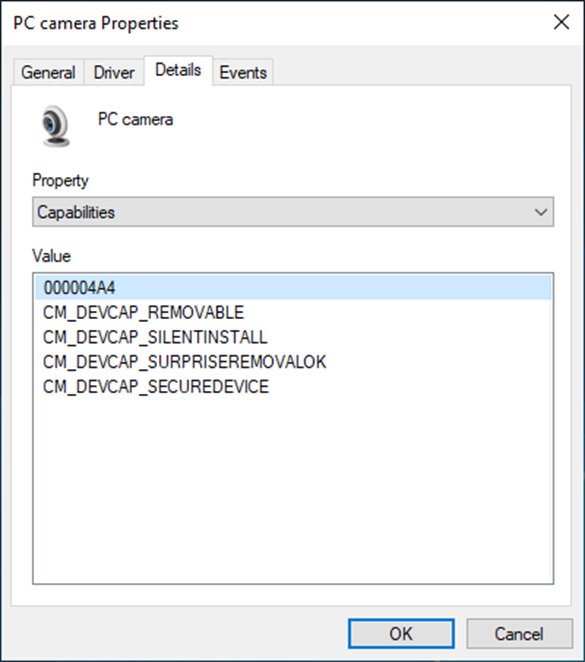
Microsoft's ESS documentation gives a Device Manager test for an ESS-capable camera. Both the USB host controller and the camera must report the secure-device capability.
- Right-click Start and select Device Manager.
- Expand Universal Serial Bus controllers, right-click the entry with eXtensible Host Controller in its name, and select Properties.
- Open the Details tab and choose Capabilities from the Property list.
- Look for CM_DEVCAP_SECUREDEVICE; check every host controller entry if there are several.
- Expand Cameras, open Properties for each camera, and repeat the Details > Capabilities check.
- If one camera also shows CM_DEVCAP_SECUREDEVICE, the camera module is ESS-capable.
How to check if a fingerprint reader supports Enhanced Sign-in Security
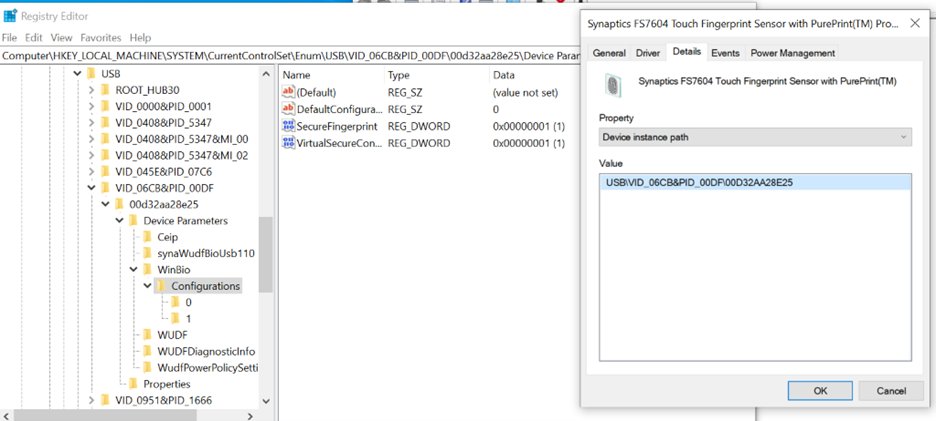
An ESS fingerprint sensor must match on chip and carry a Microsoft-issued certificate. The registry shows whether Windows treats it as secure-capable.
- In Device Manager, expand Biometric devices and right-click the fingerprint sensor.
- Select Properties > Details, choose Device instance path from the Property list, and note the value.
- Press Windows + R, type
regeditand press Enter. - Go to
HKLM\SYSTEM\CurrentControlSet\Enum\<DeviceInstancePath>\Device Parameters\WinBio\Configurations, using the path from step 2. - Select Configurations and look for a value named SecureFingerprint with data 1.
- Check that Configurations has two subkeys named 0 and 1; only one subkey, or no SecureFingerprint value, means the sensor is not secure-capable.
Only read these values. Changing them does not make a non-ESS sensor secure.
Step 2: Set up Windows Hello first
ESS protects an existing Windows Hello face or fingerprint enrollment, so you need to set up Windows Hello in Windows 11 with a PIN and at least one biometric first.
- Open Settings > Accounts > Sign-in options.
- Select PIN (Windows Hello) > Set up and create a PIN.
- Select Facial recognition (Windows Hello) or Fingerprint recognition (Windows Hello).
- Select Set up and follow the on-screen scan.
- For fingerprints, select Add a finger to register more than one finger.
Windows Hello also works without a Microsoft account; the steps differ slightly when you use Windows Hello on a local account.
Step 3: Look for the Enhanced Sign-in Security setting
Every version keeps the setting under Settings > Accounts > Sign-in options > Additional settings. What you see there tells you the current ESS state.
| What you see | What it means | What to do |
|---|---|---|
| Enhanced sign-in security shows On | ESS is already running | Go to Step 5 to test it |
| Enhanced sign-in security shows Pending set up | The PC is ESS-ready but no sensor is enrolled yet | Enroll the ESS sensor first (Step 4) |
| Update PIN under Enhanced sign-in security | The PIN must be refreshed before ESS setup | Select Update PIN and follow the prompts |
| Enhanced sign-in security toggle set to Off (24H2 or newer) | ESS is off | Turn the toggle On (Step 4) |
| Sign in with an external camera or fingerprint reader set to On (23H2) | ESS is off so external devices can sign in | Turn that toggle Off to turn ESS back on |
| No ESS entry at all | No ESS-capable sensor, ESS blocked by policy, or the toggle has not rolled out | See The ESS option is missing in the troubleshooting section |
In Windows 10 there is no documented ESS entry to look for. If ESS is present, it was set up by the device manufacturer.
Step 4: Turn on Enhanced Sign-in Security
Turning ESS on replaces older sign-in data. Existing non-ESS enrollments and their credentials, such as passkeys, are removed and must be set up again afterwards.
- Open Settings > Accounts > Sign-in options > Additional settings.
- If prompted, select Update PIN and confirm your current PIN.
- On Windows 11, version 24H2 or newer, turn Enhanced sign-in security to On.
- On Windows 11, version 23H2, turn Sign in with an external camera or fingerprint reader to Off.
- If the setting reads Pending set up, enroll your face or fingerprint with the ESS-capable sensor; ESS turns on with that enrollment.
- For a plug-in ESS fingerprint scanner, connect it first, then enroll your fingerprint on it.
- Recreate any passkeys you use, because the switch removes them.
ESS is a system-wide setting. On a PC with several users, the lowest Windows Hello security level applies, and every user must enroll again at their next sign-in after an admin upgrades the device to ESS.
Step 5: Test Windows Hello after enabling ESS
Two checks prove ESS is protecting the sensor: the Settings entry and the biometric event log.
- Press Windows + L and sign in with your face or fingerprint.
- Open Settings > Accounts > Sign-in options and confirm Enhanced sign-in security reads On.
- Press Windows + R, type
eventvwr.mscand press Enter. - Go to Applications and Services Logs > Microsoft > Windows > Biometrics > Operational.
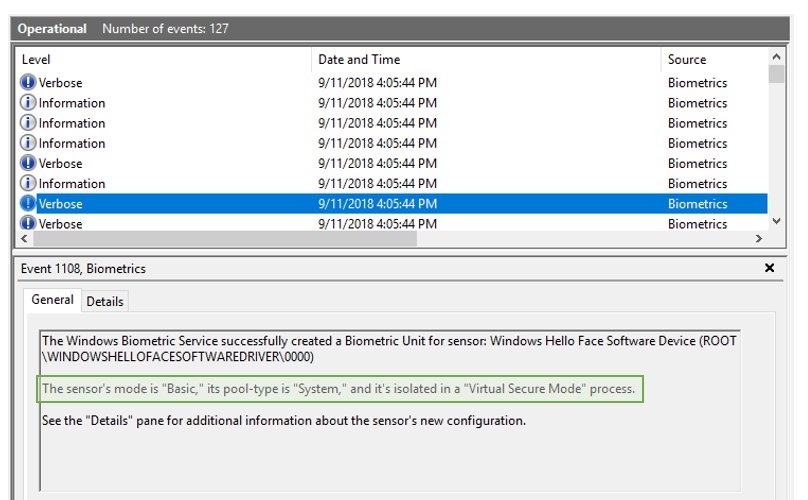
- Open the newest event with ID 1108 for your sensor.
- Read where the sensor is isolated: Virtual Secure Mode process means ESS is in use; System process means it is not.
In event 1108, a camera appears as Windows Hello Face Software Device (ROOT\WINDOWSHELLOFACESOFTWAREDRIVER\0000). A fingerprint reader appears under its own device instance path.
Step 6: If needed, remove and re-add Windows Hello biometrics
A broken enrollment is the most common reason face or fingerprint sign-in fails after ESS changes. Removing it and enrolling again builds fresh templates inside the protected environment.
- Sign in with your PIN.
- Open Settings > Accounts > Sign-in options.
- Expand Facial recognition (Windows Hello) or Fingerprint recognition (Windows Hello) and select Remove.
- Select Set up and enroll again.
- For face sign-in, select Improve recognition afterwards to add a second face template.
- Lock the PC and test the new enrollment.
Remove and re-scan keeps only the newest face scan. Improve recognition adds another template, which raises the chance of a match.
How to turn off Enhanced Sign-in Security in Windows 11
Turning ESS off is the documented way to use a non-ESS external camera or fingerprint reader for Windows Hello. It needs Windows 11, version 22H2 with KB5031455 or later.
- Open Start > Settings > Accounts > Sign-in options.
- Scroll to Additional settings.
- On version 24H2 or newer, turn Enhanced sign-in security to Off.
- On version 23H2, turn Sign in with an external camera or fingerprint reader to On.
- Set up Facial recognition (Windows Hello) or Fingerprint recognition (Windows Hello) again with the external device.
- Recreate any passkeys, because turning ESS off removes ESS enrollments and their credentials.
External cameras still work inside apps like Teams with ESS on. Only Windows Hello sign-in is blocked.
When you should leave ESS off
ESS is the stronger setting, but it is a trade-off on some setups. These are the cases where keeping it off makes sense.
| Your setup | Why ESS gets in the way | Better choice |
|---|---|---|
| You sign in with an external webcam | ESS does not support external camera modules | Leave ESS off, or use an ESS-capable external fingerprint reader |
| Laptop closed on a dock | The built-in sensors are unreachable and external non-ESS sensors are blocked | Leave ESS off, or sign in with your PIN |
| A non-ESS external fingerprint reader | Non-ESS sensors are not enumerated with ESS on | Leave ESS off |
| Shared PC where users rely on different sensors | The lowest Windows Hello security level applies to everyone, and everyone re-enrolls after a change | Agree on one sensor type first |
| Older software that reads PCI configuration space | On ESS camera devices, the SDEV table blocks such access and can cause a bug check | Ask the software vendor about ESS compatibility |
If none of these apply and your built-in sensor supports it, keep ESS on.
Windows Hello ESS tips and troubleshooting
The ESS option is missing
The PC has no ESS-capable sensor, VBS is not running, your organization blocks the setting, or the 24H2 toggle has not reached your PC yet.
- Press Windows + R, type
msinfo32and press Enter. - In System Summary, check that Virtualization-based security reads Running.
- Run the camera or fingerprint capability checks above to confirm the sensor supports ESS.
- Install pending updates from Settings > Windows Update, since the toggle rolls out in phases.
- On a work or school PC, ask your IT administrator whether policy controls the setting.
External Windows Hello camera no longer works
ESS is on, and ESS blocks external camera modules for Windows Hello sign-in.
- Open Settings > Accounts > Sign-in options > Additional settings.
- Turn Enhanced sign-in security to Off (24H2 or newer), or turn Sign in with an external camera or fingerprint reader to On (23H2).
- Set up Facial recognition (Windows Hello) again with the external camera.
Face sign-in fails repeatedly
Lighting, an obstructed camera, a changed appearance, or a damaged enrollment; Windows shows Couldn't recognize you.
- Sign in with your PIN.
- Clean the camera and avoid harsh light from one side.
- Remove hats or accessories that shadow your face.
- In Sign-in options, select Improve recognition under Facial recognition (Windows Hello).
- If it still fails, select Remove, then Set up to scan your face again.
Face or fingerprint authentication isn't working with ESS on
VBS or the biometric isolation processes did not start, or the sensor driver failed to load.
- Open System Information > Software Environment > Running Tasks and look for bioiso.exe and ngciso.exe.
- In Sign-in options, remove the failing enrollment and enroll again.
- In Device Manager, right-click the sensor under Biometric devices, select Uninstall device, and restart so Windows reinstalls the driver.
- Remove your PIN in Sign-in options, open Command Prompt as administrator, and run
net stop wbiosrvc && net start wbiosrvcto restart the biometric service. - Add your PIN back, test sign-in, and send a report through Feedback Hub if it still fails.
I use a laptop dock or closed lid setup
With the lid closed, the built-in camera and reader cannot see you, and ESS blocks non-ESS external sensors.
- Sign in with your PIN while the lid is closed.
- To use an external camera, turn ESS off in Additional settings.
- To keep ESS on, use an external fingerprint reader that supports Enhanced Sign-in Security and enroll it while the setting reads Pending set up.
I forgot my PIN
Windows Hello face and fingerprint fall back to the PIN, so a lost PIN blocks recovery sign-in until you reset the Windows Hello PIN.
- On the sign-in screen, select I forgot my PIN below the PIN box and follow the prompts.
- On a local account without that link, select Sign-in options, then Enter your password.
- After you sign in, open Settings > Accounts > Sign-in options > PIN (Windows Hello) and select I forgot my PIN to create a new one.
Windows Hello Enhanced Sign-in Security FAQ on PCs and laptops
What is Windows Hello Enhanced Sign-in Security?
Enhanced Sign-in Security (ESS) is a Windows Hello mode that protects face and fingerprint data with Virtualization-based security and TPM 2.0. Matching runs in an isolated environment, and Windows only accepts sensors that support it.
Should I turn on Enhanced Sign-in Security?
Yes, if your built-in camera or fingerprint reader supports it and you sign in with that sensor. Leave it off if you depend on an external webcam or a non-ESS fingerprint reader, because ESS blocks those for Windows Hello sign-in.
Does Enhanced Sign-in Security work with an external webcam?
No. Microsoft states that ESS is not supported for external camera modules. Turn ESS off in Sign-in options to sign in with an external Windows Hello camera; the camera still works in apps like Teams either way.
Why is Enhanced Sign-in Security not showing in Settings?
The entry appears only when the PC has an ESS-capable sensor and meets the VBS and TPM 2.0 requirements. It can also be hidden by an organization's policy, and the newer toggle is rolling out to Windows 11 in phases.
Is Enhanced Sign-in Security on by default?
It is on by default on all Copilot+ PCs. Other device manufacturers can turn it on at the factory, and on supported Windows 11 PCs you can set it up yourself under Sign-in options.
Does Windows 10 support Enhanced Sign-in Security?
Microsoft's ESS documentation lists Windows 10, but the user controls it describes are for Windows 11, version 22H2 and later. On Windows 10, ESS is present only if the manufacturer set it up on supported hardware.
Will turning ESS on or off delete my passkeys?
Yes. Switching between ESS and non-ESS sign-in removes existing enrollments and associated credentials such as passkeys. Set them up again after the change.
How do I know if ESS is enabled?
Open Settings > Accounts > Sign-in options and look for Enhanced sign-in security set to On. For proof at sensor level, event ID 1108 in the Biometrics Operational log shows the sensor isolated in a Virtual Secure Mode process.