When Reset this PC fails on Windows 11, run it again with Cloud download or from Windows RE, and if that still fails, repair system files or use Reinstall now under Fix problems using Windows Update.
This guide covers each fix in order, from switching the reinstall source to enabling Windows RE, repairing the Windows image and reinstalling with installation media.
Reset this PC not working on Windows 11
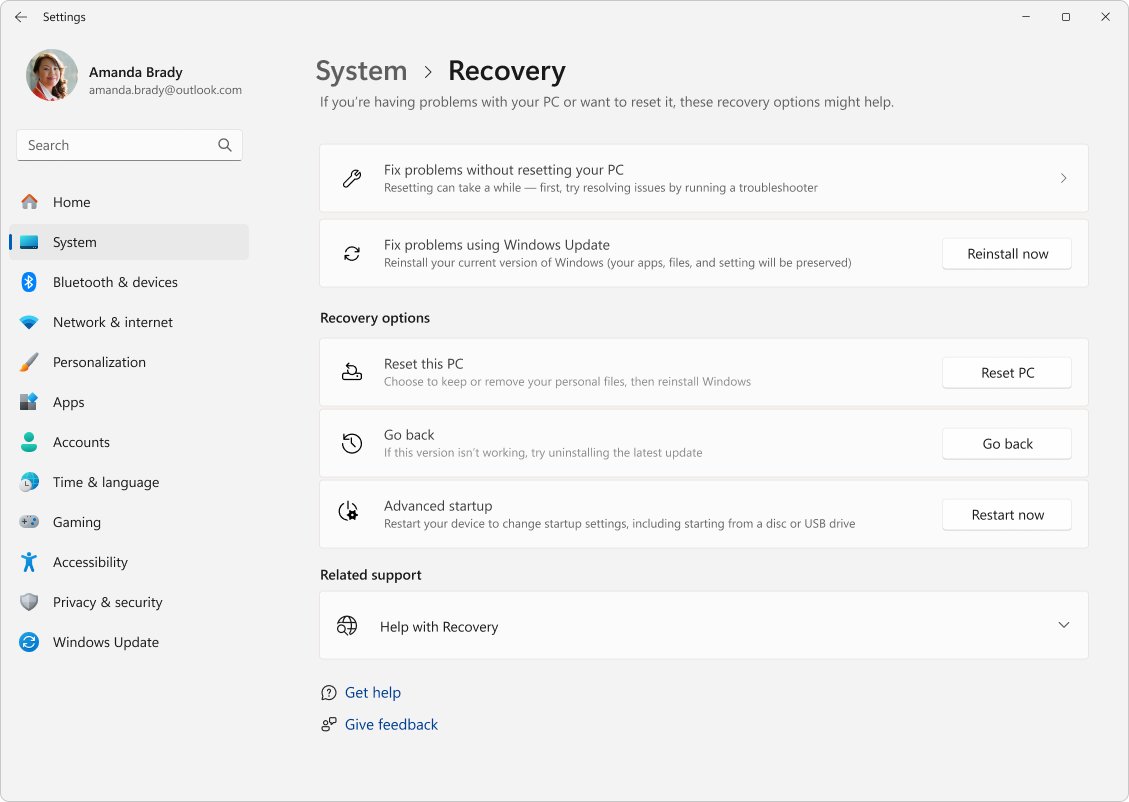
Back up your files first, then work through these steps. Keep a laptop plugged in for the whole process.
- Connect the PC to power and the internet.
- Open Settings > System > Recovery and select Reset PC next to Reset this PC.
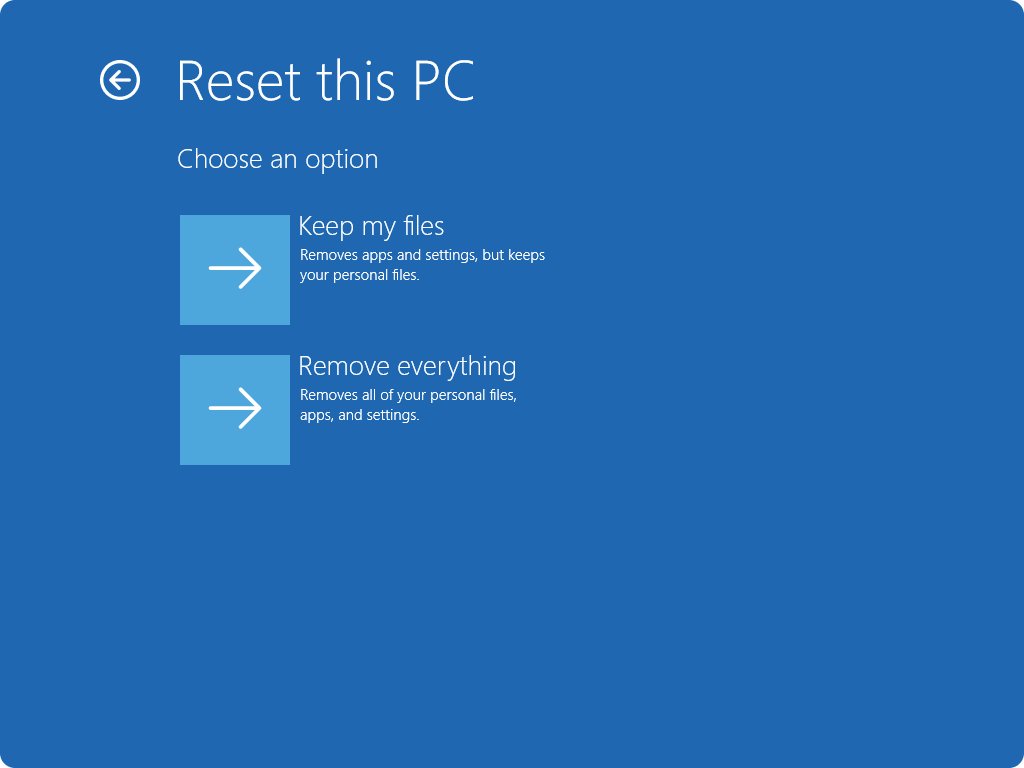
- Choose Keep my files or Remove everything.
- Select Cloud download instead of Local reinstall, so Windows downloads fresh files rather than using damaged local ones.
- Follow the prompts and do not restart the PC while the screen is black. Microsoft notes this can take more than 15 minutes.
- If the reset still fails, start it from Windows RE as described in the next sections.
Why is Reset this PC not working?
Reset this PC depends on the Windows Recovery Environment and on intact system files. Match what you see to a row.
| What happens | Likely cause | Fix to try |
|---|---|---|
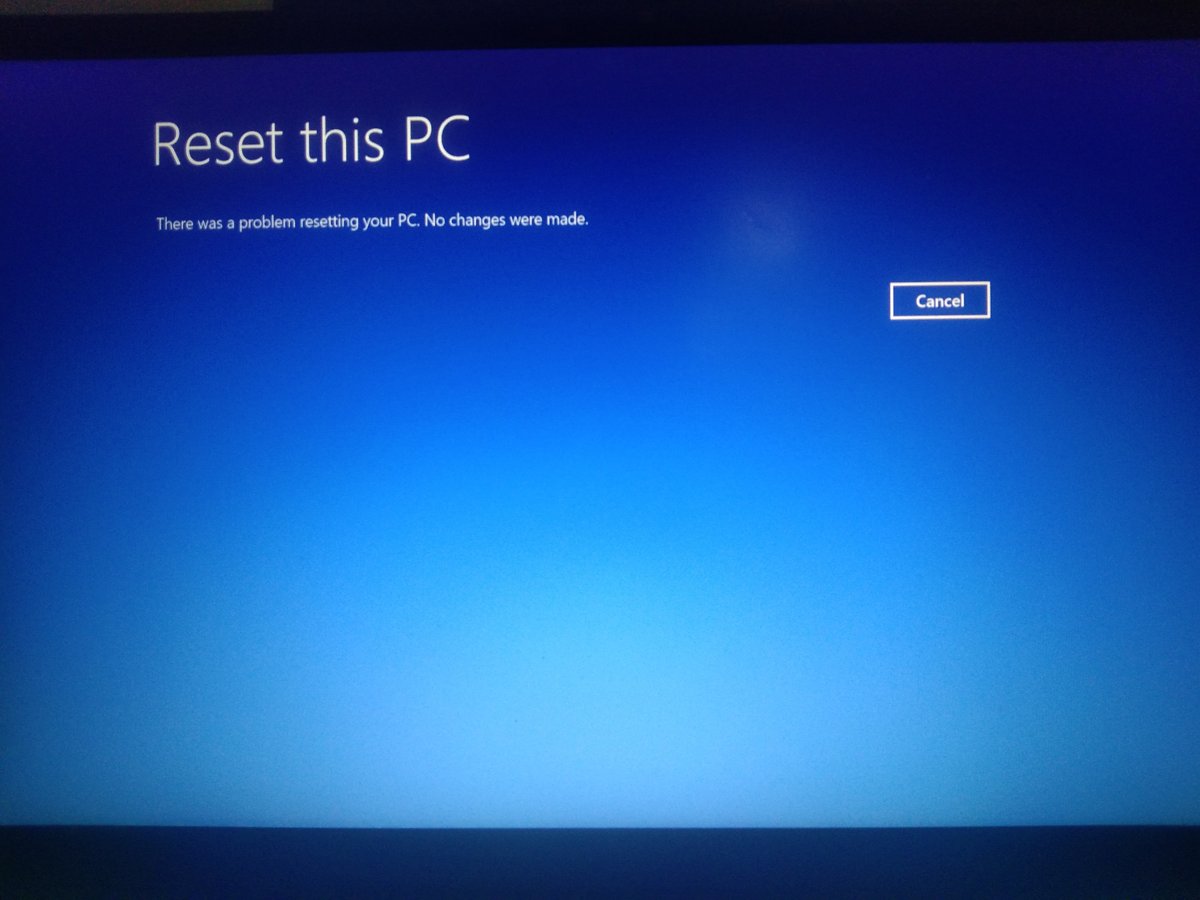
| Reset starts, then rolls back with an error | Corrupted or missing local Windows files used by Local reinstall | Choose Cloud download, or run DISM and SFC first |
| The Reset PC button does nothing or the reset never reaches Windows RE | Windows RE is disabled | Check and enable it with reagentc |
| A BitLocker recovery key screen appears | The drive is encrypted | Enter the BitLocker recovery key |
| Black screen for a long time | The reset is still working | Wait; do not restart manually |
| Laptop reset stops or will not start on battery | Reset and reinstall need steady power | Plug in the charger and retry |
| Every reset attempt fails | Damage the reset cannot repair | Reinstall now via Windows Update, or reinstall Windows 11 with installation media |
Can’t reset PC
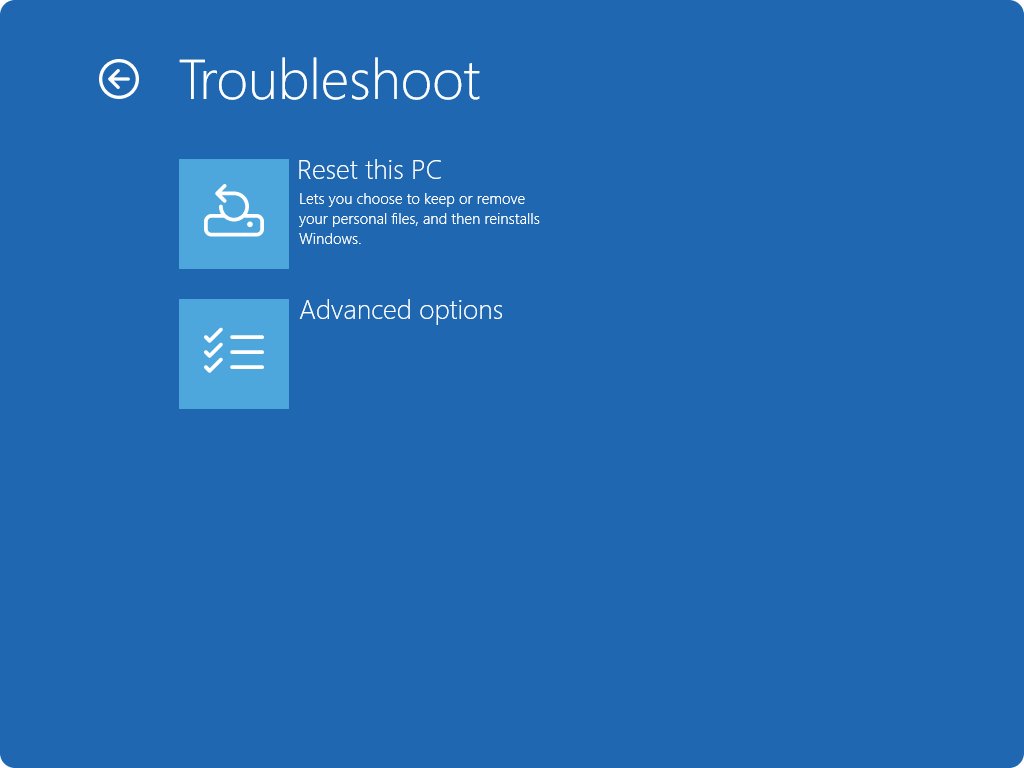
If the reset will not run from Settings, start it from Windows RE. It runs outside your normal Windows session, so apps and services that block the reset are not loaded.
- Open Settings > System > Recovery.
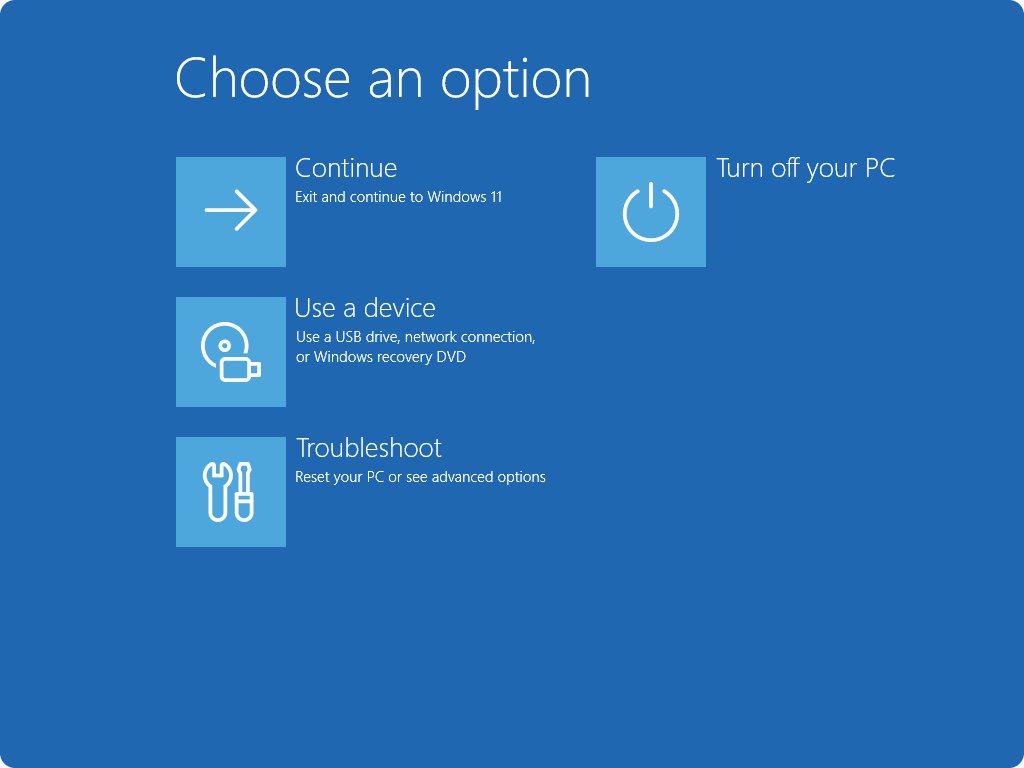
- Next to Advanced startup, select Restart now. You can also hold Shift while you select Power > Restart.
- On the blue screen, select Troubleshoot > Reset this PC.
- Choose Keep my files or Remove everything, then Cloud download or Local reinstall.
- Enter your BitLocker recovery key if Windows asks for it.
- Confirm the reset and leave the PC alone until Windows sets up.
If Windows does not start at all, it opens Windows RE by itself after failing to start several times in a row. Interrupting startup twice brings up Automatic Repair on the third start.
Cloud download vs Local reinstall when reset fails
Both options reinstall Windows. The difference is where the Windows files come from.
| Your situation | Choose | Why |
|---|---|---|
| Local reinstall failed before | Cloud download | Downloads a fresh copy of Windows, useful when local files are corrupted or missing |
| Slow or metered internet connection | Local reinstall | Uses files already on the PC and is faster on slow connections |
| You want the latest updates included | Cloud download | The downloaded copy includes the latest updates |
| You want manufacturer apps back | Either, with Restore preinstalled apps on | Reapplies the manufacturer's customizations under Keep my files |
Check and enable Windows RE with reagentc
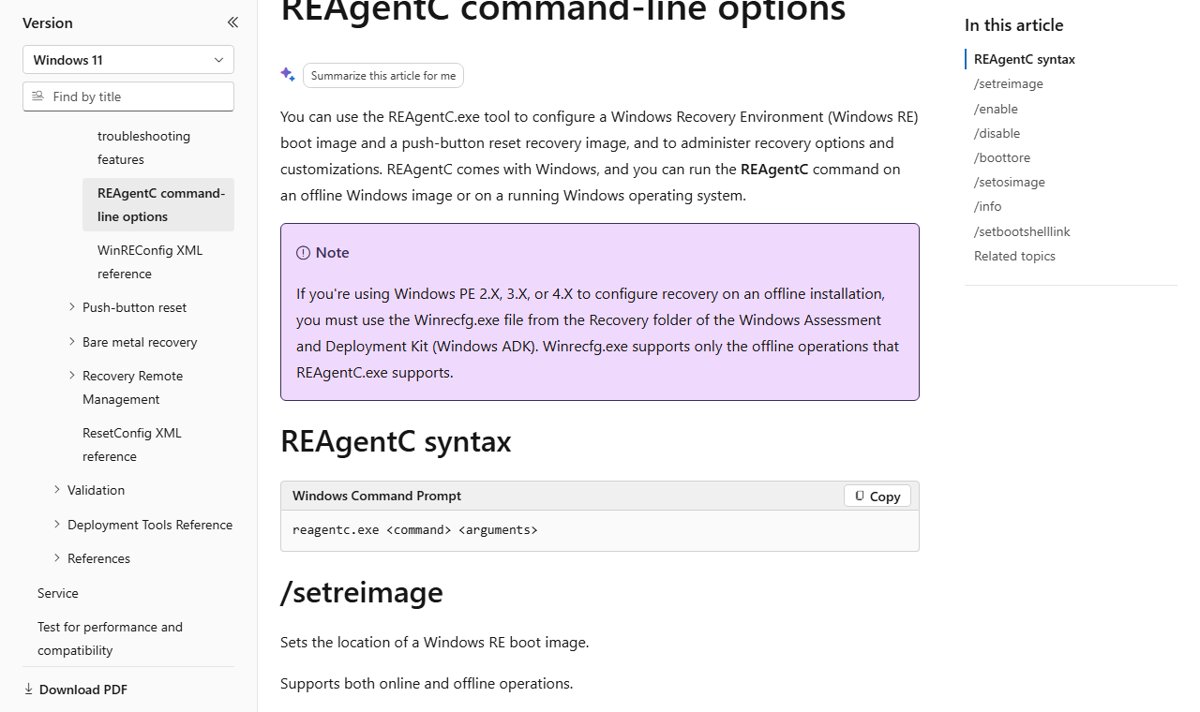
Reset this PC from Settings hands over to Windows RE. If Windows RE is disabled, the reset cannot continue. REAgentC comes with Windows and reports its status.
reagentc /infoRun it in Command Prompt opened with Run as administrator. It shows the current status of Windows RE and its location. If the status is disabled, run reagentc /enable, which enables Windows RE with the default Winre.wim from the Windows\System32\Recovery folder.
You should see: Running reagentc /info again shows Windows RE as enabled, and Advanced startup > Restart now opens the blue recovery screen.
Fix Reset this PC with DISM and SFC
Local reinstall builds Windows from the files already on the PC. Repairing those files first with DISM RestoreHealth and SFC can let a failed reset complete.
- Search for cmd, right-click Command Prompt and select Run as administrator.
- Run
DISM.exe /Online /Cleanup-image /Restorehealthand wait for it to finish. - Run
sfc /scannowand keep the window open until verification reaches 100%. - If SFC reports that it found corrupt files and repaired them, restart the PC.
- Run Reset PC again from Settings > System > Recovery.
If SFC says it could not perform the requested operation, run System File Checker again in Safe Mode.
Reinstall Windows 11 without Reset this PC
Reinstall now under Fix problems using Windows Update reinstalls the current version of Windows 11 and keeps your apps, files and settings. It needs Windows 11, version 22H2 or later with the February 2024 optional update or a later update.
- Keep the PC plugged in and connected to the internet.
- Open Start > Settings > System > Recovery.
- Under Fix problems using Windows Update, select Reinstall now.
- Choose whether the PC restarts automatically 15 minutes after installation finishes.
- Select OK. Windows Update downloads and installs a repair version of the last successful update.
- Restart the PC when it finishes if you did not choose the automatic restart.
The option is missing on PCs managed by work or school and on PCs with certain Windows Update policies.
Reset Windows 11 with installation media
Installation media works when every built-in reset option fails. Running setup from inside Windows lets you choose what to keep.
- Create Windows 11 installation media with the Media Creation Tool and connect it to the PC.
- Open File Explorer, select the media drive and run setup.exe from its root folder.
- Select Change what to keep.
- Choose Keep personal files and apps, Keep personal files only or Keep nothing, then select Next.
- Select Install and let the PC restart several times.
If Windows will not start, boot from the USB drive for a clean install with the Media Creation Tool instead, which deletes everything on Disk 0. Link your Microsoft account to your digital license first so Windows activates afterwards.
Cannot find OS partitions for disk 0 MBR2GPT conversion failed
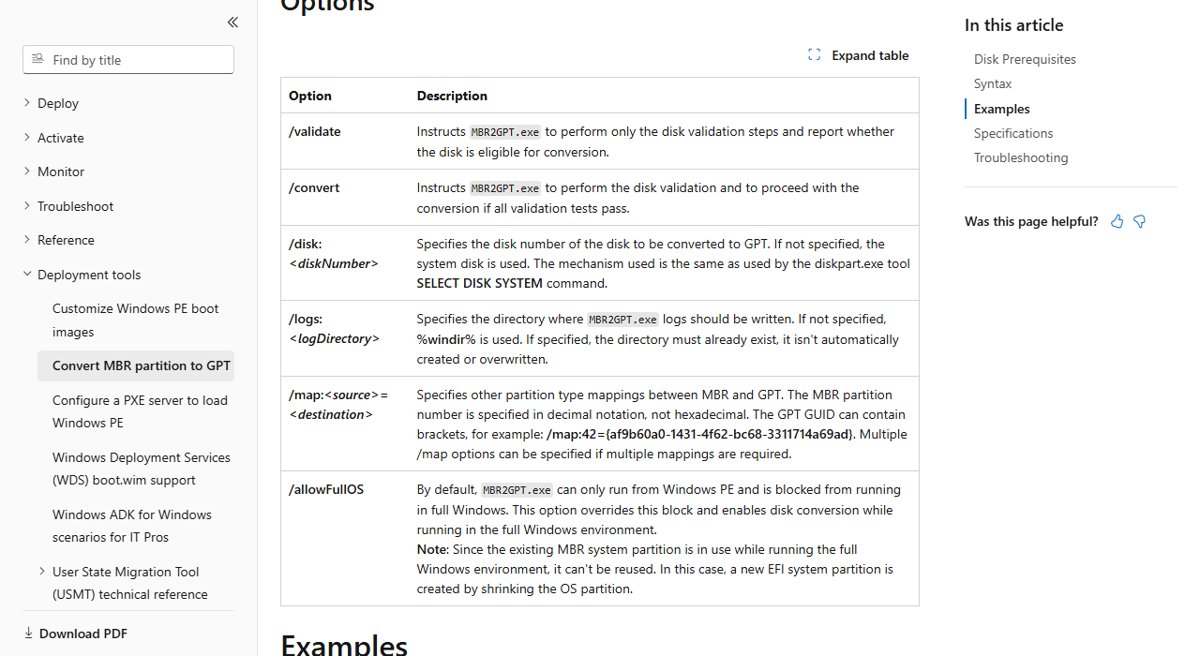
MBR2GPT converts a system disk from MBR to GPT, often before switching a PC to UEFI for Windows 11. It validates the disk first and stops with an error if any check fails.
This message matches the check that the BCD store on the system partition has a default OS entry pointing to an OS partition. Run validation only, then read the logs before changing anything.
- Back up your files, and suspend BitLocker protection if the drive is encrypted.
- Open Command Prompt with Run as administrator.
- Run
mbr2gpt /validate /disk:0 /allowFullOSto test the disk without converting it. - Open setupact.log and setuperr.log in the %windir% folder to see which check failed.
- Confirm the disk has at most three primary partitions, no extended or logical partition, and an active system partition.
- If the boot entry or layout cannot be fixed, reinstall Windows 11 from installation media in UEFI mode instead of converting.
After a successful conversion, switch the firmware to boot in UEFI mode, or the PC will not start.
Check the Windows 11 reset worked
- Finish the setup screens and sign in.
- Open Settings > System > Activation and confirm Windows is activated.
- Open Settings > Windows Update and install pending updates, especially after a Local reinstall.
- With Keep my files, confirm your personal folders are present and reinstall your apps.
- Run
reagentc /infoin an administrator Command Prompt to confirm Windows RE is enabled for future resets.
Reset PC not working Windows 11 fixes by symptom
Can’t reset PC while running on battery power
Reset and reinstall need a steady power source for the whole process.
- Connect the charger and wait for the battery to charge.
- Start the reset again from Settings > System > Recovery.
- Leave the charger connected until Windows finishes setup.
Reset PC button not working
Windows RE is disabled, or the Settings session cannot hand over to it.
- Run
reagentc /infoas administrator and enable Windows RE withreagentc /enableif it is disabled. - Start the reset from Advanced startup > Restart now > Troubleshoot > Reset this PC.
- If that fails too, use Reinstall now under Fix problems using Windows Update.
Reset fails and Windows rolls back
Local reinstall uses damaged Windows files on the PC.
- Run the reset again and pick Cloud download.
- If it still fails, run DISM and
sfc /scannow, then retry. - Use installation media as the last option.
Black screen during the reset
The reset is still running; this can take more than 15 minutes.
- Wait and do not press the power button.
- Keep the PC connected to power until setup screens appear.
- Check the reset result once Windows reaches the sign-in or setup screen.
Reset asks for a BitLocker recovery key
The drive is encrypted, and Windows RE needs the key to unlock it.
- Find your BitLocker recovery key, for example a saved copy or one held by your organization.
- Enter the key on the BitLocker screen.
- Continue the reset.
Reset this PC not working FAQ
Why is Reset this PC not working?
The most common causes are damaged local Windows files, a disabled Windows Recovery Environment and running on battery. Retry with Cloud download, start the reset from Windows RE, and check Windows RE with reagentc /info in an administrator Command Prompt.
Why won't this PC reset from Settings?
Settings hands the reset over to Windows RE. If Windows RE is disabled or something in Windows blocks it, start the reset from Advanced startup > Restart now > Troubleshoot > Reset this PC instead.
How do I fix reset PC not working without losing files?
Use Reinstall now under Fix problems using Windows Update in Settings > System > Recovery. It reinstalls the current Windows 11 version and keeps your apps, files and settings. Back up important files first anyway.
How do I restore PC to factory settings?
Open Settings > System > Recovery, select Reset PC and choose Remove everything. Turn on Restore preinstalled apps under Keep my files if you want the manufacturer's apps back instead.
Does reformatting a computer erase everything?
A clean install from installation media deletes all partitions on Disk 0, so files, apps and settings are gone. Reset this PC with Remove everything also removes personal files, while Keep my files keeps them and removes apps and settings.
Can I reset my PC if Windows will not start?
Yes. Windows opens Windows RE after failing to start several times. Select Troubleshoot > Reset this PC there. If Windows RE does not appear, boot from Windows 11 installation media.
How long does Reset this PC take?
It varies by PC and option. The screen can stay black for more than 15 minutes, and Clean data under Remove everything takes longer. Do not restart the PC during the reset, or it may fail.