To put an iPad in recovery mode, connect it to a Mac or PC with a USB cable, open Finder or the Apple Devices app, then press the button sequence for your model and hold until the recovery mode screen appears.
This guide covers both button sequences, Update versus Restore, a forgotten passcode, what works without a computer, and fixes when your iPad gets stuck or will not restore.
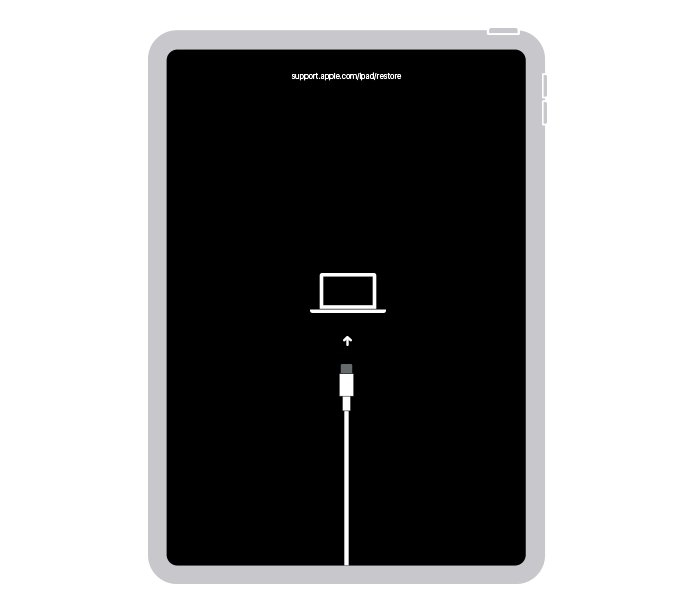
How to put iPad in recovery mode
- Update your Mac, or install the latest Apple Devices app or iTunes on your PC.
- Connect your iPad to the computer with a USB cable.
- Open Finder on a Mac or the Apple Devices app on a PC.
- No Home button: press and quickly release the volume button closest to the top button, press and quickly release the volume button farthest from the top button, then hold the top button until the recovery mode screen appears.
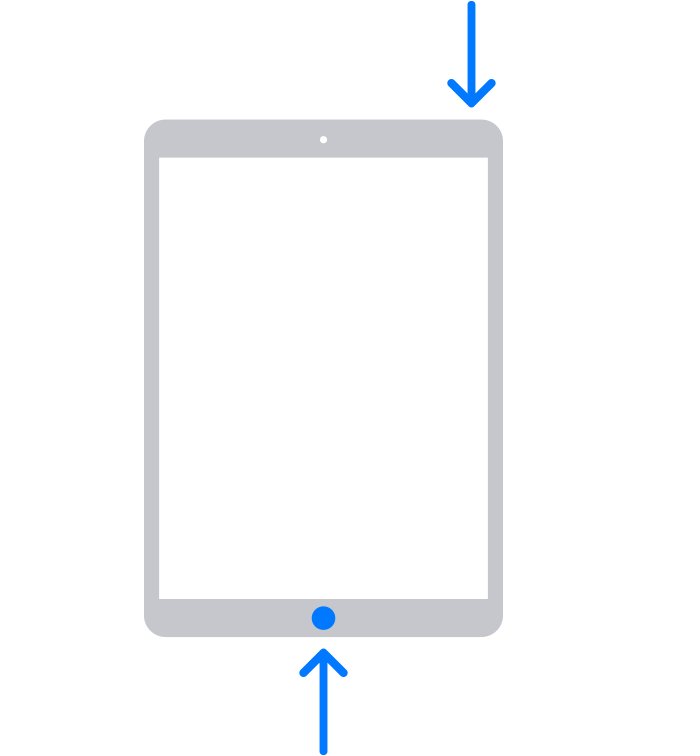
- Home button: press and hold the Home and top buttons together. When your iPad turns off, release the top button and keep holding Home until the recovery mode screen appears.
- Locate your iPad on the computer, then choose Update or Restore.
Choose Update first if you have not tried it yet. Restore reinstalls iPadOS and erases all of your data.
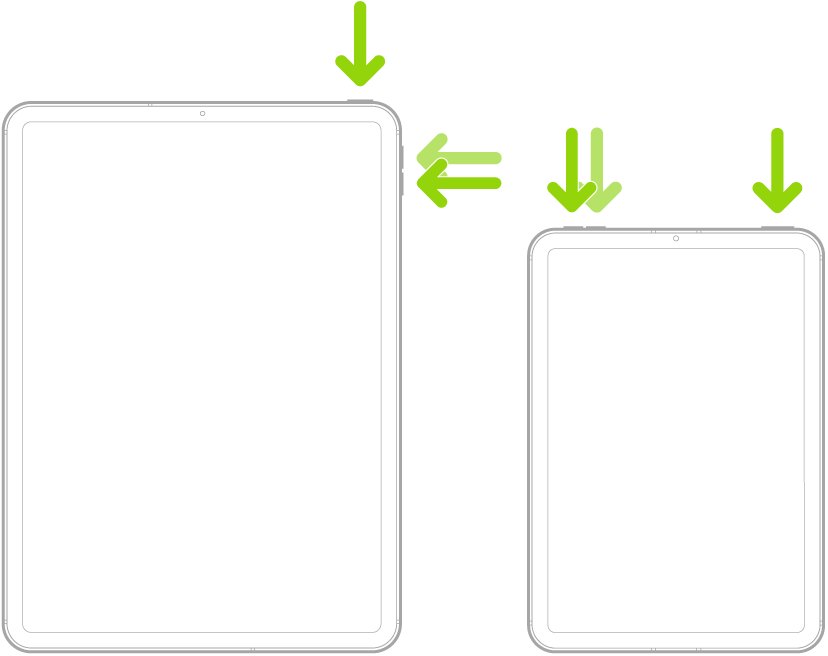
iPad recovery mode with Home button vs no Home button
The button sequence depends on one thing: whether your iPad has a round Home button below the screen. Age and screen size do not change it.
| Your iPad | Buttons to use | Models |
|---|---|---|
| Home button | Hold Home and top together, release top when the iPad turns off, keep holding Home | iPad (5th to 9th generation), iPad Air 2, iPad Air (3rd generation), iPad mini 3, iPad mini 4, iPad mini (5th generation), iPad Pro 9.7-inch, iPad Pro 10.5-inch, iPad Pro 12.9-inch (2015 and 2017) |
| Face ID | Volume nearest top, volume farthest from top, then hold top | iPad Pro 11-inch, 12.9-inch and 13-inch models from 2018 onward |
| Touch ID in the top button | Volume nearest top, volume farthest from top, then hold top | iPad (10th generation), iPad (A16), iPad Air (4th generation) and newer, iPad mini (6th generation) and newer |
Recovery mode on an iPad 10th gen uses the no-Home-button sequence, because Touch ID sits in the top button. An old iPad with a Home button uses the Home and top hold.
What is recovery mode on iPad?
Recovery mode lets a Mac or PC reinstall iPadOS on an iPad that will not start normally. You do not need it for everyday problems, only when one of these signs appears.
| What you see | What to do |
|---|---|
| Your computer does not recognize the iPad, or says it is in recovery mode | Enter recovery mode, then choose Update |
| The Apple logo stays on screen for several minutes with no progress bar | Enter recovery mode, then choose Update |
| The recovery mode screen is already showing | Connect to a computer and locate the iPad |
| The iPad keeps starting Recovery Assistant, and Recovery Assistant cannot fix it | Enter recovery mode and restore |
iPad recovery mode reset: Update or Restore
The computer offers two choices once it detects your iPad. Only one of them keeps your files.
| Option | What it does | Choose it when |
|---|---|---|
| Update | Reinstalls the software and keeps your personal data | You are troubleshooting and have not tried an update yet |
| Restore | Reinstalls iPadOS and erases all of your data | Update failed, your iPad started up in recovery mode during an update, or you forgot the passcode |
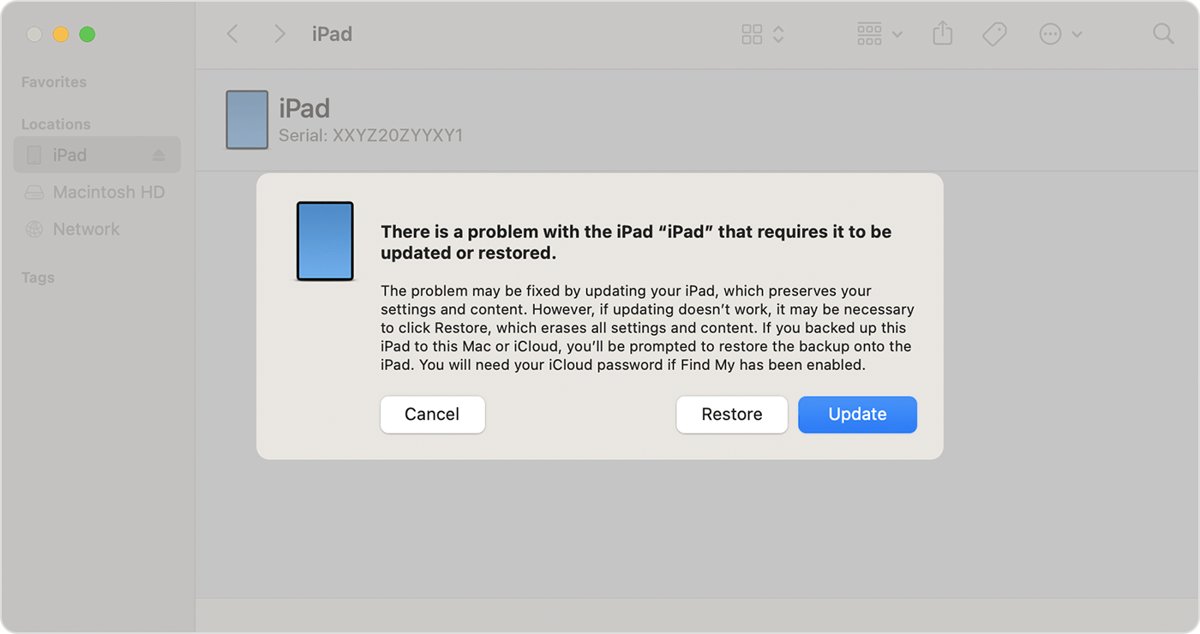
How to restore iPad in recovery mode
- Enter recovery mode with the buttons for your model, keeping your iPad connected.
- Locate your iPad on the computer.
- Choose Restore when you see the option to restore or update.
- Wait while the computer downloads the software for your iPad.
- If the download takes more than 15 minutes and your iPad leaves the recovery mode screen, let the download finish, then repeat the button sequence.
- Disconnect your iPad when the Hello screen appears, then set it up.
A restore leaves your iPad empty, so you can restore an iPad backup from iCloud or iTunes during setup.
iPad recovery mode iTunes, Finder or Apple Devices app
Your computer's operating system decides which app handles the restore. You only need one of these.
| Computer | App to open | Where your iPad appears |
|---|---|---|
| Mac with macOS Catalina or later | Finder | Finder sidebar |
| Mac with macOS Mojave or earlier | iTunes | Device button near the top left of the iTunes window |
| Windows 10 or later PC | Apple Devices app from the Microsoft Store | Apple Devices sidebar |
| Windows PC using iTunes | iTunes, latest version | Device button near the top left of the iTunes window |
How to put iPad in recovery mode to reset a forgotten passcode
A forgotten passcode needs a slightly different start, because the iPad must be off first. This route erases all data and settings, including the passcode, and can take up to 60 minutes.
- Unplug your iPad from the computer.
- Turn it off. Without a Home button, hold a volume button and the top button until the slider appears. With a Home button, hold the top button.
- Drag the slider, then wait a minute for your iPad to power down fully.
- Connect your iPad to the computer with a USB cable.
- Press the button sequence for your model and keep holding through the Apple logo.
- Release when you see the computer-and-cable image.
- Choose Restore in Finder or the Apple Devices app.
- Disconnect your iPad when the Hello screen appears, then set it up.
If the passcode screen appears instead of the computer-and-cable image, turn off your iPad and start over. The same restore also clears the iPad is disabled message.
iPad recovery mode without computer
Recovery mode itself needs a Mac or PC, because the update or restore runs from that computer. These are the routes when you have none.
| Your situation | Route without a computer | What it requires |
|---|---|---|
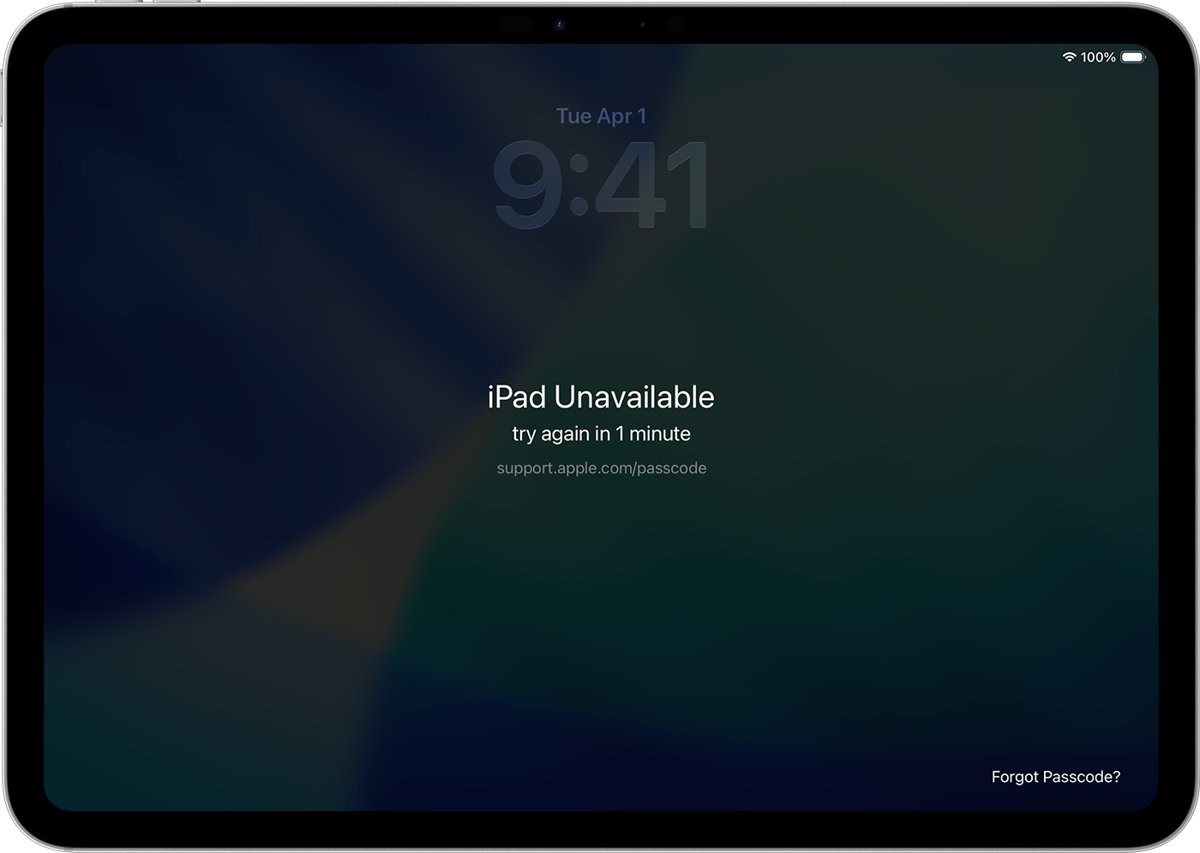
| Forgot passcode, iPadOS 17 or later | Tap Forgot Passcode? on the iPad Unavailable screen | Find My turned on earlier, Wi-Fi or cellular, your Apple Account password |
| Forgot passcode, iPadOS 15.2 or iPadOS 16 | Tap Erase iPad on the Lock Screen | Find My turned on earlier, Wi-Fi or cellular, your Apple Account password |
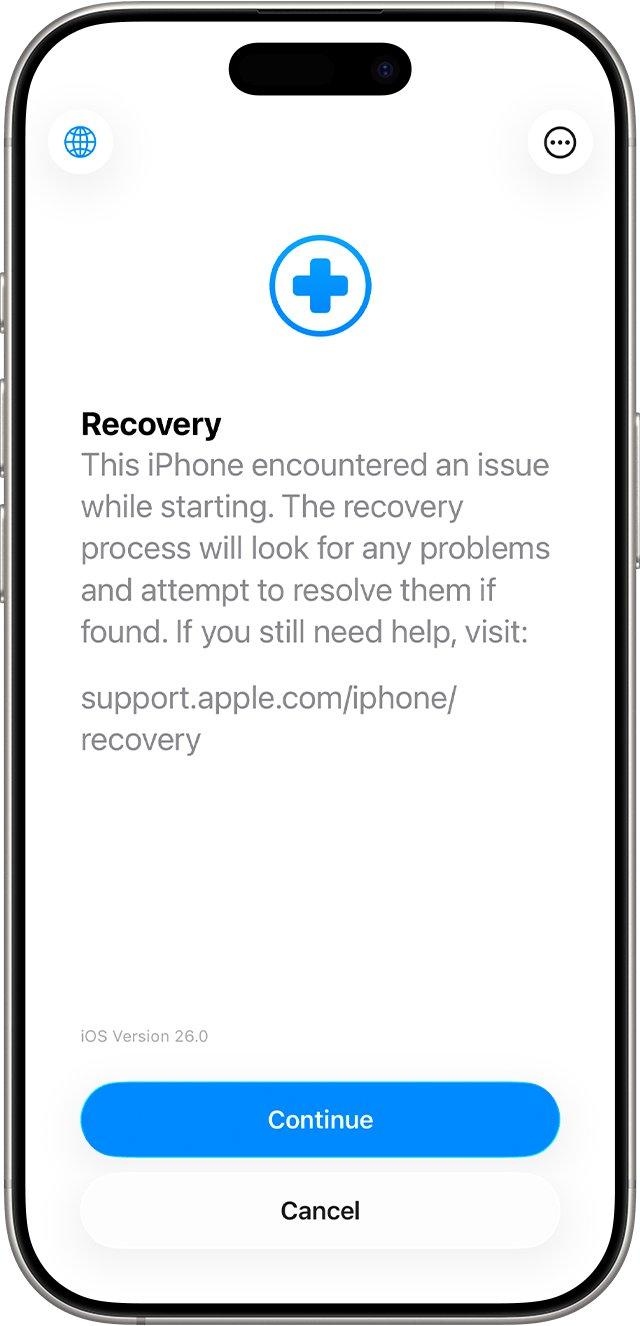
| Startup problem with Recovery Assistant showing | Select Continue and let it finish | Wi-Fi without a login page or 802.1X sign-in |
| No computer and none of the above works | Visit an Apple Store or Apple Authorized Service Provider | An in-person visit |
Both passcode routes erase your iPad. If you do not know the password, recover your Apple Account first. An iPad that still works can use a factory reset from Settings instead.
How to tell if iPad is out of recovery mode
- After Restore, wait for the Hello screen, which means iPadOS was reinstalled.
- Disconnect your iPad and follow the setup screens.
- After Update, check that your iPad reaches the Lock Screen and your apps and files are still there.
- Restart your iPad once and watch for the recovery mode screen coming back.
iPad recovery mode screen vs Recovery Assistant
These two screens look like the same problem, but they need different actions. Recovery Assistant works on your iPad over Wi-Fi, while recovery mode needs a computer.
| Screen | What it does | Your action |
|---|---|---|
| Recovery Assistant | Downloads a software package to resolve a startup issue | Select Continue, wait several minutes, then restart your iPad |
| Recovery mode screen | Waits for a computer to update or restore iPadOS | Connect a USB cable and open Finder or the Apple Devices app |
Sharing diagnostic data during Recovery Assistant is optional, and the files can include your name, serial number and file names. If the startup issue continues, update to the latest iPadOS, then use recovery mode to restore.
iPad recovery mode not working
Why won't my iPad go into recovery mode
The button timing was off, or the top button or Home button was released too early.
- Keep your iPad connected to the computer the whole time.
- Press the volume buttons quickly, one after the other, on a model without a Home button.
- Keep holding the top button or Home button past the Apple logo.
- Turn off your iPad and start over if the passcode screen appears.
Computer does not show the iPad
A charge-only cable, a blocked port or an outdated app stops the connection.
- Use a USB cable that supports both data and charging.
- Plug directly into a computer port, not a keyboard or USB hub.
- Check the charging port on your iPad for debris.
- Click Allow on a Mac if an accessory alert appears.
- Choose View > Show Sidebar in Finder if the sidebar is hidden.
- Try a different computer.
Why is my iPad stuck in recovery mode
iPadOS cannot start, or the download timed out and the iPad left the screen.
- Force restart: without a Home button, press volume nearest the top button, press volume farthest from it, then hold the top button until the Apple logo appears.
- With a Home button, hold the top and Home buttons together, then release at the Apple logo.
- Connect to the computer and choose Update if the recovery mode screen returns.
- Choose Restore if your iPad starts up in recovery mode again during the update.
Why won't my iPad restore in recovery mode
The computer's software, the USB link or the network connection is interrupting the restore.
- Update your Mac, or update the Apple Devices app or iTunes on your PC.
- Try a different Apple USB cable, then a different USB port.
- Restart the computer, then restart your iPad.
- Check that security software on the computer is up to date and allows the connection.
- Run the restore on another computer on a different network.
iPad buttons are broken or stuck
The sequence cannot be pressed, so recovery mode cannot start.
- Check whether Recovery Assistant appears on its own and select Continue if it does.
- Request service from Apple, because recovery mode with broken buttons needs repair.
A force restart on iPad only restarts the device and erases nothing, so try it before you restore.
iPad recovery mode restore error codes
An error number on the computer points to the part that failed. Fix that part, then repeat the update or restore.
| Error | What it points to | What to try |
|---|---|---|
| 9, 4005, 4013, 4014 | iPad disconnected or the computer lost the connection | Force restart, choose Update, then try another cable or computer |
| 13, 1600 to 1604, 1611, 1643 to 1650, 2000, 2001, 2002, 2005, 2006, 2009 | USB connection | Use the original or an Apple-certified cable, change ports, avoid keyboard ports |
| 17, 1109, 1639, 3000 to 3020, 3194, 3100 to 3999 | Computer cannot reach Apple's update servers | Check your internet, check that your firewall allows the servers, try another network |
| 10 | iPad software is too new for the computer | Update your Mac, iTunes or the Apple Devices app |
| 1671 | Computer is still downloading software | Wait for the download to finish, then try again |
| 4037 | iPad is locked | Unlock it, or use the forgotten passcode steps |
| 1015 or The required resource can't be found | Modified software or an attempted downgrade | Use recovery mode to install the latest iPadOS |
iPad recovery mode FAQ
How do I enter recovery mode on iPad?
Connect your iPad to a computer with a USB cable and open Finder or the Apple Devices app. Then use the button sequence for your model and hold the last button until the recovery mode screen appears.
Why is my iPad in recovery mode?
An iPad in recovery mode usually has a startup problem that keeps iPadOS from loading. Apple's signs include the Apple logo staying on screen for several minutes and Recovery Assistant failing to fix the device. Pressing the button sequence also causes it.
Why did my iPad go into recovery mode?
An iPad that starts up in recovery mode during an update has not finished that update. Restore it instead of updating it, then set it up from a backup. Restoring erases the iPad, so a recent backup matters.
Does iPad recovery mode delete everything?
Entering recovery mode erases nothing by itself. The Update option reinstalls the software and keeps your personal data, while the Restore option reinstalls iPadOS and erases all of your data.
Why isn't my iPad going into recovery mode?
The usual reason is releasing the button too early. Keep holding the top button or Home button past the Apple logo until the recovery mode screen appears. Broken buttons can stop the sequence completely, and those need Apple service.
Can I use iPad recovery mode without a computer?
No. Update and Restore both run from a Mac or PC. Without one, use Forgot Passcode? on the iPad for a lost passcode, Recovery Assistant for a startup problem, or an Apple Store or Apple Authorized Service Provider.
How long does iPad recovery mode take?
Plan for up to 60 minutes when you use a computer to reset a forgotten passcode. If the software download takes longer than 15 minutes, your iPad can leave the recovery mode screen, so let the download finish and repeat the sequence.
Do I need iTunes for iPad recovery mode?
Not on a current computer. A Mac with macOS Catalina or later uses Finder, and a Windows PC can use the Apple Devices app from the Microsoft Store. iTunes is still an option on a PC and on older Macs.