You cannot download Microsoft Works for Windows 11 or Windows 10 from Microsoft, because the product is discontinued and its Download Center pages now return a 404 error.
This guide shows how to install Works from your own original disc, run it in compatibility mode, open old .wps and .xlr files without it, and pick a current replacement.
Can You Download Microsoft Works for Windows 11/10?
No official download exists. Microsoft's security bulletin MS12-028 still links Download Center pages for the Works 9 update and the Works 6-9 File Converter, and both links now return 404 Not Found.
Any site that offers a Works installer today is an unofficial mirror. Skip those files: an unknown installer is a far bigger risk than an old document is worth.
If your real goal is to read old Works documents, this is the fastest route:
- Copy your Works files to a USB flash drive, then copy them into a folder such as Documents on the new PC.
- Open Word or Excel and select File > Open.
- Go to the folder that holds the Works files.
- In the file type list next to the File name box, select All Files (*.*).
- Select the Works file and open it.
- Save it straight away as Word Document (.docx) or Excel Workbook (.xlsx).
Microsoft documents this route for Office 2010 and Works 6.0 or later files. It states there are no Works converter options for Office 2013, Office 2016 or later, so newer Office versions may refuse the file.
Which route fits your situation?
| Your situation | Do this | Why |
|---|---|---|
| You still own the Works CD and product key | Install from original media, then use compatibility mode | The only legitimate way to get Works onto a new PC |
| You only need old documents and have Office 2010 | Open them with File > Open > All Files (*.*) | Microsoft documents this for Works 6.0 and later files |
| You have Works 4.x or Works 2000 spreadsheets (.wks) | Save them as .xls or .xlsx on the old PC first | Excel cannot open the Works 4.x/2000 .wks format |
| Your Works disc has a 16-bit setup program | Stop and use an alternative | 64-bit Windows cannot run 16-bit programs, and Windows 11 needs a 64-bit processor |
| You want a free word processor and spreadsheet | Use the free Word and Excel web apps or LibreOffice | Both are current, supported, and free |
| A site offers a free Works download | Do not use it | Microsoft no longer hosts Works, so any copy is unofficial |
How to install & run Microsoft Works on Windows 11/10
Check this list before you insert the disc. Most failed installs trace back to one of these rows.
| Check | What you need | Why it matters |
|---|---|---|
| Original media | Your own Works CD or the installer that came with an old PC | Microsoft offers no download to replace it |
| Product key | The key that came with your copy | Setup asks for it, and nobody can reissue it now |
| Disc drive | A built-in or USB optical drive | Works installs from a CD, so the PC must be able to read one |
| Setup type | A 32-bit setup program | 64-bit Windows does not run 16-bit Windows programs |
| Admin account | A Windows account that can install software | Installing desktop programs needs administrator approval |
| Backups | A copy of your Works files on USB or in the cloud | Your documents stay safe if the install fails |
To keep a cloud copy of your documents, set up OneDrive on Windows 11/10 before you start.
How to Install Microsoft Works from Original Media
Use this only with a Works disc you own. The exact setup file name varies by Works version, so look for the program named Setup on the disc.
- Insert the Works CD into the disc drive.
- Open File Explorer and select the disc drive under This PC.
- Right-click the setup program and select Properties.
- Open the Compatibility tab and tick Run this program in compatibility mode for:, then pick the Windows version Works was sold for.
- Select OK, then double-click the setup program.
- Enter your product key when setup asks for it.
- Follow the on-screen prompts until setup reports that Works is installed.
If Windows shows "This app or game can't run on your device", the installer is not compatible with this PC. Go to the troubleshooting section below.
Running Microsoft Works on Windows 11/10 Compatibility Mode
Once Works is installed, apply compatibility settings to the program itself if it crashes or draws its windows incorrectly.
- Select Start > Settings > System > Troubleshoot > Other troubleshooters.
- Find Program Compatibility Troubleshooter and select Run.
- Pick Microsoft Works from the list of programs.
- Follow the on-screen instructions and test Works when prompted.
- If the troubleshooter does not fix it, right-click the Works shortcut, select Properties, and open the Compatibility tab.
- Tick Run this program in compatibility mode for: and choose an older Windows version.
- If the option is greyed out, select Change settings for all users and set it there.
- Select OK and open Works again.
How to Open Old Microsoft Works Files Without Works
Works saved documents in its own formats. The file extension tells you which route applies.
| File type | Created by | Option to try |
|---|---|---|
| .wps (word processor) | Works 6.0 to 9.0 | Open in Word 2010 or Word Starter 2010 with File > Open > All Files (*.*), then save as .docx |
| .xlr (spreadsheet) | Works 6.0 to 9.0 | Open in Excel 2010 or Excel Starter 2010, then save as .xlsx |
| .wks (spreadsheet) | Works 4.x or Works 2000 | Excel cannot open it. On the old PC, save it from Works as .xls or .xlsx first |
| .wdb (database) | Any Works version | Microsoft documents no route in current Office. Keep the old PC that runs Works until you have re-entered the data elsewhere |
| Any Works file | Any version | Office 2013, Office 2016 and later have no Works converter, so keep an old PC with Works or Office 2010 until everything is converted |
Microsoft's security bulletin MS12-028 describes the old Works 6-9 File Converter as an optional add-on that let Office open Works word processor files. Its Download Center page is now gone.
Open .wps files only from sources you trust. Microsoft patched a remote code execution flaw in the Works converter in that same bulletin.
How to check Works or your converted files are working
- Open Works from the Start menu and create a blank word processor document.
- Type a line, save the document to Documents, close Works, and open the file again.
- Print the document or preview it to confirm printing works.
- For converted files, open each new .docx or .xlsx file in Word or Excel and compare it with the original.
- Check that tables, totals and page layout match before you delete any old Works file.
If the saved file reopens and the formulas return the same totals, the install or conversion is complete.
Common Installation and Compatibility Problems
Installer will not start or closes immediately
Changes in Windows security and architecture stop older installers from running.
- Right-click the setup program, select Properties, and set Run this program in compatibility mode for: on the Compatibility tab.
- If the setting is greyed out, select Change settings for all users.
- Run Program Compatibility Troubleshooter from Settings > System > Troubleshoot > Other troubleshooters.
- If setup still closes, use the file-opening routes above instead of Works.
16-bit setup errors on 64-bit Windows
64-bit Windows does not support 16-bit Windows programs, and every Windows 11 PC needs a 64-bit processor.
- Read the error text. A 16-bit program fails with a bad executable format error.
- Stop retrying compatibility modes, because none of them add 16-bit support.
- Use the free Word and Excel web apps or LibreOffice for new work.
- Open old files on a PC that still runs your old Windows version, and save them in Office formats.
Setup asks for files, product keys, or missing components
Works was sold on disc with its own key, and Microsoft no longer supplies either.
- Insert the original disc and leave it in the drive until setup finishes.
- Enter the product key that came with your copy of Works.
- If the key or disc is lost, stop here. No official replacement exists.
- Move to the alternatives section below.
Crashes, display glitches, and saving problems
Works was built for older Windows versions and can flicker, freeze or fail on current display drivers.
- Run Program Compatibility Troubleshooter and choose Works.
- Update device drivers through Windows Update.
- Save documents to Documents rather than to a synced or network folder.
- Convert important files to .docx or .xlsx so a crash cannot lock you out of them.
What Is Microsoft Works and Is It Still Available?
Microsoft Works was a home suite whose word processor and spreadsheet files Office could open through a converter. Microsoft no longer hosts it or that converter.
| Fact | Status in 2026 | Source |
|---|---|---|
| Last version | Works 9, patched in April 2012 by bulletin MS12-028 | Microsoft Learn security bulletin |
| Official download | Works 9 update and Works 6-9 File Converter pages return 404 | Microsoft Download Center |
| Lifecycle page | No Works entry exists on Microsoft Lifecycle | Microsoft Learn |
| Support article | Only one: moving Works files to Office 2010 | Microsoft Support |
| Office converter | No converter options for Office 2013, 2016 or later | Microsoft Support |
| Common file types | .wps documents, .xlr and .wks spreadsheets, .wdb databases | Microsoft Support and MS12-028 |
Best Modern Alternatives to Microsoft Works
Each of these replaces the Works word processor and spreadsheet. Pick by cost and whether you need desktop apps.
| Option | Cost | What you get | Limit |
|---|---|---|---|
| Microsoft 365 or Microsoft Office | Paid | Desktop Word, Excel, PowerPoint and Outlook | No Works converter in current versions |
| Free Microsoft 365 web apps | Free with a Microsoft account | Word, Excel and PowerPoint in a browser at Microsoft365.com, plus 5 GB of OneDrive storage | No desktop apps and no technical support |
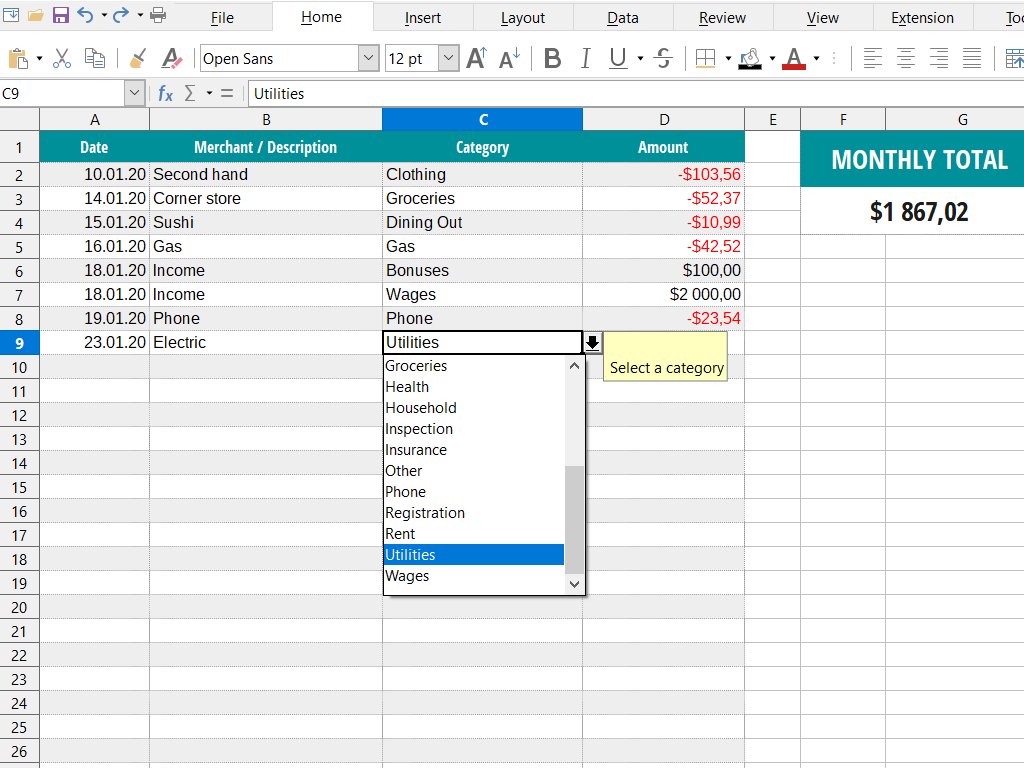
| LibreOffice | Free, open source | Writer, Calc, Impress, Draw, Base and Math | Complex Office files may need manual reformatting |
For the presentation side of Office, see how to download Microsoft PowerPoint for PC, Windows 11/10 and Mac.
Frequently Asked Questions
How do I download Microsoft Works for free?
You cannot download Microsoft Works from Microsoft, free or paid. The product is discontinued, and its Download Center pages now return 404. Any free Works download on another site is an unofficial copy. Use the free Word and Excel web apps at Microsoft365.com or LibreOffice instead.
Can I still download Microsoft Works for Windows 11 or Windows 10?
No. Microsoft offers no Works download for Windows 11 or Windows 10. The only legitimate way to install it is from your own original disc with its product key, and even then a 16-bit installer will not run on 64-bit Windows.
Will Microsoft Works install on Windows 11?
Only from your own original disc, and only when its setup program is 32-bit. Windows 11 needs a 64-bit processor, and 64-bit Windows cannot run 16-bit programs, so older Works versions fail. Use compatibility mode and the Program Compatibility Troubleshooter if setup starts but misbehaves.
Can I download Microsoft Works 9.0?
No. Microsoft's last Works 9 update, KB2680317 from bulletin MS12-028, pointed to a Download Center page that now returns 404. Microsoft hosts no Works 9 installer, so only your own original disc gives you a legitimate copy.
How can I open .wps or .wks files if I do not have Microsoft Works?
Open Works 6.0 to 9.0 .wps and .xlr files in Word 2010 or Excel 2010 with File > Open and the All Files (*.*) filter. Excel cannot open Works 4.x or 2000 .wks spreadsheets, so save those as .xls or .xlsx in Works first.
Is there a Microsoft Works word processor download?
No. The Works word processor was part of the Works suite, which Microsoft no longer hosts. The free Word web app at Microsoft365.com is Microsoft's current free word processor, and LibreOffice Writer is a free desktop option.
What should I do if the Microsoft Works installer will not start?
Right-click the setup program, choose Properties, and set compatibility mode on the Compatibility tab. Then run the Program Compatibility Troubleshooter from Settings. If Windows reports a bad executable format, the installer is 16-bit and cannot run on 64-bit Windows.
How do I download and use Microsoft Office instead of Works?
Sign in at Microsoft365.com with a Microsoft account to use Word, Excel and PowerPoint free in a browser. A paid Microsoft 365 subscription adds the desktop apps. Save converted Works files as .docx or .xlsx so every current app can open them.
What is the best replacement for Microsoft Works today?
For most home users, the free Word and Excel web apps are the closest replacement, because they need only a Microsoft account. Choose LibreOffice if you want free desktop apps, or Microsoft 365 if you need full desktop Office.
Bottom Line
Do not hunt for a Microsoft Works download. Convert your old Works files to .docx and .xlsx, then move to the free Microsoft 365 web apps, Microsoft 365 or LibreOffice. Microsoft no longer hosts Works or its converter, current Office has no Works converter, and 64-bit Windows cannot run 16-bit installers. Installing from your own disc is only worth it as a short bridge to get old files converted.


![How to change your user account picture in Windows 11? [Easy steps]](https://techdows.com/wp-content/uploads/2026/10/How-to-Change-Your-User-Account-Picture-in-Windows-11-Easy-Steps-600x338.jpg)