Find My shows "No location found" below a friend's name when it cannot locate them, even if they say they are sharing, and the fix is on their iPhone: turn on Share My Location, set the right Sharing From device, allow Location Services for Find My and get online.
This guide covers what your friend needs to change, what you can check on your own iPhone, what each Find My label means, and how to see their location another way.
How to fix no location found for friends on Find My
Send these steps to your friend, because their iPhone supplies the location you are missing. Your iPhone only displays what it receives.
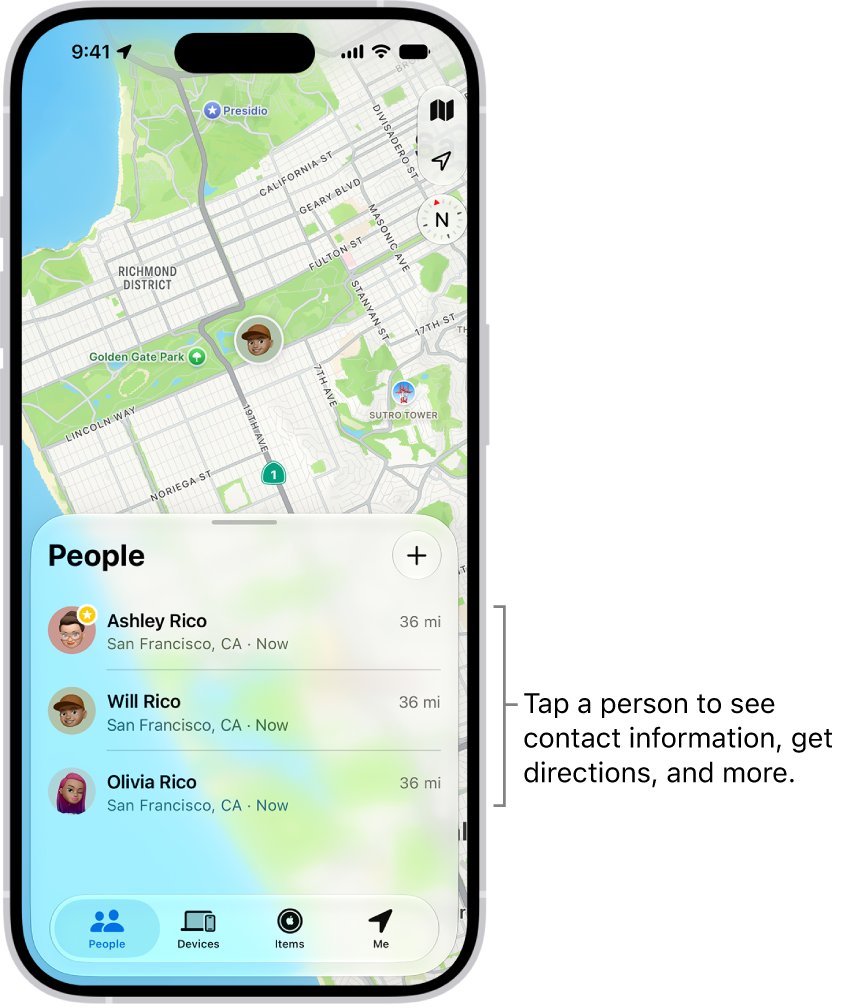
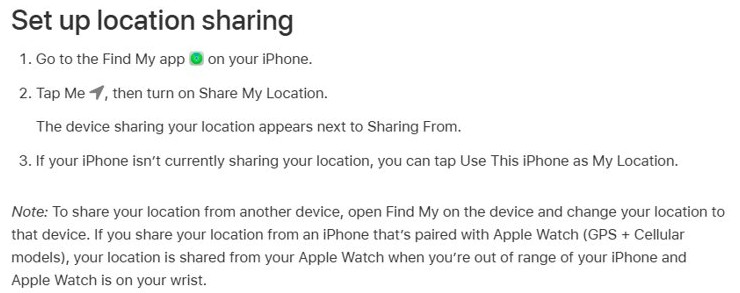
- On your friend's iPhone, open the Find My app and tap Me.
- Turn on Share My Location.
- Check the device listed next to Sharing From. If it is not the iPhone they carry, tap Use This iPhone as My Location.
- Go to Settings > Privacy & Security > Location Services and turn on Location Services.
- On the same screen, tap Find My and choose an option other than Never.
- Connect the iPhone to Wi-Fi or cellular data.
- On your iPhone, open Find My, tap People and tap your friend's name to see them on the map.
If the message appears on one of your own devices rather than a friend's entry, fix no location found on your iPhone instead.
Shared location says no location found: what each case means
Match what you see in the People tab to a row. Most rows need your friend, and two need action on your iPhone.
| What you see | Who acts | What to do |
|---|---|---|
| "No location found" below their name | Your friend | Check Share My Location, Sharing From and Location Services for Find My |
| "Can see your location" below their name | You | Tap their name, then tap Ask To Follow Location |
| Their name is listed, but no location appears on the map | Your friend | Confirm they are sharing and that Location Services is on for Find My |
| Your friend is missing from People | You | Share your location with them first, then ask to follow them |
| They shared for a limited time, or stopped sharing | Your friend | Share again from People and choose a longer duration |
| Their location appears in Messages but never moves | Your friend | Share a live location, because pinned locations do not update |
| Everyone in People shows no location | You | Check your connection, restart your iPhone and install any iOS update |
No location found vs no location available on Find My
Find My uses similar wording in the People and Devices tabs. The labels describe different problems, so read them before asking a friend to change settings.
| Label | Where it appears | What Apple says it means |
|---|---|---|
| No location found | People, below a friend's name | Your friend cannot be located |
| No location found | Devices, on a device | More than seven days have passed since the device last sent its location through the Find My network |
| Can see your location | People, below a friend's name | You are not following that friend |
| Not sharing location • Online | Devices, on a device | The device is online but cannot send its location, for example because of a Location Services issue |
| Offline | Devices, on a device | The device is off, its battery ran out, or it is not on a known network |
| No location available or Location Services Off | Devices, on a device | Apple groups these with Offline as reasons Find My cannot show the device |
Apple gives no time limit for the friend version of the message, and it states the seven-day rule only for the device version.
How to turn on location sharing for a friend in Find My
Your friend may believe they are sharing while Share My Location is off, because turning it off hides their location from everyone.
- On your friend's iPhone, open Find My.
- Tap Me, then turn on Share My Location.
- Tap People, tap the add button, then choose Share My Location.
- In the With field, enter your name or pick you from contacts.
- Choose how long to share. Custom lets them set a duration or end time.
- Send the invitation, then check your People tab for their name.
The same setting is under Settings > [your name] > Find My. Your friend can also share their location on iPhone from a Messages conversation.
Friend's location not showing in Find My: check the sharing device
A person shares their location from one device at a time. If that device is an iPad at home or an old iPhone that is switched off, Find My has nothing current to show you.
- On the iPhone your friend carries, open Settings.
- Tap their name, then tap Find My.
- Tap Use this iPhone as My Location.
- Open the Find My app and tap Me.
- Check that this iPhone now appears next to Sharing From.
An iPhone paired with a GPS + Cellular Apple Watch shares from the watch when the watch is on your friend's wrist and out of range of the iPhone. They can later change their Find My location to another device by repeating these steps on it.
Allow Location Services for Find My on a friend's iPhone
Apple names this setting specifically for friends who are listed in People but do not appear on the map.
- On your friend's iPhone, open Settings.
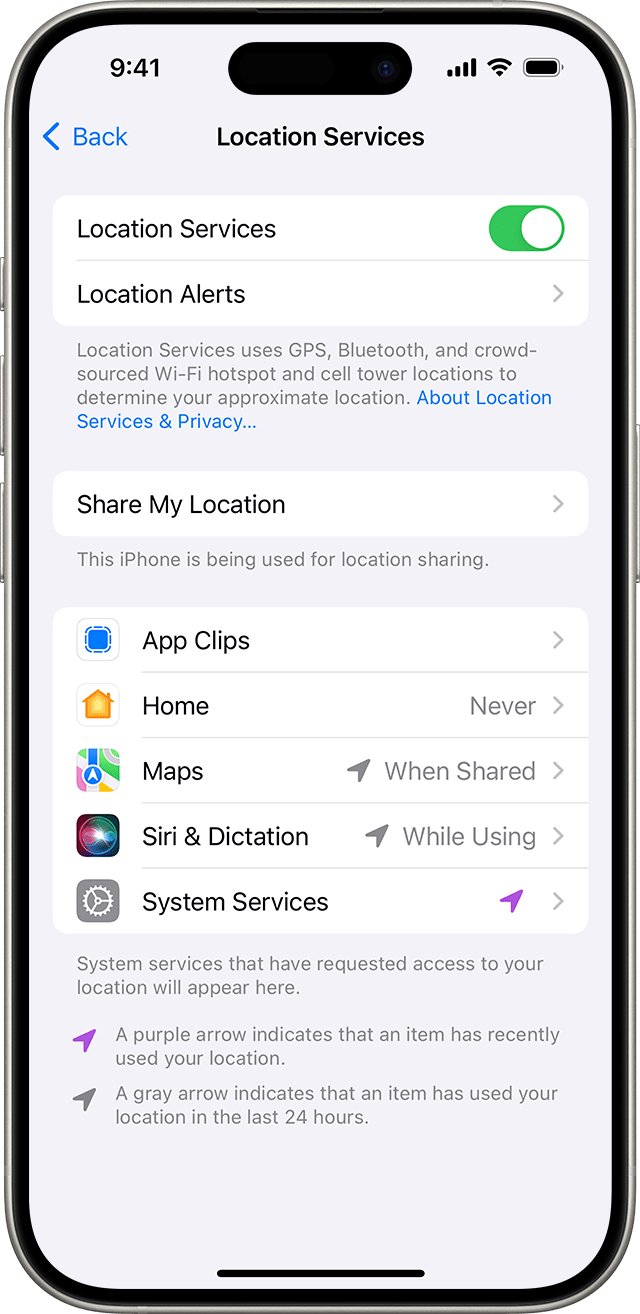
- Tap Privacy & Security, then tap Location Services.
- Turn on Location Services if it is off.
- Scroll down the app list and tap Find My.
- Choose an option other than Never.
- Turn on Precise Location if you need their specific location instead of an approximate one.
Location Services works from GPS, Bluetooth connections, local Wi-Fi networks and the cellular network, when available. Turning it off also stops many other iPhone features, so leave the main switch on.
How to ask to follow a friend's location in Find My
"Can see your location" means sharing runs one way: your friend can see you, but you are not following them. Their sharing setting is not the problem in that case.
- On your iPhone, open Find My and tap People.
- If your friend is not listed, share your own location with them first.
- Tap your friend's name.
- Tap Ask To Follow Location.
- Ask your friend to open People on their iPhone and tap Share below your name.
- Your friend chooses how long to share, and their location then appears for you.
Get a friend's iPhone online for Find My location
An iPhone that is off, out of battery or off the network cannot send a fresh location. Your friend runs these fixes, which Apple lists for an offline device.
- Charge the iPhone and turn it on.
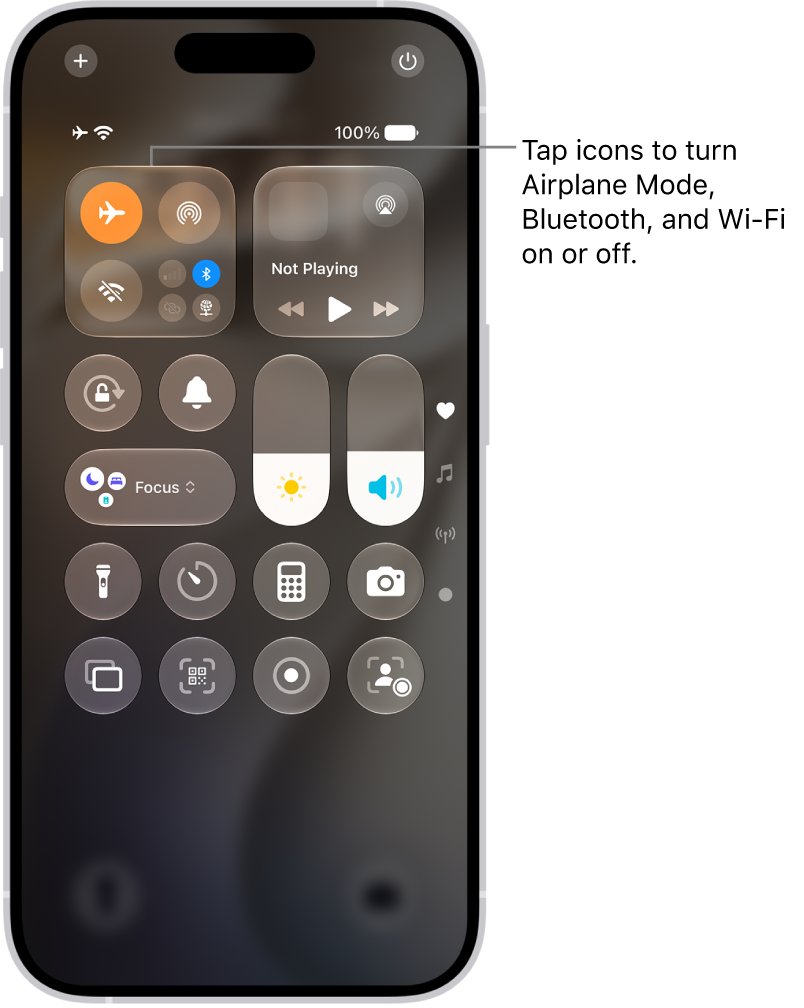
- Connect to a known Wi-Fi network or turn on cellular data.
- Turn Airplane Mode on and then off again.
- Restart the iPhone.
- Go to Settings > General > Date & Time and check that Set Automatically is on.
- Open Settings and, if you see Sign in to your iPhone, tap it and enter the Apple Account details.
On iPhone X or later, restart by holding either volume button and the side button until the power-off slider appears. Drag the slider, wait 30 seconds, then hold the side button until the Apple logo appears.
See a friend's location in Messages when Find My shows no location
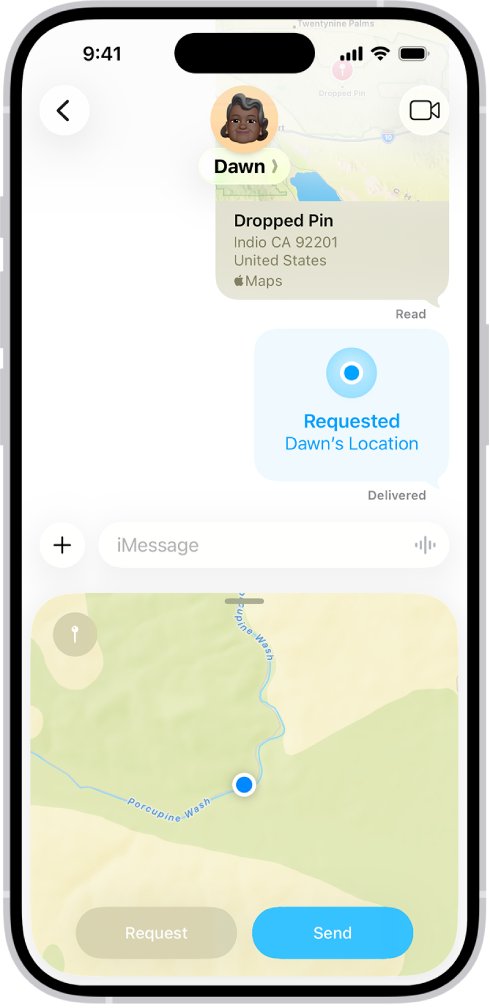
Messages uses Find My when someone shares a location. It offers another way to ask for one, and it gives your friend a quick way to send it.
- On your iPhone, open Messages and open your one-to-one conversation with your friend.
- Open the conversation's add menu, tap Location, then tap Request.
- Send the request.
- When your friend shares, look below their name at the top of the conversation.
- Tap their name to see them on a map, then tap the map to enlarge it.
A pinned location shows one fixed place and does not update as your friend moves. If you need to reach them now, tap Contact on their People entry in Find My and choose how to get in touch.
Reset Location & Privacy for Find My on iPhone
Use this last, on your friend's iPhone. It returns Location Services and privacy settings to their defaults without erasing content, so Find My and other apps need permission again.
- Open Settings and tap General.
- Tap Transfer or Reset iPhone, then tap Reset.
- Tap Reset Location & Privacy. Do not choose Erase All Content and Settings.
- Follow the prompts to confirm.
- Open Find My, allow location access when asked, and check Share My Location under Me.
How to tell if a friend's location is working in Find My
A map position replaces the message once your friend's iPhone is sharing correctly.
- Open Find My on your iPhone and tap People.
- Tap your friend's name.
- Check that your friend appears on the map instead of the "No location found" message.
- Tap Directions to open their location in Maps.
- Ask your friend whether the location matches where they are.
To see how far away your friend is, turn on Precise Location for Find My on your own iPhone.
Find My location not working for friends
Location keeps saying no location found
The settings are right, but the device sharing the location is off, offline or running older software.
- Check which device appears next to Sharing From on your friend's iPhone.
- Connect that device to a network and restart it.
- Update it under Settings > General > Software Update, then tap Download and Install if an update is listed.
- Run Reset Location & Privacy if the message still stays.
No location found off network
Your friend's iPhone has no Wi-Fi or cellular connection, so it cannot send a current location for you to see.
- Ask your friend to reconnect to Wi-Fi or cellular data.
- On their iPhone, go to Settings > [their name] > Find My > Find My iPhone.
- Turn on Find My network so the owner can still locate a supported iPhone for up to 24 hours after it is turned off.
- Turn on Send Last Location so the iPhone tries to send its last known location before the battery runs out.
Why is Find My not updating location?
Your friend is sharing from a device that stays in one place, such as an iPad or a Mac, or the phone they carry is offline.
- Ask your friend to tap Use This iPhone as My Location under Me in Find My.
- Reopen your friend's entry under People.
- If the map shows a stale place rather than this message, fix old family locations in Find My.
Why my location is showing wrong
Find My shows only an approximate location when Precise Location is off for the app, or it follows a device left somewhere else.
- Go to Settings > Privacy & Security > Location Services > Find My.
- Turn on Precise Location.
- Open Find My, tap Me and check the device next to Sharing From.
Can't find location on Find My
Finding people is not available in every country or region, and Managed Apple Accounts from schools do not include Find My.
- Check whether your friend is traveling or lives in a region where the feature is limited.
- Ask your friend whether they use a school-managed Apple Account.
- Ask them to send a pinned location in Messages instead, because live sharing in Messages also uses Find My.
Find My not showing location for a family member
In a Family Sharing group each member chooses whether to share, even after the organizer turns on location sharing.
- On their iPhone, open Settings and tap Family.
- Tap Location Sharing.
- Under Share Your Location With, choose the family members who should see them.
No location found for friends FAQ
What is no location found?
It is the message Find My shows when a person or device cannot be located. Below a friend's name, it means Find My cannot locate that friend right now. On a device in the Devices tab, Apple ties it to more than seven days without a reported location.
Why does it say no location found on Find My?
The device your friend shares from is not giving Find My a location. Usually Share My Location is off, another device is selected next to Sharing From, Location Services is blocked for Find My, or the iPhone is off or offline.
Why is someone's location not available?
They may have stopped or paused sharing, hidden their location from everyone, let a time-limited share expire, or turned off Location Services for Find My. Their iPhone may also be off or offline. Ask them to check Find My on the phone they carry.
How do I fix location not found?
Ask your friend to open Find My, tap Me, turn on Share My Location and tap Use This iPhone as My Location if needed. They should then allow Location Services for Find My and connect to Wi-Fi or cellular data.
How do I fix location is not available?
Start with the device that shares the location. Charge it, connect it to a network, turn Airplane Mode on and off, and restart it. Then check that Location Services is allowed for Find My and that the date and time are set automatically.
Why is my location not showing to friends?
Open Find My, tap Me and check that Share My Location is on and that the iPhone you carry appears next to Sharing From. Then go to Settings > Privacy & Security > Location Services > Find My and choose an option other than Never.
Why is Find My location not working?
Find My needs Location Services, a network connection and sharing turned on for the right device. Turn on each one on the iPhone that shares the location, then update iOS under Settings > General > Software Update if the problem continues.
Why does Find My say no location found for my phone?
If the status is on your own device, Find My has gone more than seven days without its location, often because it is off or has no connection. Friends looking at you see the message below your name when you cannot be located.
Why is my location showing wrong in Find My?
Precise Location may be off, which gives only an approximate position, or your location may be coming from another device such as an iPad at home. Turn on Precise Location for Find My and tap Use This iPhone as My Location under Me.
Why is Find My not updating location?
The device sharing the location is offline or is not the one the person carries. Check Sharing From under Me in Find My, then connect that device to Wi-Fi or cellular data and restart it. Install any available iOS update if it continues.