Press Win + Down to minimize a window, Win + Up to maximize it, Win + Z to open Snap layouts, and use PowerToys FancyZones when you want custom layouts of your own.
The sections below cover every mouse and keyboard route for each action, how to recover an off-screen window, saved workspaces, multi-monitor moves and the fixes for common problems.
Quick primer: the three basic actions
| Action | With the mouse | With the keyboard |
|---|---|---|
| Minimize a window | Select the minimize button at the top right of the title bar | Win + Down |
| Maximize a window | Select the maximize button at the top right of the title bar | Win + Up |
| Restore a window | Select the restore button, or select the app's taskbar icon if it is minimized | Win + Shift + Down for a snapped or maximized window, Win + Shift + M for minimized windows |
Background: why control of window state matters
Every window sits in one of four states, and each suits a different job. Windows draws them all on screen through the Desktop Window Manager process, which is why dwm.exe appears in Task Manager.
| Window state | What it does | Use it when |
|---|---|---|
| Minimized | Removes the window from view and keeps the app running on the taskbar | You want the app open but out of the way |
| Maximized | Fills the screen | One app needs all your attention |
| Restored | Returns the window to its own size and position | You want a free-floating window at a size you chose |
| Snapped | Places the window in a side, corner or layout position | You need two or more apps visible together |
How to minimize windows in Windows 11
Windows 11 has five routes, and the keyboard ones work without the title bar being visible.
| Route | Do this | Result |
|---|---|---|
| Title bar buttons (mouse) | Select the minimize button at the top right of the window | That window goes to the taskbar |
| Keyboard: use Win + Down | Press Win + Down | Minimizes the active window. A snapped window can change position first, so press it again if needed |
| Minimize everything at once: Win + D and Win + M | Press Win + D to display and hide the desktop, or Win + M to minimize all windows | Press Win + D again or Win + Shift + M to bring windows back |
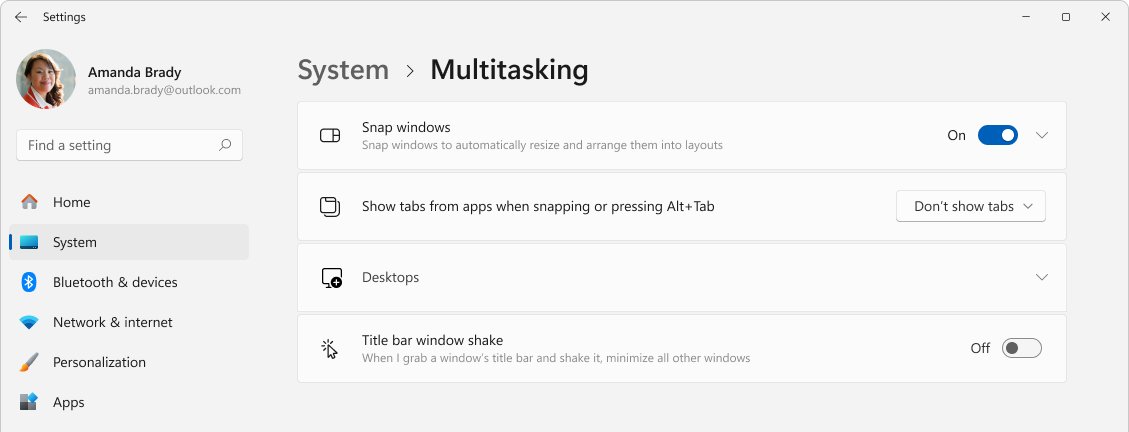
| Shake to minimize others (Aero Shake / Title bar window shake) | Turn on Title bar window shake, then grab a title bar and shake it | All other open windows minimize |
| Win + Home: minimize everything except active window | Press Win + Home | Press it again to restore the other windows |
How to maximize windows in Windows 11
Four routes give you a larger window. Only the first two always fill the whole screen.
| Route | Do this | Result |
|---|---|---|
| Title bar maximize button (mouse) | Select the maximize button at the top right of the window | The window fills the screen, and the button becomes a restore button |
| Keyboard: Win + Up | Press Win + Up | Maximizes the active window |
| Drag to the top edge (mouse) | Drag the title bar to the top of the screen | Expands the window to full height at its current width, and the Snap bar offers layouts while you drag |
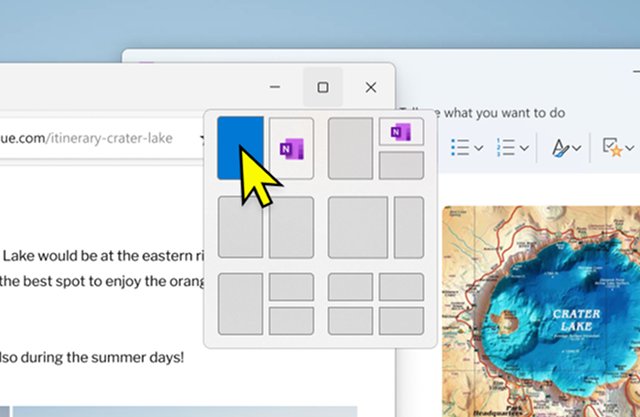
| Snap Layouts ( Win + Z ): modern tiling | Press Win + Z and select a layout | The window takes one area of the layout, and Snap Assist offers your other windows for the rest |
Win + Shift + Up stretches a window to the top and bottom of the screen without changing its width. F11 is the full-window toggle in apps that support it.
Restore a window to a custom size or recover an off-screen window
Start from what the window is doing now, because the fix differs for each case.
| What you see | Do this | Why |
|---|---|---|
| The window fills the screen | Press Win + Shift + Down or select the restore button | Returns it to its last free-floating size |
| The window is snapped to a side or corner | Press Win + Shift + Down | Windows restores snapped windows with the same shortcut |
| The window is minimized | Select its taskbar icon or press Win + Shift + M | Win + Shift + M restores all minimized windows at once |
| The window opens at the wrong size | Resize it by hand, as the next section shows | It then restores to that size |
| The app is running but you cannot see its window | Move it back with the off-screen shortcuts below | It can still be placed for a monitor that is no longer connected |
Manual resize
- Press Win + Shift + Down if the window is maximized or snapped.
- Point to an edge or corner of the window until the pointer changes to a double arrow.
- Drag to the size you want and release.
- For snapped windows, drag the divider between them instead, and the adjoining windows resize to fit.
PowerToys Grab And Move removes the aiming. Once it is turned on, hold Alt and drag with the right mouse button anywhere inside the window to resize it from the nearest edge or corner.
Recover off-screen windows
- Press Alt + Tab and hold Alt while you tap Tab until the lost window is selected.
- Release both keys so that window is active.
- Press Win + Up to maximize it on the current monitor.
- Press Win + Shift + Left or Win + Shift + Right to move it to the next monitor if it landed on the wrong one.
- Press Win + Shift + Down to restore it to its smaller size once you can see it.
To stop this happening on a docked laptop, open Settings > System > Display > Multiple displays and turn on Remember window locations based on monitor connection.
Advanced multitasking: Snap layouts, Snap groups and PowerToys FancyZones
These three tools solve different problems, and they can run on the same PC.
| Tool | Comes with | Best for | Main limit |
|---|---|---|---|
| Snap layouts | Windows 11 | Arranging windows into a preset layout | Available layouts depend on your display size |
| Snap groups | Windows 11 | Returning to windows you already snapped together | Created only when you snap windows together |
| FancyZones | Microsoft PowerToys, a free install | Your own zones, saved per layout, with Grid or Canvas editing | Elevated apps need PowerToys running as administrator |
Snap layouts and Snap groups (built into Windows 11)
- Hover over a window's maximize button or press Win + Z to open the Snap flyout.
- Select a position in the layout you want.
- Pick the other windows from the Snap Assist thumbnails to fill the rest.
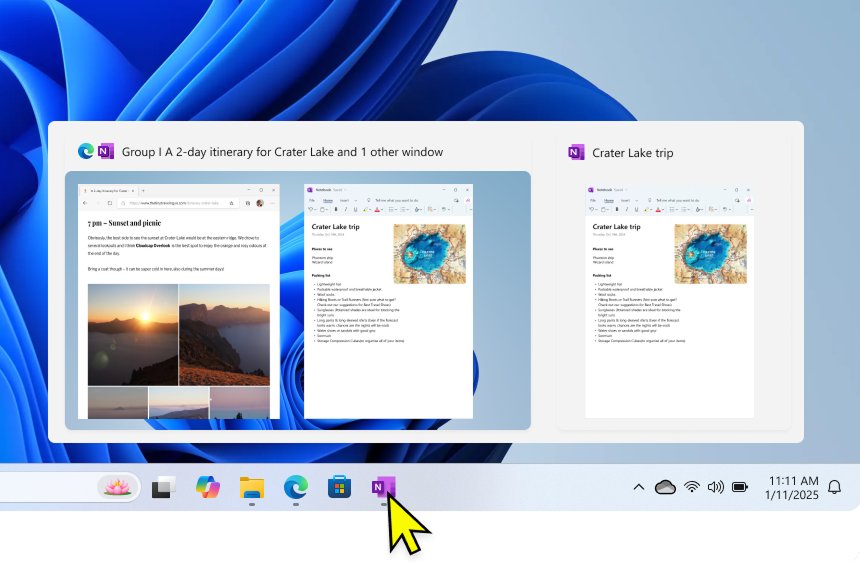
- Open another app whenever you need to, because your snapped windows now form a Snap group.
- Hover over any taskbar icon in the group and select the group to restore it. Snap groups also appear in Task View and Alt + Tab.
FancyZones (PowerToys) for custom persistent layouts
FancyZones needs Windows 11 or Windows 10 version 2004 or newer. You can install Microsoft PowerToys from the Microsoft Store, GitHub or with winget install --id Microsoft.PowerToys --source winget.
- Open PowerToys Settings and turn on FancyZones.
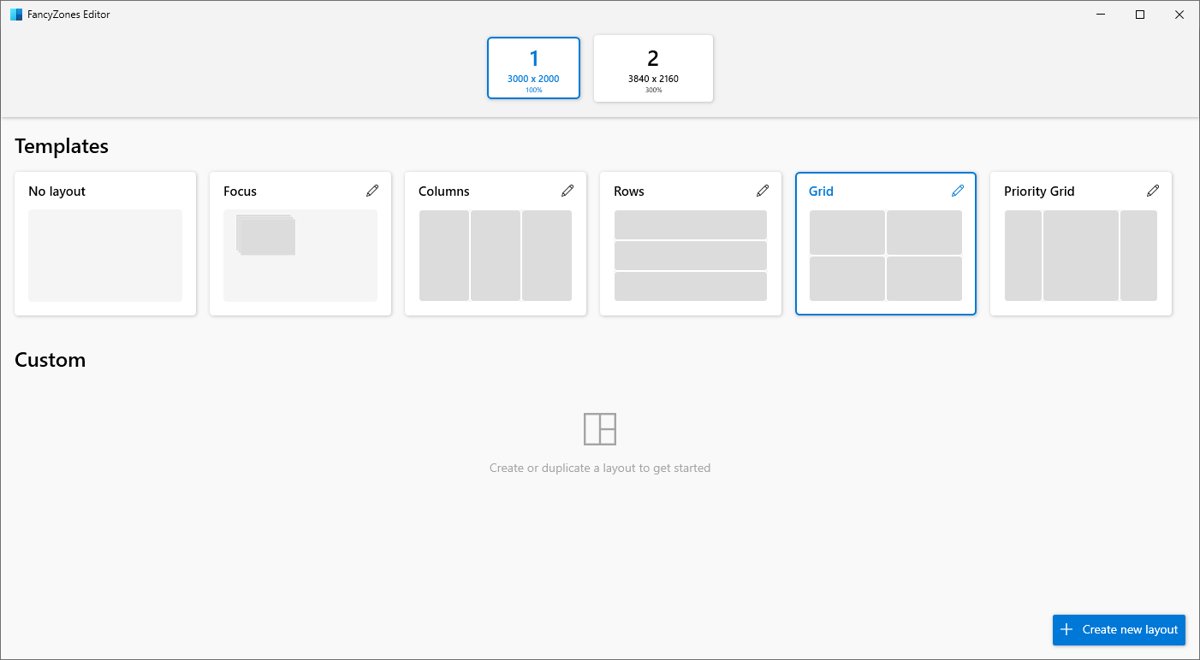
- Press Win + Shift + ` to open the layout editor.
- Select a template, or select Create new layout and choose Grid or Canvas.
- Hold Shift while you drag a window so the zones appear.
- Drop the window on a highlighted zone.
- Hold Ctrl while dragging to span more than one zone.
Press Win + PgUp or Win + PgDn to cycle through windows in the same zone. Assign a number to a custom layout in the editor, turn on Enable quick layout switch, and Win + Ctrl + Alt + number applies that layout at once.
Keyboard shortcuts cheat sheet (keep this near your desk)
| Shortcut | What it does | Needs |
|---|---|---|
| Win + Down | Minimize the active window | Windows |
| Win + Up | Maximize the active window | Windows |
| Win + Shift + Down | Restore a snapped or maximized window | Windows |
| Win + Left / Win + Right | Snap the window to the left or right side | Windows |
| Win + Shift + Up | Stretch the window to the top and bottom of the screen | Windows |
| Win + Z | Open the Snap layouts | Windows 11 |
| Win + D | Display and hide the desktop | Windows |
| Win + M | Minimize all windows | Windows |
| Win + Shift + M | Restore minimized windows | Windows |
| Win + Home | Minimize or restore all windows except the active one | Windows |
| Win + Shift + Left / Win + Shift + Right | Move the active window to another monitor | Windows |
| Alt + Tab | Switch between open windows and Snap groups | Windows |
| Win + Tab | Open Task View | Windows |
| Win + Shift + ` | Open the FancyZones layout editor | PowerToys |
| Win + PgUp / Win + PgDn | Cycle windows in the same zone | PowerToys |
| Win + Ctrl + T | Pin the active window on top | PowerToys Always On Top |
| Win + Ctrl + ` | Open the Workspaces editor | PowerToys Workspaces |
Troubleshooting: common problems and fixes
These problems come from FancyZones settings and app compatibility. The most common window faults each have their own section after this one.
Win + arrow keys move windows between zones instead of snapping
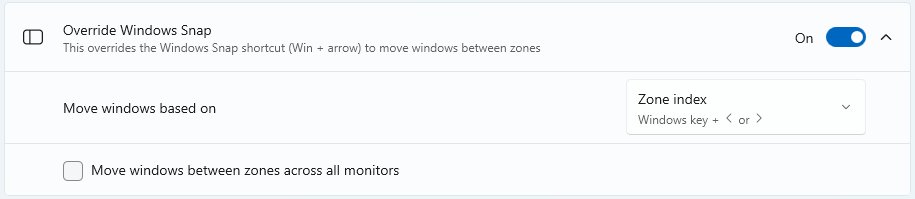
Override Windows Snap is turned on in FancyZones.
- Open PowerToys Settings and select FancyZones.
- Turn off Override Windows Snap.
- Or keep it on and set Move windows based on to Zone index, which leaves Win + Up and Win + Down working as usual.
FancyZones layout editor will not open
Microsoft lists RivaTuner Statistics Server, part of MSI Afterburner, as an app that can stop the editor from opening.
- Close RivaTuner Statistics Server and MSI Afterburner.
- Press Win + Shift + ` again.
A screen capture app stops working with FancyZones
Microsoft lists ShareX and other capture tools as compatibility conflicts.
- Open PowerToys Settings and select FancyZones.
- Add the app's name to Exclude applications from snapping to zones.
Snap layouts or Win + Z doesn't show
Nothing appears when you hover over the maximize button or press Win + Z
Snap is turned off, or the Snap flyout option is cleared.
- Open Settings > System > Multitasking.
- Turn on Snap windows.
- Expand Snap windows and select Show snap layouts when I hover over a window's maximize button.
- Select a window and press Win + Z again.
Nothing appears when you drag a window to the top of the screen
The Snap bar has its own option.
- Expand Snap windows in Settings > System > Multitasking.
- Select Show snap layouts when I drag a window to the top of my screen.
The layout you expected is not in the list
Microsoft says the predetermined layouts you see depend on the size of your display.
- Check the layouts on your main display if you are using a smaller one.
- Use a FancyZones custom layout when no built-in layout fits.
Title bar buttons missing or unresponsive
The title bar and its buttons are gone
The app is often in full screen, which hides the title bar.
- Press F11 to leave full screen in apps that support it.
- Press Alt + Spacebar to open the context menu for the active window.
- Use Win + Down or Win + Up to minimize or maximize without the buttons.
The buttons are visible but do nothing
The app itself has usually stopped responding.
- Press Ctrl + Shift + Esc to open Task Manager.
- Select the app under Processes and select End task.
- Open the app again, saving your work first if it recovers.
Window won't maximize or is stuck off-screen
Win + Up does not maximize the window
FancyZones overrides all Win + arrow keys when Override Windows Snap is set to Relative position.
- Select the maximize button in the title bar to confirm the app itself can maximize.
- In PowerToys Settings, change Move windows based on to Zone index, or turn off Override Windows Snap.
- Press Win + Up again.
A window stays off-screen after you undock or unplug a monitor
The window is still placed for the display that was removed.
- Press Win + P and select Extend if the second display is connected.
- Open Settings > System > Display > Multiple displays and select Detect.
- Turn on Minimize windows when a monitor is disconnected so windows stop stranding next time.
FancyZones won't snap elevated apps
Task Manager or an admin Terminal ignores your zones
PowerToys cannot move or resize an elevated window unless PowerToys is elevated too. HWiNFO64 and TeamSpeak 3 are also on Microsoft's list.
- Open PowerToys Settings and select the General tab.
- Select Restart as administrator.
- Drag the elevated app into a zone again.
- Turn on Always run as administrator only if you need it every day, because Microsoft advises against it unless necessary.
Aero Shake not working
Shaking a title bar leaves the other windows open
Windows 11 calls this feature Title bar window shake, and it depends on a toggle.
- Open Settings > System > Multitasking.
- Turn on Title bar window shake.
- Hold the title bar of the window you want to keep and shake it.
- Press Win + Home for the same result from the keyboard.
Practical workflows and recommended combinations
| How you work | Combine these | What you get |
|---|---|---|
| One task at a time | Win + Home and Win + Up | One full-screen window with nothing behind it |
| Two apps side by side | Win + Left, Snap Assist and the divider | A split you can resize in place |
| The same set of apps every day | PowerToys Workspaces and FancyZones | One click opens each app in its saved position |
| Two or more monitors | Win + Shift + arrow and per-monitor FancyZones layouts | Windows that move between screens and land in zones |
| A reference window you keep checking | Win + Ctrl + T from PowerToys Always On Top | A pinned window that stays above the others |
Fast focus session (keyboard-first)
- Select the app you want to work in.
- Press Win + Home to minimize every other window.
- Press Win + Up to maximize the active window.
- Press Win + Home again when you finish, to bring the other windows back.
Rapid two-app split with keyboard
- Select the first app and press Win + Left.
- Pick the second app from the Snap Assist thumbnails on the right.
- Or switch to the second app with Alt + Tab and press Win + Right.
- Drag the divider between them to give one app more room.
The pair becomes a Snap group, so you can open something else and return to the split from Alt + Tab.
Recreate a saved workspace (PowerToys + FancyZones)
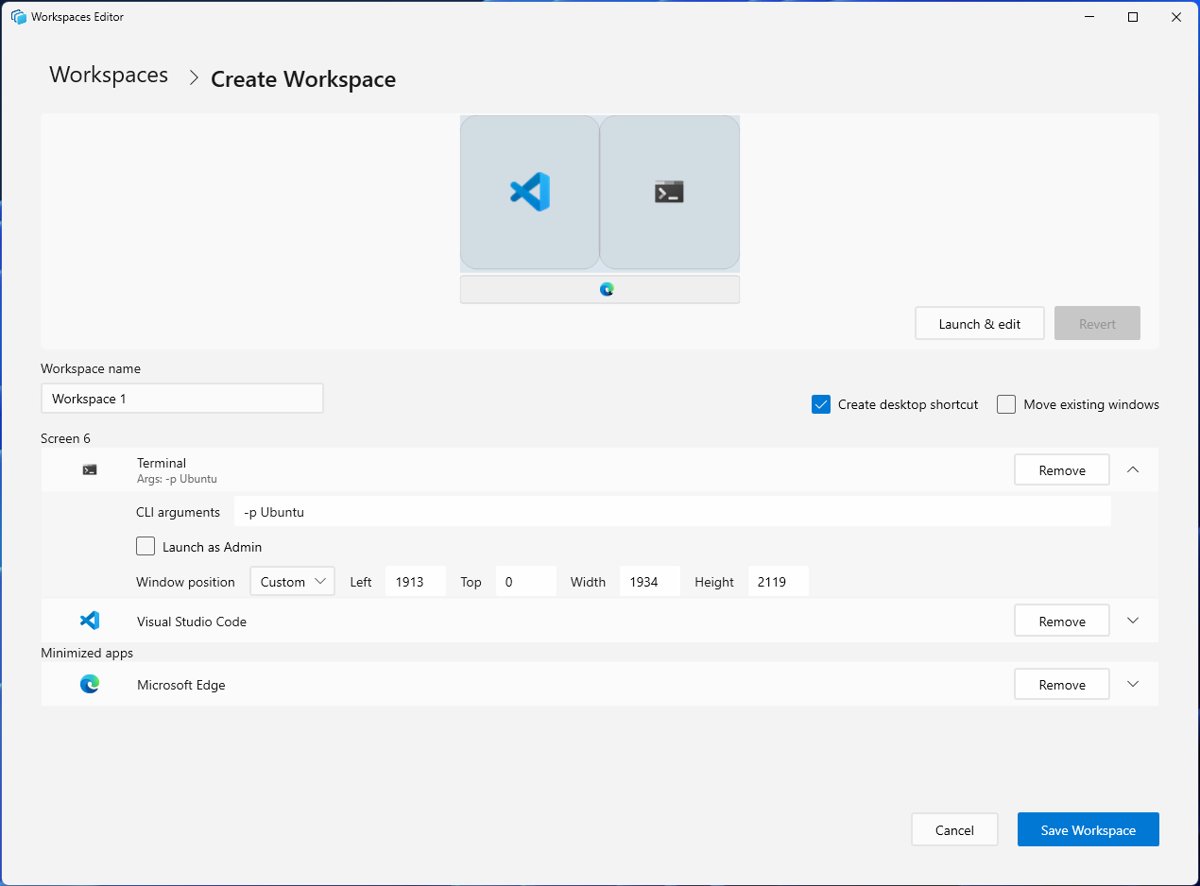
PowerToys Workspaces opens a set of apps in saved positions with one click. It positions apps with the FancyZones engine, but Microsoft says it does not restore Windows Snap, so windows you snapped when you saved come back unsnapped.
- Turn on Workspaces in PowerToys Settings.
- Press Win + Ctrl + ` to open the editor.
- Select + Create workspace.
- Open and arrange your apps on the desktop, then select Capture.
- Name the workspace, select the option to create a desktop shortcut, and save it.
- Launch the workspace from the shortcut or from Launch in the editor.
Pin the desktop shortcut to the taskbar for faster access, because Workspaces cannot pin a workspace to the taskbar directly.
Multi-monitor move
Set up your displays first if the second one is new.
- Press Win + P and select Extend so the desktop spans your displays.
- Select the window you want to move.
- Press Win + Shift + Right or Win + Shift + Left to move it to the next monitor.
- In FancyZones, turn on Rotate windows across monitors, then hold Alt + X and press Left or Right to rotate all open windows one monitor over.
FancyZones does not override Win + Shift + arrow, so this shortcut keeps working with your zones. You can also manage multiple monitors with PowerToys using per-monitor layouts.
Risks, limitations, and things to watch for
| Watch for | What happens | What to do |
|---|---|---|
| Running PowerToys as administrator all the time | Microsoft warns that always running apps as administrator can expose your system to security risks | Use Restart as administrator only when an elevated app needs it |
| Override Windows Snap | It replaces the normal Win + arrow behavior | Choose Zone index to keep Win + Up and Win + Down |
| Zones that span monitors | All monitors must use the same DPI scaling | Match the scaling or keep separate layouts per monitor |
| Monitors with different DPI scaling | An app that is not DPI aware can sit a few pixels from the screen edge | Accept the gap or match the scaling |
| Apps FancyZones cannot zone | Microsoft lists Citrix, Hyper-V Connection, RemoteApp and VMware Workstation Player, among others | Use Windows Snap or a manual resize for these |
| Workspaces apps set to launch as admin | Microsoft lists a known issue where they cannot be repositioned | Position those apps by hand after launch |
| Editing FancyZones JSON files by hand | Microsoft warns this can cause other FancyZones problems | Use the layout editor, and keep a copy of any file you change |
Shortcuts and steps summary (must-know quick reference)
| Job | Fastest route | Where it is set or changed |
|---|---|---|
| Clear the screen for one app | Win + Home | Works by default |
| Shake a window to clear the rest | Shake the title bar | Settings > System > Multitasking > Title bar window shake |
| Pick a tiled layout | Win + Z | Settings > System > Multitasking > Snap windows |
| Build your own layout | Win + Shift + ` | PowerToys Settings > FancyZones |
| Open a saved set of apps | A Workspaces desktop shortcut | PowerToys Settings > Workspaces |
| Keep windows in place when docking | Nothing to press | Settings > System > Display > Multiple displays |
How to turn off Snap in Windows 11
- Open Settings > System > Multitasking.
- Turn off Snap windows to disable Snap completely.
- Or leave it on, expand Snap windows and clear only the options you do not want.
- Clear When I snap a window, show what I can snap next to it to stop Snap Assist suggestions.
- Clear When I drag a window, let me snap it without dragging all the way to the screen edge if windows snap too early.
Windows 11 window management FAQ
How do I minimize all windows in Windows 11?
Press Win + M to minimize all windows, or Win + D to display and hide the desktop. Win + Shift + M restores minimized windows. To keep one window open, use Win + Home instead, which minimizes everything else.
What is the shortcut to maximize a window in Windows 11?
Win + Up maximizes the active window. Win + Shift + Up stretches it to the top and bottom of the screen while keeping its width, and Win + Shift + Down restores a maximized or snapped window.
How do I open Snap layouts in Windows 11?
Press Win + Z or hover over a window's maximize button to open the Snap flyout. You can also drag a window to the top of the screen for the Snap bar. Available layouts depend on your display size.
Is FancyZones built into Windows 11?
No. FancyZones is part of Microsoft PowerToys, a free set of utilities you install separately from the Microsoft Store, GitHub or winget. It runs on Windows 11 and on Windows 10 version 2004 or newer.
What is the difference between Snap layouts and FancyZones?
Snap layouts are preset arrangements built into Windows 11. FancyZones lets you design your own Grid or Canvas zones, apply them per monitor and switch between them with hotkeys, but you need to install PowerToys first.
How do I get a window back on screen in Windows 11?
Select the window with Alt + Tab, then press Win + Up to maximize it on the current monitor. Win + Shift + Left or Right moves it between monitors, and Win + Shift + Down restores it to its smaller size.
Does FancyZones work with multiple monitors?
Yes. Each monitor can have its own layout, and you select the monitor in the layout editor. Allowing zones to span across monitors requires all monitors to use the same DPI scaling, or snapping does not work correctly.
Why won't FancyZones snap Task Manager?
Task Manager runs elevated, and PowerToys cannot move or resize an elevated window unless PowerToys is elevated too. Open PowerToys Settings, select the General tab and select Restart as administrator to fix it.