Classic Outlook saves PST files in C:\Users\<username>\Documents\Outlook Files on Windows 11 and Windows 10, while older Outlook versions and offline OST files use C:\Users\<username>\AppData\Local\Microsoft\Outlook.
This guide shows how to open that folder, find the exact path of any data file from inside Outlook, open a PST in classic and new Outlook, create or export a new PST, and move it to another folder or PC.
Location of Outlook PST file on Windows 11/10
The folder sits inside your user profile, so each Windows account has its own copy. File Explorer in Windows 11/10 can jump straight to it.
- Press Windows + E to open File Explorer.
- Click the address bar, type
%USERPROFILE%\Documents\Outlook Filesand press Enter. - Look for files ending in
.pst, such asarchive.pstor a file named after your email address. - If the folder is empty or missing, type
%LOCALAPPDATA%\Microsoft\Outlookin the address bar and press Enter. Older Outlook versions saved PST files there. - If OneDrive backs up your Documents folder, check
OneDrive\Documents\Outlook Filesas well.
Microsoft 365, Exchange and most Outlook.com accounts keep mail on the server and usually have no PST file at all. Their local copy is an OST file in the AppData folder.
Where does Outlook store the PST file?
The location depends on the Outlook version, the Windows version, and how the file was created. These are the default folders Microsoft documents.
| File | Default folder | Applies to |
|---|---|---|
| PST (Outlook Data File) | C:\Users\<username>\Documents\Outlook Files |
Outlook 2016 and newer, Outlook 2021, 2024 and Microsoft 365 on Windows 11 and 10 |
| PST from older Outlook | C:\Users\<username>\AppData\Local\Microsoft\Outlook |
Outlook versions before 2016, and files upgraded from them |
| OST (Offline Outlook Data File) | C:\Users\<username>\AppData\Local\Microsoft\Outlook |
IMAP, Microsoft Exchange and Outlook.com accounts |
| PST with OneDrive folder backup on | OneDrive\Documents\Outlook Files |
PCs where OneDrive backs up the Documents folder |
| PST on Windows XP | C:\Documents and Settings\<username>\Local Settings\Application Data\Microsoft\Outlook |
Very old installations only |
The AppData folder is hidden. To browse to it by clicking, open Control Panel > File Explorer Options > View, select Show hidden files, folders, and drives, and select OK.
Where is the PST file in Outlook
A PST you created or opened yourself can live anywhere. Classic Outlook can show you the exact path of every data file it uses.
- In classic Outlook, select File > Account Settings > Account Settings.
- Select the Data Files tab. It lists every Outlook Data File (.pst) and Offline Outlook Data File (.ost) with the account it belongs to.
- Close the dialog and right-click the account or data file name in the folder pane.
- Select Data File Properties, then select Advanced.
- Read the full path of the file shown in the dialog, and type its folder into File Explorer's address bar to open it.
What is Outlook PST file?
A PST file is an Outlook Data File that stores email, calendar, contacts and tasks on your PC. POP3 accounts keep all mail in one, and any account can use one for archives, exports and backups.
| PST (Outlook Data File) | OST (Offline Outlook Data File) | |
|---|---|---|
| What it holds | The only copy of the items inside it | A synchronized copy of mail saved on a server |
| Used by | POP3 accounts, archives, exports and backups | IMAP, Microsoft Exchange and Outlook.com accounts |
| Default folder | Documents\Outlook Files |
AppData\Local\Microsoft\Outlook |
| Move to another PC | Yes, copy the file and open it | No, Outlook recreates it when you add the account |
| Password | Optional, set when the file is created | No |
Whether you should keep mail in PST files at all comes down to the trade-offs of Outlook PST files, such as no server copy and a single file to back up.
How to create an Outlook PST file
A new, empty PST is useful for archiving folders or keeping a project's mail apart from your mailbox. These steps apply to classic Outlook for Microsoft 365, 2024, 2021, 2019 and 2016.
- From the Inbox, select New Items > More Items > Outlook Data File.
- Enter a file name for the new PST.
- To protect it, select the Add Optional Password check box.
- Select OK.
- If you chose a password, type it in the Password and Verify Password boxes and select OK.
Outlook saves the new file in Documents\Outlook Files and adds it to the folder pane, where you can drag folders and messages into it. If you set a password, Outlook asks for it every time the file opens.
How to export Outlook email to a PST file
Exporting copies an account's mail, contacts and calendar into a PST, which is the usual way to back up a mailbox or move it to another PC. Classic Outlook exports one account at a time.
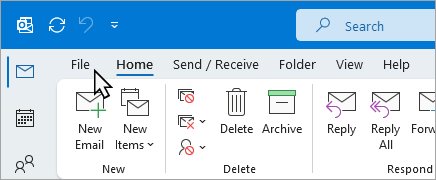
- In classic Outlook, select File > Open & Export > Import/Export.
- Select Export to a file, then Next.
- Select Outlook Data File (.pst), then Next.
- Select the account to export, check Include subfolders, and select Next.
- Select Browse, choose a folder, type a new file name and select OK.
- Select Finish.
- For a new PST, optionally type a password in the Password and Verify Password boxes, then select OK.
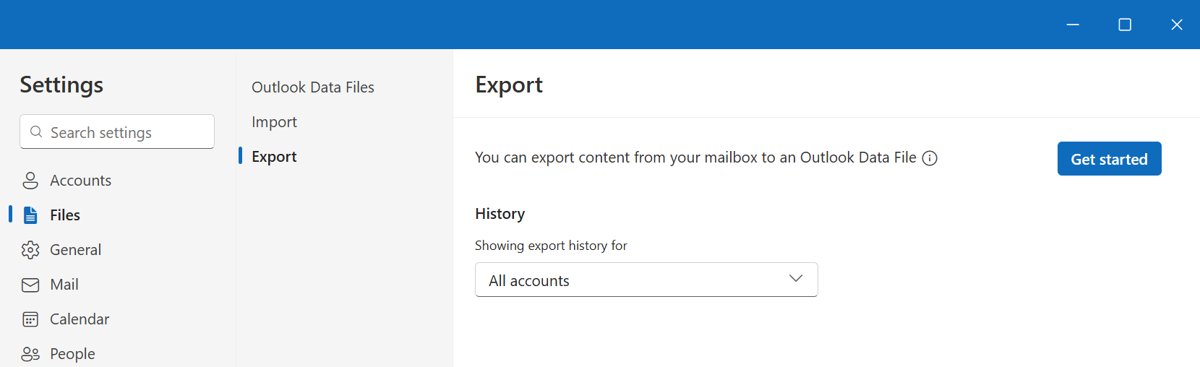
In new Outlook for Windows, open Settings > Files > Export, select Get started, and follow the wizard to pick the mailbox or folders.
How to open a PST file in Outlook
Opening a PST adds it to Outlook as a separate set of folders. It does not merge the items into your mailbox.
- In classic Outlook, select File > Open & Export > Open Outlook Data File.
- Browse to the PST file, select it and select OK.
- Expand the data file's top level in the folder pane to see its subfolders.
- To search it along with your mailbox, change the search scope to All Mailboxes.
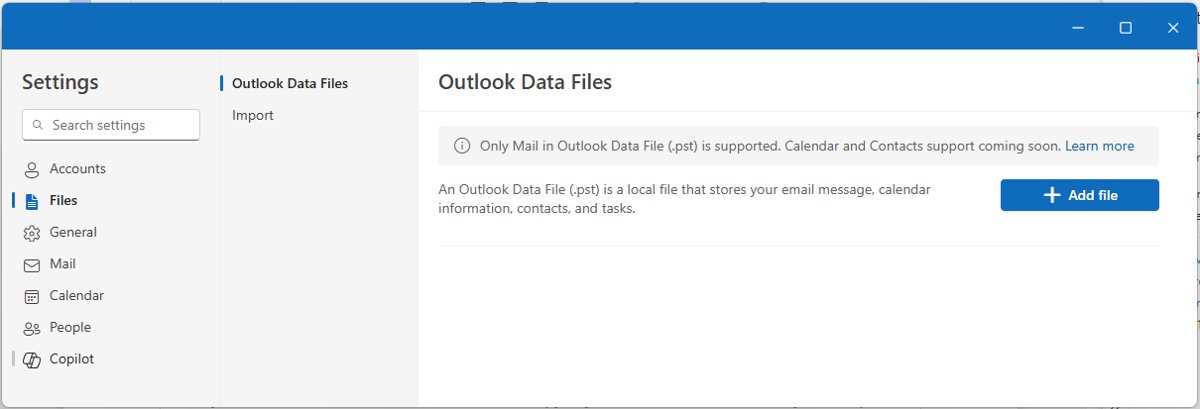
In new Outlook, select Settings > Files > Outlook Data Files, select Add file, choose the PST and select Open. You can then move, copy and delete mail in it, or drag messages between the PST and your mailbox.
Can you open a PST file in new Outlook?
Yes, but new Outlook only opens PST files when several conditions are met. If Outlook Data Files is missing from Settings > Files, one of these is the reason.
| Requirement | Detail |
|---|---|
| Classic Outlook installed | New Outlook needs classic Outlook installed on the same PC to read PST files |
| Same architecture | Both versions must be 32-bit (x86) or both 64-bit (x64) |
| Microsoft 365 subscription | The account used in new Outlook must have one |
| Not an ARM PC | PST files are not supported in the ARM version of new Outlook |
| Normal start | New Outlook cannot be in Safe or Recovery mode |
| Calendar and contacts | Calendar and contact items saved in a PST are not available in new Outlook |
How to move location of Outlook PST file
Copy the PST to its new folder and point Outlook at the copy. This is also the fix when a large PST inside OneDrive makes sync stall on "Processing changes" or "A file is in use".
- Close Outlook. If the file is in OneDrive, wait for OneDrive to finish syncing.
- In File Explorer, copy the PST file to the new folder, for example a folder on your PC outside OneDrive, and rename the copy.
- Start Outlook and select File > Account Settings > Account Settings.
- On the Email tab, select the account and select Change Folder.
- Select the account, select New Outlook Data File, browse to the renamed copy and select OK.
- On the Data Files tab, select the old data file, select Remove, then Yes.
- Close Outlook, then delete or move the old copy of the PST.
Removing a data file from Outlook does not delete any mail. Outlook will not remove the default data file, so make the new file the default first. If Change Folder is missing, that account does not deliver mail into a PST.
How to transfer Outlook PST file to another computer
A PST carries your mail, but not the email account settings. Only PST files move this way; an OST is rebuilt by Outlook on the new PC.
- Close Outlook on the old computer.
- Copy the PST file from
Documents\Outlook Filesto a USB drive or network folder. - On the new computer, set up your email account in Outlook.
- Copy the PST into
Documents\Outlook Fileson the new computer. - In Outlook, select File > Open & Export > Open Outlook Data File and open the copied file.
If the account is new, create the Outlook email account first, then open the PST. A file that reports errors when it opens can be fixed when you run the Inbox Repair tool.
Is it safe to delete Outlook PST file?
Delete a PST only after you have a backup or have moved its contents, and never while Outlook has it open. A PST holds the only copy of the items inside it, so for a POP3 account or an archive, deleting it deletes that mail for good. An OST is different: it is a synchronized copy of server mail, and Outlook recreates it when the account is added again. Remove a PST from the Data Files tab first so Outlook stops looking for it, then delete the file.
How to connect Google Workspace to Outlook
Google Workspace Sync for Microsoft Outlook (GWSMO) syncs a work or school Google Account with classic Outlook. Your Google Workspace administrator has to enable it first.
- Close Outlook.
- Download the Recommended for users installer from Google's GWSMO download page at
tools.google.com/dlpage/gssmoand run it. If your admin installed GWSMO, select Set up a Google Workspace Sync user from the Start menu instead. - Sign in to your Google Workspace account when prompted.
- To bring existing mail across, open Google Workspace Sync > Import data to Google Workspace Sync from the Start menu.
- Under Choose profile to import to Google Workspace Sync, select From a PST file and browse to the PST.
- Tick the data types to import, choose Import all data (may cause duplicates) for a first import, and select Next.
- Choose your Google Workspace profile as the destination and select OK, then open Outlook.
Choose Import only data that has not been imported previously to resume an import that stopped. Google lists rules, signatures, mail categories and public folders among the items GWSMO does not import.
Outlook PST file location FAQ
Where should Outlook PST file be located?
Keep it in the default Documents\Outlook Files folder or another local folder on your PC. Avoid a OneDrive-synced folder, because Microsoft notes a large PST there can slow sync and show Processing changes or A file is in use.
Where does Outlook store the PST file?
Outlook 2016 and newer store PST files in C:\Users\<username>\Documents\Outlook Files. Earlier versions used C:\Users\<username>\AppData\Local\Microsoft\Outlook, which is also where offline OST files are kept.
Where is the PST file in Outlook?
In classic Outlook, right-click the data file in the folder pane, select Data File Properties, then Advanced to see the full path. File > Account Settings > Account Settings > Data Files lists every data file Outlook uses.
Where are my Outlook PST files?
Open File Explorer and go to %USERPROFILE%\Documents\Outlook Files, then %LOCALAPPDATA%\Microsoft\Outlook. If you see no PST in either, your account is probably Microsoft 365, Exchange or Outlook.com, which keeps mail on the server and uses an OST instead.
How to move location of Outlook PST file?
Close Outlook, copy the PST to the new folder, then in Account Settings use Change Folder and New Outlook Data File to select the copy. Remove the old file on the Data Files tab and delete it once Outlook is closed.
What is the Outlook PST file location in Windows 11?
On Windows 11, current Outlook versions save PST files in C:\Users\<username>\Documents\Outlook Files. With OneDrive folder backup turned on, the same folder sits under OneDrive\Documents instead.
How do I locate Outlook PST file in Windows 10?
Press Windows + E, type %USERPROFILE%\Documents\Outlook Files in the address bar and press Enter. Windows 10 uses the same default folder as Windows 11 for Outlook 2016 and newer.