To use WD My Passport on Windows 10, plug its USB cable into the PC, open File Explorer > This PC, and the drive appears under Devices and drives, ready for copying files, with no driver to install.
This guide covers first-time setup, formatting, file transfer, automatic backups with File History, encryption with BitLocker, drive health checks with chkdsk, data recovery and fixes when My Passport does not show up.
How to connect WD My Passport to Windows 10
Windows 10 includes the USB mass storage drivers My Passport needs, so the drive works as soon as it is plugged in.
- Connect the My Passport cable to the drive, then plug the other end into a USB port directly on your PC, not a hub.
- Wait a few seconds while Windows sets up the device.
- Select File Explorer on the taskbar.
- Select This PC in the left pane.
- Double-click the My Passport drive under Devices and drives to open it.
- Drag files onto it, or right-click files and select Send to > the My Passport drive.
- Before you unplug it, right-click the Safely Remove Hardware and Eject Media icon in the system tray and select Eject for the drive.
Microsoft ended support for Windows 10 on October 14, 2025. The PC still works with My Passport, but it no longer gets free security fixes, so keep a backup of anything important on the drive.
1. Introduction to WD My Passport and its features
My Passport is Western Digital's portable external drive line. Capacity, connector and built-in encryption differ by model, so check the label on the drive or its box for your exact model.
| What you want to do | Windows 10 tool | Where to find it |
|---|---|---|
| Open and copy files | File Explorer | File Explorer > This PC |
| Format, partition or change the drive letter | Disk Management | Right-click Start > Disk Management |
| Automatic backups | File History | Control Panel > System and Security > Save backup copies of your files with File History |
| Password protection and encryption | BitLocker To Go (Pro, Enterprise, Education) | Start, type BitLocker, select Manage BitLocker |
| Check the drive for errors | chkdsk | Command Prompt as administrator |
| Remove it without losing data | Safely Remove Hardware and Eject Media | System tray icon |
2. Unboxing and initial setup
Most My Passport drives arrive formatted, so they open straight away. Check the drive in Windows 10 Disk Management on first use so you know it is set up the way you need.
- Unbox the drive and use the cable that came with it.
- Plug the drive into a USB port on the PC itself.
- Right-click the Start button and select Disk Management.
- Find the My Passport disk in the lower pane; it should show a volume with a drive letter and Healthy status.
- If the disk shows Offline, right-click it and select Online.
- If the space shows Unallocated, right-click it, select New Simple Volume and accept the defaults to create a volume.
- Close Disk Management and open the drive from This PC.
Some USB disks cannot be initialized; Windows only formats them and assigns a drive letter. Never initialize or format a My Passport that already holds files you want to keep, because both steps erase it.
3. Installing necessary drivers and software
There is no separate driver to install. Windows 10 manages USB storage devices with its own Usbstor.sys driver, and SuperSpeed drives that support it use Uaspstor.sys.
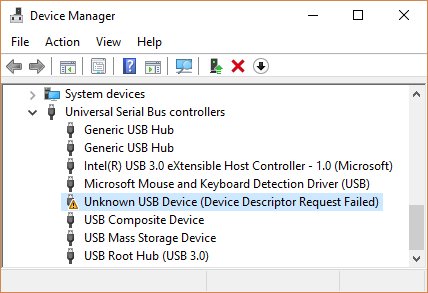
- Right-click the Start button and select Device Manager.
- Expand Disk drives and look for the My Passport entry.
- Look for an exclamation point next to it.
- If you see one, right-click the device and select Uninstall device.
- Select Action > Scan for hardware changes so Windows reinstalls its own driver.
- Open This PC again and check that the drive appears.
Western Digital's own apps for backup, encryption and diagnostics are optional. The app line-up changes over time, so check Western Digital's support page for your model to see which apps it supports today.
4. Formatting your WD My Passport
Format only when you need a different file system or a clean drive. Formatting a volume destroys all data on it, so copy anything you want to keep first.
- Back up every file on the drive to another location.
- Right-click the Start button and select Disk Management.
- Right-click the My Passport volume and select Format.
- Type a Volume label, such as My Passport.
- Choose the File system: NTFS for Windows-only use, or exFAT if you also use the drive on a Mac.
- Leave Perform a quick format selected for a working drive, then select OK.
- Select OK again to confirm.
macOS Disk Utility lists MS-DOS (FAT) and ExFAT as its Windows-compatible formats, which makes exFAT the format to pick for a drive shared between a PC and a Mac.
5. Using WD My Passport for data storage and transfer
My Passport works like any folder in File Explorer on Windows 10, and it is also the quickest way to carry files to a new PC.
- Connect the drive and select File Explorer on the taskbar.
- Locate the files or folders you want to copy; hold Ctrl to select several.
- Right-click the selection and select Send to > the My Passport drive.
- Repeat for Documents, Desktop, Downloads, Music, Pictures and Videos if you are moving to a new PC.
- Open the drive and check that the files are there.
- Eject the drive, connect it to the other PC, open it from This PC and copy the files across.
Copy keeps the originals on the PC, while cut moves them. Keep originals until you have checked the copies open on the drive.
6. Automating backups with WD Backup software
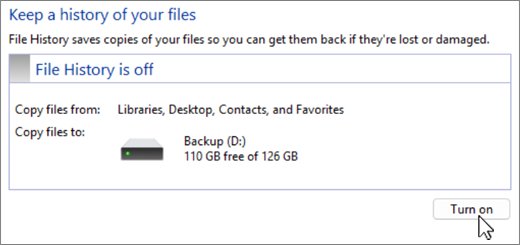
Western Digital has changed its backup app for My Passport over the years. Windows 10's built-in File History backs up to the drive automatically with no extra software, and it keeps earlier versions of each file.
- Connect My Passport to the PC.
- Open Control Panel and, under System and Security, select Save backup copies of your files with File History.
- Select Turn on.
- If the wrong drive is used, select Select drive, choose the My Passport drive and select OK.
- Keep the drive connected, or reconnect it regularly, so File History can save copies.
- To back up another folder, right-click it and select Include in library so File History picks it up.
File History backs up all your libraries, including Documents, Pictures, Videos and Music, and also the Desktop. If Windows later reports the backup drive as disconnected, plug My Passport back in and reconnect the File History drive. If you prefer Western Digital's own backup app, use the one its support site lists for your model.
7. Securing data with WD Security software
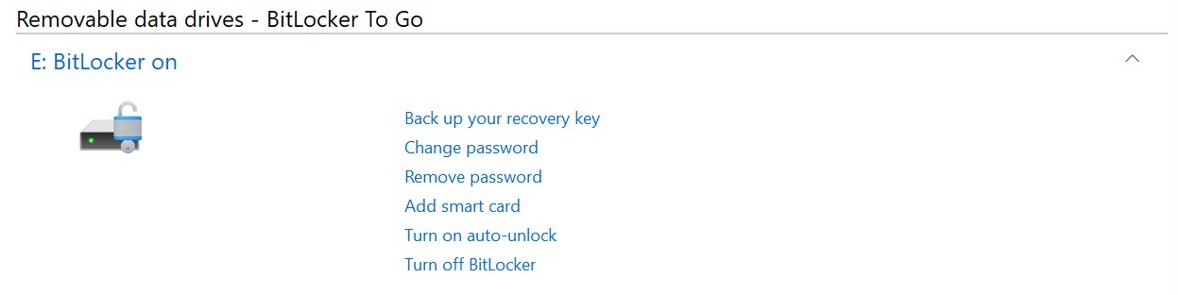
Windows 10 Pro, Enterprise and Education include BitLocker To Go, which encrypts a removable drive and asks for a password before it opens. BitLocker is not available on Windows 10 Home.
- Sign in to Windows with an administrator account and connect My Passport.
- Select Start, type BitLocker and select Manage BitLocker.
- Find the drive under Removable data drives – BitLocker To Go.
- Select Turn on BitLocker next to it.
- Choose the password unlock option and enter a strong password.
- Save the recovery key when prompted, somewhere other than the drive itself.
- Let encryption finish; you can keep using the PC while it runs.
If Manage BitLocker does not appear, the PC runs Windows 10 Home. Some My Passport models also support Western Digital's own password software; check the support page for your model.
8. Managing drive health and diagnostics with WD Drive Utilities
Windows can check the file system on My Passport with chkdsk. Western Digital's own drive utility, where your model supports it, adds hardware tests; chkdsk works on every model.
chkdsk E: /fReplace E: with the My Passport drive letter from This PC, and run it in Command Prompt opened as administrator. /f fixes file system errors; chkdsk must lock the drive to do it, so close any files open on the drive first. /r also locates bad sectors and recovers readable information, but it reads every sector and takes a long time on a large hard drive.
You should see: chkdsk prints a status report for the drive; a report that lists no errors means the file system is clean.
How to tell if WD My Passport is working in Windows 10
- Open This PC and check that the drive appears with a letter and a free-space bar.
- Open Disk Management and check that the volume shows Healthy and a file system such as NTFS or exFAT.
- Copy a small file to the drive and open it from there.
- Open Device Manager > Disk drives and confirm there is no warning icon on the drive.
- Eject the drive and confirm Windows shows Safe To Remove Hardware.
9. Troubleshooting common issues
WD My Passport not showing up in File Explorer
The volume has no drive letter, the disk is offline, or the port or cable is not giving a stable connection.
- Plug the drive into a different USB port directly on the PC, not a hub.
- Try a different cable.
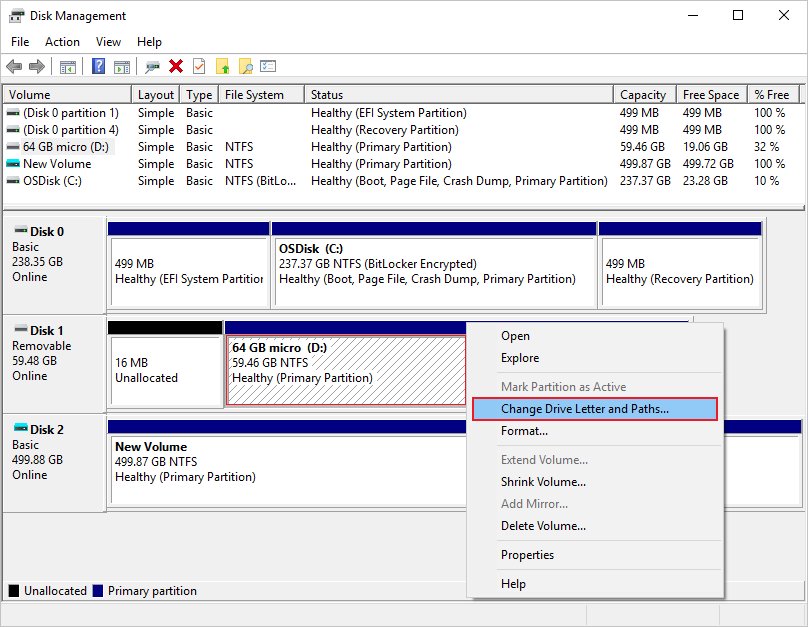
- Open Disk Management; if the disk shows Offline, right-click it and select Online.
- If the volume has no letter, right-click it, select Change Drive Letter and Paths > Add, pick a letter and select OK.
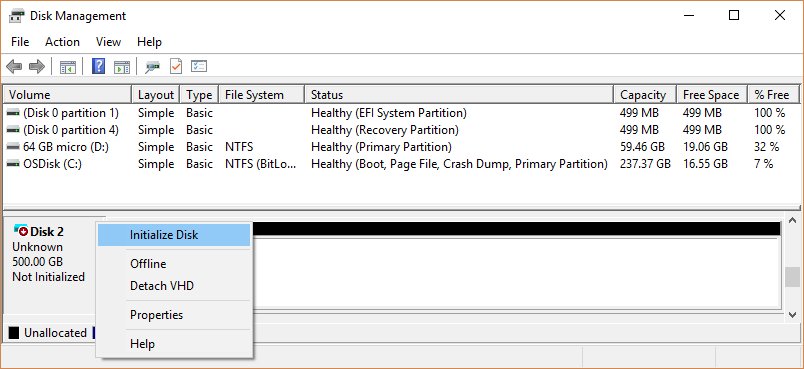
Disk Management shows Not Initialized or Unallocated
The disk has no valid signature or volume, either because it is new or because the formatting is corrupted.
- If the drive is new and empty, right-click it, select Initialize Disk and select OK.
- Right-click the Unallocated space, select New Simple Volume and follow the wizard.
- If the drive held files, do not initialize it; go to the data recovery section first.
The drive shows as RAW and Windows asks to format it
Windows cannot read the file system on the partition.
- Select Cancel if the drive holds files you need.
- Test the drive on another PC.
- If the drive is empty, right-click the partition in Disk Management and select Format.
Device Manager shows an exclamation point on the drive
The Windows driver for the device did not load correctly.
- Right-click the device in Device Manager and select Uninstall device.
- Select Action > Scan for hardware changes.
- Unplug the drive, wait a few seconds and plug it back in.
Change Drive Letter and Paths is greyed out
The volume is not initialized, not accessible, or you lack administrator rights.
- Open Disk Management as administrator.
- Initialize the disk and create a volume if it shows Unallocated.
- Try Change Drive Letter and Paths again.
10. Best practices for using WD My Passport
| Habit | Why it matters |
|---|---|
| Always eject before unplugging | Unplugging during a write can corrupt files |
| Keep a second copy of important files | A single external disk is not a backup if it is the only copy |
| Use a USB port on the PC, not a hub | Some ports and hubs do not give a USB disk enough power |
| Run chkdsk if the drive starts giving errors | It finds and fixes file system errors early |
| Store the BitLocker recovery key away from the drive | Without the password or key, the encrypted files cannot be opened |
| Choose exFAT only if you need Mac access | NTFS is the usual choice for a Windows-only drive |
11. Formatting and reusing your WD My Passport
To reuse the drive for a new job, or before you give it away, clear its volumes and start fresh. A quick format only creates a new file table; a normal format fully erases the data, which is the one to use before the drive leaves your hands.
- Copy anything you want to keep to another drive.
- Open Disk Management and right-click each My Passport volume, then select Delete Volume.
- Right-click the Unallocated space and select New Simple Volume.
- Accept the full size and a drive letter, then select Next.
- Choose NTFS or exFAT and type a volume label.
- Clear Perform a quick format if you are giving the drive away, then select Next and Finish.
12. Upgrading and expanding storage
A portable drive cannot be opened up and upgraded, so expanding storage means moving to a bigger drive or freeing space on this one.
| Your situation | Do this | Why |
|---|---|---|
| The drive is full of copied files | Copy everything to a larger external drive in File Explorer | Keeps the folder structure intact |
| File History backups fill the drive | In File History, select Select drive and choose the new drive | Windows offers to move existing backups to it |
| Disk Management shows unallocated space next to the volume | Right-click the volume and select Extend Volume | Adds the unused space to the existing volume |
| You want an off-site copy as well | Back up important folders to OneDrive too | Files survive if the drive is lost or fails |
13. Data recovery options
What you can recover depends on whether the files were backed up and whether the disk itself is failing. Do not format or initialize a drive that holds files you are trying to recover.
- If File History was on, open the original folder in File Explorer, right-click it and select Restore previous versions.
- Pick a version from before the loss, then select Restore > Restore to… to save it to a new location.
- If the drive itself is not readable, try another USB port, another cable and another PC.
- If it works on no PC, stop using it, because more attempts can make a failing disk worse.
- Contact Western Digital about warranty service, or a data recovery lab if the files matter.
WD My Passport on Windows 10 FAQ
Does WD My Passport need a driver for Windows 10?
No. Windows 10 manages USB storage with its own Usbstor.sys driver, and fast drives that support it use Uaspstor.sys. Plug the drive in and it appears in This PC. Western Digital's apps are optional extras, not drivers.
Why is my WD My Passport not showing up on Windows 10?
The volume usually has no drive letter, the disk is offline, or the port or cable is faulty. Try a USB port on the PC itself and another cable, then open Disk Management to bring the disk online or add a drive letter.
Should I format WD My Passport as NTFS or exFAT?
Use NTFS if the drive only connects to Windows PCs. Use exFAT if you also use it on a Mac, because macOS Disk Utility lists exFAT as a Windows-compatible format. Formatting erases the drive, so back it up first.
How do I back up my PC to WD My Passport?
Connect the drive, open Control Panel, select Save backup copies of your files with File History under System and Security, then select Turn on. Use Select drive to pick My Passport if Windows chose another drive.
Can I password protect WD My Passport on Windows 10 Home?
Not with BitLocker, which needs Windows 10 Pro, Enterprise or Education. On Windows 10 Home, check Western Digital's support page for your model to see whether it offers its own password software for that drive.
How do I safely remove WD My Passport?
Right-click the Safely Remove Hardware and Eject Media icon in the system tray, then select Eject for the drive. Unplug it once Windows shows Safe To Remove Hardware. Select Show hidden icons if the icon is not visible.
How do I check WD My Passport for errors?
Open Command Prompt as administrator and run chkdsk with the drive letter and /f, for example chkdsk E: /f. It fixes file system errors. Adding /r also scans for bad sectors, which takes much longer on a large drive.
Does WD My Passport still work on Windows 10 after end of support?
Yes. Windows 10 support ended on October 14, 2025, but the PC still works and still reads USB drives. It no longer receives free security fixes, so keep important files backed up in more than one place.
Final tips for using WD My Passport on Windows 10
Plug My Passport into a port on the PC, turn on File History to it, and eject it every time before you unplug it. Windows 10 already has the driver, the backup tool and the disk tools the drive needs, so no extra software is required for everyday use.