To enable BitLocker, select Start, type BitLocker, open Manage BitLocker, then select Turn on BitLocker next to the drive and save the recovery key before encryption starts.
This guide covers the TPM and edition requirements, PowerShell and manage-bde commands, protectors, suspending, unlocking with a recovery key, and BitLocker on a PC without a TPM.
Turn on BitLocker in Windows 11 and Windows 10
The BitLocker Drive Encryption Control Panel applet handles the operating system drive, fixed data drives and removable drives.
- Select Start, type BitLocker and select Manage BitLocker.
- Select Turn on BitLocker next to the drive you want to encrypt.
- Choose where to back up the recovery key: your Microsoft account, a USB flash drive, a file or a printout.
- Follow the remaining prompts in the wizard to start encryption.
- Restart the PC if the wizard asks for a system check.
You can also right-click a drive in File Explorer and select Turn On BitLocker to open the same wizard.
Prerequisites
| Requirement | Detail |
|---|---|
| Windows edition | Windows Pro, Enterprise, Pro Education/SE or Education. Windows Home uses device encryption instead. |
| TPM | TPM 1.2 or later for the startup integrity check. Without a TPM, a startup key on a USB drive is mandatory. |
| Firmware | TCG-compliant BIOS or UEFI. TPM 2.0 needs native UEFI mode with Legacy and CSM turned off. |
| USB support at boot | The firmware must read USB mass storage in the preboot environment. |
| Partitions | An NTFS operating system drive plus a separate, unencrypted system drive of about 350 MB (FAT32 on UEFI). |
| Recovery key storage | A Microsoft account, Microsoft Entra ID, Active Directory, a USB drive, a file or a printout. |
Windows creates the required partitions automatically on a new installation.
Step-by-step: Check TPM and prepare your PC
- Press Win + R, type
tpm.mscand press Enter to see whether Windows detects a TPM and its version. - If no TPM is found, turn on TPM 2.0 in the BIOS and restart.
- Press Win + R, type
msinfo32and press Enter. - Check the Device Encryption Support line. Meets prerequisites means automatic device encryption is available.
- Confirm the firmware is in UEFI mode before you rely on TPM 2.0.
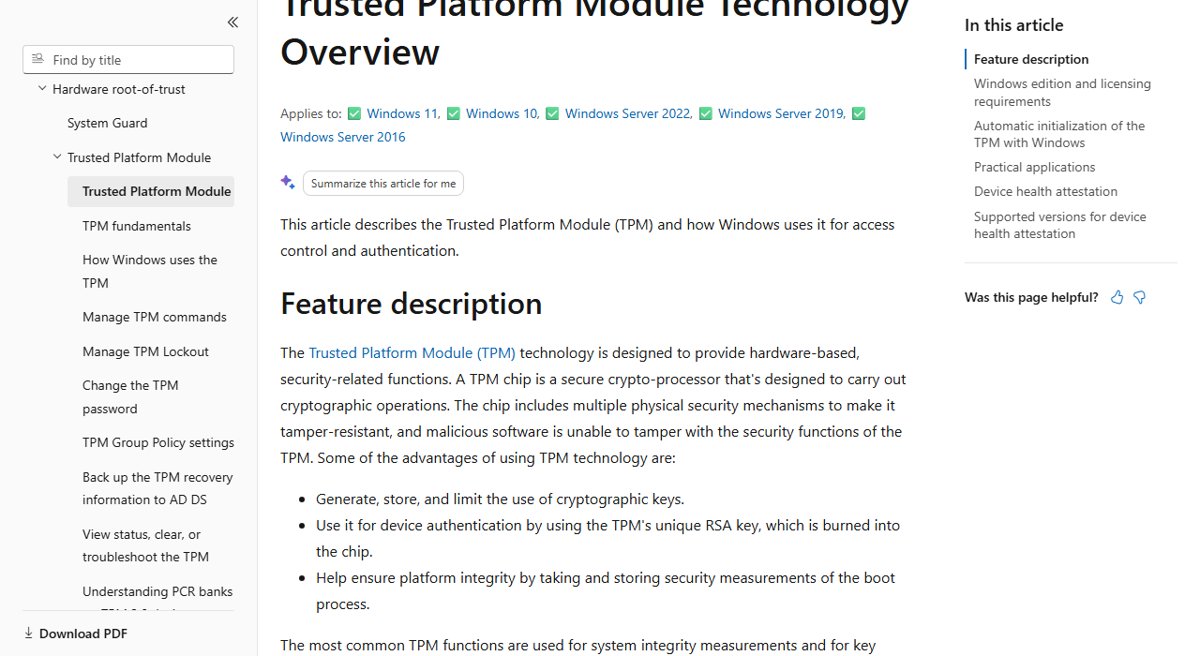
Windows 10 and 11 initialize and take ownership of the TPM automatically, so the TPM console is only for checking status in most cases.
If the disk still uses Legacy BIOS mode, run mbr2gpt.exe before switching to UEFI, or Windows will not boot.
Step-by-step instructions
PowerShell offers every option in the Control Panel applet, plus choices it lacks. Run Windows PowerShell as administrator and pick the line that matches the drive.
| Goal | PowerShell command |
|---|---|
| Add a recovery password first (recommended) | Add-BitLockerKeyProtector -MountPoint C -RecoveryPasswordProtector |
| OS drive, TPM only | Enable-BitLocker C: -TpmProtector |
| OS drive, TPM and PIN | Enable-BitLocker C: -EncryptionMethod XtsAes256 -UsedSpaceOnly -Pin $SecureString -TPMandPinProtector |
| OS drive, TPM and USB startup key (E:) | Enable-BitLocker C: -StartupKeyProtector -StartupKeyPath E: -SkipHardwareTest |
| Data drive, password | Add-BitLockerKeyProtector -MountPoint D -PasswordProtector |
For the PIN line, create $SecureString first with $SecureString = Read-Host -AsSecureString and type the PIN.
With -SkipHardwareTest, encryption starts at once without the reboot check.
Manage BitLocker: add/remove protectors, suspend, check status
| Task | PowerShell | Command Prompt |
|---|---|---|
| Check status | Get-BitLockerVolume C: | fl |
manage-bde -status |
| List protectors | (Get-BitLockerVolume -MountPoint C).KeyProtector |
manage-bde -protectors -get C: |
| Add a recovery password | Add-BitLockerKeyProtector -MountPoint C -RecoveryPasswordProtector |
manage-bde -protectors -add C: -RecoveryPassword |
| Remove a protector | Remove-BitLockerKeyProtector C: -KeyProtectorID "{GUID}" |
manage-bde -protectors -delete C: -id {GUID} |
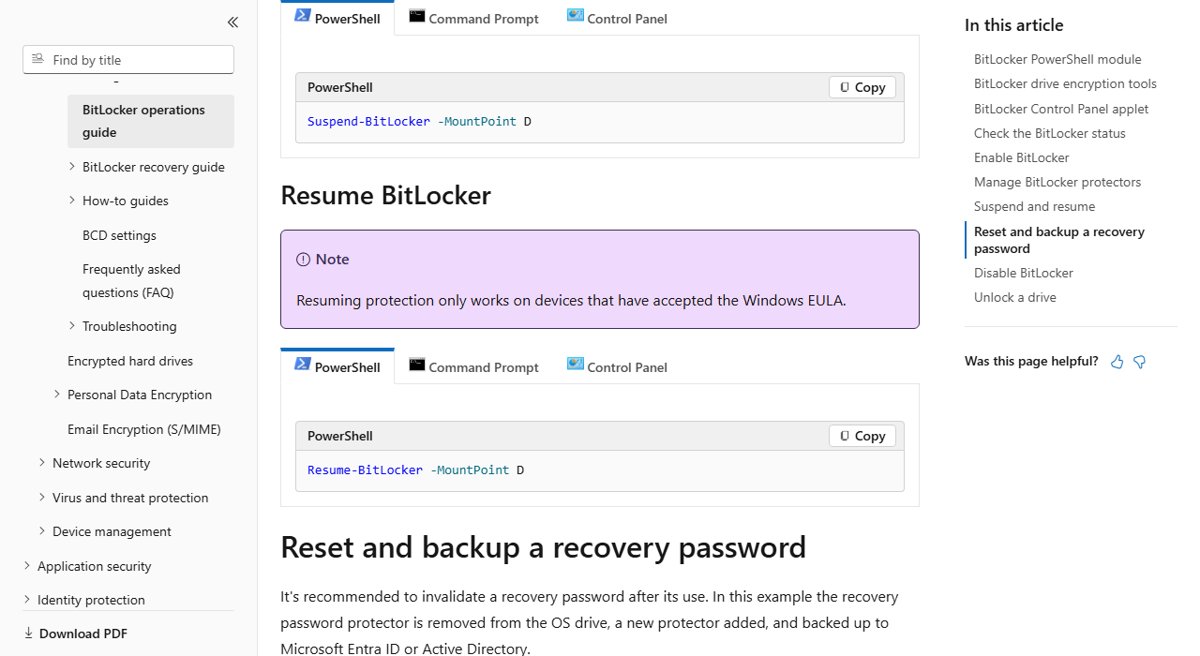
| Suspend protection | Suspend-BitLocker -MountPoint C |
manage-bde -protectors -disable C: |
| Resume protection | Resume-BitLocker -MountPoint C |
manage-bde -protectors -enable C: |
The key protector GUID must include its braces and sit inside quotation marks in PowerShell.
Every encrypted drive needs at least one unlock method, so add a new protector before you remove the old one.
A suspended drive stays encrypted. Protection resumes automatically at the next restart unless you set a reboot count.
Unlocking with recovery key
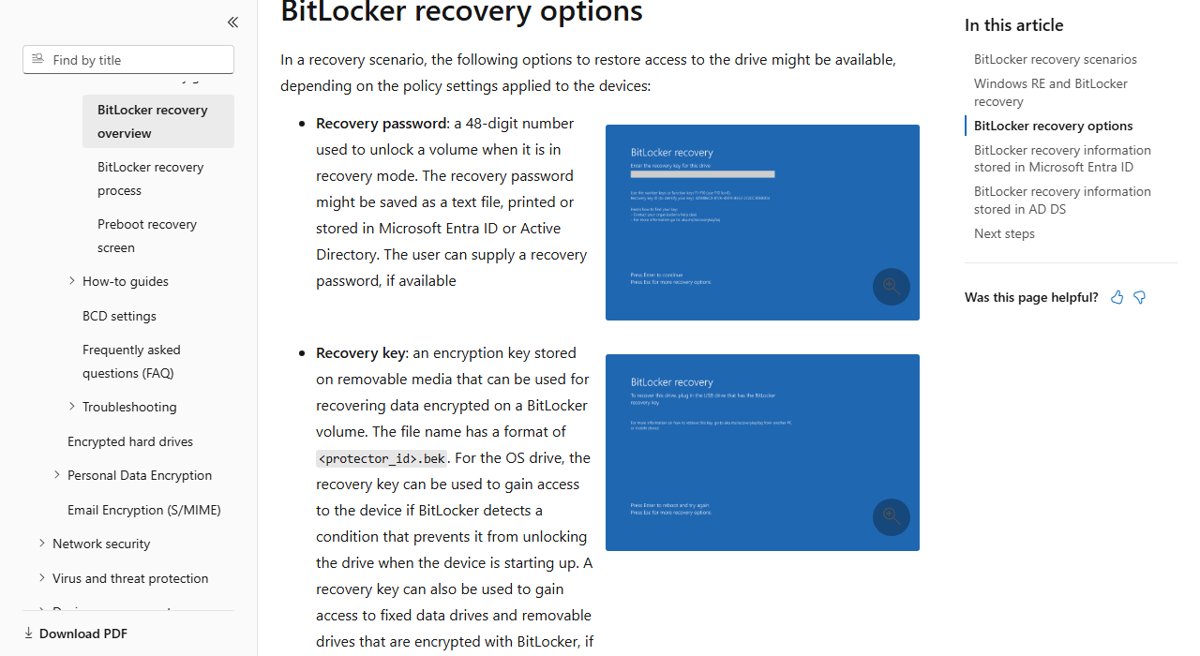
The recovery key is a 48-digit password in eight groups. The preboot recovery screen shows a recovery key ID that tells you which saved key matches the drive.
- Note the recovery key ID shown on the BitLocker recovery screen.
- Find the matching key in your Microsoft account, on the USB drive or printout you saved, or at
https://myaccount.microsoft.comunder Devices > View BitLocker Keys for a work or school PC. - Type the 48 digits on the recovery screen. Each 6-digit block is checked as you type it.
- Press Enter to start Windows.
- To unlock a drive attached to another PC, run
Unlock-BitLocker -MountPoint D -RecoveryPassword <48-digit key>as administrator.
After a recovery, replace the used recovery password: remove the old protector and add a new one with the commands above.
Enabling BitLocker without TPM
BitLocker can encrypt the OS drive without a TPM if the firmware reads USB drives at boot. You lose the preboot integrity check, and a USB startup key becomes mandatory.
- Press Win + R, type
gpedit.mscand press Enter. - Go to Computer Configuration > Administrative Templates > Windows Components > BitLocker Drive Encryption.
- Open the operating system drive startup authentication policy, set it to Enabled and tick Allow BitLocker without a compatible TPM.
- Select OK, then run
gpupdate /forcein an administrator Command Prompt. - Open Manage BitLocker, select Turn on BitLocker and save the startup key to a USB drive.
Keep the startup key USB and the recovery key apart. If one drive holds both and is lost, the PC is exposed.
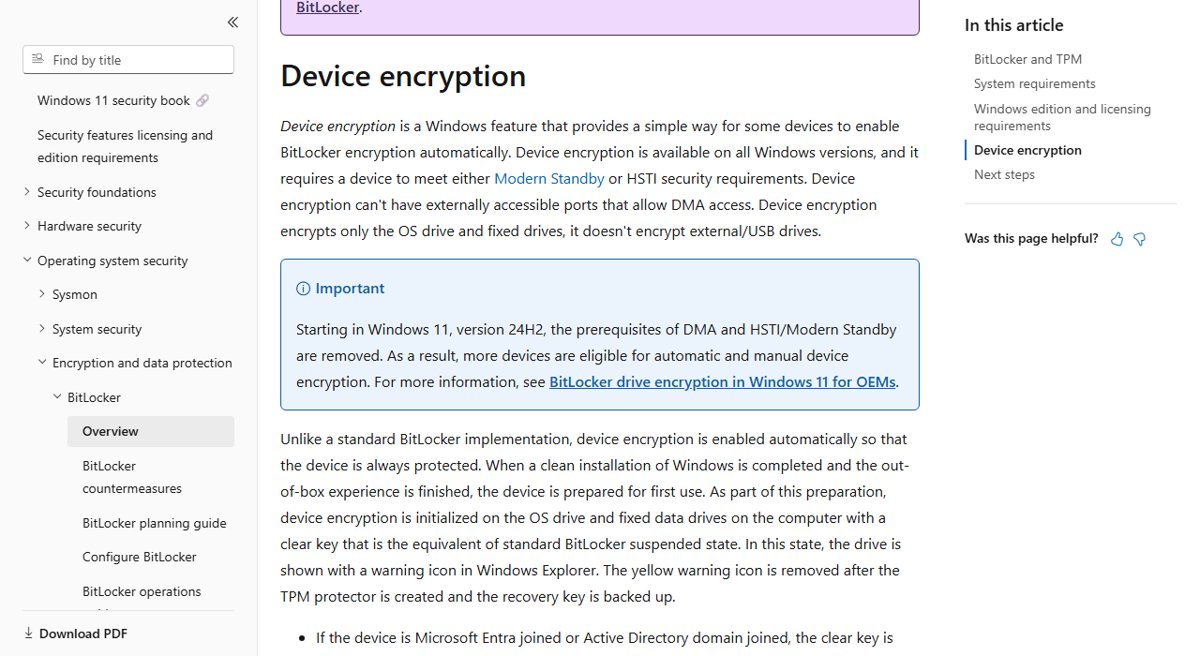
BitLocker vs device encryption in Windows 11
| BitLocker | Device encryption | |
|---|---|---|
| Editions | Pro, Enterprise, Education | All editions, including Home |
| How it turns on | Manually through Manage BitLocker, PowerShell or policy | Automatically after setup on qualifying hardware |
| Recovery key backup | You choose the location | Backed up automatically to a Microsoft account, Entra ID or AD DS |
| Default cipher | Set by policy or command | XTS-AES 128-bit |
| Unlock options | TPM, PIN, startup key, password | TPM |
From Windows 11 version 24H2 more PCs qualify, because the DMA and Modern Standby/HSTI prerequisites were removed. Read more about Windows 11 device encryption if your PC runs Home.
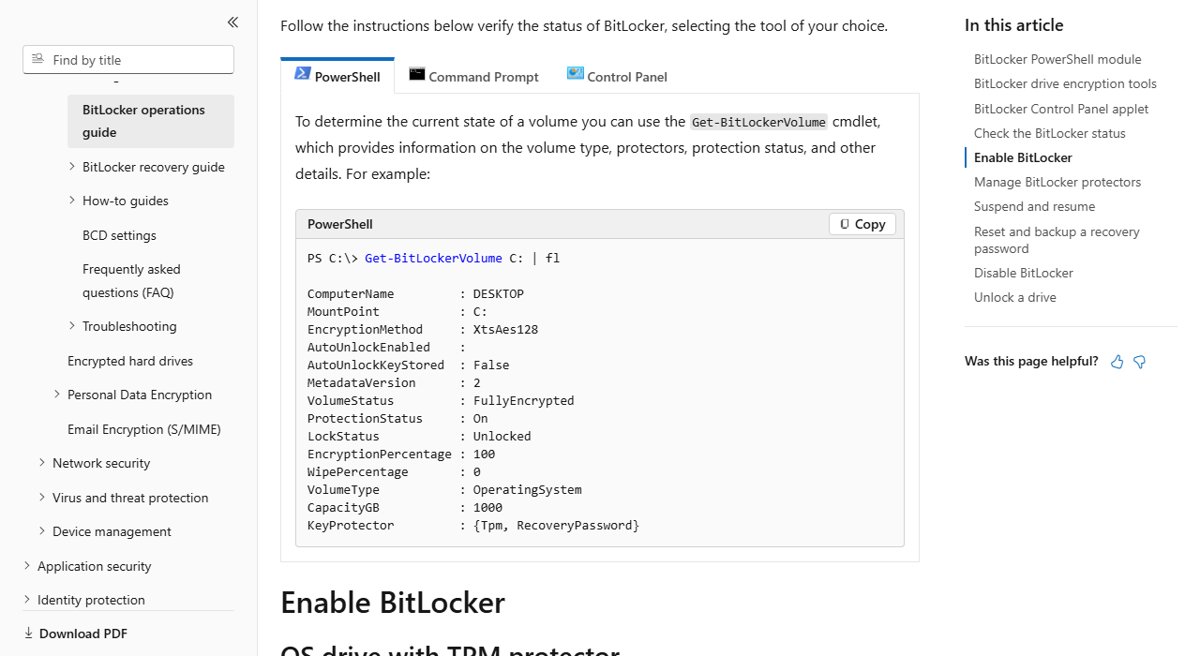
Confirm BitLocker encryption status with PowerShell
Get-BitLockerVolume C: | flShows the volume status, protection status, encryption method, percentage and key protectors for drive C.
You should see: VolumeStatus : FullyEncrypted, ProtectionStatus : On, EncryptionPercentage : 100, and KeyProtector lists entries such as {Tpm, RecoveryPassword}.
Device encryption only shows as on in Settings once encryption has finished.
Troubleshooting and tips
BitLocker asks for the recovery key after a BIOS or firmware update
Firmware upgrades, boot order changes and TPM changes alter the measurements the TPM checks at startup.
- Enter the recovery key to start Windows.
- Before the next planned update, run
Suspend-BitLocker -MountPoint Cso the TPM measurements can change safely. - Restart after the update. Protection resumes automatically.
Turn on BitLocker is missing
The PC runs Windows Home, which has device encryption instead of the BitLocker applet.
- Run
msinfo32and check Device Encryption Support. - Use device encryption in Settings if it shows Meets prerequisites.
- Upgrade to Windows Pro for full BitLocker management.
BitLocker reports that no compatible TPM was found
The TPM is off in firmware, hidden, or the PC has none.
- Run
tpm.mscto confirm the TPM status. - Turn the TPM on in the UEFI settings and restart.
- If the PC has no TPM, use the startup key route described above.
Troubleshooting & notes
Recovery mode after too many wrong PIN entries
Entering the wrong PIN too many times sends the drive to recovery mode.
- Enter the 48-digit recovery key.
- Change the PIN with
manage-bde -changepin C:once Windows starts.
The recovery key will not unlock the drive
The key belongs to a different drive or was typed incorrectly.
- Compare the recovery key ID on screen with the ID saved next to your key.
- Connect the drive to another PC as a secondary drive and run
Unlock-BitLockerwith the key. - If that fails, use the BitLocker Repair Tool,
repair-bde.exe, for disaster recovery.
A recovery key cannot be saved on the drive being encrypted, the root of a fixed drive, or another encrypted volume.
Turn off BitLocker and decrypt a drive
- Open Manage BitLocker and select Turn off BitLocker next to the drive, or open PowerShell as administrator.
- Run
Disable-BitLocker -MountPoint Cfor one drive, orDisable-BitLocker -MountPoint C,Dfor several. - Wait for decryption to finish. All key protectors are removed when it completes.
Decrypt only when protection is no longer needed. Suspending is the right step for troubleshooting.
BitLocker TPM and recovery key FAQ
Does Windows 11 Home have BitLocker?
No. BitLocker enablement needs Windows Pro, Enterprise, Pro Education/SE or Education. Windows Home uses device encryption, which turns on BitLocker automatically on qualifying hardware but offers fewer controls.
Can I use BitLocker without a TPM?
Yes, if the firmware reads USB drives at boot. Turn on Allow BitLocker without a compatible TPM in Group Policy, then save a startup key to a USB drive. You lose the TPM's startup integrity check.
Where is my BitLocker recovery key saved?
It is where you chose during setup: your Microsoft account, Microsoft Entra ID for work devices, Active Directory, a USB drive, a file or a printout. Match it using the recovery key ID on the recovery screen.
What is the difference between a recovery password and a startup key?
The recovery password is a 48-digit number used when the normal unlock fails. A startup key is a file on a USB drive that must be inserted at every boot, and it is required on PCs without a TPM.
Does suspending BitLocker decrypt the drive?
No. Suspending leaves the drive fully encrypted and only pauses the protectors. Protection resumes at the next restart unless you set a reboot count with PowerShell or manage-bde.
Which TPM version does BitLocker need?
TPM 1.2 or later. A TPM 2.0 chip also requires the firmware to run in native UEFI mode with Legacy and CSM options turned off.
What triggers BitLocker recovery mode?
Common causes include firmware upgrades, clearing or disabling the TPM, boot order changes, a new motherboard, moving the drive to another PC and too many wrong PIN entries.