To use sqldeveloper.exe, unzip the Oracle SQL Developer kit into a folder, open the new sqldeveloper folder and double-click sqldeveloper.exe; there is no installer to run.
This guide covers the current release (SQL Developer 26.2, July 2026), the JDK 17 requirement, your first database connection, the startup errors Oracle documents, and how to update or remove it cleanly.
The fastest way to run sqldeveloper.exe on Windows
The Windows x64 kit bundles JDK 17, so on a 64-bit Windows 11 or Windows 10 PC you do not need to install Java first.
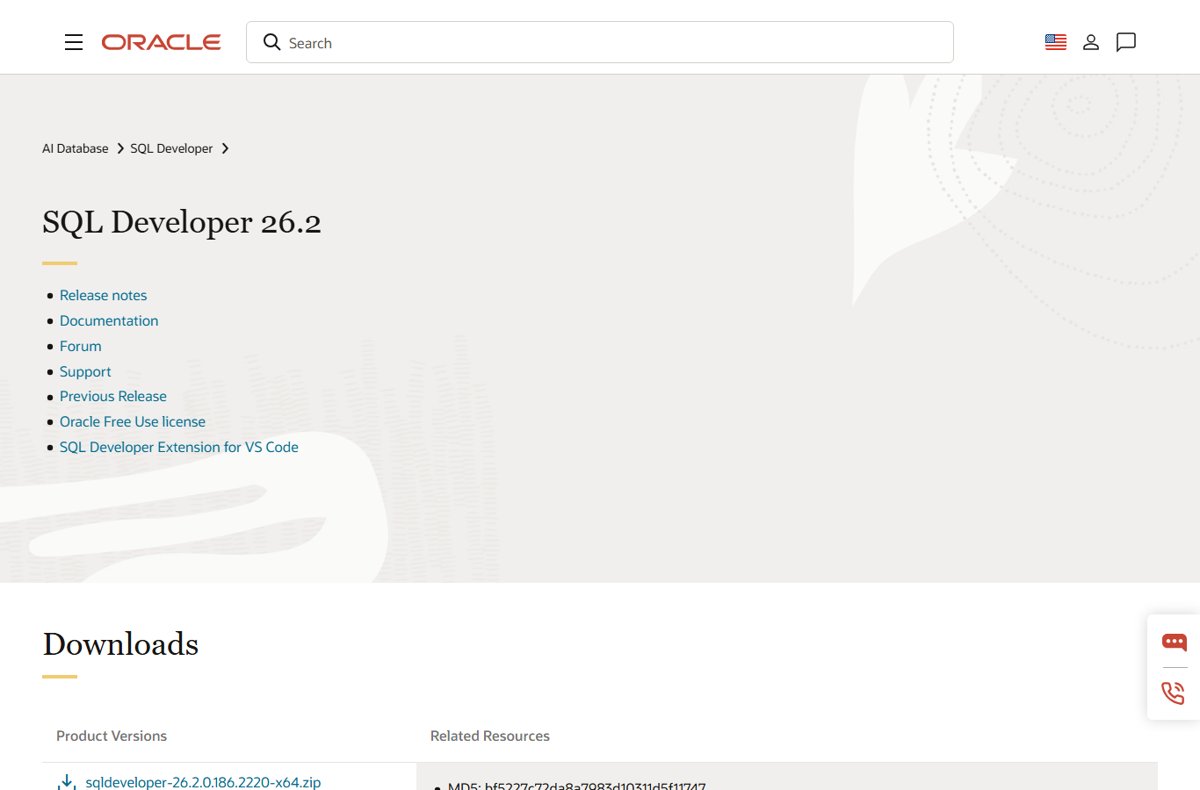
- Open the official Oracle SQL Developer downloads page and download the Windows 64-bit kit, which Oracle labels This archive includes JDK 17.
- Read and accept the license agreement when Oracle asks.
- Right-click the downloaded zip file, select Extract All, and pick a folder such as
C:\that is not an existingsqldeveloperfolder or anORACLE_HOME. - Open the extracted
sqldeveloperfolder, for exampleC:\sqldeveloper. - Double-click sqldeveloper.exe.
- Select Yes or No when SQL Developer asks whether to migrate settings from a previous release.
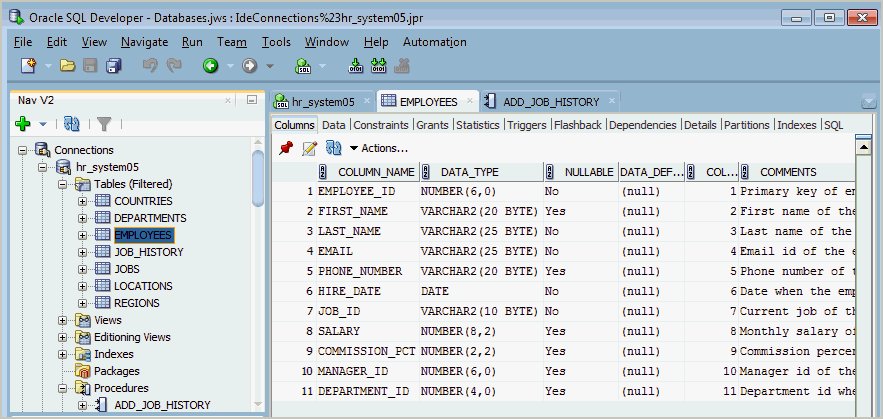
- Right-click Connections in the Connections navigator and select New Database Connection to connect to a database.
If your unzip tool asks, keep the folder structure (Oracle calls this the Use folder names option). Flattening the archive breaks the kit.
What sqldeveloper.exe Is and Where to Find It
sqldeveloper.exe is the Windows launcher for Oracle SQL Developer, Oracle's free graphical tool for working with Oracle databases. It is an Oracle product, not a Microsoft one, and it does not appear in Installed apps because nothing is installed.
The file sits wherever you unzipped the kit. Unzipping into C:\ creates C:\sqldeveloper, and sqldeveloper.exe is directly inside that folder.
| Item | Where it is on Windows | What it holds |
|---|---|---|
| sqldeveloper.exe | <unzip folder>\sqldeveloper\sqldeveloper.exe |
The program you double-click to start SQL Developer |
| sdcli command-line tool | <unzip folder>\sqldeveloper\sqldeveloper\bin |
Runs certain SQL Developer operations from Command Prompt |
| product.conf | C:\Users\<user name>\AppData\Roaming\sqldeveloper\<version>\product.conf |
The JDK path SQL Developer uses, on its SetJavaHome line |
| User preferences | C:\Users\<user name>\AppData\Roaming\SQL Developer\system<version> |
Settings made under Tools > Preferences |
| SQL history | C:\Users\<user name>\AppData\Roaming\SQL Developer\SqlHistory.xml |
Statements you ran in SQL Worksheet |
| Reports, snippets, code templates | UserReports.xml, UserSnippets.xml and CodeTemplate.xml in the same SQL Developer folder |
Your own reports, snippets and templates |
If the IDE_USER_DIR environment variable is set, SQL Developer stores user files there instead. Because user data lives outside the install folder, deleting C:\sqldeveloper does not delete your settings.
Windows 11/10 Requirements and Java Setup
Oracle's installation guide states one hard requirement: SQL Developer needs JDK 17. The 26.2 release notes say the same and name Oracle JDK 17.
Oracle certifies JDK 17 on Windows 11 x64 and only on 64-bit Java virtual machines. Windows 10 now sits on Oracle's "No Longer Supported" list for JDK 17, so it may still run but is outside certification.
| Your situation | Download this kit | What happens at first launch |
|---|---|---|
| 64-bit Windows 11 or 10, no Java needed elsewhere | Windows 64-bit with JDK 17 included (the -x64.zip kit) |
SQL Developer uses its embedded JDK and opens |
| You already have JDK 17 installed, or want to manage Java yourself | The -no-jre kit, which works on 32- or 64-bit Windows |
SQL Developer looks for a JDK; if it finds none, it asks for the JDK home once |
| You need a JDK first | JDK 17 for Windows x64 from the Java 17 tab of Oracle's Java downloads page | Point SQL Developer at a folder similar to C:\Program Files\Java\jdk-17 |
| You want JavaScript support in SQL Developer | GraalVM EE with the Oracle GraalVM JavaScript Runtime Plugin | Oracle's release notes require this for JavaScript on Java 17 and higher |
With the -no-jre kit, the bit level of your JDK decides whether SQL Developer runs as a 32-bit or 64-bit app. Oracle publishes no RAM or disk minimum for SQL Developer, so there is no official hardware baseline to meet.
To check which Java a PC already has, open Command Prompt and run java -version; the first line shows the version.
How to Launch SQL Developer and Create Your First Connection
A connection is a saved set of details for one database and one user. SQL Developer needs at least one before you can do anything useful. Ask your database administrator for the host name, port, SID or service name, user name and password.
- Double-click sqldeveloper.exe in your
sqldeveloperfolder. - If a dialog asks for the full pathname of the JDK, select Browse, pick your JDK 17 folder, and confirm.
- Right-click Connections in the Connections navigator and select New Database Connection.
- Enter a Name, such as
personnel_hermanfor user Herman on the personnel database. The name is only a label and is not stored in the database. - Enter the Username and Password; leave Save Password cleared if you want to be asked each time.
- Keep Connection Type set to Basic, then fill in Hostname, Port (the listener port) and either SID or Service name.
- Select Connect to save the connection and open it, or Save to store it without connecting.
If a tnsnames.ora file exists on the PC, SQL Developer reads its entries automatically. Choose TNS as the Connection Type to pick one from the Network Alias list instead of typing host and port.
Oracle certifies SQL Developer 26.2 against Oracle Database 11gR2, 19c and 23ai. It can also view metadata and data in some third-party databases such as MySQL and Microsoft SQL Server once the matching JDBC driver is added.
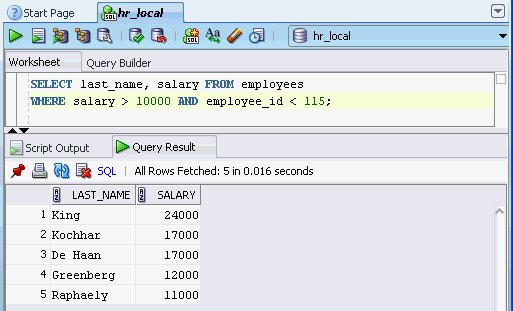
How to check SQL Developer is working
- Select Help > About and confirm the version shown matches the kit you unzipped, for example 26.2.
- Expand your connection in the Connections navigator; the object types such as Tables and Views should list without an error.
- In the SQL Worksheet that opened for the connection, type
SELECT sysdate FROM dual;. - Press Ctrl + Enter to run the statement. A result grid with the database date means the connection works.
- Close SQL Developer and start it again. It should open without asking for the JDK path a second time.
Fixing Common sqldeveloper.exe Startup and Java Errors
Each fix below comes from Oracle's own download page, installation guide or user guide.
sqldeveloper.exe does not open, or closes right after you launch it
Oracle notes the Windows EXE needs MSVCR100.dll, and SQL Developer will not start if the first copy Windows finds is a 32-bit copy.
- Find the folders listed in your Path variable under System Properties > Environment Variables.
- Check which of those folders holds
MSVCR100.dllfirst in the order. - Copy a 64-bit
MSVCR100.dllinto the SQL Developerbinfolder, as Oracle suggests. - Or reorder Path so a folder with a 64-bit copy comes before any 32-bit copy.
- Start sqldeveloper.exe again.
SQL Developer asks for the JDK path, or points at the wrong Java
The -no-jre kit found no JDK, or the path saved at first launch is wrong.
- Install JDK 17 for Windows x64 from the Java 17 tab of Oracle's Java downloads page if it is missing.
- At the prompt, select Browse and choose the JDK folder itself, similar to
C:\Program Files\Java\jdk-17, not itsbinsubfolder. - If the saved path is wrong, close SQL Developer and open
C:\Users\<user name>\AppData\Roaming\sqldeveloper\<version>\product.confin Notepad. - Edit the
SetJavaHomeline so it points to your JDK 17 folder, then save the file. - Start sqldeveloper.exe again.
SQL Developer fails after unzipping a new version over an old one
Oracle states you must not install into an existing sqldeveloper folder; files from two versions get mixed.
- Export your connections first: right-click Connections and select Export Connections.
- Delete the old
sqldeveloperfolder, or pick a different folder for the new kit. - Unzip the new kit with folder names kept.
- Start the new sqldeveloper.exe and select Yes to migrate settings.
SQL Developer takes a long time to start
The Automatically Check for Updates option runs at every start and can slow it down.
- Select Tools > Preferences.
- Open Extensions.
- Clear Automatically Check for Updates and select OK.
- Check manually from Help > Check for Updates when you want to.
Entries from tnsnames.ora do not appear in the connection list
SQL Developer cannot see the folder that holds tnsnames.ora.
- Define
TNS_ADMINas a system environment variable pointing to the folder withtnsnames.ora, as Oracle recommends for Windows. - Or select Tools > Preferences > Database > Advanced and set Tnsnames Directory.
- Restart SQL Developer and open New Database Connection with Connection Type set to TNS.
Panes and navigators have moved or disappeared
Windows were repositioned by accident; the layout is saved per user.
- Select Window > Reset Windows to Factory Settings.
- To restore the toolbar too, use Reset Toolbars in the Customize Toolbars dialog.
- To reset everything, exit SQL Developer, back up and then delete the
SQL Developerfolder underAppData\Roaming, and start it again.
Connection fails because the database password expired
The database account's password has passed its expiry date.
- Right-click the connection name in the Connections navigator.
- Select Reset Password.
- Complete the Reset Password dialog, then connect again with the new password.
Configuration, Performance, and UI Tips
All of these live under Tools > Preferences unless the row says otherwise. Oracle does not document a supported memory setting for SQL Developer, so leave its Java memory options alone.
| Goal | Where to change it | What it does |
|---|---|---|
| Faster startup | Extensions > clear Automatically Check for Updates | Skips the update check that Oracle says can increase startup time |
| Control how many rows load at once | Database > Advanced > SQL Array Fetch Size | Sets the maximum rows fetched at a time into the Data grid |
| Commit automatically, or not | Database > Advanced > Autocommit | When checked, commits after each INSERT, UPDATE or DELETE run in SQL Worksheet |
| Show line numbers | Code Editor > Line Gutter > Show Line Numbers | Numbers editor lines; press Ctrl + G in SQL Worksheet to jump to one |
| Keep each query result | Database > Worksheet > Show query results in new tabs | Pins each Run Statement (Ctrl + Enter) result in its own tab |
| Mark production connections | Connection dialog > Color | Draws a colored border on every worksheet for that connection |
| Group many connections | Connections navigator folders | Keeps local, test and production connections in separate folders |
| Run a whole script with formatted output | SQL Worksheet > Run Script (F5) | Runs every statement on the worksheet and supports output hints such as CSV |
If shortcut keys stop behaving as expected, select Tools > Preferences > Shortcut Keys > More Actions > Load Keyboard Scheme and choose Default.
Updating, Reinstalling, and Keeping SQL Developer Secure
SQL Developer has no in-place updater for the main program. You update it by unzipping the new kit into a fresh folder and letting it migrate your settings. Help > Check for Updates only covers extensions and add-on drivers.
- Right-click Connections, select Export Connections, choose the connections, and under Password Handling pick Encrypt all passwords with a key or Remove all passwords from the exported connections.
- Download the new kit from the official Oracle SQL Developer downloads page.
- Unzip it into a new folder, not over the existing
sqldeveloperfolder. - Start the new sqldeveloper.exe and select Yes when asked to migrate settings; choose the build to copy from, or accept the most recent one.
- If you skipped migration and want it later, delete the
system<version>folder underAppData\Roaming\SQL Developerand restart SQL Developer to see the prompt again. - Once the new version works, delete the old
sqldeveloperfolder and update any shortcut that pointed to it. - To remove SQL Developer completely, delete the
sqldeveloperfolder and, if you want your settings gone too, theSQL Developerfolder underAppData\Roaming.
For daily security, leave Save Password cleared on production connections, give them a red Color border, and make sure your AppData\Roaming\SQL Developer folder is not shared, as Oracle advises. Download SQL Developer only from oracle.com; Oracle's 26.2 release updated Java and fixed security bugs, so running old kits leaves those fixes out.
Frequently Asked Questions
Bing autocomplete returned no question-form searches for this topic, so these come from the most common sqldeveloper.exe searches and the questions the ranking page answers.
Do I need to install Java separately for sqldeveloper.exe on Windows 11 or 10?
No, not with the Windows 64-bit kit, which includes JDK 17. You only need a separate JDK 17 if you download the -no-jre kit. In that case SQL Developer asks for the JDK home folder the first time you launch it.
Where is sqldeveloper.exe located after I download SQL Developer?
It is inside the sqldeveloper folder created when you unzip the kit. Unzip into C:\ and the file is at C:\sqldeveloper\sqldeveloper.exe. It is not under Program Files and not listed in Installed apps, because SQL Developer has no installer.
How do I fix sqldeveloper.exe not opening or closing immediately after launch?
Oracle's first fix is the MSVCR100.dll check: the EXE fails if Windows finds a 32-bit copy of that DLL first. Copy a 64-bit copy into the SQL Developer bin folder or reorder PATH. Also confirm the JDK path on the SetJavaHome line in product.conf.
What connection details do I need to create my first Oracle database connection?
For a Basic connection you need a user name, password, the database host name, the listener port, and either the SID or the service name. With a tnsnames.ora file on the PC, you can choose the TNS connection type and pick a network alias instead.
What is the safest way to update SQL Developer on Windows?
Export your connections, unzip the new kit into a new folder, start the new sqldeveloper.exe and accept the offer to migrate settings. Oracle warns against unzipping over an existing sqldeveloper folder. Delete the old folder after the new version works.
Does Oracle SQL Developer work on Windows 11?
Yes. SQL Developer 26.2 needs JDK 17, and Oracle certifies JDK 17 on Windows 11 x64. The Windows 64-bit kit already contains JDK 17, so unzipping it and running sqldeveloper.exe is enough on a 64-bit Windows 11 PC.
Is Oracle SQL Developer free?
Yes. Oracle offers SQL Developer as a free download from oracle.com under its Oracle Free Use license, linked from the downloads page. Download it only from oracle.com rather than from a third-party site offering a repackaged sqldeveloper.exe.
How do I create a sqldeveloper.exe desktop shortcut?
Right-click sqldeveloper.exe in the sqldeveloper folder and create a shortcut, then move it to the desktop. If you later move or reinstall SQL Developer elsewhere, Oracle advises removing that shortcut or updating its properties to the new location.
Is SQL Developer a Microsoft product?
No. SQL Developer is Oracle's tool, built mainly for Oracle Database. It can view metadata and data in some third-party databases, including older Microsoft SQL Server releases, after you add the matching JDBC driver through Help, Check for Updates.
Bottom Line
On a 64-bit Windows 11 or 10 PC, download the Windows 64-bit kit with JDK 17 included, unzip it into a new folder, and run sqldeveloper.exe from there. That kit removes the only real setup hurdle, the JDK 17 requirement, and a fresh folder per version avoids the mixed-file failures Oracle warns about. Most remaining startup problems trace back to MSVCR100.dll or the SetJavaHome line in product.conf.